
The annoying part is not that your Galaxy phone can interrupt you. It is that it interrupts you badly. A calendar reminder ten minutes before a call is useful. A school message from your kid’s teacher matters. A delivery app pushing a coupon while you are trying to write, review a spreadsheet, or migrate notes into a cleaner system is just garbage traffic.
That distinction matters if you are trying to fix notification spam on Samsung for focus and productivity. The blunt answer, “turn off notifications,” breaks too much. The better answer is layered: clean up the noisy categories inside individual apps first, then use Samsung’s broader controls only where they actually help.
The problem is common enough to stop treating it like a personal discipline failure. In a 2022 Edison Mail study, 68% of Americans said notification frequency had interfered with their productivity.[1] Still, the fix is not a motivational wallpaper or a heroic daily toggle. On Galaxy phones, the useful system is already there; it is just split across several settings screens.
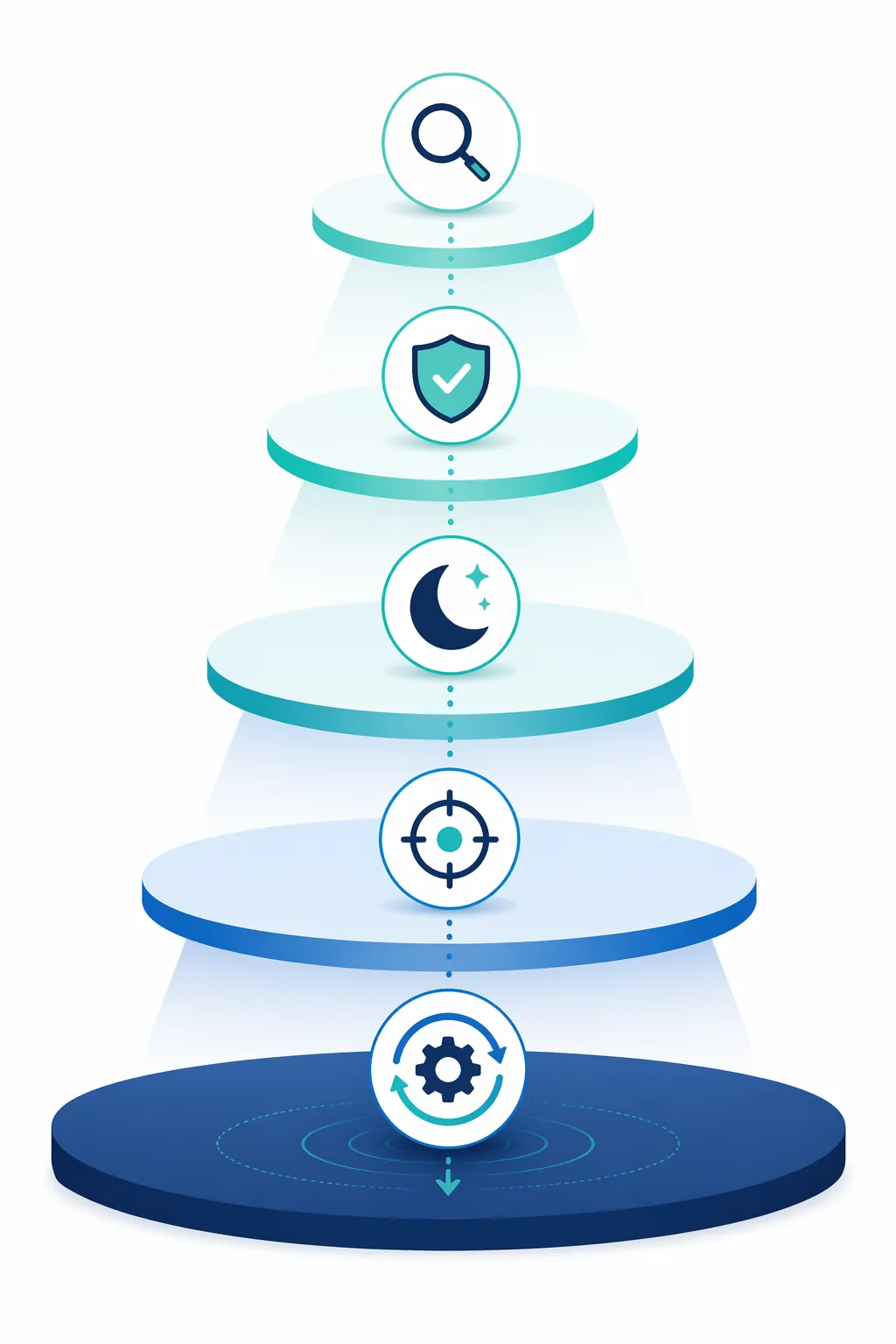
Use the controls in this order:
- Notification Categories: split useful alerts from spam inside the same app.
- Block apps with excessive ads: use Samsung’s newer ad-notification blocker if your device has it.
- Do Not Disturb: silence interruptions while allowing critical exceptions.
- Focus Mode: pause distracting apps entirely during work blocks.
- Modes & Routines: automate the whole setup so it becomes infrastructure instead of another chore.
Start With Notification Categories, Not Do Not Disturb
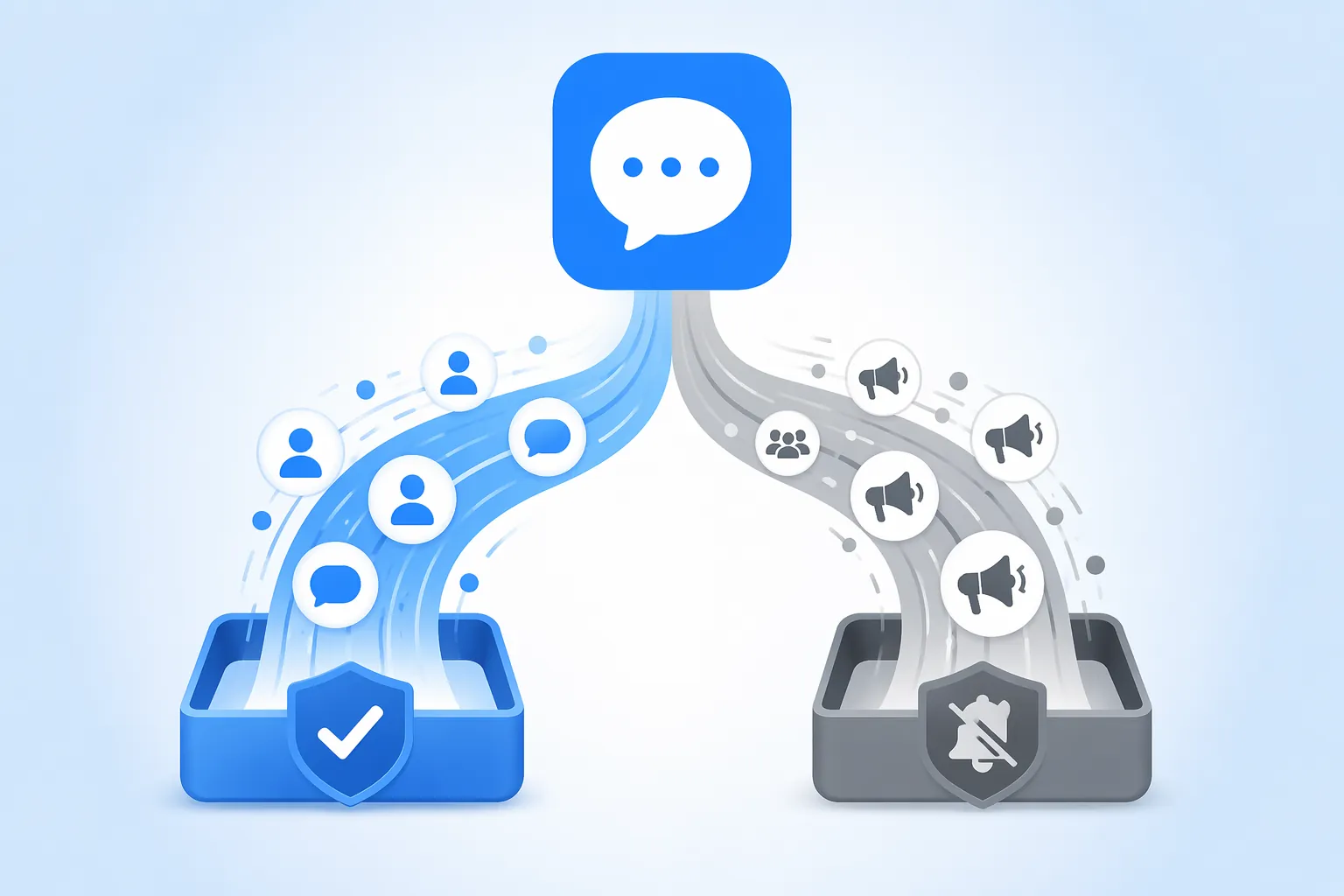
Notification Categories are the setting Samsung should probably show you on day one. They let one app have multiple notification switches. That means WhatsApp can keep person-to-person messages on while muting marketing channels, community noise, or other low-value streams from the same app. Android Police highlighted this as the hidden Galaxy feature that made it possible to stop notification spam without blocking useful messages, and noted that it is disabled by default on many One UI 6.1 and newer setups.[2]
That default matters. If you bought a newer Galaxy phone, factory-reset one, or started fresh on One UI 6.1 or later, you may open an app’s notification page and see only a blunt on/off switch. The granular controls are not gone. They may just be hidden behind an Advanced settings toggle.
Enable the Hidden Category Menu
On your Galaxy phone, go to:
- Settings > Notifications > Advanced settings
- Turn on Manage notification categories for each app
After that switch is on, go back to:
- Settings > Notifications > App notifications
- Choose one noisy app
- Open Notification categories
Do not start with every app on the phone. Pick the three offenders that keep breaking your concentration: usually a shopping app, a food delivery app, a social app, a chat app with channels, or a finance app that treats promotions like account alerts. This is a one-time cleanup pass, not a new weekend hobby.
Audit One App Like a Systems Problem
Inside Notification categories, Samsung exposes the app’s own channels. The labels vary because app developers name them differently. Some are cleanly separated, like Messages, Calls, Promotions, Delivery updates, Order status, News, Marketing, or Silent notifications. Others are vague and require a little testing.
| Category Type | Usually Keep | Usually Turn Off |
|---|---|---|
| People and conversations | Direct messages, calls, replies from known contacts | Large broadcast channels if they behave like feeds |
| Time-sensitive transactions | Delivery status, ride arrival, bank security, order pickup | Coupons, “recommended for you,” sale reminders |
| Work coordination | Mentions, assigned tasks, calendar-related alerts | Digest updates, reactions, engagement nudges |
| App marketing | Almost never during work hours | Promotions, offers, trends, sponsored alerts |
The goal is not to make the app silent. The goal is to preserve the category that represents a person, transaction, alarm, or responsibility, and cut the categories that represent growth marketing. If you are unsure, turn off the suspicious category, leave the app installed, and watch what disappears over the next day. If something important goes missing, the setting is reversible.
For chat apps, be especially careful. A messaging app may contain direct messages, group chats, channel posts, backups, call alerts, reactions, and promotional notices. Turning off the whole app because one channel is noisy is the notification equivalent of pulling the network cable because one browser tab auto-played audio.
Use Silent Delivery When You Still Want a Record
Some categories do not deserve a buzz, banner, or lock-screen interruption, but you may still want them in the notification shade. For those, open the category and set it to silent instead of fully disabled. This works well for receipts, low-priority status updates, and apps you want to inspect in batches.
Do the full category pass before touching Do Not Disturb. Otherwise you are using a room-wide mute button to compensate for messy app-level plumbing.
Check for Samsung’s Excessive-Ad Blocker
Samsung has also started adding a more direct anti-spam control for apps that abuse notifications as ad inventory. As of mid-2026, the feature is confirmed for the Galaxy S26 series on One UI 8.5 and newer, with broader availability uncertain for older models. Android Authority describes the setting as Block apps with excessive ads, with Basic mode blocking apps flagged by Samsung and Intelligent mode using on-device machine learning analysis.[3]
Check your phone here:
- Settings > Device care > three-dot menu > Settings
- Look for Block apps with excessive ads
- If available, start with Basic before trying Intelligent
SamMobile reported the feature as part of Samsung’s One UI 8.5 work, and Sammy Fans published a how-to for using the tool in 2026.[4][5] Treat it as a checkpoint, not a foundation. If your Galaxy has it, great: turn it on and let Samsung catch the worst offenders. If it is missing, do not go hunting through sketchy APKs or hidden menus. Notification Categories, DND, Focus Mode, and Routines still cover the main job.
Use Do Not Disturb for Interruptions, Not App Cleanup
After the app-level cleanup, Do Not Disturb becomes much safer. Samsung’s DND controls can silence notifications while allowing exceptions such as calls from starred contacts, alarms, and media, and Samsung documents DND as a standard Galaxy feature.[6]
Set it up from:
- Settings > Notifications > Do not disturb
The important screen is Exceptions. This is where you keep the phone reachable without leaving the notification firehose open.
| DND Setting | Practical Setup |
|---|---|
| Calls | Allow starred contacts or selected contacts if family, school, or client calls must get through. |
| Messages | Allow selected people if you need direct access from a small trusted group. |
| Alarms | Keep allowed; DND should not make you miss wake-up alarms or timed reminders. |
| Calendar alerts | Keep allowed if your workday depends on meeting nudges. |
| Apps | Allow only the apps that represent real obligations, not entertainment feeds. |
This is also a good place to reduce visual noise. If your phone screen keeps lighting up beside your keyboard, DND can help, but only after you have checked the exceptions. A quiet phone that silently drops a critical call is not a productivity system; it is just another failure mode.
Add Focus Mode When the Problem Is the App Itself
Do Not Disturb controls interruptions. Focus Mode controls access. That difference is easy to miss.
Focus Mode lives under Digital Wellbeing and can pause selected distracting apps entirely. Android Police describes Android’s focus modes as a way to pause apps rather than merely silence their sounds, and notes that they can run alongside DND.[7]
On a Galaxy phone, go to:
- Settings > Digital Wellbeing and parental controls > Focus mode
- Create or edit a mode for work
- Choose the apps to pause
Use Focus Mode for apps that pull you in even when they are not buzzing: social apps, video apps, shopping apps, news apps, and anything you open reflexively between two hard paragraphs. Do not put your phone app, authenticator, calendar, work chat, maps, or password manager in the paused list unless you are certain you will not need them during the block.
A clean work profile might look like this: DND handles incoming noise, Notification Categories keep essential app channels alive, and Focus Mode blocks the apps you would otherwise open manually. Those are three different jobs, and they should stay separate.
Automate the Setup With Modes & Routines
Manual toggles are fine for testing. They are bad as a long-term attention system because they depend on you remembering to become a settings administrator right when you are trying to start work. Samsung’s Modes & Routines, previously associated with Bixby Routines, is where the cleanup starts behaving like infrastructure.
Samsung says Modes and Routines can trigger actions based on conditions such as time, location, app activity, Wi-Fi network, and Bluetooth device, while Android Police has documented practical routines that chain phone settings together for daily automation.[8][9]
Open:
- Settings > Modes and Routines
You can build this as a Mode or a Routine. The exact labels may vary by One UI version, but the logic is the same: define when work starts, then define what the phone changes.
Choose a Trigger That Matches Real Work
The trigger should be boring and reliable. A time-based trigger works if your work blocks are consistent. A Wi-Fi trigger works well if deep work starts when you connect to your office or home-office network. A Bluetooth trigger is useful if your headphones or keyboard mark the start of a session. A calendar trigger fits people whose day is already blocked into meetings and focus time.
| Trigger | Best For |
|---|---|
| Time | A predictable daily work block, such as weekday mornings. |
| Location | A repeatable office, library, or home workspace. |
| Wi-Fi network | Work beginning when the phone joins a specific network. |
| Bluetooth device | Headphones, car, keyboard, or desk speaker as a work-state signal. |
| Calendar event | Focus blocks already maintained in your calendar. |
| App opened | Starting a work environment when you open a specific productivity app. |
If you are unsure, start with time. It is the least clever and the easiest to debug. Clever automations that fire unpredictably are worse than manual settings because they make the phone feel haunted.
Chain the Actions
A practical work routine can turn on DND, activate Focus Mode, change the sound profile, and add a visual cue such as a wallpaper or lock-screen change. The wallpaper cue sounds cosmetic until you use it: it gives you a quick sanity check that the phone is in the right state without opening three settings pages.
A solid first routine:
| When | Then |
|---|---|
| Weekdays during your main work block | Turn on Do Not Disturb with your saved exceptions |
| Same trigger | Turn on Focus Mode for distracting apps |
| Same trigger | Set sound mode to vibrate or mute, depending on your workspace |
| Same trigger | Change wallpaper or another visible cue so you know work mode is active |
Then create the exit condition. If the routine starts at a time, it should end at a time. If it starts on office Wi-Fi, decide what happens when you leave that network. If it starts from a Bluetooth keyboard, decide whether disconnecting the keyboard should restore the normal phone state. Reversibility is the difference between automation and a trap.
Good Lock’s Routines+ can add extra trigger types such as battery-level and charging-state triggers, but treat that as optional. The normal Modes & Routines system is enough for a work-notification setup on most Galaxy phones.[8]
Test It Before You Trust It
After building the routine, run a short test instead of waiting for a real work emergency to find the mistake. Ask a trusted person to call and message you. Check that alarms still fire. Confirm that your calendar reminder appears. Open one paused app and make sure Focus Mode behaves the way you expect. Then send yourself a test notification from an app category you muted and confirm it stays quiet.
This test takes a few minutes and prevents the usual overcorrection: a phone that goes from noisy to unusable.
A Short Note on AI Notification Highlights
Samsung’s AI Notification Highlights, including prioritizing and summarizing notifications, began rolling out to the Galaxy S25 series through a June 2026 firmware update, with earlier-device availability not confirmed. Treat it as a bonus if your phone has it, not as the core fix. Summaries can make a busy notification shade easier to scan, but they do not replace category cleanup, DND exceptions, Focus Mode, or automation.
The Finished Quiet-Work Setup
When the setup is working, the phone should behave differently without becoming mysterious. Direct messages from the people you chose still arrive. Alarms and calendar nudges still work. Shopping promos, channel spam, engagement bait, and low-value app noise stop punching through your work block. Distracting apps are paused when you are supposed to be working. A routine turns the system on and off without asking you to remember another toggle.
If something feels too strict, undo the last layer you changed. Start with the routine, then Focus Mode, then DND exceptions, then the individual app category. That order makes the system adjustable instead of fragile.
References
- Study: 68 Percent of Americans Say App Notifications Interfere with Productivity - Edison Mail, 2022 - link
- I was drowning in Galaxy notification spam until I turned on this one hidden feature - Android Police - link
- One UI 8.5: How to block notification ads on your Samsung phone - Android Authority - link
- One UI 8.5 could keep apps that spam notification ads from bothering you - SamMobile - link
- Here’s how to use Samsung’s new tool to stop notification spam - Sammy Fans, May 30, 2026 - link
- Use Do not disturb mode on your Galaxy phone or tablet - Samsung - link
- I've been using Android's built-in focus modes wrong this whole time - Android Police - link
- Use Modes and Routines on your Galaxy phone or tablet - Samsung - link
- 6 routines I use on my Samsung phone to automate it - Android Police - link
Comments
Join the discussion with an anonymous comment.