
Gen Z’s AI problem is not adoption. It is the weird aftertaste of adoption: using AI constantly, then distrusting the note, summary, or answer it leaves behind. Gallup found that 51% of U.S. Gen Z ages 14 to 29 use generative AI at least weekly, more than any older age group in its 2026 survey. The same report found that employed Gen Z respondents trust work produced exclusively by humans far more than AI-assisted work, 69% versus 28%, and that about eight in 10 Gen Z respondents think AI use will make learning harder in the future.[1]
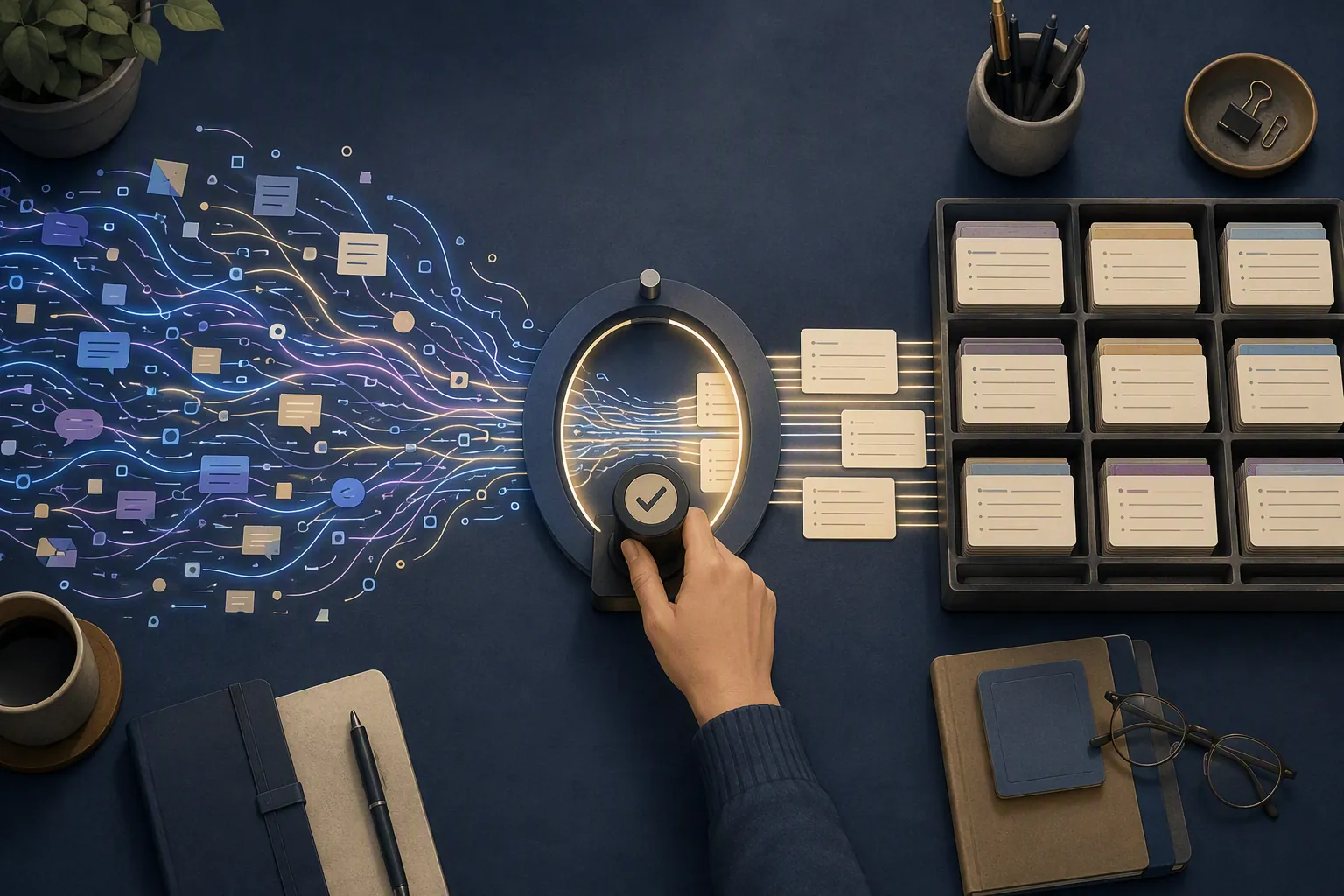
That combination is the useful part. It does not say Gen Z is too lazy to think, and it does not say AI has magically made everyone more capable. It says a lot of students and junior workers are already living inside AI-assisted work, while also noticing that some of the “productivity” feels like memory loss with nicer formatting.
Inc.’s coverage of GoTo’s Pulse of Work 2026 report puts the private anxiety even more bluntly: 62% of Gen Z workers said they rely on AI too much, and about 40% said they cannot function without it. Those figures should be treated as reported through Inc., not as independently checked against the primary GoTo report here, but they match the shape of the Gallup evidence: heavy use, low comfort.[2]
So the question behind a Gen Z AI productivity workflow is not “Which app has the shiniest AI button?” It is: where does the human decision happen before AI text becomes part of the permanent system?
Data last verified: August 1, 2026.
The workflow boundary: AI drafts, human approves
A safer AI note workflow has one non-negotiable boundary: AI output stays provisional until you approve it. Not “approve” as in glancing at a paragraph and thinking, sure, probably. Approve as in typing something that records what you decided, what you verified, and what still needs attention.
The point is not to make AI slower for aesthetic reasons. AI is good at turning a messy lecture recap, meeting transcript, reading dump, or voice memo into a first draft. The failure point comes after that, when the generated summary slides into a Notion database or Obsidian vault looking finished enough to stop thinking about it.
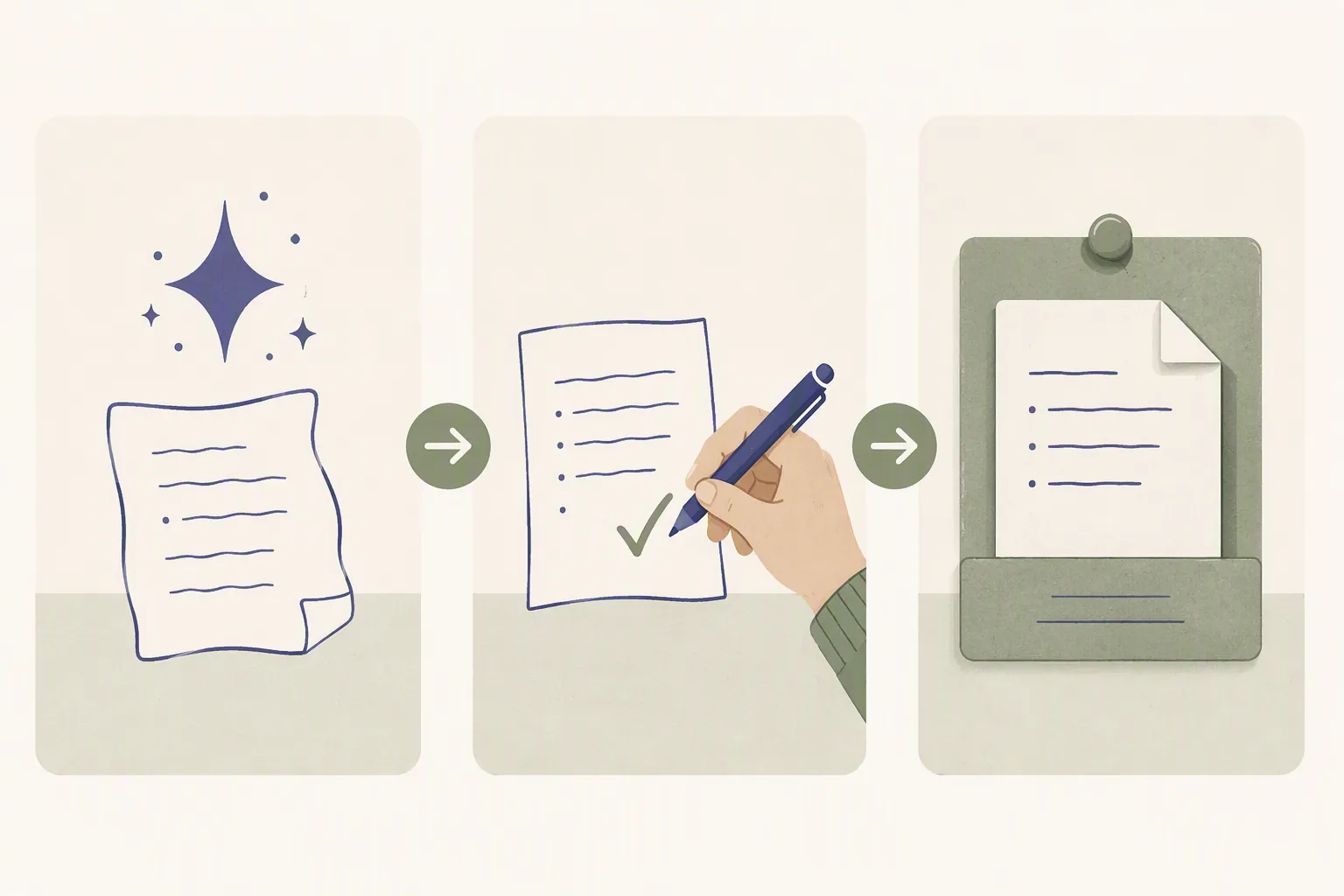
For this setup, AI can help in the capture and drafting layer. It can summarize, reformat, extract possible tasks, suggest headings, and propose connections to existing topics. It cannot silently write the fields that decide whether the note is trusted.
| Layer | AI can do | You must do |
|---|---|---|
| Capture | Clean up transcript text, remove repetition, group rough notes | Name what the note is actually for |
| Drafting | Suggest a summary, title, tags, links, or action list | Reject, edit, or approve the draft |
| Approval | Stay outside the final decision fields | Type decisions, verified facts, and open loops |
| Archive | Help search or resurface saved notes later | Only save notes that passed approval |
If that sounds fussy, it is because the alternative is worse: a knowledge base full of fluent text you cannot quite remember believing. This is also why a workflow-design approach matters more than another tool ranking. FlowDesk’s AI-PKM value-versus-hype guide makes the same distinction at the app level: AI features are only valuable when they improve the system instead of decorating it.
Not for you if you need a ban, a compliance policy, or a full automation stack
This setup is for people already using AI in Notion, Obsidian, or a similar note system and wanting better boundaries. It is not for you if your answer is no AI in notes at all. That is a legitimate standard, but it needs a different system.
It is also not a workplace compliance framework. If your employer, school, client, or profession has rules about confidential data, academic integrity, records retention, disclosure, or approved AI tools, those rules come first. The personal setup below cannot overrule them.
That caveat matters because policy gaps are part of the problem. A Cox Business survey reported that about half of Gen Z and Millennial workers were hesitant to disclose AI use, and 30% were unfamiliar with or said they had no company AI policy.[3] A separate Walton Family Foundation/GSV/Gallup report found that 55% of Gen Z adults reported no formal workplace AI policy, while 39% said AI was permitted at work.[4]
Schools are moving faster, but unevenly. Gallup found that the share of Gen Z students reporting school AI rules rose from 51% to 74%, while only 28% said their school provided AI tools.[1] That leaves a very familiar gap: more rules, not always more usable infrastructure.
Use three typed fields: decisions, facts, open loops
The approval step works only if it has a place to live. In a note app, that means three typed capture fields you use every time an AI-assisted note might become permanent:
- Decision: What am I accepting, choosing, or keeping from this note?
- Facts verified: Which claims did I check against the source, transcript, reading, syllabus, meeting record, or other evidence?
- Open loops: What is still uncertain, delegated, unfinished, or waiting on another person?
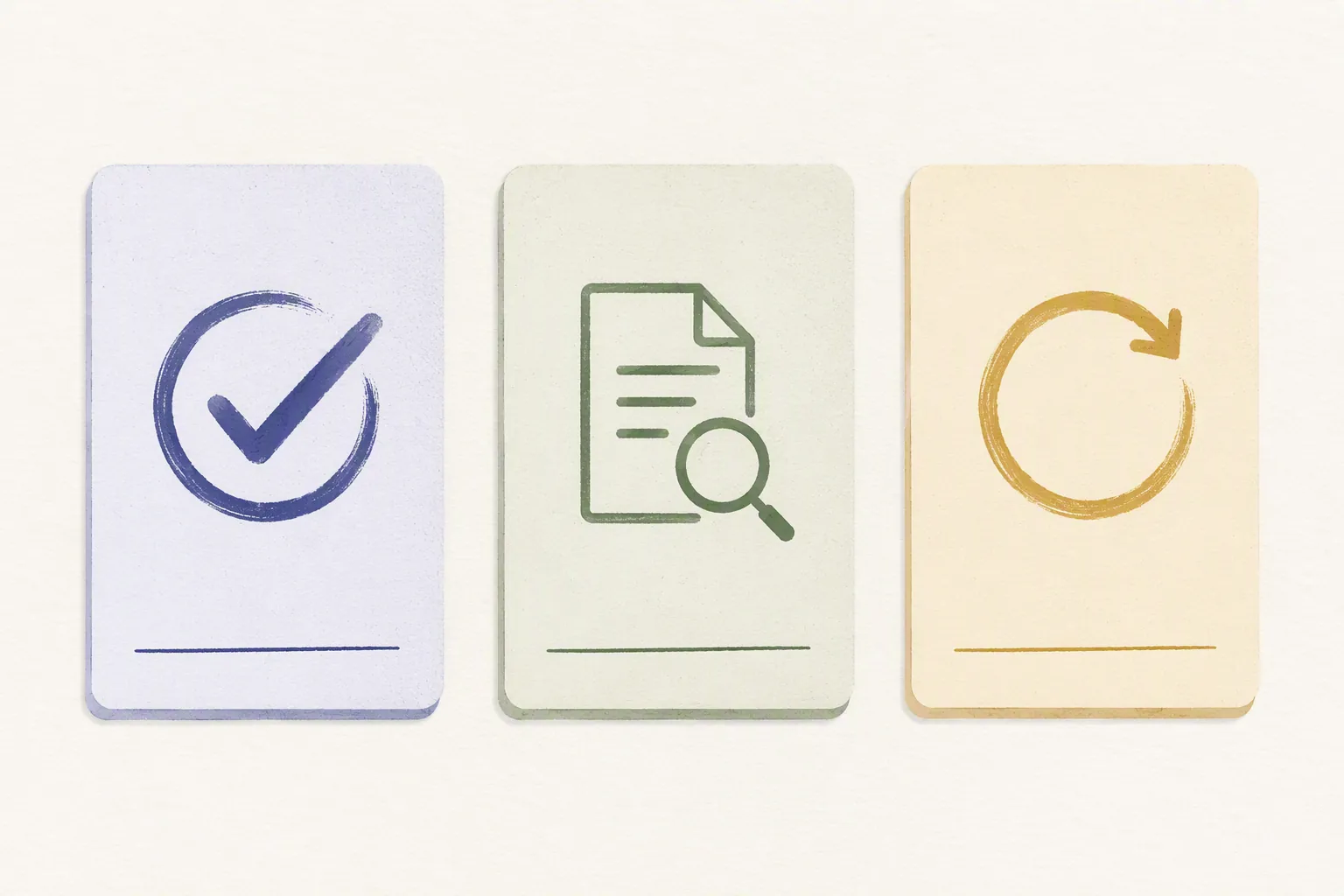
These fields are deliberately plain. They are not “insights,” “wisdom,” or “synthesis,” because those labels are easy to fake. A decision has to say what changed. A verified fact has to point back to something. An open loop has to name the remaining uncertainty.
For a class reading, the decision might be: “Keep this note as evidence for the section on housing-policy tradeoffs.” For a work meeting, it might be: “Use this as the source note for the onboarding checklist revision.” For a research rabbit hole, it might be: “Do not save this yet; only the definitions are useful.”
The important part is that you type those fields yourself. AI can propose candidates below them, but the saved fields should not be auto-filled invisibly. If your future self opens the note six weeks later, these fields are the difference between “AI said this nicely” and “I know why this is here.”
What AI is allowed to touch
Keep the AI workspace separate from the approval fields. A simple note layout can look like this:
| Section | Who writes it | Status |
|---|---|---|
| Raw capture | You, transcript, import, or pasted source | Messy but preserved |
| AI draft summary | AI, edited by you if useful | Provisional |
| Decision | You | Required before archive |
| Facts verified | You | Required before archive |
| Open loops | You | Required before archive |
| Final note | You, using approved material | Permanent |
This is the small structural move that most pretty AI templates skip. They optimize for getting from raw material to polished note. This setup inserts a checkpoint between polished and trusted.
Set it up in Notion
In Notion, build the boundary into a database rather than relying on willpower. The database can be called “AI-Assisted Notes,” “Inbox,” “Lecture Notes,” “Meeting Notes,” or whatever name you will not hate in three weeks. The name matters less than the properties.
| Property | Type | Purpose |
|---|---|---|
| Status | Select | Draft, Needs Review, Approved, Archived |
| Source scope | Text or relation | Where AI was allowed to draw from |
| AI draft | Page section or text property | Generated summary or extraction |
| Decision | Text | Your typed approval judgment |
| Facts verified | Text | Claims checked against source material |
| Open loops | Text | Questions, tasks, uncertainties, follow-ups |
| Reviewed on | Date | When you approved or rejected the note |
| Config version | Text or relation | Which workflow version produced the note |
Make a Notion template for new AI-assisted notes. Put the raw material at the top, then an “AI draft” area, then the three approval fields. If you use Notion AI, remember that access and behavior depend on the current plan and product setup, so verify your workspace’s AI availability before designing around it.[5]
A useful template instruction is not “summarize this perfectly.” It is closer to: “Draft a provisional summary from the raw capture below. Do not fill the Decision, Facts verified, or Open loops fields. If a claim is unclear, list it under suggested checks.”
Then make the database view do some of the social pressure. Create one view filtered to Status is “Needs Review.” Create another for Status is “Approved.” Do not let “AI draft exists” equal done. Done means the approval fields have your words in them.
The Notion review pass
When you review a note, do it in this order:
- Read the raw capture or source excerpt first, not the AI summary.
- Read the AI draft and delete anything that is unsupported, too broad, or not useful.
- Type the Decision field in one or two sentences.
- Type the Facts verified field with only the claims you checked.
- Type the Open loops field with anything still unresolved.
- Change Status to Approved only after those fields are filled.
If you want a stricter version, add a formula or filtered view that catches notes where Status is “Approved” but one of the three typed fields is empty. The automation is not doing the thinking; it is catching the moment when you try to skip it.
Set it up in Obsidian
In Obsidian, the same workflow is less database-shaped and more convention-shaped. That can be better if you like plain files, but it also means you need a naming pattern, a template, and a review habit you can actually keep.
---
status: needs-review
source_scope:
reviewed_on:
config_version: ai-note-workflow-v1
---

# {{title}}

## Raw capture


## AI draft summary


## Decision
<!-- Type your approval judgment here. Do not paste AI output unchanged. -->

## Facts verified
<!-- List only claims checked against the source, transcript, reading, or evidence. -->

## Open loops
<!-- Questions, tasks, uncertainties, follow-ups. -->

## Final note
The YAML fields make the note searchable. The headings make the boundary visible while you are writing. If AI generates a summary, paste it under “AI draft summary” and leave the approval sections empty until you review. If you use an AI plugin, external model, or copied chat output, the same rule applies: generated text does not go straight into “Final note.”
A simple folder structure helps:
00 Inbox/
01 Needs Review/
02 Approved Notes/
90 Config Log/
New AI-assisted notes start in “00 Inbox” or “01 Needs Review.” They move to “02 Approved Notes” only after the three typed fields are filled. That movement matters because Obsidian can make unfinished notes feel permanent just because they are already files in the vault.
If your vault already has a tag system, avoid adding a giant new taxonomy for AI. One tag is enough: #ai-assisted. If you need more, use status metadata rather than vibes. “Needs-review” and “approved” tell you what to do. “Interesting” usually does not.
The Obsidian review pass
Open your “Needs Review” folder on a schedule you will not resent. For a student, that might be after each lecture block or before a weekly study session. For a junior worker, it might be at the end of meeting-heavy days. The cadence is less important than preventing the folder from becoming a second archive with worse branding.
During review, change the YAML status from “needs-review” to “approved” only after the Decision, Facts verified, and Open loops sections are filled. If the AI draft is not worth saving, delete it and keep the raw capture. If the raw capture is not worth saving either, delete the note. A smaller vault you trust is better than a giant vault you avoid.
This is also where a lot of PKM systems fail: they confuse capture volume with usable knowledge. FlowDesk’s guide to PKM system failure traps is worth reading if your notes keep rotting right after the exciting setup week.
Scope the AI sources before you ask for synthesis
Source scope is the least glamorous field in this setup and one of the easiest to regret skipping. Before AI summarizes or connects a note, tell it what it is allowed to use.
| Task | Good source scope | Risky source scope |
|---|---|---|
| Lecture recap | Only my transcript and slides from this lecture | Everything the model knows about the topic |
| Meeting summary | Only this meeting transcript and pasted agenda | All workspace notes, unless approved |
| Research note | Only the pasted article excerpts and source links | General web knowledge without verification |
| Project planning | Only approved project notes and current task list | Old brainstorms, stale plans, and unrelated chats |
This does not require a dramatic retrieval-augmented setup. In Notion, the Source scope property can simply say “meeting transcript only” or link to the specific pages used. In Obsidian, the source_scope YAML field can name the file, folder, or pasted source. The point is to keep context from leaking in unnoticed.
If you ask AI to compare a new note against your existing vault, make that a separate step after approval. First approve what the note says on its own evidence. Then ask for possible links, contradictions, or duplicates. Otherwise, the AI can make an unverified draft feel more legitimate by surrounding it with familiar notes.
Readers who want tool-level comparisons can use FlowDesk’s tests of Claude vs. ChatGPT for note-taking or the fix-vs-switch ChatGPT note-taking guide. For this setup, the model choice matters less than whether the source boundary is written down.
Keep a dated configuration log
Most note-system advice treats the configuration log as optional housekeeping. For AI-assisted notes, it is part of the trust system. You need to know not only what a note says, but what workflow produced it.
Create one page or file called “AI Note Workflow Config Log.” Update it when you change the template, AI instruction, database properties, folder rules, AI tool, review cadence, or source-scope convention.
# AI Note Workflow Config Log

## 2026-08-01 — v1
Changed:
- Created Decision, Facts verified, and Open loops fields.
- Added status path: Draft → Needs Review → Approved → Archived.
- AI draft area must remain separate from approval fields.

Why:
- AI summaries were entering the archive without review.

What broke or felt annoying:
- Reviewing long transcripts takes too long.
- Need a shorter source-scope label for recurring classes/meetings.

Next adjustment to test:
- Add a weekly Needs Review cleanup block.
The “what broke” line is the part people skip because it makes the system look less elegant. Keep it. Broken edges are where the actual workflow lives. If review takes too long, the answer might be shorter raw captures, better source scoping, or fewer notes promoted to permanent storage. Without a log, you will keep redesigning from mood instead of evidence.
Add the config version to each approved note. In Notion, that can be a text property or relation to the config log. In Obsidian, it can be a YAML value like “ai-note-workflow-v1.” Later, if you discover that an AI instruction produced shallow summaries or that a template encouraged lazy approvals, you can find the affected notes.
What this workflow does not prove
This setup does not prove that AI improves learning. It does not prove that Gen Z’s worries are solved by a better template. Gallup’s finding that eight in 10 Gen Z respondents think AI will make learning harder should not be waved away with a database property.[1]
The narrower claim is enough: if you are already using AI, your note system should make the handoff visible. AI can accelerate capture and drafting. It can help you face a blank page, clean up a transcript, and produce a rough structure. But before a note becomes part of the archive you study from, cite from, plan from, or use at work, there should be evidence that you touched the judgment yourself.
That evidence is not complicated. It is a human approval step, typed fields for decisions, facts, and open loops, scoped sources, and a dated configuration log that admits what changed and what broke. Less glamorous than a new AI workspace. Much easier to trust when you open the note later and need to know whether it was actually yours.
References
- Gen Z's AI Adoption Steady, but Skepticism Climbs, Gallup.
- Gen Z AI Overuse Data Is a Warning Sign for Managers and Leaders, Inc., Jun. 9, 2026.
- Gen Z and Millennials Embrace AI, Just Don't Ask Them to Tell the Boss, Cox Communications, Aug. 5, 2025.
- Gen Z is using AI but reports gaps in school and workplace support, Walton Family Foundation.
- What is Notion AI? And how to use it, Zapier, Apr. 29, 2026.
Comments
Join the discussion with an anonymous comment.