
A ChatGPT note-taking workflow rarely fails in one clean way. One day the meeting transcript never appears. Another day the summary copies into Notion with mangled characters. Then Obsidian answers as if it has never seen your vault. Later, the note you thought ChatGPT would remember is nowhere useful when the project comes back.
That does not mean the whole setup is broken. It means the failure needs to be located. FlowDesk’s practical diagnostic model splits the workflow into four layers: capture, transport, memory, and storage. The repair question changes at each layer.
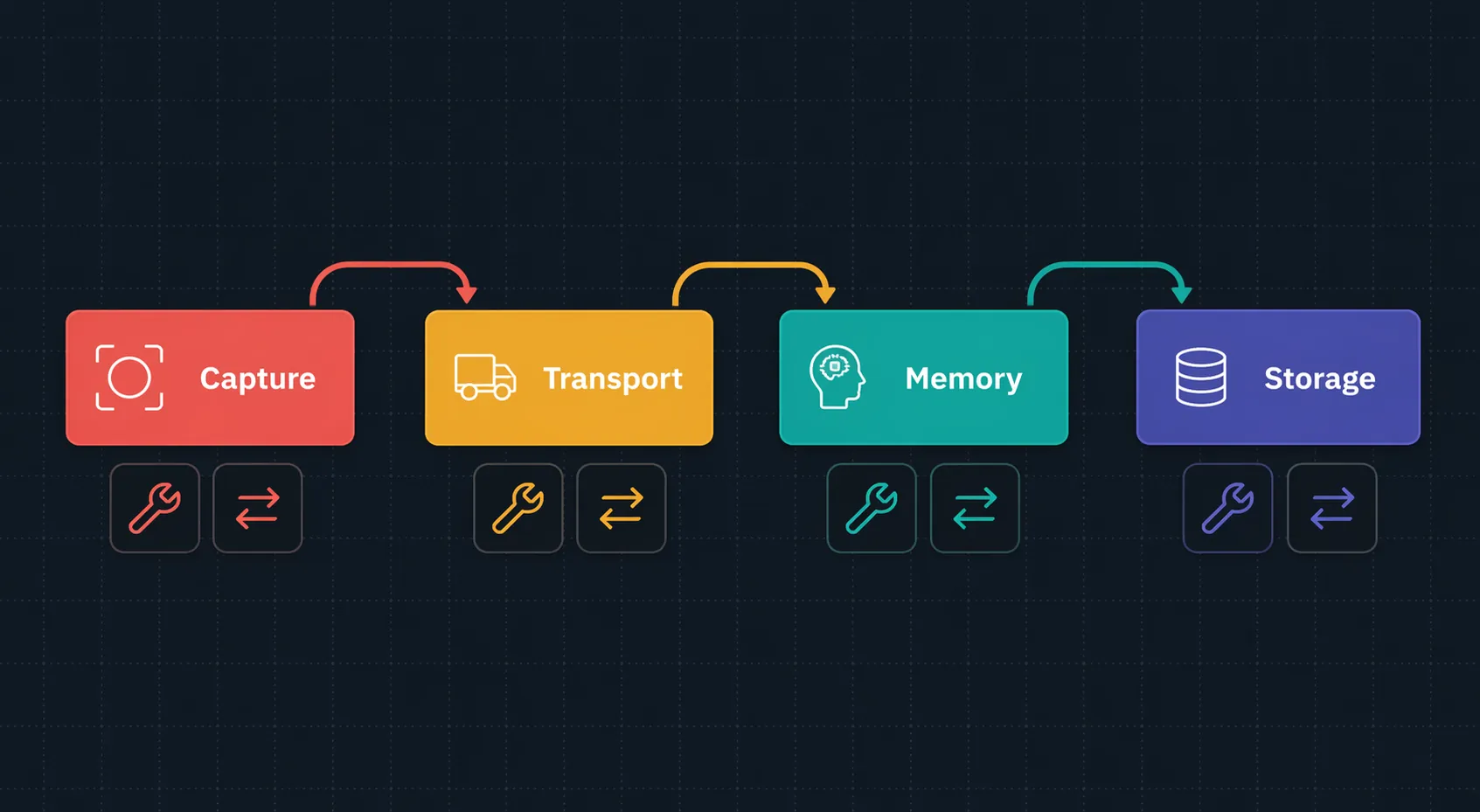
| Layer | What It Owns | Common Failure | Usual Judgment |
|---|---|---|---|
| Capture | Getting raw input into the system | ChatGPT does not record, transcribe, or auto-capture the meeting | Structural; add a capture tool |
| Transport | Moving text between ChatGPT, Notion, Obsidian, Apple Notes, or desktop apps | Pasted text corrupts, app permissions drop, plugins return generic answers or errors | Often configurable; test routes before switching |
| Memory | What context ChatGPT carries into the next answer or session | It forgets preferences, templates, project facts, or vault context | Partly configurable; durable context must live outside chat |
| Storage | Where the final note is archived, searched, tagged, and retrieved | The note exists only in a chat thread or manual export | Structural; use a real note system |
If you are trying to fix ChatGPT not working in a note-taking workflow, start by asking which layer failed and whether that layer is actually ChatGPT’s job.
Capture failures are usually not worth debugging inside ChatGPT
The capture layer is the easiest place to waste time because the failure looks deceptively simple: “ChatGPT did not take notes from my meeting.” In most cases, there is nothing to clear, reset, or reprompt. ChatGPT does not natively record meetings, transcribe audio, or auto-capture live input; it needs the transcript or notes to be pasted or otherwise supplied before it can summarize or reorganize them.[1]
That makes capture a structural boundary. ChatGPT can work on captured material; it is not, by itself, the recorder. If your workflow depends on opening a laptop, joining a call, and having the finished notes appear without a transcript step, the fix is not a better prompt. It is a dedicated capture layer.
This is where tools such as Otter, Granola, Notion’s meeting features, or another AI note-taking app enter the comparison. The important split is not “AI versus non-AI.” It is capture versus synthesis. ChatGPT is strong after the raw material exists. If the raw material is missing, the workflow has failed before ChatGPT has anything stable to reason over.
Fix versus switch: keep ChatGPT for summarizing, extracting decisions, rewriting messy notes, and turning transcripts into usable artifacts. Add or switch to a capture tool if the recurring failure is that no reliable transcript or source note exists.
Transport is where most “ChatGPT broke my notes” problems get misdiagnosed
Transport failures are messier because something did happen. ChatGPT produced text. A target app was open. The user copied, pasted, invoked a desktop integration, or asked a plugin to read a vault. Then the result was corrupted, incomplete, generic, or blocked by an error.
That is not the same as ChatGPT failing to think. It is the handoff failing.
When iOS-to-Notion paste turns good text into damaged text
A user-reported OpenAI Community thread describes copy/paste from the ChatGPT iOS app into Notion producing encoding artifacts: accented characters and unreadable symbols appeared after pasting, while the same content worked through the web version or after passing through Apple Notes first. Multiple confirmations appeared across February to August 2025.[2]
The useful clue is that the content is not bad everywhere. If the same response looks clean in ChatGPT, survives in the browser, or becomes clean after an intermediary paste, the model did not hallucinate broken Unicode. The route damaged the text.
The community workaround is boring and therefore worth taking seriously: paste first into Apple Notes or TextEdit, then copy again into Notion.[2] That is not elegant. It is also a clean diagnostic. If the intermediary fixes the artifact, the immediate problem is transport, not generation, memory, or storage.
For long-term use, the better route may be to avoid the affected app path and use the web version when moving important text into Notion. If your main destination is Obsidian, the same principle applies: test the exact export or paste route, not just the quality of the ChatGPT answer. Markdown that looks fine in the chat window can still arrive with broken spacing, code fences, or characters if the route is unreliable.
When the macOS desktop app changes the paste object
The macOS Desktop app has a separate user-reported copy-paste issue: text pasted from Word or Outlook into ChatGPT Desktop appeared as an image instead of editable text, with reports dating back to September 2024.[3] Again, that failure sits between applications. The user thinks they are sending text; ChatGPT receives something else.
The practical test is to remove formatting and app-specific clipboard behavior. Paste into a plain-text intermediary such as TextEdit, then into ChatGPT. If the problem disappears, the model was never the broken part. The clipboard payload was.
When Work with Apps says it is reading Apple Notes but does not
OpenAI’s Work with Apps feature on macOS requires app support and system permissions, including Accessibility setup for supported app interactions.[4] That matters because the visible status banner is not always enough evidence that the selection was actually read.
In one OpenAI Community report from December 2024, the interface showed “Working with Notes,” but the first attempt did not actually read the selected Apple Notes lines.[5] Another March 2025 community report described Work with Apps not working after a macOS or app update, with the fix involving re-granting Accessibility permissions.[6]
Those reports are not official root-cause diagnoses. They are still good smoke signals for troubleshooting. If an operating system update recently happened, do not start by rewriting your whole note system. Check whether ChatGPT still has the required permissions. Remove and re-grant them if needed. Then test with a tiny selected note whose contents you can verify in the answer.
The important operational test is simple: ask ChatGPT to quote or summarize a specific selected line that only exists in the note. If it gives a generic answer, the app bridge did not deliver the context.
When Obsidian plugins fail for reasons that look like model failure
Obsidian AI workflows add another transport layer: the plugin must send vault context to an API, receive a response, and render it back into a local note. That gives users more control, but it also creates more places for invisible configuration errors.
One common failure is billing and key confusion. Obsidian forum and GitHub discussions around plugins such as Copilot and Smart Connections show users hitting HTTP 429 rate-limit errors or API failures after pasting credentials that do not behave like a separately billed OpenAI API key. A ChatGPT Plus subscription is not the same thing as API billing for plugin calls.[7][8]
Another failure is prompt routing. In a Smart Connections GitHub discussion, vault access depended on phrasing such as “Based on my notes...” to trigger use of local note context; without the right trigger, the answer could stay generic.[8]
That is maddening because the failure feels cognitive. You know the note exists. Obsidian knows the note exists. ChatGPT answers as if the note does not exist. The missing piece is that the bridge was never activated, or the API call was never properly authorized.
- If pasted text is corrupted only on one route, test web copy, Apple Notes, or TextEdit as an intermediary before changing tools.
- If Work with Apps stops after an update, re-check Accessibility permissions before rebuilding the workflow.
- If Obsidian returns generic answers, verify the plugin trigger phrase and whether vault context is actually being sent.
- If plugins return API errors, confirm that the key and billing setup belong to the API path, not merely to ChatGPT Plus.
Fix versus switch: repair transport when the failure is route-specific, permission-specific, or plugin-specific. Switch or simplify when the workflow depends on an untested chain of app bridges that no one in the chain clearly owns.
Memory failures are usually expectation failures first
Memory is where otherwise careful users get sloppy, because the word sounds more durable than the feature often is. ChatGPT Memory, a large context window, Projects, and pasted files all feel like “it knows my stuff.” They are not the same layer.
Analyses from ContextLayer.ai and OpenClaw describe the practical limitation: ChatGPT Memory is suited to high-level preferences and recurring user facts, not long templates, full project archives, or a durable knowledge base. Large context windows can hold a lot during a session, but that does not turn the conversation into a permanent note database.[9][10]
This distinction changes the fix. If ChatGPT forgets that you prefer concise meeting notes with decisions, owners, and next actions, Memory may help. If it forgets a client’s full product taxonomy, last quarter’s research archive, or the exact template your team approved, relying on Memory is the wrong abstraction.
Projects help by keeping related chats and materials closer together, but they also lock context into that tool’s project boundary. They do not replace a vault, workspace, or file system that you can inspect, version, search, and reuse outside the chat interface.
A more reliable memory layer is external and explicit. Keep small context files that are loaded when needed: one for voice and formatting preferences, one for audience or client assumptions, one for the current project, and one for reusable output templates. They can live in Obsidian, Notion, a folder of Markdown files, or another system you already trust.
| Need | Better Home |
|---|---|
| Recurring preference such as tone or output style | ChatGPT Memory may be appropriate |
| Reusable meeting-note template | External template file |
| Large project brief or research corpus | Project folder, vault, database, or attached file per session |
| Searchable history of notes | Notes app or knowledge base |
| Temporary reasoning over pasted material | Current chat context |
The test is whether you can point to the source of truth after the chat closes. If the answer is “ChatGPT probably remembers,” the system is fragile. If the answer is “the source file is here, and I load it when needed,” the memory layer is inspectable.
Fix versus switch: use ChatGPT Memory for stable, high-level preferences. Use external context files for templates, project knowledge, and repeatable workflows. Switch expectations, not necessarily tools, when the problem is asking Memory to behave like a database.
Storage is the wrong place to be vague
A note-taking workflow is not finished when ChatGPT produces a good answer. It is finished when the artifact lands somewhere durable: named, searchable, tagged if needed, available to future workflows, and not dependent on finding the right chat thread.
ChatGPT alone does not provide native archiving, tagging, or cross-session search in the way a notes database or dedicated note-taking app does. If the workflow requires long-term retrieval, ChatGPT should usually be the synthesis surface, not the archive.
The pricing comparison is less dramatic than the workflow difference. PCMag’s May 2026 AI note-taking roundup lists Otter among dedicated AI meeting-note tools, while Pixno’s February 2026 comparison reports market pricing such as Otter at $8.33 per month on annual billing, Granola at $18 per month, and Notion AI at $20 per user per month; ChatGPT Plus is also commonly priced at $20 per month at this point in Q3 2026.[11][12]
Those prices should be verified at publication time, but the decision is not just cost. A capture-first product is priced around owning meeting input and retrieval. A notes app is priced around workspace storage and organization. ChatGPT Plus is priced around access to a general reasoning and generation surface. Similar monthly numbers do not mean interchangeable jobs.
If your final notes belong in Obsidian, Notion, Apple Notes, or another durable system, make that explicit. ChatGPT can draft the meeting summary, extract action items, normalize Markdown, or turn a transcript into a decision log. Then the finished note should be saved where your retrieval habits already live.
Fix versus switch: keep ChatGPT if it is transforming notes before storage. Add or switch tools if you need automatic archiving, tagging, search, permissions, and retrieval that survive beyond the chat session.
The shortest useful diagnostic
When the workflow breaks, do not start with the app you are most annoyed at. Start with the point where the artifact first became wrong or missing.
- No transcript or raw note exists: capture failed; add a recorder or meeting-note tool.
- The answer is good in ChatGPT but bad after paste: transport failed; test another route or intermediary.
- ChatGPT answers without the project or vault context: memory or app-bridge context failed; load explicit files or check plugin triggers.
- The note cannot be found next week: storage failed; save the final artifact in a real note system.
- The interface itself is blank, frozen, or visually broken: treat it as an app or browser problem first, then retest the workflow after the interface works.
This also prevents the wrong kind of switching. Moving from Notion to Obsidian will not fix missing meeting capture. Buying a meeting assistant will not fix a corrupted iOS-to-Notion paste route. Turning on Memory will not create a searchable archive. Clearing cache may fix a broken display, but it will not make ChatGPT own storage.
The durable version of the workflow is usually split on purpose: capture tool for raw input, ChatGPT for synthesis and reasoning, note app for storage, and explicit context files for repeatable memory. ChatGPT stays useful in that system precisely because it is not being asked to be every layer at once.
References
- Can ChatGPT Take Notes? — NoteGPT, Dec. 2025, link
- Encoding issue with ChatGPT iOS app and Notion — OpenAI Community, Feb.–Aug. 2025, link
- Copy and paste issue in ChatGPT Desktop app on macOS — OpenAI Community, Sept. 2024, link
- Work with Apps on macOS — OpenAI Help Center, link
- Desktop app working with Apple Notes not working — OpenAI Community, Dec. 2024, link
- Work with Apps not working on Mac Desktop ChatGPT app after latest update fix — OpenAI Community, March 2025, link
- Can’t get OpenAI API working with plugins — Obsidian Forum, June 2023, link
- Smart Connections discussion #128 — GitHub, March 2023, link
- Why ChatGPT Keeps Forgetting — ContextLayer.ai, Jan. 2026, link
- ChatGPT Memory Problem — OpenClaw, 2026, link
- The Best AI Tools for Taking Notes — PCMag, May 2026, link
- Best AI Note Taking Apps 2026 — Pixno, Feb. 2026, link