
Leave Task Manager open. If Windows 11 Weather is the reason you are here, the useful question is not whether the number looks ridiculous. It is whether the process tree you are seeing belongs to the tiny forecast surface you actually use, or to something Windows needs in order to stay healthy.
In Task Manager, go to Processes, sort by Memory, and expand the Weather or Microsoft Weather entry. In the recent tests that made this problem visible, the app did not behave like a small native weather utility. It expanded into multiple Microsoft Edge WebView2/Chromium-related subprocesses because MSN Weather is being rendered through a web wrapper. How-To Geek measured roughly 1 GB on launch, then about 500–600 MB after settling, 700–800 MB while actively using the app, and peaks around 1.2 GB on its test system; Wccftech reported spikes around 1.5–1.6 GB in its coverage. Those numbers are tester- and machine-specific, but the shape of the problem is the same: one small Weather surface can fan out into a browser-like process tree.[1][2]
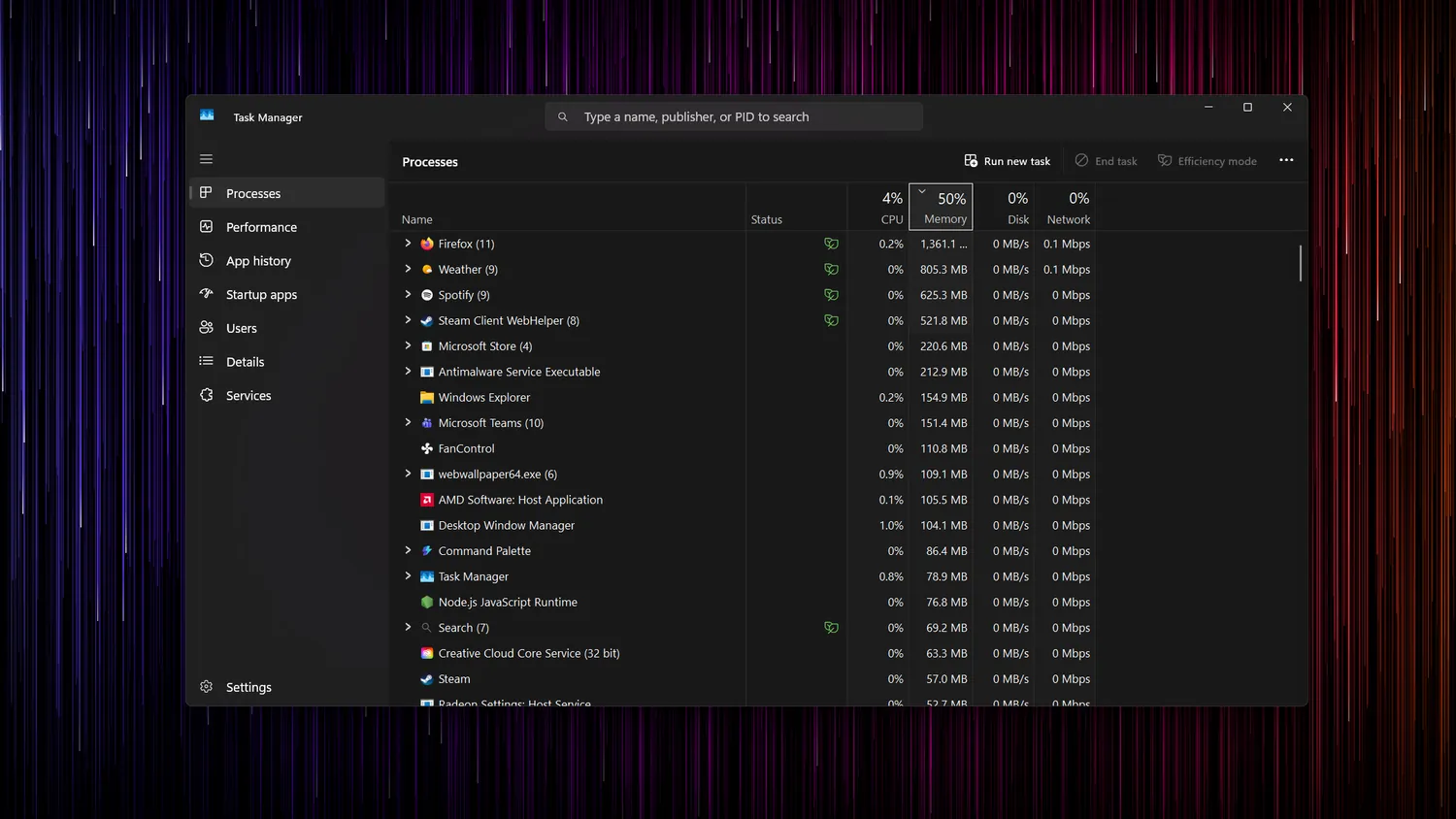
On an 8 GB laptop, that is not an abstract complaint. TechTimes framed the Weather app’s load as about 15% of system RAM on some 8 GB PCs and noted that some machines were already idling near 70% memory use, pushing the system toward page-file reliance once Weather joined the pile.[3] That is exactly when the mouse starts feeling heavy, the browser reloads a tab you wanted kept alive, or a cheap SSD gets asked to pretend it is RAM.
Confirm the culprit before changing anything
Do this once before uninstalling or disabling pieces of Windows. It gives you a baseline, and it keeps you from blaming Weather for memory that belongs to Edge, Teams, a browser extension, or the Widgets board itself.
- Open Task Manager with Ctrl+Shift+Esc.
- Select Processes, then sort by the Memory column.
- Find Weather, Microsoft Weather, Widgets, or Microsoft Edge WebView2 Runtime near the top of the list.
- Expand the entry. If Weather opens into many child processes, you are looking at the WebView2/Chromium wrapper behavior described in the recent tests.
- Close the Weather app, wait a minute, and write down the memory range that remains.
- Open Weather again from Start or the taskbar weather entry, then watch whether the process tree jumps back up.
If the heavy memory use returns only when you open Weather, the app is the active cost. If it returns after every sign-in even when you never open the forecast, the background widget and preloading path matter more. That distinction decides how far up the fix ladder you need to go.
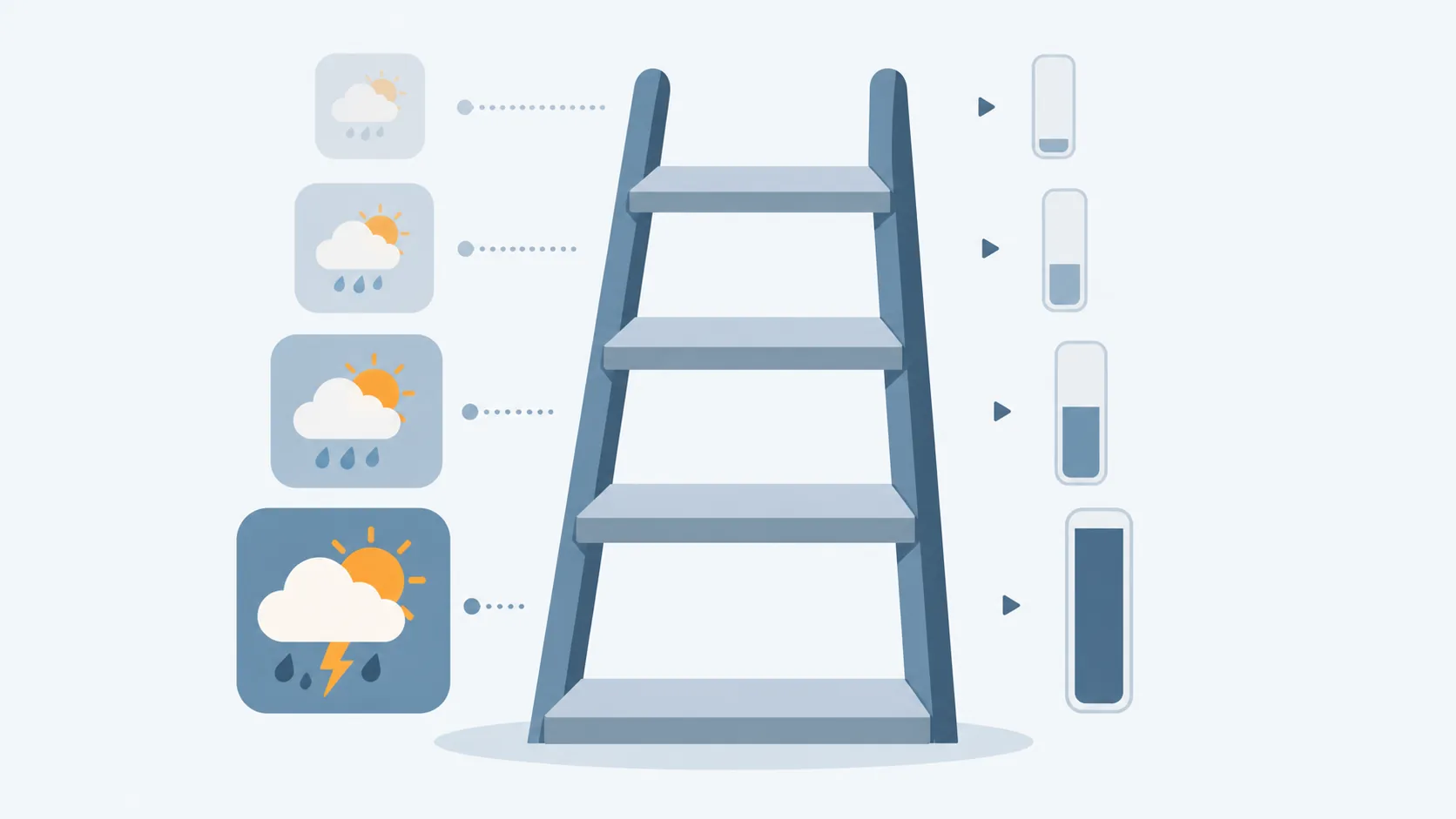
The fix ladder
There is no hidden “make Weather lightweight” switch. Each fix below removes or contains a different Weather surface. Start at the top and stop when the memory behavior is acceptable.
| Fix level | Use it when | Expected memory effect | What you lose |
|---|---|---|---|
| Disable background activity and notifications | Weather bothers you when it preloads or wakes in the background, but you still want the app available | Can reduce background wakeups; opening Weather can still bring back the 500 MB–1.2 GB+ active range seen in tester measurements [1][2] | Weather notifications and some background freshness |
| Unpin the taskbar Widgets/weather button | You do not need the taskbar temperature tile, but you may still open Weather manually | Cuts one common entry point for background widget loading; does not make the Weather app itself lighter | Taskbar weather/Widgets button |
| Uninstall Microsoft Weather | You never use the standalone Weather app | Removes the app package for the current user; Widgets may still exist separately | The Microsoft Weather app entry and app-driven forecast surface [4] |
| Disable or remove Widgets machinery | You want the Widgets board and taskbar weather gone, not merely hidden | Most aggressive containment of the widget path; exact behavior can change after Windows feature updates | Widgets board, taskbar weather, Win+W widget surface, and possibly other Windows Web Experience pieces [5][6] |
| Use a lighter weather app | You still want a forecast app but not a Chromium-heavy one | How-To Geek reported Lively Weather around 170 MB active and only a few MB idle on its test system | Microsoft’s built-in Weather experience [1] |
First containment: stop Weather and Widgets from waking so often
This is the least destructive fix because it does not remove the Weather app. It is also the one to try first if the bad moment happens after boot, before you have deliberately opened Weather.
- Open Settings.
- Go to Apps > Installed apps.
- Find Weather or Microsoft Weather.
- Open the three-dot menu and choose Advanced options, if your build shows it.
- Under Background apps permissions, set it to Never, if that control is available.
- Then go to Settings > System > Notifications and turn Weather notifications off.
Wccftech reported a workaround tied to Settings > System > Notifications in its coverage of the Weather app’s high RAM behavior, but this should be treated as containment rather than a cure. It can reduce background annoyance; it does not change the fact that launching Weather can rebuild the same WebView2 process tree.[2]
After changing those settings, restart the PC or sign out and back in. Open Task Manager again, wait for the desktop to settle, and compare the Weather, Widgets, and WebView2 entries against your baseline. If Weather no longer climbs on its own, you have fixed the background version of the problem without giving up the app.
What breaks at this level
- Weather may stop sending notifications.
- Forecast data may feel less instantly fresh when you open the app.
- The Weather app is still installed.
- Opening Weather can still cost hundreds of megabytes or more, depending on your system and session.
Unpin the taskbar weather button if that is the trigger
The taskbar temperature tile is convenient, which is why this step deserves its own decision. If you glance at it all day, do not pretend it has no value. If you never use it, it is a poor reason to keep a WebView-backed surface warm on a low-memory machine.
- Open Settings.
- Go to Personalization > Taskbar.
- Find Widgets.
- Turn Widgets off.
This removes the visible taskbar entry point. It does not uninstall Microsoft Weather, and it does not guarantee that no WebView2 process will ever appear. The point is narrower: stop the little taskbar tile from being the thing that wakes weather-related UI on a machine where every half-gigabyte matters.
What breaks at this level
- The taskbar weather/Widgets button disappears.
- Win+W may still open the Widgets board unless you disable Widgets more deeply.
- The Weather app remains available from Start.
- If you open Weather manually, the active RAM cost can return.
Uninstall Microsoft Weather when you do not use the app
If you never open the Weather app itself, uninstalling it is cleaner than babysitting it. This is still less invasive than removing the Windows Widgets infrastructure.
Start menu path
- Open Start.
- Search for Weather.
- Right-click Weather.
- Choose Uninstall and confirm.
Settings path
- Open Settings.
- Go to Apps > Installed apps.
- Search for Weather.
- Open the three-dot menu.
- Select Uninstall.
The Windows Club documents both the Start-menu and Settings-style uninstall paths for the Weather app, and the package name remains useful when you prefer PowerShell.[4]
PowerShell path
Open Windows PowerShell or Windows Terminal, then run:
Get-AppxPackage Microsoft.BingWeather | Remove-AppxPackageThat removes the Weather package for the current user. If there are multiple user accounts on the laptop, check each account instead of assuming one uninstall cleaned the whole machine.
What breaks at this level
- Microsoft Weather disappears from Start and search for that user.
- Opening a forecast from a Windows surface may no longer launch the standalone Weather app.
- The Widgets board can still exist because Widgets are tied to Windows Web Experience components, not just the Weather app package.
- A Windows feature update or Store reinstall can bring app components back, so verify after major updates.
Measure again after uninstalling: reboot, wait for the system to settle, then check Task Manager before opening any weather-related surface. The win you are looking for is not a magic new Weather number. The win is that Microsoft Weather no longer appears because it is gone.
Remove Widgets only if you want the whole Widgets surface gone
This is the point where the fix stops being “I do not want Weather eating RAM” and becomes “I do not want the Windows Widgets stack.” That may be the right call on a constrained laptop, but it is a bigger change than uninstalling Weather.
Windows 11 Pro, Enterprise, and Education: use Group Policy
- Press Win+R.
- Run gpedit.msc.
- Go to Computer Configuration > Administrative Templates > Windows Components > Widgets.
- Open Allow widgets.
- Set it to Disabled.
- Restart Explorer, sign out, or reboot.
PDQ documents this Group Policy route for disabling Widgets in Windows 11.[5] It is the cleanest administrative path if your edition includes the Local Group Policy Editor.
Windows 11 Home: hide the taskbar entry, then decide whether to remove Web Experience
Windows 11 Home does not include the same Group Policy editor. The low-risk first move is to hide the taskbar Widgets button through Settings > Personalization > Taskbar. If you need a registry equivalent for the current user, this sets the taskbar Widgets button value to off:
reg add HKCU\Software\Microsoft\Windows\CurrentVersion\Explorer\Advanced /v TaskbarDa /t REG_DWORD /d 0 /fThat hides the entry point; it is not the same as proving every related component is gone. For deeper removal, community procedures commonly target the Windows Web Experience Pack with PowerShell. EndurTech’s procedure is in this category, and it also reflects the practical caveat that Windows updates can restore widget-related components.[6]
Get-AppxPackage *WebExperience* | Remove-AppxPackageUse that only after you have decided you do not want Widgets. Create a restore point first, and expect to re-check the setting after feature updates. Do not treat WebExperience removal as a Microsoft-confirmed permanent fix; it is a stronger workaround for people who want the surface gone.
What breaks at this level
- The taskbar weather button is gone.
- The Widgets board is disabled or removed, depending on the method.
- Win+W may stop opening the Widgets surface.
- News, stocks, sports, traffic, and other widget cards disappear with the board.
- A feature update may restore parts of the experience, so this is something to verify, not a one-time oath.
Do not count on Repair or Reset unless you measure it
The usual Windows advice is to go to Settings > Apps > Installed apps > Weather > Advanced options and try Repair or Reset. That can be reasonable if the app is crashing, refusing to open, or showing corrupt data. For this specific memory problem, there is no measured source here showing that Repair or Reset changes the WebView2 process model or materially lowers RAM use.
If you try it anyway, treat it as an experiment: write down the idle number, repair or reset, restart, then check Task Manager again before and after opening Weather. If the same process tree returns to the same range, you have learned something useful and can move on.
Why this is not fixed by a normal app setting
The recent Weather coverage landed because the app looks small and behaves large. Windows Latest measured Windows 11 Weather using more than 1.2 GB at idle in its test and compared it unfavorably with macOS Weather, saying the Windows app used about five times as much RAM in that comparison. It also noted the unlovely detail that the app still shows ads.[7] Tom’s Hardware made the same basic criticism from the paid-OS angle: the built-in forecast app is a memory-heavy web wrapper with advertising inside it.[8]
The ads are annoying, but they are not the part that makes a slow laptop pause. The memory behavior follows from the architecture. Weather is not a compact Win32 or WinUI utility with a simple “low memory mode” waiting to be enabled; it is MSN Weather carried through WebView2/Chromium. That does not make Chromium uniquely guilty for every slow PC. It does mean this app inherits browser-like overhead while presenting itself as a tiny forecast tile.
OMG! Ubuntu’s cross-platform check is useful mainly because it shows how absurd the category mismatch can look: on a specific 8 GB Chuwi test machine, it reported Windows Weather around 918 MB versus native Linux weather apps in the roughly 160–290 MB range. That is not a universal benchmark, and the hardware caveat matters, but it matches the practical complaint: a forecast app should not feel like opening another browser session on an 8 GB laptop.[9]
Microsoft has acknowledged broader Windows performance and memory work, but not a shipped Weather-specific fix as of August 26, 2026. In its July 31, 2026 Windows quality update, Microsoft discussed memory allocator work, WebView2-to-WinUI 3 migration, Chromium per-instance overhead, and memory optimization for systems with 8 GB and above, with broader rollout expected starting in fall 2026. That post does not name the Weather app as fixed.[10]
That matters because waiting is a valid choice only if you can tolerate the current behavior. A fall 2026 optimization commitment is relevant context, not relief that has already arrived on your laptop.
If you still want weather, switch to a lighter app
If the only thing you wanted was a forecast window, a lighter app is the clean exit. How-To Geek reported Lively Weather at about 170 MB active and only a few megabytes while idle on its test system, far below the Microsoft Weather figures it saw.[1] Lively Weather is available through the Microsoft Store.[11]
The point is not that everyone needs that exact app. The point is that a weather app can be meaningfully cheaper than this. If you are already making hard RAM-budget decisions on an older machine, the same principle shows up in other Windows app categories too; web-wrapper convenience and native-app lightness are often different tradeoffs, as in FlowDesk’s Windows note-app performance guide and old-PC RAM comparison.
Pick the smallest fix that matches the weather surface you use
| What you actually use | Best move |
|---|---|
| You like the Weather app, but not background preloading | Disable background permissions where available, turn off Weather notifications, and measure again |
| You only hate the taskbar temperature tile | Turn off Widgets in Settings > Personalization > Taskbar |
| You never open Microsoft Weather | Uninstall Microsoft Weather from Start, Settings, or PowerShell |
| You do not want Widgets at all | Disable Widgets with Group Policy on Pro/Enterprise/Education, or use the Home registry/WebExperience route with update caveats |
| You want weather with lower RAM use now | Use a lighter weather app and leave Microsoft Weather uninstalled or unused |
References
- Windows 11’s Built-in Weather App Is Silently Eating Over 1GB of Your RAM — How-To Geek, August 23, 2026
- Windows 11 Weather App High RAM Usage — Wccftech
- Windows 11 Weather App Silently Consumes 15 Percent RAM on 8 GB PCs — TechTimes, August 10, 2026
- How to uninstall Weather App in Windows 10 — The Windows Club
- How to remove widgets in Windows 11 — PDQ
- Permanently Stop the Windows Widgets Service on Windows 11 — EndurTech
- Windows 11’s Weather app uses 5x the RAM of macOS Weather, and it still shows ads — Windows Latest, August 9, 2026
- Windows 11’s built-in Weather app hogs more than 1.2 gigabytes of RAM just to tell the forecast — memory-sucking web wrapper filled with ads masquerades as an actual application — Tom’s Hardware
- Linux vs Windows Weather App RAM — OMG! Ubuntu
- Windows quality: An update on the commitment we made in March — Windows Insider Blog, July 31, 2026
- Lively Weather — Microsoft Store
Comments
Join the discussion with an anonymous comment.