
Why Automate Meeting Notes?
If you attend three or more meetings on a typical workday, you are part of a group that now represents 46% of professionals according to 2024 Calendly data cited by Cirrus Insight. That leaves you with a recurring choice: take notes manually and risk losing half the conversation, or hope your memory holds until the recap email — and then spend another 30 minutes typing up action items.
Automated transcription changes the arithmetic. Research cited by Sonix shows that 62% of professionals save over four hours each week when they use AI-powered note-taking (the figure comes from a Grand View Research study referenced in Sonix's 2026 market report). The same source reports that organizations using these tools see 25% shorter meetings and a 30% boost in overall meeting productivity.
Beyond time savings, the real cost of manual notes is what falls through the cracks. A blog post from GrowwStacks in early 2026 claimed that 72% of professionals admit to missing important action items because notes were never properly transferred to their task management system.
Automation with Zapier eliminates that handoff gap entirely: a meeting ends, the AI note-taker finishes its transcription, and within minutes the notes, action items, and follow-ups are sitting in the tools your team already uses — no copy-paste required.
What You’ll Need: The Essential Toolkit
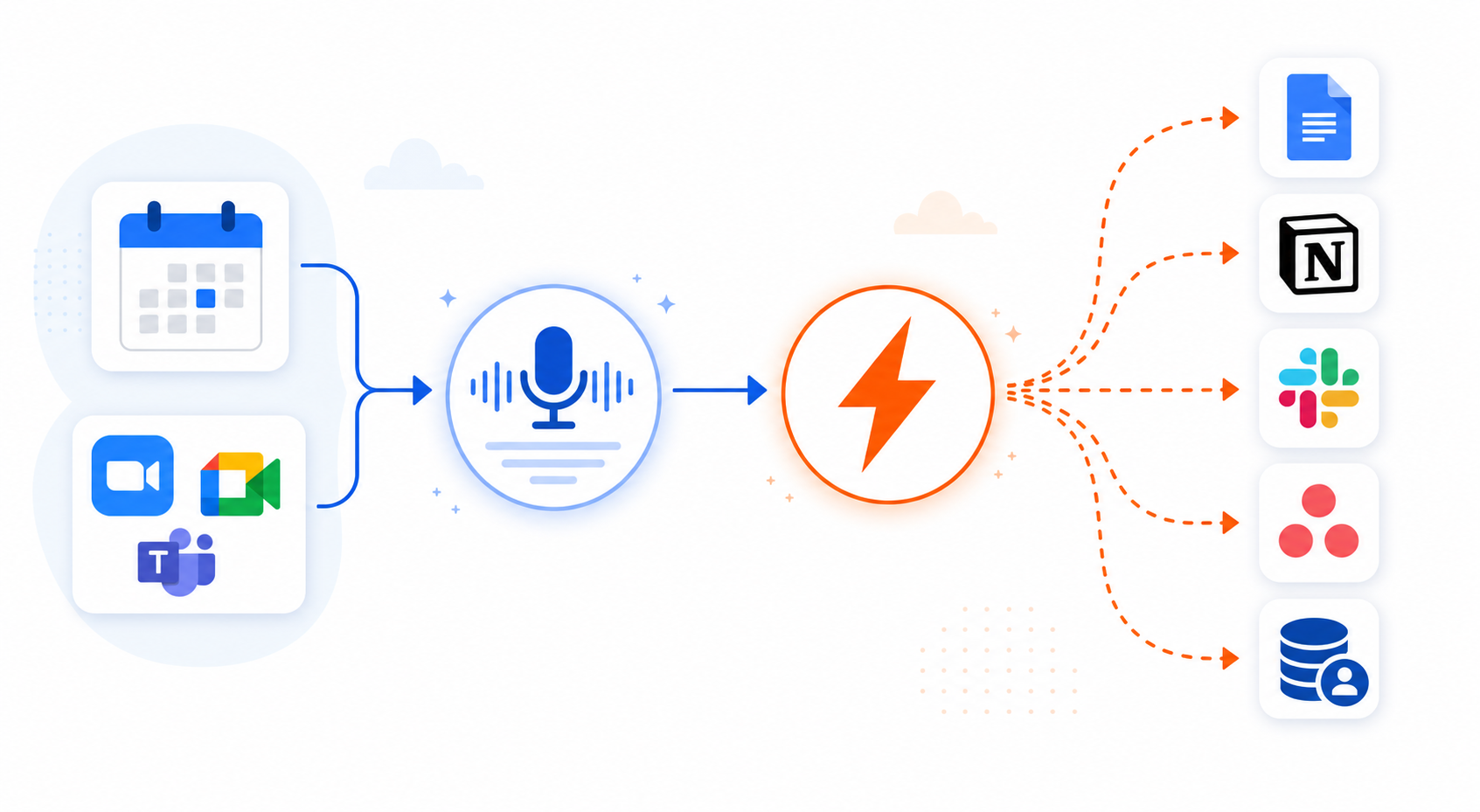
Every automated meeting-note workflow rests on three pieces: an AI note-taker that captures and transcribes the conversation, Zapier as the bridge that moves the data, and a destination app where the notes end up. You don’t need a developer, a budget line item, or more than about 15 minutes to wire them together.
- An AI note-taker: Fathom, Otter.ai, Granola, Fireflies.ai, or Read AI. All five offer native Zapier triggers that fire when a new summary, transcript, or action-item list is ready.
- A Zapier account: The free plan supports the kinds of single-step and multi-step Zaps we’ll build here. Upgrading becomes relevant only if you need higher task volumes or premium apps like Salesforce.
- A destination app: Google Docs, Notion, Slack, Asana, Trello, ClickUp, HubSpot, or any of the 8,000+ apps Zapier connects to. Choose based on where you already live during the workday.
The flow looks like this:
Step-by-Step: Building Your First Zap
We’ll walk through a concrete example: pushing Fathom’s AI summaries into a new Google Doc. Once you’ve done this once, you’ll be able to swap in any note-taker and any destination with the same muscle memory.
- Choose your trigger app and event. In Zapier, start a new Zap. Search for Fathom and select the trigger event “New AI Summary.” This fires whenever Fathom finishes processing a meeting and produces a summary.
- Connect your account and test. Authenticate your Fathom account within Zapier. Click “Test trigger” to pull in a recent meeting — Zapier will show you a sample of the data it can use, such as the meeting title, summary text, action items, and recording URL.
- Choose the action app and event. Add a new step and select Google Docs. Pick the action event “Create Document.”
- Map the data fields. This is the only part that requires a tiny bit of thought. In the Google Doc template field, click the insert-data button and choose Meeting Title (it becomes the document name). In the document body, insert AI Summary, then hit return and insert Action Items as a bullet list. You can also add the recording URL at the bottom.
- Test and publish. Zapier will create a real document based on your test data. Review it — if the fields map correctly, turn the Zap on. From that moment, every new Fathom summary will automatically appear in a fresh Google Doc.
Five Ready-to-Use Automation Recipes
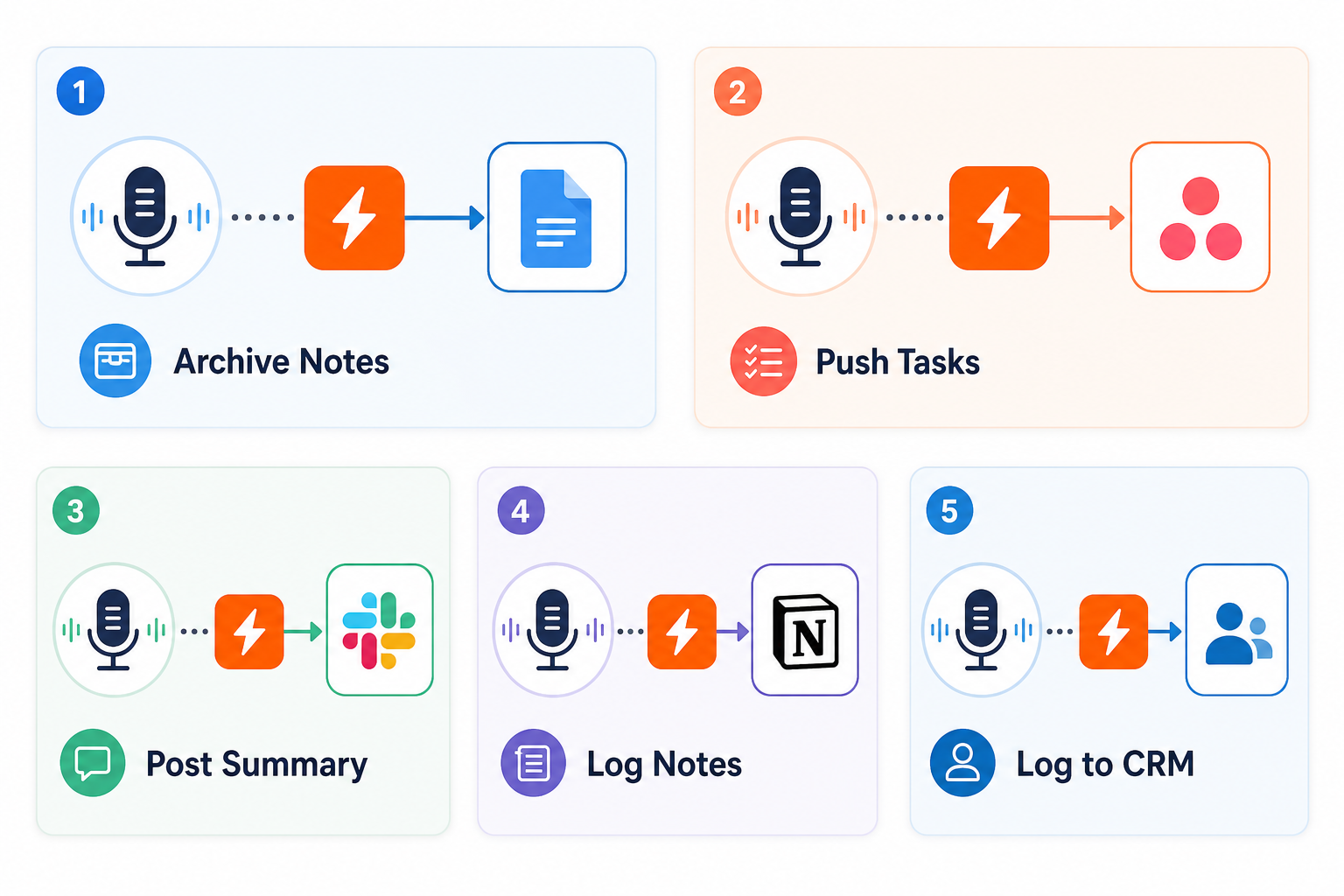
The recipes below cover the most common patterns readers of this site requested. Each one takes the basic trigger-action structure and applies it to a real workflow.
| Recipe | Trigger (AI Note-Taker) | Action (Destination) | Best For |
|---|---|---|---|
| Archive full transcripts to Google Docs | Fathom – New AI Summary | Google Docs – Create Document | Keeping a searchable library of every meeting |
| Push action items to Asana | Otter.ai – New Action Item | Asana – Create Task (via Looping) | Turning decisions into tracked work |
| Post meeting summary to Slack | Granola – Note Added to Folder | Slack – Send Channel Message | Sharing key takeaways with the team instantly |
| Log meeting notes to Notion | Read AI – New Meeting Notes | Notion – Create Database Item | Centralizing notes in a team wiki |
| Log meeting to CRM (HubSpot/Salesforce) | Fireflies.ai – New Meeting | HubSpot – Create Engagement (or Salesforce – Add Note) | Attaching call notes to contact records |
For the Notion recipe specifically, you might want to pair the automation with a structured template to keep your notes consistent. The site’s curated collection of best Notion meeting notes templates gives you ready-made database layouts that map naturally to the fields Read AI sends.
Pro Tips for Better Automations
A simple one-step Zap gets the job done, but a little extra logic can turn a good automation into a great one. Here are three enhancements that cost nothing beyond a few extra clicks.
- Add a filter step to reduce noise. Granola’s Zapier integration lets you create tasks or send notifications only when notes contain keywords like “urgent,” “deadline,” or “ASAP.” Insert a Filter by Zapier step between the trigger and action, set the condition to “notes text contains [keyword],” and the action runs only when it matters.
- Use a delay step for follow-ups. If you’re sending follow-up emails from meeting notes, add a Delay by Zapier step (set to 1 hour, for example) so the message doesn’t land in someone’s inbox while the meeting is still fresh — or before you’ve had time to review the summary.
- Layer ChatGPT enrichment. Both Fireflies.ai and Fathom Zaps can include an OpenAI step that cleans up raw transcripts, removes filler words, or even extracts a bullet-list of decisions before the data reaches your destination app.
Which AI Note-Taker Should You Use?
All five note-takers covered here have native Zapier triggers, but they differ in pricing tiers, supported meeting platforms, and the kind of output they produce. The table below matches each tool to a typical user profile.
| Tool | Free Tier | Zapier Trigger Event | Best For |
|---|---|---|---|
| Fathom | 5 AI summaries/month (Pro $32/mo) | New AI Summary | Solo freelancers who need a simple, reliable Zap and don’t mind the free-tier cap |
| Otter.ai | Limited monthly minutes | New Recording / New Transcript / New Action Item | Teams that want granular control over transcripts and action items, and need to push both to separate tools |
| Granola | Free desktop app (paid for Zapier integration) | Note Added to Granola Folder / Note Shared | Power users who take their own notes and want AI enhancement without a bot joining meetings |
| Fireflies.ai | Free with limited storage | New Meeting | Sales teams that need CRM logging and multi-step pipelines with AI enrichment |
| Read AI | Free tier with limited notes | New Meeting Notes | Organizations that want to sync notes into Notion or task managers like ClickUp / Motion |
For a side-by-side evaluation of Otter.ai, Fireflies.ai, and Notion AI — including full pricing breakdowns and head-to-head accuracy tests — see the dedicated AI meeting notes comparison article on this site.
FAQ and Troubleshooting
- My Zap isn’t firing. First, check that the Zap is turned on (the toggle should be green). Then verify that your AI note-taker account is still connected — expired tokens are a common cause. For folder-based triggers like Granola, make sure you have owner permissions on the folder.
- Some data fields are missing in the destination. Re-run the test step and inspect the sample data. Not all note-takers expose every field. For example, Otter.ai’s “New Transcript” trigger may not include speakers if the recording is short. Adjust your field mapping to only use available data.
- Fathom’s free tier only gives 5 summaries per month. If you need more, the Pro plan ($32/month at time of writing) removes that cap. Pricing may have changed — verify on Fathom’s website before upgrading.
- Granola’s Zapier integration is only available for paid Desktop users. The free desktop app does not include Zapier access. You’ll need a paid plan to use the “Note Added to Granola Folder” trigger.
- How do I know the Zap is working correctly? After publishing, run a real meeting and watch the Zapier activity log. It shows each step’s status, the data that passed through, and any errors. This log is the fastest way to debug field-mapping issues.
Comments
Join the discussion with an anonymous comment.