
The problem usually starts after you already tried to teach the iPhone a word. You typed the term correctly, maybe rejected a correction once or twice, and later Apple Notes or GoodNotes still changed it at the worst possible moment.
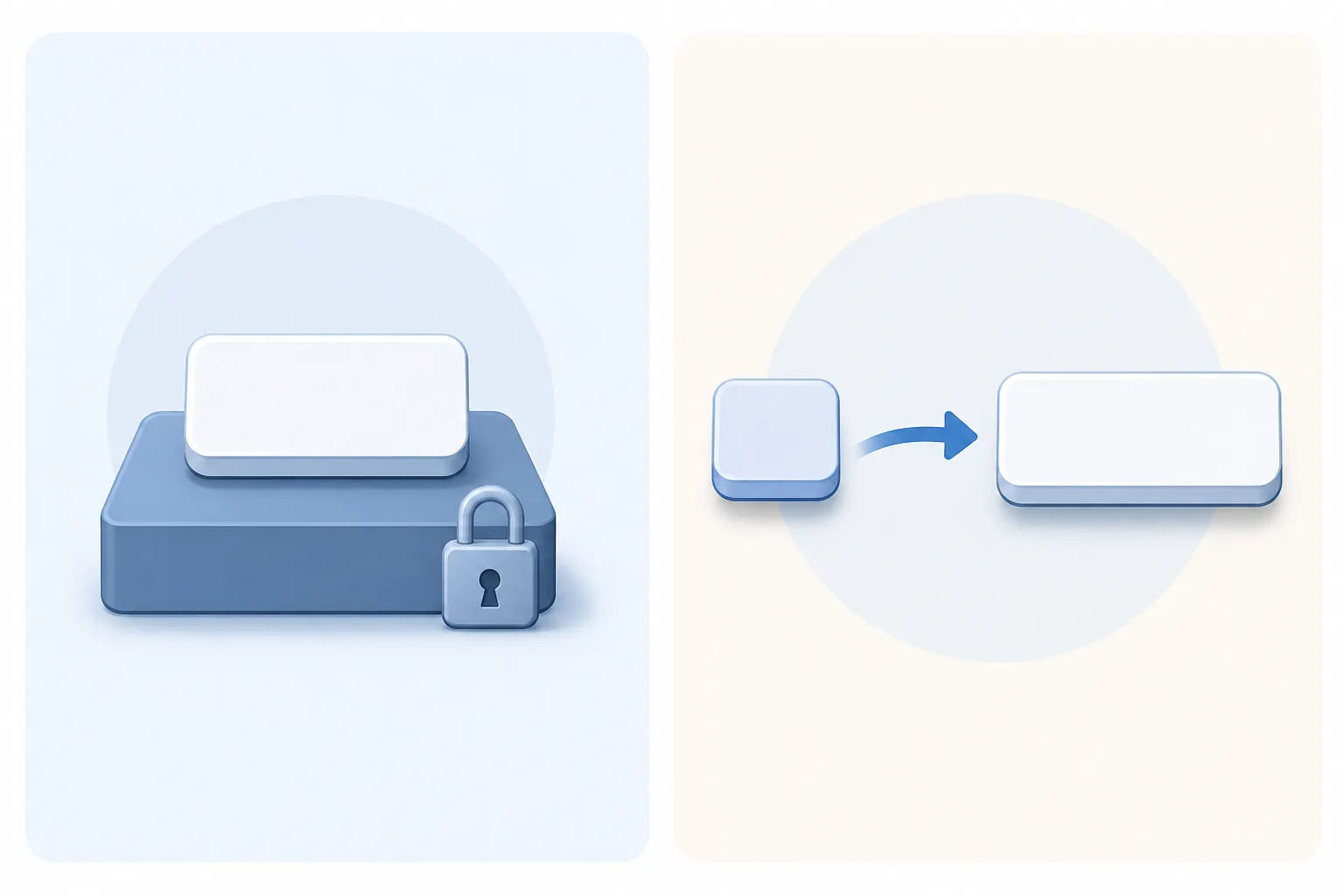
That happens because there is no single iPhone dictionary you can open, edit, and trust everywhere. For note-taking, it is more useful to think in three stores: the keyboard’s learned dictionary, the editable Text Replacement list, and any personal dictionary a note-taking app keeps for itself.

First, separate the three word stores
The keyboard dictionary is the least satisfying layer because it learns from use, but Apple does not provide a per-word editor for the words it has learned. Apple documents Reset Keyboard Dictionary under Settings > General > Transfer or Reset iPhone > Reset, and says that words added while typing are deleted when that keyboard dictionary is reset.[1] Lifewire describes the same practical boundary from the user side: when predictive text has learned something unwanted, the cleanup path is a keyboard-dictionary reset rather than removing one learned word from a visible list.[2]
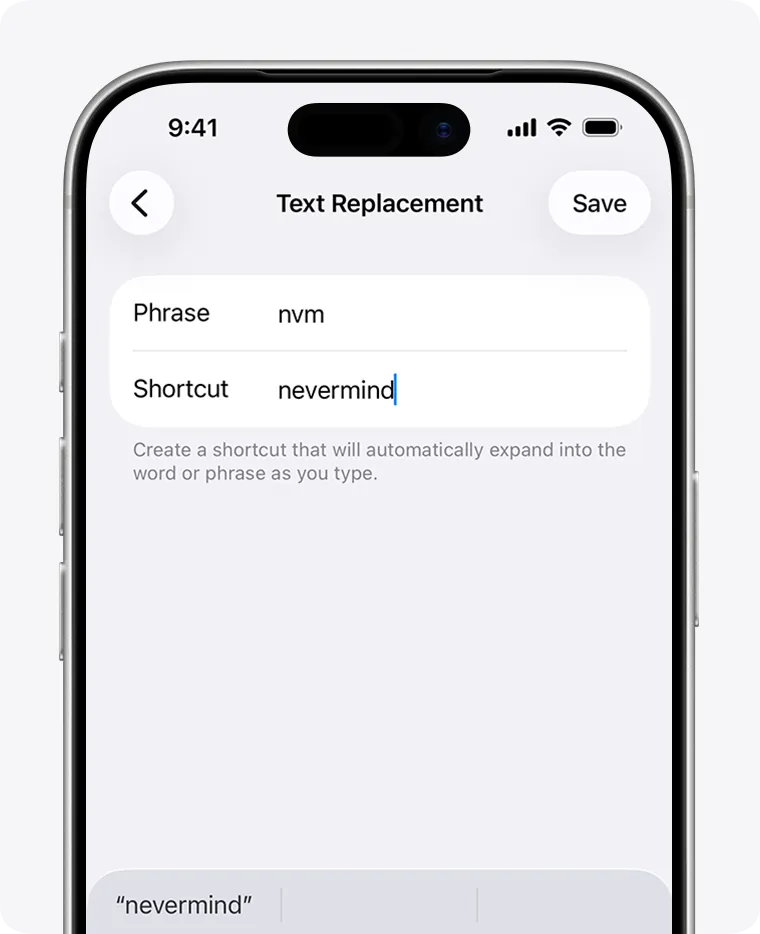
Text Replacement is the editable layer. Apple places it at Settings > General > Keyboard > Text Replacement. There you can create entries with a Phrase and, optionally, a Shortcut; Apple’s guide also describes keeping replacements updated across devices when iCloud Drive is turned on.[3] AbilityNet’s iOS 26 guide shows the same current route and the everyday behavior: type the shortcut in a text field and use Space to expand it.[4]
Then there is the app layer. GoodNotes documents its own Personal Dictionary for its writing aids: tap an underlined word, choose More…, then Add to Dictionary; custom words can later be managed from the Goodnotes menu under Writing Aids > Custom Words.[5] That store sits beside Apple’s keyboard settings. Adding a term there does not mean you have edited Apple’s learned keyboard dictionary, and adding it in Apple’s Text Replacement list does not prove every app-level spellcheck system has accepted it.
| Layer | Where you touch it | Best use in notes | Main failure mode |
|---|---|---|---|
| Keyboard learned dictionary | No visible per-word editor; reset from Settings > General > Transfer or Reset iPhone > Reset | Passive learning from typing | Can be reset only as a whole documented keyboard-dictionary reset |
| Text Replacement | Settings > General > Keyboard > Text Replacement | Protect exact words and expand shorthand | Sync depends on the documented iCloud Drive setup and should be checked per device |
| App personal dictionary | Inside the app, when the app documents one; GoodNotes is the example here | Stop app-level spellcheck or writing aids from flagging your terms | Does not automatically become an Apple system dictionary entry |
Use an empty shortcut for words the iPhone must leave alone
For a technical term, name, abbreviation, project code, medication name, class acronym, or personal shorthand that autocorrect keeps damaging, start in Text Replacement. This is the part of the setup that generic dictionary advice often blurs: you are not editing the keyboard’s hidden learned list. You are putting an exact phrase into the editable replacement store.
- Open Settings.
- Go to General > Keyboard > Text Replacement.
- Tap the add button.
- Put the exact word or phrase in Phrase.
- Leave Shortcut empty.
- Save, then test the word in the note app where it normally gets changed.
The empty shortcut matters. If the word is “qPCR,” the goal is not to type another code to produce qPCR. The goal is for qPCR itself to be treated as an intentional phrase when you type it. This is the quiet fix for note-takers: fewer destroyed terms, fewer backspaces, and less need to stop mid-thought to repair a word that was already right.
This is also the cleanest place to answer the removal question. If you added the word through Text Replacement, you can return to the Text Replacement list and remove that entry. If the keyboard learned a bad correction by itself, the documented cleanup path is the broader Reset Keyboard Dictionary route, not a tidy one-word delete button.[1][2]
Use real shortcuts only for phrases you type again and again
A shortcut entry is different from an empty-shortcut entry. With a normal Text Replacement pair, the Phrase is the full text you want, and the Shortcut is the small trigger you type. Apple’s Text Replacement guide documents this Phrase-and-Shortcut model, and AbilityNet’s iOS 26 guide shows the expansion after typing the shortcut and pressing Space.[3][4]
This is where faster note-taking becomes concrete rather than motivational. If you often type the same course title, research method, meeting label, or clinical term, a short trigger can remove repeated keystrokes. It should not create a second proofreading problem. Good shortcuts are memorable, unlikely to be ordinary words, and easy to type on the keyboard you actually use.
For the shape of the shorthand, use conventions that note-takers already understand. The University of Portsmouth’s note-taking abbreviation guidance includes patterns such as abbreviating common words, using initial letters, and dropping vowels.[6] The examples below are illustrative, not universal prescriptions; replace them with your own vocabulary.
| Pattern | Shortcut example | Phrase example | When it works |
|---|---|---|---|
| Initial letters | cogload | cognitive load | The phrase has a stable name and the shortcut is still readable |
| Initials | wm | working memory | You use the same term repeatedly in one subject area |
| Dropped vowels | devlpmnt | development | The shortened form is recognizable to you later |
| Personal prefix | ;mtg | meeting notes | You want to avoid triggering an expansion during normal typing |
| Course or project code | ;proj | project retrospective | The phrase is long enough that expansion is worth maintaining |
The safest test is boring: open Apple Notes, type the shortcut, press Space, and confirm that it expands exactly once into the phrase you wanted. Then try the same entry in the other note app you use for typed text. Apple documents Text Replacement as a system keyboard feature for text fields, but app behavior can still be affected by the app’s own editor, spellcheck tools, or writing-aid layer.[3][5]
A worked replacement that is worth keeping
Suppose your notes repeatedly include “spaced retrieval practice.” As a protected term, you could add the whole phrase in Text Replacement with no shortcut if autocorrect keeps changing part of it. As an expansion, you could set Phrase to “spaced retrieval practice” and Shortcut to “srp.” The first entry protects the wording. The second entry saves repeated typing. They solve different annoyances, so it is fine if only one of them is necessary.
Do not build dozens of expansions before testing a handful during real notes. A shortcut that looks elegant in Settings can be irritating if it fires when you meant to type something else, or if you cannot remember it under lecture or meeting pressure. The best list is usually small enough that you do not need a separate index to use it.
Add the word again inside GoodNotes when GoodNotes flags it
GoodNotes deserves separate handling because it documents a separate custom-word workflow. If a word is underlined in GoodNotes, the documented route is to tap the underlined word, choose More…, and select Add to Dictionary. GoodNotes also documents the management path: open the Goodnotes menu, go to Writing Aids, then Custom Words.[5]
- Type or write the word in GoodNotes and wait for GoodNotes to mark it.
- Tap the underlined word.
- Choose More…
- Tap Add to Dictionary.
- Later, review custom words from Goodnotes menu > Writing Aids > Custom Words.
GoodNotes lists support for Dutch, English US, English UK, French, German, Italian, Portuguese Brazil, Portuguese Portugal, Spanish, and Turkish for this spellcheck-related feature.[5] If your notes mix languages, technical notation, or names outside the language you have enabled, test the exact word in the actual notebook before assuming the app will treat it the same way Apple’s keyboard does.
The important distinction is location. A GoodNotes custom word belongs to GoodNotes’ documented writing-aid system. A Text Replacement entry belongs to Apple’s keyboard settings. If a term appears in both handwritten GoodNotes pages and typed Apple Notes pages, add it in both places when both places are causing friction.
For apps without a documented personal dictionary in the materials here, do not assume the GoodNotes route exists under another name. Use Text Replacement for the system keyboard layer, then check the app’s own spelling or writing-aid settings if it keeps flagging the word. If you are comparing note apps across iPad and iPhone, this kind of app-level behavior is one reason a setup can feel different even when the same Apple Account and keyboard settings are in use; it is also worth separating from hardware comparisons such as MatePad Air vs. iPad note-taking.
Check sync before you rely on another device
Text Replacement is editable, but editable does not mean instantly trustworthy on every device. Apple’s Text Replacement guide says replacements can be kept updated across devices when iCloud Drive is turned on.[3] That is the current documented requirement to check first when an entry appears on your iPhone but not on your iPad or Mac.
There is also older evidence that sync failures have been real rather than imaginary. MacStadium published a multi-device experiment in 2017 documenting Text Replacement sync problems, including one-directional failures and delays of 2 to 5 days; the same article carries the author’s November 27, 2017 update saying it appeared to be fixed.[7] That article is useful as a record of a failure mode, not as proof that the same timing problem exists on iOS 26.
The practical rule is simple: after adding replacements on one device, open the Text Replacement screen on the other device and confirm the entries are actually there. Then test expansion in the note app on that device. If you are preparing for a device migration, do that check before the first meeting, class, clinic, or interview where the shortcuts matter. Keyboard and notes-transfer planning belongs with the rest of a migration checklist, not as something discovered after the new phone is already your only phone; the same caution applies when following an iOS beta migration guide.
Use Reset Keyboard Dictionary as a last cleanup, not a word manager
Reset Keyboard Dictionary is tempting when autocorrect has learned something awful. It is also blunt. Apple places it under the broader Reset menu and describes the result as deleting words added to the keyboard dictionary while typing.[1] That makes it useful for clearing accumulated keyboard learning, but it is not the same as reviewing a list of learned words and removing one bad entry.
Before using it, write down or screenshot the vocabulary you actually care about: protected terms, expansion shortcuts, and app-level custom words. The sources here support the reset boundary for the keyboard dictionary, but they do not turn reset into a selective backup-and-restore tool for your note-taking vocabulary. If the word matters, put it in a place you can inspect later: Text Replacement for Apple’s keyboard layer, and the app’s documented custom-word list where the app provides one.
A repeatable setup for note-taking vocabulary
For each word or phrase that interrupts your notes, assign it to the layer that is actually causing the problem.
| Problem in your notes | Add it where | How to test |
|---|---|---|
| iPhone changes a correct technical term as you type | Text Replacement with Phrase filled and Shortcut blank | Type the term in Apple Notes and confirm it stays unchanged |
| You repeatedly type a long phrase | Text Replacement with Phrase + Shortcut | Type the shortcut, press Space, and confirm the expansion |
| GoodNotes underlines or flags the term | GoodNotes Personal Dictionary | Add from the underlined word, then review Custom Words |
| The term works on iPhone but not iPad or Mac | Check Text Replacement sync and iCloud Drive setup | Open Text Replacement on the other device and test in a note |
| The keyboard keeps suggesting old unwanted words | Consider Reset Keyboard Dictionary only after saving important vocabulary elsewhere | Expect a broad keyboard-dictionary reset, not a one-word deletion |
A small maintenance habit helps more than a giant shortcut project. When a correction interrupts a note, decide immediately whether it is a protection problem, an expansion opportunity, or an app-level spelling problem. Add the entry after the note session if you do not want to break concentration. Then test it once in the place where it failed.
Last verified and known issues
Last source-verified: August 25, 2026. The instructions above are based on current Apple, AbilityNet, and GoodNotes documentation available in the research set, with older sync evidence treated as historical rather than current-iOS proof.
- Keyboard learned words: Apple documents a wholesale Reset Keyboard Dictionary action, not a visible per-word editor.
- Text Replacement sync: Apple ties cross-device updating to iCloud Drive being on; confirm entries on each device before relying on them.
- MacStadium sync evidence: the 2017 test is useful as a documented failure mode, but its own update says the issue appeared fixed and it should not be presented as a live iOS 26 bug without fresh testing.
- Character limits and multiline replacements: community reports exist, but the research set does not provide a current verified source for exact limits, so long templates should be tested on your own device before becoming part of your note system.
- GoodNotes: the documented Personal Dictionary applies to GoodNotes’ supported writing-aid languages and should be treated as an app-level store, not a replacement for Apple’s Text Replacement list.
References
- Return iPhone settings to their defaults, Apple Support
- How to Remove Words From Predictive Text on iPhone, Lifewire
- Use text replacements on iPhone, Apple Support
- How to use Text Replacement to save time and effort typing in iOS 26 for your iPhone or iPad, AbilityNet
- Spellcheck your handwriting, Goodnotes Support
- Helpful abbreviations for speedy note-taking, University of Portsmouth
- Science Confirmed: Text Replacements Do Not Sync, MacStadium, November 27, 2017
Comments
Join the discussion with an anonymous comment.