
Before you touch Beta Updates, fix the backup model
In this guide, “notes” means Apple Notes. GoodNotes, Notability, Obsidian, OneNote, and other note apps have their own sync and backup rules, so do not assume this procedure protects those libraries.
The dangerous part of installing the iOS 27 beta is not the button in Software Update. It is the phrase “back up your iPhone first,” because Apple Notes can live in several different places. Notes synced with iCloud are not simply sitting inside an iCloud Backup; Apple says iCloud Backup does not include information already stored in iCloud, including data synced to iCloud services such as Notes. A local “On My iPhone” note is a different case, because it depends on the device backup path rather than iCloud Notes sync. That distinction matters before a beta install, not after something disappears. [1]
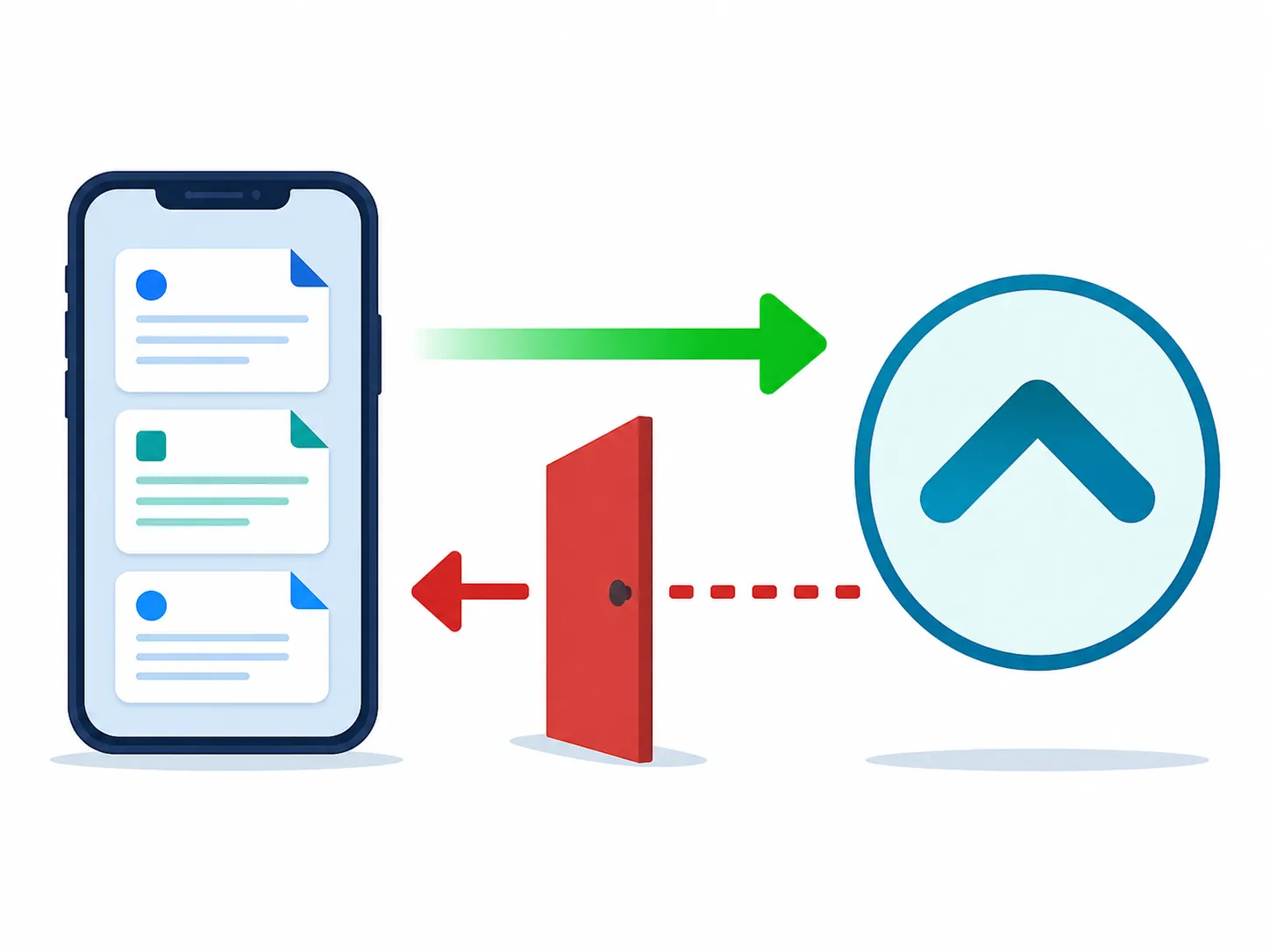
The second rule is harsher: Apple says backups created while using beta software might not be compatible with earlier iOS versions. In practical terms, if you install iOS 27 and then make your only fresh backup on iOS 27, that backup is not your clean way back to iOS 26. [2]
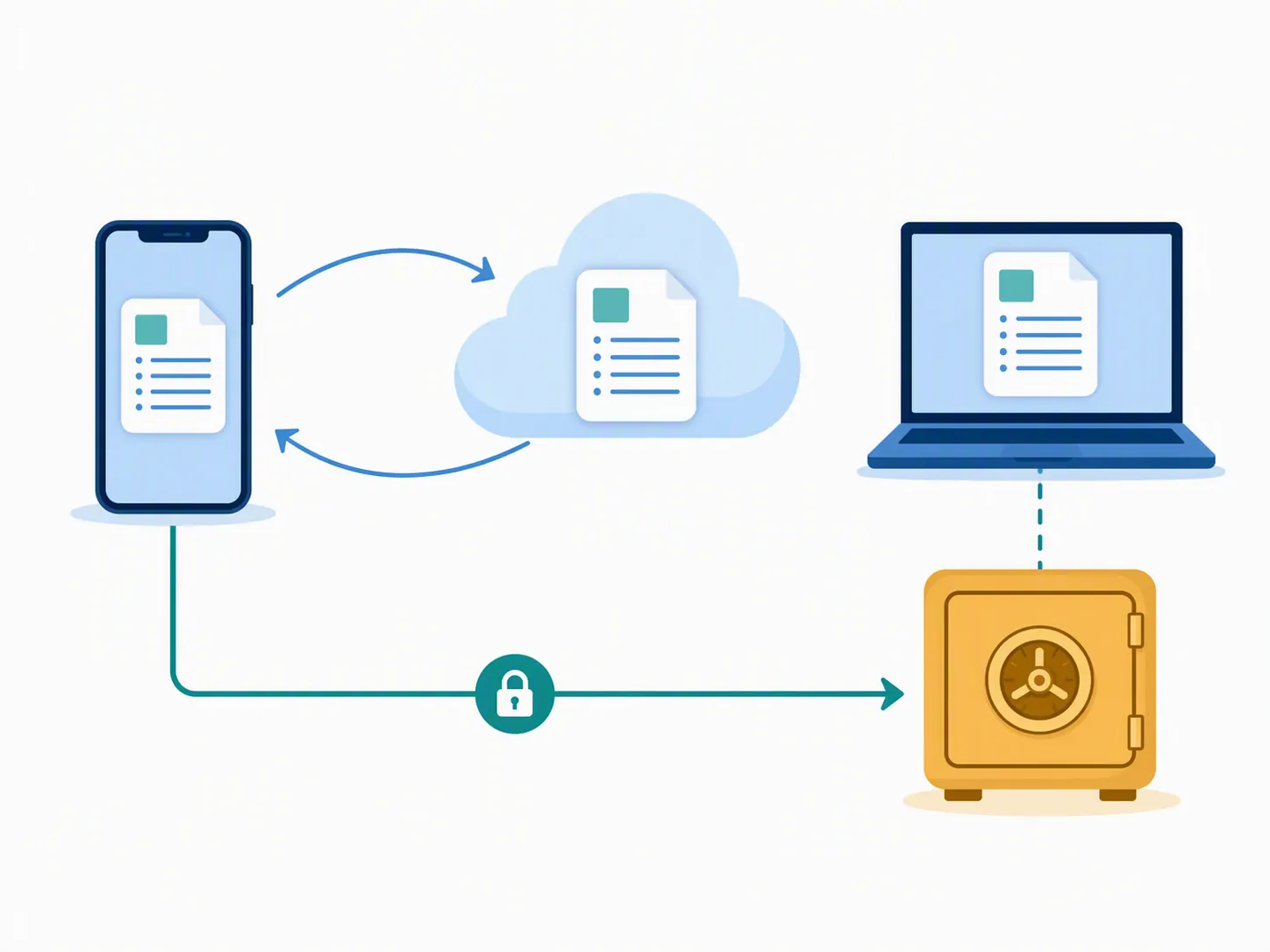
So the safe method is not “one backup.” It is a layered pre-flight: update and verify your iOS 26 baseline, make a fresh iCloud backup for ordinary device continuity, make an encrypted computer backup for local recoverability, archive that computer backup so a later beta backup cannot replace it, and export the notes you cannot afford to lose into standalone files.
The notes-safe sequence at a glance
| Stage | What you do | Why it matters for Apple Notes |
|---|---|---|
| 1. Clean iOS 26 baseline | Update to the latest available iOS 26 release before joining the beta. | You want the backup and sync state captured from a stable, current non-beta system. |
| 2. Locate your notes | Check iCloud Notes, On My iPhone, and any mail-account note folders. | A note’s location decides whether it relies on sync, device backup, or a third-party account. |
| 3. Make a fresh iCloud backup | Back up from Settings after charging and connecting to Wi-Fi. | Useful for normal restore continuity, but not a complete copy of iCloud-synced Notes. [1] |
| 4. Make an encrypted computer backup | Use Finder, Apple Devices, or iTunes depending on your computer. | Creates a local device backup before the beta. Apple documents computer backup as a separate backup method. [3] |
| 5. Archive the computer backup | On Mac, archive the iOS 26 backup before installing iOS 27. | Prevents the pre-beta backup from being overwritten by later backups. |
| 6. Export important notes | Save critical notes as standalone PDF or Markdown files where appropriate. | Gives you a readable copy even if restore and sync paths become messy. |
| 7. Install iOS 27 beta | Enroll the right Apple Account, then use Settings > General > Software Update > Beta Updates. | The install itself is the short part. |
| 8. Verify Notes after install | Open Notes, check every account location, unlock protected notes, inspect scans, and compare with iCloud.com. | The install is not finished until the notes are visibly accounted for. |
Start from a clean iOS 26 phone
Install the latest available iOS 26 update before you enroll the iPhone in the iOS 27 beta. This is not about superstition. A current iOS 26 phone gives you the cleanest practical baseline for backups, Notes sync, account settings, and any downgrade restore you may need later.
Then give Notes a minute of attention while the phone is still boring. Open the Notes app and check the folder list. You are looking for at least these locations, if they apply to your phone:
- iCloud notes, which should also be visible from iCloud.com when sync is healthy.
- On My iPhone notes, which are local to the device unless you move or export them.
- Mail-account note folders, such as notes tied to Gmail, Outlook, Yahoo, or an institutional account.
- Locked notes, because you need to know whether they still unlock after the install.
- Scan-heavy notes and attachment-heavy notes, because those are the ones that tend to reveal export and sync assumptions.
Do not reorganize your whole note system right now. Just identify the awkward notes: tomorrow’s lecture outline, the project checklist that lives in a shared folder, a locked medical note, a receipt scan, and one note that is definitely stored locally. Those are your test set.
Build the protection layer before the beta
Make a fresh iCloud backup, but do not treat it as the whole answer
Start with an iCloud backup because it is still useful. It helps restore device settings and app continuity, and it is the backup most people actually remember to make. Apple’s backup documentation separates iCloud backups from computer backups and explains that iCloud backups cover information and settings stored on the device, while data already synced to iCloud is not duplicated inside that backup. [1][3]
On the iPhone, go to Settings, tap your name, open iCloud, then iCloud Backup, and run Back Up Now. Keep the phone on Wi-Fi and power until the backup completes. When it finishes, check the timestamp instead of assuming the spinner did its job.
This protects some of the phone. It does not turn iCloud-synced Notes into a separate historical archive. If you delete an iCloud note and that deletion syncs, the backup model is not the same as having a frozen export of that note.
Make an encrypted computer backup while the phone is still on iOS 26
Now connect the iPhone to a Mac or PC with a cable and make a computer backup. On a Mac, use Finder. On Windows, use Apple Devices or iTunes depending on your setup. Choose the encrypted backup option and keep the password somewhere you can actually retrieve. Apple documents computer backup as a separate method from iCloud backup, and the encrypted option is the one to use when you want the most complete local backup Apple offers through this route. [3]
This is the backup that matters if you later decide the beta is not worth it and want the phone restored from a pre-beta state. The timing is the point: make it before iOS 27 touches the device.
Archive the iOS 26 computer backup so beta backups cannot replace it
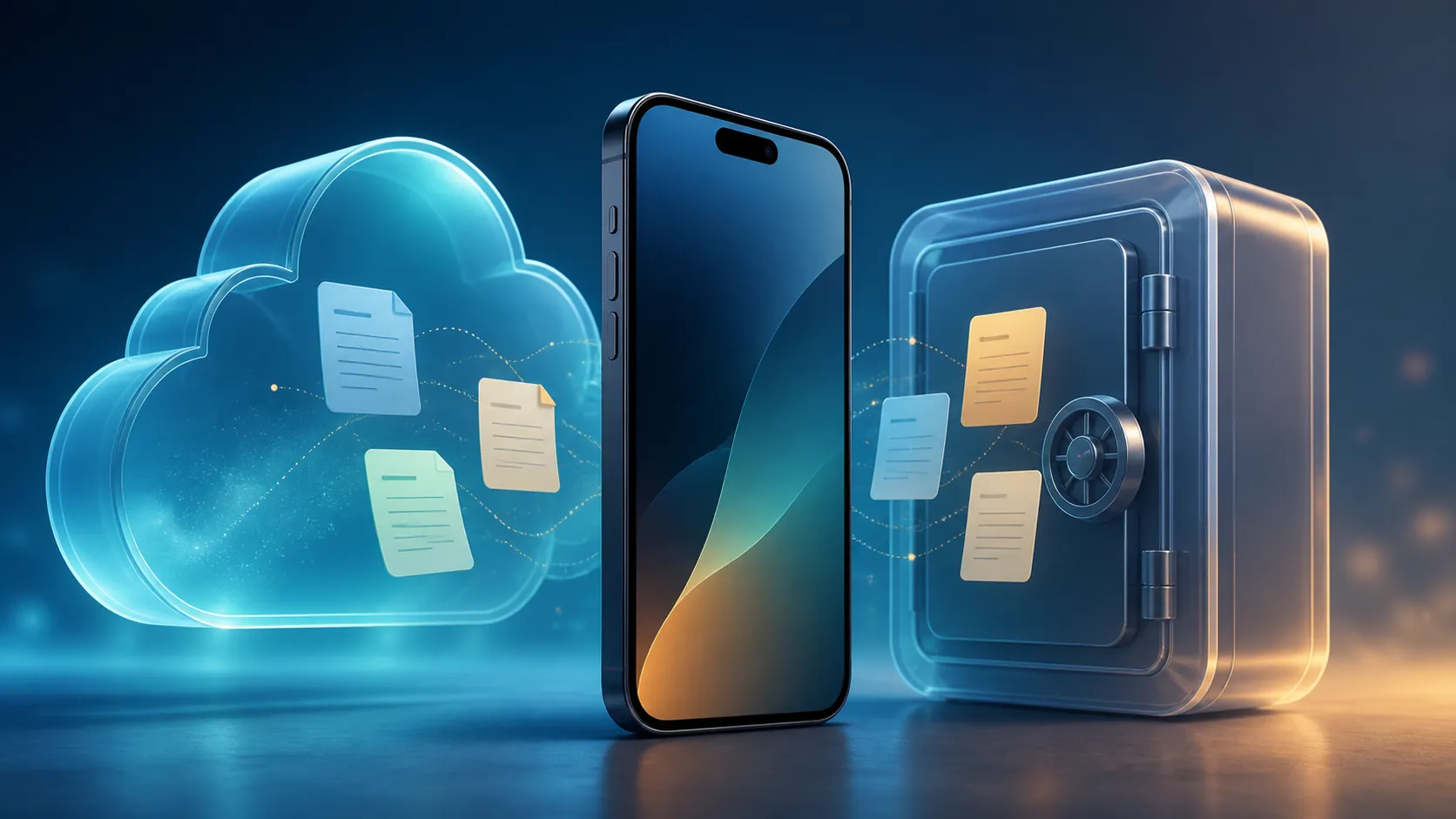
A normal computer backup can be overwritten by a later backup. That is exactly what you do not want after installing a beta. On Mac, the carry-over procedure is to open Finder, select the iPhone, manage backups, then archive the pre-beta backup. 9to5Mac’s archived-backup walkthrough is from the iOS 17 beta era, so treat it as a procedure lead to verify in your current Finder interface, not as iOS 27-specific Apple documentation. The underlying reason still applies: the archived pre-beta backup is the snapshot you are trying to keep out of the overwrite path. [4]
If you cannot archive a computer backup in your current setup, do not pretend the problem vanished. At minimum, make the standalone Notes export below non-negotiable, avoid creating new beta backups over the same backup set, and consider using a Mac for this install if the iPhone is your primary work or school device.
Export the notes you would be angry to lose
The export layer is not elegant. It is insurance. A standalone PDF or Markdown file remains readable even if you end up juggling iCloud sync, a downgrade, and a backup compatibility error. Apple’s iPhone guide says notes can be exported or printed as PDFs, and notes can be exported as Markdown files starting with iOS 26. Locked notes must be unlocked before export. Apple also notes an important limitation: if a note contains a multi-page or scanned PDF, only the first page is exported. [5]
That scan limitation is why “I exported my Notes” needs a quick inspection afterward. Open the exported files. Check the locked note. Check the scan-heavy note. Check one note with an attachment. If the export only captured the first page of something important, save that attachment separately before installing the beta.
For most people, exporting every note is unrealistic and unnecessary for this install. Export the notes that would cause immediate damage if they vanished tomorrow: active coursework, current client or project checklists, IDs and receipts, medical notes, travel details, and anything stored only under On My iPhone. If you are using Apple Notes as a quick capture layer alongside other apps, FlowDesk’s broader comparison of free note-taking apps for students is a better place for app-level tradeoffs; here, the job is simply to make sure the notes on this iPhone survive the beta.
A short primary-iPhone checkpoint
If this is the phone you need for tomorrow’s class, client call, travel day, medical appointment, or two-factor authentication, pause before the install button. That does not mean “never install betas.” It means the phone has jobs that are more important than seeing iOS 27 early.
A secondary iPhone is the cleaner beta device. If you are deciding between keeping an older iPhone as a notes-and-beta test device or moving fully to a new model, the FlowDesk iPhone 17 Pro vs. 18 Pro note-taking comparison has more context. For this guide, the checkpoint is simple: if you cannot tolerate a few hours of Notes confusion, do not use your only iPhone as the test bed.
Install the iOS 27 beta
Once the iOS 26 backup and export work is done, the beta install is ordinary. Apple’s current beta flow uses the Apple Account tied to the beta program, and on modern iOS versions the beta appears inside Software Update rather than requiring the old configuration-profile routine. Apple’s developer beta instructions describe installing through Settings > General > Software Update > Beta Updates; public beta coverage for iOS 27 follows the same Settings path after enrollment with the proper Apple Account. [6][7]
- Enroll the Apple Account you use on the iPhone in the appropriate beta program: public beta if you want the public track, developer beta if you are using the developer track.
- On the iPhone, open Settings.
- Go to General.
- Open Software Update.
- Tap Beta Updates.
- Choose the iOS 27 public beta or iOS 27 developer beta, depending on your enrollment.
- Return to Software Update, download the beta, and install it while the phone is charged or connected to power.
Do not build your plan around a fixed storage number you saw in a forum or video. Beta download sizes and temporary install needs move around during the cycle, and Apple does not give one universal free-space figure that safely applies to every iPhone and every beta build. Leave several gigabytes free, then follow what Software Update reports on your device.
Do not call it done until Notes pass the boring checks
After the iPhone boots into iOS 27, resist the normal beta-tour reflex. Open Notes first. The right result is not “the app opens.” The right result is that the notes you deliberately checked before the install are still where you expect them to be.
- Open the iCloud folder in Notes and check a recent note that should sync across devices.
- Open iCloud.com in a browser and confirm that the same iCloud notes appear there if sync looks incomplete.
- Open On My iPhone and confirm the local note you identified before the install still exists.
- Open each mail-account Notes folder that existed before the install.
- Unlock at least one locked note.
- Open a scan-heavy note and confirm the scan or attachment is still present, not just the note title.
- Create a small test note on the iPhone and confirm whether it syncs to the expected account.
Give iCloud a little time if the phone has just restarted, especially on a weak connection. But do not let “probably syncing” become the new backup plan. If the important notes are not visible, move to recovery while your pre-beta backup and exports are still clean.
If notes are missing, work down this ladder
1. Check Notes sync settings first
Apple’s missing-notes guidance starts with the settings that control whether notes are syncing. Check iCloud Notes sync, then check any third-party account that previously stored notes. If a mail or school account was removed, disabled, or had Notes turned off, its folder can disappear from the Notes app even though the notes may still exist on that account. [8]
2. Look in Recently Deleted
Open Recently Deleted in Notes if it appears. This is the quickest check for a note that was deleted rather than merely hidden by an account or sync issue. Apple includes Recently Deleted in its missing-notes recovery path. [8]
3. Search all folders, not just iCloud
Search for a distinctive word from the missing note, then check the folder name if it appears. A note you thought was in iCloud may have been under a mail account. A note you thought was synced may have been local. This is where the pre-install folder check saves time, because you are comparing against known locations instead of guessing.
4. Compare with iCloud.com
If the missing note was an iCloud note, sign in to iCloud.com from a browser and check Notes there. If the note is present on iCloud.com but absent on the iPhone, you are likely dealing with an iPhone sync or account-state problem. If it is gone from iCloud.com too, treat that differently: the synced copy may no longer be available through iCloud Notes.
5. Use your exported copy for urgent work
If tomorrow’s lecture notes or a client checklist are missing, open the exported PDF or Markdown file and keep working from that copy. This is the reason the export step exists. It is not a perfect restore; it is a usable copy while you decide whether the phone needs a deeper repair.
6. Restore or downgrade only with the backup rules in mind
If the beta has to come off, follow Apple’s uninstall guidance rather than improvising. The important limit has not changed: a backup made while using beta software may not restore to an earlier iOS version. Apple also documents the separate restore failure where a backup requires a newer iOS or iPadOS version than the device currently has. [2][9]
That is why the archived encrypted iOS 26 computer backup was the load-bearing step. If you need a clean return to iOS 26, the pre-beta archived backup is the candidate. The iOS 27 backup you make after experimenting is useful only within the compatibility limits Apple describes; it is not a magic ticket back to the old system.
What this method protects, and what it does not
This workflow protects practical recoverability. It gives you a current non-beta restore point, a local encrypted backup that is not casually overwritten, and standalone copies of the notes that matter most. It also forces you to check where Apple Notes data actually lives before the beta changes the phone.
It does not make iCloud sync into version history. It does not guarantee that every third-party account will behave like iCloud. It does not protect note libraries inside other apps unless those apps have their own verified export or backup path. If you are comparing whether Apple Notes should remain your capture layer at all, use FlowDesk’s 2026 note-taking software comparison for that broader decision.
For installing iOS 27 beta on an iPhone without losing Apple Notes, the test is narrower: before the install, you have an iCloud backup, an archived encrypted iOS 26 computer backup, and readable exports of critical notes; after the install, you can open iCloud notes, local notes, account-based notes, locked notes, and scan-heavy notes without guessing.
References
- What does iCloud back up? — Apple Support — https://support.apple.com/en-us/108770
- Uninstall iOS or iPadOS beta software — Apple Support — https://support.apple.com/en-us/108763
- How to back up your iPhone or iPad — Apple Support — https://support.apple.com/en-us/108771
- How to archive an iPhone backup before installing iOS beta — 9to5Mac — https://9to5mac.com/2023/07/12/archive-ios-16-backup-downgrade/
- Export or print notes on iPhone — Apple Support Guide — https://support.apple.com/guide/iphone/export-or-print-notes-iphdf551cfa2/ios
- Installing Apple beta software — Apple Developer — https://developer.apple.com/support/install-beta/
- iOS 27 Public Beta: How to Download It on Your iPhone — CNET — https://www.cnet.com/tech/services-and-software/ios-27-public-beta-download/
- If you're missing notes on your iPhone, iPad, or iPod touch — Apple Support — https://support.apple.com/en-us/102476
- If you can't restore a backup to your iPhone or iPad because a newer version of iOS or iPadOS is required — Apple Support — https://support.apple.com/en-us/108811
Comments
Join the discussion with an anonymous comment.