
Start with the access check
Before setting up anything, confirm that using Siri AI for note taking and task management in iOS 27 is actually available to you. Siri AI requires an iPhone 16 or later, an iPhone 15 Pro or iPhone 15 Pro Max, an iPad mini with A17 Pro, or an iPad or Mac with M1 or later. Apple also separates out the more advanced dictation and more expressive Siri voice features: those require the most advanced on-device model, listed by Apple for iPhone Air, iPhone 17 Pro and 17 Pro Max, iPad models with M4 and 12GB or more unified memory, and Mac models with M3 and 12GB or more memory.[1]
Region and language matter just as much as the chip. Siri AI is English-only at launch, is not available on iOS or iPadOS in the EU at launch, and is not available in China.[1] If your device is compatible but the Apple Intelligence or Siri AI controls are missing, do not spend an hour reinstalling apps or rebuilding Notes. You may simply be outside the supported launch conditions.
There is also a trust gap around Siri claims that is worth naming early. Apple paid a $250 million class-action settlement in May 2026 over claims that it misled consumers about Apple Intelligence features, including Siri capabilities.[2] As of July 30, 2026, Siri AI is still in developer beta, with public beta availability expected in July 2026 and final release behavior expected in fall 2026. One beta hands-on account reported waiting 96 hours after installing the beta before the Siri AI waitlist cleared, with features still rolling out afterward.[3]
That does not make the workflow useless. It does mean the setup should be built around small, checkable actions: add this item to the right list, summarize this recording, turn this message into a reminder, run this recurring Shortcut. Notes and Reminders are not suddenly becoming a different class of app on their own; the meaningful change is Siri AI, on-screen awareness, contextual suggestions, and Shortcuts orchestration around them. One review of Apple’s built-in apps for iOS 27 makes the same distinction: there are no major standalone Notes or Reminders feature drops to treat as the center of the upgrade.[4]
The starter flow
The useful version of this setup is not “ask Siri to manage my life.” It is a capture path you can repeat while walking, reading a message, leaving a meeting, or cleaning up an audio note later.
| Stage | What you set up or do | What to verify |
|---|---|---|
| Enable | Turn on Apple Intelligence and Siri AI features on a supported device, language, and region. | The Siri AI controls appear, and Siri responds with the newer contextual interface. |
| Voice capture | Use short commands that include the action, destination, and trigger. | The item lands in the correct Notes folder, note, Reminders list, date, or location trigger. |
| On-screen capture | Ask Siri to use the message, email, or visible content you are looking at. | The note or reminder includes the right context, not just a vague title. |
| Audio cleanup | Record inside Notes, then generate a Summary from the recording. | The summary is accurate enough to copy, share, or edit into next actions. |
| Automation | Use Shortcuts’ natural-language builder for one repeated task pattern. | The Shortcut trigger, actions, permissions, and destination are all visible and testable. |
If you are still deciding whether Apple Notes is enough before adding Siri AI on top, the comparison in Can Apple Notes Replace Third-Party Note Apps After iOS 26.6? is the better starting point. This guide assumes you are already in the Apple stack, or close enough that configuration is the real problem.
Enable the Siri AI pieces before testing commands
- Update the device to the iOS 27 beta build you are using, or the current iOS 27 release when it becomes available.
- Open Settings and check the Apple Intelligence and Siri area. If Apple Intelligence is unavailable, check device model, language, region, and beta waitlist status before changing app-level settings.
- Make sure Siri is allowed from the places you actually capture from: the Lock Screen, while using apps, and with voice activation if you use hands-free capture.
- Open Notes once and confirm that iCloud sync, folders, and any shared notes you rely on are visible. Open Reminders and confirm your key lists exist: Inbox, Groceries, Work, Personal, or whatever names you actually use.
- Run one throwaway command into each app, then delete the test item. This confirms that Siri can reach the app before you trust it with a real errand or meeting note.
The fourth step is more important than it looks. Siri can understand a command and still put the result somewhere annoying. If your Reminders app has three old lists named “Shopping,” “Groceries,” and “Store,” clean that up before you start blaming the model.
Turn voice capture into notes and reminders you can trust
Voice capture works best when the command carries the whole routing decision. A weak command is “remind me about the report.” A better command says when, where, and which list should own the item.
Commands that include the destination
- “Siri, remind me in 30 days to cancel the trial.”
- “Siri, add olive oil to my Groceries list.”
- “Siri, remind me when I get to the office to print the agenda.”
- “Siri, add ‘ask Dana for budget numbers’ to my Work reminders.”
- “Siri, make a note called Project check-in and add: waiting on legal review, confirm launch date, ask about support coverage.”
- “Siri, add this idea to my Recipes note.”
The relative-date, list-destination, and location-trigger patterns are the ones to practice first. iOS 27 Siri guidance specifically describes commands such as “remind me in 30 days,” adding an item such as olive oil to Groceries, and location-based reminders such as “when I get to the office” as supported natural-language patterns.[5]
For Reminders, the useful grammar is:
Siri, remind me [when / where] to [action] in [list].
Siri, add [item] to my [list name] list.
Siri, remind me [relative date] to [specific action].
For Notes, the useful grammar is different. A note is usually a place for context, not a due date. Give Siri either a note title or an existing note name:
Siri, create a note called [title] with [content].
Siri, add [content] to my note called [existing note name].
Siri, summarize this and add it to [note name].
After each early command, open the destination app. Check the title, list, date, and alert. This is not busywork. It is how you teach yourself which phrases Siri handles cleanly on your device and which ones produce a half-right capture that needs repair.
Use what is already on screen
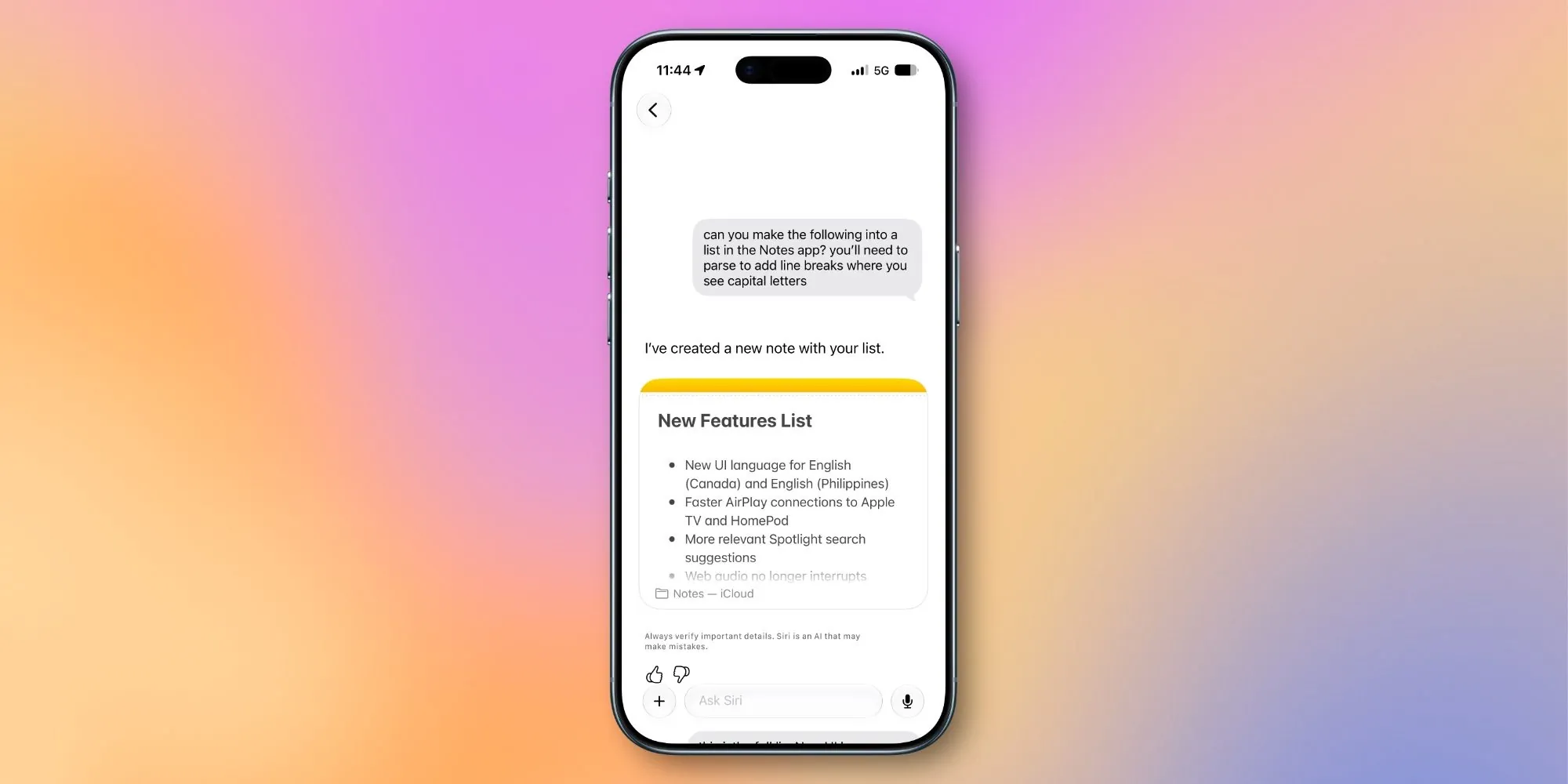
The most interesting iOS 27 Siri AI capture path is not dictating into a blank screen. It is acting on the mess already in front of you. Apple’s WWDC demo showed Siri using a Messages conversation about a potluck dish and adding a recipe to Notes without making the user leave the conversation.[6][2]
Use that pattern for ordinary moments:
- A friend texts an address: “Siri, remind me to bring the charger when I arrive here.”
- A coworker sends a deadline in Messages: “Siri, add this deadline to my Work reminders.”
- A group thread decides who is bringing what: “Siri, make a note from this conversation called Potluck plan.”
- A message contains a link you need later: “Siri, add this link to my Research note.”
iOS 27 also surfaces one-tap “Add to Reminders” and “Add to Notes” suggestions in Messages based on conversation content, powered by on-device Apple Intelligence.[1][7] When the suggestion appears, use it instead of manually copying text. Then still check the created item. The shortcut from message to reminder is valuable only if the reminder has the right date, list, and wording.
If Lock Screen capture is a big part of your day, pair this setup with iOS 27’s Lock Screen Speeds Up Note and Task Capture. Voice is not the only fast path, and it is not always the quietest one.
Record audio in Notes, then make Siri AI do the first cleanup
Audio notes are where Apple Notes becomes more than a text bucket. The documented flow is concrete: record audio inside Notes, tap the recording, select Summary to generate an AI bullet summary, then use the overflow menu to copy or share the result.[8] CNET’s hands-on coverage also describes the recording, transcription, and summary path as one of the practical Apple Notes AI additions.[9]
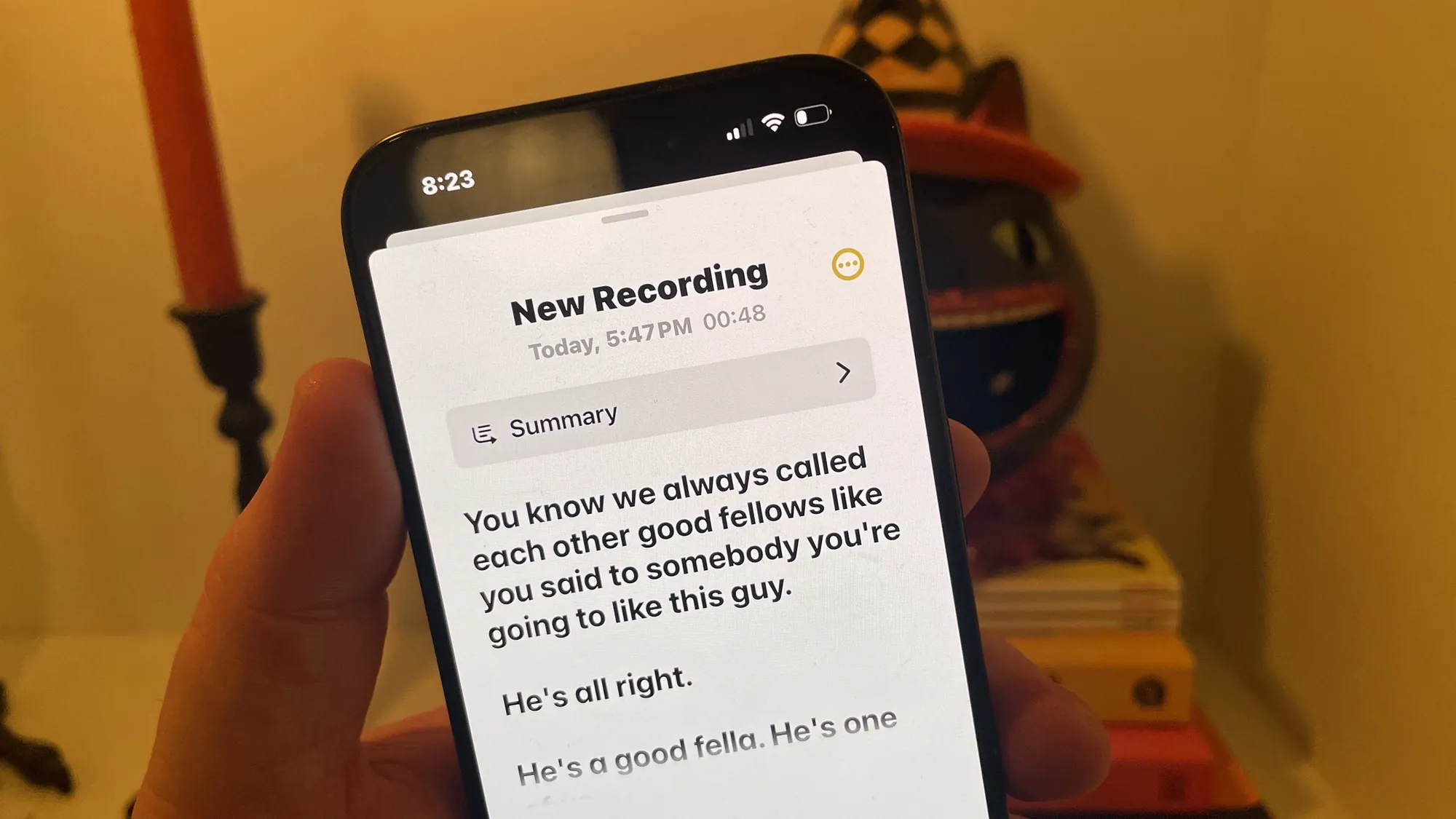
- Open Notes and create a note for the meeting, call, lecture, or voice memo.
- Start an audio recording inside the note.
- When the recording is finished, tap the recording block.
- Choose Summary.
- Read the summary before using it. Fix names, dates, owners, and decisions.
- Copy or share the summary from the overflow menu if it needs to move into Mail, Messages, a project note, or a task list.
Do not treat the summary as the finished meeting record. Treat it as the first cleanup pass. The most useful next move is often to ask Siri to convert one line into a Reminder:
- “Siri, remind me tomorrow at 9 to send the revised deck to Maya.”
- “Siri, add ‘confirm vendor pricing’ to my Work reminders for Friday.”
- “Siri, add this summary to my Client A note.”
This is the point where Notes and Reminders should meet. Notes holds the messy source material. Reminders holds the next action. If everything stays in the note, you have a searchable archive, not a task system.
Build one natural-language Shortcut for the task pattern you repeat
Shortcuts is where Siri AI can save more than a tap. Apple demonstrated a plain-English automation instruction: “when I’m leaving work, message Pedro I’m on my way with my ETA.” TechCrunch reported that the new Shortcuts app can assemble the location trigger, Maps ETA calculation, and Messages action automatically, making Shortcuts less intimidating for users who did not want to wire every block by hand.[10]
Start with one repeated pattern, not ten. Good candidates are boring and frequent:
- When leaving work, send an ETA and create a reminder to review tomorrow’s calendar.
- When arriving at the office, open the Work reminders list and show today’s flagged tasks.
- When a meeting recording summary is copied, create a reminder to extract action items.
- Every Friday afternoon, create a note called Weekly wrap-up and add a reminder to send it.
A practical first Shortcut for Notes and Reminders is a daily capture sweep. The instruction can be plain English:
When it is 4:30 PM on weekdays, create a reminder called “Review today’s captured notes” in my Work list, then open my Today Notes folder.Because beta behavior may vary, inspect what Shortcuts builds before you keep it. You are looking for four things:
- Trigger: Is it time-based, location-based, app-based, or manual?
- Action: Is it creating a reminder, opening a note, sending a message, getting an ETA, or doing something else?
- Destination: Is the reminder going to the right list, and is the note or folder name correct?
- Permission: Will iOS ask before running, sending, or accessing location?
Then run it once manually. If the Shortcut opens the wrong note, creates the reminder in Inbox instead of Work, or asks for permission at the worst possible moment, fix that now. A natural-language builder reduces setup friction; it does not remove the need to test the automation it creates.
For a task-management Shortcut, include the review step in the automation itself. A Shortcut that silently creates reminders can become another inbox you ignore. A Shortcut that opens the relevant list after creation forces a quick check while the context is still fresh.
Use Writing Tools only where they reduce cleanup
Writing with Siri is useful, but it should not become the center of the setup. Apple describes systemwide Writing Tools, including in third-party apps, and says Mail and Messages can match a user’s typical punctuation and tone per recipient.[11] 9to5Mac also covered writing-related Siri AI updates as part of the broader Siri refresh.[6]
Use it for the parts of Notes and Reminders where wording creates friction:
- Clean up a rough meeting note before sharing it.
- Turn a clipped note into a polite follow-up message.
- Rewrite a vague reminder title into an action you can actually complete.
- Shorten a long audio summary into a few bullets before it goes into a project note.
The best test is whether the rewrite changes behavior. “Follow up” is still weak. “Email Jordan the revised quote by Thursday at 2 PM” belongs in Reminders.
When Siri AI stalls, check these limits before rebuilding everything
If Siri AI does not behave the way the demos suggest, start with availability, not technique. Recheck device model, language, region, and beta waitlist status. The supported-device split is real, the English-only launch is real, and EU iOS/iPadOS and China limitations are real.[1] If you are in an unsupported setup, better command phrasing will not unlock the feature.
- If Siri creates reminders in the wrong list, simplify list names and include the destination in every command.
- If location reminders fail, confirm the location name exists in your Contacts, Maps, or personal address settings.
- If on-screen capture misses context, try the one-tap Messages suggestion when it appears, then edit the created note or reminder manually.
- If Notes summaries are sloppy, shorten the recording segment and clean up speaker names or action items yourself.
- If a natural-language Shortcut looks right but runs wrong, inspect the generated actions instead of only editing the instruction.
There is no single independent source verifying every iOS 27 Siri AI Notes, Reminders, Messages, and Shortcuts workflow end to end as of July 30, 2026. The safest reading is a triangulated one: Apple’s announcements and support documents describe the intended features, press demos show some workflows, and beta reports show that rollout and behavior can vary.[1][3][8]
That still leaves a useful starter system. Use Siri AI for capture, not blind delegation. Put voice commands into named lists and notes. Use on-screen awareness when the context is already visible. Summarize audio inside Notes, then turn only the real next actions into Reminders. Build one Shortcut around a repeated pattern and test what it actually created. For supported users, that is enough to make Apple Notes and Reminders feel active without pretending Siri has become an invisible project manager.
References
- Apple introduces Siri AI, a profoundly more capable and personal assistant, Apple Newsroom, June 2026
- WWDC 2026 iOS 27 takeaways, Wirecutter / The New York Times
- I spent 24 hours with the new Siri. It knew my life better than I did, Medium
- Siri AI iOS 27: Apple Built-In Apps, Robin Sanah Substack
- Siri Apple Reminders, Robin Sanah Substack
- New Siri: What’s new, 9to5Mac, June 8, 2026
- iOS 27 features we didn’t see on stage, TechCrunch, June 9, 2026
- Use Apple Intelligence in Notes, Apple Support
- Apple struck the right Notes with its new AI tools and I’m excited to try these 4 features, CNET
- Apple will let you build workflows using AI in its new Shortcuts app, TechCrunch, June 8, 2026
- Apple Intelligence, Apple
Comments
Join the discussion with an anonymous comment.