
“Wipe your phone” sounds clean until the phone is full of notes. Apple Notes may still have a Recently Deleted folder. Obsidian may have plain Markdown files sitting in a mobile file system or cloud folder. Notion may show everything again the moment the session is live. Standard Notes may be strong only if the keys are no longer on the device. Protecting note-taking data when wiping a phone at customs is less about one dramatic reset and more about knowing which notes are local, which are cached, which are cloud-visible, and which can be restored without panic.
The risk is not statistically common, but it is high-consequence when it happens. CBP’s published FY 2025 figure was 55,318 electronic device searches out of 419 million travelers, a very small share, while privacy groups have warned that official counts may not capture every practical encounter involving device access. The same reporting quotes EFF senior staff attorney Sophia Cope warning that “an entirely clean device can be seen as suspicious,” which is why a factory reset should not be treated as a magic privacy ritual. [1]
CBP’s own policy draws an important line: officers are supposed to inspect information “resident on the device,” and devices should be disconnected from networks during the search. That helps with cloud-only data. It does not help much if your note app has local caches, offline files, attachment downloads, logged-in sessions, or a deletion folder that still opens normally on the phone. [2]
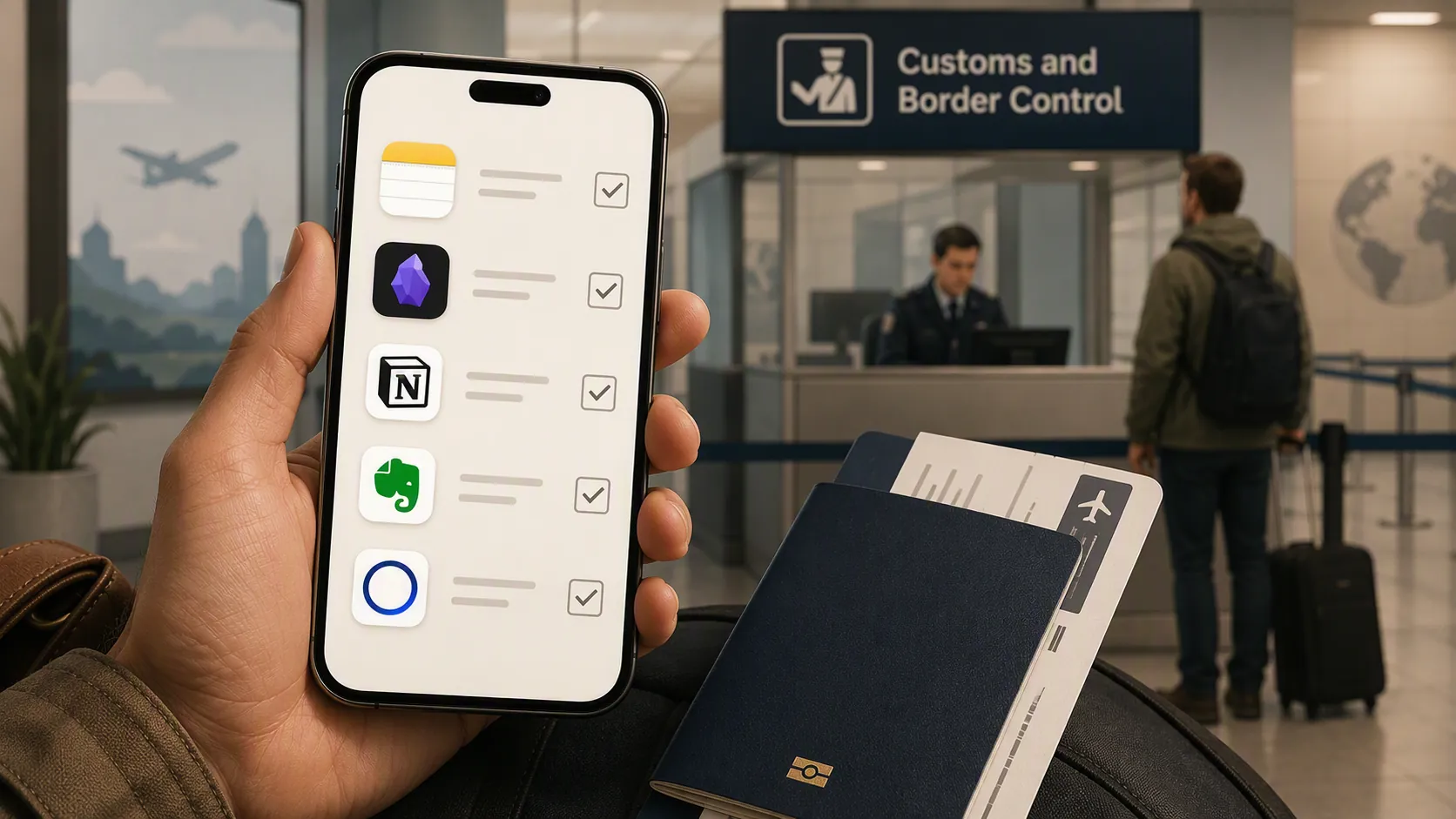
This is a technical preparation guide, not legal advice. Your rights and practical choices at the border depend on citizenship, immigration status, work, risk tolerance, and the facts of the encounter. For legal framing, read CBP’s policy and civil liberties guidance before you travel, especially if you are a journalist, source handler, attorney, activist, or carrying someone else’s confidential information. [2][3]
Start with the storage model, not the app logo
A note app’s border problem is not whether it feels private. It is whether a person holding the unlocked phone can read the material, recover it from an obvious deletion area, or reopen the account because the session and keys are still present.
| Storage pattern | Typical note apps in this guide | What can go wrong at the border | Preparation priority |
|---|---|---|---|
| Apple ecosystem sync with local device access | Apple Notes | iCloud notes, on-device notes, locked notes, attachments, and Recently Deleted can be misunderstood as separate problems when they are handled as one pile. | Verify backup, separate iCloud from on-device notes, handle locked notes correctly, purge Recently Deleted, then remove local access. |
| Local-first plain files | Obsidian | The vault may be ordinary Markdown files plus attachments in Files, iCloud Drive, Dropbox, Git, or Obsidian Sync. Deleting the app may not delete every copy. | Find every vault location, back up the whole folder, remove local vaults and attachments, then check cloud sync clients and file trash. |
| Cloud-first workspace | Notion | Local deletion does not delete the server workspace, and a logged-in session can expose pages that were never meant to be offline. | Export what you need, log out, remove local app data, and do not rely on the app being visually quiet. |
| Cloud account with local cache | Evernote | Notes and attachments may remain in app cache or account state even after a quick cleanup. | Sync and export first, sign out, remove the app and local cache, and test restoration before the trip. |
| End-to-end encrypted notes | Standard Notes | The encryption advantage is weakened if the app remains logged in and readable on the device. | Confirm recovery credentials, log out, remove local app access, and restore only after crossing. |
That table is the reason a single reset instruction fails. Some people need to remove a readable local vault. Some need to close a cloud session. Some need to empty a deletion folder. Some need to prove they can restore their own archive before they erase anything.
The pre-travel workflow
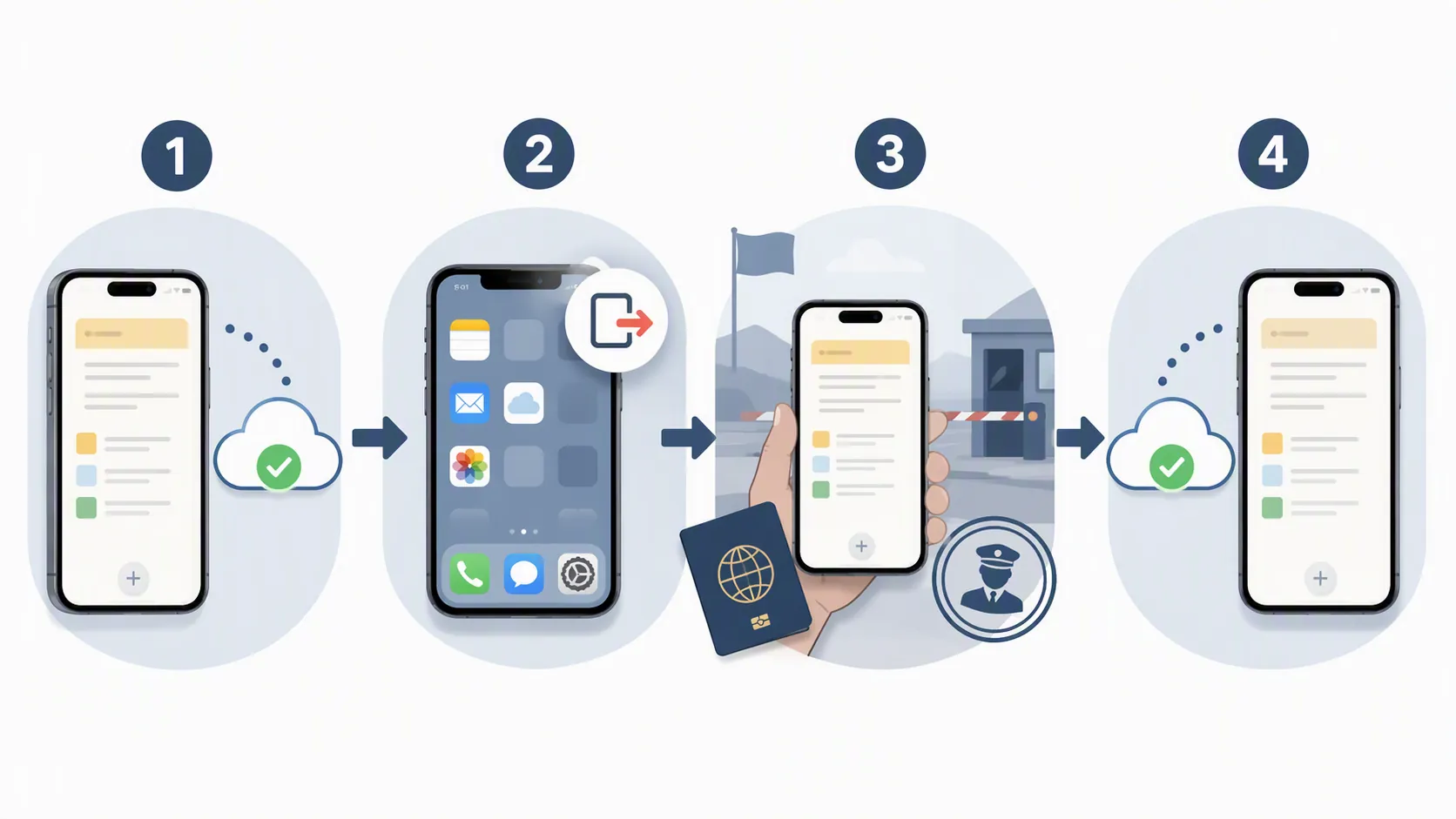
Do this while you still have a stable connection, your main computer, your password manager, and enough time to reverse a mistake. Airport Wi-Fi is a terrible place to discover that your “backup” is an empty export folder.
- Decide what must survive. Separate irreplaceable notes from material you can recreate. Include attachments, scans, PDFs, images, audio, handwritten imports, and embedded files.
- Create a backup outside the travel phone. For local-first apps, that usually means a full folder copy. For cloud-first apps, use the app’s export or a verified account backup.
- Open the backup on another device. Do not count a backup as real until you can read notes and attachments from it.
- Remove local access app by app. This may mean logging out, deleting the app, removing vault folders, turning off sync, or deleting downloaded attachments.
- Purge recoverable areas. Look for Recently Deleted, Trash, file-manager deletion folders, cloud-drive trash, and app-specific local caches.
- Cross with a normal working phone. A phone with maps, travel documents, family messages, and ordinary utilities is different from a theatrically blank slab.
- Restore after the crossing, not in the inspection line. Reinstall, log in, resync, and spot-check the notes you actually need.
Apple Notes: do not confuse deleted, locked, synced, and gone
Apple Notes is the easiest app to underestimate because it feels like part of the phone rather than a separate data system. Before travel, check where your notes live: iCloud, “On My iPhone,” email-account notes, shared folders, or a mixture. A note that is not in iCloud may not be protected by your iCloud backup plan. A note that is in iCloud may reappear when the account is active. A note that was deleted may still be in Recently Deleted.
Locked notes need their own treatment. Apple says locked notes with a custom passphrase use AES-GCM encryption, while notes locked with the device passcode are tied to the device passcode. If an officer has the unlocked phone or the passcode, a device-passcode-locked note should not be treated as meaningfully separated from the device for this scenario. [4]
| Apple Notes item | What to check | Pre-border action |
|---|---|---|
| iCloud notes | Are the notes fully synced on another trusted device or visible in iCloud where you expect them? | Verify the backup, then remove local access by signing out of iCloud Notes or removing the app/account access as appropriate for your travel setup. |
| On My iPhone notes | Are these local-only notes included in a backup you can actually open? | Export or move them before deletion. Do not assume iCloud has them. |
| Recently Deleted | Are deleted notes still sitting in the folder? | Manually purge the folder. “I deleted it yesterday” is not enough. |
| Locked notes | Are they protected with a custom passphrase or only with the device passcode? | Use custom-passphrase locking only as one layer. If the note remains readable after the device is unlocked, remove local access instead of relying on the lock. |
| Attachments and scans | Are PDFs, photos, document scans, or images embedded in notes? | Confirm that exports include attachments, then remove local copies and check deletion folders. |
| Shared notes | Can collaborators or another account resync the material? | Leave or remove shared local access before travel if the shared material should not be visible on the phone. |
A practical Apple Notes run-through looks like this: first, use a non-travel device to confirm that the notes you need are backed up or synced. Second, export anything local-only or especially important in a format you can read without Apple Notes. Third, remove sensitive notes from the travel phone. Fourth, open Recently Deleted and empty it. Fifth, check the Notes app again after a restart. If the note still opens, the procedure is not finished.
Be careful with iCloud account changes if the phone is also your travel credential device. You may need Apple Wallet, Find My, messages, or boarding passes. The better move is usually not “sign out of everything because privacy,” but “remove Notes access and local note data while preserving the travel functions you actually need.” Test that balance before departure.
Obsidian: local control means local exposure
Obsidian users often trust the app because the vault is theirs. That is true, and it is exactly the border problem. A vault is a folder of files. If it is on the phone, in Files, in iCloud Drive, in a synced folder, or in a mobile Git client, it may be accessible as ordinary local data rather than as something protected by an app-shaped wall.
Privacy and security guides for border travel emphasize reducing sensitive local data before crossing, and practitioner discussions often treat plain local files as a major recovery target if a device is searched or imaged. Public claims about specific forensic tools such as Cellebrite or GrayKey should be treated cautiously unless they come from current, independent testing; the operational point is narrower and safer: do not carry readable vault files locally if you would not want them read. [5][6]
| Obsidian surface | Why it matters | What to do |
|---|---|---|
| Vault folder | The Markdown files may be readable outside Obsidian. | Locate every vault on the phone and copy the full folder, including hidden configuration folders if you need your setup restored. |
| Attachments | Images, PDFs, audio, and clipped documents can reveal more than the Markdown note. | Back up the attachments folder and remove downloaded attachments from the phone. |
| Obsidian Sync | Sync can repopulate the vault after you delete local files if the account remains active. | Confirm the remote copy, then disconnect or remove the local vault from the travel phone. |
| iCloud Drive, Dropbox, Google Drive, or other sync folders | Deleting from one view may sync deletion elsewhere, or leaving the sync client active may re-download data. | Understand which device is authoritative before deleting. Pause or sign out of sync clients if necessary. |
| File trash and app remnants | A deleted vault may remain in a recoverable deletion area. | Empty the relevant file-manager trash and check that the vault folder is no longer visible after restart. |
| Plugins and caches | Some plugins create local databases, indexes, or copied content. | If the vault is sensitive, remove the app and its local data rather than deleting only visible notes. |
The safest Obsidian preparation is boring: on your main computer, make a complete vault backup and open it. Search for a few known notes. Open several attachments. Then, on the travel phone, remove the vault and any sync client access that can rehydrate it. Restart the phone. Open Files and Obsidian again. If the vault is still listed, or if a cloud folder still previews the Markdown files, you are not done.
Do not forget partial vaults. Many people have one official vault and then a forgotten “Inbox,” “Mobile,” or “Daily notes test” folder. Search the phone’s file storage for terms that appear in sensitive notes. If search finds the text, a manual inspection might too.
Notion: the problem is the live session
Notion is cloud-first, and Privacy Guides does not list it as an end-to-end encrypted notebook option. For border preparation, that means local deletion is not the core issue. The core issue is whether the app is logged in and can display workspace pages, databases, attachments, comments, or search results to someone holding the device. [7]
- Export critical pages before travel if you need an independent copy. Open the export on another device.
- Remove offline-sensitive material from the travel phone by logging out of the Notion app.
- Delete the app if you do not need it during the trip. This is cleaner than hoping the cache is empty.
- If you keep the app installed, open it after restart and confirm it does not display workspaces without authentication.
- Review other browsers on the phone. A logged-in Notion session in Safari or Chrome is still a logged-in session.
Deleting a Notion page is not the same as removing Notion visibility from the phone. If the account remains signed in, the workspace is still the object of concern. Handle the session first.
Evernote: export, sign out, remove cache
Evernote needs a faster but still disciplined version of the same cleanup. The common mistake is to delete a few notes or notebooks in the app, assume the phone is clean, and leave the account signed in with years of searchable material available.
- Sync before you export. A stale mobile app is not a reliable source of truth.
- Export notebooks or notes you cannot afford to lose, then open the export on another device.
- Check for large attachments, scans, receipts, medical documents, client files, and clipped web pages.
- Sign out of the mobile app.
- Delete the app if you do not need it in transit, then restart the phone and confirm Evernote content is not available through widgets, share sheets, search, or browsers.
- If you changed account content, confirm on a second device that you did not delete the only copy of something important.
Evernote users with long histories should not try to do this by memory. Search for names, client identifiers, project titles, passport numbers, medical terms, and confidential tags before deciding the phone is clean enough for travel.
Standard Notes: encryption helps only after local access is gone
Standard Notes belongs in a different category because end-to-end encryption can protect cloud-stored note contents when the encryption keys are not available on the searched device. Privacy Guides lists Standard Notes among encrypted notebook options. That does not mean you can leave the app open and call the phone safe. If the phone can read the notes, the border problem remains on the phone. [7]
- Before logging out, confirm you know the account credentials and any recovery method you rely on.
- Sync fully while you still have a trusted connection.
- Log out of the app on the travel phone.
- Delete the app if you want a clearer local state.
- Restart the phone and confirm notes do not remain readable through the app, widgets, search, previews, or another logged-in browser session.
- Restore after crossing by reinstalling, logging in, and spot-checking notes and attachments.
For this use case, the important moment is not when you chose an encrypted app. It is when you removed the keys and readable local state from the travel device.
What a factory reset does and does not solve
A factory reset can remove local data from a phone, but it is a blunt instrument. It can also strand you without travel documents, two-factor authentication, wallet cards, maps, contacts, or the ability to prove ordinary phone use. More importantly for notes, it may not solve the cloud-session question unless you know what accounts will be restored, what apps will reinstall, and what data will resync when you sign back in.
Password managers offer a useful mental model here. 1Password’s Travel Mode is designed to remove selected vaults from devices while keeping the account restorable later. That exact feature does not manage your note apps, but the concept is right: remove the sensitive local collection, keep the recovery path, and avoid pretending that an empty-looking phone is the same as a prepared phone. [8]
| If you are tempted to... | Ask this first |
|---|---|
| Factory reset the whole phone | Can you still access boarding passes, maps, emergency contacts, 2FA, hotel bookings, and the backup needed to restore notes later? |
| Delete the note app | Are the note files, exports, attachments, cloud-drive copies, and browser sessions also gone from the phone? |
| Delete individual notes | Is there a Recently Deleted, Trash, sync conflict, file-manager trash, or server-side copy? |
| Rely on app lock | Does the app remain readable after the device is unlocked or the device passcode is known? |
| Carry a blank phone | Does that create more practical trouble than a normal phone with sensitive note access removed? |
The final check before you leave
After cleanup, inspect the phone the way a tired stranger would: open the note app, search the phone, check Files, open cloud drives, inspect browsers, look at widgets, and try obvious terms. Names. Project titles. Source labels. Medical words. Client names. If those searches still surface notes or attachments, the preparation did not match the risk.
- Apple Notes: no sensitive notes visible, Recently Deleted emptied, local-only notes backed up, locked-note assumptions checked.
- Obsidian: no vault folder or attachments readable locally, sync clients handled, file trash emptied.
- Notion: app and browser sessions logged out or removed.
- Evernote: export verified, account signed out, app cache removed if not needed.
- Standard Notes: credentials verified, app logged out, local readable state removed.
- Restore path: tested on another device before anything was deleted from the travel phone.
Some practitioner discussions have raised concerns about sensitive post-crossing resyncs soon after inspection, but the public evidence base is not strong enough to treat a specific waiting period as a rule. A careful traveler can still avoid unnecessary drama: do not stand at baggage claim re-downloading a vault of source notes unless you actually need it there. [6]
Last verified: July 30, 2026. Re-check app behavior before each trip. Note apps change sync rules, deletion behavior, encryption defaults, and mobile caching often enough that yesterday’s tidy workflow can become today’s leftover local database.
References
- How to protect your phone and data privacy at the US border, The Guardian, March 26, 2025
- Border Search of Electronic Devices, U.S. Customs and Border Protection
- Can Border Agents Search Your Electronic Devices?, ACLU
- Secure features in the Notes app, Apple Platform Security
- Journalist Security Checklist: Preparing Devices for Travel Through the US Border, Electronic Frontier Foundation
- Cell Phone OpSec for Border Crossings, Schneier on Security, April 2025
- Notebooks, Privacy Guides
- Travel Mode, 1Password Support




Comments
Join the discussion with an anonymous comment.