
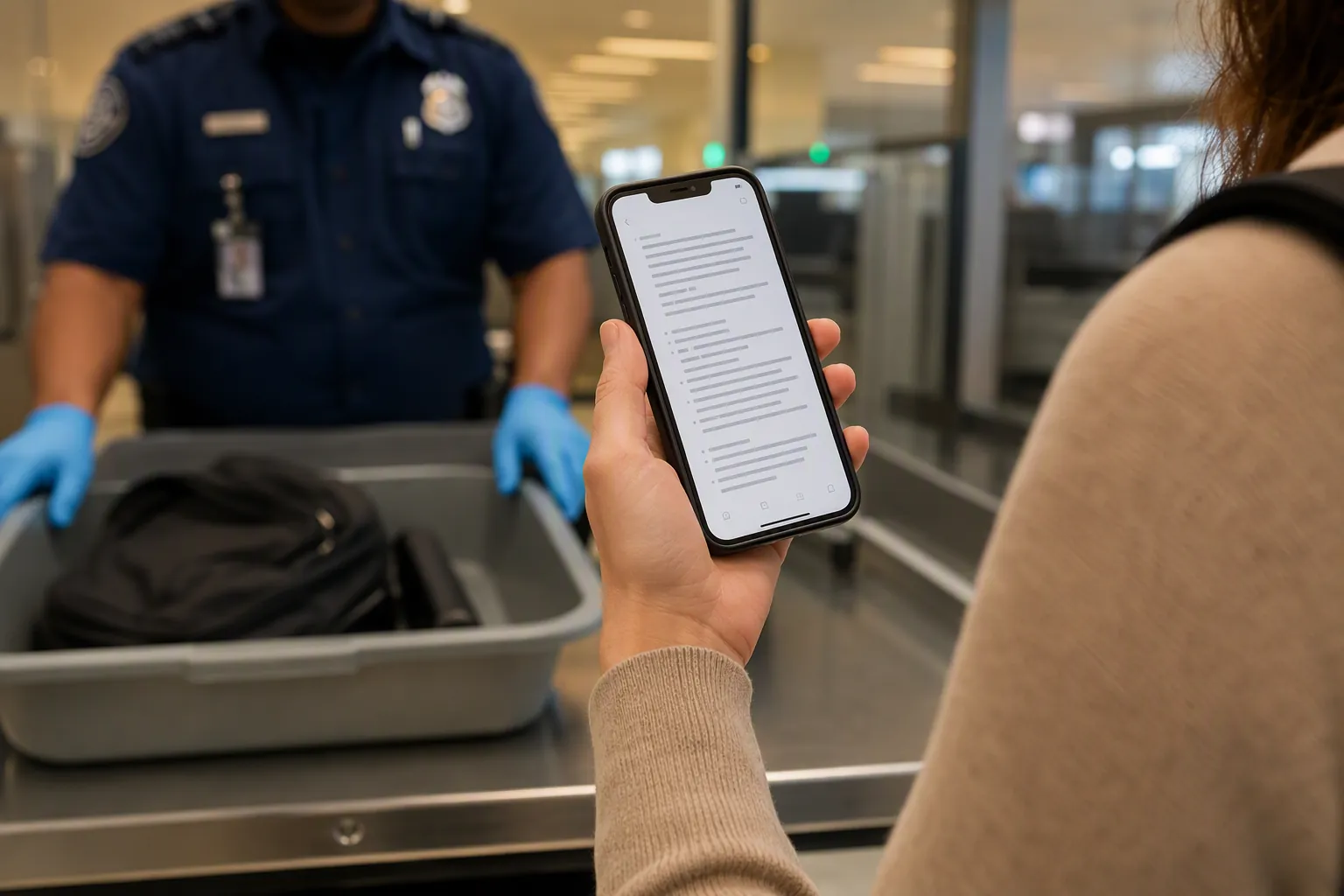
If a border officer opens your phone and taps your note app, the question is not which privacy slogan your app uses. It is what the app can show while the device is in that officer’s hand: cached pages, local files, recent searches, offline notebooks, attachments, drafts, screenshots, and anything still readable after you thought you had “synced it to the cloud.”
The practical border-search privacy problem for note app data starts there. Manual device searches are not hypothetical: CBP reported 55,318 electronic-device searches in FY2025, up 17.6% from FY2024, and searches of U.S. citizens’ devices rose 22% to about 13,590 in that same period.[1] On July 13, 2026, the Fourth Circuit held in U.S. v. Belmonte Cardozo that manual phone searches at the border are “routine” and require no individualized suspicion, while forensic searches still require reasonable suspicion.[2]
So the preflight triage is short: CBP policy says officers should not access cloud-stored data during a border device search, but locally stored or locally cached note content is the exposure point.[3][4] Your preparation depends on the app’s architecture. Standard Notes, Obsidian, Apple Notes with Advanced Data Protection, Notion, Evernote, OneNote, Google Keep, GoodNotes, and Notability should not receive the same advice.
First, separate the legal risk from the app risk
The legal rule tells you why preparation matters; it does not tell you what to do inside Notion or Obsidian. In the Fourth Circuit, a basic manual search can mean an officer scrolls through the phone, opens an app, and uses the app’s own search interface without needing individualized suspicion.[2] That is enough to expose a therapy note, a source list, a political draft, a client fragment, or a student notebook if the app can open it locally.
The national picture is not perfectly settled. The same EFF analysis that discusses Belmonte Cardozo also points to litigation in the Third Circuit, where EFF has argued for stronger warrant protection in U.S. v. Roggio.[2] That tension is a reason to avoid sweeping legal certainty, not a reason to postpone cleanup.
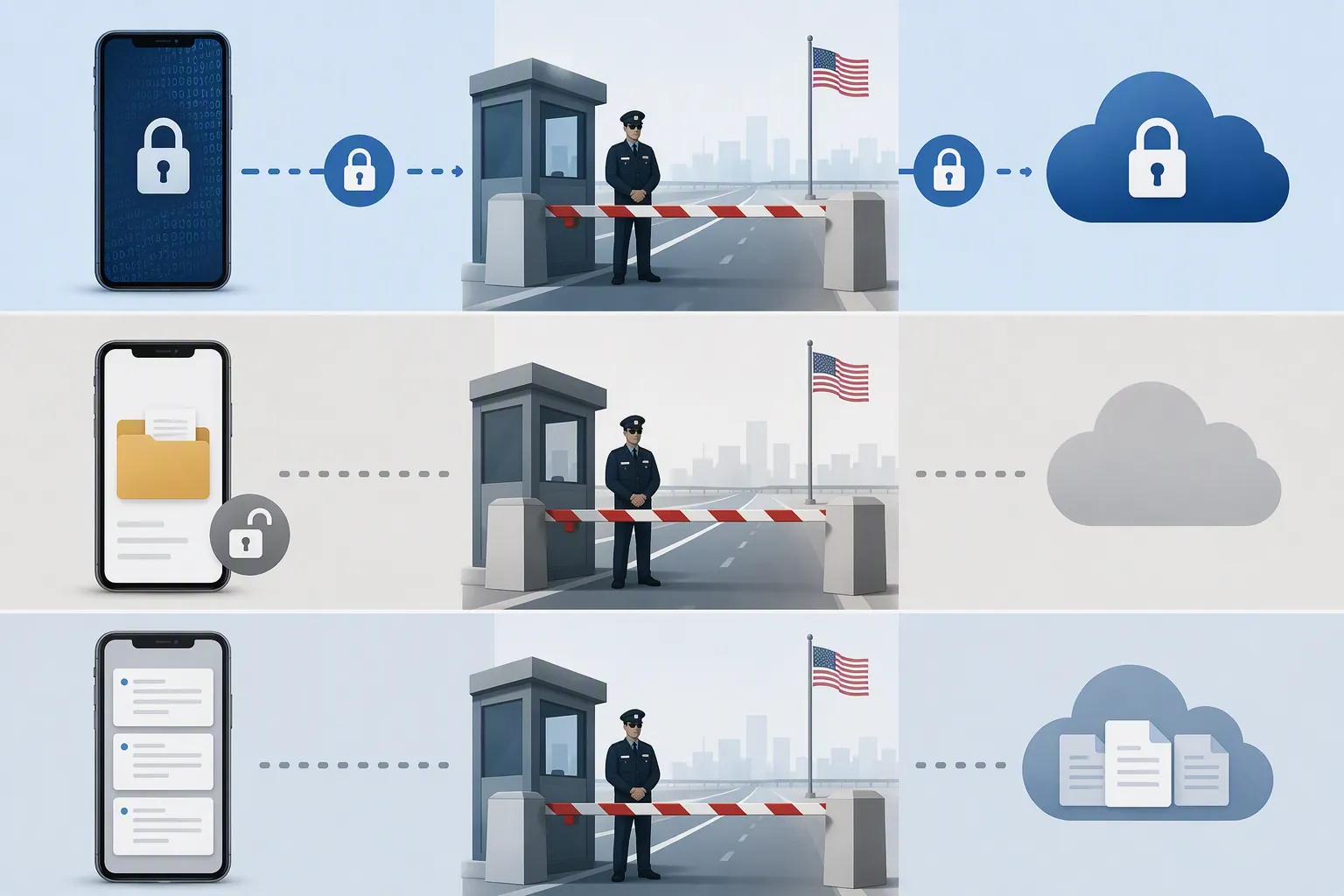
CBP’s own device-search guidance matters because it distinguishes cloud access from device access. The policy says officers should ask travelers to disable network connectivity or should disable it themselves before searching, so the search is limited to information resident on the device rather than information stored remotely.[3] That sounds reassuring until you remember how many note apps keep local working copies so they feel fast, searchable, and usable offline.
One real-world case shows why “ordinary phone contents” should not be treated as harmless simply because they are not passwords or classified files. Human Rights First describes a March 2025 case in which a French scientist was denied entry to the United States after CBP found text messages critical of President Trump on his phone; the characterization of the messages comes through reporting cited by Human Rights First and should be treated cautiously, but the example is still useful for one narrow point: political or judgmental content can become visible during a manual phone review.[5]
The note-app question is really a local-data question
For a border crossing, “cloud-based” is not the same as “not on my phone.” A cloud app can leave readable local cache. A local-first app can put every Markdown file in ordinary device storage. An end-to-end encrypted app can still be fully visible if you are logged in and the app is unlocked. The app’s marketing category is less important than the state of the device at the moment it is searched.
That is why generic advice like “log out of everything” is too blunt. Logging out may help with an end-to-end encrypted app that discards usable local keys. It may not remove all cached records in a cloud app. It does nothing for a folder of plain Markdown files that can be opened outside the app. And if you need a boarding itinerary, medication note, field schedule, or interview agenda during the trip, an empty phone may be impractical enough that you undo the cleanup under stress.
Deleted notes are also not a comfort plan. EPIC’s FOIA-based analysis reported CBP contracts worth more than $1.3 million for tools including Cellebrite UFED, Grayshift GrayKey, PenLink PLX, and Magnet Forensics AXIOM; the contract values come from a February 2022 FOIA analysis and should not be read as current 2026 procurement totals.[6] The practical consequence is simple: for apps that keep readable local databases or attachment caches, “I deleted it yesterday” is weaker than “it was never on this travel device in readable form.”
Sort your note app into the right privacy tier
Before touching settings, identify what kind of note system you are carrying. This is the part people skip, and it is the part that determines whether logging out, uninstalling, encrypting a folder, or building a small travel vault will actually reduce exposure. If you want a broader comparison of app security models, the same distinction shows up in AI note-taking app security testing and in the way local-first note apps handle regulation and storage risk. At the border, the same architecture question becomes more immediate.
| App or app family | Protection tier | What may be readable locally | Before travel | What remains risky |
|---|---|---|---|---|
| Standard Notes; Notesnook; Joplin with E2EE enabled | Tier 1 — E2EE-native or E2EE-capable | Unlocked app contents, downloaded items, attachments, and any session that remains active | Create a minimal travel set if needed, sync, verify recovery access, log out on the travel device, and avoid biometric convenience unlock | If the app is logged in and unlocked, encryption does not prevent a manual search; app-specific cache behavior still matters |
| Apple Notes with Advanced Data Protection enabled | Tier 1 — E2EE for protected iCloud data when ADP is active | Notes visible in the unlocked Notes app, local device copies, attachments, and any notes outside the protected setup | Enable and verify ADP before travel, keep only travel-needed notes on the device, remove sensitive local notes, then power down before the checkpoint | Without ADP, do not treat iCloud Notes as protected from provider-side access; with ADP, logged-in local visibility is still the immediate issue |
| Obsidian; Logseq local graph; other folder-based Markdown systems | Tier 2 — local-first, needs encryption layering | Plain files, attachments, filenames, folder names, graph metadata, recent-file lists, and anything outside an encrypted container | Move the full vault off the travel device or into an encrypted container, create a small travel vault, and test that the main vault is not mounted | Encrypted containers can be visible and may draw attention; if mounted, the files are readable like any other local folder |
| Notion | Tier 3 — cloud-dependent with local/offline cache risk | Recently opened pages, offline-available content, search cache, attachments, and workspace traces | Move sensitive work out of the travel workspace, sign out, clear local data where possible, or remove the app if you do not need it during travel | A logged-in session can expose pages through native search; deleting pages shortly before travel may not clear every local trace |
| Evernote; OneNote; Google Keep | Tier 3 — cloud sync with device cache | Offline notebooks, cached notes, thumbnails, attachments, account-linked recent content, and local search indexes | Disable offline notebooks, remove sensitive notebooks from the device, sign out or remove the account, and clear app storage or uninstall if needed | Account-wide login may rehydrate content; local caches can outlive casual deletion |
| GoodNotes; Notability | Tier 3 — local library plus sync/export risk | Downloaded notebooks, handwriting recognition text, PDFs, imported slides, audio-linked notes, thumbnails, and iCloud or cloud-sync local copies | Export or move sensitive notebooks off the travel device, keep only trip notebooks in the visible library, disable sync for sensitive material, and verify search results | The app may still expose local notebook titles, previews, OCR text, or attachments if they remain in the library |
Tier 1: E2EE-native apps still need a logout and device-state plan
End-to-end encryption helps most when the app is not already open, unlocked, and carrying a valid local session. Standard Notes, for example, is described as using XChaCha20-Poly1305 end-to-end encryption in a zero-knowledge architecture, with open-source code and regular Cure53 audits.[7] That is meaningful protection against provider-side access and many server-side failures. It does not make visible notes invisible while the phone is unlocked in front of someone.
Standard Notes
- Make a travel-only workspace or tag before the trip. Put only the notes you genuinely need at the airport, hotel, conference, clinic, or client site into that set.
- On your primary device at home, confirm that the full account has synced and that you can recover access without relying on the travel phone.
- On the travel device, remove sensitive notes from local availability if your setup allows it. If the app does not give you reliable per-note local removal, use a separate travel account or travel device rather than carrying the full account.
- Log out of the app before reaching the checkpoint. Do this while you still have time to confirm that the app no longer opens directly into your notes.
- Disable biometric convenience unlock for the app if you had enabled it. Require the app password for reopening.
- Put the device in airplane mode before the inspection area, then power it down. A powered-off device with no active app session exposes less through casual tapping than an unlocked phone with a warm session.
The failure mode to check is boring and important: after logout, tap the app icon. If it still shows note titles, recent note previews, widgets, or search results, you have not reduced the local exposure enough.
Apple Notes with Advanced Data Protection
Apple Notes needs a split decision. Treat it as a stronger Tier 1 option only if Advanced Data Protection is enabled for the Apple account and the notes you care about are covered by that protected iCloud setup; Apple’s security documentation describes Advanced Data Protection as expanding end-to-end encryption for protected iCloud categories and requiring account recovery planning.[8] Without ADP, do not assume iCloud Notes has the same protection profile as an E2EE-native notes app.
- Before the travel week, verify that Advanced Data Protection is actually enabled. Do not turn it on at the airport for the first time; recovery setup mistakes are their own travel problem.
- Move sensitive notes out of the travel device’s visible Notes library. Pay attention to “On My iPhone” or other local folders, not only iCloud folders.
- Remove note widgets from the lock screen and home screen. A widget preview can undo careful app cleanup.
- If you need travel notes, create a small folder with itinerary, emergency contacts, reservation numbers, and non-sensitive logistics. Do not leave your whole archive searchable because one boarding pass lives there.
- Disable Face ID or Touch ID convenience for sensitive locked notes before the checkpoint if you are relying on note-level locks. Use a passphrase you can manage under stress.
- Search Apple Notes for a few high-risk words you know appear in sensitive material. If results still appear, the cleanup is not done.
Joplin and other E2EE-capable systems
For E2EE-capable apps, the word “capable” is doing work. Confirm that encryption is enabled before travel and that every device has finished syncing in its encrypted state. Then prepare the travel device as if the unlocked local app is readable, because it is. The safer travel pattern is a minimal synced notebook, logout where practical, no biometric quick-open, airplane mode before the checkpoint, and power-down.
Tier 2: Local-first apps need a travel vault, not wishful thinking
Local-first notes feel private because they are yours, on your machine, in files you can inspect. That same feature becomes a border-search problem when the files are plain text. Obsidian’s normal vault model uses local Markdown files without native vault encryption, so an officer or tool does not need Obsidian to read the notes if the files are present in ordinary storage. The same caution applies to local Logseq graphs and any folder-based system that keeps readable text, PDFs, images, and attachments on the device.
Encryption layering can help, but it changes the shape of the risk. Freedom of the Press Foundation’s border-security guidance warns travelers to prepare devices before travel and to understand that encrypted material or unusual device states may still become a point of attention.[9] A VeraCrypt or Cryptomator container can reduce casual local readability when it is closed. If it is mounted, your Markdown vault is just a folder again.
Obsidian
- Decide whether the full vault needs to travel. For most trips, it does not. Move the full vault off the travel phone or laptop before the trip, not in the airport lounge.
- Create a separate travel vault with only the notes you need. Use bland filenames and folder names; filenames are data too.
- If you must carry sensitive Obsidian material, put the vault inside a properly configured encrypted container such as Cryptomator or VeraCrypt, and keep that container closed before the checkpoint.
- Remove the original vault path from Obsidian’s vault switcher or recent-vault list if the app exposes it.
- Clear or remove sync clients that might re-download the main vault, including desktop cloud-drive folders or mobile sync folders.
- Open the travel vault and use Obsidian search for terms that should not be present. Then check the file manager, not just Obsidian, because the files are the source of truth.
- Before the checkpoint, close Obsidian, unmount any encrypted container, switch to airplane mode, and power down.
Do not rely on hiding the Obsidian app icon. The vault is a folder. If the folder is present and unencrypted, a file manager or device search can expose it without launching Obsidian.
Logseq
- Treat a local Logseq graph like a local file tree. Remove the full graph from the travel device unless you need it.
- Create a trip graph with only travel-safe pages.
- Check journals, backlinks, PDFs, whiteboards, and assets folders. People clean pages and forget attachments.
- If using an encrypted container, verify that Logseq is closed before unmounting it and that no duplicate graph copy remains in downloads, cloud folders, or backups.
Bear and other mostly local writing apps
For Bear-style writing systems, prepare by visible library, not by intention. Export or archive sensitive notes off the travel device, delete local copies you do not need, empty the app’s trash if it has one, and run searches for sensitive names, clients, diagnoses, sources, and political terms. If the app supports note-level locking, use it for the few notes that must travel, but do not leave the rest of the library readable because several notes are locked.
Tier 3: Cloud-dependent apps need cache reduction and account separation
Cloud-dependent apps are convenient because the phone is not the only place your notes live. They are risky at the border because the phone often carries enough local cache to make the account searchable. That is the same reason these apps remain useful during outages or weak connections; offline access is local data by another name.
Berardi Immigration Law’s border-device guidance emphasizes the same cloud/local distinction in CBP searches: officers are restricted from intentionally accessing cloud-only material, but material stored on the device is different.[4] For Notion, Evernote, OneNote, Google Keep, GoodNotes, and Notability, the preparation goal is to reduce what the device can show without relying on the network.
Notion
Notion is a bad place to improvise a border plan because people often use one workspace for everything: trip planning, hiring notes, product strategy, reading notes, therapy homework, political clippings, and client work. If you use it heavily, read the app as a workspace exposure problem. The travel question is narrow: what can the local app show while logged in?
- Create a travel workspace or travel page that contains only logistics you are comfortable showing.
- Move sensitive pages out of the workspace you will use on the travel device, or use a separate account for the trip.
- Open the mobile or desktop app and search for sensitive terms. Do not assume that a page is harmless because it is nested deep in a database.
- Sign out before the checkpoint if you do not need Notion in transit.
- If the app does not give you a reliable way to clear local cache, remove the app from the travel device after confirming you have access from a non-travel device.
- If you need trip notes, carry them in the separate travel account or in a small non-sensitive exported document rather than staying logged into your main workspace.
Evernote
- Review offline notebooks first. Anything marked for offline use should be treated as present on the device.
- Remove offline availability for sensitive notebooks well before travel so the app has time to update.
- Search for sensitive names, clients, medical terms, sources, and political phrases inside the app.
- Empty trash or deleted-note areas if the app exposes them, understanding that this is not the same as forensic erasure.
- Sign out. Then reopen the app and check whether note previews, recent notes, or cached attachments still appear.
- If previews or cached items remain and you do not need Evernote during travel, uninstall it from the travel device.
OneNote
- Close or remove sensitive notebooks from the travel device instead of merely collapsing them in the sidebar.
- Check notebook sections, page titles, attachments, embedded files, meeting notes, and synced class or work notebooks.
- If your OneNote account is tied to a broader Microsoft work or school account, decide whether that account needs to be present on the device at all.
- Sign out or remove the account if you do not need it in transit.
- Reopen OneNote offline and check what still appears. The offline check matters more than the sign-out gesture.
Google Keep
Google Keep is often where people put fragments: confirmation numbers, angry drafts, reminders, copied messages, medication notes, children’s school information, and quick political thoughts. Its danger is not elaborate structure. Its danger is small searchable text.
- Archive or delete sensitive Keep notes from a non-travel device first, then allow sync to complete.
- Check labels, reminders, images, pinned notes, and archived notes, not only the main note grid.
- Search Keep for names and phrases that would worry you if typed by someone else.
- Remove the Google account from the travel device or uninstall Keep if you do not need it during the trip.
- If you keep the app installed, use a travel-only Google account with non-sensitive notes rather than your main personal or work account.
GoodNotes and Notability
Handwritten-note apps can expose more than typed text. A notebook library may contain class PDFs, client markups, therapy worksheets, immigration paperwork, meeting audio, imported slides, and handwriting-recognition text that makes scribbles searchable. Students using tablets should be especially careful here; the same device that carries lecture notes may carry journals, medical forms, or political club planning.
- Create a travel folder or subject with only the notebooks needed for the trip.
- Export sensitive notebooks to a non-travel device or secure storage, then remove them from the tablet library.
- Check the trash, recently deleted area, imports folder, PDF library, audio recordings, and thumbnails.
- Search the app for sensitive names and terms if handwriting recognition or document search is enabled.
- Disable cloud sync for sensitive material before travel, or remove the app from the travel tablet if you do not need handwritten notes during the trip.
- Open the app in airplane mode and verify what is still visible. That is the inspection-state view you are trying to control.
Do the device-state steps after the app cleanup, not instead of it
Airplane mode and power-down are final-state steps. They are not a substitute for removing local note exposure. If the phone is still logged into a cloud notes account with weeks of cached pages, airplane mode simply preserves that cache on the device. If the Obsidian vault is still an ordinary folder, power-down helps only until the device is unlocked again.
- Finish app cleanup while you still have stable internet and access to your other devices.
- Confirm that needed travel notes exist somewhere accessible without reopening your full private archive.
- Turn off biometric unlock for sensitive note apps and encrypted containers where that setting is available.
- Remove note widgets, lock-screen previews, recent-note shortcuts, and share-sheet suggestions that reveal note titles or content.
- Put the device in airplane mode before the checkpoint area, consistent with the cloud-access boundary in CBP’s device-search guidance.[3]
- Power down the device before reaching inspection if you can travel safely that way.
For people who travel often, this is worth turning into a reusable travel profile: a separate phone, tablet profile, laptop account, vault, workspace, or notebook set whose contents are boring by design. Emergency plans for digital notes use the same discipline: decide what must be available, decide what must not travel, and verify the actual device state rather than trusting memory.
Before you leave for the airport
Do one last verification pass from the perspective of someone holding your unlocked device and typing into native search. This is not about perfect certainty. It is about reducing what appears in the ordinary manual-search path.
- Open each note app in airplane mode. If sensitive content still appears, it is local enough to matter.
- Search inside each app for names, clients, sources, diagnoses, political terms, project codenames, and private phrases.
- Check widgets, recent files, lock-screen previews, share sheets, downloaded files, attachment folders, and trash.
- For local-first apps, check the file manager. Do not stop at the app interface.
- For E2EE apps, confirm logout and confirm that reopening the app does not show note titles or previews.
- For cloud apps, confirm whether uninstalling or clearing storage is safer than carrying a logged-out app with uncertain cache behavior.
- Make sure your travel notes are still available somewhere low-risk: a printed sheet, a travel-only vault, a travel-only account, or a small local document with no sensitive archive attached.
The safest setup is not the app with the strongest privacy page. It is the setup whose readable local data has been minimized according to how that app actually stores notes. A clean travel vault, E2EE logout, cache reduction, and power-down can lower what appears in a manual search. They do not make border search risk disappear. An inaccessible encrypted container, a missing account, or unexplained absent data can still create attention, and no checklist can promise what an individual inspection will do next.
References
- Reported CBP Increases Searches of Electronic Devices at the Border, Immigration Policy Tracking Project, June 17, 2026
- Fourth Circuit Says Border Agents Can Search Your Phone by Hand, No Suspicion Required, Electronic Frontier Foundation, July 2026
- Border Search of Electronic Devices, U.S. Customs and Border Protection
- What CBP Can and Can’t Do With Your Devices at the U.S. Border, Berardi Immigration Law
- Know Your Rights: Protecting Digital Privacy at the Border, Human Rights First
- How CBP Uses Hacking Technology to Search International Travelers’ Phones, Electronic Privacy Information Center
- Secure Note Storage Apps, Unlocked/EveryKey
- Apple Platform Security, Apple
- Digital Security at the U.S. Border, Freedom of the Press Foundation
Comments
Join the discussion with an anonymous comment.