
If your Galaxy S25 Ultra drops faster than expected during a one- or two-hour note session, start with the boring but important correction: the S Pen is not the battery villain. On the S25 Ultra, the pen uses a capacitor rather than behaving like an old Note-era accessory with a battery you need to manage. And force-closing every app after class or a meeting is not the fix either. The useful question is what keeps working after the visible writing stops: sync, handwriting recognition, search indexing, attachment upload, Samsung Cloud, OneDrive, or another note app waiting in the background.
Samsung’s own battery guidance points users toward checking battery usage and device optimization rather than guessing, and that is the right place to begin here too.[1][2] A note-taking setup should still let you write by hand, search later, and trust your notes are backed up. The fix is to stop unnecessary background work, not to break the system you rely on.
First, separate writing drain from background drain
Do this before changing settings. After your next normal note session, open the battery usage screen and look for the apps that consumed power during the period when the phone was supposed to be idle or only lightly active. Android Police’s battery-diagnosis method is simple: use the system battery page to identify the apps using the most battery, then distinguish visible use from background activity instead of assuming the top app is misbehaving.[3]
On recent One UI builds, the path is usually close to Settings → Battery, or Settings → Battery and device care → Battery. Menu names move around between One UI versions, so trust the labels on your phone more than any guide’s exact breadcrumb. You are looking for app battery usage, screen-on time, and any detail view that separates foreground and background behavior.
| What you see | What it usually means | What to change first |
|---|---|---|
| Samsung Notes is high only while the screen was on and you were actively writing | Normal note capture, display use, and handwriting work are probably the main load | Use Light Performance Profile and check screen brightness, but do not cripple Samsung Notes |
| Samsung Notes stays high after the meeting ends | Sync, indexing, or cloud backup may be continuing after writing stops | Review Samsung Notes sync and Samsung Cloud settings |
| OneNote or GoodNotes is high even when you were not using it | A secondary note app may be syncing notebooks, attachments, or recent changes in the background | Keep the primary app active; restrict or deep-sleep note apps you are not using daily |
| Samsung Cloud, OneDrive, Google Drive, or another backup service appears near the top | The drain may be backup work rather than writing | Pick the backup route you actually need and stop duplicate note backup |
| Mobile network or carrier services are high after a lecture hall, hospital, train, or basement meeting | Weak signal may be forcing the phone to work harder than the note app itself | Use Wi-Fi where possible or switch to LTE in known weak-5G areas |
Do not overread one session. A heavy sync right after importing PDFs, restoring a phone, joining a shared notebook, or updating One UI can make one afternoon look worse than your normal pattern. Samsung’s battery optimization guidance also leaves room for adaptive battery behavior to settle as the phone learns usage patterns; for a new setup, allow roughly two weeks before treating every spike as a defect.[2]
Use Light Performance Profile before you start removing features
Light Performance Profile is one of the rare battery settings that makes sense for note-taking because it reduces performance overhead without telling you to stop writing, stop syncing, or turn your phone into a dumb notebook. XDA Developers and ZDNET both highlight Light Performance Profile as a meaningful Samsung battery-life setting, alongside background limits for unused apps.[4][5]
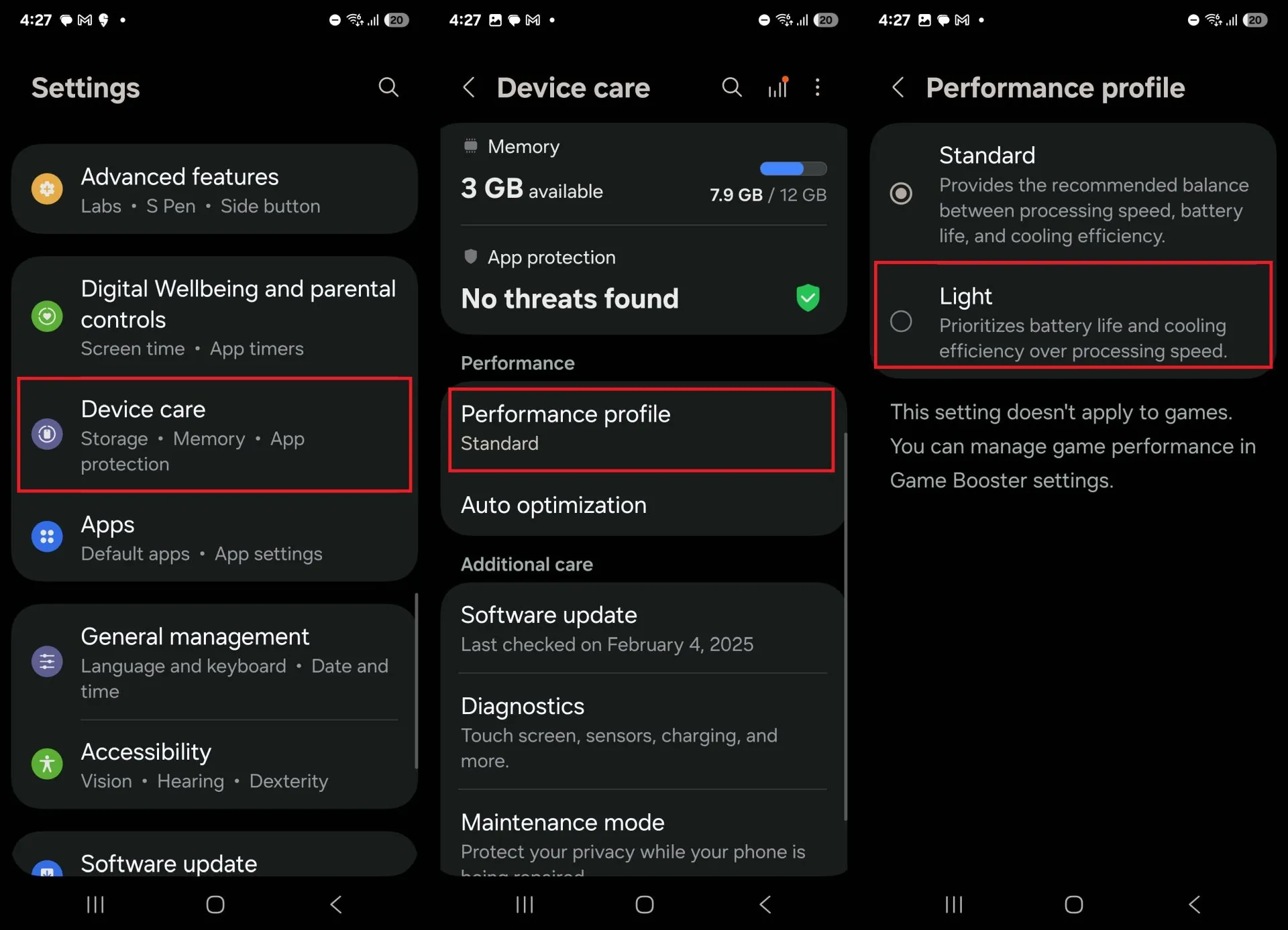
Look for Settings → Battery and device care → Performance profile, then choose Light. On some One UI versions, the same control may appear under Battery or Device care. For handwriting, PDF markup, typed notes, and meeting capture, Light is usually the sensible default. If you edit video, play games, or run a heavy multitasking session later, you can switch back.
This is also why I would not begin with aggressive power saving mode. Full power saving can interfere with background activity in ways that are hard to predict, especially if your notes need to sync after a class ends. Light Performance Profile is cleaner: it trims performance demand while leaving the note workflow recognizable.
Put unused note apps to sleep, not your whole workflow
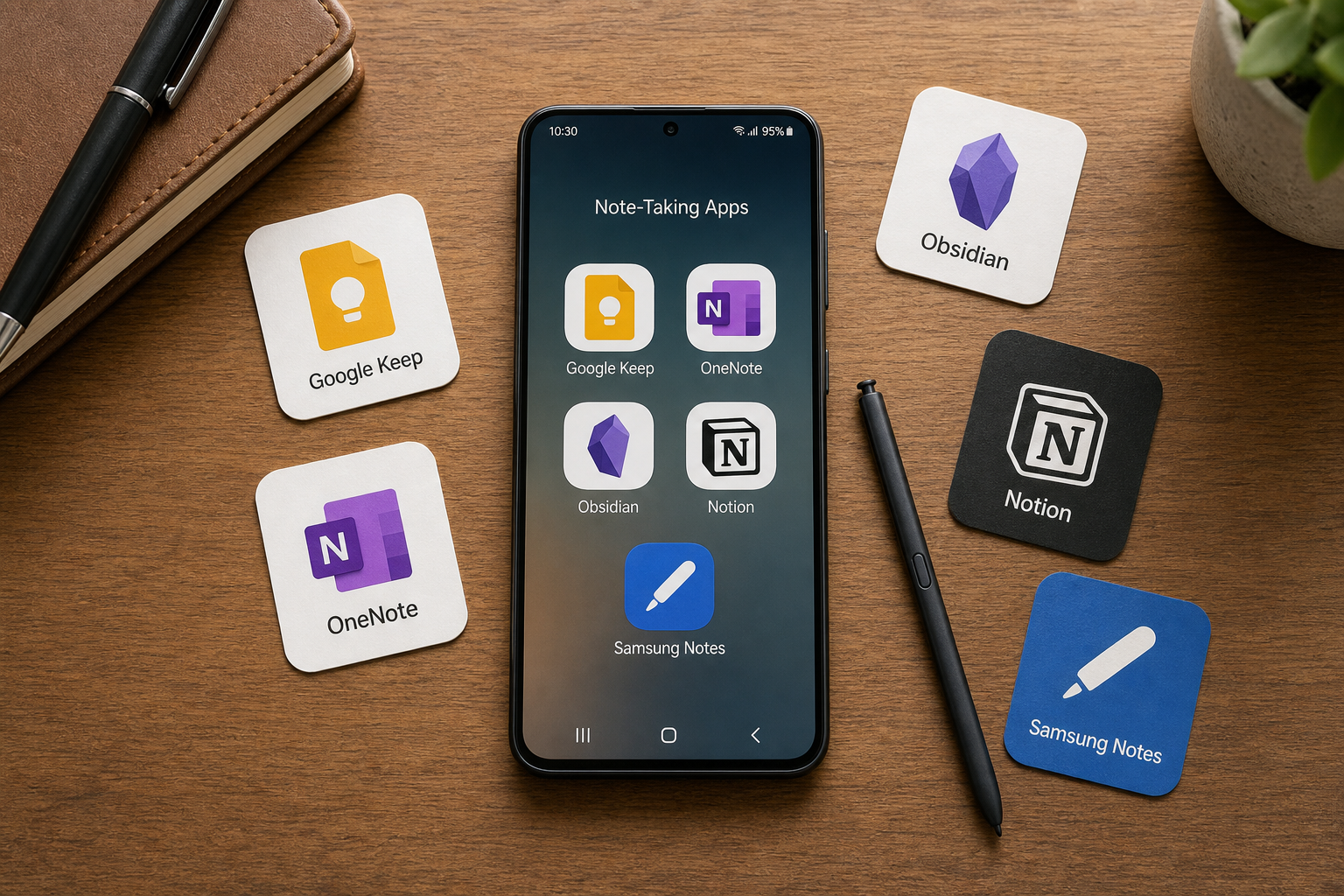
Most S25 Ultra note-takers do not have one note app. They have Samsung Notes because it is excellent with the S Pen, OneNote because work or school uses Microsoft, GoodNotes because a notebook started there, Notion because projects live there, and maybe Google Drive or OneDrive because files have to land somewhere. Battery guides often treat that pile as if the answer is to shut everything down. That is how people lose trust in their notes.
Use Samsung’s Background usage limits instead. XDA and ZDNET both call out Deep Sleeping apps as a practical Samsung setting for stopping apps you do not use from continuing work in the background.[4][5]
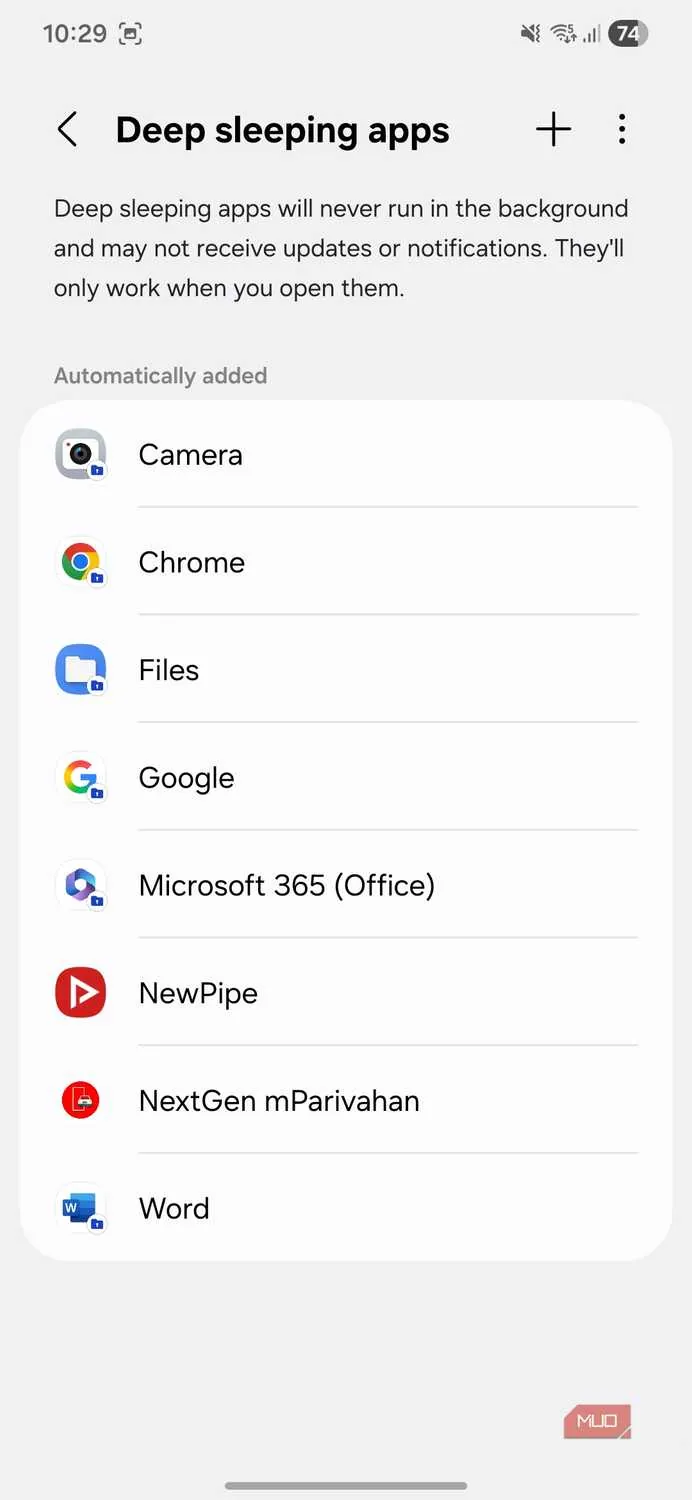
The safe rule is simple: do not deep-sleep the app that must receive edits, sync immediately, or send reminders. Do deep-sleep note apps that are installed for occasional reference, old notebooks, imported archives, or experiments you are no longer using.
- If Samsung Notes is your main handwriting app, leave Samsung Notes out of Deep Sleeping apps. Restrict OneNote, GoodNotes, Notion, or other note apps only if they are not part of your daily capture flow.
- If OneNote is the required school or work notebook, do not deep-sleep OneNote. Instead, check whether Samsung Notes, GoodNotes, Notion, or Samsung Cloud is doing duplicate background work.
- If GoodNotes is only used for a few imported notebooks, it is a good candidate for sleeping or deep sleep until you actually open it.
- If Notion is used for reference databases but not live note capture, consider restricting its background activity unless you depend on notifications.
The distinction matters. Sleeping or deep-sleeping an unused app cuts background work. Deep-sleeping your primary note app can delay sync, reminders, widget updates, or shared-notebook changes. That may improve a battery graph while quietly making your note system worse.
Check Samsung Notes without blaming the act of handwriting
Samsung Notes can be both the best reason to own the S25 Ultra and a suspect in a battery investigation. Handwriting, searchable ink, image attachments, imported PDFs, and sync all create work. The mistake is treating all of that work as the same thing.
If Samsung Notes uses battery while you are actively writing with the display on, that is not automatically a problem. The more useful signal is Samsung Notes appearing with background usage after the screen is off, especially if you just imported a large PDF, restored notes from another Galaxy, or enabled more than one sync route. Community threads have reported Samsung Notes running heavily in the background, but those reports should be treated as warning signs to investigate, not as measured S25 Ultra battery benchmarks.[6]
You may also see claims that Samsung Notes drains roughly 10% per hour. Do not use that number as an S25 Ultra diagnosis. The figure belongs to community reporting on another Galaxy generation, not independent S25 Ultra testing. If your phone is losing battery quickly, measure your own app list instead of chasing someone else’s percentage.
For Samsung Notes, make these checks in this order:
- Open the battery usage page after a normal note session and confirm whether Samsung Notes is using battery in the foreground, background, or both.
- Open Samsung Notes and let any obvious sync finish while you are on Wi-Fi and power, especially after a phone restore or bulk import.
- Check whether Samsung Notes is syncing through Samsung Cloud, Microsoft-related features, or another backup path you no longer need.
- Keep the sync path that makes your notes available where you actually use them. Disable only duplicate or accidental syncing.
- If Samsung Notes still shows background use after sync is complete, restrict neighboring services first: unused note apps, duplicate cloud backup, and old archive apps.
Control Samsung Cloud and duplicate backup
Samsung Cloud is where a lot of note-taking battery advice gets sloppy. Turning off backup entirely is a bad default recommendation. Losing a semester of handwritten notes or a week of meeting decisions is worse than charging early. The goal is to make backup intentional.
Open Settings → Accounts and backup, then review Samsung Cloud and any connected backup services. The exact names vary, but you are looking for automatic syncing of apps and data. If Samsung Notes is already syncing through the route you rely on, avoid also backing up the same content through another app unless you have a clear reason.
| Workflow | Keep | Reduce |
|---|---|---|
| Samsung Notes is the main notebook | Samsung Notes sync or backup route you actually use | Unused OneNote, GoodNotes, Notion, or duplicate cloud backup running in the background |
| OneNote is required by school or work | OneNote sync through your Microsoft account | Samsung Notes auto-sync for notebooks you no longer use daily |
| GoodNotes is used for PDFs and handwritten notebooks | GoodNotes access for active notebooks | Old Samsung Notes or OneNote archives syncing in parallel |
| Notion is used for project pages and typed notes | Notion notifications only if they matter | Background activity for reference-only pages and unused note apps |
A clean setup usually has one primary live note app, one trusted backup or sync path, and sleeping limits on the rest. That is very different from “turn sync off.” Searchable notes and backup are part of the product you are trying to preserve.
Handle OneNote, GoodNotes, and Notion as branches of the same battery problem
OneNote is often non-negotiable because a class, employer, or team already lives in Microsoft 365. If OneNote is your system of record, keep its sync working. What you should question is whether OneNote is syncing notebooks you do not open on the phone, large attachments you only need on a laptop, or shared notebooks that are irrelevant to your S25 Ultra note-taking. Use OneNote’s own notebook management first, then use Samsung background limits only on apps that are not essential.
GoodNotes should be judged by how you use it. GoodNotes’ own support material acknowledges battery-drain concerns and directs users to app and device-level troubleshooting rather than pretending note apps are weightless.[7] If GoodNotes is your active handwritten notebook, do not deep-sleep it between every page. If it is an archive or secondary PDF app, it belongs in Sleeping or Deep Sleeping apps until needed.
Notion is different because it is usually less about stylus ink and more about databases, pages, attachments, and collaboration. If Notion is only where polished notes go after a meeting, it does not need the same background freedom as your live handwriting app. If it is your task system and you depend on reminders or shared-page updates, restrict it more carefully.
The pattern is the same across apps: keep the live capture tool responsive, keep the trusted sync route intact, and stop passive note apps from competing in the background.
Do not waste time on old S Pen battery advice
Older Galaxy Note advice still floats around: disable Air actions, stop S Pen features, treat the pen like a separate battery drain source. That advice does not match the S25 Ultra’s S Pen. If handwriting is the reason you bought the phone, leave the handwriting workflow alone unless you have a specific feature you never use.
There are legitimate display and processing costs while you write. A bright screen in a lecture hall, a long PDF, constant OCR, and real-time sync can all use power. But those are not solved by being suspicious of the stylus. They are solved by identifying the app or service that continues working after the writing stops.
When network settings matter
Network drain is easy to misdiagnose as note-app drain. A phone in a weak-signal lecture hall or conference room may burn more battery staying connected than it does capturing ink. The fix is not to disable 5G forever. Use a narrower rule: in places where 5G is weak and your notes do not need instant upload, switch to LTE or use reliable Wi-Fi, then let sync finish later.
This is especially useful for shared notebooks and cloud-heavy apps. If the room has bad cellular service, your note app may repeatedly try to upload changes or attachments. You still get the note captured locally, then the upload can happen on a better connection.
If the drain started after an update or phone restore
A new phone, major One UI update, or restore from an older Galaxy can make note apps look guilty for a while. Notes may be reindexed, attachments may be redownloaded, and cloud services may be reconciling old data. Sammy Fans’ One UI 7 battery guidance is framed around the same post-update reality: after system updates, battery behavior can change and settings deserve another pass.[8]
Give the phone a clean chance before assuming a defect. Let restores and app updates finish on Wi-Fi and power. Then run the battery-usage check again after a normal day. If Samsung Notes, OneNote, GoodNotes, Notion, or Samsung Cloud still appears with heavy background use after the settling period, treat it as a configuration problem and work through the background limits and sync routes.
A safe S25 Ultra note-taking battery setup
Here is the configuration I would aim for before making harsher compromises:
- Light Performance Profile enabled for normal note-taking days.
- The main handwriting app left active enough to sync reliably.
- Unused note apps added to Sleeping or Deep Sleeping apps.
- Samsung Cloud, OneDrive, Google Drive, or other backup services reduced to the routes you actually trust.
- Large imports, restores, and bulk notebook sync allowed to finish on Wi-Fi and power.
- LTE used selectively in weak-5G rooms where cellular hunting is part of the drain.
- No force-closing ritual after every meeting, and no disabling handwriting features just to satisfy a generic battery checklist.
If you are still deciding whether the S25 Ultra is the right note-taking device, the broader smartphone note-taking comparison is the better place to step back. If you are optimizing another ecosystem, the iOS note-app optimization guide covers the same kind of workflow problem from the Apple side.
The S25 Ultra remains a strong note-taking phone. It just needs its background note ecosystem disciplined: one live capture app, one intentional sync path, and fewer silent services trying to be helpful at the same time.
References
- Battery draining fast on Galaxy phones and tablets — Samsung Support
- Galaxy Battery — Optimization — Samsung
- How to see which apps are draining your phone's battery the most — Android Police — Aug 2025
- I stopped my Samsung Galaxy phone from draining battery in hours by changing these hidden settings — XDA Developers — Jul 2026, updated
- I changed 7 settings on my Samsung phone to significantly improve the battery life — ZDNET — Feb 2026
- Samsung 'notes' app - running too much in the background — XDA Forums
- Is Goodnotes draining my battery too fast? — GoodNotes Support
- How to save your Samsung Galaxy's battery after One UI 7 update — Sammy Fans — May 3, 2025
Comments
Join the discussion with an anonymous comment.