
If your note app feels worse right after iOS 26.6
If Apple Notes, Obsidian, Bear, GoodNotes, or Notability suddenly feels slower after installing iOS 26.6, do not assume the app has become bloated overnight. The update is current as of July 29, 2026, after Apple released iOS 26.6 on July 27, 2026, so public evidence is still fresh rather than settled by weeks of ordinary use.[1] Apple’s security page confirms the update’s security content, but it does not give users a visible indexing progress bar or an official “this will take X hours” notice.[2]
The most useful iOS 26.6 optimizations for note-taking app performance are not the usual grab bag of battery tips. The practical target is narrower: reduce competing visual, sync, and power demands while iOS finishes its background Spotlight work, without turning off the very indexing that should make search better afterward.
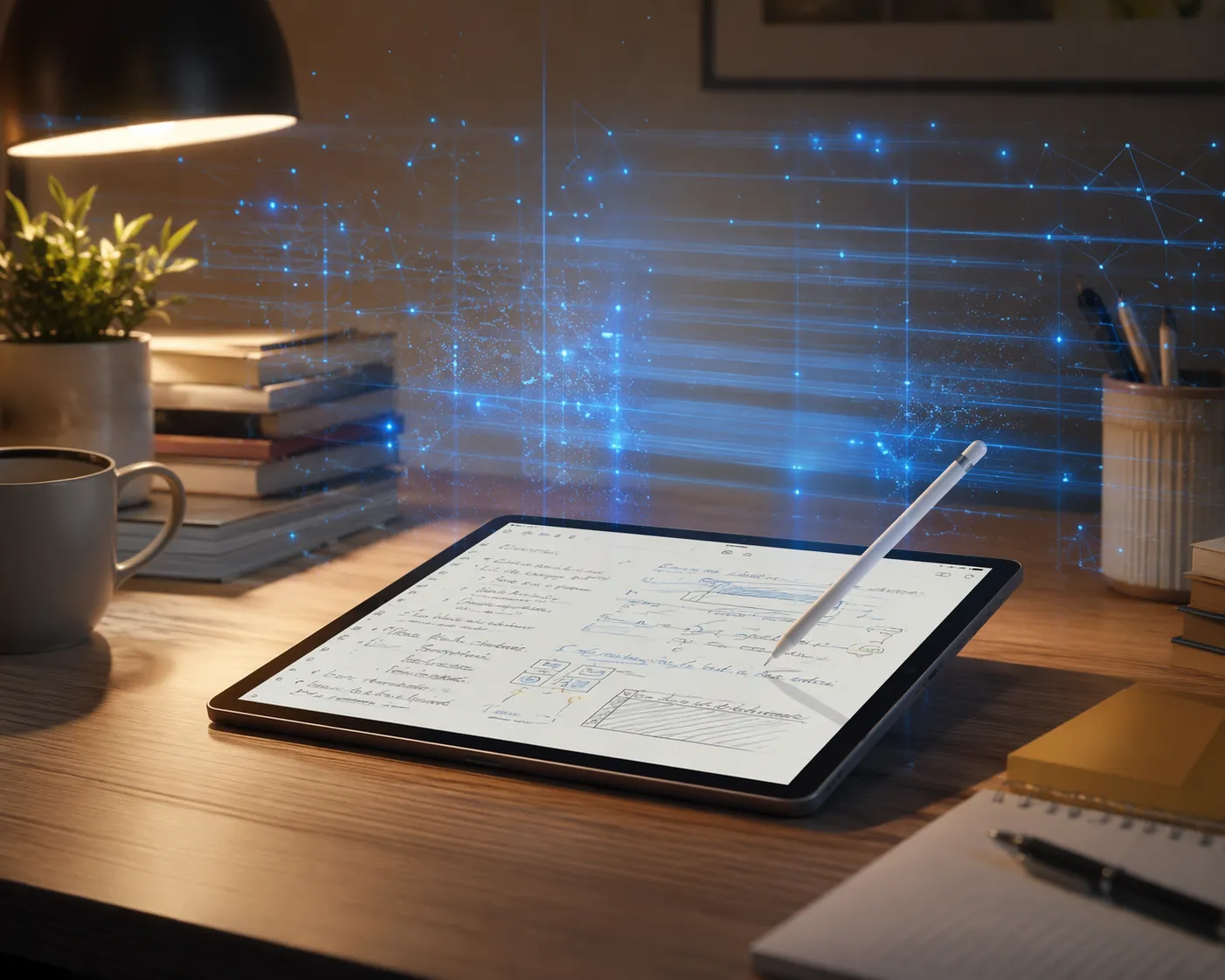
The awkward part is timing. A notes app is often judged in the first five seconds: tap the icon, open the notebook, search a phrase, write with Pencil, sync before walking into class. iOS background work is less visible, but it can still compete for CPU, GPU, storage, and battery at exactly the moment you need the device to feel boringly responsive.
What iOS is doing in the background
The important change is the Spotlight semantic pre-index reported around iOS 26.6. TechTimes described the update as preparing Spotlight data ahead of iOS 27’s Siri work, while AppleInsider framed iPadOS 26.6 as doing more early Siri indexing than the version number suggests.[3][4] In plain English: the system is not merely listing file names. It is preparing richer searchable representations of content so future search and assistant features can understand more than exact keyword matches.
That kind of work is exactly where note apps get exposed. Notes contain short text fragments, attachments, handwritten pages, PDFs, clipped web content, tags, folders, and sync metadata. A photo app may have a large library, but a note library can be messy in a different way: thousands of small objects that change often and need to be searchable quickly.
The expected pain window is best treated as roughly one to two days, but that estimate deserves a caveat. The public iOS 26.6 release is only two days old at this writing, and Apple has not published a user-facing indexing duration. The one-to-two-day expectation comes from early beta and release-candidate interpretation around this pre-indexing behavior, not from a large public dataset of iOS 26.6 users.
During that window, the normal symptoms are familiar: the device runs warmer, battery drops faster, Spotlight search feels inconsistent while its database is being rebuilt, and note apps may hesitate when opening large notebooks or rendering handwriting. Those symptoms are annoying, but they are not automatically evidence that your note app is broken.
Before you update: remove avoidable problems
If you have not installed iOS 26.6 yet, spend five minutes removing the easy ways this can go badly. This is not glamorous setup work, but it gives you a cleaner read on whether post-update lag is coming from indexing or from something you could have fixed beforehand.
- Back up first. Use iCloud Backup or a computer backup before updating, especially if your notes include handwritten notebooks, PDF markups, or local-only folders.
- Update the note apps you rely on. Open the App Store and install pending updates for GoodNotes, Notability, Bear, Obsidian, and any sync helper you use.
- Check free storage. A device that is already tight on space has less room for temporary files, app updates, cache rebuilding, and Spotlight indexing.
- Open your main note app once before updating. Confirm that the library looks healthy and that recent notes are actually synced where you expect them to be.
None of this makes the indexing disappear. It just keeps you from stacking a storage problem, an old app build, and a background index on top of one another.
Right after updating, give the device a controlled first run
After iOS 26.6 finishes installing, the worst test is to immediately open five heavy apps, import a PDF packet, start a lecture recording, and judge the whole system in the next three minutes. The device is still reorganizing itself.
A better first run is simple: connect to Wi-Fi, keep the device charged, let it sit awake for a short period, then open your primary note app and confirm that recent notes appear. If the iPad is warm and battery is falling faster than usual, that can fit the indexing window. If it is hot, stuck, or apps are crashing repeatedly, treat that as a separate problem rather than normal update settling.
| What you notice | Most likely during the first day | What to do first |
|---|---|---|
| Notes app opens slowly | Spotlight and app caches are competing with normal launch work | Reduce visual effects before changing sync settings |
| Handwriting feels delayed | Rendering load plus indexing pressure is hitting Pencil responsiveness | Reduce visual effects, then check app-specific handwriting settings |
| Battery drains faster | Background indexing and post-update maintenance are active | Use Adaptive Power Mode rather than jumping straight to Low Power Mode |
| Search results feel incomplete | The index may still be rebuilding | Avoid disabling Spotlight indexing unless you are troubleshooting a specific failure |
Start with Liquid Glass settings because they do not touch your notes
The safest first changes are visual. Reduce Transparency and Reduce Motion lower interface rendering demands without changing note storage, iCloud behavior, or Spotlight’s ability to finish its work. Several iOS 26 optimization guides point users toward these accessibility settings for reducing the visual load introduced by Liquid Glass-style effects.[5][6][7]
Turn on Reduce Transparency
Go to Settings > Accessibility > Display & Text Size > Reduce Transparency, then turn it on. This reduces translucent interface layers and makes the system draw fewer glassy effects while you are trying to work.
This is the kind of setting that may make app launches and notebook switching feel cleaner on older chips or busy devices, but it should not be sold as a measured iOS 26.6 speed benchmark. Public launch-time claims for this exact update are not strong enough yet. The honest expectation is modest: less visual work competing with your note app, not a guaranteed stopwatch result.
Turn on Reduce Motion if transitions feel sticky
Next, go to Settings > Accessibility > Motion > Reduce Motion and turn it on. If you like some animation, leave Prefer Cross-Fade Transitions on when available; the point is to remove expensive motion that makes a busy system feel slower, not to make the device unpleasant to use.
These two settings are reversible and low-risk. If your device feels normal again after the indexing window, you can turn either one back off and decide whether the Liquid Glass look is worth the extra rendering on your hardware.
Tune Background App Refresh app by app
Background App Refresh is where blanket advice gets people into trouble. Turning it off everywhere can reduce background activity, but it can also leave the wrong app waiting to sync until the moment you open it in a meeting. During iOS 26.6 indexing, the better move is to decide which apps truly need background time.
Go to Settings > General > Background App Refresh. Keep the main switch available, then review individual apps.
| App or workflow | Background App Refresh choice during indexing | Reason |
|---|---|---|
| Apple Notes with iCloud | Usually keep on | You want recent notes, edits, and shared changes ready before you open the app. |
| Bear with iCloud sync | Usually keep on | Background sync is useful if Bear is part of your daily capture system. |
| Obsidian with mostly local vaults | Consider off | If you open and sync manually, background refresh may not be doing much for the actual workflow. |
| Obsidian with iCloud or external sync tools | Depends on the sync method | Do not disable background behavior that your own setup relies on without testing. |
| GoodNotes notebooks used mostly offline | Consider off temporarily | If you are not waiting on cloud updates, save background activity for indexing and foreground writing. |
| Notability with active cloud sync | Keep on if you rely on cross-device updates | A lecture note that syncs late can be a worse problem than a small amount of background activity. |
The test is practical: if turning Background App Refresh off makes the app spend its first minute syncing every time you open it, put it back on. You have not improved performance if you merely moved the delay from the background into your first minute of class.
Use Adaptive Power Mode before Low Power Mode
Battery drain after a major update pushes people toward Low Power Mode, but during an indexing window that can be the wrong first instinct. You want iOS to stop wasting energy where it can, while still making progress on the background work that should end the slowdown.
iOS 26 battery guides have highlighted Adaptive Power Mode as a more flexible option than simply forcing the device into the stricter Low Power Mode behavior.[8][9] On supported devices, go to Settings > Battery > Power Mode and choose Adaptive Power Mode.
Use Low Power Mode when you are actually trying to survive the rest of the day away from a charger. Use Adaptive Power Mode when your goal is to keep writing while the system finishes post-update work. That distinction matters because suppressing background activity too aggressively can stretch out the period where Spotlight and notes are still catching up.
Make the note-app changes that match the kind of lag you feel
Once the system-level settings are in place, adjust the app only where the symptom is specific. This is where it helps to separate text-heavy apps from handwriting-heavy apps.
Apple Notes on iPad: check handwriting auto-refine
If Apple Notes feels fine for typing but bad with Apple Pencil, look at the handwriting tools before blaming the whole app. Open a handwritten note, enter the Pencil or handwriting tool controls, and turn off handwriting auto-refine if that option is active. The tradeoff is simple: your handwriting may look less processed, but strokes should feel closer to the tip of the Pencil.
This is worth trying during the indexing window because Pencil lag is not an abstract performance complaint. If a stroke lands late, the page feels broken. Turn the feature back on later if you miss the cleaned-up handwriting and the device has cooled down.
GoodNotes and Notability: reduce what the page has to render
GoodNotes and Notability users usually notice update-period pressure in the page itself: ink delay, slow page turns, big PDFs opening heavily, or thumbnails taking longer to settle. During the first day or two after iOS 26.6, avoid importing a large new document right before you need to annotate it live. If you can, open the notebook before the session starts and let thumbnails and pages load while you are not under time pressure.
If the app offers handwriting enhancement, shape recognition, audio-linked note features, or aggressive backup behavior you do not need for the next hour, temporarily simplify the session. Do not disable cloud backup casually if it protects important lecture notes. The safe version is to reduce live extras, not to remove your safety net.
Obsidian and Bear: think sync first, rendering second
Obsidian and Bear are usually less about Pencil rendering and more about library loading, file sync, search, and plugins or extensions. For Bear with iCloud, keeping background refresh on usually makes sense if you expect recent notes to be ready across devices. For Obsidian, the right choice depends heavily on your vault: local-only, iCloud-based, Git-based, or a workflow involving another sync app.
If Obsidian feels slow after the update, do not start by deleting plugins at random. First check whether the slowdown happens before the vault opens, while sync is running, or only inside a specific heavy workspace. During the iOS indexing window, temporarily opening a lighter workspace or disabling a nonessential plugin is reasonable. Rebuilding your whole setup because of two days of system work is not.
What not to turn off first
The tempting setting is Spotlight itself. If search feels slow, it sounds logical to stop Spotlight from indexing notes. That may reduce one kind of background work, but it also defeats the work iOS 26.6 appears to be doing for better semantic search later. For a normal post-update slowdown, disabling the index is the heavy hammer, not the first tool.
The same caution applies to force-quitting note apps over and over. If an app is frozen, close it. If it is merely slower while iOS is busy, repeated force-quitting can make the next launch do more cold-start work and delay sync checks you actually need.
Restart once if the device behaves strangely after the update. Do not make restarting the whole troubleshooting plan. A clean reboot can clear a stuck process; it cannot magically finish a semantic index that still needs time.
A sane order for the first 48 hours
If the update is already installed and you need the shortest useful route, use this order. It starts with reversible changes that do not risk your notes, then moves toward workflow-specific tuning.
- Plug in, connect to Wi-Fi, and give iOS time to run background work.
- Turn on Reduce Transparency.
- Turn on Reduce Motion if animations or app switching feel sticky.
- Review Background App Refresh per app instead of disabling it globally.
- Use Adaptive Power Mode if battery drain or warmth is getting in the way.
- For Apple Pencil lag, check handwriting-specific settings before changing sync.
- Leave Spotlight indexing alone unless you are troubleshooting a persistent, specific search problem.
If one of these changes clearly helps, keep it for the indexing window. If it clearly breaks your workflow, reverse it. The point is not to make the device permanently minimal; it is to keep note-taking usable while the operating system finishes reorganizing search.
How to tell the transition is over
After a day or two, you should be able to judge whether the device has settled. Look for behavior, not a hidden progress indicator Apple does not provide.
- Your main note app opens at a more consistent pace.
- Handwriting no longer feels delayed under the Pencil.
- The device is not staying unusually warm during ordinary note-taking.
- Battery drain has returned closer to your normal pattern.
- Spotlight search feels faster or more complete when looking for note content.
Once those are true, start putting temporary changes back one at a time if you miss them. Leave the changes you genuinely prefer. For most note-taking setups, the best iOS 26.6 response is not to disable the future-facing index; it is to lower visual load, tune background refresh intelligently, use Adaptive Power Mode, and make one or two app-specific adjustments while the system finishes the job.
References
- iOS 26.6 now available: Here’s what’s new, 9to5Mac, July 27, 2026.
- About the security content of iOS 26.6 and iPadOS 26.6, Apple Support.
- iOS 26.6 Rolls Out July 27 With Spotlight Pre-Index That Cuts iOS 27 Siri Wait, TechTimes, July 23, 2026.
- Early Siri indexing gives iPadOS 26.6 a bigger job than it looks, AppleInsider, July 27, 2026.
- iOS 26 Settings Optimizations: Simple Step-by-Step Guide, Medium.
- iPhone iOS 26 Liquid Glass minimize, Dedoimedo.
- iOS 26 battery drain fix, Asurion.
- iOS 26 Battery Improvements, MacRumors.
- iOS 26: How to Fix Battery Drain, Lag, and Overheating, iDropNews.
Comments
Join the discussion with an anonymous comment.