
Before picking the best free note-taking app for students, start with the unglamorous question: what device are you actually using when notes get taken, reviewed, and rescued the night before an exam? A Windows laptop in lecture and an Android phone on the bus is a different problem from an iPad-and-Mac setup. A humanities student saving searchable quotations has different pain points from a chemistry student drawing mechanisms with a stylus.
That is why the safest answer is not a single winner. It is a match: one reliable place to capture coursework, and sometimes a second free app to organize it into something worth studying.
| Student situation | Best free starting point | Why it fits | Free-plan limits to check |
|---|---|---|---|
| Windows or mixed-device students | Microsoft OneNote | No note caps, broad platform support, handwriting, OCR, and 5 GB OneDrive storage | Storage is tied to OneDrive |
| Apple-only students | Apple Notes | Built in, fast, strong enough in 2026 for audio transcription, Smart Folders, and handwriting OCR search | Best inside Apple hardware and recent OS versions |
| .edu students who want databases, dashboards, and project organization | Notion | Eligible students can access Plus features for free | Eligibility must be verified; do not assume every .edu address qualifies |
| Students who want local-first notes and linked knowledge | Obsidian | Free local use is functionally unlimited | Cross-device sync needs a workaround or paid Sync |
| Open-source or no-functional-limit students | Joplin | Free, open source, and not boxed in by typical note caps | Sync setup is more manual |
| Quick capture only | Google Keep or Simplenote | Fast for reminders, scraps, and temporary notes | Too thin as a complete academic system for most students |
| Students considering Evernote free | Use caution | The app is polished, but the free plan is easy to outgrow | 50 notes, 1 device, and 250 MB monthly upload |
If you want a faster app-by-app verdict before going deeper, use the companion guide Best Free Note-Taking Apps for Students in 2026: OneNote vs. Notion vs. Obsidian vs. More. This article spends more time on the decision grid: device, study style, major, and the free-plan limits that show up after the honeymoon week.

Start with the device you will actually carry
A note app fails students less often because its interface is ugly and more often because the workflow breaks in ordinary places: the lab computer cannot open it, the phone version is too limited, the tablet handwriting does not sync cleanly, or the free plan allows just enough use to make switching painful.
For Windows and mixed-device students, OneNote is the strongest default. Its free plan supports unlimited notebooks without note caps, includes handwriting and OCR, works across major platforms, and uses 5 GB of OneDrive storage on the free Microsoft account tier.[1][2][3] That does not make it perfect. It does make it unusually hard to break during a normal semester.
The practical advantage is boring in the best way. A student can type lecture notes on a Windows laptop, add a phone photo of a whiteboard, search text later, and keep the same notebook available on another device. For students who move between a personal laptop, campus machines, and a phone, boring reliability beats a prettier system that depends on one perfect setup.
Apple-only students should not treat Apple Notes as a throwaway default anymore. In the 2026 sources, Apple Notes is credited with live audio transcription, Smart Folders, and OCR search for handwriting.[2][4] That matters for a student who lives on an iPhone, iPad, and Mac and wants notes to appear without account juggling. The catch is obvious but important: those strengths are strongest inside recent Apple hardware and operating systems. If your study group includes Chromebook and Windows users, Apple Notes becomes less comfortable as the shared home base.
Chromebook students should be stricter than everyone else about browser support, offline behavior, and file export. OneNote and Notion are both plausible, but the right answer depends on whether most notes are typed, handwritten, or built around PDFs and diagrams. For a Chromebook-specific path, use Best Free Note-Taking Apps for Chromebook before locking in a semester system.
Android students have a similar issue: the app may technically exist on Android, but the experience can still feel secondary. If your phone or tablet is central to studying, check the Android app before building elaborate notebooks elsewhere. The Android-focused guide Note-Taking Apps for Android in 2026 is the better place for that device-level comparison.
Typing, handwriting, and the notes you cannot afford to lose
Typing-heavy students can get away with more apps. A political science lecture, literature seminar, or history survey often needs fast text, headings, source details, and search. OneNote, Notion, Obsidian, Joplin, Apple Notes, Simplenote, and Google Keep can all capture typed words. The difference shows up three weeks later, when the student tries to find the one quotation, term, or professor aside that suddenly matters.
Handwriting-heavy students have fewer safe choices. If your notes include calculus steps, organic chemistry mechanisms, annotated diagrams, or a professor’s drawing copied in a panic, you need to test stylus input on the actual device. OneNote is strong here because handwriting and OCR are part of the free package across a wide platform spread.[1][2][3] Apple Notes is also a serious option for iPad-first students, especially with handwriting OCR search in the 2026 feature set.[2][4]
Do not evaluate handwriting from a feature list alone. Try a full class session: write quickly, add a diagram, search for a handwritten term, reopen the note on another device, and check whether the layout survived. Students comparing stylus-heavy workflows should also read 8 Stylus Note-Taking Apps Tested because stylus comfort is one of the places where general note-app advice gets vague fastest.
Audio is another place to be careful. Apple Notes’ live audio transcription is useful for Apple-only students with compatible hardware, but the sources do not support treating it as a full replacement for dedicated transcription tools or as equally accurate in every classroom.[2][4] Lecture halls, accents, group discussion, and background noise all matter. Use audio transcription as backup, not permission to stop listening.
Match the app to the major, not the fantasy study routine
A student’s major changes what “good notes” means. A minimalist app can feel wonderful during syllabus week and collapse when the course starts producing diagrams, PDFs, lab observations, reading quotations, and exam review sheets.
| Course pattern | What the notes must handle | Free app or stack to try first |
|---|---|---|
| STEM with formulas and diagrams | Handwriting, sketches, image capture, searchable class material | OneNote; Apple Notes if iPad/Mac-only |
| Humanities with readings and quotations | Searchable text, source tracking, links between themes, long-term organization | Notion, Obsidian, Joplin, or OneNote plus a structuring app |
| Lecture-heavy survey courses | Fast capture, headings, review summaries, occasional audio or whiteboard photos | OneNote, Apple Notes, or Notion |
| Pre-med or exam-heavy courses | Repeatable templates, diagrams, recall prompts, and review structure | OneNote for capture plus Notion, Obsidian, or another study organizer |
| Group projects | Shared pages, task tracking, links, and readable organization | Notion if eligible; OneNote or Google Workspace tools depending on the group |
For STEM, OneNote keeps showing up because it handles messy capture well. A student can write, draw, paste, and search without having to decide in advance whether a page is a document, canvas, worksheet, or notebook. Apple Notes can cover a similar role for Apple-only students, especially if the iPad is the main classroom device.
For humanities, the decision is less about handwriting and more about retrieval. If your semester produces quotations, themes, seminar notes, source links, and paper ideas, Notion, Obsidian, and Joplin become more attractive. They are better suited to building a second layer over raw notes: reading logs, concept pages, paper outlines, and exam review maps.
Notion is especially tempting because eligible students with an .edu email can get Plus features for free, including benefits associated with the paid Plus tier, which the sources identify as a $12-per-month plan.[3][4][5] The important word is eligible. The sources also warn that student access may depend on current terms or institutional eligibility, so check Notion’s own pricing and education page before moving a whole course load into it.
Obsidian fits a different student: someone who wants local files, long-term ownership, and links between ideas. Its free local use is functionally unlimited, with no meaningful cap in the sources, but cross-device sync is the dividing line. Students who want Obsidian on a laptop, phone, and tablet need either a third-party sync setup or Obsidian Sync, listed in the sources at $8 per month.[2][3] That is not a flaw if you know it on day one. It is a problem if you discover it after building your midterm review system on one laptop.
Joplin deserves more attention from students who want free, open-source software without ordinary feature gates. The trade-off is not price; it is setup. The sources describe Joplin as fully free and open source with no functional limits, while noting that sync requires manual setup through services such as Dropbox or OneDrive.[1][2][4] For a careful student, that is manageable. For someone already behind in three classes, it may be one more system to maintain.
The free plans most likely to surprise students
Free is not one thing. Some free plans are full student tools with storage limits. Some are generous only if you qualify. Some are local-first and make sync your responsibility. Some are trials wearing a free-plan badge.
Evernote’s free plan is the one to treat most cautiously. The sources consistently identify its free tier as limited to 50 notes, 1 device, and 250 MB monthly upload.[1][2][3][4] Those limits are not abstract. A student can hit 50 notes with a few active courses, especially if each lecture, reading response, lab, meeting, and exam review sheet becomes its own note. The 1-device limit is worse for real student life because notes often need to move from laptop to phone to library computer.
Google Keep has the opposite problem. It is easy to start and hard to build around. It uses Google’s broader storage environment, with the sources noting 15 GB shared Drive storage, but organization is limited to labels rather than folder-depth academic structure.[1] Keep is excellent for “ask professor about lab section,” “possible thesis angle,” or “remember textbook at library.” It is not where most students should keep a semester’s worth of serious notes unless another system is doing the organizing.
Simplenote is similar: fast, clean, and useful for plain-text capture. It can be a relief if every other app feels like furniture assembly. But speed is not the same as a study system. If you use Simplenote, pair it with a routine for moving important material into outlines, review sheets, flashcards, or linked concept notes.
Pricing and free-plan terms also move. The research brief for this article draws on materials from December 2025 through May 2026, and the article is current as of June 27, 2026. Before trusting any free plan for a term, re-check storage, upload limits, device limits, education eligibility, export options, and sync behavior. If you are deciding whether a paid upgrade is actually worth it, the more focused comparison is Free vs Paid Note-Taking Apps for Students: When Spending Money Actually Matters.
Why two free apps often beat one perfect app
Most students do two different jobs with notes and blame one app when those jobs collide. The first job is capture: get the lecture, diagram, quote, question, photo, and half-formed idea down before it disappears. The second job is structure: turn that material into review sheets, concept maps, paper outlines, linked ideas, or flashcards.
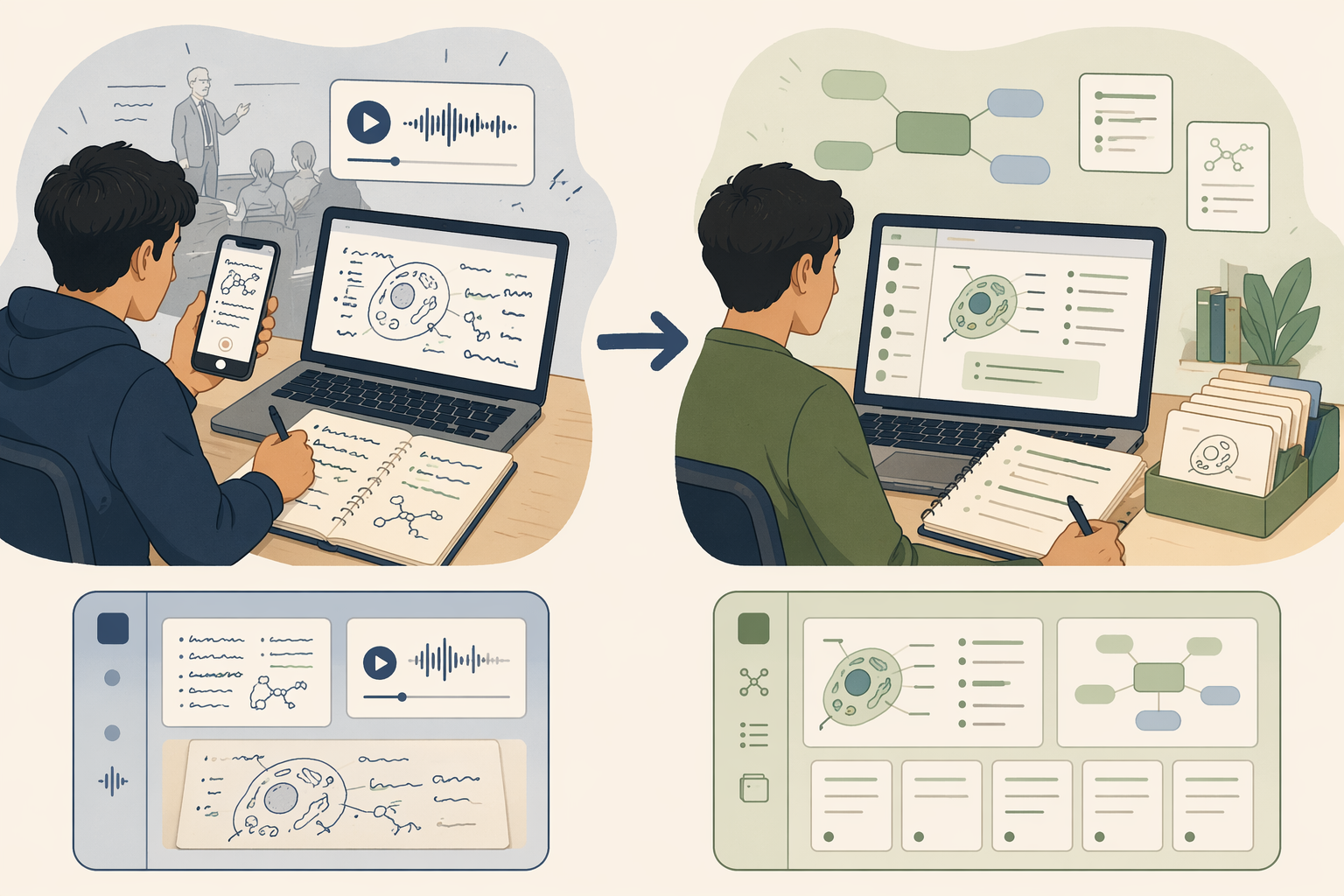
A small Atlas Workspace test from May 2026 points in the same direction, cautiously. In a 14-day test with 4 students, structured template users scored 71% recall compared with 58% for freeform-only users.[5] That is not proof that templates raise grades, and the sample is far too small to carry a sweeping claim. It is useful support for something students can observe themselves: captured notes become more valuable when they are reorganized into a form designed for review.
A free stack does not need to be complicated. It usually means one capture app and one structuring app:
- OneNote for lectures, diagrams, and whiteboard photos; Obsidian for linked concepts and long-term review.
- Apple Notes for fast capture across iPhone, iPad, and Mac; Notion for reading logs, project boards, and exam dashboards if student eligibility checks out.
- Google Keep for temporary reminders and quick scraps; OneNote, Notion, Joplin, or Obsidian for the notes that must survive finals.
- Joplin for open-source course notebooks; a separate flashcard or review tool if the course demands active recall practice.
The point is not to collect apps. The point is to stop asking one free plan to do every job equally well. For more examples of this approach, see The Free Note-Taking Stack: Why Students Should Combine 2–3 Free Apps Instead of Paying for One.
A practical decision grid
If you are still deciding, use the questions in this order. Do not start with the app that looks most impressive in screenshots.
- List your real devices: classroom laptop or tablet, phone, home computer, shared lab machines, and anything you use while commuting.
- Decide whether your notes are mostly typed, handwritten, drawn, audio-backed, PDF-based, or reading-heavy.
- Check whether your major needs retrieval, diagrams, source management, project planning, or linked concepts more than it needs fast capture.
- Read the free-plan limits before importing old notes or building templates.
- Test one full class session and one review session before committing.
- Add a second free app only when your capture app is bad at structure, or your structure app is bad at messy classroom capture.
Students who need one broad default should start with OneNote. Students fully inside Apple hardware should seriously test Apple Notes before adding complexity. Students with eligible .edu access should consider Notion for structured coursework, but verify the education terms first. Students who want local ownership should look at Obsidian or Joplin with clear eyes about sync. Students using Keep or Simplenote should treat them as capture tools, not the whole academic system.
If cross-platform sync is the deciding factor, compare that directly instead of assuming every app handles it the same way. The guide Which Cross-Platform Note-Taking App Actually Works on All Your Devices? is built for that question. For a broader non-student overview, use Best Note-Taking Software in 2026: A Use-Case Comparison.
Choose one reliable capture app first. Add one structuring app only if your courses require it. Avoid free plans that will collapse under normal coursework. Re-check pricing, device limits, storage, sync, and student eligibility before trusting the setup for the term.
References
- Best note-taking apps — Zapier — December 2025
- Best note-taking apps — PCMag — 2026
- Best Free Note-Taking Apps for Students in 2026 — AI Study Master — 2026
- Best note-taking apps for students — Drawboard — 2026
- 14-day recall test — Atlas Workspace — May 2026