
Before you polish a single checkbox, run the test that matters: open the wildfire evacuation checklist you keep in your note app, put the phone in airplane mode, turn off Wi-Fi, lock the screen, then try to open the checklist again.
If it opens instantly, you have a checklist. If it shows a spinner, a blank page, a login screen, a missing attachment, or a database view that only half-loaded, you have a cloud reference that may or may not be there when you are standing in the driveway at 2 a.m.
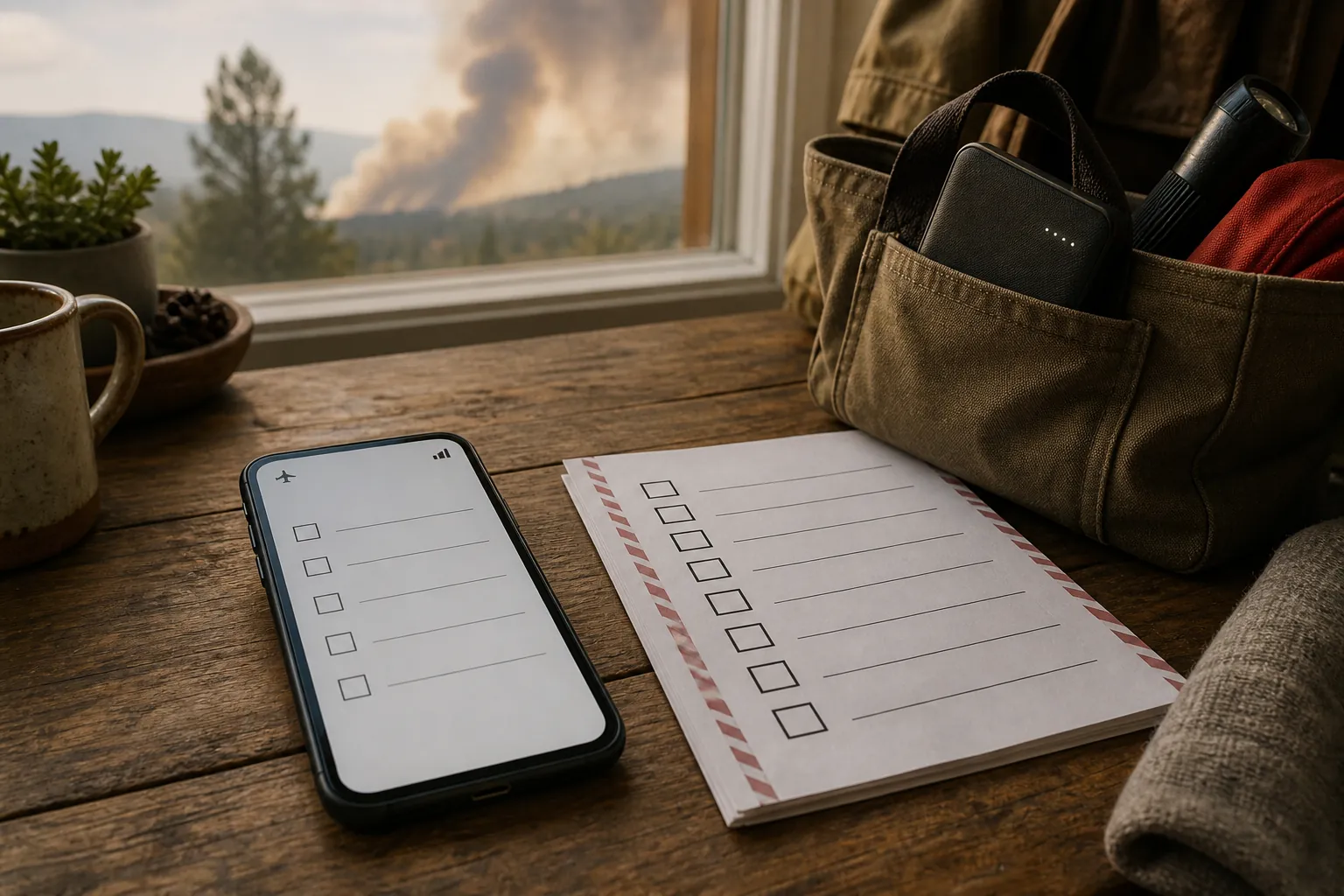
That sounds fussy until the power and network assumptions start falling apart. CAL FIRE’s evacuation guidance warns that power outages are common when wildfires strike and that public-safety power shutoffs are deliberate utility shutoffs during dry, windy conditions to reduce ignition risk.[1] Ready.gov tells households to have several ways to receive alerts, keep a charged phone, and keep backup charging devices available.[2] In the January 2025 Los Angeles County fires, CNN reported that fires knocked cell towers offline, outdated evacuation alerts reached some residents about 12 hours late, and one errant alert went county-wide to nearly 10 million people.[3]
The acreage numbers are useful context, but they are not the real design problem for your note app. As of July 14, 2026, the Emergency Assistance Foundation’s NIFC-based snapshot reported 39,354 wildfires and 3,616,860 acres burned in 2026, compared with 2,570,619 acres by the same date in 2025; it also noted that NIFC figures update continuously.[4] The smaller, more useful lesson is this: the same event that makes you need the checklist can also remove the signal, power, and alert channel you expected to use.
Start with the access path, then build the checklist
A good evacuation note is not just a list of supplies. It is a short path from panic to action. The path has five parts:
- Create one main evacuation note, not a scattered set of pages.
- Make that note locally reachable on every device that might be used during evacuation.
- Test the note with zero connectivity, including attachments and linked pages.
- Duplicate it outside the app as a local file or PDF.
- Print it, because batteries and operating systems are still single points of failure.
The app comes after that. Obsidian, Apple Notes, Notion, Evernote, and GoodNotes can all be part of a useful system, but they do not fail in the same way. A local markdown file fails differently from a cloud database. A pinned iCloud note fails differently from an “On My iPhone” note. A Notion page marked available offline fails differently from a Notion dashboard full of child pages and database views.
If you want a broader outage-focused comparison after setting up this checklist, the guide to keeping notes accessible during an AWS outage goes deeper on offline mechanics across note apps. For the evacuation checklist, keep the rule simpler: the note must open without asking the network for permission.
Build the note in two speeds
New Mexico State University Extension’s 10 Ps framework is useful because it separates what you grab when you have moments from what you gather when you have hours. In that guide, “People” and “Phone” are the moments-to-respond items. “Prescriptions,” “Pets,” “Photos,” “Pocketbook,” “Personal Computer,” “Personal Items,” “Priceless,” and “Papers” are the hours-to-respond items. The same guide recommends preparing a 4–7 day medication supply.[5]
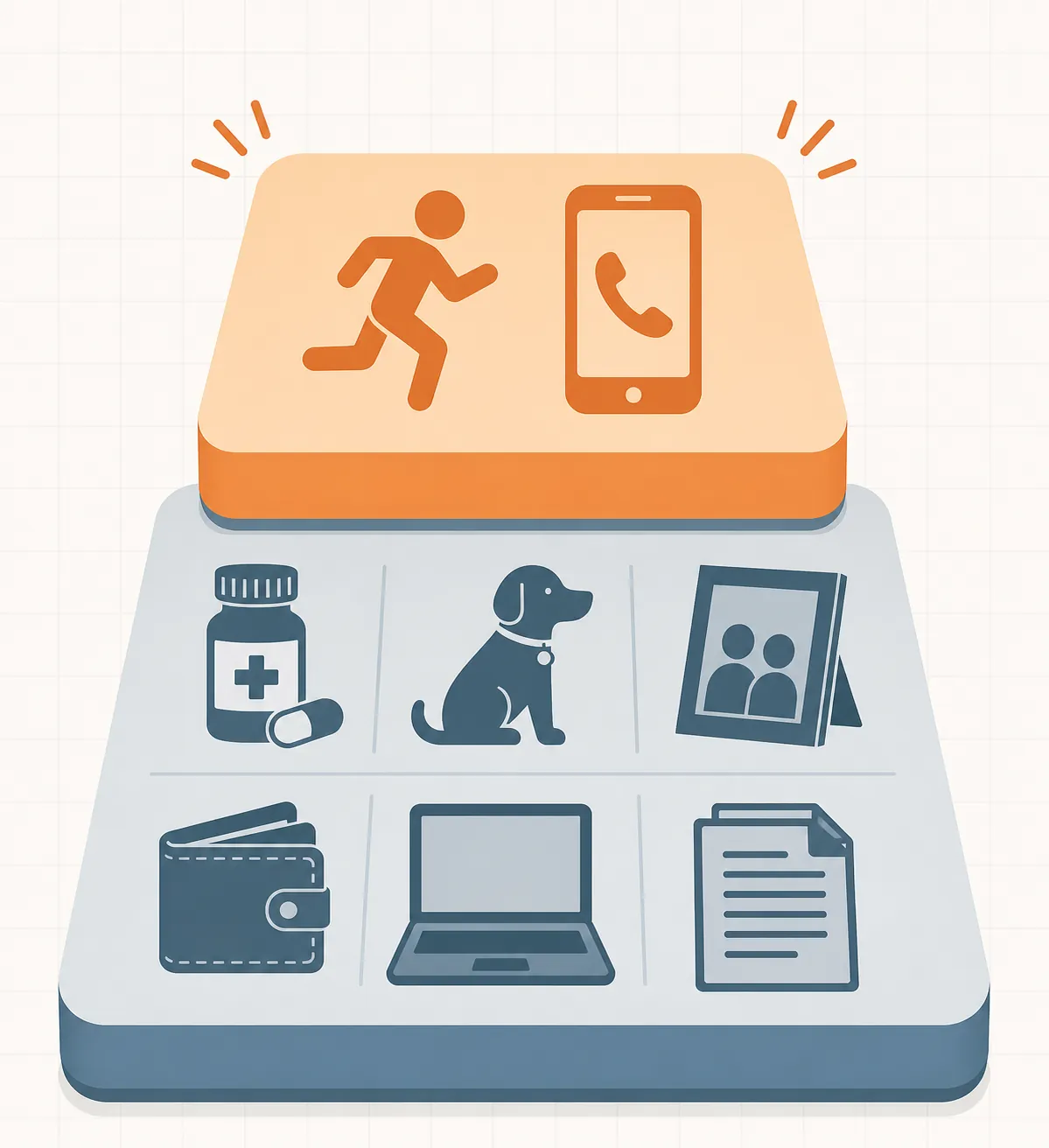
That split belongs inside the note. Do not make an older relative, a teenager, or a half-awake parent scroll through “photo albums,” “sentimental objects,” and “tax records” before seeing the people-and-phone layer. The first screen should answer what to do if leaving now. The slower section can be below it.
| Note section | What it contains | How it should behave offline |
|---|---|---|
| Leaving now: People | Who is in the house, who needs help, where pets are usually found, and who confirms each person is out. | Visible on the first screen with no links required. |
| Leaving now: Phone | Phone, charger, battery pack, emergency contacts, and the one or two numbers you would need if the contact app or cloud account is awkward to reach. | Plain text, not hidden inside a synced contact card. |
| If there is more time: Prescriptions | Medication names, where they are stored, and a reminder to take the prepared 4–7 day supply recommended by NMSU Extension. | Text should be in the note itself; photos of labels are optional, not the only copy. |
| If there is more time: Pets | Carriers, leashes, food, medication, vaccination records, and hiding places. | No separate database needed unless it is confirmed offline. |
| If there is more time: Photos and Priceless items | What is truly worth time under safe conditions: albums, drives, heirlooms, a small box, or a labeled shelf. | Short, ranked, and specific enough that someone else can act. |
| If there is more time: Pocketbook and Papers | Wallet, keys, cash, insurance, IDs, property documents, and other paperwork. | Key policy numbers or file locations should be readable without opening a cloud-only attachment. |
| If there is more time: Personal Computer and Personal Items | Laptop, work drive, glasses, mobility aids, clothing layer, and other high-consequence daily-use items. | Keep the list practical; this is not a home inventory. |
The structure matters more than the decoration. A pretty dashboard with toggles, icons, gallery cards, and nested pages can work in calm conditions and still be a poor evacuation note. In a real departure, the note should tolerate shaking hands, low battery, a dim screen, and another person reading it for the first time.
A plain template that survives stress
Use this as the body of the note, then adapt it to your household. Keep the urgent layer short enough to fit near the top of a phone screen.
WILDFIRE EVACUATION CHECKLIST — OFFLINE COPY
Last offline test: __________
Printed copy location: __________

LEAVING NOW — MOMENTS TO RESPOND

1. PEOPLE
[ ] Everyone awake / accounted for
[ ] Older adult / child / neighbor needing help checked
[ ] Pets located or carrier plan started
[ ] Doors closed if safe and time allows

2. PHONE
[ ] Phone in pocket
[ ] Charger
[ ] Battery pack
[ ] Emergency contacts visible in this note
[ ] Out-of-area contact: __________

IF THERE IS MORE TIME — HOURS TO RESPOND

3. PRESCRIPTIONS
[ ] Medication bag / organizer
[ ] 4–7 day supply if prepared
[ ] Glasses / hearing aids / medical devices

4. PETS
[ ] Carriers / leashes
[ ] Food and water bowl
[ ] Pet medication
[ ] Records if already packed

5. PHOTOS
[ ] Priority photo box / drive: __________

6. POCKETBOOK
[ ] Wallet / purse
[ ] Keys
[ ] Cash
[ ] Credit cards

7. PERSONAL COMPUTER
[ ] Laptop
[ ] Work drive / backup drive
[ ] Laptop charger

8. PERSONAL ITEMS
[ ] Clothing layer
[ ] Shoes
[ ] Mobility aids
[ ] Comfort item for child / older adult

9. PRICELESS
[ ] Small labeled box / heirloom location: __________

10. PAPERS
[ ] IDs / passports
[ ] Insurance documents
[ ] Property documents
[ ] Printed checklist
[ ] USB drive or local PDF copy if prepared
Notice what is missing: no elaborate priority scoring, no long explanation of why each item matters, and no links required for the first action. Links can exist lower down, but the evacuation note should still be useful if every link and attachment fails.
Make it offline in the app you already use
The setup is different in each app. Do it on the actual device you would grab during evacuation, not just on a desktop that stays on the desk.
Obsidian: the least dramatic option
Obsidian’s basic advantage is architectural: vaults are local markdown files. A checklist note inside a local vault should open without connectivity, and Obsidian Sync queues offline edits and syncs them after reconnecting.[6] That removes a whole category of evacuation-day problems.
- Put the evacuation checklist in a vault that exists on the phone, not only on another computer.
- Star it, bookmark it, or place it at the top level of the vault so it is not buried in a folder tree.
- If you use attachments, open them once in airplane mode and confirm they are local too.
- If another household member uses a different phone, test the vault on that phone separately.
This is also where local-first apps earn their keep. If you are deciding whether more of your emergency material should live this way, see the comparison of local-first note-taking apps in 2026. For this particular checklist, the point is not ideology. It is the boring fact that a local text file is still there when the network is not.
Apple Notes: simple only if the note is truly local
Apple Notes can be an excellent evacuation checklist holder because it is fast and familiar. The trap is assuming that “it syncs to my phone” means “it is local and ready.” For the emergency copy, make or move the note into an “On My iPhone” folder on the phone you will carry. Treat the iCloud version as the cloud copy, not the only copy.
- Create an “On My iPhone” emergency folder if local notes are enabled.
- Copy the checklist into that local folder rather than relying only on an iCloud note.
- Pin the local note so it is visible at the top of the folder.
- Turn on airplane mode, turn off Wi-Fi, force-close Notes, reopen it, and confirm the note and any images or scans still display.
- Repeat the test after a phone restart, because cached availability and practical reachability are not the same thing.
For this use case, a short local Apple Note beats a beautiful iCloud-only note that opens most of the time. The checklist should not depend on a successful sync cycle the night before an evacuation.
Notion: workable, but do not bury the checklist in Notion behavior
Notion added offline mode in version 2.53, released August 19, 2025.[7] That is good news for people who already keep household planning there. It does not mean every Notion evacuation dashboard is safe by default.
Because several offline details are easy to misunderstand, verify current behavior in your own Notion workspace before relying on it. A third-party guide describes offline availability as opt-in per page and per device, says child pages are not automatically downloaded, reports that only the first 50 rows of a database sync offline, and notes Wi-Fi-only mobile sync behavior.[8] Those are exactly the kinds of details that matter under stress.
- Make the evacuation checklist one self-contained page. Do not make the urgent layer depend on child pages.
- Avoid putting the core checklist inside a database. A database can be useful for home inventory, but it is a poor place for “leave now” instructions if offline row limits or filtered views are involved.
- Turn on “Available offline” for the checklist page on every device that might be used.
- While still connected, open the page on each device and wait for offline preparation to complete.
- Disconnect completely and test the exact path from the Notion home screen to the checklist.
- If the page contains linked PDFs, images, embedded files, synced blocks, or database views, test each one offline. If any part fails, put the essential text directly into the main page.
The practical Notion version is not a command center. It is a single page with the 10 Ps, emergency contacts, medication reminders, and document locations written directly into the page. Keep the dashboard if you like it. Do not make the dashboard the only doorway.
For a broader look at Notion’s strengths and weak spots, see the 2026 assessment of whether Notion is a good note-taking app. For wildfire use, the verdict is narrower: Notion can work if the offline page is deliberately prepared and tested, and it can fail if you assume the workspace will behave like a local file.
Evernote: set up offline notebooks before the smoke is in the air
Evernote is usable for this job only if the offline notebook is configured in advance. Evernote’s help documentation says that on mobile, only note titles, tags, and excerpts are stored locally by default; full note contents are available offline after setting up offline notebooks while signed in before disconnecting.[9]
- Create a notebook named something obvious, such as “Emergency Offline.”
- Put the wildfire evacuation checklist in that notebook.
- Enable offline access for that notebook on the mobile device you will carry.
- Stay signed in and connected long enough for full contents to download.
- Disconnect, force-close Evernote, reopen it, and confirm the full checklist appears, not just the title and preview.
Pay attention to mobile-plan limits before you choose Evernote as the primary offline copy. Full offline contents on mobile require a paid plan. If that is not acceptable for your household, keep Evernote as the cloud copy and put the local copy somewhere else.
If Evernote’s offline setup is the point where you realize you want the emergency note in local files instead, the Evernote to Obsidian migration guide is the more relevant next read. Do not migrate during an active fire warning. Do the boring export work before the season tightens.
GoodNotes: treat it as promising, then verify the platform
GoodNotes can be attractive for emergency binders because a marked-up PDF feels natural and prints cleanly. The caution is platform behavior. A local notebook on an iPad is not the same reliability question as a document opened through Android, Windows, or web access. Check current GoodNotes documentation for the exact platform before GoodNotes becomes the only digital offline copy.
The safe GoodNotes approach is to keep the checklist as a simple PDF, open it on the device in airplane mode, confirm every page renders, then export the same PDF to a local Files folder and print it. If any step requires a cloud document to load, it is not the local emergency copy yet.
Put documents in the note, but do not make the note your only document plan
Ready.gov recommends making copies of insurance and personal documents in a secure digital space.[2] That does not mean every document needs to live inside the evacuation checklist. The checklist’s job is to tell you what to grab, where the secure copies are, and which local files will open if the network is gone.
For insurance, IDs, and property documents, use the note as an index. Write the policy carrier, policy number, local file location, and paper folder location. If you attach scans, also keep a separate local PDF folder. Attachments are convenient until the note app stores them differently from the text.
| Document type | Best place in the checklist | Offline check |
|---|---|---|
| Insurance | Carrier, policy number, claim phone number, and where the full PDF is stored. | Open the PDF without Wi-Fi or cell service. |
| IDs and passports | Physical location and whether copies exist in the document folder. | Do not rely on a cloud photo thumbnail. |
| Property documents | Folder or binder location, plus secure digital copy location. | Confirm the local file opens, not just the folder name. |
| Medical and pet records | Critical notes in plain text; full records as local PDFs if needed. | Open on the actual phone used for evacuation. |
| Work computer and drives | Which device to take and where its charger or drive is stored. | Do not require a work VPN to read the evacuation note. |
Duplicate it outside the app
Once the checklist opens offline inside the app, make a copy that does not depend on that app. Export it as a PDF or plain text file and save it to local device storage. On iPhone, that means a local Files location, not only a cloud drive. On a laptop, that means a folder available before login problems, VPN problems, or sync-client problems enter the picture.
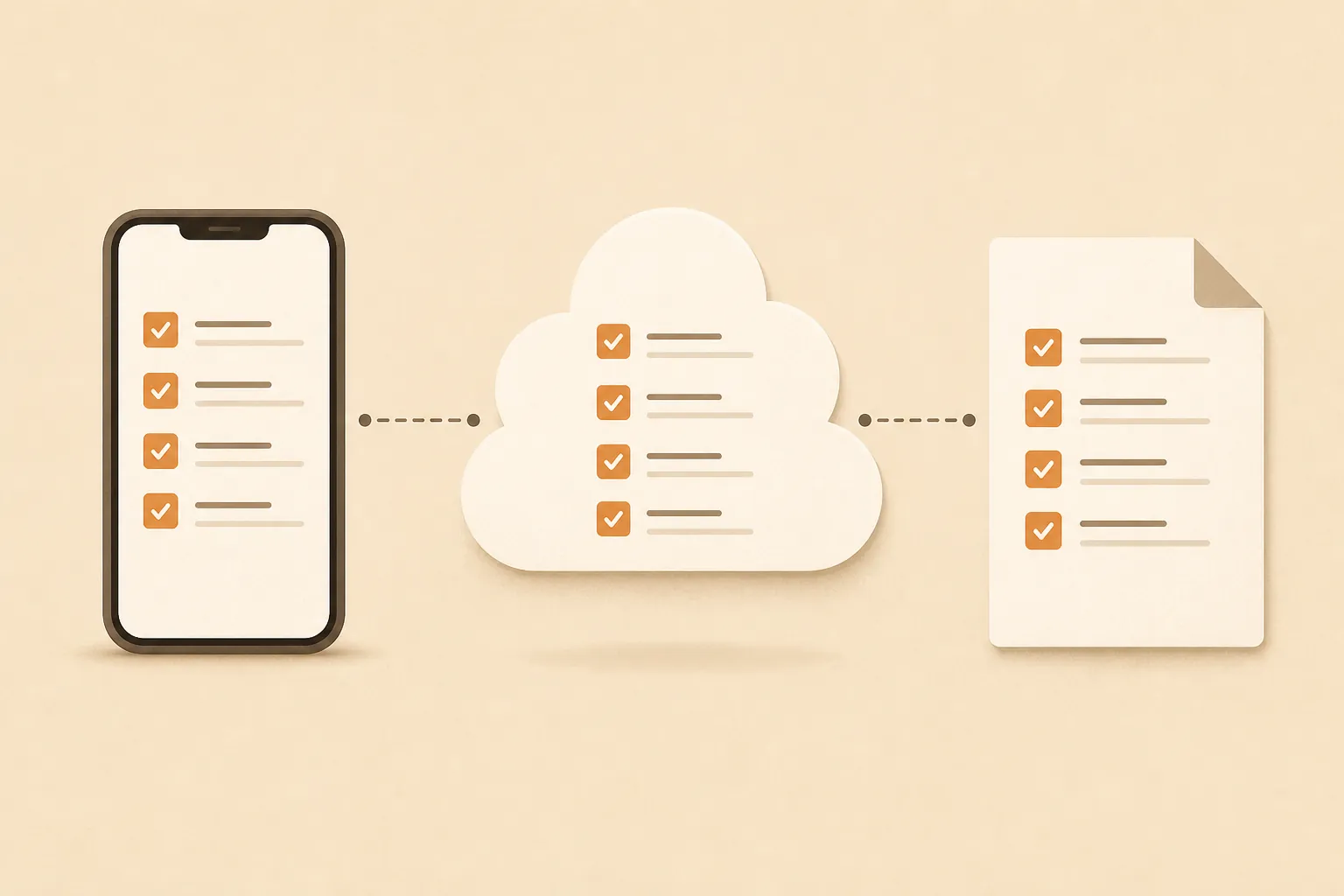
Keep the cloud copy too. Cloud sync is useful after the event, across devices, and when the local phone is lost or damaged. It is just not a sufficient first copy. The working set should be one local note, one cloud-synced copy, and one app-independent local file.
Then print it. Put one copy near the go bag or emergency tote, one in the car if that fits your household, and one where the person least comfortable with your note app can find it. A paper checklist is not elegant. It also does not care whether your session expired.
Run the no-network drill before fire season
Do the drill when nobody is scared. Use the phone that would actually leave the house, with whatever battery level and case it normally has. Do not give yourself the clean lab version where the desktop is open, the Wi-Fi is perfect, and the person who built the system is the only one touching it.
- Turn on airplane mode and manually turn off Wi-Fi.
- Lock the phone, unlock it, and open the note app from a cold start.
- Find the evacuation checklist without search if possible.
- Confirm the People and Phone section is visible immediately.
- Open the medication, pets, documents, and computer sections.
- Open every attachment that would matter during evacuation.
- Repeat on the second adult’s phone, an older relative’s device, or whatever backup device your household would actually use.
- Check that the printed copy matches the digital copy closely enough to act from it.
If the drill fails, fix the access path before adding more content. A missing pet vaccination PDF is less urgent than a checklist that cannot be opened. A perfectly organized Notion database matters less than the first screen showing who leaves, what phone gear goes, and where the medication bag is.
The final setup is deliberately plain: one local copy, one cloud copy, one paper copy, and a repeated offline drill before fire season. That is not redundancy for its own sake. It is a response to the specific failure condition wildfire households have to plan around: the moment you need the checklist is also the moment power, towers, alerts, and cloud sync may stop cooperating.
References
- Go! Evacuation Guide — Ready for Wildfire, CAL FIRE.
- Wildfires — Ready.gov, FEMA, last updated 05/11/2026.
- The LA fires exposed vulnerabilities in emergency alert systems. Here’s what we know — CNN, January 16, 2025.
- Wildfires — Emergency Assistance Foundation, July 17, 2026.
- Guide I-117: The 10 Ps of Evacuation — New Mexico State University Extension, May 2024.
- Vault types — Obsidian Help.
- 2025-08-19 — Notion Releases, August 19, 2025.
- Notion offline mode — Notion Backups.
- Use Evernote offline — Evernote Help.
Comments
Join the discussion with an anonymous comment.