
A Sacramento weekend plan works best when the note app holds the structure and the calendar holds the clock. In practice, that means Old Sacramento, the California State Railroad Museum, Tower Bridge, Capitol Park, the American River Bike Trail, hotel check-in, reservation notes, packing items, and expense lines live in Notion or Obsidian, while fixed departures, museum slots, dinner holds, and reminder alerts move into a calendar layer. The plan only starts to feel real when the handoff still works on the sidewalk, not just in a pretty dashboard.

Keep the trip data and the clock separate
| Layer | What lives there | What changes |
|---|---|---|
| Notion or Obsidian | Trip database or vault note, per-day pages, reservations, packing list, tasks, expenses | Keeps the plan inspectable and reusable |
| Calendar | Timed events, alerts, travel time, location-based reminders | Keeps the day on schedule |
| Fallback calendar app | The few items that must ping on the phone even if the notes layer is messy | Prevents the trip from depending on one plugin or view |
If capture still starts in the browser, the travel-planning Chrome extensions guide is the piece that feeds this system. Once the note app has the trip skeleton, the calendar only needs to handle the parts that punish lateness.
- Capture the places, times, and booking crumbs you already have.
- Promote them into a trip record with dates, tags, and status fields.
- Expand that record into per-day pages with one page per day or one note per stop.
- Move only the timed pieces into a calendar layer that can alert you.
- Keep a fallback for anything that must survive a bad plugin, a dead battery, or a rushed handoff.
Use Notion when the database should do the organizing
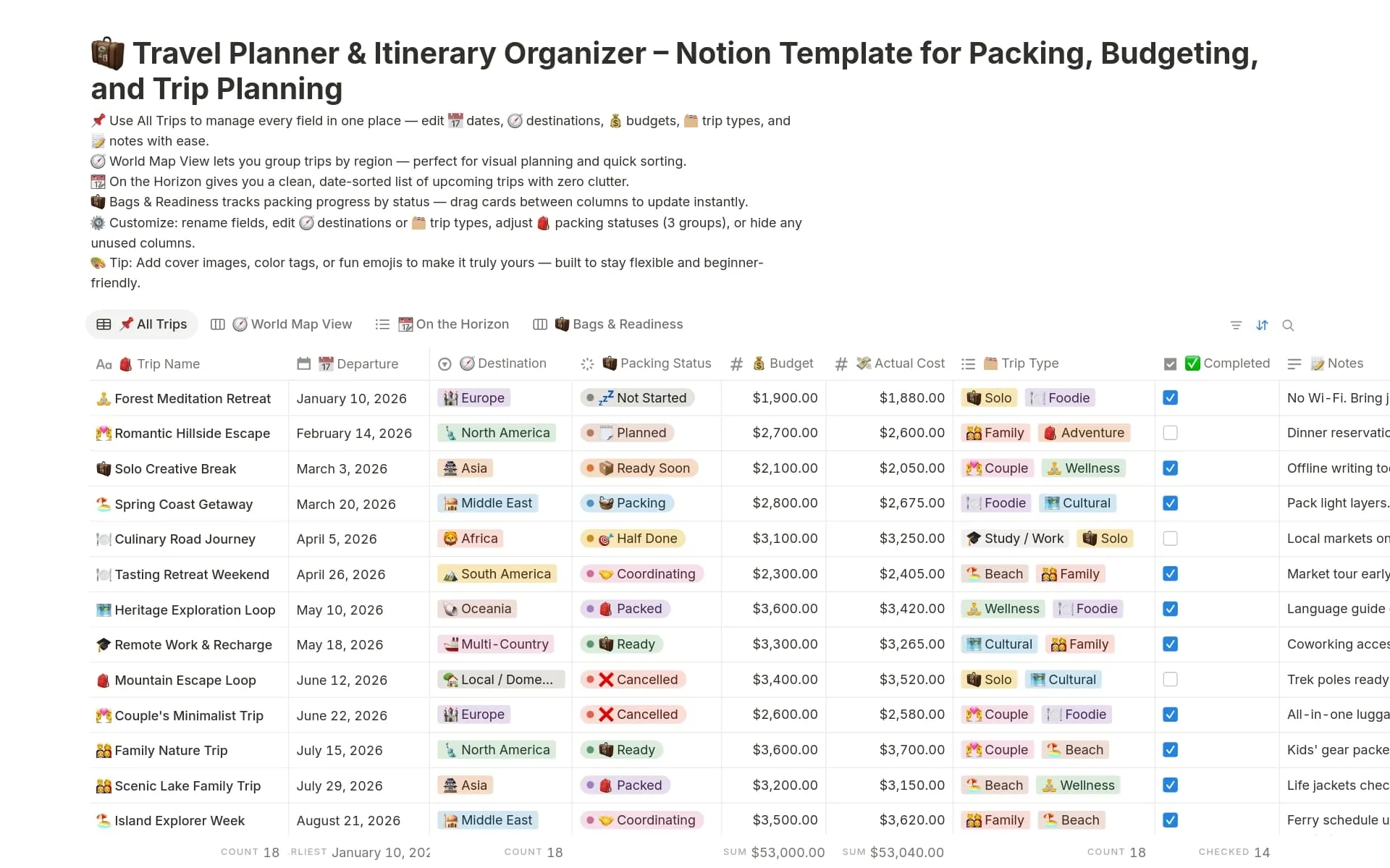
One Notion trip system starts with trip ideas tagged by season, saved through the web clipper, promoted to dated entries, and marked with statuses such as make reservations; the template then carries a packing list and task list, and archives the trip after the dates pass.[2] That is one person's working method, not a universal rule, but it matches the kind of weekend plan that needs a database more than a travel app.
If you are deciding between the standalone app and a database calendar view, the Notion Calendar app vs. database calendar templates comparison is the right fork to check, and the Notion free plan profile is the easiest way to see whether a simple trip database is enough.
The catch is platform reach. A January 2024 critique noted that Notion Calendar sits on top of Google Calendar, runs as a separate app, and at that point did not support Android or iPad, which changes the setup decision if the trip has to work on the device you actually carry.[3] Before building a 2026 trip around it, check current support for your actual device. Notion can hold the plan, but it should not be assumed to be the only place alerts live.
Use Obsidian when the markup should stay inspectable
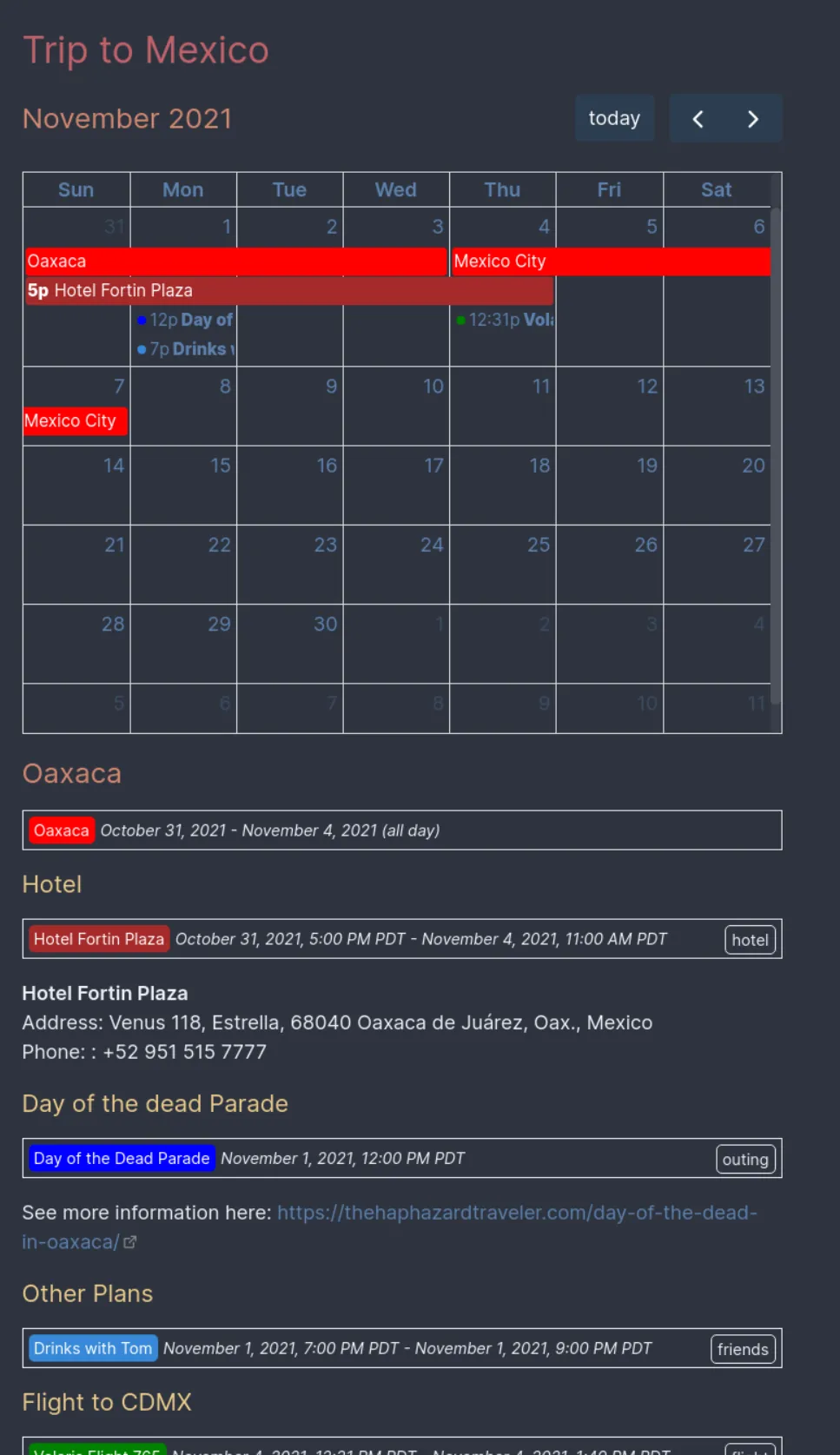
Obsidian takes the opposite trade: the note stays local and explicit, and the itinerary becomes calendar-shaped markup. The Itinerary plugin renders day, week, and month views from itinerary-event blocks inside notes, adds tag filters and color coding, and keeps events timezone-aware; the repository even includes an America/Los_Angeles example, which fits Sacramento cleanly.[1]
- Write one itinerary-event block for each timed stop.
- Use tags to separate hotel, food, transit, museum, or outdoors entries.
- Lean on color coding when the weekend has more stops than your memory can hold.
- Keep a fallback calendar for alerts if the markup format is not worth enforcing on the go.
That makes Obsidian a strong fit when you want the schedule to remain legible as plain text and do not mind the note format becoming part of the setup. If the plugin format feels too specific, it is better to let the note remain the source of truth and move the actual reminders elsewhere than to force every event through the same markup.
Let the calendar do the timing
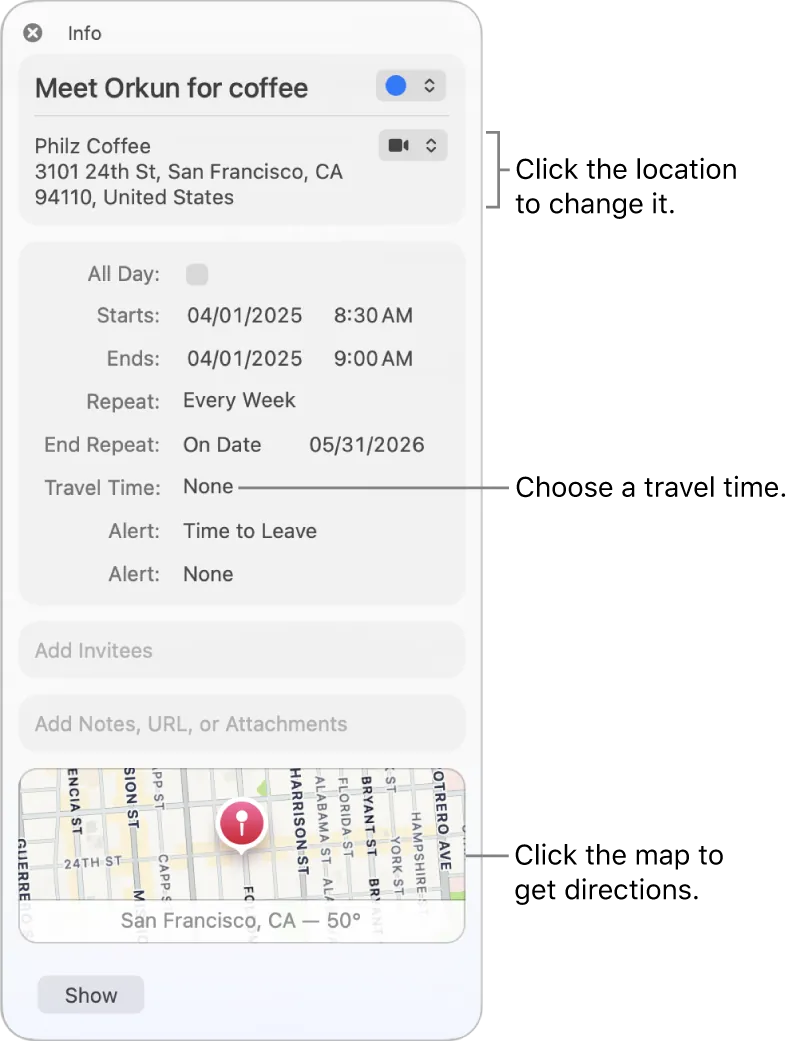
Apple Calendar is useful here because it does one thing notes apps do not: travel time depends on having an event location, and Apple disables that travel-time behavior for all-day events.[4] That makes it a better home for hotel check-in, museum slots, dinner reservations, and any stop where leaving late causes the plan to break.
A Sacramento weekend record can stay small and still be useful: Friday arrival and hotel check-in, Saturday morning at Old Sacramento or the California State Railroad Museum, a Tower Bridge walk, an afternoon at Capitol Park, and a Sunday loop on the American River Bike Trail. Those items can sit in the note app as the trip database, while only the fixed-time parts become calendar events.
If your weekend lines up with a dated Sacramento365 listing, put it in the timed layer from the start: the California State Fair at Cal Expo runs through Aug. 2, 2026; the Japanese Food and Cultural Bazaar is listed for Aug. 8, 2026; and the Sacramento Banana Festival at William Land Park is listed for Aug. 15–16, 2026. Dates checked Aug. 2, 2026.[5] The point is not to make every attraction look equal; it is to make the items that have a clock attached behave like they have a clock attached.
Once the trip is over, file the finished note back into your broader system with the PARA setup guide if you want the weekend record to stay findable instead of drifting into archive fog.
That leaves three workable setups: Notion plus an external calendar if you want the database to organize the trip, Obsidian plus Itinerary plus a fallback calendar if you want the schedule to stay inspectable in local notes, or a calendar-only plan when all you need are a few time-sensitive events.
References
- obsidian-itinerary — GitHub
- How I Plan Trips Using Notion — rscottjones.com
- Notion Calendar Is Brilliant, But... — tuanmon.com, Jan. 2024
- Add location and travel time to events on Mac — Apple Support
- Sacramento365 event listings — Sacramento365.com, dates checked Aug. 2, 2026
Comments
Join the discussion with an anonymous comment.