
Last verified: June 26, 2026.
| If the note is… | Use this Microsoft note-taking app | Why |
|---|---|---|
| A quick reminder, phone number, parking spot, or temporary thought | Sticky Notes | It is fast, small, and meant for scraps you may not need tomorrow. |
| A PDF, worksheet, slide printout, or document you want to mark up with a pen | Microsoft Journal | It is built around ink, page markup, and handwriting intelligence. |
| A class notebook, research archive, project reference, meeting history, or personal knowledge base | OneNote | It gives you notebooks, sections, pages, search, OCR, and long-term retrieval. |
| A shared project plan, agenda, checklist, decision log, or living team note | Microsoft Loop | Its components can travel through Microsoft 365 apps and stay live for collaborators. |
The useful question is not “Which Microsoft note taking app is best?” It is “What kind of note am I about to create?” Microsoft’s note tools make much more sense once you stop treating them as four versions of the same notebook. Sticky Notes catches scraps. Journal handles pen-first markup. OneNote stores durable personal knowledge. Loop turns notes into shared working objects.
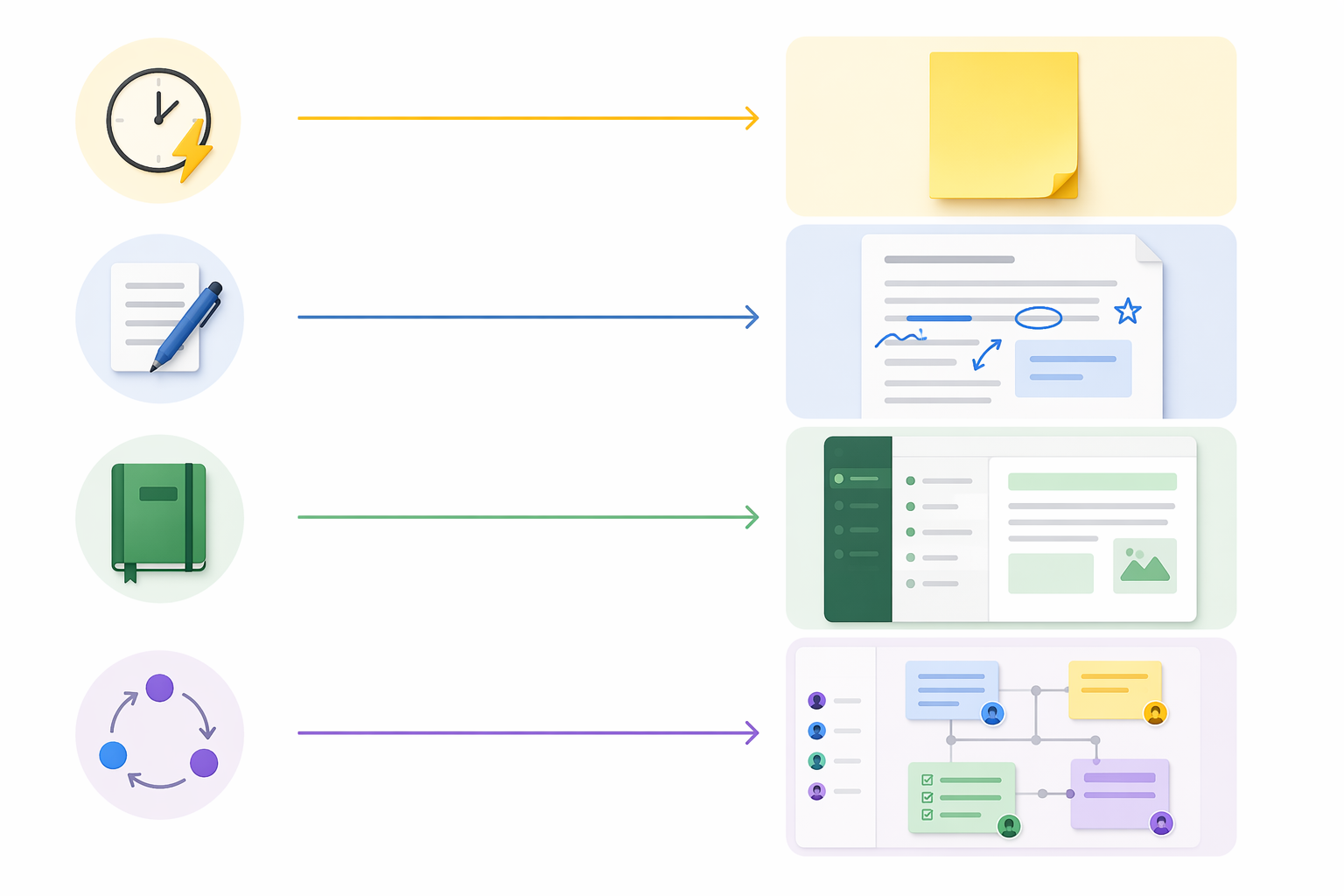
That distinction also explains why Microsoft notes can feel chaotic inside real workplaces. A meeting decision gets buried in a Teams chat. A PDF gets annotated in the wrong place. A project checklist sits in OneNote even though five people are waiting on it. The problem is usually not that Microsoft has too many note apps. It is that the note was put into the wrong layer of work.
If you want the broader Microsoft-only landscape, this Microsoft note-taking ecosystem profile covers OneNote, Loop, and Sticky Notes in more depth. This comparison adds Journal because pen markup is a real workflow, not a footnote.
Use Sticky Notes when the note should stay disposable
Sticky Notes is the least glamorous app here, which is exactly why it works. It is for the thing you need to capture before it vanishes: a reminder, a code, a name, a short errand list, a thought you may later move somewhere else.
Its danger is that it feels harmless until it becomes a junk drawer. A sticky note is fine for “ask Maya about the Q3 deck.” It is not fine for the Q3 deck decisions, source links, draft agenda, and follow-up owners. Once the note needs structure, history, or retrieval, it has already outgrown the app.
- Use Sticky Notes for temporary reminders and tiny bits of capture.
- Move anything durable into OneNote, Loop, or your task system.
- Do not try to turn Sticky Notes into a personal wiki.
Use Journal when the page starts with a pen, not a keyboard
Microsoft Journal is easy to misunderstand if you only glance at the name. It is not just “another notebook.” It was built by Microsoft’s Applied Sciences Group as an ink-first Windows app, and its machine-learning features can detect handwritten headings, stars, lists, and diagrams in ways that OneNote does not offer in the same pen-native workflow [3].
The clearest clue is how people use it. Microsoft said that over half of Journal pages were PDF imports, which points to document markup as a central use case rather than blank-page diary writing [3]. Think lecture handouts, forms, articles, worksheets, slides, or review packets: the page already exists, and your job is to underline, circle, star, draw arrows, and write beside it.
That makes Journal a good fit for stylus-heavy Windows users who want the page to behave like paper with a little intelligence layered on top. It is less convincing as the place to build a long-term knowledge system. If you need many notebooks, cross-topic organization, broad search, and years of retrieval, OneNote is the safer home.
There is one practical caution: Journal’s current development status is not as straightforward as OneNote’s or Loop’s. Microsoft’s Garage Wall of Fame says Journal secured funding and ships in-box on Windows pen devices, but public signals around its ongoing priority have been mixed enough that teams should verify availability and support on their own devices before standardizing on it [4].
Use OneNote when you need a place to find the note later
OneNote is still Microsoft’s strongest answer for long-form personal note-taking. It is free, includes 5 GB of OneDrive storage, and is designed around notebooks, sections, pages, typed notes, ink, images, attachments, and search [1]. That last word matters more than feature lists usually admit.
The feature that changes the shape of OneNote is OCR. OneNote can search text inside images and handwritten notes, which means a whiteboard photo, scanned worksheet, screenshot, or rough handwritten page can still become retrievable later [1]. For students, researchers, consultants, managers, and anyone who collects messy source material, that is not a decorative feature. It decides whether the note survives contact with future you.
OneNote is also widely distributed, though distribution is not the same thing as quality. Wikipedia reports that OneNote had more than 500 million Google Play downloads, but that figure should be read as reach, not proof that every user has a healthy note system [2]. A bloated notebook full of unfiled meeting debris is still a bloated notebook.
Use OneNote when the note has a future: course notes you will study, recurring meeting notes you will search, personal reference material, screenshots with context, research clippings, handwritten explanations, and anything you expect to revisit weeks or months later.
- Good OneNote notes usually need structure: notebook, section, page, title, and enough context to make sense later.
- Weak OneNote notes are often shared-team work in disguise: project trackers, living agendas, decision tables, and checklists that several people need to update at once.
- If the note is mainly yours, OneNote is probably right. If the note belongs to a moving team process, look at Loop.
One more housekeeping point: OneNote for Windows 10, the older UWP app, reached end of support in October 2025, while the desktop OneNote app is the actively developed Windows version [1]. If you are still using the older app, use this OneNote for Windows 10 migration guide instead of waiting for a sync or support surprise.
Use Loop when the note is actually shared work
Loop is where many OneNote comparisons go wrong. Loop is not a prettier OneNote. It is a collaborative workspace built around portable components that can sync across Microsoft 365 surfaces such as Teams, Outlook, and Word [5]. A Loop table, checklist, agenda, or task list can appear in more than one place while staying live.
That matters in the exact situations where OneNote starts to creak. A project agenda in OneNote can be shared, but it still tends to behave like a page in a notebook. A Loop component behaves more like a shared object. The team can update the same component from the place where they are already working, rather than copying decisions from chat to email to notes and hoping nobody misses the latest version.
Loop is strongest when the note is unfinished by design: planning pages, status tables, decision logs, brainstorms, task lists, and project hubs that need multiple people editing the same material. Quisitive frames the choice similarly: OneNote is better suited to personal or structured note capture, while Loop is better suited to collaborative, evolving workspaces [6].
The reverse mistake is just as common. Loop is not the best place for every durable personal note. If you are building a private research archive, a semester-long class notebook, or a searchable store of images, ink, and references, Loop’s live collaboration model is less important than OneNote’s notebook structure and retrieval.
There is also overlap by design. Loop components can be embedded inside OneNote pages, which is useful when a mostly personal or reference-oriented notebook needs one live team object inside it [5]. That does not make the apps interchangeable. It means Microsoft expects some notes to move between layers.
If your real decision is between these two apps, use the deeper OneNote vs Loop comparison. That is the fork where most Microsoft 365 users lose the most time.

The comparison that actually helps
| App | Best for | Wrong use | What to remember |
|---|---|---|---|
| Sticky Notes | Fast, temporary capture | Project knowledge, meeting history, research notes | If you need to organize it, it probably should not stay here. |
| Journal | Stylus notes, PDF markup, ink-first review | A full knowledge base or team workspace | Best when the document or handwritten page is the center of the work. |
| OneNote | Long-form personal notes, research, class notes, searchable archives | Live project coordination that many people need to update | Choose it when retrieval and structure matter. |
| Loop | Shared agendas, project plans, task lists, collaborative components | Private notebooks and long-term personal reference libraries | Choose it when the note must stay live across people and apps. |
Pricing should not be the main reason to choose between these apps, but it can affect access. OneNote’s free tier remains useful because it includes 5 GB of OneDrive storage [1]. The free tiers of these note tools are not the part expected to change in the cited 2026 pricing report, but Microsoft 365 business plan prices may rise in July 2026: Business Basic from $6 to $7 per user per month, Business Standard from $12.50 to $14, and E3 from $36 to $39 [7]. Treat those figures as something to cross-check against official Microsoft pricing before buying or renewing.
If you are outside the Microsoft ecosystem, the answer may be different. A broader best note-taking apps comparison is the better next stop. If the deciding factor is free access, compare OneNote with the wider field of free note-taking apps before assuming Microsoft is the only sensible option.
If you are still unsure, classify the note before opening an app
A good default sequence is simple: if it is temporary, use Sticky Notes. If it is pen markup, use Journal. If it is durable personal knowledge, use OneNote. If it is shared work that needs to stay live, use Loop.
Microsoft’s note-taking apps work best as a stack. The productivity gain comes before the first sentence, when you choose the right layer for the job.
References
- Microsoft OneNote | The digital note-taking app for your devices, Microsoft 365.
- Microsoft OneNote, Wikipedia.
- Microsoft launches its AI-powered notetaking app Journal as an official Windows app, TechCrunch, April 6, 2022.
- Microsoft Journal, Microsoft Garage Wall of Fame.
- Microsoft Loop vs OneNote vs Word, Orchestry.
- Microsoft Loop vs OneNote: Choosing the Right Tool for Your Workflow, Quisitive.
- Notion vs OneNote 2026, Tech Insider.
Comments
Join the discussion with an anonymous comment.