
Before importing a teacher planner or building a color-coded notebook system, decide whether the app can survive the school year you are about to load into it. Check the free-tier ceiling, the devices you will actually use, and the route for backing up or exporting notes. A polished pen tool is irrelevant if October arrives with a full class notebook, a subscription prompt, or annotations that cannot be recovered on another device.
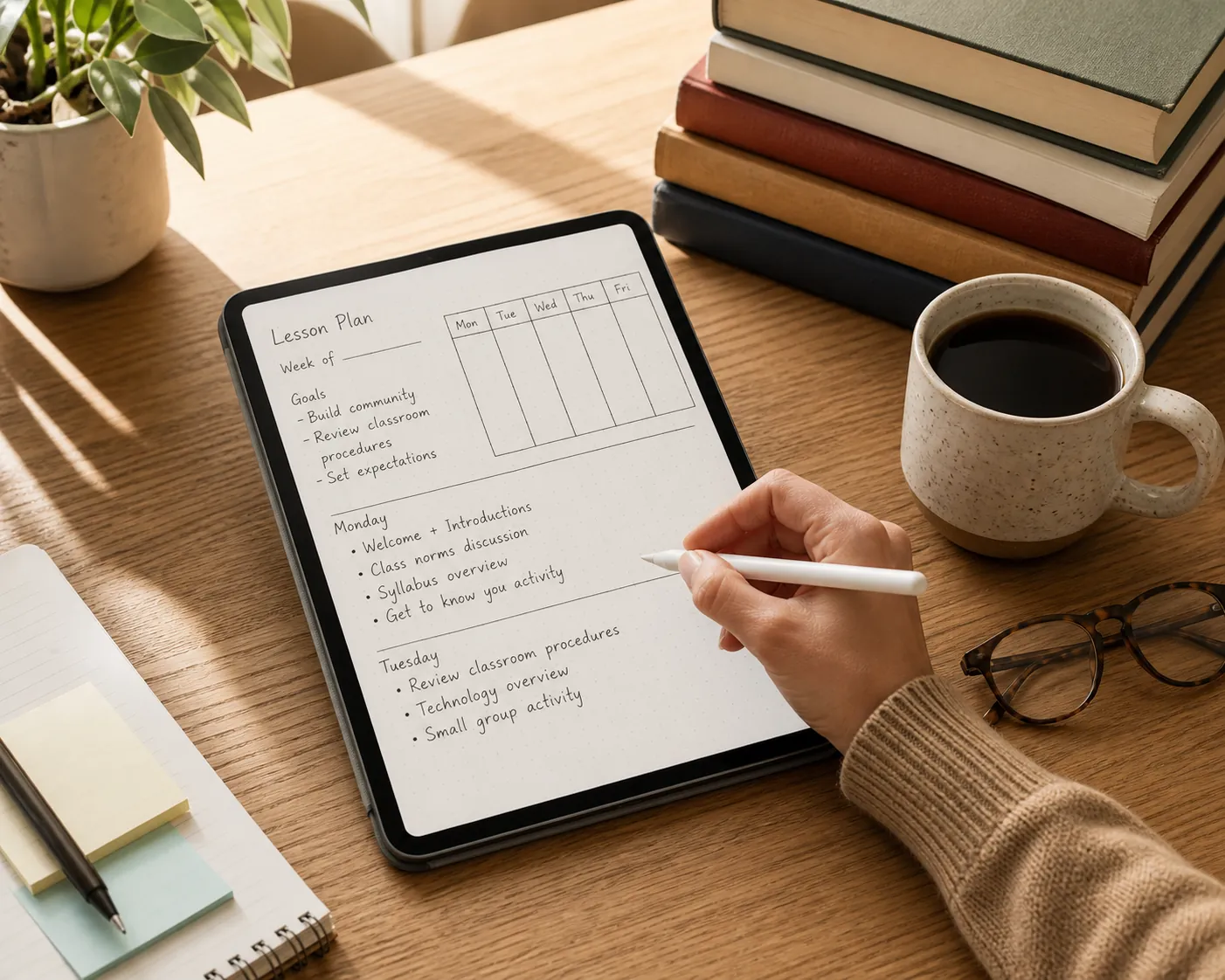
The audit below uses store-listing information last checked on August 27, 2026. Store terms change, so treat it as a starting point rather than a permanent price sheet. For iPad, Android, and Chromebook teachers especially, confirm the current listing and sign-in path for the exact devices in your classroom and at home. A Google Play listing confirms Android availability; it does not, by itself, prove that an iPad or Chromebook workflow will behave the same way.
Audit the commitment before you set up anything
| App | Free-tier or trial boundary | Device question to verify | Recovery question |
|---|---|---|---|
| Notability | The free plan allows creation of five notes. Unlimited note-taking, auto-backup, and handwriting recognition are subscription features. | The current listing and account flow must match the iPad, Android, or Chromebook devices you intend to use. | Confirm that the subscription level you choose includes the backup route you need, then export and reopen a representative note before school starts. |
| GoodNotes | The current subscription model includes a seven-day trial; collaboration and unlimited notebooks are behind the subscription boundary. | The Google Play listing confirms an Android app. Check the current iPad and Chromebook experience separately rather than inferring cross-device parity. | Identify the app's available sync and export controls on each device, and test a notebook containing handwriting and a PDF annotation. |
Notability is the easier starting lane when five notes are enough for a trial run. That limit is generous for testing a lesson-plan template, a staff-meeting notebook, and a sample handout. It is not a workable school-year architecture if every class, meeting, and student-support document must remain in the free tier. The features that matter to a teacher's continuity—unlimited notes, auto-backup, and handwriting recognition—sit behind the subscription boundary in the current listing. [2]
GoodNotes deserves a closer look when Android or a larger screen is part of the plan. Its Google Play listing reports more than 5 million downloads and identifies the app as a Google Play Best of 2025 selection for large screens. Those facts establish reach and recognition, not a guarantee that your Samsung tablet, Chromebook, and iPad will share the same notebook behavior. The seven-day trial is long enough to test a real teacher workflow, but collaboration and unlimited notebooks are subscription-gated. [1]
For a broader feature comparison, see GoodNotes vs Notability: Which Handwriting Note-Taking App Is Right for You?. This guide has a narrower concern: whether the choice can carry teacher material from the first week through the end of the term.
Run this short test before committing:
- Create one notebook for a real class and fill several pages with handwriting, a pasted schedule, and one marked-up PDF.
- Open that material on every device you expect to use, including the device that will be your fallback.
- Export the notebook or representative pages in the format the receiving person or system actually accepts.
- Delete a test copy or sign out of the app only after confirming that the backup or exported file can be reopened.
- Write down the subscription boundary, renewal date, and recovery route somewhere outside the app.
Do not use current Play Store reviews as proof that a particular sync problem or subscription failure is common. Reports about subscription confusion, Samsung sync lag, or free-tier frustration are leads for your own test, not findings you can safely build a school-year plan around.
The complete teacher setup
- Create one top-level workspace for the school year and one notebook per class or recurring responsibility.
- Import a planner template into a separate planning notebook, then duplicate only the pages you will use.
- Give each class notebook the same internal page order so you do not have to relearn the system between periods.
- Use a repeatable PDF workflow for IEP documents, substitute plans, and handouts.
- Test sync, backup, and export with real-looking material before day one.
Build the notebook structure around classes, not subjects in the abstract
Start with the way you retrieve information during a school day. A useful top level might contain one notebook for each class, one for meetings and professional learning, one for student-support documentation, and one for administration. If you teach multiple sections of the same course, keep sections separate when their rosters, pacing, or accommodations differ. The purpose is not visual tidiness. It is making the correct notebook obvious when a bell is about to ring.
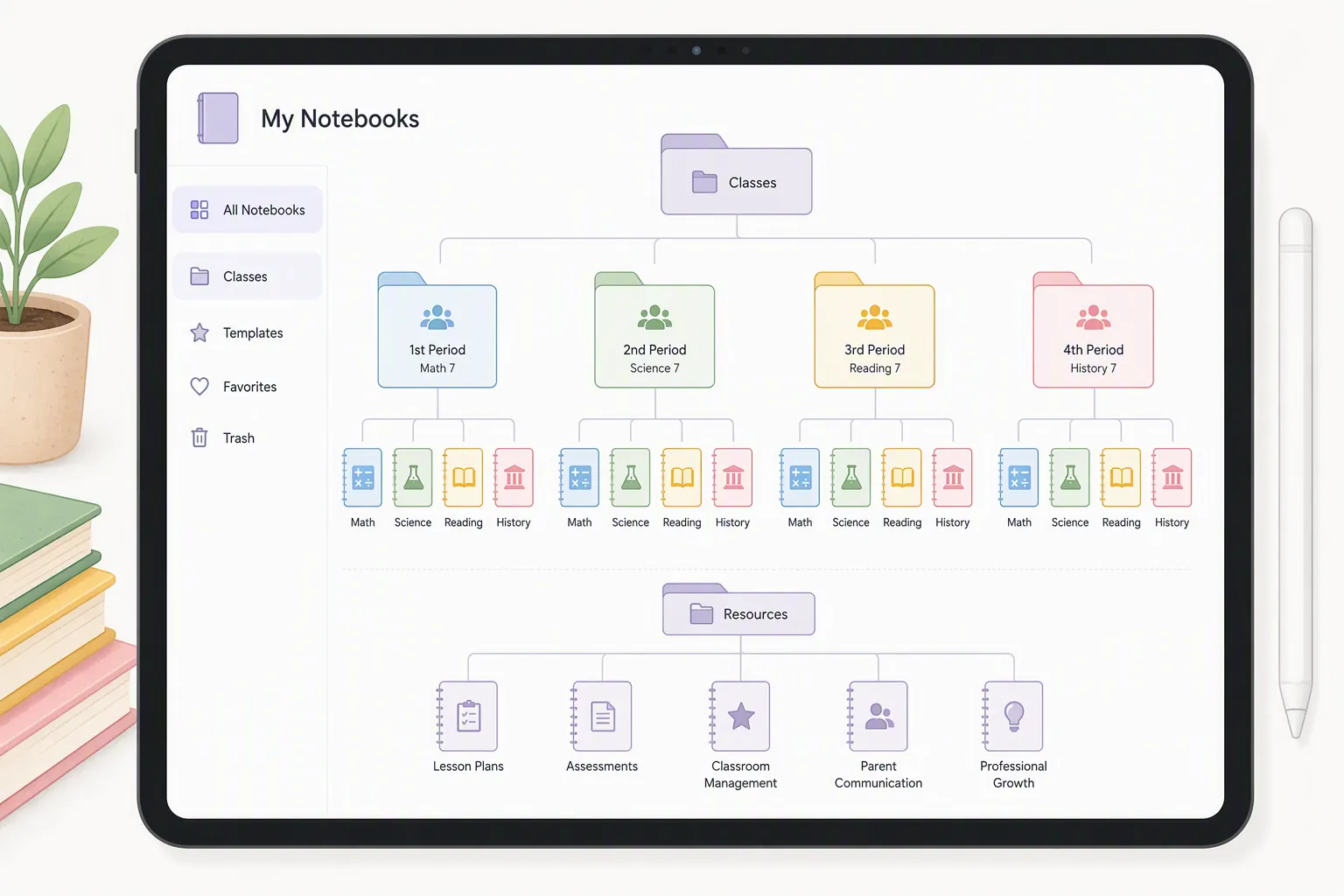
Use the same first pages in every class notebook:
- A course snapshot with the current unit, recurring links, and the location of the official roster or grade record.
- A weekly planning page for objectives, materials, timing, and follow-up.
- A running meeting or observation log, kept separate from student records that require a different storage policy.
- A handout and PDF index showing the unit, date, and whether the marked-up file has been exported.
Avoid a single enormous notebook called “School.” It feels efficient while it is empty and becomes a search problem once lesson pages, staff notes, IEP annotations, and substitute plans accumulate. At the other extreme, a separate notebook for every meeting creates filing work that handwriting was supposed to remove. Choose boundaries that match retrieval: class, recurring responsibility, and document type.
Import the planner without turning it into a second job
Import the planner template into its own notebook before copying it into class notebooks. Keep a clean master page or master notebook untouched. Then make a working copy for the school year and test the parts that matter: writing space, page duplication, navigation, and PDF export. A beautiful template with cramped weekly boxes will be a daily irritation by the second week.
Use the planner for information that benefits from a calendar or weekly view: lesson sequence, room changes, deadlines, meeting times, and reminders to prepare materials. Put detailed lesson thinking in the relevant class notebook. That split keeps the planner legible while preserving the flexibility of handwriting where the lesson is still changing.
If standards alignment, curriculum mapping, or structured lesson-plan fields are the actual requirement, a general handwriting notebook may be the wrong tool. Planboard, listed by PowerSchool as a free, standards-aligned lesson planner, is the purpose-built alternative; its listing claims more than 250,000 teachers, which is a vendor figure rather than independent adoption evidence. [3]
Make PDFs part of the notebook workflow
Teachers rarely need a handwriting app only for blank pages. The practical workload is marking an IEP-related document, circling changes on a handout, adding instructions to a substitute plan, or writing questions on a staff-meeting PDF. Decide where those files enter the system and where the finished copy goes before the first one arrives.
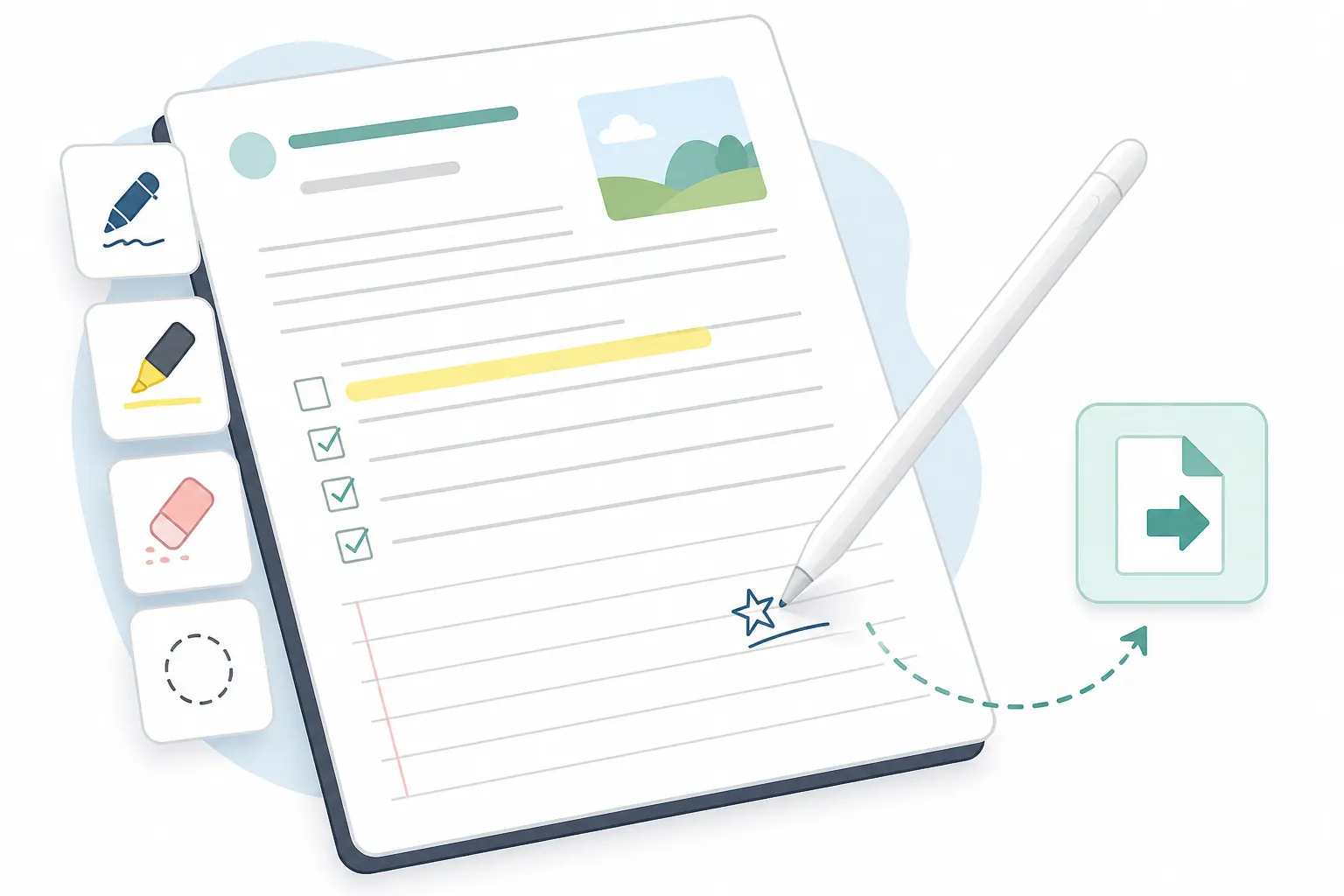
A dependable routine looks like this:
- Import or open the source PDF in the class or responsibility notebook.
- Annotate with a consistent small set of tools: pen for decisions, highlighter for emphasis, and a brief margin note for follow-up.
- Add the date and a short identifying label so the page still makes sense outside the app.
- Export a copy when another person, platform, or device needs the marked-up document.
- Store the exported copy in the approved school location rather than treating the note app as the only record.
Use extra care with IEPs and other student information. The app's ability to annotate a file does not decide whether that storage location is approved for sensitive records. If your school has a required document system, use the handwriting app as an annotation surface and return the final file to that system.
Test one PDF with handwriting, highlights, an inserted page, and a page export. Reopen the result on the fallback device. This catches the failure that a blank-page test misses: a note may sync while an imported document, handwritten layer, or export does not behave as expected.
Keep the workflow small enough to maintain
A survey commissioned by Lumio by SMART reported that teachers spend the majority of their free time planning lessons and reviewing homework; it also reported that 85% use technology in lessons at least a few times a week and about 40% describe classroom technology as a necessity. These figures are directional because the survey was vendor-commissioned, but they explain why a teacher benefits from one dependable capture-and-recovery routine rather than another collection of disconnected tools. [4]
That routine should be boring in the useful sense. Open the class notebook, write the plan, attach or import the relevant PDF, annotate it, and export when the material leaves the app. Do not add elaborate tags, daily color rules, or a new folder for every lesson unless they solve a retrieval problem you actually have.
For Android and Chromebook teachers, the device check deserves its own appointment. Compare the experience on the tablet where you write with the computer where you may need to review or export. The broader Android comparison can help with alternatives, including the Samsung Notes lane, but do not substitute a general app recommendation for a test of your school-year documents.
If the app offers AI, leave it out of the initial workflow until you have reviewed its defaults, controls, and handling of school material. Handwriting capture and PDF recovery are the foundation; summaries and recognition features can be audited later. The same principle applies to any account-connected feature: know what is stored, where it is stored, and how you retrieve it.
Day-one readiness check
Choose Notability when its five-note free limit and subscription path fit the amount of material you expect to keep, and when its verified backup route works for your devices. Examine GoodNotes first when Android or a large screen is central, then confirm the current device and sync behavior rather than relying on its download count or award. Choose Planboard when standards-aligned lesson structure matters more than a handwriting-first workspace.
- Every class notebook has been created and named consistently.
- The planner master has been imported, copied, and tested for ordinary weekly use.
- A representative IEP-related document, substitute plan, and handout have been annotated according to your school's storage rules.
- At least one notebook and one annotated PDF have been backed up or exported, reopened, and checked on the fallback device.
- You know exactly when the free tier ends, what the subscription unlocks, and what happens if you stop paying.
Comments
Join the discussion with an anonymous comment.