
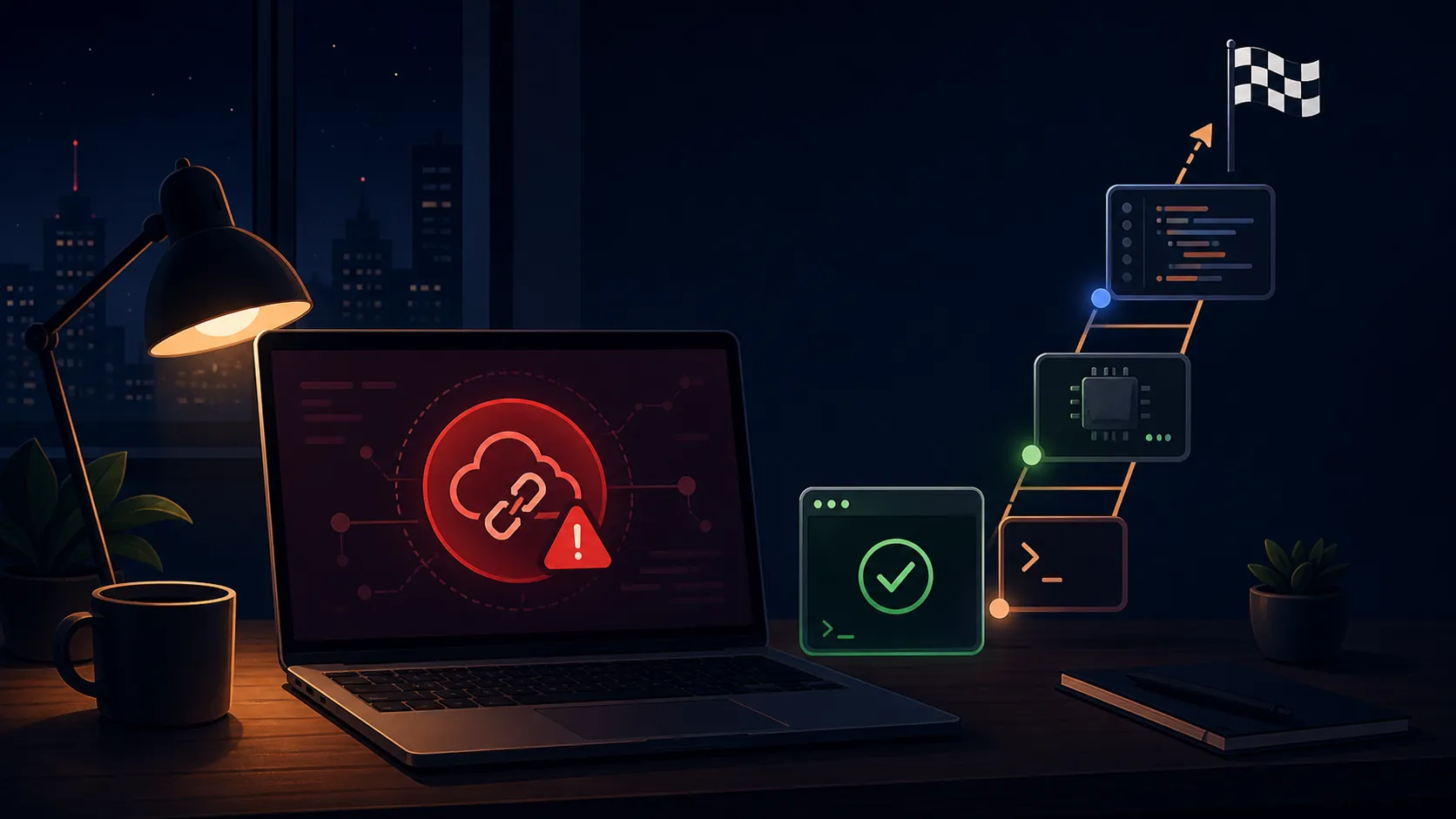
When GitHub Copilot stops responding, do not begin by reinstalling the extension. First determine whether your editor is broken or GitHub is having an incident. That decision usually takes about five minutes, and it prevents you from spending an hour repairing a local setup while an upstream service is still recovering.
The five-minute check
Start with the GitHub Status page. Look for an active Copilot, authentication, or token-service incident before changing anything on your machine. GitHub's own troubleshooting order puts the status check first, followed by signing out and back in, reloading the editor window, and updating the Copilot extension when the status page does not explain the problem.[2]
| Time | Action |
|---|---|
| 0:00-1:00 | Check GitHub Status and note the affected components. |
| 1:00-2:00 | Test whether the failure is limited to one editor, account, or client path. |
| 2:00-3:00 | Check the incident updates for relapses or a provisional mitigation. |
| 3:00-5:00 | Perform only the documented local checks: sign out/in, reload the window, and update the extension. |
| At 5:00 | Stop local debugging if the evidence points to GitHub or the problem is occurring across paths. |
Then compare paths. Is the failure confined to VS Code? Does the GitHub web interface work? Does GitHub CLI authenticate? Does a GitHub App integration still respond? A Copilot failure is not necessarily a Git hosting failure, and it is not necessarily uniform across Copilot clients.
The August 17, 2026 incident is the useful example. The official incident record places the outage from 13:28 to 21:15 UTC, with the Copilot Token Service not fully recovered until 21:02 UTC.[1] At 20:08 and 20:45 UTC, GitHub reported that Copilot through the GitHub CLI and GitHub App was unaffected while some applications were experiencing sporadic authentication failures.[1] That is enough to change the immediate response: test another supported path before assuming the whole service, your account, or your laptop is down.
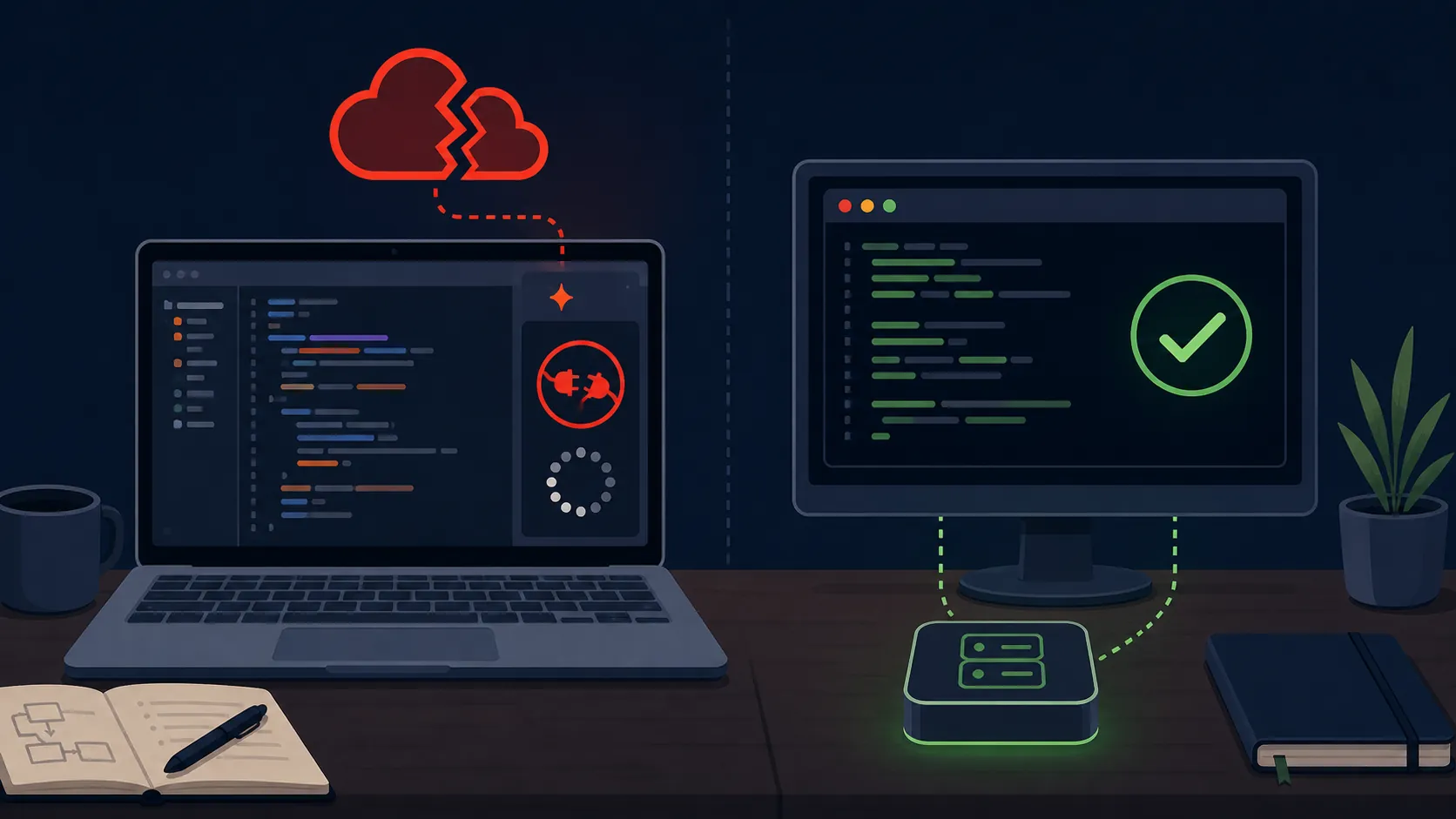
Treat a status of “mitigated” as provisional until your own path is working consistently. GitHub marked the August incident mitigated at 16:59 UTC, but subsequent updates documented further recovery work before the incident ended.[1] Refreshing repeatedly during that period would not have repaired the provider-side failure.
Why retrying can make the incident worse
The August 17 root-cause analysis identified a latent retry bug in the VS Code client. Under the incident conditions, retries drove Copilot token traffic from a normal 7,000-9,000 requests per second to roughly 70,000-100,000 requests per second, which delayed recovery.[3] The practical lesson is not that every failed request creates an outage. It is that an editor stuck in an aggressive retry loop can turn “try again” into additional load while the service is already unhealthy.
Once the status page and client symptoms point upstream, close the local-debugging loop. Do not clear credentials, remove extensions, or reinstall your editor merely to make the waiting feel productive. Record the time, affected client, and last useful status update, then move to the first fallback that is already available.
The fallback ladder
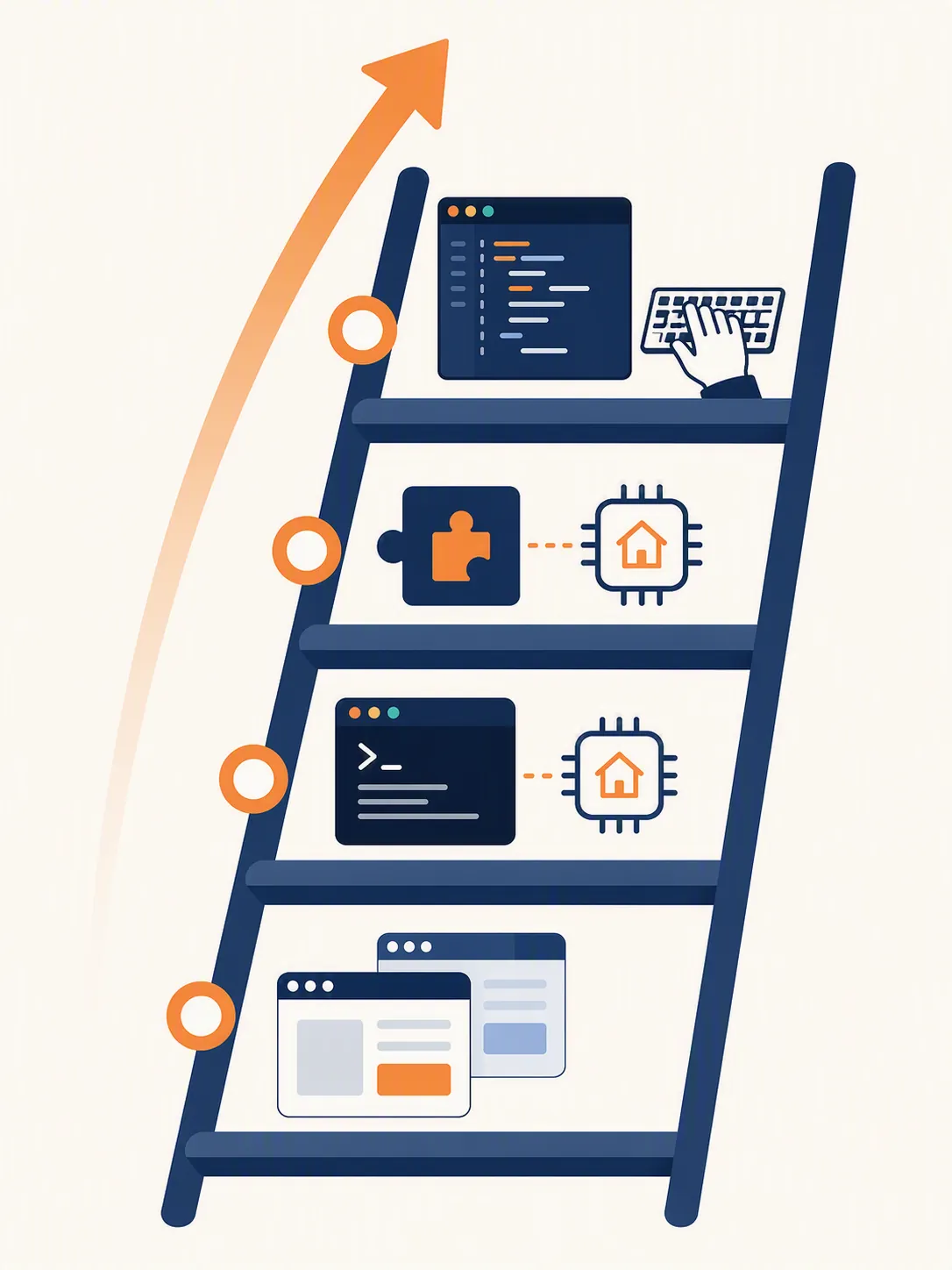
The order matters because each rung preserves a different amount of your existing workflow. Move down only as far as the incident requires.
1. Switch the client path
If Copilot is failing in one editor, test another path that your team already uses. The August incident showed why this is worth doing: GitHub reported unaffected Copilot access through the CLI and GitHub App even while some applications saw authentication failures.[1] A CLI suggestion, code review integration, or another working client may be enough to finish a focused task or unblock a review.
This is a routing decision, not a promise that every client will remain healthy. Confirm the alternate path with a small, low-risk request before committing to it. Keep git operations and Copilot operations mentally separate: the repository may be reachable while Copilot token recovery is still incomplete.
2. Use Copilot CLI with a local model
When the hosted model path is the failing component, Copilot CLI supports a bring-your-own-key configuration and an offline mode using a local Ollama endpoint. GitHub's documented configuration uses COPILOT_OFFLINE=true and an Ollama service at http://localhost:11434.[4] This is useful when the repository is local and the work can be expressed through shell commands, targeted questions, or generated patches.
export COPILOT_OFFLINE=true
# Start Ollama separately, then configure the Copilot CLI
# to use the local Ollama endpoint at http://localhost:11434
Prepare this before an outage. Install the local runtime, pull a model appropriate for your machine, and verify that the CLI can reach it while the network is available. A local model is not a universal replacement for GitHub-hosted Copilot: output quality, context handling, speed, and tool support depend on the model and hardware. The point is continuity for selected tasks, not identical behavior.
Also check the authentication boundary. The documented local-model path can remove dependence on the hosted model endpoint, but GitHub login is still required for the relevant Copilot workflow.[4][5] Offline model inference and offline account authentication are different things.
3. Use a prepared local-model extension
If your editor is already configured with Continue.dev or Cline and a local model, switch to that setup before installing anything new. These tools can preserve an editor-centered workflow when the Copilot extension is the problem, but only if the model, permissions, context settings, and local server have been tested in advance. A setup that exists only as an unconfigured extension is not an outage fallback.
Keep the scope narrow during the incident: ask for a function-level explanation, a test draft, a focused refactor, or a patch you can inspect. For a neutral overview of how these tools differ from hosted coding assistants, see AI coding agents.
4. Continue in no-AI mode
The final rung is deliberate manual work, not passive waiting. Freeze the failed assistant panel, write down the next smallest code change, and work from the repository, test suite, and existing examples. Break a large task into reviewable commits, use the compiler and tests as feedback, and leave a short note describing where AI assistance can resume later.
For a ticket, this may mean finishing the deterministic part first: reproduce the bug, add the failing test, inspect the relevant call path, or prepare the migration. When Copilot returns, it can accelerate the remaining explanation or drafting work. It does not need to be present for the repository to keep moving.
Keep a dated known-issues log
A small incident log helps distinguish a recurring symptom from a new local failure. Record the date, UTC time, client, exact error, status-page state, and which fallback worked. Link to the official incident or documentation first. Community discussions are useful for finding symptoms and dated context, but they should not replace the status feed or be treated as proof of the current cause.
For example, a January 2026 GitHub Community discussion provides prior-outage symptom context, but it does not establish that a later incident has the same cause.[6] A separate discussion about a 10-day cloud-agent outage identified repository- or organization-level secret conflicts as the root cause, which is a different failure class from a broad Copilot token-service incident.[7] Keeping those entries dated prevents a familiar error message from becoming an overconfident diagnosis.
Preflight before the next outage
- Bookmark the GitHub Status page and the official Copilot troubleshooting documentation.
- Test one alternate Copilot client path while the primary editor is healthy.
- Install and verify Ollama, a suitable local model, and Copilot CLI BYOK/offline configuration.
- Keep a tested Continue.dev or Cline configuration only if it fits your normal editor workflow.
- Write down the five-minute stop point: if the status evidence and cross-client symptoms point to GitHub, stop reinstalling and descend the ladder.
- Log the date and symptoms of each incident so future troubleshooting starts with evidence rather than memory.
The August 17 outage makes the operating rule concrete: Copilot can fail unevenly, a mitigation label can precede stable recovery, and token service recovery can lag behind ordinary git access.[1] The productive response is a verified incident check followed by a prepared fallback, with local debugging reserved for evidence that the problem is actually local.
References
- GitHub incident: August 17, 2026
- Troubleshooting common issues with GitHub Copilot
- GitHub outage disrupts developers worldwide in latest setback for Microsoft coding platform
- Use BYOK models with Copilot CLI
- GitHub Community discussion #190067
- GitHub Community discussion #184157
- GitHub Community discussion #197179
Comments
Join the discussion with an anonymous comment.