
This procedure is for Google Workspace administrators who need to disable AI features in Google Docs and Gmail across a managed organization. If you are changing a personal Google account—or preparing instructions for employees to change their own settings—use the personal-account guide to turning off Gemini in Docs and Gmail instead.
Last verified: August 27, 2026. The relevant Google administration pages carried an August 21, 2026 update stamp when checked.[1][2][3]
The organization-wide control map
| Control | Admin console path | Availability and default | Can users reverse it? | Scope and timing |
|---|---|---|---|---|
| Gemini Feature access | Menu > Generative AI > Gemini for Workspace > Feature access | Enterprise Standard, Enterprise Plus, and Education editions; on by default.[1] | No. The administrator controls access separately for Gmail, Drive and Docs, Meet, and Chat. | Embedded Gemini features in the selected services. Allow up to 24 hours. Turning one service off does not necessarily prevent its data from being accessed through Gemini in another enabled service.[1] |
| Google Workspace smart-features defaults | Menu > Account > Account settings > Smart features for Google Workspace | Off by default in the EEA, Japan, Switzerland, and the UK; on by default elsewhere.[2] | Yes. This establishes a default that users can change. | Smart features that use Workspace activity and content. This is separate from Gemini Feature access; allow up to 24 hours for changes.[2] |
| Smart Compose in Drive and Docs | Menu > Apps > Google Workspace > Drive and Docs > Features and Applications | On by default; Google’s documentation does not state the Enterprise-only restriction that applies to Gemini Feature access.[3] | Google describes this as an administrator availability control, not merely a user-overridable organizational default. | Smart Compose suggestions in eligible Drive and Docs experiences. Allow up to 24 hours.[3] |
| Standalone Gemini app | Menu > Apps > Additional Google services > Gemini app > Service status | Managed separately from embedded Gemini features; check the current service status for the affected organizational unit. | Users cannot reverse an administrator service-status restriction. | Access to the managed Gemini app at gemini.google.com. Changing embedded Workspace feature access does not, by itself, settle this service’s status.[1] |
There is no master switch. An Enterprise administrator can disable embedded Gemini and still leave the standalone app available. An administrator can also set smart features to off and discover that employees are permitted to turn them back on. Business Starter, Business Standard, and Business Plus administrators face a more basic limitation: Google does not expose the Gemini Feature access panel to those editions.[1]

Disable embedded Gemini where the Feature access panel is available
For an eligible Enterprise or Education domain, open the Admin console and go to Generative AI > Gemini for Workspace > Feature access. The panel provides separate access settings for Gmail, Drive and Docs, Meet, and Chat. These settings are on by default.[1]
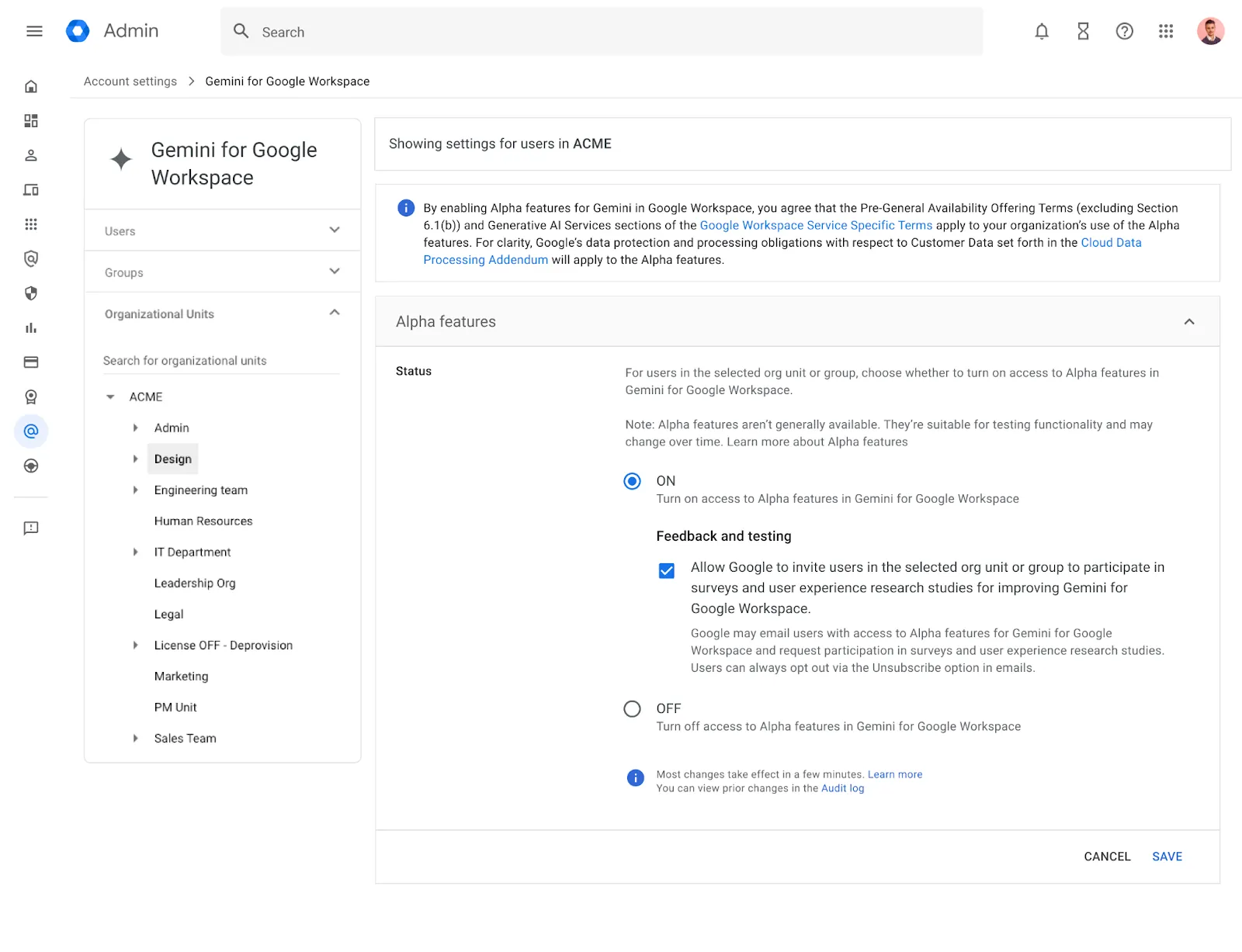
Select the organizational unit or group covered by the policy, switch off each relevant service, and save the changes. Record the time and the selected scope in the change ticket. Google says administration changes can take up to 24 hours to propagate, so a Gemini control that remains visible immediately after saving is not enough to establish that the policy failed.[1]
- Turn off Gmail if the policy covers Gemini assistance inside managed Gmail.
- Turn off Drive and Docs if the policy covers Gemini features in documents and managed Drive experiences.
- Turn off Meet and Chat as well if leadership’s instruction applies to Workspace generally rather than only Docs and Gmail.
- Apply the controls to every organizational unit covered by the policy; do not assume a change made to one child unit settled the parent or its siblings.
For Business editions, do not waste time looking for this panel under a different menu. The edition restriction is part of the control design. Smart-feature and Smart Compose settings remain relevant, but they are not equivalent substitutes for the unavailable per-service Gemini control.
The cross-service data path remains
The most consequential qualification appears in Google’s own administration documentation: disabling Gemini in one Workspace service does not necessarily stop that service’s data from being reached through Gemini in another service. Google gives the example of Gemini being off in Drive while a user in Gmail can still ask Gemini about a Drive file.[1]
That changes what a per-service setting can honestly be said to do. Switching off Drive and Docs removes Gemini feature access inside that service; it should not be documented as a complete block on Gemini reaching Drive content while another Gemini-enabled Workspace service remains available. If the policy is based on data access rather than interface visibility, the review has to follow the data across enabled services.
For a broad prohibition, disable all four service controls rather than only the two named in the support request. If the organization intentionally retains Gemini in Meet or Chat, document that exception and test whether the remaining enabled services expose content covered by the policy. A screenshot showing that the Docs switch is off does not answer that question.
Set the smart-features default—and label it as a default
The next control sits outside the Generative AI menu. Go to Account > Account settings > Smart features for Google Workspace, select the applicable scope, and set the Workspace smart-features default to off.[2]
Geography affects the starting position. Google documents an off default for users in the European Economic Area, Japan, Switzerland, and the United Kingdom, while the default is on in other regions. More importantly, users can override the administrator’s selection.[2] The console therefore sets the initial choice; it does not impose an irrevocable domain-wide ban.
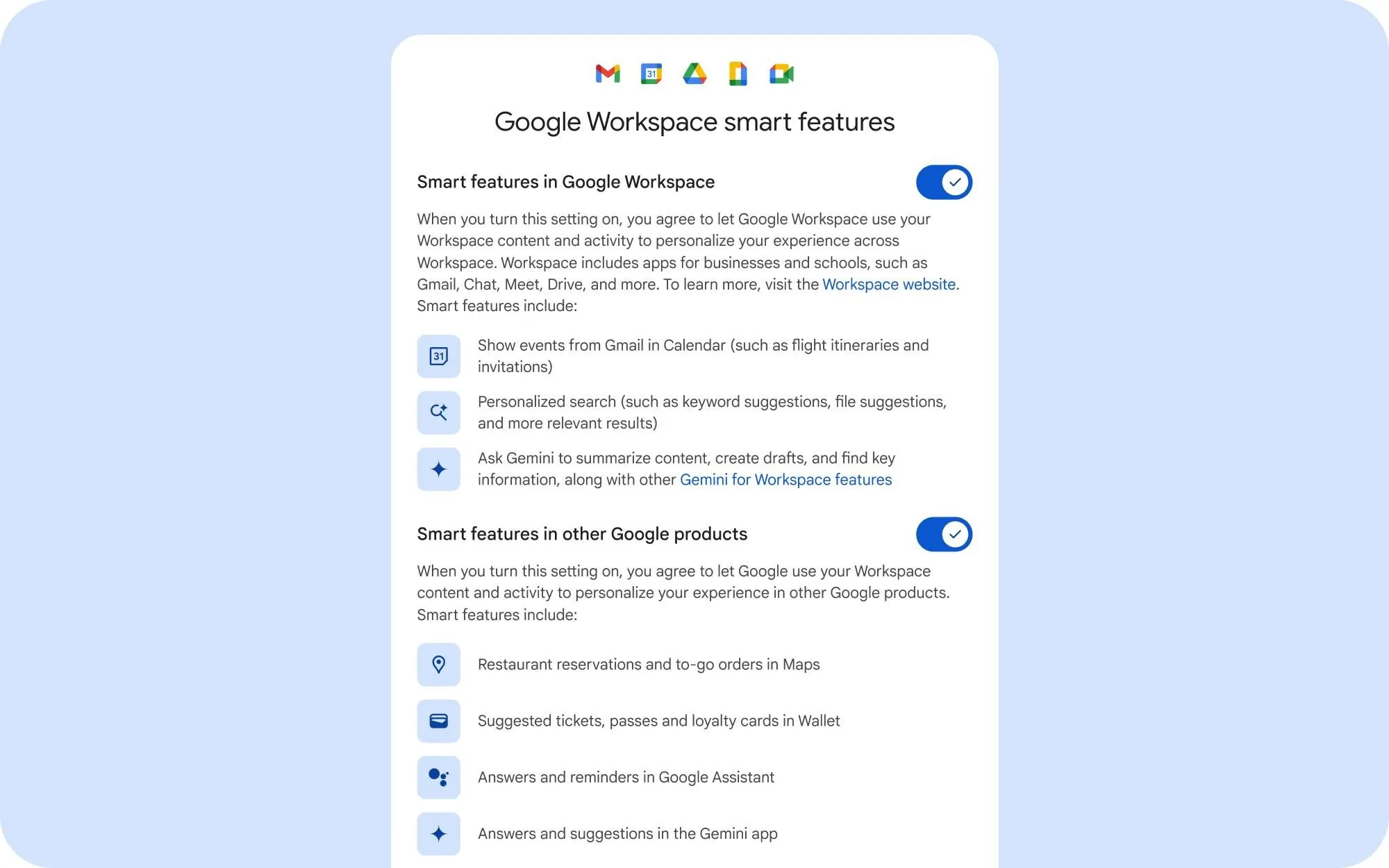
This separation is deliberate rather than an accidental gap in the Admin console. Google announced updated smart-feature settings in January 2025 as a way to give users more choice and control over how their information is used.[4] That design may suit consent-oriented product policy, but it means an administrator must not represent the setting as enforced compliance control when employees remain able to reverse it.
A policy record should distinguish the two states plainly: “Gemini Feature access disabled by the administrator” is an enforced service-access statement on supported editions; “Workspace smart features defaulted to off” describes an initial user setting. Combining them under a single ticket line such as “AI disabled” conceals who retains authority over the final state.
Finish the controls outside those two panels
Smart Compose in Drive and Docs
Open Apps > Google Workspace > Drive and Docs > Features and Applications and turn off Smart Compose for the required scope. Smart Compose is on by default, and Google allows up to 24 hours for the administrator’s change to take effect.[3]
Smart Compose is narrower than the Gemini service controls, but leaving it enabled is likely to generate the first support ticket from a user who was told that “AI writing” had been removed. Handle it separately and describe the result narrowly: the change disables Smart Compose suggestions in Drive and Docs; it is not evidence that every smart or generative feature has been removed.
The standalone Gemini app
Check the managed Gemini app under Apps > Additional Google services > Gemini app > Service status. Embedded Gemini in Gmail or Docs and access to gemini.google.com are separate surfaces. If the policy says employees must not use Gemini with their managed accounts, turn off the app for the same organizational units and confirm its status independently of the Feature access panel.[1]
Conversely, disabling the standalone app should not be reported as disabling Gemini inside Workspace services. Each control answers a different access question, which is why testing only the Gemini website—or only the Docs interface—produces incomplete sign-off.
Validate after the 24-hour window
Wait the documented propagation period before performing final acceptance testing. Use a managed test user in every affected organizational unit rather than relying solely on the administrator’s view of the saved settings.
- Confirm the user’s effective Gemini Feature access settings for Gmail, Drive and Docs, Meet, and Chat.
- Open Gmail and Docs as the test user and check the actual interfaces, including side panels and writing assistance.
- Check Smart Compose separately in Drive and Docs.
- Attempt to open the managed Gemini app.
- Where any Workspace Gemini service remains enabled, test whether it can reach content from a service whose Gemini interface was disabled.
- Record the smart-features setting as user-overridable rather than certifying that every user remains opted out.
Access changes should also be kept separate from billing and privacy conclusions. Turning a feature off is not, by itself, proof that a subscription or charge has been canceled; Google documents Workspace with Gemini billing as its own administrative subject.[5] For a compliance review, pair the access evidence with the current Workspace Generative AI Privacy Hub rather than relying on broad claims about what all Google AI products do with data.[6]
An administrator can materially disable Gemini across a managed Workspace organization, particularly on editions that expose the per-service Feature access panel. The domain should not be described as fully AI-free, however, unless the assessment also accounts for Business-edition control gaps, user-overridable smart features, Smart Compose, the standalone Gemini app, and data that remains reachable through another Gemini-enabled Workspace service.
References
- Manage access to Gemini features in Workspace services, Google Workspace Admin Help, updated August 21, 2026.
- Manage Google Workspace smart features for your users, Google Workspace Admin Help, updated August 21, 2026.
- Turn Smart Compose on or off for users, Google Workspace Admin Help, updated August 21, 2026.
- Updated smart feature settings give users increased choice and control, Google Workspace Blog, January 8, 2025.
- How Google Workspace with Gemini billing works, Google Workspace Admin Help.
- Generative AI in Google Workspace Privacy Hub, Google Workspace Admin Help.
Comments
Join the discussion with an anonymous comment.