
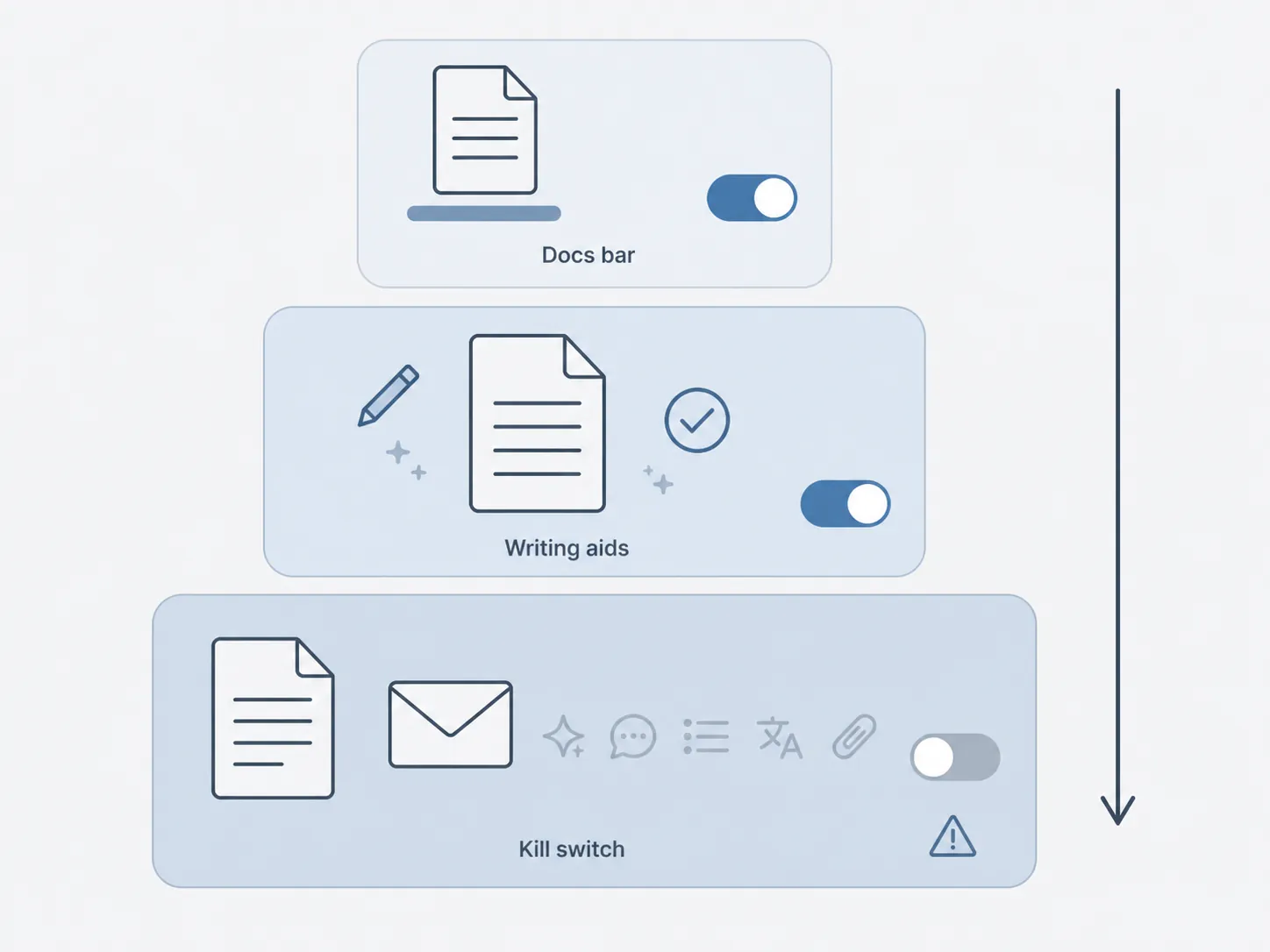
Turning off Gemini AI in Google Docs for focus is a layered setup, not a one-switch cleanup. Last verified on a personal @gmail.com account on August 26, 2026: the fastest low-damage fix is to hide the Docs Gemini bottom bar. The closest thing to a real Gemini kill switch is in Gmail, and it turns off Google Workspace smart features across the account, including several Gmail conveniences you may actually use.
That distinction matters because Google’s own framing is narrower than the lived annoyance. Docs Help says the Gemini bar can auto-minimize to “clear your screen,” but a minimized AI entry point is still an entry point you may keep noticing while drafting. Google’s help pages, tech press tests, and campus IT instructions all point to the same practical conclusion: different Gemini surfaces are controlled from different places, and hiding one does not necessarily remove the others. [1][2][3][4][5]
| If your problem is… | Use this layer | Path | What changed in our check |
|---|---|---|---|
| The Gemini bar along the bottom of Docs keeps catching your eye | Docs bottom-bar preference | Google Docs > Gemini menu on the bottom bar > Bottom bar preferences > Turn off | The bottom bar disappeared across documents. This was the cleanest focus fix. |
| Autocomplete, correction, or suggestion behavior is making the page noisy | Docs writing preferences | Google Docs > Tools > Preferences | Writing aids became quieter, but this did not remove Gemini itself. |
| You want Gemini disabled at the account smart-features level | Gmail Workspace smart-features switch | Gmail > Settings > See all settings > Google Workspace smart features > Manage Workspace smart feature settings > Smart features in Google Workspace off | The Gemini menu, audio button, and bottom bar disappeared in Docs. Gmail spellcheck, Smart Compose, Smart Reply, and nudges were also disabled. |
First: hide the Gemini bottom bar if the bar is the distraction
Start here unless you already know you want Google Workspace smart features off everywhere. The bottom-bar preference is the least destructive change: it targets the strip inside Docs without taking Gmail features with it.
- Open any Google Doc in the personal @gmail.com account you want to change.
- Use the Gemini menu on the bottom bar.
- Open Bottom bar preferences.
- Choose Turn off.
- Open another document, or reload Docs, and check whether the bar stays gone.
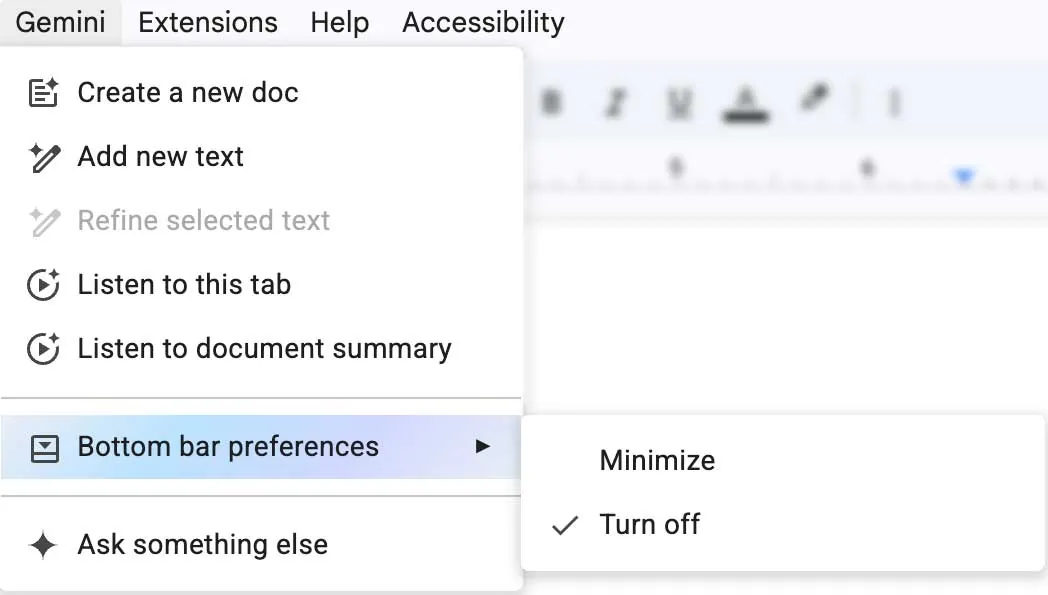
In the August 26 check, that setting was not limited to the single document used to change it. The bottom bar disappeared across other documents in the same account. That cross-document behavior is also the pattern described in third-party walkthroughs and IT guidance published after the Gemini bar rollout. [2][3][4][5]
Do not expect this layer to make every Gemini affordance vanish. It is a bar preference, not an account-level Gemini opt-out. If your only problem is the low strip sitting in your peripheral vision while you write, that limitation is a virtue: you get the quiet page without breaking Gmail.
Then quiet the ordinary Docs writing aids
The second layer is easy to confuse with Gemini removal because it changes how the page behaves while you type. It is useful, but it is not the Gemini off switch.
- In Google Docs, open Tools.
- Choose Preferences.
- Review Smart Compose, autocorrect, automatic capitalization, smart quotes, and grammar suggestions.
- Turn off the aids that interrupt your drafting rhythm.
This layer is worth doing when the distraction is not a Gemini panel but the small accumulated friction of suggested wording, automatic substitutions, or correction marks. It leaves the document less chatty. It did not, in our test, remove the Gemini entry points that are governed by the other two layers.
The stronger kill switch is in Gmail, not Docs
The account-level control that actually disables Google Workspace smart features is not tucked into the Docs interface. It lives in Gmail settings. Wired’s first-person testing identified this as the route that removes Gemini more broadly across Workspace surfaces, and Google’s Gmail Help page documents the Workspace smart-features control as an account setting rather than a per-document preference. [2][6]
- Open Gmail on the web while signed in to the same personal @gmail.com account.
- Click Settings.
- Choose See all settings.
- Find Google Workspace smart features.
- Open Manage Workspace smart feature settings.
- Turn off Smart features in Google Workspace.
- Return to Google Docs and reload the document.
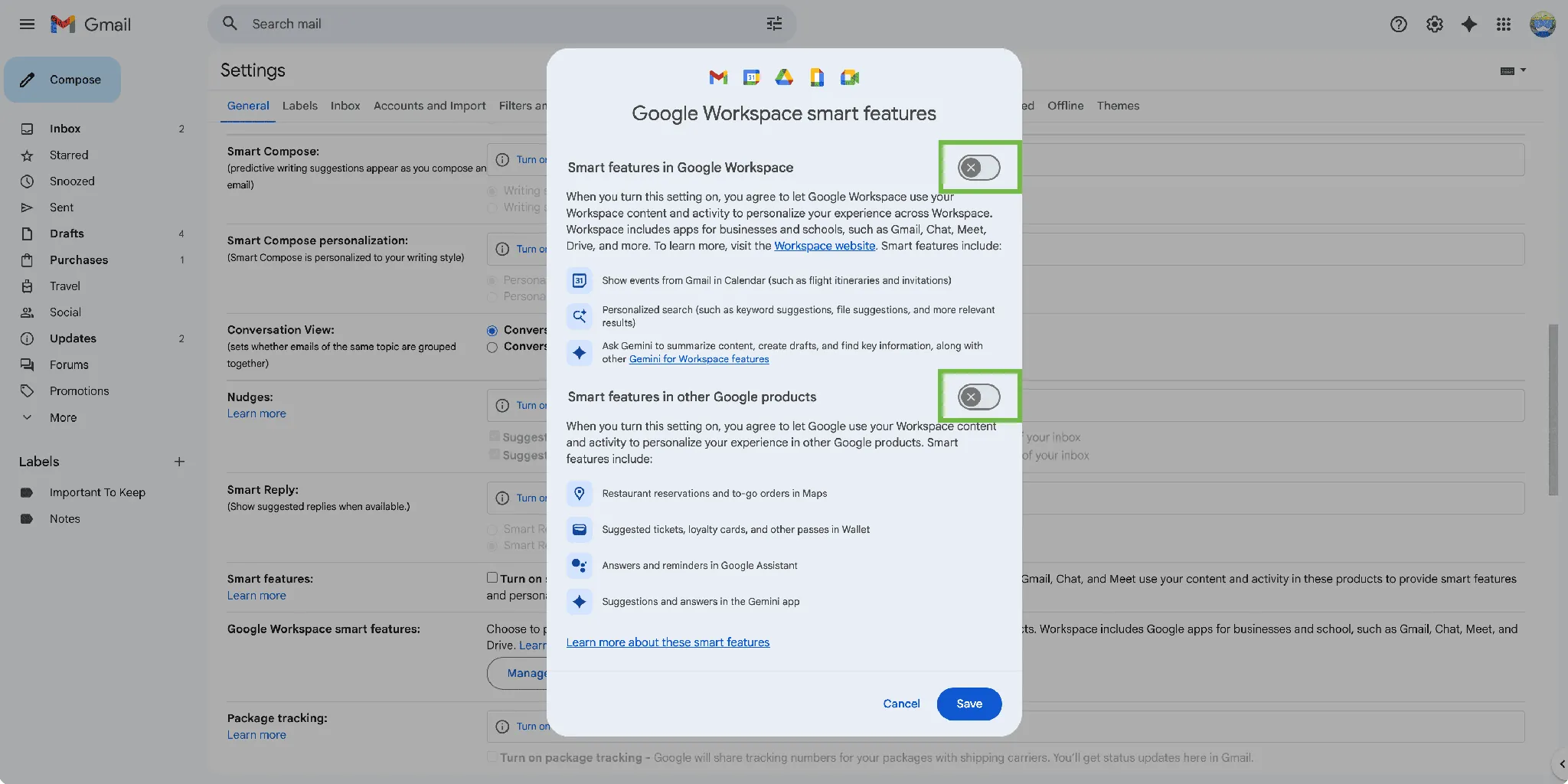
In the August 26 check, this setting removed the Gemini menu, the audio button, and the bottom bar from Docs after reload. That is the closest result to “Gemini off” in this guide. It is also the setting with the most obvious collateral damage.
The trade-off is not theoretical. Wired and Proton both describe the same kind of side effect: turning off Workspace smart features also disables Gmail spellcheck, Smart Compose, Smart Reply, and nudges. [2][7]
That is why this control should not be sold as a tidy Docs toggle. If you rely on Gmail to catch typos, finish common replies, or remind you to follow up, this switch will make mail feel rougher. If Gemini itself is unacceptable in the writing environment, that may be an acceptable cost. It is still a cost.
What may remain after the Gmail switch
A disabled smart-features account can still leave traces of the interface. In our check, the top-right Gemini button could remain visible, and some “Help me write” style icons behaved like inert prompts to re-enable features rather than working Gemini tools. ZDNET’s February 2026 testing reported the same kind of residual-icon problem across Google apps: disabling Gemini-related features did not always erase every visible entry point. [8]
For focus, that difference is maddening but important. A visible button that cannot run without re-enabling smart features is not the same as an active writing assistant. It may still be enough visual clutter to bother you, but it should not be mistaken for proof that the account-level switch failed.
Why this guide is dated
Google has been changing the Docs surface quickly in 2026. The Workspace Updates blog announced new Gemini capabilities in Docs on April 22, 2026, with rollout visibility windows that included up to 15 days and a scheduled-release date of May 6, 2026. A later Workspace Updates post on July 28, 2026 announced visual generation and editing with Gemini in Google Docs. [9][10]
That churn is the reason the labels above are written as tested paths, not promises that every account will see identical wording forever. Some sources describe “Bottom bar preferences”; some screenshots and accounts present the final action as “Turn off” or as a toggle. Feature flags can make the same account type look slightly different at the edges.
Regional defaults also vary. Google says smart features are off by default in the European Economic Area, the United Kingdom, Switzerland, and Japan. That can change what you see when you open Gmail settings, even if the control itself is the right place to check. [6]
The boundary: personal Gmail accounts only
This guide is for a personal @gmail.com account. If you are using a school, company, or other managed Google Workspace account, you may not control the relevant settings yourself. Admin console controls, edition availability, and organization policy can all change what appears in Docs and Gmail.
The practical test is simple: after each layer, return to Docs and look at the page you actually write on. Is the bottom bar gone? Are autocomplete and correction prompts quieter? Did the Gmail switch remove the active Gemini surfaces, and are you willing to lose the Gmail aids that disappeared with it?
If the bar is the distraction, hide the bar. If Gemini itself is the problem, use the Gmail smart-features switch and accept the Gmail losses. Anything in between usually creates more settings work than quiet.
References
- Use the Gemini bar in Google Docs — Google Docs Editors Help
- How to Disable the Gemini AI Features in Gmail and Google Docs — Wired
- How to turn off AI in your Google Docs — TechCrunch — June 18, 2026
- Disabling Gemini Smart Features in Google Workspace — Lafayette College IT
- Do you also hate the new Gemini bar in Google Docs? — The Verge
- Control smart features and personalization in Gmail, Chat, Meet, and other Google services — Gmail Help
- How to turn off Gemini in Gmail — Proton
- Turn off Gemini in Google apps: Gmail, Photos, Chrome — ZDNET — February 2026
- New Gemini capabilities in Google Docs help you go from blank page to brilliance — Google Workspace Updates — April 22, 2026
- Generate and edit visuals with Gemini in Google Docs — Google Workspace Updates — July 28, 2026
Comments
Join the discussion with an anonymous comment.