
Before you try to convert handwritten notes to text, check where the handwriting actually lives. The tool that works on fresh Apple Pencil ink is usually the wrong tool for a photographed notebook page. The OCR tool that reads a scan may be useless on an e-ink export if the device saved the wrong PDF type. That mismatch is where most failed digitizing projects begin.
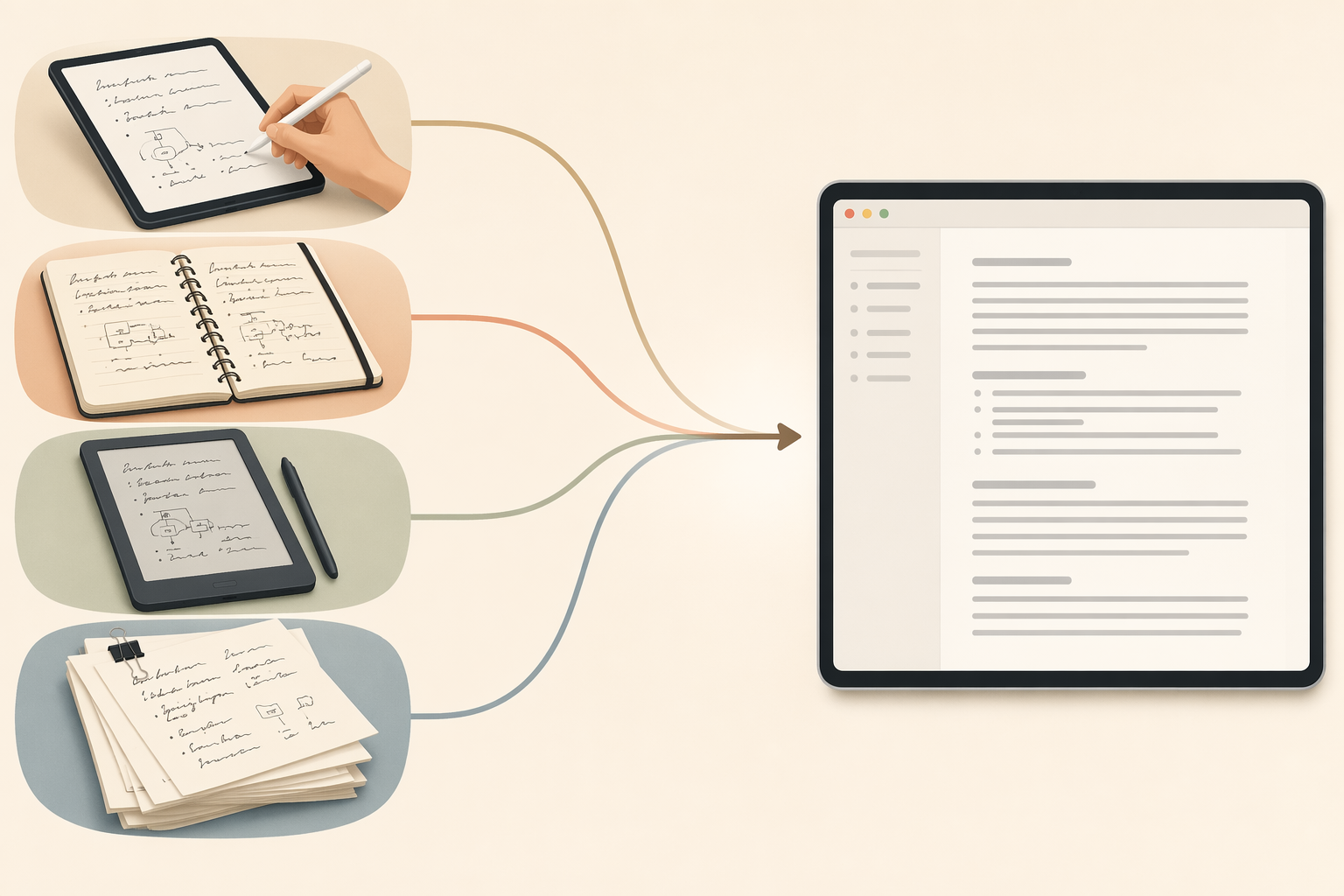
A useful first rule is simple: if you are holding a stylus, start with a note app; if you are holding paper or a photo, start with OCR. Note apps such as Apple Notes, OneNote, and GoodNotes can convert ink they captured themselves, but they are not designed to read a photo of a handwritten page as if it were live ink.[1] That rule gets you out of the worst workflow traps. The rest of this guide is for the cases where the page is messier than the rule.
Pick the Path That Matches Your Source
| Where your handwriting is now | Best tool category | Realistic accuracy expectation | Cost posture | Choose this path when |
|---|---|---|---|---|
| Live stylus ink in Apple Notes, GoodNotes, OneNote, Notability, or another note app | The app’s built-in handwriting conversion, search, or export tools | Usually strongest when the app captured the strokes directly; results depend on the app, language support, and handwriting clarity | Often included with the app or platform | You wrote the notes on a tablet and still have the original editable note file |
| Paper notebook pages, phone photos, or flatbed scans | OCR or AI handwriting recognition | Google Drive/Docs OCR can reach about 80–90% on neat printed handwriting, drop to 40–60% on everyday cursive, and fall below 30% on historical or faded scripts; dedicated handwriting OCR services trained on cursive can return 95%+ on legible modern cursive.[2] | Free options exist; paid tools may be worth it for cursive or volume | You have physical paper, JPG/PNG photos, or scanned PDFs |
| Notes on reMarkable, Supernote, Boox, Kindle Scribe, or another e-ink notebook | Device conversion first, then export-aware OCR or AI transcription if needed | Depends heavily on device recognition features, firmware, and export format; Boox Bitmap PDF exports have been reported to work better with AI transcription than Vector PDF exports.[3] | Usually device-included for basic workflows; extra tools may be needed after export | You wrote on an e-ink device and need editable text outside the device ecosystem |
| Large folders of PDFs, old field notebooks, archives, mixed handwriting, or faded documents | Batch OCR, custom-trained handwriting recognition, or archival transcription platforms | Varies widely; once the material is dense, historical, faded, or above roughly 50 pages, testing and batching matter more than app choice | More likely to require paid desktop software, platform credits, or a designed workflow | You need repeatable processing, review queues, and searchable output across many pages |
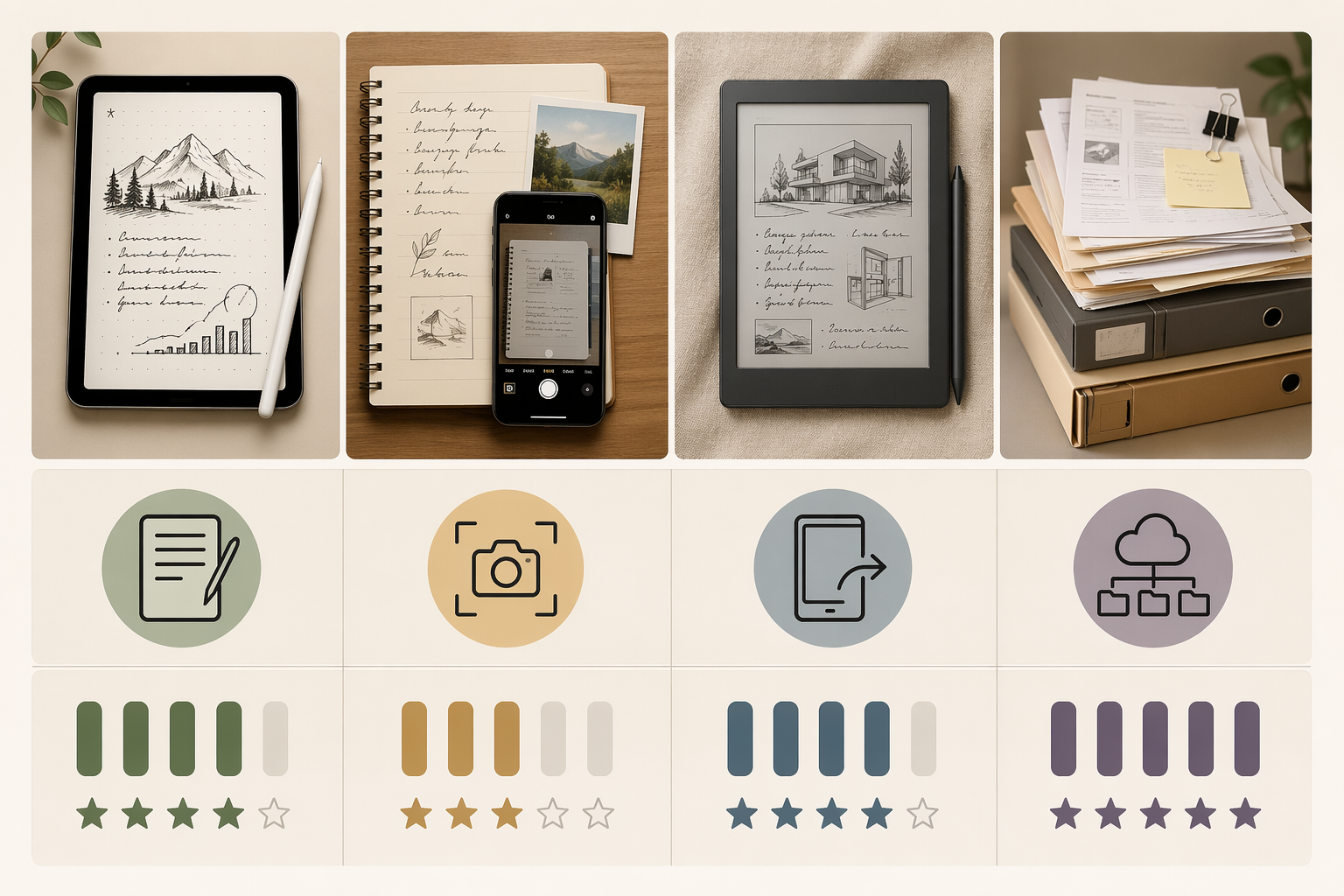
The accuracy ranges in this table are decision signals, not promises. They come from different tool categories, datasets, and test conditions. A clean page of block printing and a faded notebook written in slanted cursive are not two versions of the same task; they are different recognition problems.
Path A: If the Notes Are Still Live Stylus Ink
This is the easiest case, and it is also the one people accidentally leave behind. If the handwriting was created in a note-taking app, do the conversion before flattening the page into a PDF or image. The app has stroke data: direction, spacing, pressure-like information, line breaks, and context. Once you export a page as a static image, much of that advantage disappears.
Start inside the app that captured the ink. In Apple Notes, GoodNotes, OneNote, Notability, or a similar app, look for handwriting search, lasso-to-text, convert selection, copy as text, or export-to-text options. The exact label changes by app, but the principle does not: ask the original note app to interpret its own ink first.
- Open the original editable note, not an exported PDF or screenshot.
- Select a small representative section with the app’s lasso or selection tool.
- Use the app’s convert, copy as text, or search feature to test recognition.
- Paste the result into your destination app and check names, formulas, dates, abbreviations, and line breaks.
- Only then convert full pages or export the notebook.
For iPad users, Apple Pencil workflows deserve their own setup choices: Smart Script, Scribble, app-level conversion, and PDF export all behave differently depending on hardware and iPadOS version. If your whole project is iPad-based, use this deeper iPad handwriting-to-text guide before you start exporting everything.
The common mistake here is importing a photo of paper into a note app and expecting the app to treat it like stylus ink. It may let you annotate the image, but that does not mean it can convert the handwriting already inside the image. For that, move to OCR.
Path B: If the Notes Are on Paper, in Photos, or in Scanned PDFs
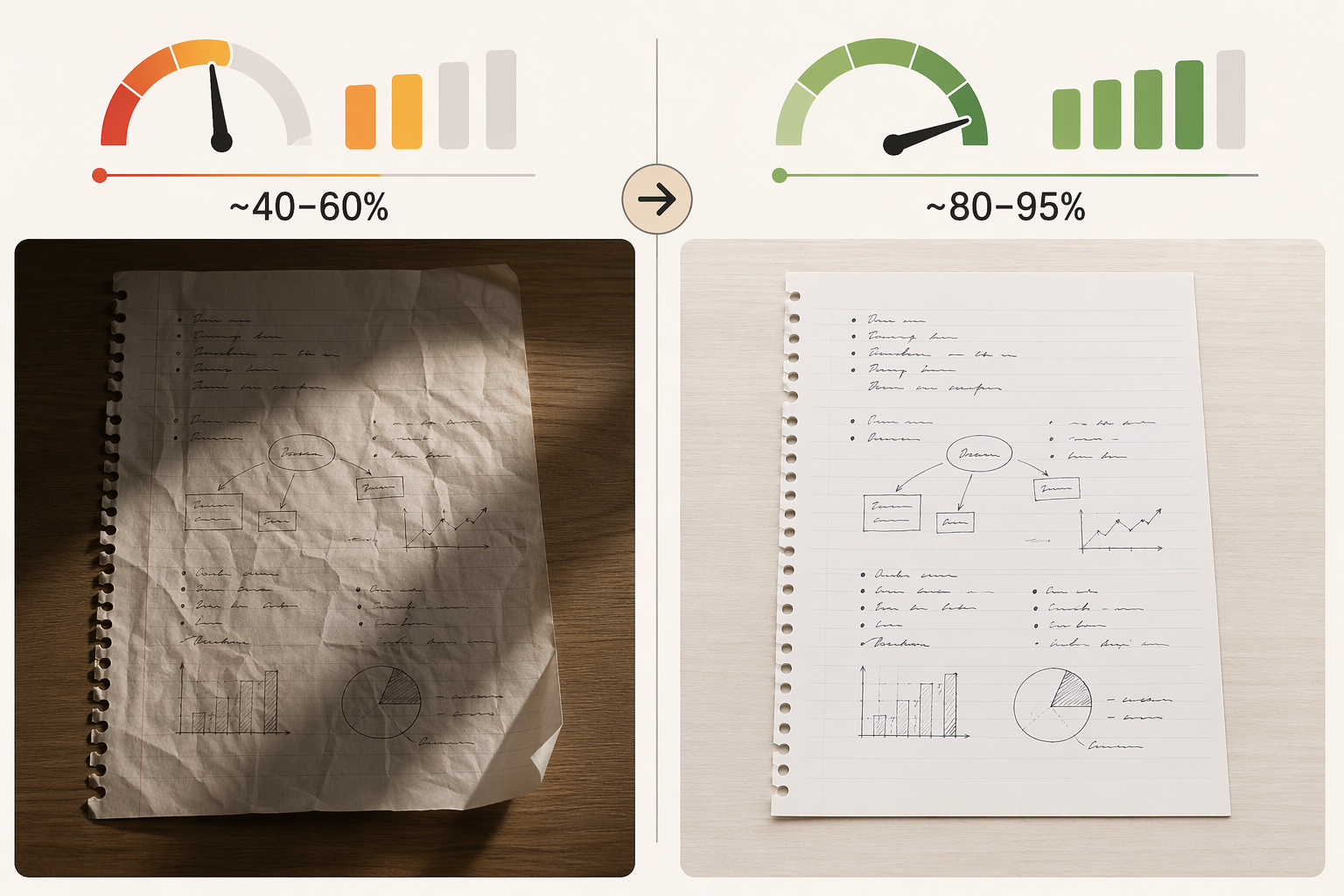
Paper notes are where the cleanup work usually hides. The app demo shows a perfect page. Your actual notebook has a curled spine, a coffee shadow, two pen colors, and a professor’s name written in the margin at a 30-degree angle. Before comparing tools, fix the input. Scanning at 300+ DPI with even lighting, high contrast, and a flat document can improve handwriting recognition accuracy by 20–30 percentage points regardless of the tool used.[4]
Prepare the Page Before You Blame the OCR
- Flatten the page. Use a scanner lid, a book weight outside the writing area, or a scanning app that corrects page curvature.
- Use even light. Avoid desk-lamp glare, hand shadows, and yellow room lighting when photographing pages.
- Aim for 300+ DPI when scanning. For phone photos, fill the frame with the page and keep the camera parallel to the paper.
- Increase contrast without crushing faint pencil marks. A page that looks dramatic to the eye is not always easier for OCR.
- Split mixed pages when needed. A diagram, table, and paragraph of cursive may need separate handling.
Those steps are not cosmetic. They decide whether the software sees letters, texture, or noise. If you are digitizing notes before finals or turning months of planner pages into searchable text, this is the part that saves the correction pass later.
Choose the OCR Tool by Handwriting Type
Google Drive and Google Docs are reasonable first stops for neat printed handwriting. Upload the image or PDF to Drive, open it with Google Docs, and inspect the extracted text. On neat printed handwriting, reported results fall around 80–90%; on everyday cursive, the same category can drop to 40–60%; on historical or faded scripts, it can fall below 30%.[2] That is not a minor performance dip. It changes whether the output is a useful draft or just another document to repair.
ChatGPT is worth trying when you have clear photos or scans and want a quick transcription without installing another OCR app. As of Q2 2026, ZDNet reports that GPT-4o’s free edition can digitize handwriting by direct image upload and may reach about 85–95% accuracy on clear inputs.[5] Treat that as current-tier guidance, not a permanent guarantee; free access, upload limits, and model routing can change.
Dedicated handwriting OCR services become more attractive when the writing is legible modern cursive, when you need a cleaner export, or when repeated correction is costing more time than the tool would. Some comparison data reports 95%+ results on legible modern cursive for services trained on cursive handwriting.[2] That figure should not be carried over to faded archival pages or cramped field notes unless you test those pages directly.
| Paper-note situation | Try first | Watch for |
|---|---|---|
| Neat printed class notes | Google Drive/Docs OCR or ChatGPT image upload | Missed headings, math notation, bullet nesting, and proper names |
| Everyday cursive journal or meeting notes | ChatGPT on clear images, then a dedicated handwriting OCR service if cleanup is heavy | Merged words, guessed names, and inconsistent punctuation |
| Faded, historical, or dense pages | Small test in an OCR tool, then consider an archival workflow | Low recognition rates that make manual correction slower than planned transcription |
| Mixed diagrams and handwriting | Crop text regions separately before OCR | Tools may describe the layout instead of extracting usable text |
If you want the technical distinction behind these choices, the practical split is covered in more depth in this guide to traditional OCR vs. AI handwriting recognition. For setup work, though, the main test is simpler: does the output reduce retyping, or does it merely move the work into a different window?
Path C: If the Notes Came From an E-Ink Device
E-ink notebooks sit awkwardly between tablet note apps and scanned paper. The writing began as digital ink, but the exported file may behave like a picture, a PDF, a vector drawing, or device-managed recognized text. That is why e-ink conversion deserves its own path instead of being shoved into “use OCR.”
Start with the device’s native recognition if it exists for your notebook type and firmware. reMarkable uses MyScript conversion; Supernote offers real-time recognition; Boox export behavior matters because Bitmap PDF has been reported to perform better with AI transcription than Vector PDF in an e-ink workflow test.[3] Those details are not trivia. They determine whether the next tool receives handwriting-like image data or a PDF representation that looks clean to humans but awkward to recognition software.
| Device workflow | What to try first | Why it matters |
|---|---|---|
| reMarkable notes | Use the built-in MyScript conversion path before exporting to other tools | The device can interpret its own handwriting data before the page is flattened |
| Supernote real-time recognition notebooks | Use real-time recognition when setting up notebooks that you know will need text later | Recognition choice can be part of the notebook design, not an afterthought |
| Boox handwritten notes | Test Bitmap PDF export against Vector PDF export before batch conversion | Bitmap PDF may work better with AI transcription than Vector PDF in reported practitioner testing |
| Kindle Scribe or other e-ink exports | Check whether the export is recognized text, image-like PDF, or flattened annotation | The downstream OCR tool can only work with what the export preserves |
A sensible e-ink test takes one page and exports it two ways if the device allows it. Run both through the same transcription method. Do not judge only by whether text appears. Check whether headings survive, whether indented lists stay readable, whether checkboxes turn into stray characters, and whether the order of marginal notes makes sense.
Firmware matters here. Device companies change recognition features, languages, export options, and cloud behavior over time. If you are choosing a device partly because you expect handwriting conversion, compare the current writing and export workflow, not just the screen feel. This note-taking device comparison is a better place for that buying decision than a one-page OCR test.
Path D: If You Have a Stack, Not a Note
A few pages are a tool choice. A folder of notebooks is a workflow choice. Once a project passes roughly 50 pages, or the handwriting is dense, historical, faded, mixed-language, or inconsistent across writers, stop testing apps one page at a time and design a batch process.
For large modern document sets, ABBYY FineReader belongs in the conversation because desktop batch processing, PDF handling, and review workflows become more important than a clever single-page demo. For historical, archival, or highly variable handwriting, Transkribus is the more relevant category because custom-trained models can be used when generic OCR has no reason to understand the script style. The practical choice is not “which one is more accurate” in the abstract; it is whether your project needs repeatable batches, model training, human review, or ordinary PDF cleanup.
- Use batch OCR when pages are consistent and you mainly need searchable PDFs or editable text exports.
- Use a custom-trained recognition workflow when the handwriting style is unusual, historical, or repeated across many pages.
- Keep originals untouched and work from copies, especially when scans are archival or difficult to reproduce.
- Build a review queue for uncertain words instead of pretending the first export is final.
- Name files before conversion so corrected text can be traced back to the source page.
This is also where automation becomes useful, but only after the basic path is stable. If two representative pages cannot produce acceptable text with a manual test, an automated pipeline will mostly automate the mistakes. When you are ready to scale beyond manual uploads, use an automated handwriting-to-text pipeline as the next layer, not the first rescue attempt.
How to Judge the First Conversion
The first pass is not finished when a tool produces text. It is finished when you know how much cleanup the text needs. That is the number that matters, especially if someone else will inherit the archive, study from the notes, or search them months later.
- Choose two representative pages: one easy page and one page that looks like the real mess.
- Run both through the workflow you plan to use at scale.
- Check names, dates, headings, abbreviations, symbols, tables, and line breaks.
- Time the correction pass, not just the upload and conversion.
- Decide whether to continue, change the input quality, switch tool categories, or move to a batch workflow.
For app-based stylus notes, that judgment may lead you back to the original note app. For paper, it may mean rescanning rather than paying for a better OCR tool. For e-ink notes, it may mean changing the export format. For archives, it may mean building a review process before converting the whole collection.
The reliable method is not the newest handwriting recognition tool. It is the workflow that matches the source format, gives the software a clean enough input, and stays honest about the cleanup work before the project gets large.
References
- Apps That Convert Handwriting to Text (2026 Guide), HandwritingOCR.com
- Best Free OCR for Handwriting: 2026 Comparison, HandwritingOCR.com
- How I Convert Handwritten Notes to Text: For E-Ink Device Users, ProductivityMatters Substack
- Convert handwriting to text in Google Docs, HandwritingOCR.com
- How to Use ChatGPT to Digitize Your Handwritten Notes for Free, ZDNet
Comments
Join the discussion with an anonymous comment.