
The awkward part of trying to convert handwritten notes to text on iPad is that “handwriting conversion” can mean several different jobs. Writing a search term into Safari with Apple Pencil is one job. Turning last week’s lecture pages into editable text is another. Pulling typed notes out of a recording-linked meeting page is another again.
Before choosing an app, decide what kind of ink you have and where the typed text needs to go afterward. That one decision prevents most bad setups.
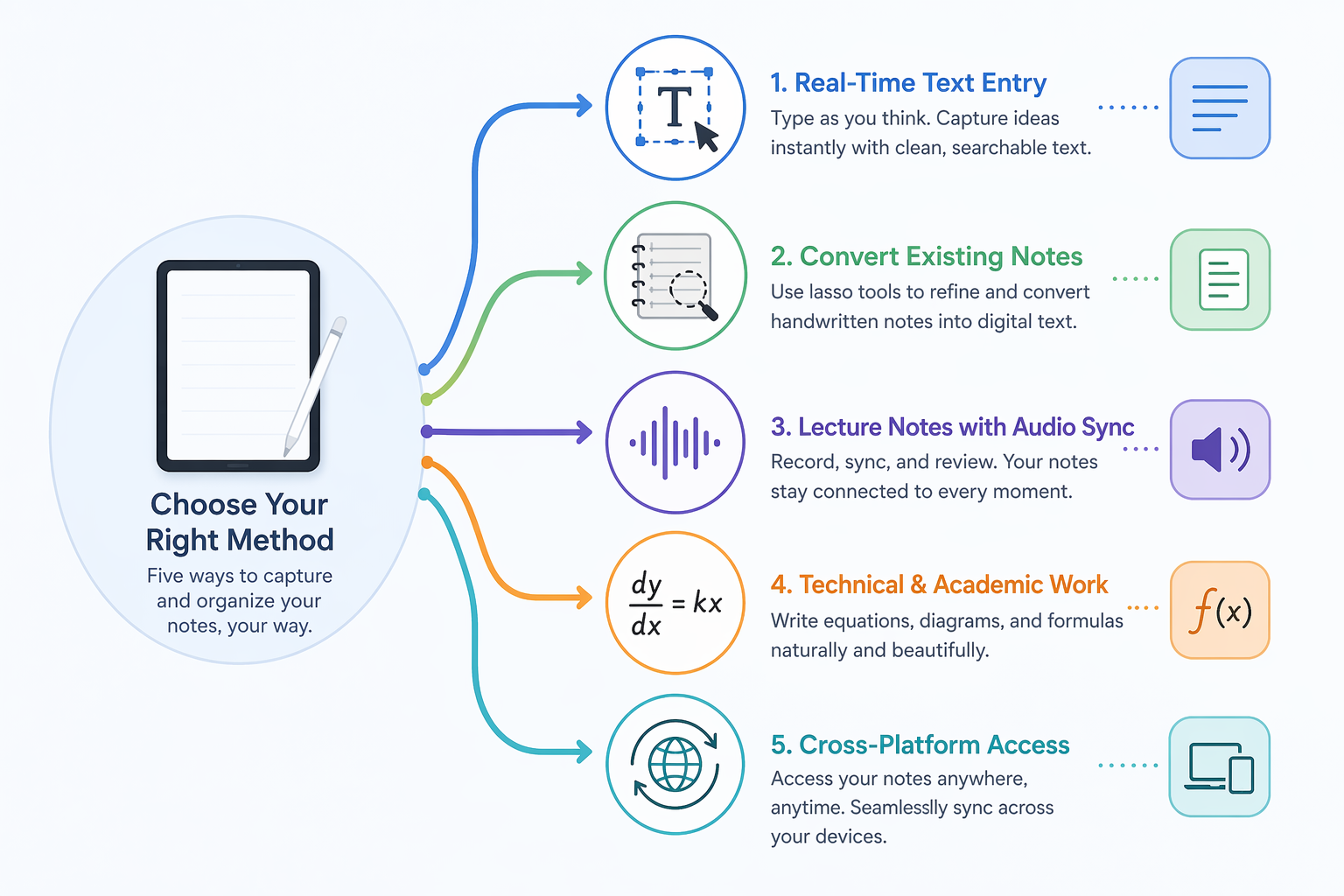
| If your main problem is… | Start with… | Why |
|---|---|---|
| Writing by hand directly into text fields | Apple Scribble | It is built into iPadOS and converts as you write. |
| Converting existing handwritten iPad notes | GoodNotes 6 or Nebo | Both are built around selecting handwriting and turning it into editable text. |
| Searching handwritten notebooks without always converting them | GoodNotes 6 | Its handwriting search is useful when you need to find a page before deciding whether to convert it. |
| Math-heavy or technical notes | Nebo | It is known for strong recognition, including equations and export-friendly technical output. |
| Lecture or meeting notes tied to audio | Notability | Its value is the link between written notes and recorded audio. |
| Notes that must live across iPad, Windows, Mac, Android, or Microsoft workflows | OneNote | Its cross-platform sync matters more than perfect iPad handwriting recognition for some users. |
Use Apple Scribble when you want text as you write
Scribble is the first thing to try because it costs nothing extra and works at the system level. If you can tap into a text field, you can usually write into it with Apple Pencil and have iPadOS turn that handwriting into typed text. It is best for search boxes, form fields, short notes, reminders, messages, calendar entries, and quick captures where you want the result to be text immediately rather than ink on a page.
The important limitation is simple: Scribble is not a tool for converting an old handwritten notebook. It helps at the moment of entry. If you already filled ten pages with handwriting in a note-taking app, Scribble is not the method that will cleanly transform those pages into typed paragraphs later.
- Open Settings on your iPad.
- Go to Apple Pencil.
- Turn on Scribble if it is not already enabled.
- Tap into a text field in Notes, Safari, Mail, Reminders, Calendar, or another app.
- Write with Apple Pencil inside or near the field and let iPadOS convert the writing into typed text.
For live entry, this is pleasantly boring in the best way. You do not need to export anything, select anything, or learn a separate conversion menu. It is also the wrong tool if your real problem is, “I already wrote everything by hand and now need a searchable, editable version.” Scribble works as-you-write rather than as a post-processing tool for old notes.[1]
Use GoodNotes 6 for existing notebooks you still want to keep as notebooks
GoodNotes 6 is the route I would expect many iPad note-takers to try after Scribble, because it fits the familiar Apple Pencil notebook workflow: write on pages, organize notebooks, search later, and convert selected handwriting when typed text is actually needed. It does not ask you to stop thinking in pages.
That matters for students and meeting-note people. Often the whole page is not worth converting. You may only need the action items, a quote, a theorem statement, a project decision, or the half-page that has to become an email. GoodNotes’ lasso workflow is built for that kind of selective cleanup.
Convert handwriting to text in GoodNotes 6
- Open the handwritten page in GoodNotes.
- Choose the Lasso Tool.
- Circle the handwriting you want to convert.
- Tap inside the selected area.
- Choose Convert.
- Review the converted text, then copy, share, or insert it where you need it.
Goodnotes’ own support instructions describe this lasso-select-and-convert flow for turning handwriting into text inside GoodNotes.[2] In practice, the review step is not optional. Even good recognition can produce one wrong name, one broken abbreviation, or one mangled technical term that makes a meeting note less useful than the handwritten original.
Use handwriting search before you convert
GoodNotes is also useful when you do not yet know which page matters. Search the notebook first, jump to the handwritten page that contains the word or phrase you need, then convert only the relevant section. That is a better workflow than converting whole notebooks just because they might become useful someday.
This is where GoodNotes feels less like an OCR utility and more like a practical study or meeting system. Keep the original page for context. Convert the portion that needs to leave the notebook. Paste it into a document, task manager, email, or shared project space. The typed text becomes portable without forcing the whole notebook to become a document.
Where GoodNotes is strongest
- You already take notes in a page-based iPad notebook.
- You want to convert selected passages rather than entire notebooks.
- You care about handwriting search as much as full text conversion.
- Your notes are mostly lecture notes, meeting notes, planning pages, outlines, or study material.
GoodNotes is less ideal if the main content is complex math or if your typed output needs to be structured for technical export. That is where Nebo deserves a serious look.
Use Nebo when recognition quality and technical output matter most
Nebo is the app I would look at for the person whose notes are not just sentences. If your pages include equations, diagrams, structured technical explanations, or a mix of print and cursive, Nebo’s handwriting engine and export options become more important than a pretty notebook shelf.
A 2026 roundup from Branden Bodendorfer describes Nebo, from MyScript, as especially strong for legible cursive and print, with support for math equations, LaTeX export, and diagrams.[1] That does not mean Nebo will rescue every rushed margin note. It does mean it belongs near the top of the list for academic and technical users who need more than plain paragraph recognition.
Convert handwriting in Nebo
- Create or open a note in Nebo.
- Write with Apple Pencil, keeping related content grouped clearly on the page.
- Use Nebo’s conversion controls to transform handwriting into typed text.
- Check headings, symbols, line breaks, and any specialized vocabulary.
- Export or copy the converted text into the destination where it needs to live.
The checking step matters more in technical notes than in ordinary prose. A converted grocery list can survive a small typo. A converted equation, variable name, dosage, legal term, or meeting commitment may not. Nebo’s appeal is that it gives technical handwriting a better chance, not that it removes the need to review.
Choose Nebo over GoodNotes when the output is the product
GoodNotes is often the better notebook. Nebo is often the better conversion workspace. That distinction is useful. If the handwritten page is mainly a thinking surface and the final deliverable is a typed explanation, a study sheet, a technical document, or exported math, Nebo’s strengths line up with the job.
If you mostly want beautiful handwritten notes that occasionally yield a paragraph of typed text, GoodNotes may feel more natural. If you routinely expect handwriting to become structured typed material, Nebo is easier to justify.
Use OneNote when the text has to travel across devices
OneNote’s handwriting conversion on iPad is not the most elegant option for everyone, but it solves a different problem: your notes may need to live in Microsoft’s world. If you move between iPad, Windows, Mac, Android, Outlook, Teams, or shared notebooks, cross-platform continuity can matter more than having the cleanest iPad-first writing experience.
Convert handwriting in OneNote
- Open the OneNote page that contains your handwriting.
- Use the selection tool to select the handwritten ink.
- Go to Draw.
- Choose Ink to Text.
- Review the converted text before sharing or relying on it.
Microsoft’s OneNote handwriting help covers taking handwritten notes and using ink features in OneNote.[3] The tradeoff is that user-reported iPad handwriting OCR accuracy is not usually treated as being on the same level as GoodNotes or Nebo. That does not make OneNote a bad choice. It makes it a workflow choice: choose it when access, sharing, and Microsoft integration are the reason you are converting notes in the first place.
Use Notability when the audio matters as much as the handwriting
Notability earns its place in this guide because some notes are not fully understandable from the page alone. In lectures, interviews, seminars, client calls, and fast meetings, the written phrase “follow up on Q3 issue” may be useless unless you can hear the thirty seconds around it.
Notability is known for audio-synced notes, including the ability to connect written notes with recorded audio so that tapping a written word can take you back to the audio from that moment.[1] That feature changes the conversion job. You may not need every word converted immediately. You may need to find the relevant handwritten cue, replay the audio, and then type the accurate version afterward.
A practical Notability workflow
- Start recording audio at the beginning of the lecture or meeting, if recording is allowed.
- Take handwritten notes normally with Apple Pencil.
- Afterward, tap or use the synced playback controls to revisit the audio tied to the handwritten moment.
- Convert or retype the parts that need to become polished text.
- Export or share the cleaned-up text where it needs to go.
This is not the fastest route if all you want is a page of handwritten text turned into typed paragraphs. It is the better route when the note is a pointer to something spoken. For students, that can be the difference between a vague lecture outline and an accurate explanation. For meetings, it can be the difference between a pretty page and a usable decision record.
What accuracy to expect when you convert handwritten notes to text
Handwriting recognition is better than it used to be, but app demos still tend to flatter the problem. The clean sample note in a product video is not the same as a page written during a dense lecture while someone is already moving to the next slide.
Apryse’s handwriting OCR guide gives a more useful accuracy spectrum: printed text can reach 99% or higher, neat handwriting in form boxes may fall around 90–95%, average handwriting may land around 80–90%, and messy cursive may drop to roughly 60–80%.[4] Those ranges are more helpful than a single “best app” claim because they explain why the same app can feel excellent for one person and disappointing for another.
| Input type | Reasonable expectation |
|---|---|
| Printed text or very clear block letters | Usually the easiest to recognize and clean up. |
| Neat handwriting | Often workable, especially if spacing is consistent. |
| Average lecture or meeting handwriting | Expect review and correction. |
| Rushed cursive, cramped margins, mixed symbols | Expect errors; conversion may still help, but it will not be magic. |
The cleanup cost is the part to be honest about. If a ten-minute conversion creates twenty minutes of correction, it may still be worth it for a final paper, client summary, or searchable archive. It is probably not worth it for every casual page.
Small setup choices that improve conversion
- Print more than you loop. Cursive can work, especially in stronger apps, but cramped cursive is where recognition often falls apart.
- Leave space between lines. Crowded writing gives OCR less room to separate words and line breaks.
- Keep headings and body text visually distinct. It makes converted output easier to repair.
- For paper notes scanned into a workflow, use adequate lighting and scan quality. OCR guidance commonly recommends a minimum of 300 DPI for scanned images.[4]
- Convert only what you need. A selected paragraph is easier to verify than an entire notebook.
Also check pricing inside each app before committing. As of this guide’s June 26, 2026 update, the safer assumption is that GoodNotes, Nebo, and Notability pricing or subscription details can change; Scribble remains the free built-in starting point, and OneNote’s value depends heavily on whether you already live in Microsoft’s ecosystem.
The short recommendation map
- Use Apple Scribble if you want handwriting to become typed text while you write into text fields.
- Use GoodNotes 6 if you already keep iPad notebooks and want polished selective conversion plus handwriting search.
- Use Nebo if accuracy, cursive tolerance, math, diagrams, or export-friendly technical notes are the priority.
- Use OneNote if the converted notes need to move through Windows, Mac, Android, or Microsoft collaboration workflows.
- Use Notability if the handwritten note is tied to lecture or meeting audio and the recording is part of the meaning.
The best setup is the one that matches the note you actually have: live ink, old notebook pages, technical material, audio-linked context, or text that has to leave the iPad.
References
- Convert Handwriting to Text, Branden Bodendorfer, 2026, https://brandenbodendorfer.com/convert-handwriting-to-text/
- Convert handwriting to text in Goodnotes, Goodnotes Support, https://support.goodnotes.com/hc/en-us/articles/7353695997199-Convert-handwriting-to-text-in-Goodnotes
- OneNote help and learning: Take handwritten notes in OneNote, Microsoft Support, https://support.microsoft.com/en-us/onenote/onenote-help-and-learning/take-handwritten-notes-in-onenote
- Handwriting OCR Guide, Apryse, https://apryse.com/blog/handwriting-ocr-guide
Comments
Join the discussion with an anonymous comment.