
Last verified: 2026-08-04. The short answer is that most Alexa productivity commands worth using still work natively, with no “ask,” “open,” or “tell” skill name in the phrase. The dangerous exception is lists: after Amazon ended List Skills and the List Management API on July 1, 2024, “Alexa, add milk to my shopping list” can still sound successful while writing only to Alexa’s own list instead of the third-party list app you used to trust.[1]
That distinction matters more than the command count. A voice capture command only earns a place here if the phrase, setup condition, spoken confirmation, and destination can all be checked. “Okay” is not a destination. A task that lands in the wrong list is not captured; it is deferred cleanup.

The commands below were treated as capture tests, not parlor tricks. For each one, the check is: say the phrase, wait for Alexa’s response, then open the place where the item should appear — the Alexa app list, the Reminders queue, the linked calendar, the active timer screen, the Echo device, or the Amazon delivery area. If the destination cannot be verified, the command is not listed as dependable.
Set the landing places before trusting the commands
Alexa’s best no-skill commands feel universal because they are short. They are not universal in where they land. Before using the command ledger, configure the few destinations that decide whether a spoken item becomes useful later.
| Setup area | What to check first | Why it matters |
|---|---|---|
| Shopping and to-do lists | Open the Alexa app and confirm you know where Alexa’s native Shopping List and To-do List live. | Native list commands now write to Alexa’s own lists unless a supported third-party skill phrase is explicitly used. |
| Third-party list apps | If you use AnyList, expect the replacement phrase to include the app name: “Alexa, tell AnyList to add …” AnyList says lists created with Alexa can no longer sync to AnyList.[2] | This is the main place where old muscle memory produces a confident response and the wrong destination. |
| Calendar | Link the calendar account you actually use, then test both read and add commands. | Calendar commands are native, but they need an account connection before they become more than a voice demo. |
| Reminders | Confirm reminders appear in the Alexa app after one test reminder. | A reminder is only useful if the queue is visible where you review it. |
| Follow-Up Mode | Turn it on per device if you want to give several short commands in a row. Pocket-lint describes an approximately five-second follow-up window, stop words that end the session, and suspension during music, audiobooks, or calls.[5] | It removes repeated wake words, but it does not change the destination of a command. |
| Announce and Drop In | Confirm the Echo devices are on the same household/account path and that Drop In permissions are enabled where needed. | These are native communication commands, but they depend on device and permission setup. |
| Flash briefing | Configure flash briefing sources in the Alexa app. | The command is native; the content depends on your selected sources. |
| Package tracking | Use the Amazon account tied to the Echo and confirm delivery notifications are available. | The command can summarize order status only for the account Alexa can see. |
If you are building a larger capture system, this is the same test used for notes and inboxes: where does the thing land after the convenient input moment? The habit carries over from voice notes, mobile capture, and inbox setup work — the useful part is not the microphone, it is the verified destination. For a parallel voice-assistant setup path, see the Siri AI voice-capture setup guide.
The list command problem: native works, old sync expectations do not
The phrase “Alexa, add milk to my shopping list” still belongs in a no-skill productivity article. It is fast, native, and useful if Alexa’s own Shopping List is the list you review. It does not mean what many AnyList or Todoist users trained themselves to expect before July 2024.
The Verge reported that Amazon was removing Alexa’s third-party shopping-list integrations and quoted Amazon’s developer notice saying List Skills and the List Management API would be deprecated on July 1, 2024.[1] AnyList’s own help page is even more direct for its users: lists created with Alexa can no longer sync to AnyList, and the replacement command is “Alexa, tell AnyList to add [item] to [list name].”[2]
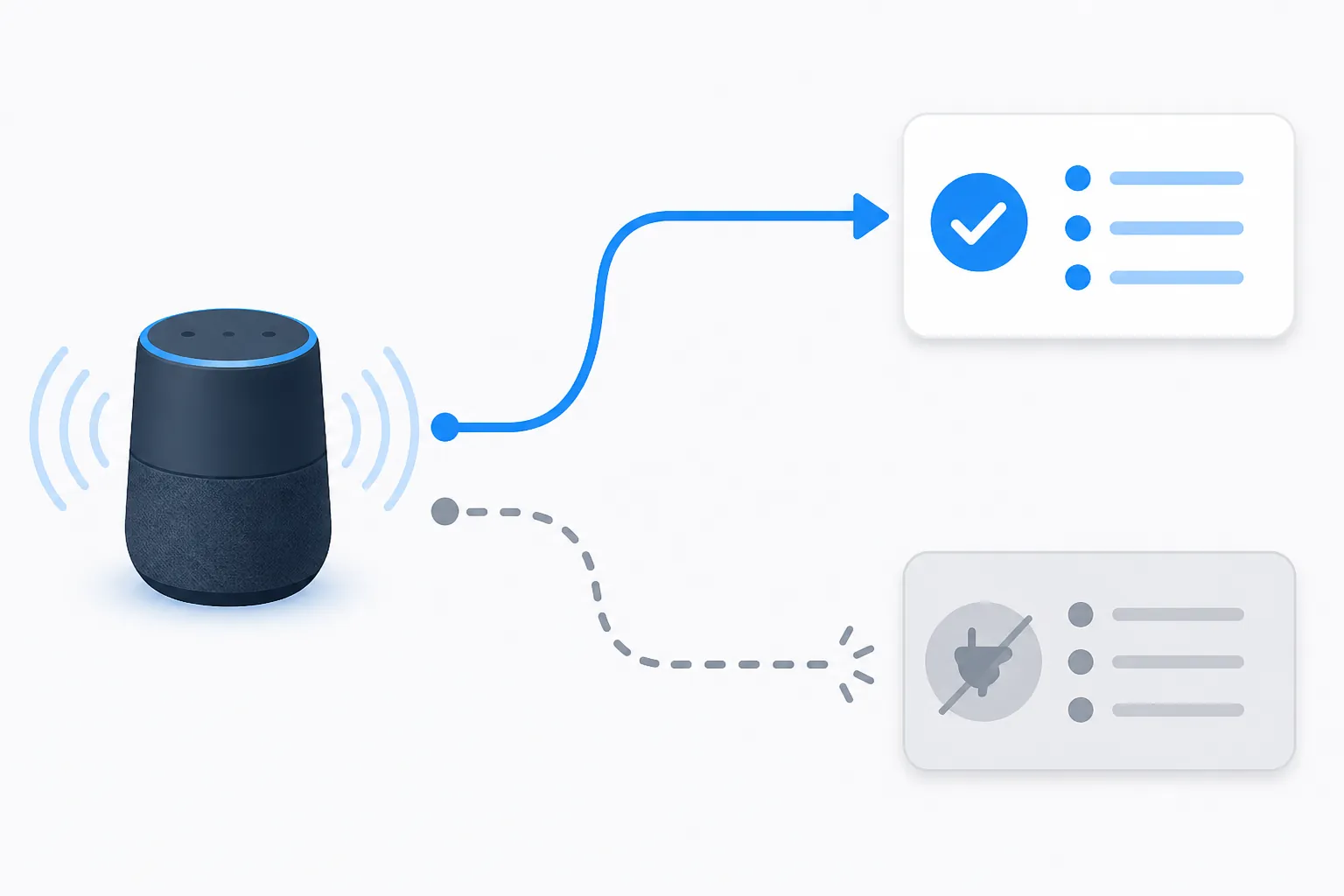
The failure mode is not a dramatic error. Critical Chris Chronicles documented the uncomfortable version: the old phrase produced the spoken response “I added milk to your shopping list,” but the item went to the native Alexa list rather than AnyList.[3] That is the exact trap to test for after every integration change. The device did not sound broken. The routing was broken for the person who expected AnyList.
| Phrase | Skill name needed? | Expected result as of 2026-08-04 | What to verify |
|---|---|---|---|
| “Alexa, add milk to my shopping list.” | No | Alexa adds the item to Alexa’s native Shopping List. CNET also lists native shopping-list phrasing, including adding multiple items such as “bread, milk and eggs.”[4] | Open the Alexa app Shopping List and confirm the item is there. Do not assume it synced to AnyList or another third-party list. |
| “Alexa, add call the plumber to my to-do list.” | No | Alexa adds the item to Alexa’s native To-do List. | Open the Alexa app To-do List. If your real task manager is elsewhere, this may still be the wrong inbox. |
| “Alexa, tell AnyList to add milk to grocery.” | Yes | AnyList documents this as the replacement style for adding through its Alexa skill after Alexa-created lists stopped syncing.[2] | Open AnyList and confirm the item landed on the intended list. This is no longer a no-skill command. |
| “Alexa, add milk.” | No, but ambiguous | Alexa may ask which list or infer a default depending on context. | Avoid this for reliable capture. Use the destination name. |
The practical rule is blunt: if the list you actually shop from is Alexa’s native Shopping List, the name-free command is still good. If the list you actually shop from is AnyList, the name-free command is now the wrong command, even when Alexa sounds pleased with herself.
No-skill command ledger
This ledger focuses on productivity commands that do not require saying a skill name. CNET and ZDNET are useful command-phrase corroboration sources for the common native patterns, but the important column is the destination check after Alexa replies.[4][6]
| Command group | Phrase tested on 2026-08-04 | Setup required | Spoken response to expect | Where the result should land | Re-check later |
|---|---|---|---|---|---|
| Reminder | “Alexa, remind me to move the laundry in 30 minutes.” | Echo signed in to the account whose reminders you review. | Alexa confirms the reminder and time. | Alexa app → Reminders. The Echo should also announce at the due time. | Re-test after changing household accounts, profiles, or notification settings. |
| Dated reminder | “Alexa, remind me tomorrow at 9 a.m. to submit the form.” | Same as reminders. | Alexa confirms the reminder date and time. | Alexa app → Reminders, under the scheduled time. | Check time zone and profile if you travel or share devices. |
| Named timer | “Alexa, set a pasta timer for 11 minutes.” | No account linking beyond the Echo itself. | Alexa confirms the named timer. | Active timers on the Echo; visible in the Alexa app timer area if supported for the device. | Re-test on each Echo you use. Timers are device-centered. |
| Multiple named timers | “Alexa, set a rice timer for 20 minutes.” Then: “Alexa, set a beans timer for 8 minutes.” | No extra setup. | Alexa confirms each timer by name. | The timers run separately and can be queried by name. | Use names when more than one timer is running; otherwise the cleanup question becomes “which timer was that?” |
| Timer status | “Alexa, how much time is left on my pasta timer?” | A named timer must already exist. | Alexa reports the remaining time for that named timer. | Spoken status only; timer remains active. | Re-test wording if you use similar timer names. |
| Cancel timer | “Alexa, cancel my pasta timer.” | A named timer must already exist. | Alexa confirms cancellation. | The named timer disappears from the active timer list. | Confirm the correct timer was canceled when several are running. |
| Shopping list | “Alexa, add bread, milk, and eggs to my shopping list.” | Use Alexa’s native Shopping List as the destination. | Alexa confirms the items were added. | Alexa app → Shopping List. CNET lists this combined-item pattern as a native command.[4] | After any list-app change, open the list. This command should not be assumed to sync to third-party apps. |
| To-do list | “Alexa, add renew parking permit to my to-do list.” | Use Alexa’s native To-do List as the destination. | Alexa confirms the task was added. | Alexa app → To-do List. | If your real task system is Todoist, Things, Notion, or another app, treat this as capture into Alexa only. |
| Read list | “Alexa, what’s on my shopping list?” | Items must exist on Alexa’s native list. | Alexa reads the native Shopping List. | Spoken readout from Alexa; list remains in Alexa app. | Use this to catch routing mistakes before leaving for the store. |
| Calendar read | “Alexa, what’s on my calendar today?” | Calendar account linked in the Alexa app. | Alexa reads events for the requested day. | Spoken readout from the linked calendar. | Re-test after changing calendar accounts, work profiles, or shared calendars. |
| Calendar add | “Alexa, add dentist appointment to my calendar tomorrow at 2 p.m.” | Calendar account linked and write access allowed. | Alexa confirms the event details or asks a clarifying question. | The linked calendar, not a separate Alexa-only calendar. | Open the calendar app after the first test. Calendar write failures are too costly to trust by voice alone. |
| Calendar next event | “Alexa, when is my next meeting?” | Calendar account linked. | Alexa reports the next visible event. | Spoken readout from the linked calendar. | Check whether all-day events or private work calendars are included in your setup. |
| Announce | “Alexa, announce dinner is ready.” | Multiple Echo devices on the account; announcements allowed. | Alexa confirms the announcement. | Other Echo devices play the announcement. | Re-test after adding devices, changing households, or muting devices. |
| Drop In | “Alexa, drop in on the kitchen.” | Drop In enabled and permission allowed for the target device/contact. | Alexa connects to the named device if permitted. | Live audio connection to the target Echo. | Confirm device names. Similar room names are a bad place to be casual. |
| Flash briefing | “Alexa, what’s my flash briefing?” | Flash briefing sources configured. | Alexa starts the briefing. | Spoken briefing from selected sources. | Review sources periodically; the command is stable, but the feed mix can get stale. |
| Package tracking | “Alexa, where’s my package?” | Amazon account linked to the Echo; relevant order information available. | Alexa reports available delivery status. | Spoken package status; sometimes also a device/app card depending on setup. | Check privacy settings on shared Echos before enabling delivery details aloud. |
| Math | “Alexa, what’s 18 times 24?” | No extra setup. | Alexa gives the answer. | Spoken answer only. | No destination issue; use when the answer does not need to be saved. |
| Unit conversion | “Alexa, how many tablespoons are in a quarter cup?” | No extra setup. | Alexa gives the conversion. | Spoken answer only. | Good kitchen command; if the result matters later, write it somewhere else. |
| Quick spelling | “Alexa, spell maintenance.” | No extra setup. | Alexa spells the word. | Spoken answer only. | Useful hands-free, but not capture. |
The fastest commands in that table are reminders, named timers, native lists, and calendar readouts. They do not need a skill invocation, and they remove the awkward “ask app name to do normal thing” step that makes voice capture feel like filing paperwork out loud.
They also split into two kinds of usefulness. Timers, conversions, math, and spelling can be spoken-only because the value is immediate. Reminders, lists, and calendar events create future obligations, so the destination matters. If you are comparing voice capture tools more broadly, that is the same dividing line used in voice-to-note app comparisons: capture speed is only half the test.
Using Follow-Up Mode without confusing it for routing
Follow-Up Mode is useful when you are doing a small batch: set a timer, add an item, ask for the next meeting, then stop. Pocket-lint describes the feature as keeping Alexa listening for about five seconds after a response, with words such as “stop,” “cancel,” “thank you,” or “go to sleep” ending the session, and with the mode suspended during music, audiobooks, or calls.[5]
| Batch | Phrase sequence | What to check |
|---|---|---|
| Kitchen reset | “Alexa, set a rice timer for 20 minutes.” Then: “add soy sauce to my shopping list.” Then: “remind me at 7 to pack lunch.” | Timer exists on that Echo; soy sauce appears in Alexa’s native Shopping List; reminder appears in the Alexa reminder queue. |
| Morning scan | “Alexa, what’s on my calendar today?” Then: “what’s my flash briefing?” Then: “where’s my package?” | Calendar account is the right one; briefing sources are current; package details are safe to hear aloud. |
| Household ping | “Alexa, announce leaving in five minutes.” Then: “drop in on the kitchen.” | Announcement reaches the expected devices; Drop In connects to the intended room. |
Follow-Up Mode reduces wake-word repetition. It does not make “add milk to my shopping list” route to AnyList, and it does not turn a skill command into a native one. The routing rules stay the same; only the listening window changes.
What to treat as changed, unverified, or not relevant to home Echo users
Some Alexa productivity claims are still useful as leads, but not as promises. ZDNET’s command lists and CNET’s large command catalog are good places to find native phrasings to test, not proof that a command lands in the app you personally use.[4][6]
Mursa’s two-year write-up is worth reading as a personal workflow account, especially because it frames the smart speaker as a low-friction reminder and household assistant. Its reported reminder success and time-saving figures are single-user measurements, though, not a general benchmark for Echo owners.[7]
Alexa+ is also easy to over-read. Amazon describes a newer conversational Alexa experience with blue-light conversational behavior and broader natural-language features.[8][9] That may matter for future name-free interaction, but it does not erase the current list-routing problem in this guide. Unless a claim changes the exact phrase a home Echo owner can use today and the destination where the item lands, it stays outside the command ledger.
| Claim or feature | Status in this guide | Reason |
|---|---|---|
| “Alexa, add X to my shopping list” syncs to AnyList | No longer treated as true | Amazon ended List Skills and the List Management API on July 1, 2024, and AnyList says Alexa-created lists can no longer sync.[1][2] |
| “Alexa, tell AnyList to add X” | Works as a third-party skill pattern, not a no-skill command | AnyList documents this replacement phrasing with the skill name included.[2] |
| Todoist list behavior in 2026 | Not stated as a fresh tested fact here | The July 2024 shutdown affected the integration category, but current Todoist-specific behavior should be re-tested before making a 2026 support claim. |
| Alexa+ automatically changes Follow-Up Mode behavior | Not used as a tested claim | Any default-setting claim needs verification against the live support page and the actual device. |
| Developer preview name-free routing for managed properties | Excluded from the home-user promise | A developer or managed-property preview is not the same as a feature available to a household Echo owner. |
| Community reports about routines, AnyList, or Alexa+ regressions | Leads only | Useful for deciding what to test, not enough to cite as verified behavior. |
A short retest routine before you trust any Alexa productivity claim
Run this after changing accounts, adding a list app, enabling Alexa+, replacing an Echo, or reading a new “best Alexa commands” post. It takes a few minutes and catches the failures that spoken confirmation hides.
- Say: “Alexa, remind me in five minutes to test reminders.” Open the Alexa app and confirm the reminder appears before it fires.
- Say: “Alexa, set a test timer for one minute.” Ask: “Alexa, how much time is left on my test timer?” Then cancel it by name.
- Say: “Alexa, add test item to my shopping list.” Open Alexa’s native Shopping List. If you use AnyList or another list app, open that app too and confirm whether nothing synced.
- If you use AnyList, say the skill phrase: “Alexa, tell AnyList to add test item to [list name].” Open AnyList and confirm the item landed there.
- Say: “Alexa, what’s on my calendar today?” Then add a harmless test event only if you are comfortable deleting it afterward.
- Say: “Alexa, announce this is a test.” Confirm which Echo devices actually played it.
- Say: “Alexa, what’s my flash briefing?” Stop it after confirming the source mix is still the one you want.
For a more complete workflow, send Alexa’s native captures somewhere you intentionally review, or stop using that command for anything important. A native Alexa list can be a perfectly good household inbox if someone checks it. It is a bad inbox if everyone thinks it is secretly syncing somewhere else. That same landing-place discipline applies when building a broader AI productivity stack or cleaning up a notes system after migration.
As of 2026-08-04, the no-skill Alexa productivity commands worth using are the native ones you can verify immediately: reminders, named timers, Alexa’s own shopping and to-do lists, linked calendar read/add, announcements, Drop In, flash briefing, package tracking, math, spelling, and unit conversions. The commands that need extra suspicion are list commands, because they can still answer like they worked while quietly landing in Alexa’s own list instead of the place you meant to capture.
References
- Amazon is killing off Alexa’s third-party shopping list integration, The Verge, 2024-05-31
- Sync List Created with Alexa to AnyList, AnyList
- Is AnyList via Alexa Dead?, Critical Chris Chronicles
- Ultimate Alexa command list: 200+ voice commands for Echos and smart homes, CNET
- Alexa Follow-Up Mode: How to enable it so you can ask multiple questions, Pocket-lint
- The best Alexa commands, ZDNET
- Alexa Productivity Smart Speaker, Mursa
- New Alexa: Top features, About Amazon
- New Alexa Plus Amazon devices, About Amazon
Comments
Join the discussion with an anonymous comment.