
Why Migrate from Roam to Obsidian?
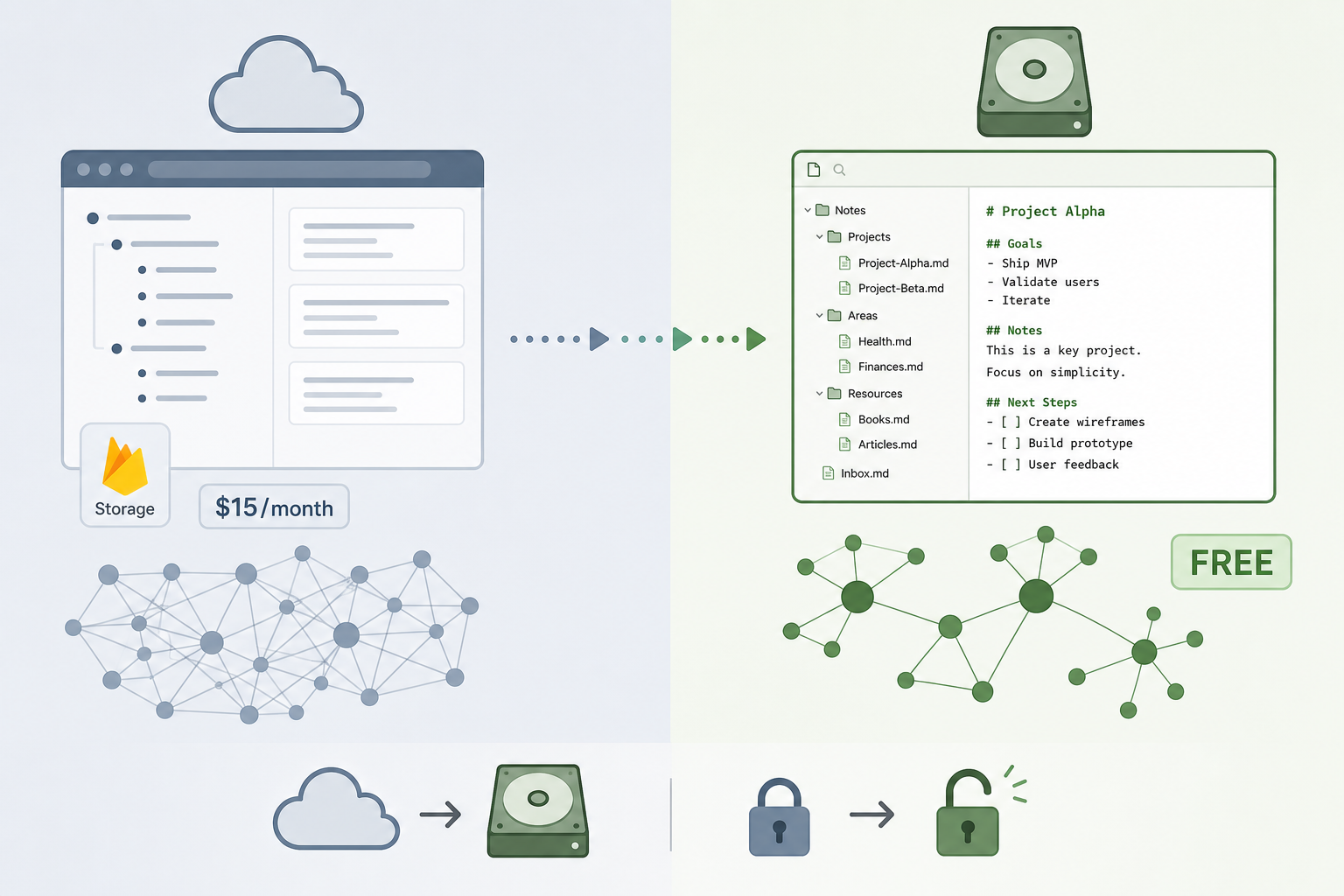
Most users who decide to leave Roam Research cite a handful of concrete reasons: cost, data ownership, performance degradation with large graphs, and stalled feature development. Roam’s Pro plan costs $15 per month (or $165 annually), while the Believer tier runs $500 for five years — and Obsidian’s personal tier is free. A Sync subscription adds $4–5 per month, still far less than Roam’s baseline. Beyond price, Roam’s cloud‑only architecture means your notes exist on someone else’s server; cancel your subscription and you lose access to uploaded files. Obsidian stores everything as plain Markdown files on your local drive, accessible to any text editor — or, increasingly, to AI tools that can read Markdown directly.
Performance is another real friction point. Roam’s graph can become sluggish once you pass several thousand blocks, a problem that Obsidian — with its local‑first architecture — largely avoids. And development pace has diverged: Roam has slowed markedly since 2021, while Obsidian ships regular updates and supports an ecosystem of over 1,600 community plugins. If you’re still weighing options, our Notion vs. Obsidian comparison covers another popular alternative.
Step 1: Export Your Roam Database
Roam offers two export formats, and choosing the right one depends on how heavily you use block‑level references.
Option A: Markdown Export (Quick but Lossy)
From Roam’s menu, select “Export All” → “Markdown”. You’ll receive a zip file containing one .md file per page. This route is fast and requires no extra tools, but it strips block‑level identifiers. If your notes rely heavily on inline block references — the kind where you link to a specific sentence in another note — those references will be lost. The Markdown export also discards Roam’s custom syntax for embedded blocks, video embeds, and Kanban boards.
Option B: JSON / EDN Export (Full Fidelity)
Choosing “JSON” or “EDN” (Extensible Data Notation) preserves every block ID, attribute, and relationship in your graph. This is the only format that can later be converted into Obsidian with block references intact. The trade‑off is that JSON exports are not directly readable as notes — you must run a converter (covered in Step 4). If you frequently use block references, page embeds, or complex queries, the JSON route is essential.
| Format | Preserves Block IDs? | Directly Importable? | Best For |
|---|---|---|---|
| Markdown (.zip) | No | Yes (via Importer) | Simple note collections, few cross‑page links |
| JSON / EDN | Yes | No (needs converter) | Heavy block‑reference users, knowledge graphs |
Step 2: Import Your Notes with the Obsidian Importer
Download Obsidian from the official website and create a new vault — this is simply a folder on your computer where all your notes will live. Then open Obsidian, go to Settings → Community Plugins, turn off Restricted Mode, and search for “Importer”. Install the official Obsidian Importer plugin (credited to @8bitgentleman for the Roam-specific module).
Launch the importer and select “Roam Research Markdown Export”. Point it to the unzipped folder from your Markdown export. The crucial setting here is the “Roam Research tag fixer” — a toggle that converts Roam’s #tag and #[[tag]] syntax into Obsidian’s [[tag]] wikilinks.
Once the import finishes, you’ll have a vault full of Markdown files. The Importer also handles Roam’s highlighting (^^text^^ → ==text==) and other basic formatting. At this point, your notes are usable — but images will still point to Firebase, and block references are gone if you used the Markdown export.
Step 3: Download Firebase‑Hosted Images Locally
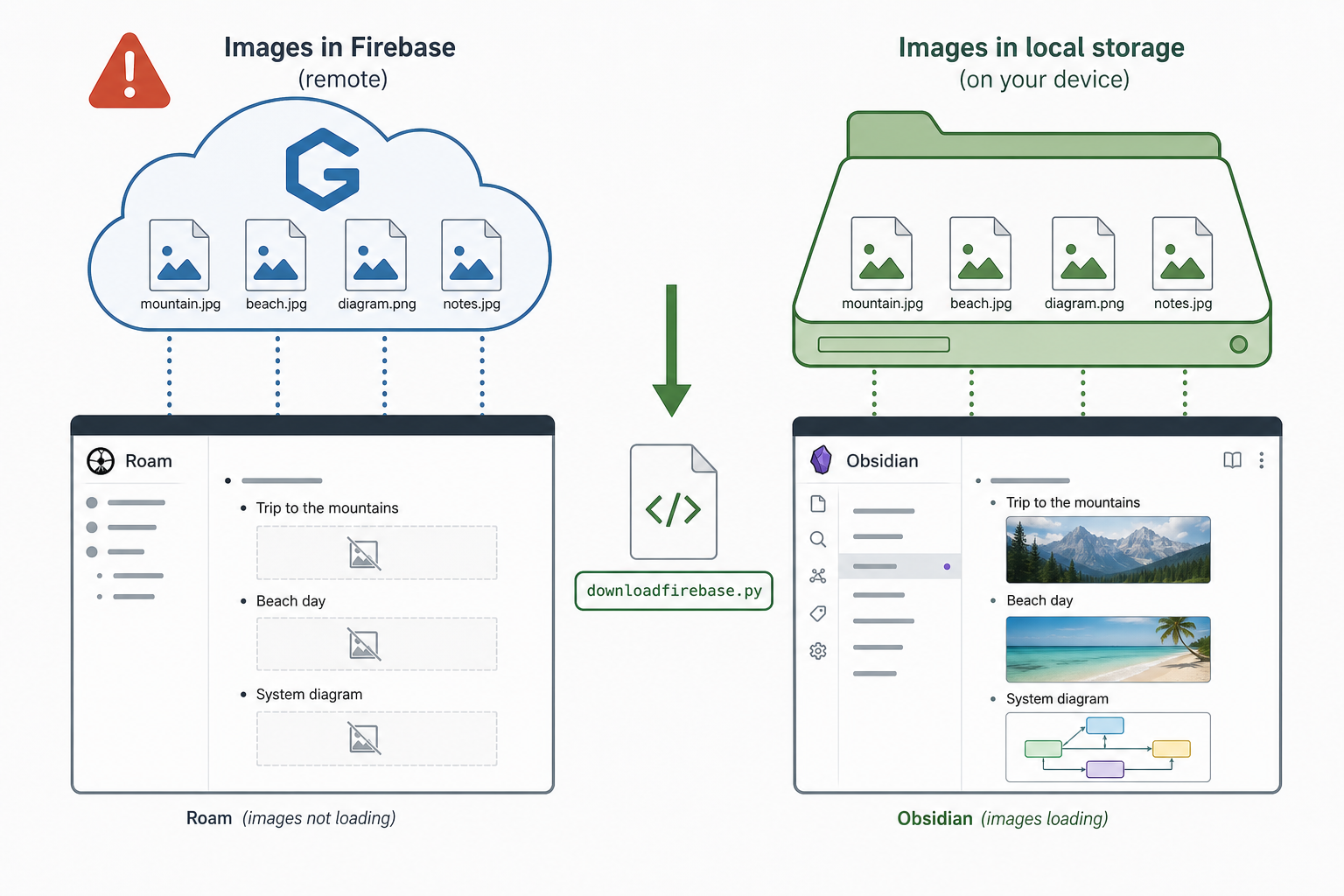
Roam Research stores every file you upload — images, PDFs, audio — on Google Firebase with obfuscated URLs that look like this:
https://firebasestorage.googleapis.com/v0/b/firescript-471a1.appspot.com/o/imgs%2Fapp%2FMyNotes%2FxRFXx7l-ZK.png?alt=media&token=...Once you cancel your Roam subscription, those URLs will stop working. Nicole van der Hoeven created a Python script — downloadfirebase.py — that scans your exported notes for Firebase links, downloads each file into a local assets folder, and replaces the Firebase URL with a relative local link.
How to run downloadfirebase.py
- Make sure you have Python 3 installed on your system.
- Download the script from the deroamify repository (or copy it directly from Nicole’s article).
- Place the script in the root of your unzipped Roam export folder.
- Open a terminal in that folder and run:
- python downloadfirebase.py
- The script will create an
assetsfolder, download each file, and update all Markdown links to point locally.
Step 4: Preserve Block References with rj2obs
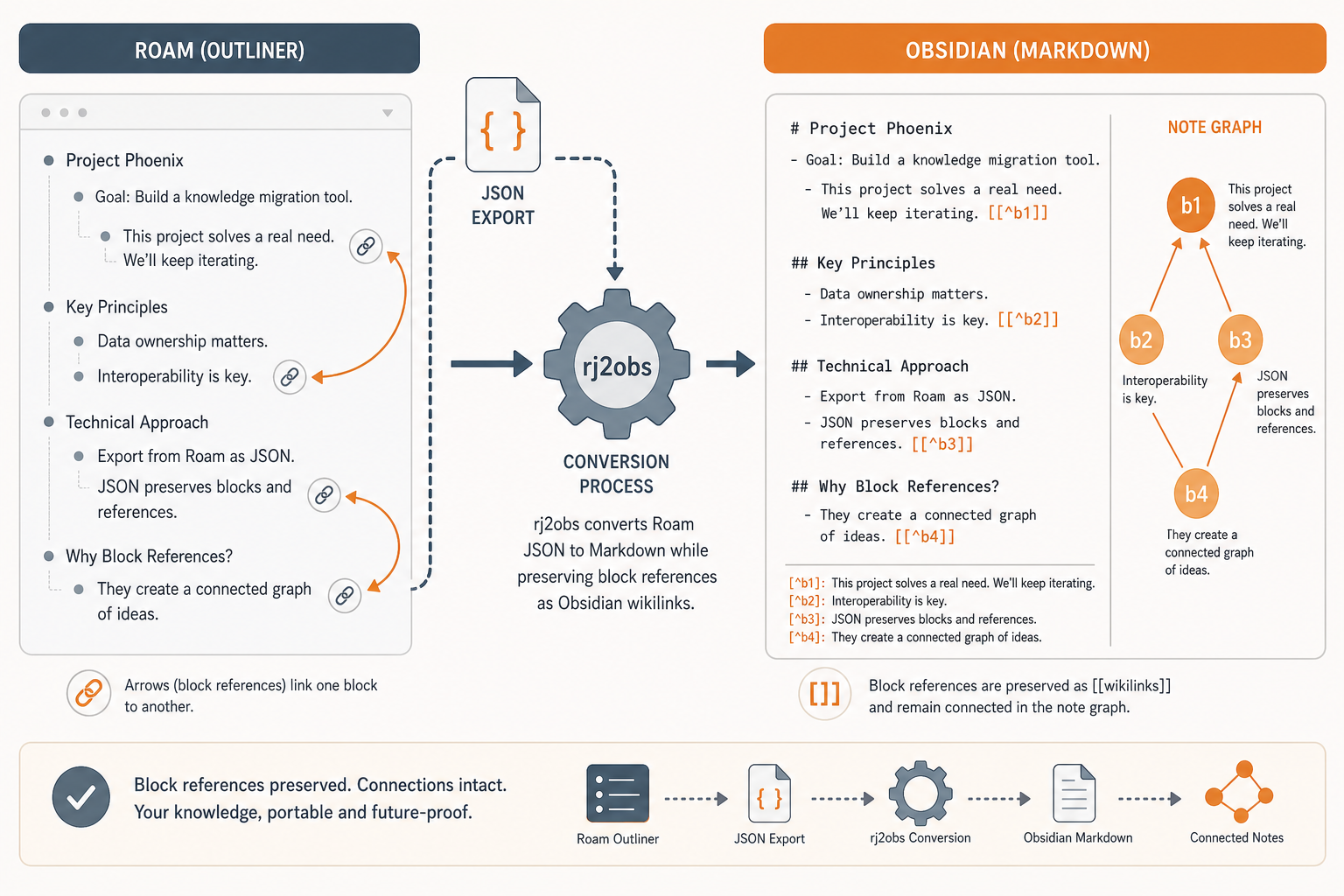
If you used the JSON export route and your workflow depends on block references — linking to a specific bullet point in another note — you need a converter that translates Roam’s block‑ID system into Obsidian’s block‑reference syntax. rj2obs (by renerocksai) is the standard tool for this job.
rj2obs takes your Roam JSON export and produces Markdown files with Obsidian block references. It changes daily note titles to YYYY‑MM‑DD format, appends block IDs only to blocks that are actually referenced elsewhere (e.g., * this block gets referenced ^someroamid), and converts block embeds into Obsidian blockref links such as [[orignote#^someblockid]]. It also adds a YAML header with title and created date to each note.
Usage
- Download rj2obs from GitHub (requires Python 3).
- Place your Roam JSON export file (e.g.,
my-roam-export.json) in the same directory as the rj2obs script. - Run:
- python r2o.py my-roam-export.json
- The script will create an
outputfolder with your converted Markdown files.
After conversion, you still need to run the Obsidian Importer on the output folder to fix #tag formatting and apply the Roam tag fixer (or leave it off, as discussed in Step 2). The converter handles the block relationships; the Importer handles the Markdown polish.
Step 5: Clean Up Empty Notes and Fix Daily Note Dates
After import, two structural issues typically need attention: orphaned empty notes and daily note titles that won’t sort correctly.
Remove Empty Notes
Roam sometimes exports pages with nothing but a title — these are clutter in Obsidian. You can delete them manually or use the deleteifempty.py script (part of the deroamify collection) to batch‑remove Markdown files that contain only frontmatter or are less than a few lines long. Run it from your vault folder before you start editing.
Rename Daily Notes to ISO Format
Roam’s daily notes use a long‑form date like “November 27th, 2020.” In Obsidian, those titles sort alphabetically — meaning “April” comes before “August” but “December” falls out of order. The fix is to rename every daily note to ISO format: 2020‑11‑27.
A community‑created Python script can automate this: scan the vault for filenames matching the pattern “Month Dayth, Year”, extract the date, and rename to YYYY‑MM‑DD. If you prefer a manual approach, use Obsidian’s built‑in file rename or a regex‑based bulk rename tool. The Obsidian Forum has several examples — search for “daily note date format rename” or check the thread Switching from Roam to Obsidian where users share their regex solutions.
Step 6: Rebuild Your Workflow with Obsidian Plugins
Obsidian’s out‑of‑the‑box experience is a Markdown editor, not a Roam‑style outliner. To replicate features you’re used to — and to discover new capabilities — you’ll want to install a few community plugins. With over 1,600 plugins available, the ecosystem is vast, but the table below covers the essentials for a Roam transplant.
| Plugin | What It Does | Replaces Roam’s… |
|---|---|---|
| obsidian-outliner | Turns bullet lists into an interactive outliner with collapse/expand, drag‑and‑drop, and indentation controls. | Core editing experience |
| obsidian-git | Auto‑commits your vault to a Git repository (local or GitHub) for version history and sync. | Roam’s built‑in cloud sync |
| Minimal theme & style settings | Clean, customisable UI that strips visual clutter. | Roam’s default aesthetic (optional) |
| Dataview | Query and display notes as live tables, lists, or calendars using YAML frontmatter. | Roam’s built‑in queries (partial) |
| Spaced Repetition | Turn notes into flashcards for active recall, similar to Roam’s spaced repetition. | Roam’s built‑in SR system |
| Obsidian Sync | Official encrypted sync across devices ($4‑5/month). | Roam’s cross‑device sync |
Start with obsidian‑outliner — without it, editing nested bullets feels clumsy. Then add obsidian‑git if you want a free, self‑managed sync solution. Eugene Yan reported that syncing over 1,000 images to GitHub took about 15 minutes after converting PNGs to JPGs to shrink file sizes. For a full overview of what Obsidian can do, read our Obsidian Review.
Common Pitfalls and Checklist Summary
Even with careful steps, a few gotchas trip up almost everyone. Here are the most frequent mistakes — and a checklist to make sure you haven’t missed anything.
- Over‑converting tags with the Importer’s tag fixer. Leave it off unless you’re certain every #tag should become a [[link]].
- Forgetting to download Firebase‑hosted images before cancelling Roam. Once the subscription ends, those URLs die permanently.
- Skipping block‑reference preservation. If you used JSON export but forgot rj2obs, block IDs are in the JSON but not linked in your Markdown — you’d need to re‑run the conversion.
- Trying to import templates, embeds, or Kanban boards. Roam’s {{video:}}, {{pdf:}}, and {{Kanban}} blocks, plus custom templates, do not transfer. You’ll need to rebuild them in Obsidian manually or find plugin equivalents.
- Assuming daily note dates will sort correctly. The long‑form format must be converted to ISO — otherwise your chronological graph is a mess.
Use the table below as a linear checklist. Each step is independent, so you can re‑order some tasks (e.g., run rj2obs before the Importer), but the sequence shown is the one that minimises re‑work.
| # | Step | Done? |
|---|---|---|
| 1 | Export Roam database (Markdown or JSON) | ☐ |
| 2 | Create Obsidian vault and install Importer plugin | ☐ |
| 3 | Run Importer (tag fixer: OFF unless intentional) | ☐ |
| 4 | Download Firebase images via downloadfirebase.py | ☐ |
| 5 | Preserve block references via rj2obs (if JSON export used) | ☐ |
| 6 | Delete empty notes | ☐ |
| 7 | Rename daily notes to YYYY‑MM‑DD format | ☐ |
| 8 | Install essential plugins (at least obsidian‑outliner) | ☐ |
| 9 | Verify a handful of block links and image paths work | ☐ |
One last reassurance: because Obsidian works with plain Markdown files, migration is fully reversible. If something goes wrong, your original export folder is untouched. You can always copy files back, re‑run a script, or even re‑start from a clean vault without losing your data.
Comments
Join the discussion with an anonymous comment.