
Last verified: June 27, 2026. Prices and plan limits for note-taking apps change often, so treat any subscription figure here as a decision point to re-check before you commit.
The best note taking apps for Chromebook are not the same for a student scribbling equations, a remote worker collecting meeting summaries, and a researcher building a linked archive. On ChromeOS, the app’s delivery method matters almost as much as its feature list: a PWA can feel fast and clean until offline access breaks your workflow; an Android handwriting app can be excellent with a stylus but awkward with a keyboard; a Linux app can give you real local files and ownership, then ask you to install Flatpak before you have written a single note.
Start with how you take notes
If you only need a place to catch thoughts before they disappear, Google Keep or Simplenote is enough. If you organize class notes, projects, sources, and attachments, look at OneNote, UpNote, or Notion. If you bought a Chromebook because it supports a pen, do not choose from a generic productivity list; choose from handwriting apps that have actually been usable on ChromeOS. If you want a durable personal knowledge base, Obsidian and Joplin are worth the setup work. If your notes mostly come from calls, Fireflies, Otter, and Notion AI are browser-accessible meeting tools rather than Chromebook-specific magic.
| Your note-taking job | Start with | Chromebook route | Best fit | Not for you if |
|---|---|---|---|---|
| Quick capture | Google Keep, Simplenote | Keep via Google/Android/PWA-style access; Simplenote as PWA | Fast text, checklists, short notes, Markdown capture | You need folders, long-form research structure, or rich formatting |
| Structured notes and research | OneNote, UpNote, Notion | OneNote PWA plus Android for handwriting; UpNote Android app; Notion PWA or Android | Class notebooks, project notes, clipped material, organized workspaces | You need guaranteed full offline access across a large workspace, especially in Notion |
| Handwriting and stylus notes | Squid first; then Noteshelf, Google Cursive, Bamboo Paper, or Rnote depending on tolerance | Mostly Android apps; Cursive built into ChromeOS; Rnote through Linux | Lecture notes, PDF markup, diagrams, math, slide annotation | Your Chromebook lacks active pen support or you are unwilling to test palm rejection on your exact model |
| Linked knowledge and local-first notes | Obsidian, Joplin | Android app or Linux install | Markdown vaults, backlinks, offline archives, user-controlled files | You want a no-setup beginner app |
| Meeting notes and AI summaries | Fireflies, Otter, Notion AI | Browser or PWA | Transcripts, summaries, searchable calls, team workflows | You mainly need handwritten notes or Chromebook-optimized offline work |
For a broader cross-platform view, the general best note-taking software by use case comparison is useful. This page stays narrower: what happens when the machine is a Chromebook.
Why the ChromeOS route changes the recommendation
A Chromebook can usually reach note apps in three ways: through the browser or a progressive web app, through an Android app from Google Play, or through Linux using Crostini. That is the quiet detail that decides whether an app feels native, merely acceptable, or like a weekend project.
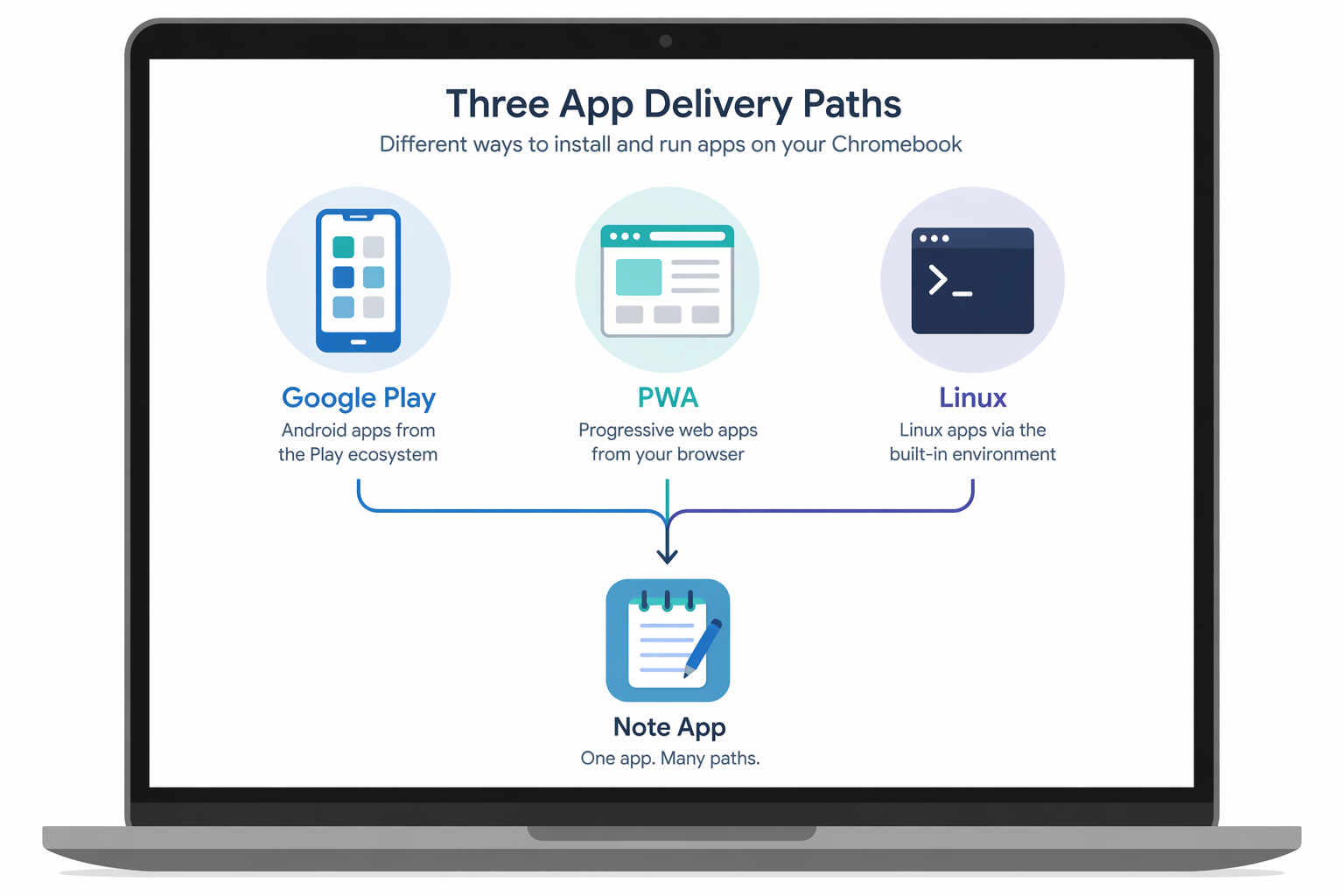
PWAs are usually the lowest-friction choice. They open from the launcher, update automatically, and feel natural on a keyboard-and-trackpad Chromebook. Their weak spot is offline behavior. Keep and OneNote can be practical offline choices; Notion is more conditional, with pages that were not recently visited failing to load without a connection according to the Chromebook-focused Fireflies comparison.[1]
Android apps are where many handwriting tools live. That is good news if the developer has tuned the app for pen input and larger screens. It is less good when an app still behaves like a stretched phone app. Noteshelf, Squid, Bamboo Paper, and the Android versions of several knowledge apps belong in this bucket, and they should be judged on stylus feel, file handling, and tablet-mode behavior rather than on screenshots from an iPad or Samsung tablet.
Linux apps are the power-user route. They can give you local files, offline work, and open-source tools, but they also introduce installation steps that many students and office workers do not want to maintain. Rnote, Obsidian, and Joplin can make sense this way, but only if you are comfortable treating the Chromebook as a small Linux machine when needed.
| Delivery method | What it is good at | Where it disappoints | Apps in this comparison |
|---|---|---|---|
| PWA/browser | Keyboard notes, fast launch, simple updates, low setup | Offline behavior varies by app; some features may be web-first | Simplenote, OneNote, Notion, Fireflies, Otter |
| Android app | Stylus input, tablet mode, offline app behavior in many cases | Can feel cramped or inconsistent on laptop screens | Squid, Noteshelf, UpNote, Bamboo Paper, Obsidian Android, Joplin Android |
| Linux/Crostini | Local files, open-source workflows, offline control | Setup burden, terminal commands, sync configuration | Rnote, Obsidian, Joplin |
Quick capture: Keep if you live in Google, Simplenote if you want plain text
Quick capture should not be overcomplicated. The app has one job: open quickly enough that you actually write the thing down. Google Keep is the obvious Chromebook starting point because it is free, Google-native, and suited to short notes, voice memos, checklists, and reminders. Its storage sits inside the broader free Google account allocation, which is 15GB across Google services.[1]
Keep is not a research notebook. It lacks the folder structure, long-form writing environment, and rich formatting that make sense once notes become projects. That is not a flaw if you use it as an inbox. It becomes a flaw when every class, client, and personal reminder turns into a wall of colored rectangles.
Simplenote is the cleaner choice for people who want text and Markdown without Google’s sticky-note style. It runs as a PWA, syncs quickly, and supports full offline access. The trade-off is deliberate: no rich formatting, no elaborate database, no handwriting layer. For text-only capture, that restraint is a strength.
Structured notes: OneNote, UpNote, and Notion are not solving the same problem
Structured notes are where Chromebook advice gets messy. OneNote, UpNote, and Notion can all hold class notes or project information, but they behave differently once you look at offline work, storage, and how much structure you want to build yourself.
| App | Chromebook availability | Offline behavior | Pricing note | Best use |
|---|---|---|---|---|
| OneNote | PWA on Chromebook; Android app can add handwriting support | Full offline access in the Chromebook-focused comparison | Free tier includes 5GB OneDrive storage | Free structured notebooks for school, work, and mixed media |
| UpNote | Android app on Chromebook | Designed as a fast cross-platform notes app; use the Android app route on ChromeOS | $2.99/month or $39.99 lifetime as listed in the research brief | People who want notebooks, Markdown, tags, and less workspace-building than Notion |
| Notion | PWA or Android app | Limited offline access; pages not recently visited may not load without a connection | Free for personal notes with collaboration limits; Notion AI is separate | Databases, team pages, project hubs, and structured knowledge work |
OneNote is the safest free recommendation for many Chromebook users who need a real notebook rather than a capture pad. The PWA route fits ChromeOS well, and the free tier includes 5GB of OneDrive storage.[1] That storage limit matters more than people expect: text notes barely touch it, but PDFs, images, lecture slides, and audio-heavy notebooks can change the math. If you are comparing supposedly free apps, storage and sync limits are often where the bill hides; that is covered in more detail in the hidden costs of free note-taking apps.
UpNote is for the person who wants a proper notes app without turning note-taking into workspace architecture. It combines notebooks, tags, and Markdown, and its price is unusually easy to understand: $2.99 per month or $39.99 lifetime as of June 2026.[1] On Chromebook, the catch is that you are using the Android app path. That is not automatically bad, but it is something to test on your screen size before deciding it will be your daily writing tool.
Notion is the most flexible of the three and the easiest to over-recommend. It is excellent when your notes are really databases, project dashboards, reading lists, team docs, or connected pages. It is weaker when you need dependable offline access on a Chromebook. The key distinction is personal use versus collaboration: the free plan can be generous for individual notes, while collaboration limits and AI add-ons are where the plan decision becomes more complicated.[1] If Notion is high on your list, the deeper comparison in Notion vs the Field is the better place to weigh whether its structure is worth the dependency.
Handwriting: test the pen path before you trust the app list
Stylus note-taking is the area where a Chromebook can either feel surprisingly capable or immediately wrong. Before choosing an app, confirm that your Chromebook supports active pen input. USI 2.0 is the current stylus protocol on Chromebook Plus models, while many budget Chromebooks lack active pen support entirely.[2] A passive rubber-tip stylus is not the same thing as a pen-enabled note-taking setup.
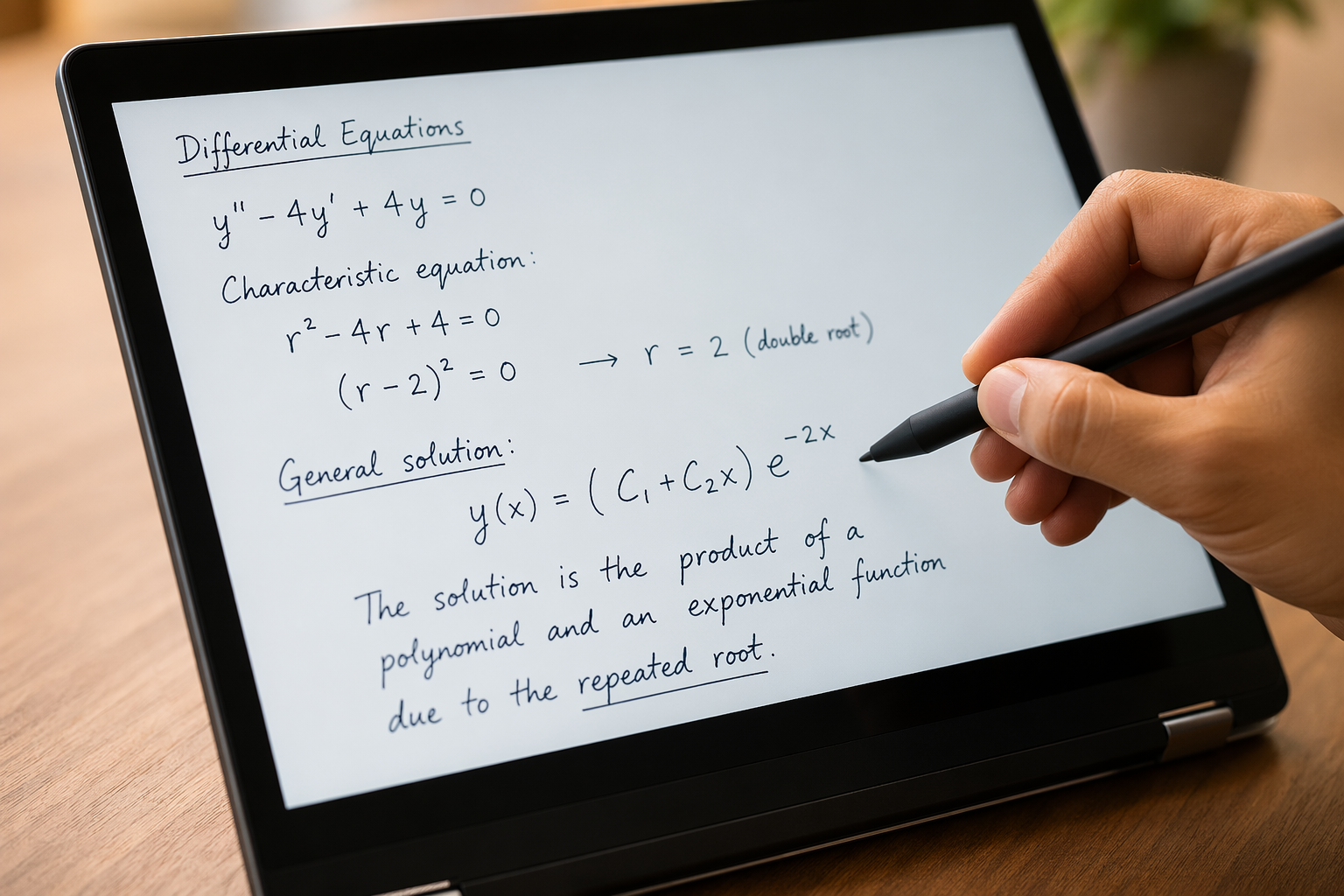
Once hardware is settled, latency and palm rejection matter more than template galleries. If the ink trails behind your pen during a lecture, or the page jumps because your palm is treated as a finger, the app has already failed the job.
| App | Chromebook route | What stands out | Cost note | Not for you if |
|---|---|---|---|---|
| Squid | Android app; purpose-built ChromeOS vector ink engine | Lowest-latency handwriting impression in Chrome Unboxed testing; strong offline handwriting | Free for basic vector ink; Squid Pro is $1/month or $10/year for PDF import and markup, with 6 months free through Chromebook Perks | You need a beautiful notebook store or advanced AI features |
| Google Cursive | Built into ChromeOS on supported devices | Free, simple, convenient | Free | You need reliable palm rejection and serious daily handwriting |
| Noteshelf | Android app | Rich handwriting feature set, audio recording synced to ink, AI generation, 200+ templates | Handwriting recognition requires $9.99 premium tier | You are highly sensitive to pen latency |
| Bamboo Paper | Android app | Polished notebook interface from Wacom | Full pen access requires $5.49 Pro Pack | You need the lowest-latency Chromebook handwriting option |
| Rnote | Linux/Crostini | Open-source, fully offline, user-controlled data | Free | You do not want terminal setup or you need built-in cloud sync |
Squid is the first app to try for serious handwritten notes on a Chromebook. Chrome Unboxed describes Squid’s vector ink engine as purpose-built for ChromeOS and treats it as the standard app for checking Chromebook pen latency.[3] That is not a lab benchmark with a universal millisecond score, but it is a useful hands-on signal: Squid is the app people reach for when they want to know whether the device or the software is the problem.
The free version of Squid covers the core handwriting job: vector ink, templates, and offline use. The price issue appears when PDFs enter the workflow. PDF import and markup require Squid Pro, listed at $1 per month or $10 per year, with a 6-month free offer through Chromebook Perks as of June 2026.[3] If your real task is annotating lecture slides or marking up readings, that paid tier is not an optional extra; it is the feature you came for.
Google Cursive has the advantage every built-in app has: it is already there, it is free, and it is good enough for occasional scribbles. The problem is consistency. Chrome Unboxed’s hands-on testing across multiple devices found that Cursive “fails pretty hard” at palm rejection and pen latency on most Chromebooks.[3] That phrasing is blunt, but it matches the practical advice: use Cursive for light notes, not as the place where an entire semester of handwritten work depends on a smooth line.
Noteshelf goes in the opposite direction. It has the richer feature list: audio recording synced to ink, AI generation, and more than 200 templates.[1] For students who review lectures by replaying audio beside handwritten notes, that can be valuable. The trade-off is that ChromeOS users may notice slight latency compared with Squid, and handwriting recognition sits behind a $9.99 premium tier.[1] It is more feature-rich, not automatically better.
Bamboo Paper is the polished notebook choice. Chrome Unboxed highlights its interface, and Wacom’s design sense shows in the way notebooks feel on screen.[3] The full pen feature set requires a $5.49 Pro Pack.[3] That is a small charge if you love the notebook feel, but it does not change the main decision: choose Bamboo Paper for the writing environment, not because it beats Squid on raw Chromebook pen responsiveness.
Rnote is the technical outlier. It is open-source, runs fully offline through Linux, and keeps data ownership close to the user. It also requires Linux setup and terminal commands such as sudo apt install flatpak before installation in the workflow described by Chrome Unboxed.[3] That is reasonable for a tinkerer or a researcher who wants local control. It is not reasonable to hand to a first-week college student without warning them what setup day looks like.
Linked knowledge: Obsidian and Joplin reward setup tolerance
Obsidian and Joplin are better described as systems than apps. They make sense when you care about Markdown, local files, backlinks, notebooks, exportability, and offline access. They make less sense if what you really need is a clean place to type tomorrow’s meeting agenda.
Obsidian is free for personal use, has no note limits, and does not require cloud storage for the core app.[1][4] On Chromebook, the Android app can work well on models that support the Google Play Store, while the Linux route gives power users another path. The setup decision matters because Obsidian’s strengths appear after you commit to vault organization, sync choices, plugins, and a habit of linking notes. It is excellent for a researcher building a long-term archive; it is excessive for a grocery list.
Joplin is the open-source Evernote-style option: Markdown, notebooks, offline functionality, and sync that can be configured rather than simply accepted. It is available through Android and Linux routes on Chromebook and is fully functional offline. That makes it appealing for users who dislike web-app dependency, but it also means the user owns more of the setup and sync decisions.
For laptop users deciding across Windows, Mac, and ChromeOS, the broader best note-taking apps for laptop comparison may be more useful. On a Chromebook alone, the deciding question is simpler: are you willing to configure your note system, or do you need it to behave today?
Meeting notes and AI: useful, but not especially Chromebook-specific
Fireflies, Otter, and Notion AI all work through the browser or PWA-style workflows on a Chromebook. That makes them viable for remote workers, but it does not make them uniquely optimized for ChromeOS. The real decision is the meeting workflow: where the transcript comes from, how summaries are generated, who can access recordings, and whether the tool fits your team’s privacy expectations.
Fireflies offers meeting transcription, AI summaries, and searchable calls through a Chromebook-accessible web app, but vendor claims about meeting AI should be read with the usual caution because Fireflies is also promoting its own product.[1] Otter provides real-time transcription and meeting notes in the browser. Notion AI adds writing, summarization, and Q&A inside Notion, but it inherits Notion’s weaker Chromebook offline story.
If your notes are mostly online meetings, start with transcription quality, summary controls, admin settings, and privacy policy—not whether the service appears in a Chromebook roundup. If your meetings turn into project pages afterward, Notion AI may fit. If you need call capture and searchable transcripts, Fireflies or Otter are more direct candidates. If you need offline class notes with a stylus, none of these should be your main app.
A practical narrowing process
The fastest way to choose is to eliminate apps that are wrong for your actual note-taking job before comparing feature lists.
- Choose the note shape first: capture, notebook, handwriting, linked archive, or meeting transcript.
- Choose your delivery-method tolerance: PWA for low setup, Android for stylus and mobile-style apps, Linux for local-first control.
- Check offline behavior before trusting the app. Keep, Simplenote, OneNote, Squid, Obsidian, and Joplin can fit offline-heavy workflows better than Notion.
- If handwriting matters, test your exact Chromebook, stylus, and app combination. App reputation does not fix weak hardware support.
- Price the feature you actually need: OneNote storage, Squid PDF markup, Noteshelf handwriting recognition, Notion collaboration or AI, and UpNote’s subscription or lifetime plan.
For most Chromebook users, the sensible starting points are simple: Keep or Simplenote for capture; OneNote or UpNote for structured notes; Squid for serious stylus work; Obsidian or Joplin for linked, offline knowledge systems; and browser-based AI tools only when meeting capture is the real workflow. The best Chromebook note app is the one whose ChromeOS delivery method supports the way you actually take notes.
References
- Best Note-Taking Apps for Chromebook — Fireflies.ai
- Use a stylus with your Chromebook — Google Support
- Best stylus apps for Chromebooks — Chrome Unboxed
- The best note-taking apps — Zapier