

Notion for Note-Taking in 2026: A Deep Dive into Blocks, Databases, AI, and Templates
This guide breaks down Notion's unique architecture — blocks, databases, relations, templates, and AI — to show intermediate users exactly how to build a powerful, custom note-taking system. No general review, no comparisons: just a practical how-it-works walkthrough.
Category: Note-Taking App
Pricing model: Freemium
Free plan: Yes
Technical difficulty: Intermediate
Best for: Knowledge Workers
Pricing last verified: 2026-06-17
- note-taking
- Notion
- PKM
- free-plan
- students
Introduction: Why Notion's Architecture Matters for Note-Taking
Most note-taking apps present you with a blank page and a toolbar. Notion does something fundamentally different: it gives you a set of building blocks — text, images, databases, embeds — and lets you assemble them into whatever structure you need. That difference is why Notion has attracted over 100 million users and is used by 62% of the Fortune 100.
But that flexibility comes with a learning curve. If you open Notion and start typing like you would in Apple Notes or OneNote, you are using maybe 10% of what it can do. The real power — and the reason intermediate users stick with it — lies in understanding four concepts: blocks, databases, relations, and templates. Once you grasp how these pieces fit together, you can build a note-taking system that adapts to your workflow rather than forcing you into someone else's.
This guide is for people who already know what Notion is. We are not going to rehash the pricing tiers or debate whether it is better than Obsidian. Instead, we will walk through each architectural layer — from the humble block to AI-powered meeting notes — and show you exactly how to use them for practical note-taking. If you need a step-by-step setup first, start with our beginner's guide before diving into this deep dive.
The Block: Notion's Fundamental Unit of Content
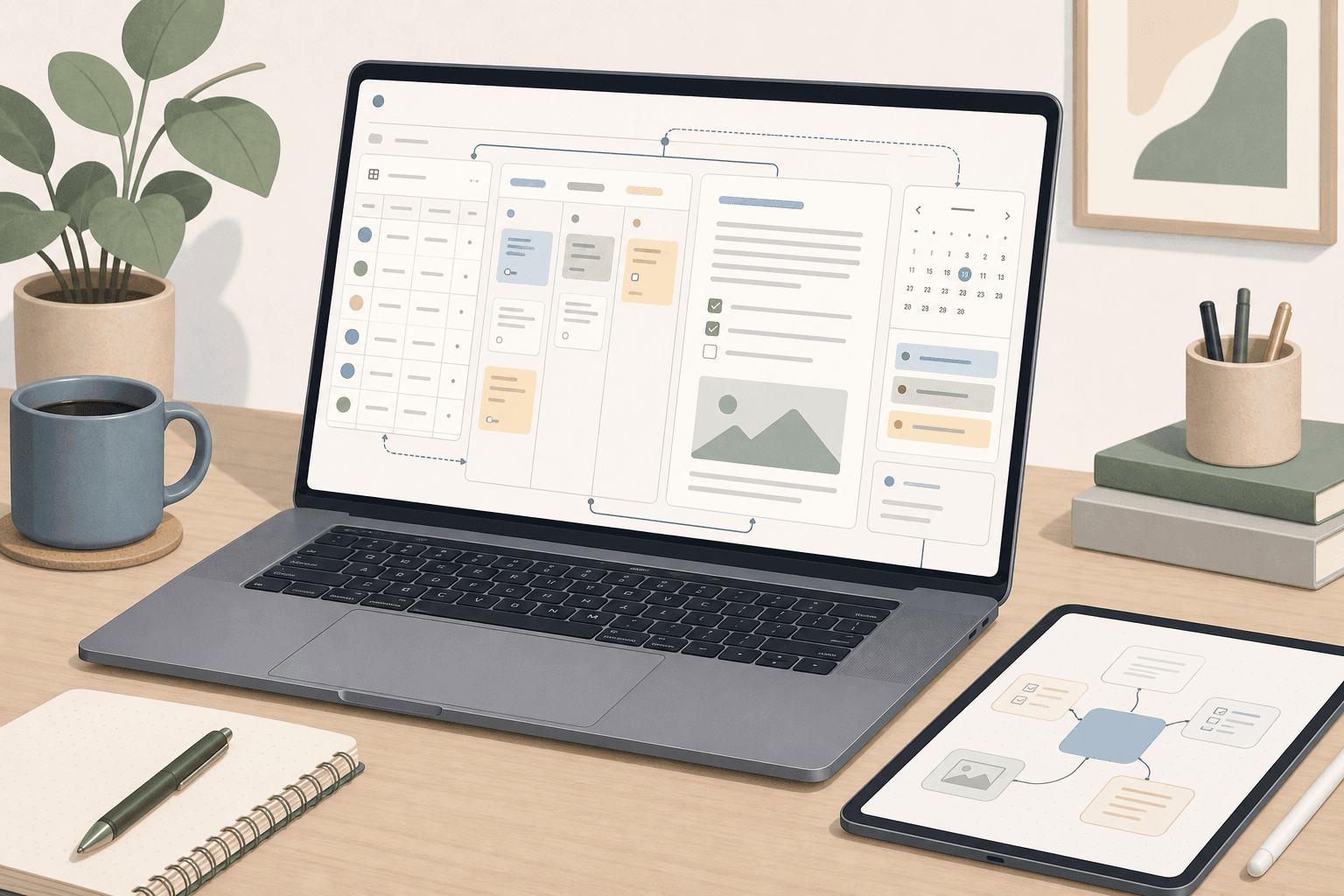
Everything in Notion is a block. A paragraph is a block. An image is a block. A toggle, a callout, a code snippet, a divider, a database — each is a discrete block that can be moved, transformed, or nested inside another block. This block-based architecture is what makes Notion feel less like a word processor and more like a construction kit.
Notion offers over 50 content block types. You access them by typing the slash key (/) anywhere on a page, which opens a menu of every available block. The most commonly used ones include:
- Text blocks: headings (H1, H2, H3), bulleted lists, numbered lists, toggles, callouts, quotes, and dividers.
- Media blocks: images, videos, audio files, bookmarks, embeds (from YouTube, Figma, Google Maps, and dozens of other services), and code snippets with syntax highlighting.
- Advanced blocks: databases (inline or full-page), synced blocks, table of contents, math equations, charts, and breadcrumbs.
- Inline blocks: mentions of other pages or people, date pickers, and emoji reactions.
The real power of blocks is that they are not locked into their original type. You can drag a bulleted list item to turn it into a standalone paragraph, or convert a paragraph into a heading, a toggle, or a callout with a couple of clicks. This fluidity means you never have to decide the format upfront — you can start typing and restructure later.
For note-taking, this block system solves a problem that traditional apps struggle with: heterogeneous content. A single page can contain a meeting transcript (text), a diagram (embed), a checklist (to-do blocks), and a table of action items (database) — all living together, all movable. No other major note-taking app gives you this level of content mixing without switching between separate tools or tabs.
Databases: Structured Notes with Six Views
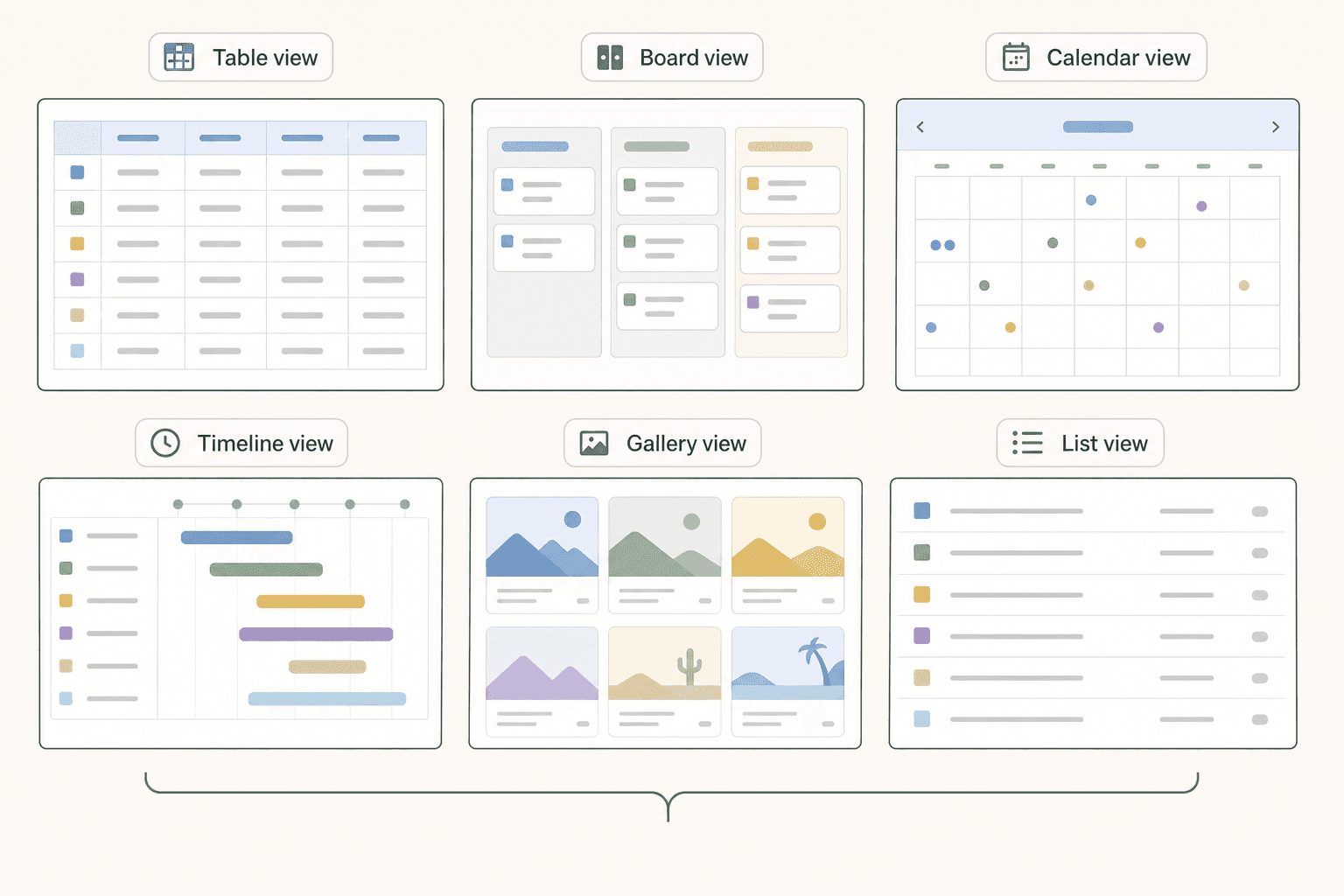
If blocks are the atoms of Notion, databases are the molecules. A database is a collection of pages that share the same set of properties (columns), and it can be viewed in six different layouts. This is where Notion separates itself from every traditional note-taking app: your notes are not just files in a folder — they are entries in a flexible, filterable, sortable system.
The six database views are: Table, Board, Calendar, Timeline, Gallery, and List. Each view displays the same underlying data but organizes it differently. Here is when to use each one for note-taking:
| View | Best For | Example Use Case |
|---|---|---|
| Table | Research logs, bibliographies, inventory tracking | A database of academic papers with columns for author, year, tags, and reading status |
| Board | Project notes, task management, content planning | Meeting notes grouped by status (To Do, In Progress, Done) |
| Calendar | Time-bound notes, daily journals, event planning | Meeting notes automatically placed on the date they were taken |
| Timeline | Project roadmaps, long-term planning, course schedules | A semester-long research project with milestones and deadlines |
| Gallery | Visual notes, image-heavy references, mood boards | A collection of design inspiration with cover images as the primary identifier |
| List | Quick capture, inbox-style notes, simple directories | A running list of ideas or bookmarks with minimal metadata |
The critical insight is that you are not choosing a view permanently. You can add multiple views to the same database and switch between them depending on what you need at the moment. A research database can have a Table view for sorting by publication date, a Gallery view for browsing paper summaries visually, and a Calendar view for tracking submission deadlines — all drawing from the same set of notes.
Relations and Rollups: Linking Notes Across Databases
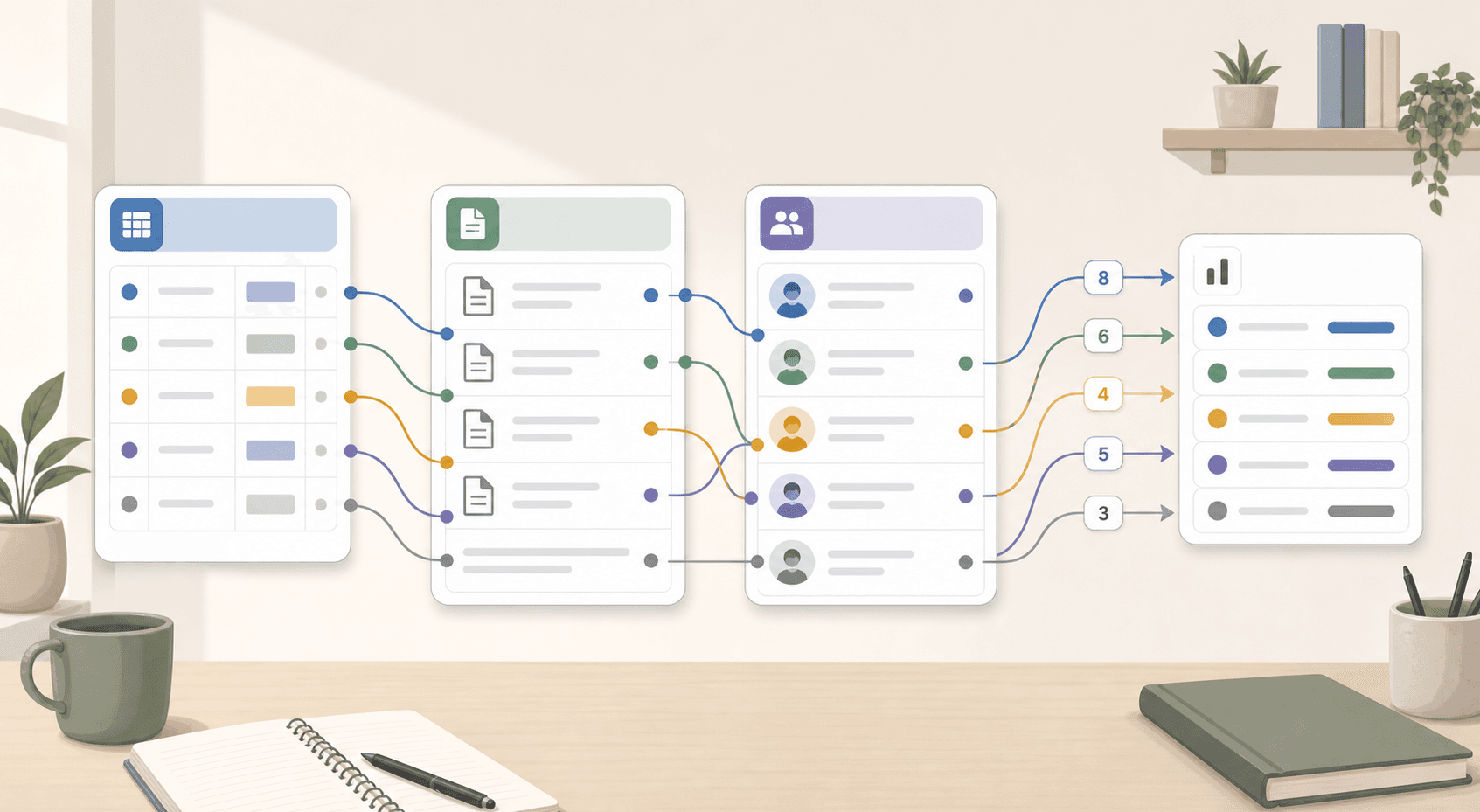
A single database is useful. Two linked databases are transformative. Notion's Relation property lets you connect entries from one database to entries in another, creating a web of interconnected notes that mirrors how knowledge actually works.
Here is a concrete example. You have a Projects database with entries for each major initiative you are working on. You also have a Meetings database where you log every meeting note. By adding a Relation property to the Meetings database that links to the Projects database, you can associate each meeting note with the relevant project. Now, when you open a project page, you see all the meetings related to that project — without manually copying or tagging anything.
Rollups take this a step further. A Rollup property can aggregate data from related entries. Using the same example, you could create a Rollup in the Projects database that counts the number of linked meeting notes, or sums the total action items across all those meetings. This turns your note-taking system into a lightweight reporting tool.
For knowledge workers, Relations and Rollups are the features that transform Notion from a personal notebook into a shared knowledge base. A class notes database linked to a course tracker, a client meeting log linked to a CRM, a reading list linked to a project database — each connection makes your notes more discoverable and more valuable over time.
Templates: Starting Fast with 20,000+ Options
Building a note-taking system from scratch can feel overwhelming, especially when you are still learning what blocks and databases can do. Notion's template gallery, which contains more than 20,000 free templates, exists to solve exactly this problem.
You can browse the gallery by use case — class notes, meeting notes, project management, personal journal, habit tracker — and import any template into your workspace with one click. Each template comes pre-built with the appropriate database properties, views, and page structure. A class notes template, for example, might include a database with columns for course name, lecture date, key concepts, and action items, plus a Calendar view for tracking deadlines.
The key is to treat templates as starting points, not finished systems. After importing a template, you should customize it: rename properties to match your vocabulary, add or remove views, and connect it to other databases in your workspace using Relations. A template that you have adapted to your workflow is far more useful than one you imported and never touched.
- Browse the template gallery at notion.so/templates or from the left sidebar in your workspace.
- Preview a template to see its structure, properties, and views before importing.
- After import, rename the template and adjust its properties to match your workflow.
- Add Relation properties to connect the template to your existing databases.
- Duplicate the template for each new project or course rather than reusing the same one.
Notion AI for Notes: Autofill, Summarization, and Meeting Notes
Notion AI adds a layer of intelligence on top of your blocks and databases. Three features are directly relevant to note-taking: Autofill, summarization, and AI Meeting Notes.
Autofill works inside databases. When you write a note in a database entry, Notion AI can read that content and automatically populate other properties — summary, topic tags, status, or any custom field you define. This saves significant time if you maintain a research database or meeting log where each entry needs consistent metadata.
Summarization works on any page or block. You can highlight a long meeting transcript or a dense article and ask Notion AI to condense it into a few bullet points. The summary appears inline, and you can keep it or discard it. This is useful for weekly reviews or for distilling key takeaways from lengthy notes.
AI Meeting Notes is the most ambitious feature. It records audio, transcribes the conversation in real time, generates a summary, and extracts action items — all inside Notion. The output is a structured page with the transcript, a concise summary, and a checklist of action items that can be linked to a project database. This feature is still in beta and requires the Business plan.
For a deeper look at each AI feature — including how Custom Agents work and how to set up AI Meeting Notes — read our dedicated guide to Notion AI for note-taking.
Synced Blocks and Backlinks: Building a Connected Knowledge Base
Two features tie the block and database concepts together into a cohesive knowledge base: Synced Blocks and backlinks.
A Synced Block is a block that can appear on multiple pages while being edited in one place. Change it on the source page, and it updates everywhere it is embedded — across up to 50 pages. This is useful for shared headers, navigation menus, or standard operating procedures that you want to maintain in a single location but display across many notes. For example, you could create a Synced Block containing your weekly priorities and embed it at the top of every project page. Update it once, and every project page reflects the change.
Backlinks show you which pages link to the current page. Every Notion page has a backlink section at the bottom that lists incoming links. Combined with Relations, backlinks create a web of connected notes that you can navigate without relying on folder structures. When you open a project page and see that it is linked from five meeting notes, three research papers, and two action-item databases, you immediately understand the context around that project.
Together, Synced Blocks and backlinks address a common pain point in note-taking: information silos. Without them, notes tend to accumulate in isolated pages that you never revisit. With them, your notes become a living, cross-referenced system where every page is connected to related content.
Practical Note-Taking Setups: Four Templates to Build From
Here are four concrete setups that combine the building blocks we have covered. Each one takes about 15 minutes to build and can be extended as your needs grow.
- Class notes database with course tracker. Create a Courses database with properties for course name, instructor, semester, and grade. Create a Notes database with properties for date, topic, and a Relation linking each note to its course. Add a Rollup in the Courses database that counts the number of linked notes. Use the Calendar view on the Notes database to see your study schedule.
- Meeting notes with AI Autofill. Create a Meetings database with properties for date, attendees, project (Relation), and action items. Enable AI Autofill on the summary and action-items properties. After each meeting, write a few sentences in the body, and let AI populate the structured fields. Link each meeting to a Projects database to see all meetings related to a project in one place.
- Research database with multiple views. Create a Papers database with properties for title, authors, year, tags, reading status, and a URL to the paper. Add a Table view for sorting by year and filtering by status. Add a Gallery view where the cover image is the first page of the PDF. Add a Calendar view for submission deadlines. Use a Relation to link papers to a Projects database if they are part of a larger research initiative.
- Personal wiki using Synced Blocks. Create a single page with a table of contents and a Synced Block containing your name, role, and current focus areas. Embed that Synced Block at the top of every major page in your workspace — projects, goals, reading list, journal. Create a database of wiki entries (people, concepts, tools) with backlinks enabled. As you write notes, mention wiki entries using the @ symbol to build a connected knowledge graph.
Performance Tips: Keeping Your Workspace Fast
Notion's flexibility comes with a performance cost. The most commonly reported issue is database slowdown: once a database exceeds roughly 5,000 records, loading times can increase from instant to 3–5 seconds per page. This threshold varies depending on the number of properties, relations, and views, but it is a real constraint for power users.
Here are practical workarounds to keep your workspace responsive:
- Split large databases into active and archived views. Create a filter on your main database that shows only records from the current year or with a status of "Active." Archive older records by moving them to a separate database or by applying a filter that excludes them from the default view.
- Use filters aggressively. Every view should have at least one filter that limits the visible records. A Meetings database filtered to the current month will load much faster than one showing all meetings since 2020.
- Avoid overly complex relation chains. A database that is related to five other databases, each of which has rollups and formulas, will be slower than a database with two simple relations. Audit your relations periodically and remove any that are no longer needed.
- Limit the number of views on a single database. Each view adds overhead. If you have ten views on one database, consider splitting it into two databases with fewer views each.
Limitations and Workarounds for Note-Takers
Notion is a powerful note-taking platform, but it is not the right tool for every scenario. Being honest about its limitations will save you from building a system that frustrates you six months from now.
| Limitation | What It Means | Workaround or Alternative |
|---|---|---|
| Offline mode is limited | You can mark pages as available offline, but only the first 50 database rows per view are downloaded. Sub-pages must be toggled individually. AI features require an internet connection. | Use Notion for structured, planned note-taking. For quick capture without internet, keep a separate app like Apple Notes or Google Keep as your inbox. |
| No true Markdown file storage | Notion supports Markdown shortcuts for formatting, but it does not store notes as Markdown files. Exporting to Markdown loses some formatting and database structure. | If you need local-first, plain-text notes that you can edit in any editor, consider Obsidian or Logseq. Notion is a cloud-first platform. |
| AI features require the Business plan | Full AI access — Autofill, AI Meeting Notes, Custom Agents — is bundled into the $20/user/month Business tier. Free and Plus plans get only a limited trial. | If AI is essential but your budget is tight, evaluate whether the Plus plan's limited trial is sufficient, or consider dedicated AI note-taking tools. |
| Automation has constraints | Buttons cannot trigger existing automations. Automations cannot filter on relational properties. The file property cannot be used in formulas or automations. These limitations have been reported since 2022. | For complex automation needs, pair Notion with a dedicated automation tool like Zapier or Make. Keep automations simple within Notion itself. |
| Performance degrades with large databases | Databases over 5,000 records can cause 3–5 second load times. Complex relation chains and multiple views add overhead. | Follow the performance tips above: split databases, use filters, and audit relations regularly. |
None of these limitations are dealbreakers for most users. Notion earns a solid 8 out of 10 as a note-taking app and ranks second out of 41 apps in overall feature count, with over 230 features catalogued. It excels for structured, connected notes where you want to organize information across projects, courses, or teams. It is less ideal if your primary need is fast, frictionless capture on a mobile device or local-first storage with full offline access.
If after reading this deep dive you decide that Notion's architecture aligns with how you think about notes, the next step is to pick one of the four setups above and build it. Start small, add complexity as you understand each layer, and remember that every template is a starting point — your system will evolve as your needs do.
Comments
Join the discussion with an anonymous comment.