
Microsoft’s note-taking app is OneNote. In 2026, that answer still needs a little cleanup, because Microsoft also has Loop, Sticky Notes, Journal, Copilot, and the retired OneNote for Windows 10 app sitting close enough to confuse the search result. The practical recommendation is straightforward: use the desktop OneNote app, not OneNote for Windows 10, because the Windows 10 UWP version reached end of support in October 2025 and Microsoft directs users to the current OneNote app instead.[1]
OneNote is strongest when notes are not tidy. It gives you a freeform page where typed text, ink, screenshots, images, file printouts, meeting fragments, links, and pasted material can sit beside each other. That sounds ordinary until you are in a lecture with a stylus, a client call where the agenda changes halfway through, or a field visit where the photograph and the handwritten label need to remain in the same place. The reason OneNote still matters is not nostalgia. It is that many real notes are mixed-media records before they are polished documents.
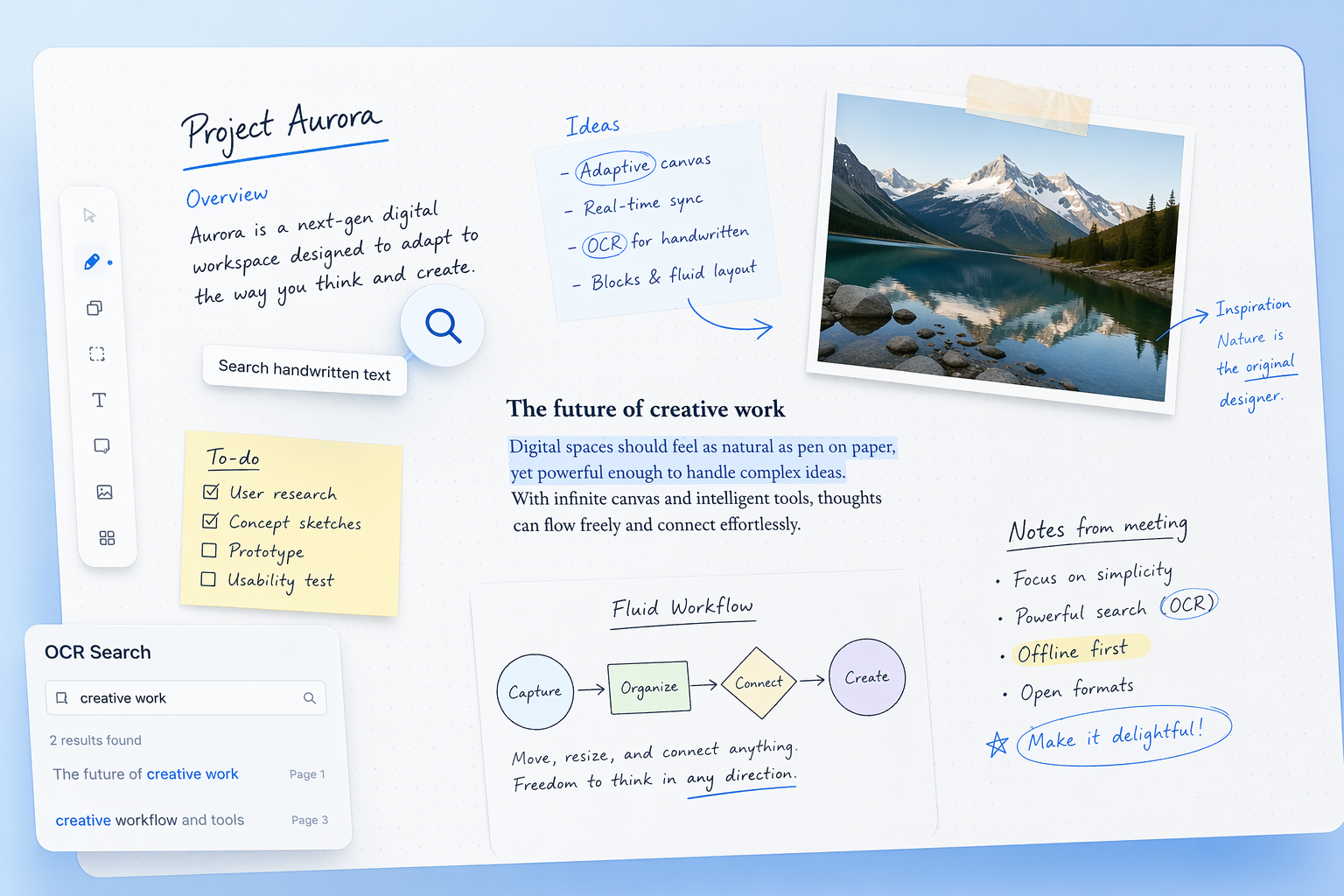
The core verdict is this: OneNote is one of the best fits for people who want a versatile freeform notebook with handwriting, offline access, search, and Microsoft 365 integration. It is less convincing for people who want database views, local-first Markdown files, graph-based personal knowledge management, or a clean exit from Microsoft’s ecosystem.
What OneNote Actually Does
OneNote organizes information into notebooks, sections, and pages. A notebook might be a class, project, client, department, or personal archive. Sections split that notebook into broad areas. Pages hold the actual notes. On the page itself, OneNote behaves less like a word processor and more like a digital desk: you can click or tap in different places, add text containers, draw with a pen, insert images, attach files, clip web content, and search later.
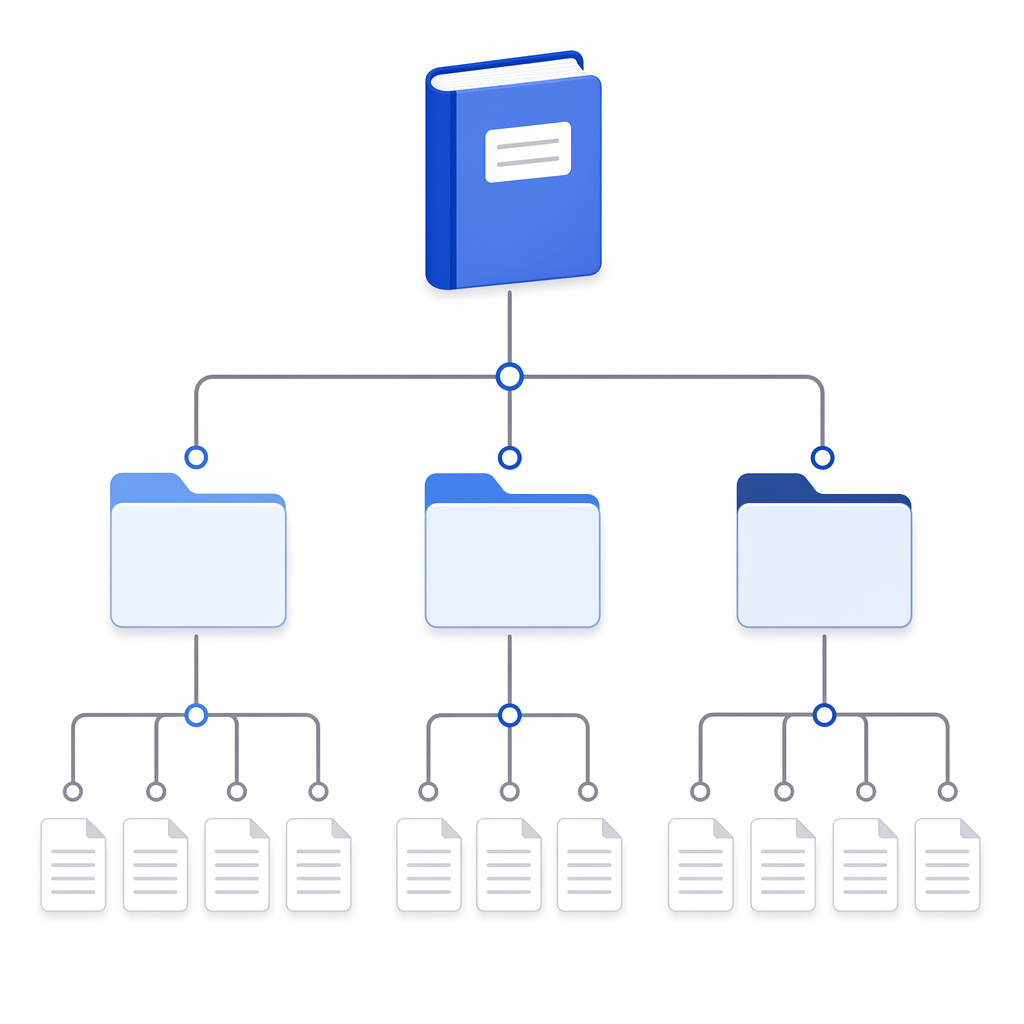
That hierarchy is useful because it is understandable. It is also where OneNote starts to show its age. A notebook-section-page model can become a filing cabinet that nobody wants to clean. It works best when the categories match how you will retrieve information later, not just how you felt like sorting it on the day you captured it.
The page model is the real attraction. OneNote supports typed notes, ink, drawings, images, audio notes, web clips, tables, tags, embedded files, and search across content. Its handwriting recognition and OCR search are the features that separate it from many minimalist note apps and from structured workspace tools. OneNote can search handwritten notes and text inside images, while tools such as Notion and Obsidian do not match that handwriting-centered workflow in the same way.[2][3]
Why the Freeform Canvas Still Matters
A lot of note-taking advice assumes that information arrives in clean units: a meeting note, a task, a quote, a source, a card, a database row. Work often arrives as something less cooperative. A professor draws half the diagram before naming the concept. A sales call jumps from pricing to legal concerns to an unresolved implementation question. A site inspection produces typed observations, measurements, photos, and rough sketches in the same ten-minute window.
OneNote handles that kind of capture better than most apps because it does not insist on a single shape too early. You can type beside an image, mark up a screenshot, write around a diagram, paste an email excerpt, and leave a rough page rough. That flexibility is not just aesthetic. It preserves context that would be lost if everything had to be converted immediately into a task list, document, or database entry.
The tradeoff comes later. Freeform capture makes it easy to collect material and harder to impose discipline after the fact. If every project becomes one oversized section with dozens of similarly named pages, search has to rescue what structure failed to maintain. OneNote’s search is good enough to make that survivable, especially with handwritten and image text, but it is not a substitute for naming notebooks and pages with retrieval in mind.
Handwriting, OCR, and Pen Work Are the Real Differentiators
OneNote is unusually strong for students, teachers, tablet users, and Windows pen users because handwriting is treated as a first-class input method. You can write notes by hand, sketch diagrams, annotate slides, and later search for handwritten words. That matters in subjects and meetings where layout, arrows, formulas, sketches, or quick markings carry meaning that plain text would flatten.
OCR also changes the value of casual capture. A whiteboard photo, hand-labeled diagram, scanned worksheet, or photographed document is more useful when the text inside it can be found later. OneNote’s long-running support for handwriting recognition and OCR is one reason it remains a practical answer for pen-heavy workflows rather than just another place to type notes.[2][3]
This is where comparisons with Notion and Obsidian need precision. Notion is stronger when you want structured databases, views, properties, and team-facing project systems. Obsidian is stronger when you want local Markdown files, linking, plugins, and graph-oriented personal knowledge management. Neither is built around the same combination of freeform ink, searchable handwriting, image OCR, and Microsoft 365 document gravity.
Offline Access Is Not a Minor Feature
OneNote supports offline creation and editing, then syncs when a connection returns. That matters more than feature grids usually admit. A student can keep annotating during campus Wi-Fi problems. A consultant can write meeting notes on a train. A field worker can capture observations where service is unreliable. The work does not stop just because sync is temporarily unavailable.
This is also one of the practical differences between OneNote and many workspace-first tools. Zapier’s 2026 note-taking app comparison describes OneNote as supporting offline work, while Notion’s offline support is narrower and centered on cached pages rather than full offline creation and editing across the same kind of local notebook workflow.[3]
Offline access does not remove sync responsibility. Shared notebooks, large attachments, multiple devices, and organizational accounts still require users to pay attention to sync status. But a note-taking app that can keep working before the network comes back is materially different from one that mainly behaves well when the network is already there.
OneNote, Loop, Sticky Notes, and Journal
Microsoft’s note app lineup is easier to understand if each tool is given a job. OneNote is the long-term notebook. Loop is the collaborative workspace for live components and team pages. Sticky Notes is for quick scraps. Journal is pen-centered and lighter-weight. Copilot is not a notebook by itself; it is an AI layer that can work inside Microsoft apps, including OneNote under the right license.
OneNote and Loop are the pair most likely to be confused. OneNote is better for personal or durable capture: class notes, client notebooks, research pages, project records, and mixed-media archives. Loop is better when the unit of work is a shared, living team space. Microsoft 365 users can also embed Loop components inside OneNote, so the choice is not always either-or.[4][5]
For a deeper comparison across Microsoft’s note tools, the useful question is not which app is newest. It is which app owns the record after the meeting, class, or project moves on. OneNote is still the better place when the answer is “a notebook I may need to search months from now.”
What OneNote Costs in 2026
OneNote is free across major platforms, and that statement is true. It is also incomplete. The free Microsoft account includes 5 GB of OneDrive storage, and OneNote notebooks stored in OneDrive count against available cloud storage. That may be plenty for text-heavy notes. It becomes tighter when notebooks include many images, printouts, PDFs, audio files, or long-running class and client archives.[6]
| Path | What it means for OneNote |
|---|---|
| Free Microsoft account | OneNote app access with 5 GB OneDrive storage |
| Microsoft 365 Personal | Paid consumer subscription with expanded Microsoft 365 benefits; listed at $6.99 per month |
| Microsoft 365 Family | Paid household subscription; listed at $9.99 per month |
| Microsoft 365 Business | Business licensing, organization management, and Microsoft 365 services; relevant business prices change on July 1, 2026 |
| Copilot Pro or Microsoft 365 Copilot | Required for Copilot features in OneNote, depending on account type and licensing path |
For individual users, the first paid pressure point is usually storage, not the OneNote app itself. If your notebooks are mostly typed notes and handwriting, the free tier can last a while. If your notebooks are built from PDFs, slide printouts, photos, scanned worksheets, meeting recordings, and embedded files, the 5 GB limit becomes a real planning fact.
For organizations, OneNote cost is usually folded into Microsoft 365 rather than evaluated as a standalone purchase. That makes it feel free to users inside a company, school, or nonprofit that already standardizes on Microsoft. It also makes OneNote part of a larger licensing decision. Microsoft announced business price increases effective July 1, 2026, including Business Basic moving from $6 to $7 per user per month and Business Standard moving from $12.50 to $14 per user per month.[6]
That date matters. Before July 1, 2026, current pricing may still apply. After that date, budget owners should use the new business prices. A note app may be a small part of the Microsoft 365 bill, but it is still part of the bill.
Copilot Helps, but It Does Not Organize the Notebook for You
Copilot in OneNote can summarize notes, extract tasks, rewrite content, and work with handwritten material. Microsoft’s support documentation describes Copilot in OneNote as a tool for generating summaries, drafting content, creating lists, rewriting text, and helping reason over notes, with access depending on a Microsoft 365 Copilot license or Copilot Pro subscription.[7]
The licensing point is important because Copilot is not simply part of free OneNote for everyone. It sits behind a paid Copilot path. Feature availability also varies by platform. Microsoft notes that on Mac and iPad, Copilot context in OneNote is limited to the current page, which is a narrower experience than users may expect if they imagine AI searching and reasoning across an entire notebook by default.[7]
Copilot is most useful when a page already contains enough material to summarize or reshape: meeting notes, class notes, project planning pages, research fragments, or handwritten working notes. It is less useful as a cure for a badly structured notebook. If sections are vague, pages are poorly titled, and old content has no retrieval logic, Copilot may reduce some reading time, but it does not make the underlying system coherent.
Where Microsoft 365 Integration Helps
OneNote makes the most sense for people who already live in Microsoft 365. Notebooks sync through OneDrive or SharePoint. Users can share notebooks with colleagues, open notes across devices, attach Office files, pull in meeting material, and use the same identity and permissions environment that already governs their work. For schools and businesses, that familiarity lowers friction more than a prettier standalone app often can.
The same integration can feel like gravity. If your documents, meetings, files, account, storage, and permissions are already in Microsoft’s world, OneNote fits neatly. If you are trying to keep notes portable, text-based, and independent of a cloud account, the fit is much weaker. Export and migration are not where OneNote feels most graceful.
Enterprise controls strengthen the Microsoft 365 argument. Current product profiles note support for per-section password protection, Microsoft Purview sensitivity labels beginning in January 2026, and Microsoft compliance programs or certifications such as HIPAA BAA, FedRAMP, and ISO 27001.[8][9] Those facts do not mean every notebook is automatically governed correctly. They mean OneNote can sit inside a compliance-oriented Microsoft environment more naturally than many consumer-first note apps.
Who OneNote Is Best For
OneNote is a particularly good fit for students with tablets, especially when classes involve diagrams, equations, slides, screenshots, or handwritten annotation. The combination of pen input, flexible page layout, offline access, and later search is hard to beat when notes need to survive both the classroom and exam season.
It is also a strong fit for teachers, trainers, consultants, project managers, and Microsoft 365 knowledge workers. These users often need notebooks that can absorb messy material quickly: meeting notes, checklists, pasted emails, screenshots, client comments, whiteboard photos, and follow-up tasks. OneNote is not the cleanest project management system, but it is a capable working notebook beside one.
Windows users with pens get one of the clearest advantages. OneNote’s history with stylus input, handwriting, and page-level spatial freedom makes it feel less like a typing app with drawing bolted on and more like a notebook that happens to sync. iPad users can also benefit, though Copilot behavior and some platform details should be checked against the current app experience before building a workflow around them.
OneNote is less attractive for users who want structured databases, relational views, kanban boards, formulas, and public-facing team workspaces. Notion is usually better for that. It is also less attractive for users who want notes as local Markdown files they can edit with any text editor, version, script, and move without a cloud account. Obsidian is usually better for that. OneNote’s strengths are capture, ink, search, and Microsoft integration, not transparent file ownership.
How to Keep OneNote From Becoming a Junk Drawer
The easiest OneNote mistake is creating a new notebook or section every time something feels important. The second-easiest mistake is doing the opposite and dumping everything into one large notebook with page titles like “Notes,” “Meeting,” and “Ideas.” OneNote tolerates both mistakes for a while because search is forgiving. Six weeks later, the cost shows up.
A durable OneNote setup usually starts with fewer notebooks than expected. Use notebooks for long-lived domains: school year, client, department, major project, personal archive. Use sections for retrieval categories that will still make sense later. Use page titles that include the thing you will search for, not just the kind of note it is. “Acme onboarding call - security concerns” will age better than “Meeting notes.”
- Create notebooks only for areas that will last long enough to justify their own space.
- Name pages for retrieval, not neatness.
- Use sections to separate real work contexts, not moods or vague categories.
- Move finished projects to an archive section instead of letting active notebooks swell indefinitely.
- Rely on search, but do not make search carry every organizational decision.
Tags can help with follow-ups, questions, and important items, but they should not become a second filing system. If every paragraph is tagged, no tag is doing much work.
Ratings, Downloads, and Market Context
OneNote has the advantage of age, distribution, and Microsoft default status. Its Google Play listing passed 500 million downloads as of December 2025, but that figure is Android-only and should not be treated as total cross-platform usage. It shows reach on one platform, not the full installed base.
Review sites also show strong user sentiment. Software Advice, GetApp, and G2 each list OneNote at 4.6 out of 5.[9][10][11] Those ratings are useful as broad signals, but they come from self-selected reviewers. They should support confidence that many users are satisfied, not prove that OneNote is the right app for every workflow.
The note-taking app market is also large enough that every major productivity company has reason to keep competing. The Business Research Company estimated the note-taking app market at about $13.3 billion in 2026 and projected a 20.5% compound annual growth rate to $28.05 billion by 2030.[12] That estimate is worth treating cautiously because market-size numbers vary widely depending on what a firm includes in the category. It is context, not a reason by itself to choose a notebook.
The Practical Recommendation
Choose OneNote if your notes are messy because your work is messy. It is especially strong when you need a freeform canvas, handwriting, OCR search, full offline creation and editing, Microsoft 365 sharing, and enough flexibility to keep typed notes, ink, images, files, and meeting fragments together.
Hesitate if your real need is a structured database, a team workspace with views and properties, a local-first Markdown vault, or an app that keeps you outside Microsoft’s storage and identity system. OneNote is not trying to be Notion or Obsidian, and it is worse when judged by their strongest assumptions.
For most Microsoft 365 users, students with pens, teachers, consultants, and Windows tablet users, OneNote remains the most capable freeform Microsoft note-taking app in 2026. Its weaknesses are real: hierarchy can sprawl, Copilot costs extra, storage is not unlimited, and the Microsoft ecosystem can be hard to leave. Its strengths are just as concrete: quick capture, offline work, searchable handwriting, mixed-media pages, and notebooks that still make sense when the day did not.
References
- What's the difference between the OneNote versions? - Microsoft Support.
- Microsoft OneNote - Wikipedia.
- The 7 best note-taking apps in 2026 - Zapier.
- Microsoft Loop vs. OneNote: Choosing the Right Tool - Quisitive.
- Microsoft Loop vs. OneNote vs. Word: A Comparison Guide - Orchestry.
- Microsoft 365 pricing pages - Microsoft.
- Welcome to Copilot in OneNote - Microsoft Support.
- OneNote 2026 Update: Copilot AI in Canvas Cropping and Enterprise Governance - Windows Forum.
- Microsoft OneNote 2026: Benefits, Features & Pricing - Software Advice.
- Microsoft OneNote 2026 Pricing, Features, Reviews & Alternatives - GetApp.
- Microsoft OneNote Reviews - G2.
- Note Taking App Market Report 2026 - The Business Research Company.