
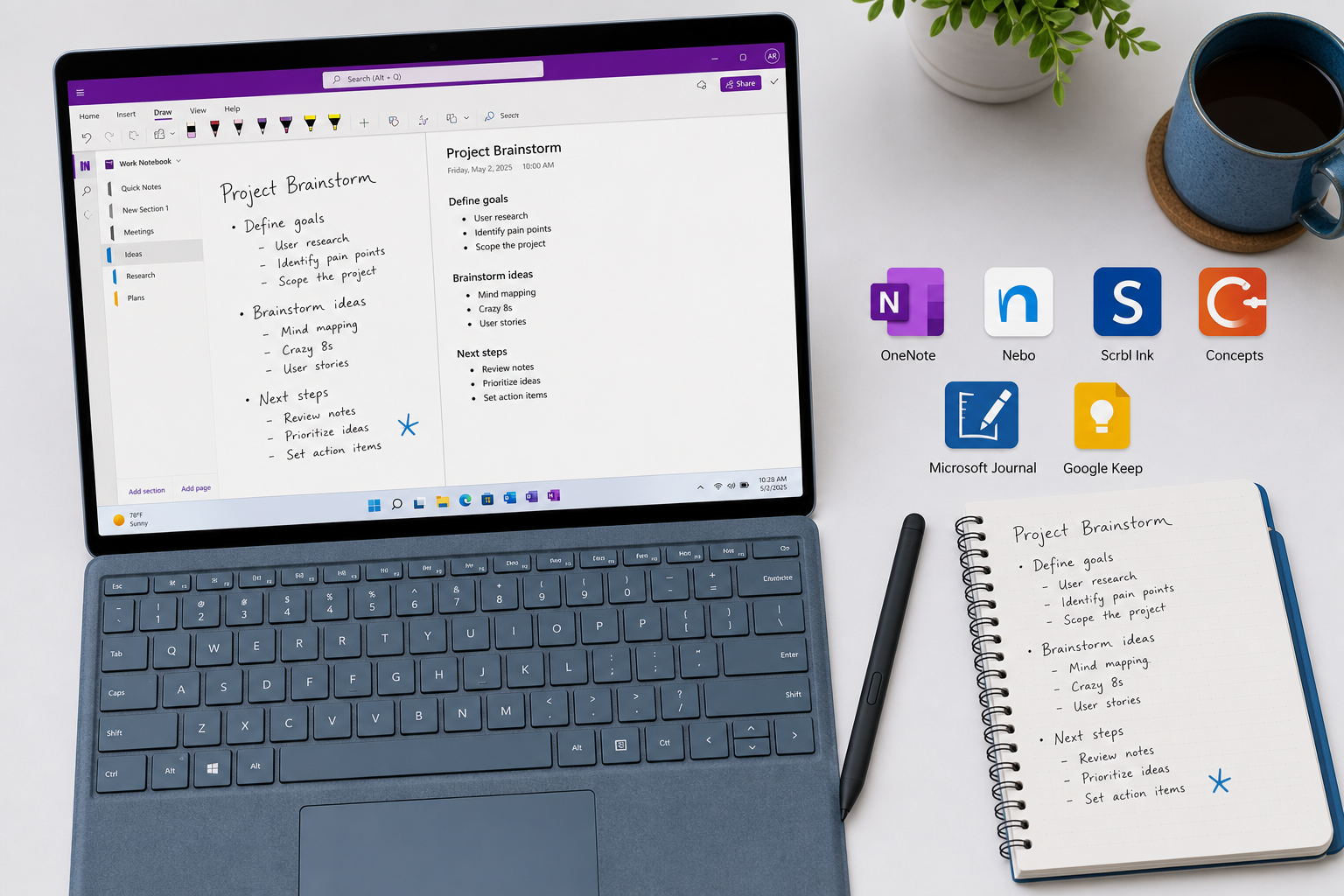
Why Pen Support Matters on Windows (and Most Apps Get It Wrong)
If you own a Surface Pro, a Lenovo Yoga, a Dell XPS 2-in-1, or any Windows device with an active stylus, you already know the frustration: most of the popular note-taking apps simply don't treat the pen as a first-class input method. You can type in Notion, organize in Obsidian, and clip in Evernote, but try to scribble a quick diagram or annotate a PDF with a stylus in those apps, and you'll hit a wall.
This gap exists because the cross-platform giants built their apps around keyboard-and-mouse workflows. They prioritize markdown, databases, and web clipping — all text-first activities. Handwriting, drawing, and ink annotation are afterthoughts, if they exist at all. For the millions of Windows users who rely on a pen for lecture notes, design sketches, meeting annotations, or journaling, that's a dealbreaker.
This article evaluates six Windows-native and Windows-optimized apps specifically on pen performance. The criteria matter: stylus support (does the app recognize the pen as an input device, not just a finger?), handwriting recognition (can it convert your scrawl to typed text?), OCR search (can you find handwritten notes later by searching a keyword?), palm rejection (does your hand resting on the screen cause accidental marks?), and pressure sensitivity (does a lighter stroke produce a thinner line?). These are the features that separate a usable pen app from a frustrating one.
Microsoft OneNote: The Default Choice for Pen-and-Ink Notes on Windows
Microsoft OneNote is the benchmark for pen note-taking on Windows, and for good reason. It is the only major app that combines deep Windows Ink integration, a genuinely freeform canvas, and robust handwriting features — all at no cost.
OneNote's page is an infinite canvas. You can place typed text, handwritten notes, drawings, images, and attachments anywhere on the page, in any arrangement. This freeform layout is a natural fit for pen users: you can sketch a diagram in the margin, annotate a screenshot, and write a paragraph of handwritten notes all on the same page without fighting grid constraints.
The app supports Windows Ink with pen, pencil, and highlighter tools. On Surface devices and other Windows pen-compatible hardware, palm rejection works reliably — you can rest your hand on the screen while writing without triggering accidental marks. Pressure sensitivity is supported, so a light stroke produces a thinner line, useful for sketching and calligraphy.
OneNote also includes OCR (optical character recognition) of handwritten text. You can search for a word you wrote by hand, and OneNote will find it — even if your handwriting is messy. This feature alone makes it the most practical choice for students and professionals who need to retrieve handwritten notes later.
- Free tier includes all core features and 5GB of OneDrive storage. Additional 100GB costs $1.99/month.
- Available on Windows, macOS, iOS, Android, and the web — your handwritten notes sync across devices.
- Deep Surface Pen optimization: the pen button can be configured to launch OneNote directly, and the app supports the full range of Surface Pen pressure and tilt.
- PCMag rates OneNote 4.5/5 (Outstanding), noting its free version includes all core features and supports sketching.
OneNote's main limitation is that it can feel bloated for simple tasks. The interface packs a lot of options — notebooks, sections, pages, tags, and formatting tools — which can be overwhelming if you just want to open a blank canvas and write. Its handwriting-to-text conversion is functional but not as accurate as specialized apps like Nebo.
Nebo: Best-in-Class Handwriting-to-Text Conversion
If your primary need is converting handwritten notes into clean, typed text with high accuracy, Nebo is the specialist you want. Developed by MyScript, Nebo uses advanced handwriting recognition that goes far beyond what OneNote offers.
Nebo's handwriting-to-text conversion is remarkably accurate. You write naturally on the screen, and the app converts your handwriting into typed text in real time — or you can write first and convert later. It handles cursive, print, and mixed handwriting styles. The app also recognizes mathematical formulas and converts them into digital text, and it supports interactive diagrams: draw a flowchart, and Nebo recognizes the shapes and connectors.
- Handwriting-to-text conversion with high accuracy, including cursive and mixed styles.
- Math formula recognition — write an equation, and Nebo converts it to digital math notation.
- Interactive diagram support — draw flowcharts and mind maps that the app recognizes and makes editable.
- Cost: $11.99/year (subscription). No free tier beyond a limited trial.
Nebo's tradeoff is that it is less suited for freeform drawing or long-form typed notes. The app is designed around structured note-taking — you write in lines, not on an infinite canvas. If you want to sketch freely, annotate images, or combine typed and handwritten content on the same page, OneNote is a better fit. Nebo is the right choice when accuracy of handwriting conversion is your top priority.
Scrbl Ink: Free and Lightweight for Quick Sketches and Notes
Scrbl Ink is a free, lightweight Windows app that fills a specific niche: quick, low-friction pen notes without the overhead of a full-featured app like OneNote. It is popular in the Surface community for its simplicity and speed.
The app opens to an infinite canvas where you can write, draw, and sketch with your pen. It includes a ruler tool for straight lines, basic shape recognition, and a selection of templates (lined paper, graph paper, dotted grid). There is no OCR, no handwriting-to-text conversion, no cloud sync, and no advanced organization. Scrbl Ink is a digital whiteboard, not a knowledge management system.
- Completely free with no ads or in-app purchases.
- Infinite canvas with ruler, shape recognition, and template backgrounds.
- Lightweight and fast — launches instantly, no loading screens.
- No OCR, no handwriting recognition, no cloud sync, no organization features.
Scrbl Ink is ideal for quick sketches, brainstorming sessions, and temporary notes that you don't need to search or organize later. It is not a replacement for OneNote or Nebo if you need to retrieve your handwritten notes by keyword or convert them to text. But if you want a free, instant-on digital notebook for your Surface Pen, Scrbl Ink delivers exactly that.
Concepts: Infinite Canvas for Design and Visual Thinking
Concepts is a vector-based drawing and design app that has evolved into a capable note-taking tool for visual thinkers. Unlike the other apps in this comparison, Concepts is built around an infinite canvas and vector drawing tools, making it the best choice for users who need to sketch, diagram, and design rather than write text.
The app supports pressure-sensitive stylus input with a wide range of customizable brushes, pens, and pencils. Because it uses vector graphics, every stroke remains editable — you can move, resize, or delete individual elements after drawing them. This is a significant advantage over raster-based apps like OneNote and Scrbl Ink, where a stroke is permanent once drawn.
- Vector-based infinite canvas — every stroke is editable after drawing.
- Pressure-sensitive brushes, pens, and pencils with customizable settings.
- Layers, precision guides, and export to PNG, PDF, SVG, and DXF.
- Freemium model: free version with basic tools; full feature set requires subscription ($4.99/month or $49.99/year).
Concepts is not designed for text-heavy note-taking. It lacks handwriting recognition, OCR search, and any form of text organization. If your workflow involves more drawing than writing — architectural sketches, UI wireframes, mind maps, or visual brainstorming — Concepts is the strongest option on this list. For lecture notes or meeting minutes, stick with OneNote or Nebo.
Microsoft Journal and Google Keep: Niche Pen Apps Worth Knowing
Two more apps deserve mention for specific pen use cases, even though they are not primary recommendations for most users.
Microsoft Journal
Microsoft Journal is a free, pen-first app built specifically for Windows 11. It is designed from the ground up for handwriting, with no typing mode at all. You write or draw on the screen, and the app feels like a physical journal — page turns, ink effects, and a clean, distraction-free interface.
Journal includes ink-to-text conversion and handwritten search, so you can find notes by keyword. However, it lacks the organizational structure of OneNote — no notebooks, sections, or tags. Notes are saved as individual journal files. It is best suited for daily journaling, quick handwritten notes, and users who want a pure pen experience without the complexity of a full note-taking app.
Google Keep
Google Keep includes a basic drawing tool that lets you sketch or write with your finger or stylus. It is convenient for quick, throwaway notes — a shopping list, a phone number, a quick reminder — but it is not suitable for extensive handwriting or serious note-taking. There is no handwriting recognition, no OCR search, no palm rejection, and no pressure sensitivity. Keep's drawing feature is a bonus, not a core capability.
If you are already deep in the Google ecosystem and need a place to jot the occasional handwritten reminder, Keep works. For anything beyond that, choose one of the dedicated pen apps above.
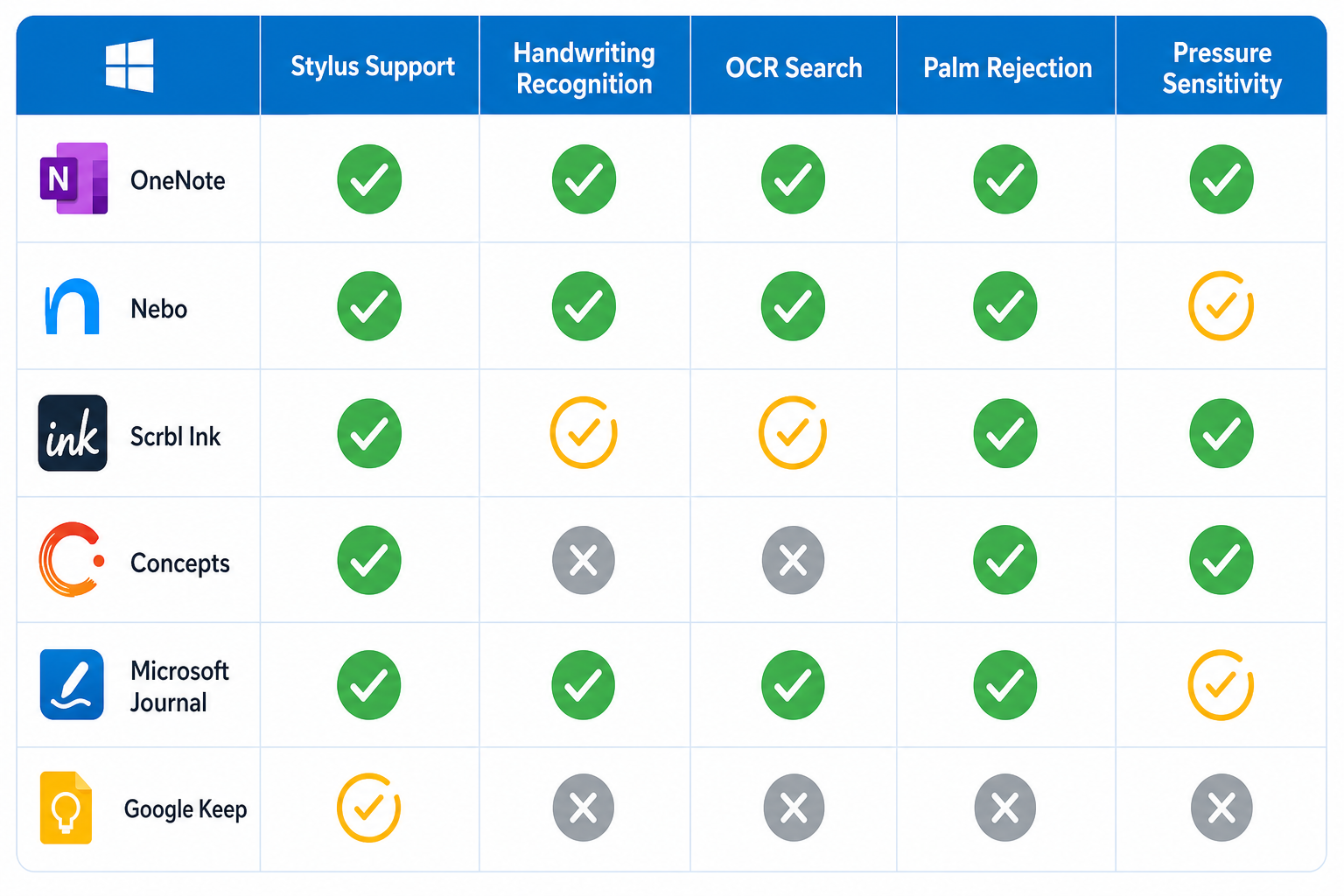
Comparison Table: Pen Features at a Glance
| App | Stylus Support | Handwriting Recognition | OCR Search | Palm Rejection | Pressure Sensitivity | Price |
|---|---|---|---|---|---|---|
| Microsoft OneNote | Full (Windows Ink) | Yes (basic) | Yes | Yes | Yes | Free (5GB storage) |
| Nebo | Full | Yes (advanced, high accuracy) | Yes | Yes | Yes | $11.99/year |
| Scrbl Ink | Full | No | No | Yes | Yes | Free |
| Concepts | Full (vector) | No | No | Yes | Yes | Free / $4.99/month |
| Microsoft Journal | Full (pen-first) | Yes (ink-to-text) | Yes | Yes | Yes | Free |
| Google Keep | Basic | No | No | No | No | Free |
Which App Should You Choose? A Decision Guide by Use Case
The right app depends on how you use your pen. Here is a quick decision guide based on common use cases.
- Student lecture notes: OneNote. You need to combine handwritten notes, typed text, diagrams, and PDF annotations in one place. OneNote's freeform canvas, OCR search, and free price make it the obvious choice.
- Converting handwritten notes to typed text: Nebo. If you write by hand but need clean digital text for sharing or searching, Nebo's handwriting recognition is the most accurate option. The $11.99/year cost is worth it if you take a lot of handwritten notes.
- Quick sketches and brainstorming: Scrbl Ink. Free, instant-on, and lightweight. Perfect for temporary notes, doodles, and ideas that don't need to be organized or searched later.
- Design sketching and visual thinking: Concepts. Vector drawing, infinite canvas, and editable strokes make it the best choice for designers, architects, and anyone who sketches as part of their workflow.
- Daily journaling and pen-first writing: Microsoft Journal. If you want a distraction-free, pen-only experience that feels like a physical journal, Journal is the best option. Free and native to Windows 11.
- Quick handwritten reminders: Google Keep. Only if you are already using Google Keep for typed notes and need a basic drawing tool for occasional use. Not suitable for serious handwriting.