

Why Your Notes App’s Architecture Matters More Than You Think
When you open a note-taking app on your Mac, you are not just launching a text editor — you are starting a small computer inside your computer. Every app is built on one of two foundations: native Apple Silicon code that speaks directly to the M-series chip, or Electron, a cross-platform framework that bundles an entire Chromium browser engine into the app. That architectural choice has a direct, measurable impact on how much RAM your notes app consumes and how long your battery lasts.
For owners of base-model MacBook Airs with 8GB of unified memory — the largest-selling Mac segment — this distinction is not academic. With 8GB, every megabyte counts. An app that idles at 800MB of RAM while you are not even looking at it leaves less headroom for the browser tabs, Slack, and music player you actually need open. On a MacBook Pro with 18GB or more, the same app is barely a blip. The right choice depends entirely on your hardware.
How We Tested: 28 Days on Two MacBooks
To produce concrete numbers rather than general impressions, we ran each app through a standardized test protocol on two machines simultaneously: an M2 MacBook Air with 8GB of unified memory and an M3 MacBook Pro with 18GB. The test measured three variables that directly affect the user experience:
- Launch speed: the time from clicking the app icon to being able to type a note, measured with a stopwatch over five cold launches per app.
- Idle RAM usage: the memory consumed by the app when open but not actively being used, recorded via Activity Monitor after five minutes of inactivity.
- Battery drain under a typical workload: each app was left running in the background alongside eight Safari tabs, Slack, and Apple Music, and the battery percentage drop was recorded over a two-hour period.
The goal was not to find a single winner but to understand how each app behaves under the conditions that real Mac users experience every day. The results fell into three clear performance tiers.
The Three Performance Tiers of Mac Note-Taking Apps
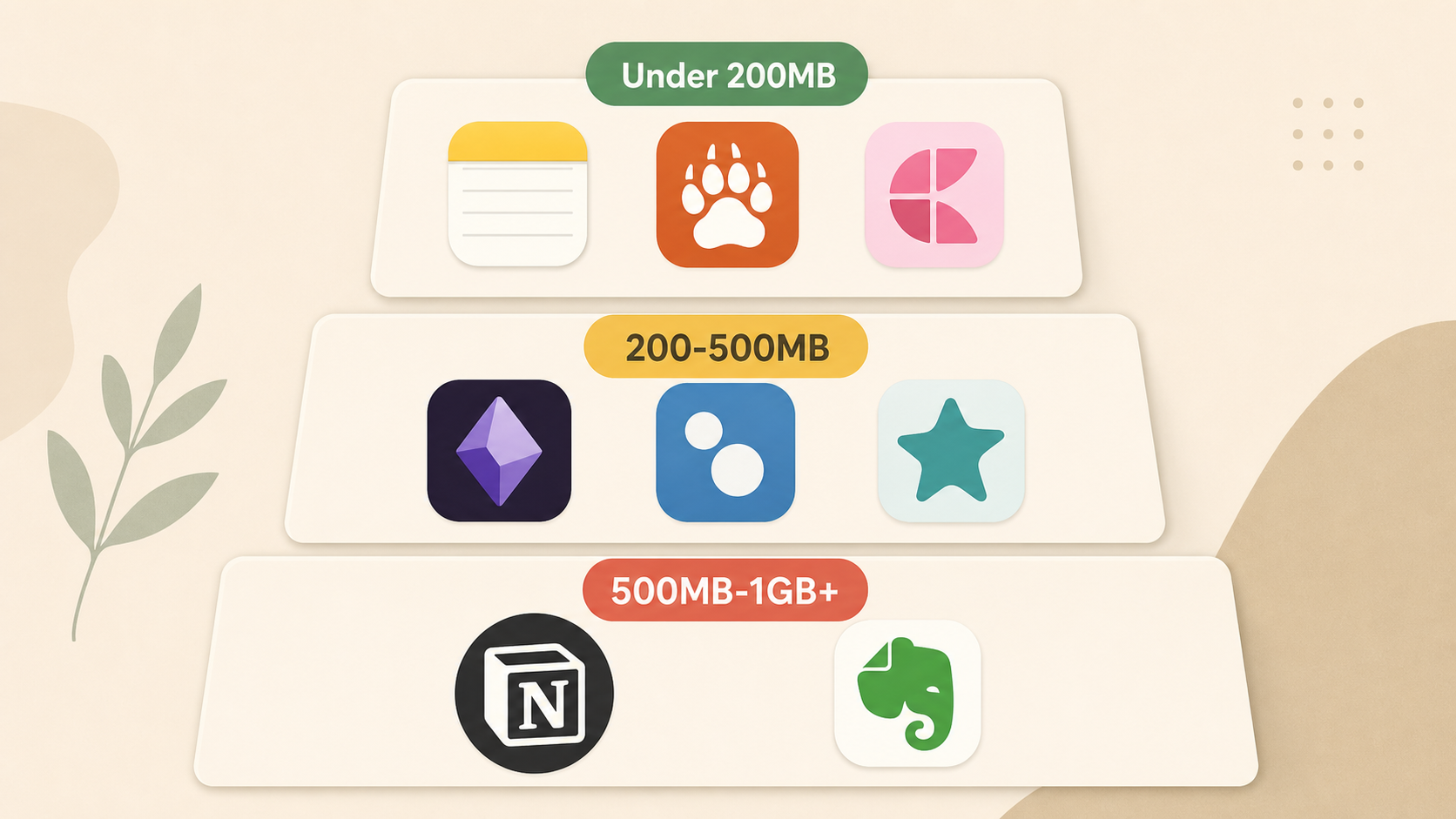
Based on idle RAM usage and app architecture, the eight apps we tested sort into three tiers. The dividing lines are not arbitrary: they correspond to the difference between native Swift/SwiftUI apps, lightweight Electron apps with minimal plugins, and heavy Electron apps that load substantial web-based workspaces.
| Tier | RAM Range | Architecture | Apps | Battery Impact (8GB Mac) |
|---|---|---|---|---|
| Lightweight | < 200 MB | Native Apple Silicon | Apple Notes, Bear, Craft | Negligible |
| Medium | 200 – 500 MB | Electron (lightweight) | Obsidian, Logseq, Reflect | Moderate |
| Heavy | 500 MB – 1 GB+ | Electron (full workspace) | Notion, Evernote | Measurable drain |
The following sections break down each tier with the specific benchmark numbers and explain what they mean for your daily workflow.
Lightweight Tier (< 200 MB): Apple Notes, Bear, Craft
These three apps are built natively for Apple Silicon. They launch in under a second, sip RAM, and have no measurable impact on battery life even on an 8GB MacBook Air. If your priority is speed and efficiency — getting a note down and getting out — this is your tier.
Apple Notes: 0.3 seconds, 142 MB idle
Apple Notes is the fastest way to start typing on a Mac. It launches in 0.3 seconds and idles at 142MB of RAM. Because it is a system-level app, it benefits from deep macOS integration: quick notes via the menu bar icon, inline text formatting, table support, and iCloud sync that works without any setup. It does not support Markdown, backlinks, or plugins. For users who need quick capture, grocery lists, and meeting notes that sync to an iPhone, Apple Notes is the most resource-efficient choice available.
Bear: 0.6 seconds, 84 MB idle
Bear uses only 84MB of RAM at idle — the lightest footprint of any app in this test. It launches in 0.6 seconds and offers a polished Markdown editing experience with inline image support, tag-based organization, and export to PDF, HTML, and DOCX. Bear's native Mac app feels as responsive as Apple Notes while providing a more writer-focused environment. The trade-off is that Bear's free version is limited to one device; the Bear Pro subscription ($2.99/month) unlocks cross-device sync, themes, and more export options. For writers who want a fast, distraction-free Markdown editor, Bear is the performance leader.
Craft: Native performance with a modern editor
Craft is a native Mac app that combines a block-based editor (similar to Notion) with the performance of Apple Silicon code. It stays under 200MB in idle RAM and launches quickly. Craft offers rich formatting, nested pages, and excellent iCloud sync. It is particularly strong for visual note-taking and document creation. The free version is generous, and the Pro plan ($4.99/month) adds unlimited blocks and custom domains. Craft is the best option for users who want a modern, flexible editor without the RAM overhead of an Electron app.
Medium Tier (200–500 MB): Obsidian, Logseq, Reflect
These apps use Electron, which means they bundle a full browser engine. As a result, they consume more RAM than native apps — typically 200–500MB at idle. On an 8GB MacBook Air, this is noticeable but manageable if you are not running many other memory-intensive applications. On a 16GB+ MacBook Pro, the impact is negligible. The trade-off is that these apps offer extensibility and features that native apps cannot match.
Obsidian: 1.2 seconds, 478 MB idle (plus plugin warm-up)
Obsidian is the most popular local-first knowledge management tool on Mac, and its Electron architecture shows in the numbers. It launches in 1.2 seconds and idles at 478MB of RAM. If you use plugins — and most Obsidian users do — the warm-up time and memory footprint increase further. The core app is free, and its plugin ecosystem (backlinks, graph view, daily notes, Kanban boards) is unmatched. Obsidian stores all notes as plain Markdown files on your local drive, making it fully offline and future-proof. For knowledge workers who need a personal wiki with bidirectional linking, Obsidian offers the best feature-to-performance ratio in this tier.
Logseq and Reflect: Similar architecture, similar trade-offs
Logseq is an open-source, local-first outliner that uses the same Electron foundation as Obsidian. Its RAM usage falls in the same 200–500MB range, and it offers full offline capability. Logseq is particularly strong for users who prefer a bullet-journal workflow with block-level referencing. Reflect is a newer Electron-based app that combines note-taking with a database-like structure. It offers cached offline access and AI features, but its Electron architecture means it sits in the same performance tier as Obsidian and Logseq.
Heavy Tier (500 MB – 1 GB+): Notion, Evernote
These apps are designed as full workspace platforms, not just note-takers. Their Electron clients load complex web-based interfaces, databases, and rich media, which translates directly into high RAM consumption and slower launch times. On a base-model MacBook Air, running one of these apps in the background while working in other applications creates a measurable battery drain.
Notion: 2.7 seconds, 312 MB idle (spikes to 800 MB+)
Notion is the most feature-rich note-taking app on this list, but it pays for that capability in performance. It takes 2.7 seconds to launch — the slowest of any app tested — and idles at 312MB of RAM. The real problem is the spikes: on workspaces with multiple databases, embedded content, and large pages, Notion's RAM usage can exceed 800MB. On an 8GB MacBook Air, this means Notion alone can consume 10% of total system memory. When combined with a browser, Slack, and other apps, the system begins swapping memory to the SSD, which slows everything down and drains the battery faster. On an 18GB MacBook Pro, the same workload is invisible.
Evernote: Similar footprint, different trade-offs
Evernote's Electron client places it in the same heavy tier as Notion. Its RAM usage typically falls between 500MB and 1GB, depending on notebook size and the number of attached files. Evernote offers powerful search, PDF annotation, and web clipping, but its performance on base-model Macs has been a long-standing complaint. Evernote's free plan is limited to one device and 60MB of monthly uploads, which makes it less attractive for users who want to test before committing.
Real-World Impact: 8GB vs. 18GB+ Macs
The difference between running a lightweight app and a heavy app is not the same on every Mac. The table below shows how each tier performs under a realistic workload: eight Safari tabs, Slack, and Apple Music running simultaneously.
| Scenario | M2 MacBook Air (8GB) | M3 MacBook Pro (18GB) |
|---|---|---|
| Lightweight app (Apple Notes, Bear) | No measurable battery impact; system remains responsive | No measurable impact |
| Medium app (Obsidian, Logseq) | Slight battery drain over 2 hours (~3-5%); occasional swap pressure | No measurable impact |
| Heavy app (Notion, Evernote) | Measurable battery drain (~8-12% over 2 hours); system feels sluggish when switching apps | Minimal impact; system remains responsive |
The key takeaway: if you own a base-model MacBook Air with 8GB of RAM, choosing a lightweight app is not about preference — it is about preserving system responsiveness and battery life. If you own a MacBook Pro with 16GB or more, you can run any app in this comparison without noticeable performance degradation.
Travel & Offline Reliability: Which Apps Work Without Wi-Fi?
For users who work on flights, in coffee shops with spotty Wi-Fi, or in areas with unreliable internet, offline capability is not a nice-to-have — it is a requirement. Apps handle offline access in three distinct ways.
| Offline Mode | Apps | What Works Offline | What Breaks Offline |
|---|---|---|---|
| Full offline | Apple Notes, Bear, Obsidian, Logseq | All features: create, edit, search, organize | Sync (queues until reconnected) |
| Cached offline | Notion, Craft, Evernote, Reflect | Previously opened pages and notes | New page creation, search across all notes, AI features |
| Online required | Atlas (for AI Q&A) | Basic note-taking (limited) | AI-powered search and Q&A |
For long flights or extended periods without internet, local-first apps (Apple Notes, Bear, Obsidian, Logseq) are the safest choice. They store all data locally and sync only when a connection is available. Cached-offline apps like Notion and Evernote work for reviewing existing notes but may not allow you to create new pages or search your full library. If you rely on AI features — such as Atlas's Q&A or Notion AI — those features will be unavailable offline regardless of the app.
Which Notes App Should You Choose? A Recommendation Table by Mac Model
The right app depends on two factors: your Mac model and your primary workflow. Use the table below to find your combination and the best app for it.
| Your Mac | Your Workflow | Best App | Why |
|---|---|---|---|
| MacBook Air (8GB) | Quick capture, lists, meeting notes | Apple Notes | Fastest launch (0.3s), lowest RAM (142MB), no battery impact |
| MacBook Air (8GB) | Markdown writing, tagging, export | Bear | Lightest RAM (84MB), polished Markdown, full offline |
| MacBook Air (8GB) | Visual notes, documents, blocks | Craft | Native performance, modern editor, under 200MB |
| MacBook Air (8GB) | Knowledge management, backlinks, plugins | Obsidian | Best feature set in medium tier; monitor RAM with plugins |
| MacBook Air (8GB) | Team collaboration, databases, project management | Notion (with caution) | Monitor RAM usage; close when not actively using |
| MacBook Pro (16GB+) | Any workflow | Any app | Sufficient RAM to handle heavy apps without performance loss |
The most important takeaway from this comparison is that there is no universally best note-taking app for Mac. The best app for a MacBook Pro user with 18GB of RAM who needs Notion's databases is a poor choice for a MacBook Air user with 8GB of RAM who just wants to jot down quick notes. Match the app to your hardware and your workflow, and you will get the performance you need without sacrificing battery life.