
If YouTube picture-in-picture stopped working on your Android phone around July 18, 2026, start with the boring answer: your phone may not be the problem. A PiP-breaking issue was reported across both iPhone and Android on July 18, which points to YouTube-side behavior rather than a Samsung, Pixel, OnePlus, or Xiaomi setting you personally broke.[1]
That changes the fix order. Before clearing data, reinstalling YouTube, or digging through every Android menu, check whether your symptom matches the outage: PiP fails on all videos, it started suddenly around July 18, and the normal permission toggles are already on. If that is what you are seeing, check the YouTube Help thread or current YouTube status chatter first, then use a workaround until YouTube resolves it. No local Android setting can reliably fix a server-side break.
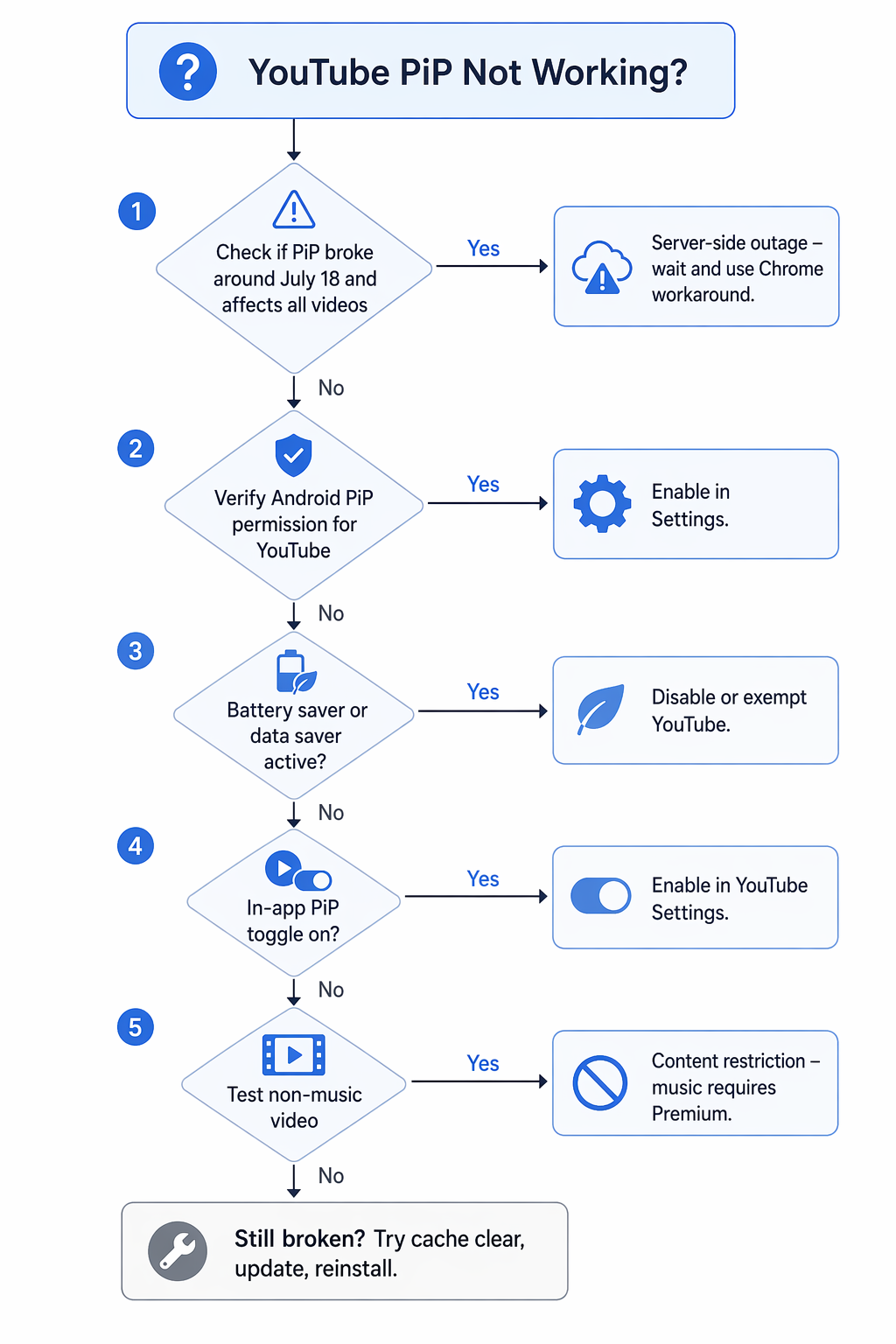
The Fast Diagnostic Path
Use this order because each step rules out a different cause. Stop when the symptom matches; there is no prize for reinstalling an app that was never the issue.
| What you see | Most likely cause | What to do first |
|---|---|---|
| PiP stopped suddenly around July 18, 2026 and fails on every video | YouTube-side outage | Check YouTube Help/status reports; wait or use Chrome temporarily |
| PiP does nothing when you leave the YouTube app | Android system PiP permission is off | Turn on Picture-in-picture permission for YouTube |
| PiP works sometimes, then disappears when the phone is low on battery or saving data | Battery Saver or Data Saver interference | Disable the saver mode or exempt YouTube |
| Android permission is on, but YouTube still exits instead of floating | YouTube’s in-app PiP toggle is off | Enable Picture-in-picture inside YouTube settings |
| PiP works on long videos but not music videos, Art Tracks, or song covers | YouTube content restriction | Use a non-music video, Premium, or a browser workaround |
First: Rule Out the July 2026 YouTube Outage
The July 18 report matters because it describes PiP breaking on iPhone and Android at the same time.[1] When the same feature fails across mobile platforms, the cleanest explanation is not that millions of users all misconfigured their phones in the same afternoon. It is that YouTube changed or broke something outside the device.
Treat this as the outage path if three things are true: the failure started around July 18, PiP fails for both music and non-music videos, and your Android PiP permission was already enabled. In that case, do not factory reset, do not wipe your phone, and do not spend an hour changing unrelated display settings. Your useful choices are to wait, watch normally inside the app, or use the Chrome workaround described later.
If your PiP broke before that date, only fails on certain videos, or started right after an app update or Android update, keep going. Those symptoms still fit phone-side settings or YouTube account behavior.
Check Android’s Picture-in-Picture Permission for YouTube
Android has its own PiP permission, separate from YouTube’s in-app setting. YouTube’s help page directs Android users to enable picture-in-picture both at the device level and in YouTube’s settings, which is why checking only one menu can leave the problem half-fixed.[2]
- Open Settings on your Android phone.
- Go to Apps or Applications.
- Choose YouTube.
- Open Picture-in-picture, Appear on top, or Special app access, depending on your phone.
- Turn on Allow picture-in-picture for YouTube.
On Pixel phones, this is usually under Settings > Apps > Special app access > Picture-in-picture. On Samsung phones, the menu may appear under Apps > Special access or inside the YouTube app info page. Xiaomi, OnePlus, and other Android skins often rename the same control, but the useful search term inside Settings is still “picture-in-picture.”
This is one of the easiest settings to miss after an app update or OS update because the phone does not always announce that a permission has changed. If the toggle was off and PiP works after turning it back on, you can stop here.
Turn Off Battery Saver and Data Saver Before Blaming YouTube
Battery Saver and Data Saver are designed to limit background activity. PiP sits in an awkward place: it looks like a small video window, but it depends on the app continuing to behave while you leave the main screen. Troubleshooting guides commonly flag power-saving and data-saving modes as causes of PiP failure, and this is a practical check because it takes seconds and is reversible.[3][4]
First, turn off Battery Saver or Power Saving mode entirely and test YouTube PiP again. If that fixes it, you can either leave the mode off while watching or look for a per-app battery setting that lets YouTube run without aggressive restriction.
- Pixel: Settings > Battery > Battery Saver, then turn it off.
- Samsung: Settings > Battery > Power saving, then turn it off or exclude YouTube from sleeping app restrictions.
- OnePlus and Xiaomi: look for Battery, App battery management, Battery optimization, or Background activity controls.
Then check Data Saver. On many Android phones, Data Saver can stop apps from using mobile data in the background unless you explicitly allow them. If PiP fails only away from Wi-Fi, or only when you are commuting, this check deserves attention.
- Open Settings > Network & internet, Connections, or Mobile network.
- Open Data Saver or Data usage.
- Turn Data Saver off, or allow YouTube to use unrestricted data.
- Test PiP again with a normal non-music YouTube video.
If PiP starts working only after these saver modes are disabled, you have found a device policy conflict, not a broken YouTube installation.
Confirm YouTube’s Own PiP Toggle
YouTube also has an in-app picture-in-picture switch. The official path is inside the YouTube app under your profile, then Settings, then General, where Picture-in-picture can be turned on or off.[2]
- Open the YouTube app.
- Tap your profile picture.
- Go to Settings > General.
- Turn on Picture-in-picture.
- Play a non-music video, then swipe up or press Home to leave the app.
Use a regular longform non-music video for this test. If you test with a music video, you may accidentally test YouTube’s content rules instead of the setting you are trying to verify.
Test a Non-Music Video Before Calling It a Bug
This is where a lot of false fixes start. YouTube expanded free PiP availability globally in April 2026, but the most careful reading is still narrower than “PiP works for every video now.” Reports of the rollout described free PiP for longform non-music content, while YouTube’s own Help page says music content in PiP is available only to YouTube Premium members.[2][5]
So run a clean content test: open a long documentary, tutorial, lecture, review, or other non-music video and leave the YouTube app. If PiP works there but fails on music videos, Art Tracks, or song covers, Android is not broken. YouTube is enforcing a content boundary.
The April rollout also does not mean every account saw the change at the exact same moment. If you are not a Premium subscriber and PiP is inconsistent on eligible longform videos, keep the rollout uncertainty in mind before making drastic device changes.
If Settings Are Correct, Clear Cache or Update YouTube
Once the outage, Android permission, saver modes, YouTube toggle, and content type are ruled out, then app maintenance makes sense. Clearing cache is the least disruptive option because it removes temporary app state without deleting the whole installation; wikiHow documents this as a common PiP troubleshooting step.[3]
- Open Settings > Apps > YouTube.
- Tap Storage or Storage & cache.
- Tap Clear cache.
- Reopen YouTube and test PiP with a non-music video.
If that fails, update YouTube from the Play Store. If the app is already current, restart the phone once after the cache clear. A restart is useful here because you have already checked the higher-value causes; it should not be the first thing you try when there is an active platform issue.
Use Chrome When You Need PiP Immediately
Chrome is not the elegant fix, but it is often the fastest escape hatch. Opening YouTube in Chrome’s mobile site can bypass the app path that is currently failing, and troubleshooting guides commonly suggest browser playback when the app’s PiP behavior is blocked or unreliable.[3][4]
- Open Chrome on Android.
- Go to youtube.com.
- Start the video you need.
- Try leaving Chrome with the Home gesture or button.
- If needed, open Chrome’s menu and request the desktop site, then test again.
Use this when you need a lecture, recipe, workout, or commute video to keep floating today. It does not prove the YouTube app is fixed; it only gives you a working route around the app while the real cause is still unresolved.
When Reinstalling YouTube Is Worth It
Reinstalling is reasonable after the reversible checks fail. It can clear a damaged app install or bad local state that cache clearing did not remove. It should come after the settings work, not before it, because reinstalling cannot fix a YouTube-side outage or a Premium-only content restriction.
- Uninstall YouTube updates or uninstall the app where your phone allows it.
- Install or update YouTube again from the Play Store.
- Recheck Android’s PiP permission, because reinstalling or updating can change app permissions.
- Recheck YouTube Settings > General > Picture-in-picture.
- Test with a non-music video.
If You Recently Updated Android
Recent Android versions changed parts of the PiP experience, but they are secondary explanations for most YouTube users. Android’s developer documentation describes PiP behavior and notes newer platform support such as smoother transitions and resizing behavior; Android 15 added more flexible PiP resizing with pinch-to-resize.[6]
Android 16 is a narrower edge case. A developer report describes predictive back gesture behavior interfering with PiP entry during Android 16 migration, but that is not the same as broad evidence that every Android 16 user has a YouTube PiP bug.[7] If PiP stopped right after an Android 16 update and the normal YouTube and Android settings are correct, test whether using the Home gesture instead of Back changes the result.
If Home triggers PiP but Back does not, you have a gesture-path problem rather than a general PiP failure. Keep YouTube updated, check for system updates, and use the working gesture until the app or OS behavior settles.
The Fix Depends on What You Ruled Out
For the current July 2026 wave, the most important fix may be not touching the phone at all. If your symptoms match the reported outage, wait for YouTube and use Chrome if you need PiP immediately. If they do not, the highest-value Android checks are still simple: system PiP permission, Battery Saver, Data Saver, YouTube’s in-app toggle, and the type of video you are testing.
Only after those checks should cache clearing, app updates, reinstalling, or Android-version quirks enter the picture. Diagnose in that order and you avoid the usual trap: treating a server-side outage, a reset permission, or a music-content restriction like a broken phone.
References
- YouTube picture-in-picture (PiP) mode is broken on iPhone, Android, 9to5Google, July 18, 2026
- Using picture-in-picture on your mobile device, YouTube Help
- YouTube Picture-in-Picture Not Working, wikiHow
- Picture in Picture Not Working, Tenorshare
- YouTube free PiP rolling out globally, 9to5Google, April 29, 2026
- Picture-in-picture support, Android Developers
- Migrating to Android 16: Why Your Picture-in-Picture Might Break and How to Fix It, Medium
Comments
Join the discussion with an anonymous comment.