
You are abroad, your Verizon phone says SOS or SOS only, and you need regular service back now. Start with this order. Do not skip straight to resets, SIM deletion, or plan changes until these checks are done.
- Turn Airplane Mode on, wait 30 seconds, then turn it off. Give the phone another minute to register on a local partner network.
- Turn Data Roaming on. This is one of the most common reasons a Verizon phone has no usable cellular service after landing abroad; Apple and Verizon both point travelers to roaming settings when cellular service is not connecting internationally. [1][2]
- Confirm TravelPass or another international option is active on that Verizon line. If needed, Verizon says TravelPass can be added by texting TRAVEL to 4004. [3]
- Manually select a local network instead of leaving the phone on Automatic. Verizon documents manual roaming carrier selection as a way to choose an available roaming partner when automatic selection does not connect. [4]
- Restart the phone. If an iPhone still refuses to register, use Apple’s force-restart sequence for your model. [1]
That order matters. Airplane Mode refreshes the radio handshake. Data Roaming decides whether the phone is allowed to use a foreign carrier’s data network. TravelPass or another international feature decides whether the Verizon line is provisioned for travel. Manual network selection handles the awkward case where the phone can see a usable partner but will not choose it on its own.
Fast Fix Flow
| If you see | Try this first | What it checks |
|---|---|---|
| SOS or SOS only immediately after landing | Airplane Mode on for 30 seconds, then off | A failed registration handshake with the local network |
| Bars appear briefly, then disappear | Turn Data Roaming on | Whether cellular data is allowed while roaming |
| Calls/texts fail and data will not load | Confirm TravelPass or international service on the line | Whether Verizon has provisioned the line for international use |
| The phone keeps searching | Turn off Automatic network selection and pick a local carrier | Whether automatic partner selection chose the wrong network or no network |
| Settings look right but SOS remains | Restart or force restart | Whether the phone needs a clean network registration attempt |
If you are on weak airport Wi-Fi, do the settings changes before opening carrier apps. A phone can often recover its cellular connection faster than the My Verizon app can load in an arrivals hall.
iPhone: the exact settings to check
On iPhone, SOS in the status bar means the phone is not connected to your cellular network for normal service, though emergency calls may still be possible depending on location and available networks. Apple’s SOS guidance points users toward checking cellular settings, coverage, carrier settings, restarting, and contacting the carrier when service does not return. [1]
- Open Settings, turn Airplane Mode on, wait 30 seconds, then turn it off.
- Go to Settings > Cellular > Cellular Data Options, then turn Data Roaming on.
- Go back to Settings > Cellular > Network Selection. Turn Automatic off, wait for local networks to appear, then choose one. If the first carrier fails, try another listed network.
- If the phone still shows SOS, restart it normally.
- If a normal restart does not work, force restart: on iPhone 8 or later, press Volume Up, press Volume Down, then hold the side button until the Apple logo appears. For iPhone 7, hold Volume Down and the side button. Apple documents model-specific force-restart steps in its SOS troubleshooting guidance. [1]
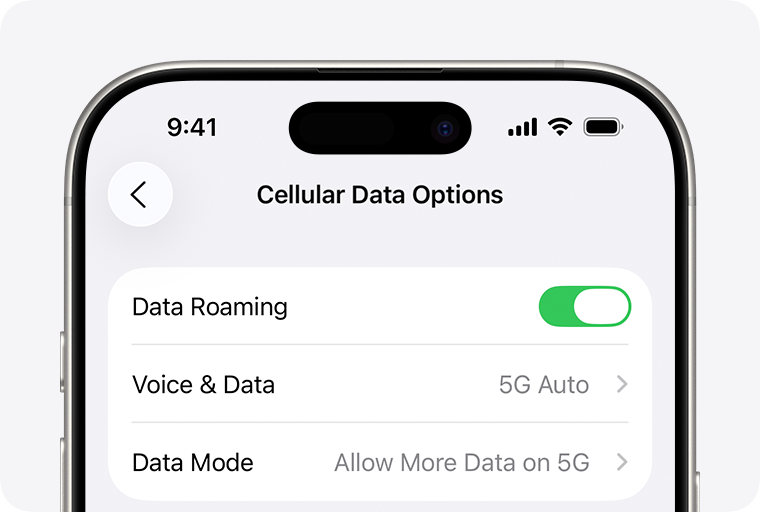
The Data Roaming switch is the one to check before blaming the SIM, the eSIM, or the destination country. If it is off, the phone may still know it has a Verizon line, but it will not use mobile data on the foreign partner network.
Manual network selection is the next useful lever because it changes the partner carrier the phone is trying to use. Verizon’s own instructions for manually selecting a roaming carrier tell users to turn off automatic selection and choose from available networks. [4]
Android: use the same order, but expect different menu names
Android is messier because Samsung, Pixel, Motorola, and other phones do not label every network menu the same way. The fix sequence is still the same: refresh the radio, allow roaming, confirm the line is provisioned, then manually choose a network.
- Swipe down and turn Airplane Mode on. Wait 30 seconds, then turn it off.
- Open Settings > Network & internet or Connections > Mobile network.
- Turn Data Roaming on. On some phones this appears as Roaming, International roaming, or Data roaming.
- Look for Network operators, Carrier, or Choose network. Turn off Select automatically if that option appears.
- Pick a local carrier from the list. If registration fails, wait a moment and try the next available carrier.
- Restart the phone after changing roaming or network operator settings.
If you cannot find the network selection menu, use the Settings search bar and search for “roaming,” “network operators,” or “carrier.” Do not erase an eSIM or reset all settings just because the menu is hard to find; that can make the problem worse if you are already away from home Wi-Fi and Verizon support.
Confirm TravelPass or international service on the actual line
A family plan can make this confusing. One person may have an international feature active while another line on the same account does not. Verizon says TravelPass can be added before travel or while traveling, including by texting TRAVEL to 4004 from the phone that needs it. [3]
If you have enough Wi-Fi to sign in, open My Verizon and check the specific line that is stuck in SOS. Look for international plan status, travel plan enrollment, or any account block that prevents international roaming. If texting works but data does not, send TRAVEL to 4004 and wait for Verizon’s confirmation before continuing to change settings.
This is also where prepaid, business, and managed lines can behave differently. A phone can be perfectly healthy and still fail abroad if the account is not allowed to roam internationally.
When automatic carrier selection is the problem
Automatic network selection is convenient until it picks a partner that will not complete registration, or keeps trying the same failed choice. Manual selection is useful because it forces the phone to attempt a different roaming partner instead of waiting indefinitely.
- On iPhone: Settings > Cellular > Network Selection > turn Automatic off.
- On Android: Settings > Network & internet or Connections > Mobile network > Network operators or Carrier > turn automatic selection off.
- After selecting a carrier, wait long enough for the phone to attempt registration before choosing another one.
- If one network gives bars but no data, keep Data Roaming on and try another available network.
Verizon’s manual carrier selection guidance is the official support path for this situation, so this is not a random trick. It is the cleanest way to test whether the issue is the selected roaming partner rather than your phone. [4]
If the first fixes do not work
At this point, stop repeating Airplane Mode every ten seconds. The next job is to separate a phone-side problem from an account-side or Verizon-side problem.
Use Wi-Fi, but know the Wi-Fi Calling limit
Wi-Fi can get you into My Verizon, messaging apps, maps, email, and airline or hotel apps. Wi-Fi Calling is more limited: Verizon says Wi-Fi Calling must be activated while still in the United States and cannot be turned on for the first time while abroad. [5]
If you activated Wi-Fi Calling before leaving the U.S., connect to Wi-Fi and try calling or texting that way. If you did not activate it before departure, do not spend your airport battery hunting for that switch as the main rescue plan.
Check Verizon’s network settings troubleshooter
If you can get online, Verizon’s network settings troubleshooter can walk through carrier-side diagnostic steps. That is especially useful when your phone settings look correct but the line still will not attach to a roaming network. [6]
Contact Verizon International Support
Verizon lists International Support at +1-908-559-4899. Use Wi-Fi Calling if it was already active, another phone, a hotel phone, or a VoIP app if you have no cellular service. Ask support to check international roaming provisioning, TravelPass or travel plan status, account-level blocks, and whether there is a known roaming issue in your country. [2]
Look for outage patterns before dismantling your phone setup
Sometimes the problem is not your settings. Verizon customers reported a multi-day international roaming problem across Europe in June 2024 in Verizon’s Community forums. [7] A separate major Verizon SOS outage in the U.S. was reported on January 14, 2026. [8]
Those cases do not prove your current SOS screen is an outage. They are a reminder to check for regional reports before taking destructive steps. If several Verizon travelers around you have the same problem, or Verizon support confirms a roaming incident, changing SIM profiles and resetting the phone will not bring the network back faster.
What not to do while stranded
- Do not delete your Verizon eSIM unless Verizon support specifically tells you to. Reinstalling an eSIM abroad can require working data, Wi-Fi, account access, and verification codes.
- Do not reset all network settings as the first move. It can erase saved Wi-Fi networks and VPN settings, which may be the only things currently keeping you connected.
- Do not assume TravelPass is active on every line just because one person on the account used it before.
- Do not keep switching settings randomly. Work in order: radio refresh, roaming, plan provisioning, manual carrier, support.
The responsible escalation is simple: get on Wi-Fi, confirm the line is allowed to roam, manually test available partner networks, contact Verizon International Support at +1-908-559-4899, and check for regional outage reports. Save destructive resets for the moment Verizon or Apple support tells you they are necessary.
References
- If you see No Service, Searching, or SOS on your iPhone or iPad, Apple Support
- International Travel FAQs, Verizon
- TravelPass FAQs, Verizon
- Manually Select a Network - International Travel, Verizon
- Wi-Fi Calling FAQs, Verizon
- Network Settings Troubleshooter, Verizon
- International roaming issues, Verizon Community
- Why is my Verizon phone stuck in SOS? How to text, call, fix, turn off SOS mode amid Verizon outage, NorthJersey.com/USA Today, January 14, 2026
Comments
Join the discussion with an anonymous comment.