
The phone usually does not fail dramatically. It just gets warm during a video call, then the screen dims. You switch to notes and the keyboard misses a beat. Maps takes an extra second to redraw. The hotspot is still connected, but the laptop page you need for the next meeting crawls. Nothing looks broken, yet the work session has already become harder to hold together.
That is the practical reason to care about overheating as a productivity problem. The goal is not to baby the device or memorize chip specifications. It is to get the phone back to stable behavior quickly enough that a normal work block can continue.
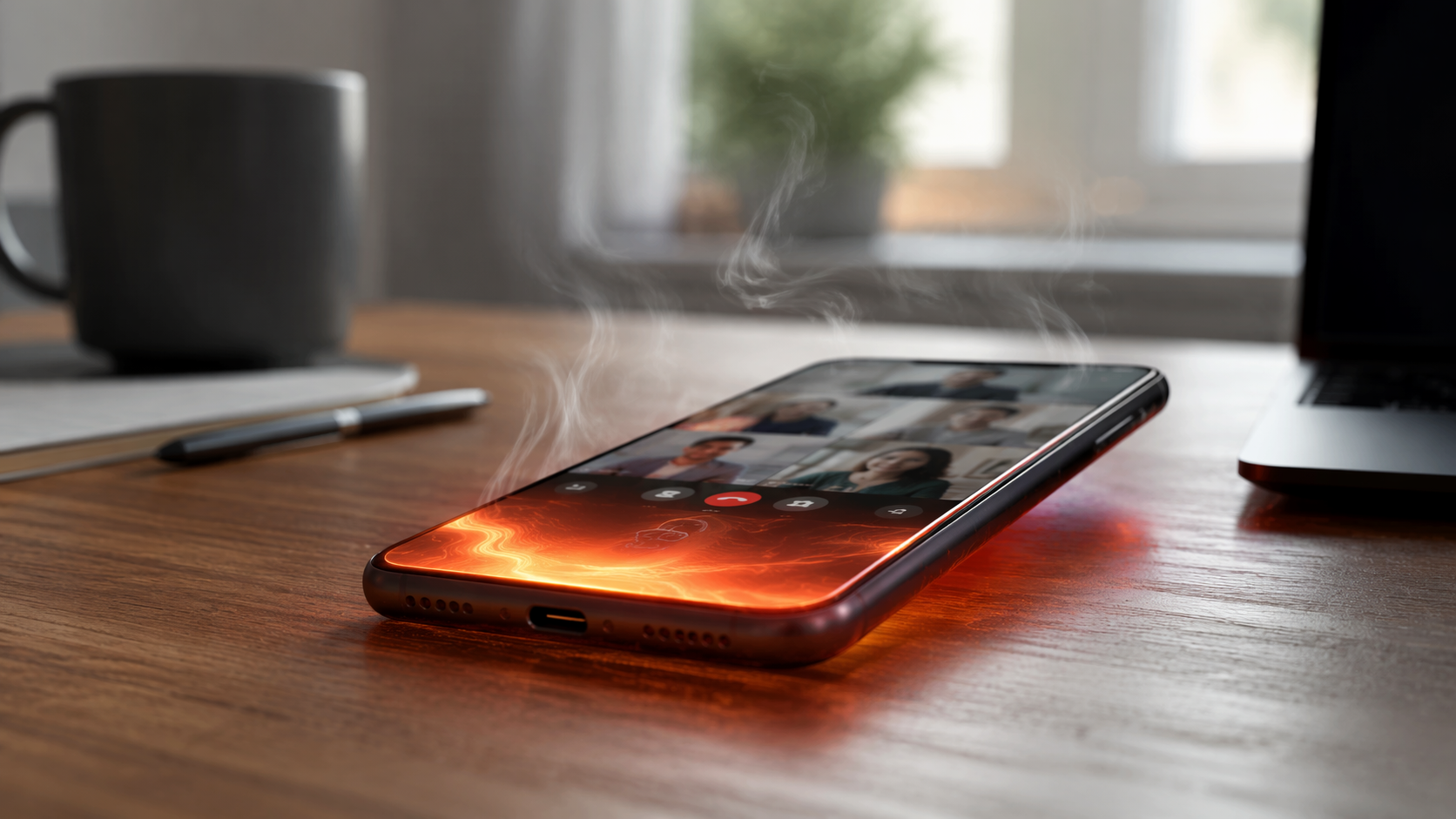
What overheating is doing to your work apps
When a phone gets too hot, it protects itself by reducing performance. This is thermal throttling: the processor, graphics unit, radios, screen, and charging system are managed more aggressively so the device can stay within safer limits. From the user side, that protection feels like lag, dimming, delayed typing, app reloads, dropped call quality, or a phone that suddenly feels much older than it did an hour ago.
One physics-based performance guide published in February 2026 puts the sustained GPU range at roughly 50–65% of burst performance and sustained CPU range at roughly 64–78% of burst once phone skin temperature reaches about 40–44°C. Those figures are not a promise about every iPhone, Galaxy, Pixel, or other model; chassis design, ambient temperature, case thickness, battery condition, and the app workload all matter. But they explain why the change can feel abrupt: the phone is not merely warm, it is deliberately backing away from peak speed. [1]
The important distinction is that throttling is not the same as permanent damage. A hot, dim, sluggish phone is often doing what it was designed to do under thermal stress. That is frustrating in the middle of work, but it also means the first fix is usually a cooling reset, not panic, replacement shopping, or a full troubleshooting spiral.
Video calls are especially good at creating this problem because they stack several heat sources at once: camera, microphone, display, network radio, image processing, speaker or Bluetooth, and often charging. Bitdefender cites thermal behavior research indicating that video chat can push phone surface temperature above 50°C, or 122°F, in about 10 minutes. That is not an abstract lab nuisance when the same call also requires notes, calendar checks, screen sharing, or a quick AI summary afterward. [2]
The 7-minute cooling sequence
If the phone is hot and work is already slowing down, treat the next few minutes like a reset routine. The order matters because the fastest gains come from removing trapped heat, stopping the heaviest workload, and reducing radios and display demand before you start changing deeper settings.
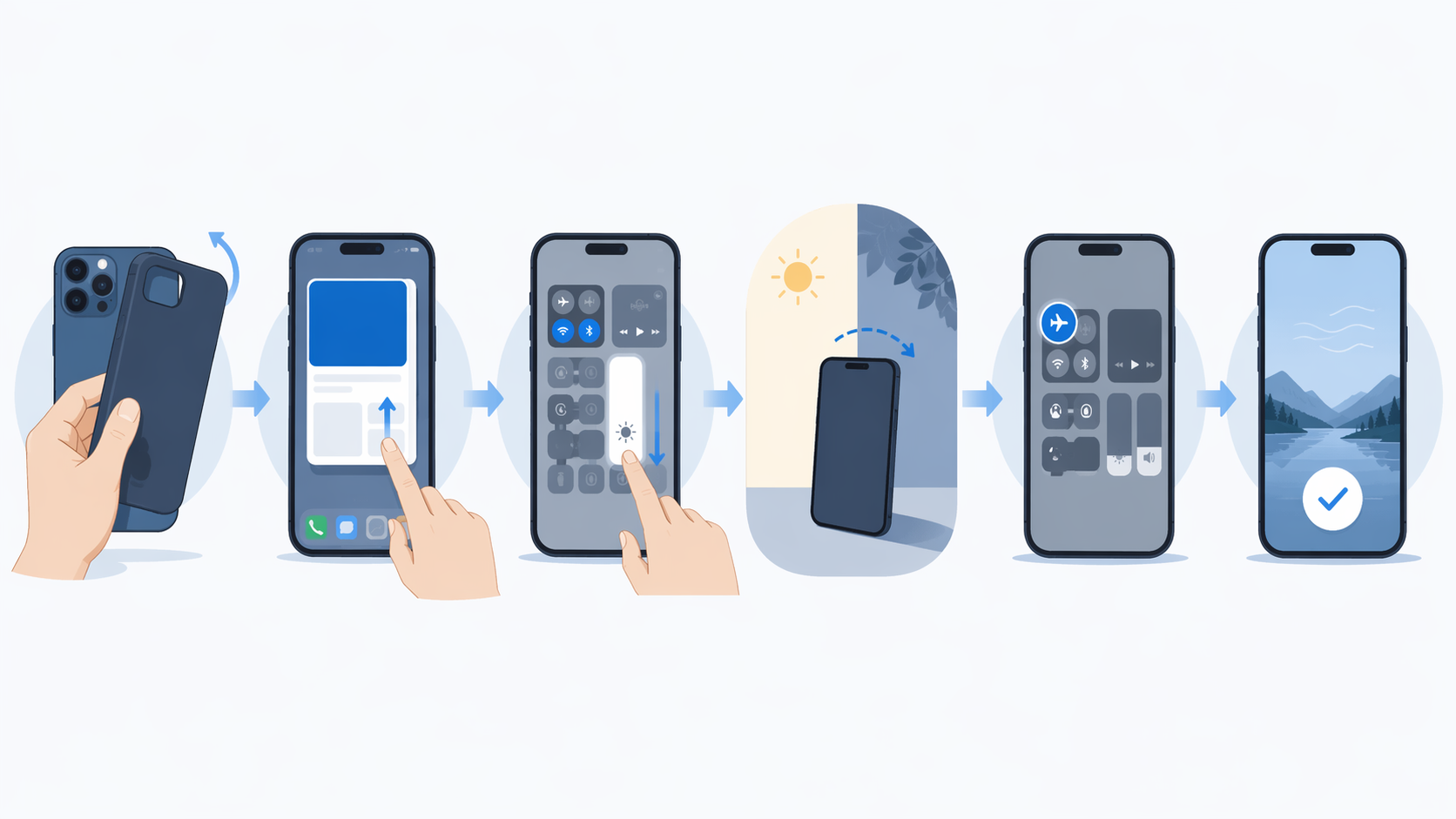
| Time | Action | Why it helps |
|---|---|---|
| 0:00–1:00 | Remove the case | A case can trap heat against the phone body, especially during calls, charging, hotspot use, or GPS. |
| 1:00–2:00 | Stop the heat-generating task if you can | End or pause video, GPS, hotspot, AI transcription, gaming, or camera use before tweaking minor settings. |
| 2:00–3:00 | Close the heaviest apps | Clear the active workload rather than swiping away every app for the sake of it. |
| 3:00–4:00 | Lower brightness and disable always-on or high-refresh display settings if available | The screen is both a heat source and one of the first features phones reduce when hot. |
| 4:00–5:00 | Move the phone into shade or a cooler indoor spot | External heat reduces the phone's room to shed its own internal heat. |
| 5:00–7:00 | Use airplane mode briefly if connectivity can pause | Turning off cellular, Wi-Fi, and Bluetooth for a short window lets radios stop adding heat. |
Start with the case because it is quick and low-risk. If the phone is in a thick protective case, wallet case, magnetic mount, or battery case, remove it and place the device on a desk, table, or other room-temperature surface. Do not put it in a refrigerator or freezer. Rapid temperature swings and condensation create a different problem than the one you are trying to solve.
Next, stop the workload that caused the heat. If the call is optional, leave and rejoin from a laptop. If GPS has finished the hard part of the route, turn off active navigation. If the phone is tethering a laptop outdoors, pause the upload or move the hotspot role to another device if one is available. This is the point where productivity advice often gets unhelpful, because the answer cannot simply be “do less.” The more useful version is: stop the single hottest task first, then keep the work session alive with the least demanding substitute.
Closing heavy apps should be targeted. A video meeting app, navigation app, camera, transcription tool, large file sync, or browser tab with a live dashboard is worth closing. Randomly clearing every background app can waste time and may force more reloads later. The useful question is which app is actively using camera, location, microphone, cellular data, or sustained processing right now.
Then drop brightness manually, even if the phone has already dimmed itself. Apple specifies the iPhone operating ambient temperature range as 0°C to 35°C, or 32°F to 95°F; above recommended conditions, iPhones may dim the display, slow or pause charging, and close apps as protective behavior. Other phone makers use similar protection patterns, even if the exact thresholds and wording differ. [3]
Moving out of sun is not filler advice. A phone already struggling to dump heat has much less margin on a dashboard, patio table, rideshare mount, or sunny windowsill. Shade does not need to be dramatic; putting the phone under a notebook, moving it away from the windshield, or setting it on an indoor table can be enough to help the reset.
Airplane mode is the optional part because it interrupts connectivity. Use it when the next two minutes do not require calls, messages, hotspot, Bluetooth audio, or live sync. If you cannot disconnect, at least turn off the specific extra load you do not need: hotspot, Bluetooth, or location. After a few minutes, bring connectivity back deliberately instead of restoring every heat source at once.
Four workday patterns that push phones into the throttle zone
Most overheating complaints during work are not mysterious. They usually come from stacked demands that are reasonable individually and punishing together.
Video calls with notes, charging, or poor signal
A plain video call is already a dense workload. Add charging, weak cellular signal, Bluetooth earbuds, and a notes app, and the phone has little spare thermal room. The first visible symptom may be display dimming, because the screen is both easy to notice and useful for thermal control. The next symptom is often call instability or slow switching when you leave the meeting app to check a document.
AI transcription and summaries after a meeting
On-device transcription, summarization, and cleanup tools can be convenient precisely because they run immediately after the conversation. That timing is also the catch: the phone may still be warm from the call. If the keyboard stutters while you correct names or the app freezes while producing a summary, cooling the phone for a few minutes may be more effective than repeatedly relaunching the same tool.
GPS navigation between meetings
Navigation combines location, mobile data, screen-on time, route recalculation, and often a warm car environment. A windshield mount can make the situation worse because it places the phone in direct sun while demanding constant screen visibility. If the phone is hot before the next appointment starts, the fix may be as simple as taking it off the mount, turning the screen off for a few minutes, and letting audio directions carry the low-risk part of the route.
Hotspot tethering outside the office
Hotspot mode is easy to underestimate because the phone may just sit there while the laptop does the visible work. In reality, the phone is acting as a modem, router, and battery-powered heat source. If it is also on 5G, in the sun, and charging from a power bank, hotspot reliability can fall at exactly the moment the laptop needs a steady connection.
Where 5G, storage, and updates change the decision
Some settings are worth changing because they reduce the odds of hitting the same heat wall again. The point is not to turn a premium phone into a minimal phone all day. It is to choose the cooler mode before a heavy work block starts.
If overheating appears mainly during hotspot use, long calls, uploads, or outdoor work, try LTE instead of 5G for that block. Product.ai estimates that switching from 5G to LTE can reduce radio power amplifier waste heat from roughly 0.6–2.5W down to lower 4G levels, leaving more thermal budget for the rest of the phone. The tradeoff is obvious: peak network speed may fall. For a stable meeting, shared document, or messaging-heavy work session, that can still be the better bargain. [1]
Storage headroom matters for a different reason. The same Product.ai guide links keeping 15–20% of storage free with avoiding NAND write amplification spikes above 4.5x that can create 50–500ms UI freeze events. That does not mean a nearly full phone is always overheating, or that clearing storage will cool a phone in the next minute. It means low storage can add its own pauses and freezes on top of thermal throttling, making the phone feel even less reliable during an already hot work session. [1]
Updates belong in the same practical category. Bitdefender, Asurion, and Samsung UK all advise keeping the operating system and apps current because software bugs and outdated apps can make the processor work harder than necessary, contributing to heat. This is not a glamorous fix, but it is one of the few that can remove a recurring heat source without changing how you work. [2][4][5]
A simple setup before the next heavy phone session
The best time to prevent throttling is before the call, drive, hotspot session, or AI cleanup starts. Five minutes of setup is usually enough.
- Update the phone OS and the apps you use for calls, notes, maps, hotspot work, and AI transcription.
- Disable unnecessary background refresh for apps that do not need live updates during the work block.
- Turn on Low Power Mode before a long video call, outdoor hotspot session, or navigation-heavy stretch.
- Keep roughly 15–20% storage free so storage-related freezes do not pile onto thermal slowdown.
- Avoid stacking video calls, hotspot, GPS, charging, and AI processing on the same phone when another device can take one of those jobs.
- Switch to LTE for work blocks where 5G heat has become a pattern and peak speed is less important than stability.
A clip-on phone cooler or other accessory can help in specialized setups, especially long gaming-style workloads or fixed desk use, but it should come after the basic routine. Most workday overheating problems are first solved by reducing the stacked load and giving the phone a few minutes to shed heat.
If the phone overheats while idle, becomes too hot to touch, shuts down repeatedly, swells, smells unusual, or keeps heating after the workload stops, stop treating it as a productivity nuisance and get it checked. But when the pattern is hot phone, dim screen, lagging apps, and a heavy work task, the first move is a short cooling reset. Overheating is usually a performance problem before it is a hardware panic.
References
- Smartphone Performance: The Complete Physics Guide, Product.ai, February 2026.
- Phone overheating guidance citing ResearchGate thermal behavior research, Bitdefender.
- Apple support documentation on iPhone operating temperature, Apple Support / AP News.
- Phone overheating troubleshooting guidance, Asurion.
- Phone overheating troubleshooting guidance, Samsung UK.
Comments
Join the discussion with an anonymous comment.