
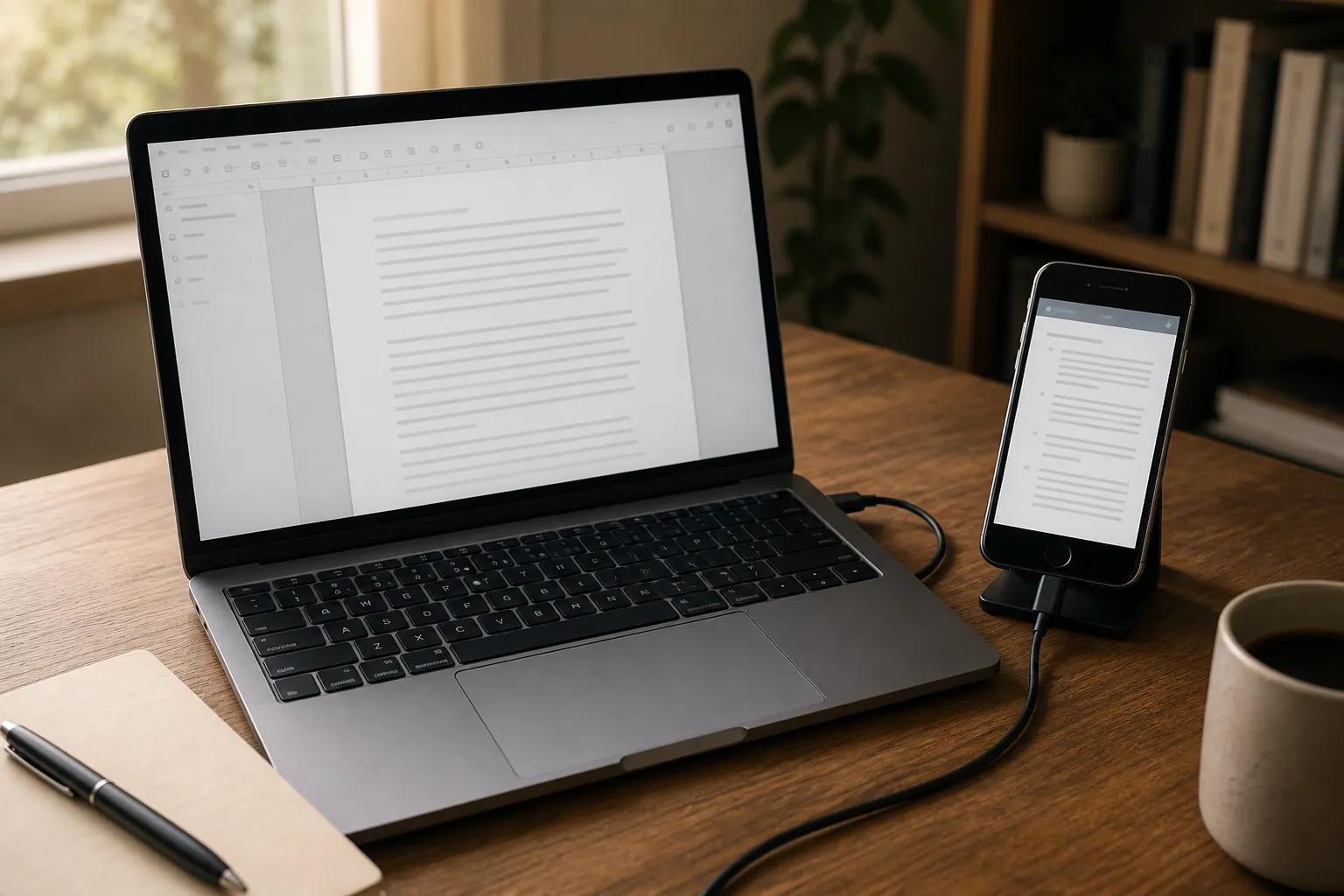
Yes, you can use an old iPhone as a second display for note-taking—but not with Apple’s built-in Sidecar feature. Apple’s documentation describes Sidecar as using an iPad to extend or mirror a Mac display, and no Apple page in the supplied documentation lists an iPhone as a Sidecar device. [1]
The most verifiable route here is a wired Duet Display connection. Duet’s App Store listing identifies support for iPhone and iPad, Mac and PC, and a USB connection, with the app listed as free with in-app purchases. [2] Its “zero lag” wording is a vendor claim, not a published latency test, so treat the setup as suitable for reading and reference while you write—not as a proven solution for lag-sensitive handwriting.
The setup at a glance
- Prepare the retired iPhone and the Mac or Windows computer you will use for writing.
- Install Duet Display on the iPhone and install its required computer component.
- Connect the iPhone directly to the computer with a USB charging cable.
- Open Duet and select the display arrangement you want.
- Move a PDF, outline, source document, or note reference onto the phone while the main document stays on the computer.
Why Sidecar is not the answer
Sidecar is tempting because it is already part of macOS, but Apple’s requirements and instructions are centered on using an iPad as the second display. The supported workflow is Mac plus iPad; the documentation does not provide an iPhone version of that arrangement. [1]
That is a narrower conclusion than saying Apple explicitly forbids an iPhone from acting as a Sidecar display. The practical consequence is the same: if the second device is an old iPhone, you need third-party software.
The wired Duet Display method
Start by checking the old phone itself. It should still power on, accept the cable, and have enough battery health for the amount of time you expect to use it. You should also check the App Store listing for the current iOS requirement before assuming that a particular retired iPhone will run the present version of Duet or any note-taking app. The supplied evidence does not establish minimum iOS versions for the relevant apps.
On the computer, install the Duet component required for the desktop operating system. On the iPhone, install Duet Display. The App Store evidence supports the combination of iPhone and iPad devices with both Mac and PC computers, as well as a wired USB setup. It does not provide a 2026 price amount or a measured performance result. [2]
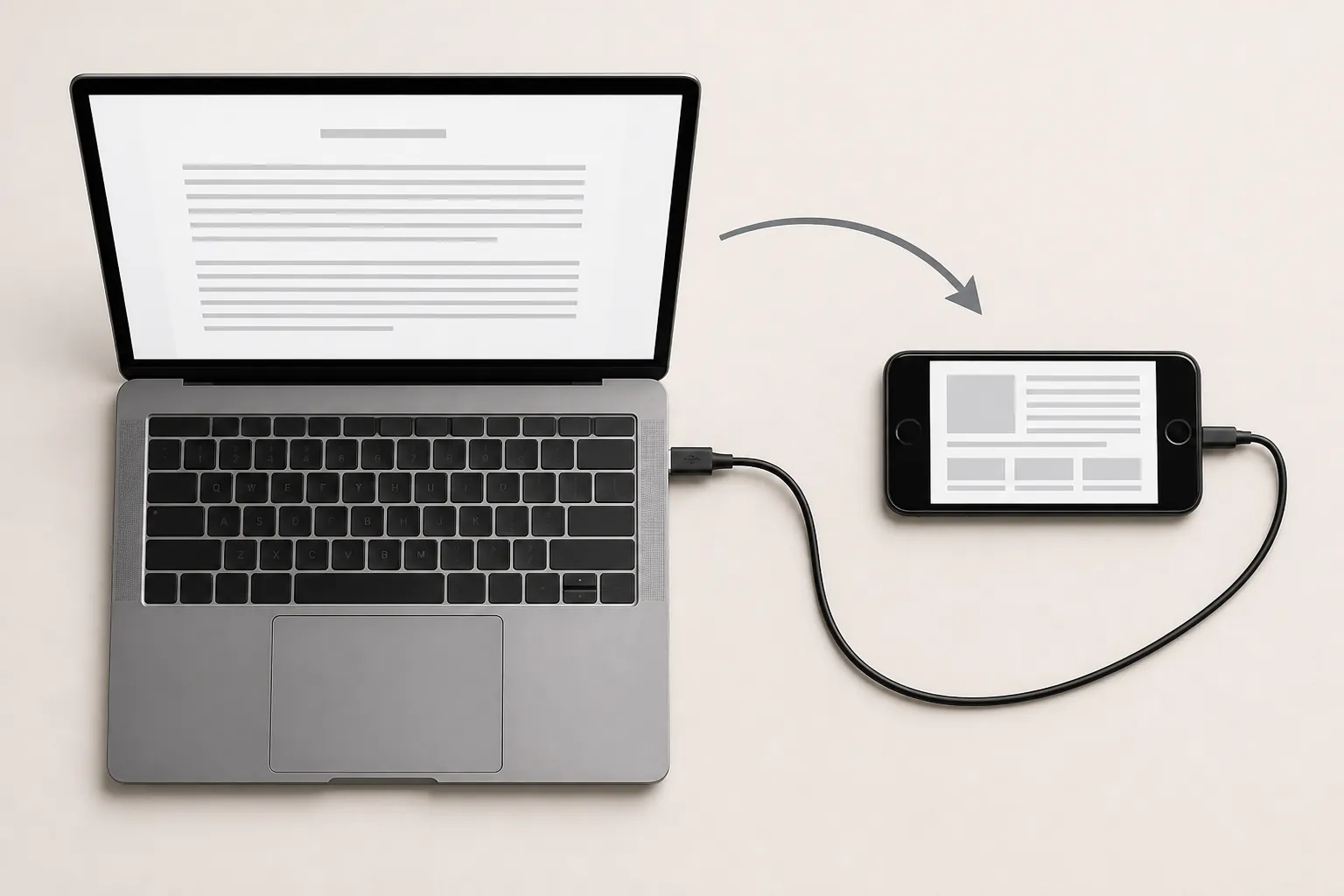
Connect the phone directly to the computer rather than routing the connection through a hub if you can avoid it. Apple’s own cable guidance for keeping an iPad connected and charged recommends connecting it directly to a Mac with the USB charge cable. That guidance does not measure display latency, but it supports a sensible starting point for a phone-based display that needs both data and power. [1]
Once Duet recognizes the phone, use the computer’s display settings or Duet’s controls to choose whether the phone extends the desktop and where it sits relative to the main screen. If the phone is physically to the right of the laptop, placing the virtual display on the right makes moving a window there less confusing. The exact labels may vary between macOS and Windows.
Then open the material you actually need. A source PDF, interview transcript, outline, checklist, or browser reference can occupy the phone while the document editor remains on the main display. This arrangement reduces repeated window switching without asking the old phone to become the center of your note-taking system.
Give the iPhone a narrow job
The phone’s small screen is most useful when its content is stable: a short outline, a few source paragraphs, a citation list, or a reference page you need to scan while composing. It is less useful as a second place to manage a large note database, because the extra display does not remove the phone’s limited viewing area or make its text-entry experience comparable to the computer’s.
Do not transfer iPad handwriting demonstrations to the iPhone. A June 30, 2026 field test examined Goodnotes and Notability as iPad-first Apple Pencil handwriting apps, along with Scribble text input in Obsidian, but its testing was performed on an iPad Air M2 and included no iPhone testing. [5] That evidence can describe the iPad context; it cannot establish current iPhone support, Apple Pencil handwriting on an iPhone, or whether a particular app offers the same view and editing controls there.
The same caution applies to Apple Notes, Evernote, and other note apps. The supplied materials do not verify the minimum iOS version for current releases or whether the iPhone side of each app will be view-only, editable, or limited in another way. Check the App Store listing on the old phone before building the workflow around a specific app.
What about Spacedesk or Air Display?
Spacedesk is relevant if the main computer is running Windows. Its listing describes extending a Windows desktop to an iPhone or iPad over Wi-Fi, USB, or LAN, and explicitly says that macOS is not verified. [3] That makes it a Windows-oriented alternative, not evidence of a comparable Mac path.
Air Display 2 is harder to evaluate. The available evidence is a third-party review published on March 17, 2014, which described use across iPhone, iPad, Android, Mac, and Windows. [4] That is too old to verify compatibility in 2026, so it should not be treated as a current recommendation without fresh confirmation.
Latency is unmeasured
There is no supplied millisecond latency benchmark for Duet, Spacedesk, or Air Display. Duet’s “zero lag” phrase therefore remains marketing language rather than a test result. The absence of a benchmark does not prove that the connection is slow, nor does it prove that it will feel immediate on a particular old phone, cable, computer, or network.
A direct USB connection is the reasonable default because it avoids depending on wireless conditions and because the documented Duet path is designed around USB. Saying that wired should be preferable to wireless is a design-based expectation, not a measured performance claim. For reading and keeping a reference visible, that uncertainty is usually manageable. For handwriting or any interaction where every pen movement must track the screen, it is a reason not to rely on the setup.
When this old-iPhone setup makes sense
Use the wired Duet route if you already have the phone, can install the required software, and mainly want a compact reference pane beside a writing document. It is the best-verified option in the supplied evidence for a Mac or Windows computer, while still being unbenchmarked.
Skip this arrangement if your goal is dependable, lag-sensitive handwriting on the iPhone itself. The evidence does not establish the latency, the iPhone note-app behavior, or an Apple Pencil workflow for that device. An old iPhone can reduce window switching; it does not turn into an iPad-sized writing surface.
References
- Use your iPad as a second display for your Mac with Sidecar — Apple Support
- Duet Display — App Store
- spacedesk (USB Display for PC) — App Store
- Air Display 2 — Schwarztech, March 17, 2014
- Best Note-Taking Apps for iPad — Atlas Workspace, June 30, 2026
Comments
Join the discussion with an anonymous comment.