
You Are Probably Already Using ML Automation Without Realizing It
Here is a number that should stop you mid-scroll: according to V7 Labs research cited by Coursera, 75% of knowledge workers now use AI tools in their daily work. But here is the catch — most of that usage is concentrated on content generation: drafting emails, writing blog posts, or generating images. Very few people have turned AI loose on the repetitive, structured workflows that eat up the other half of their day.
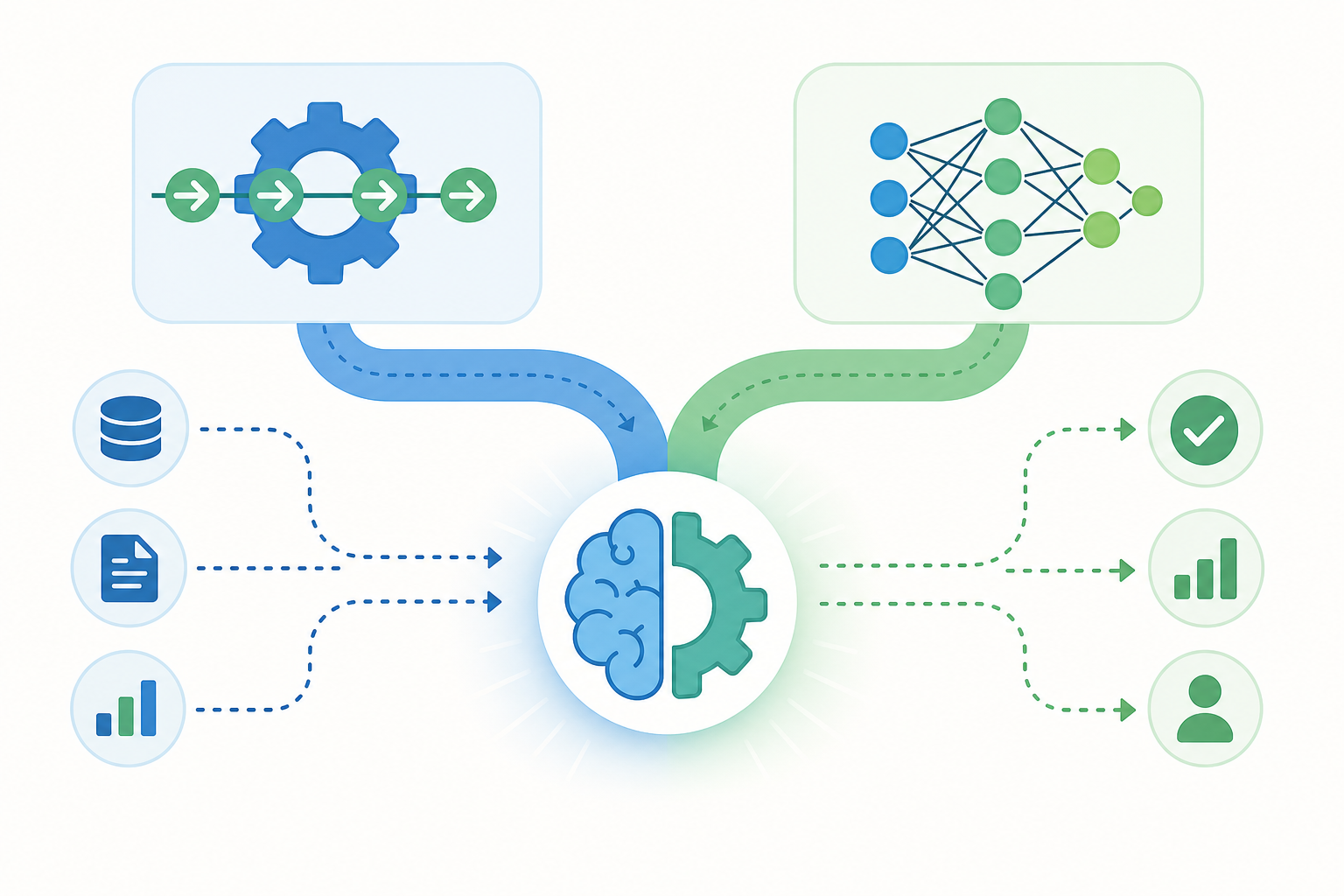
That is a missed opportunity. Machine learning for automation does not require a data science degree or a budget for custom models. The same classification, prediction, and natural language processing (NLP) capabilities that power ChatGPT and Google Search are now available as drag-and-drop steps inside the tools you already use. Zapier, Make, Microsoft Power Automate, and Google Vertex AI all offer ML-enabled modules that require nothing more than pointing at a data source and clicking "apply."
This guide walks through five specific, immediately actionable applications of ML-powered automation for knowledge workers. Each section includes the tool setup steps you need to get it running in under an hour. No code. No model training. Just smarter workflows.
Application 1: Smart Email Triage and Response Prioritization
Email remains the single largest time sink for most knowledge workers. The problem is not the volume — it is the cognitive load of deciding what needs attention now versus what can wait. ML classification solves this by reading the content and metadata of each incoming message and routing it based on urgency, topic, or sender role.
Both Zapier and Make now include native AI steps that handle text classification without any custom model training. Here is how to set up a basic email triage system in Zapier:
- Trigger: New email matching a label or sender pattern (Gmail, Outlook, or any IMAP connector).
- Action: Use the "Classify Text with AI" step. Paste the email subject line and body into the text field. Define your categories — for example: "urgent client request," "internal question," "newsletter," "meeting reminder."
- Output: Route the email based on the classification result. Urgent client requests go to a dedicated Slack channel and get a high-priority label in Gmail. Newsletters get archived automatically. Meeting reminders get added to your calendar as an event.
The beauty of this approach is that the ML model improves as you feed it more examples. If the system misclassifies a message, you can adjust the category definitions or add example emails to the training pool. Over a few weeks, the accuracy climbs well above what a static rule-based filter could achieve.
For Make users, the equivalent module is the "AI / Classify Text" module under the OpenAI or AI tools section. The setup is nearly identical: define your categories, pass in the email content, and use the result in a router module to direct the message to different paths.
Application 2: Automated Document Data Extraction for Invoices, Receipts, and Reports
Manually copying data from PDF invoices, scanned receipts, or client reports is the kind of work that feels productive but is actually pure data entry. ML-powered optical character recognition (OCR) combined with classification can extract structured fields — dates, amounts, vendor names, line items — and push them directly into a spreadsheet, accounting tool, or database.
The business case is well established. According to a case study published by Factr.me, an e-commerce company implementing ML for invoice automation cut processing costs by 70%. While that example comes from a larger enterprise deployment, the same technology is available at a smaller scale through tools like Microsoft Power Automate's AI Builder and Google Vertex AI's Document AI.
Here is a practical setup using Microsoft Power Automate:
- Trigger: When a new email arrives with an attachment, or when a file is added to a OneDrive/SharePoint folder.
- Action: Use the AI Builder "Extract information from documents" model. Pre-built models exist for invoices, receipts, and identity documents. For custom documents, you can train a model on as few as five sample files.
- Output: The extracted fields (invoice number, date, total amount, vendor name) are written to a row in Excel, a record in a SharePoint list, or a line item in QuickBooks.
Google Vertex AI offers a similar capability through its Document AI platform, which the G2 review community rates at 4.3 out of 5 and describes as a "one-stop AI garage" with over 200 models. For a freelancer or small team, the pay-per-document pricing makes it viable even at low volumes.
Application 3: Predictive Scheduling — Optimize Your Calendar Using Historical Patterns
Most calendar tools treat every day as a blank slate. But your past behavior contains rich signals about when you do your best work, which meetings tend to run long, and what time of day you are most likely to reschedule. ML prediction can surface these patterns and help you build a schedule that actually fits how you work.
You do not need a custom model for this. A simple approach uses n8n (an open-source workflow automation tool) connected to a Google Sheets dataset of your past calendar events. Each row contains: start time, end time, event type (meeting, deep work, admin), and a subjective energy level rating (1–5). A basic ML model — or even a statistical threshold — can predict the optimal time blocks for each activity type.
Here is a lightweight implementation plan:
- Export your Google Calendar data to a Google Sheet (at least 3 months of history).
- In n8n, set up a weekly cron trigger that reads the sheet and runs a simple analysis: average duration by event type, most common start times, and frequency of rescheduling.
- Use the output to auto-create calendar blocks for deep work during your historically most productive hours, and suggest meeting slots during your lower-energy windows.
Even this basic pattern recognition can reduce scheduling friction significantly. The table below shows what a typical analysis might reveal:
| Event Type | Average Duration | Most Productive Window | Reschedule Rate |
|---|---|---|---|
| Deep work | 47 minutes | 9:00 AM – 11:30 AM | 12% |
| Internal meetings | 38 minutes | 1:00 PM – 3:00 PM | 8% |
| Client calls | 52 minutes | 10:00 AM – 12:00 PM | 22% |
| Admin tasks | 22 minutes | 3:30 PM – 5:00 PM | 5% |
Google Calendar's built-in "Out of Office" suggestions and focus time features are a simpler starting point if you want to test the concept before building anything. But the n8n approach gives you full control over the data and the logic.
Application 4: Intelligent Content Summarization and Research Gathering
Information overload is not a metaphor — it is a daily reality for anyone whose job involves reading reports, articles, meeting transcripts, or email threads. NLP-powered summarization can reduce a 20-page report to three bullet points or condense a 45-minute meeting recording into a single paragraph of action items.
The most accessible entry point is Zapier's AI step, which includes a "Summarize Text" action. Here is a concrete recipe:
- Trigger: When you save a new article to Pocket, bookmark a page in your browser, or add a new item to a Notion database.
- Action: Pass the article text or URL to the "Summarize Text with AI" step. Set the desired length (short, medium, long) and format (bullet points, paragraph, or key takeaways).
- Output: The summary is written back to a Notion database, added as a comment in the original document, or sent to your daily digest email.
For meeting notes, tools like Otter.ai and Fireflies.ai already include AI-generated summaries. You can connect these to Make or Zapier to automatically push the summary into your project management tool, Slack channel, or CRM record.
Application 5: Anomaly Detection in Personal and Team Workflows
Anomaly detection is the ML capability that answers the question: "Is this normal?" It is widely used in fraud detection and cybersecurity, but it is just as valuable for personal productivity and team operations. Missed deadlines, unexpected expense spikes, sudden drops in task completion rate — these are all anomalies that, if caught early, can prevent bigger problems.
A practical setup using Make and Google Sheets looks like this:
- Maintain a Google Sheet that logs a key metric daily — for example, tasks completed, hours billed, or emails sent.
- In Make, use the "Google Sheets — Watch Rows" module to trigger on new entries.
- Add a calculation step that compares the new value against a rolling 30-day average. If the value deviates by more than two standard deviations, flag it as an anomaly.
- Route the anomaly alert to a Slack message, email, or a dedicated dashboard.
This is a statistical threshold approach rather than a trained ML model, but it follows the same principle as more sophisticated anomaly detection systems. For teams, the same logic can monitor project budgets, sprint velocity, or customer support ticket volume.
The broader ML market context reinforces why this matters. The global machine learning market was valued at $55.80 billion in 2024 and is projected to reach $282.13 billion by 2030 (Grand View Research, cited by Helpware). A significant portion of that growth is driven by operational use cases — detecting what is unusual before it becomes a crisis.
What Not to Automate with ML — Limits and Failure Modes
ML-powered automation is powerful, but it is not magic. Understanding its limits is the difference between a workflow that saves you time and one that silently makes bad decisions at scale.
Here are the most common failure modes to watch for:
- Garbage in, garbage out: ML models are only as good as the data they are trained on. If your email triage model is trained on only 10 examples, it will misclassify frequently. Plan for a training period of at least 50–100 examples per category.
- Bias amplification: If your historical data contains bias (e.g., certain senders always get flagged as urgent because of who they are, not what they say), the model will learn and amplify that bias.
- Edge cases: ML models struggle with inputs that fall outside their training distribution. A completely new type of email, document format, or scheduling pattern may produce unpredictable results.
- Over-automation: Just because you can automate something does not mean you should. High-stakes decisions — contract approvals, client communications, financial transactions — need human judgment in the loop.
Before you automate any workflow with ML, ask yourself these questions:
- Do I have enough historical data to train a reliable model? (Aim for 50+ examples per category.)
- What is the cost of a wrong decision? If the answer is "lost money" or "damaged relationship," keep a human in the loop.
- Can I monitor the output easily? If the automation runs silently and you never check its work, errors will compound.
- Is the workflow stable? If the inputs change frequently (new email formats, new document types), the model will need constant retraining.
Quick-Start Checklist: Your First ML Automation in 30 Minutes
The risk with a guide like this is that you read all five applications, feel inspired, and then do nothing because the options are overwhelming. Here is a condensed checklist to go from zero to running in 30 minutes:
- Pick one workflow from the five applications above. Start with the one that causes you the most recurring frustration.
- Choose your tool. If you already use Zapier or Make, start there — both have free tiers and AI steps. If you are in the Microsoft ecosystem, Power Automate with AI Builder is the natural choice. For custom document extraction, try Google Vertex AI's Document AI.
- Set up a test trigger. Do not build the full workflow yet. Just connect the trigger (new email, new file, new calendar event) and confirm it fires correctly.
- Run a single sample through the ML step. Feed it one real input and check the output. Does the classification make sense? Is the extracted data accurate?
- Review and iterate. Adjust your category definitions, add more training examples, or switch to a different tool if the results are not good enough.
- Go live with monitoring. Turn on the automation but check its output daily for the first week. After that, reduce to weekly checks.
| Application | Best Tool to Start | Setup Time | Risk Level |
|---|---|---|---|
| Email triage | Zapier (Classify Text with AI) | 15 minutes | Low |
| Document extraction | Power Automate AI Builder | 30 minutes | Medium |
| Predictive scheduling | n8n + Google Sheets | 45 minutes | Low |
| Content summarization | Zapier (Summarize Text with AI) | 10 minutes | Low |
| Anomaly detection | Make + Google Sheets | 20 minutes | Low |
The most important rule: start small and iterate. A simple email triage system that handles 80% of your inbox correctly is infinitely more valuable than a perfect system that never gets built. The ML models will improve as you use them — your job is to take the first step.
Comments
Join the discussion with an anonymous comment.