
Checked August 29, 2026: the complete, step-by-step setup in this guide is for a supervised Android phone or Chromebook using Google Family Link. Apple Screen Time can be managed from a parent's Apple device through Family Sharing, but this guide does not verify every iPhone menu step, passcode behavior, or bypass scenario. Those coverage limits are marked rather than filled in from memory.
The practical goal is modest: configure the gaming boundary you and your child have agreed on, confirm which device it applies to, and know what the phone will do when time runs out. A control can enforce a setting. It cannot, by itself, demonstrate that the setting will reduce gaming.
The complete Android setup at a glance
- Confirm that the child is using a supervised Google Account on an Android 7+ device or Chromebook.
- Open Family Link and select the child, then reach the child's Android parental-control settings.
- Set a daily device limit and review the individual games or apps that the limit can cover.
- Protect changes with the parent's Google sign-in or Family Link Access Code.
- Test the arrangement on the actual device, including Bonus time and the locked-device behavior.
That sequence matters because the limit is attached to Google's supervised-device setup, not simply to a household promise or a game title. Before changing anything, identify which account and which phone are involved.
Before setting the limit: check the phone and account
Family Link's verified setup requires a supervised child account and an Android device running Android 7 or later. On supported devices, parental controls are reached through Digital Wellbeing & parental controls on Android 8.1 and later, or through Google > Parental controls, depending on the device and software version. The parent must sign in or use the Family Link Access Code to make protected changes. [1][2]
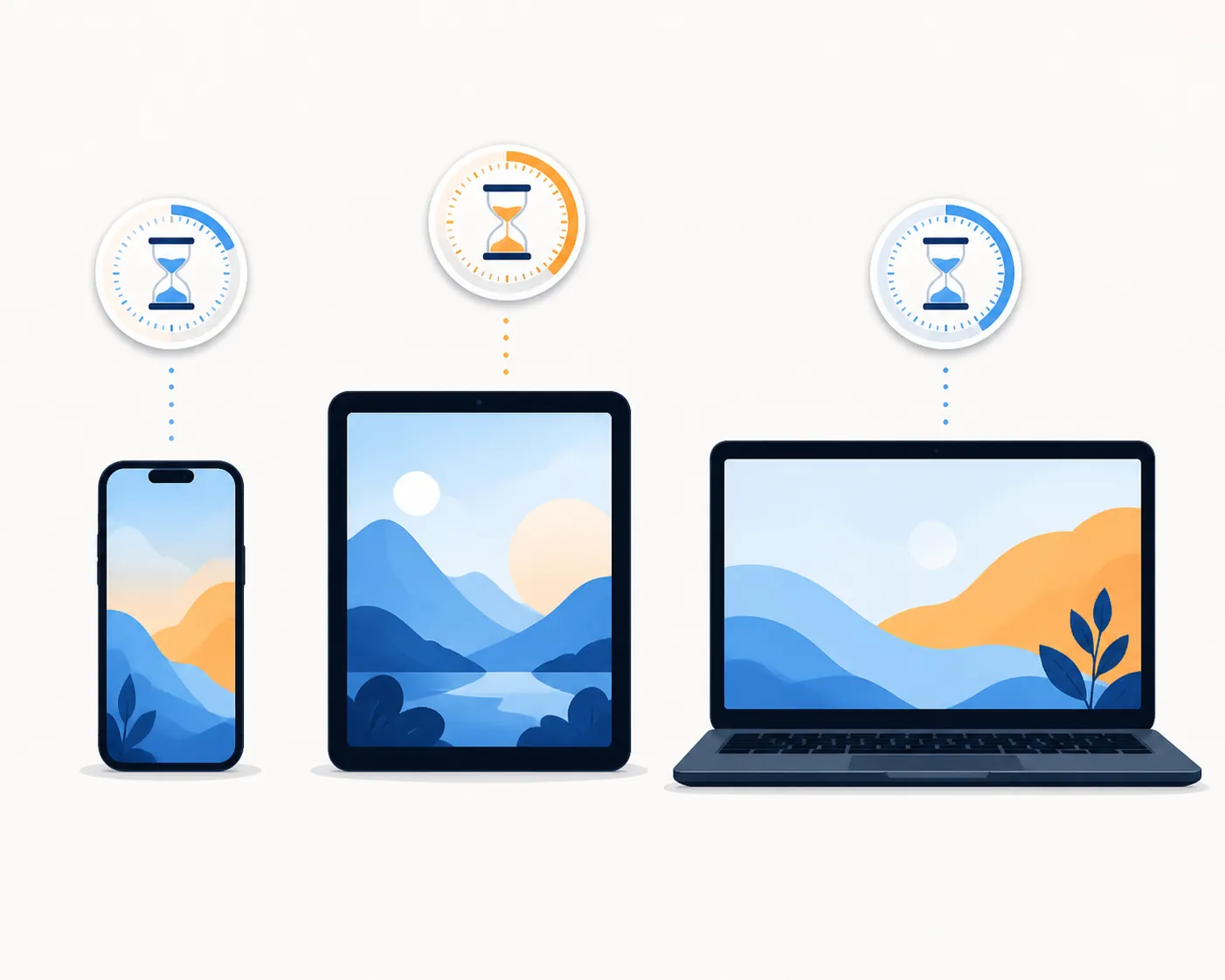
This is also where a common summer setup quietly fails: the child has more than one device. Family Link does not supervise iPhones or iPads. On Android, a daily limit applies separately to each supervised Android device or Chromebook. A two-hour setting therefore means up to two hours on each covered device, not two hours shared across the household. [1][2]
Set the daily gaming boundary in Family Link
In the parent Family Link app, select the child and open the controls for the child's Android device. From there, use the device's parental-control area to set the daily limit. On the child device, the corresponding route is Digital Wellbeing & parental controls on Android 8.1 or later, or Google > Parental controls on supported earlier versions. The exact menu label can vary with the Android version, but the relevant control is the daily device limit described in Google's Family Link documentation. [1]
If the intention is specifically to limit games, review the app-level options after setting the daily boundary. Limits cannot be placed on system apps, so the enforcement surface is not identical to “everything on the phone.” A game installed as an ordinary app can be treated differently from an app the system requires. [2]
Have the parent authentication method available before handing the phone back. Edits require the parent's sign-in or the Family Link Access Code; a child should not be able to change the rule merely because the device is in their hands. [1]
What happens when time runs out
When a supervised Android device is locked by Family Link, it hides notifications and blocks the device from being unlocked. That is the behavior to test—not just the presence of a number in the parent app. Check the phone you actually intend to manage, because a second supervised device has its own daily allowance. [2]
Family Link also documents Bonus time as a parent-controlled way to add time from the parent app. This is useful when the agreed boundary changes for a particular day, but it should be treated as an explicit edit to the rule rather than an informal promise to “just give five more minutes.” [1]
Three Android details worth testing before summer gets busy
First, test every device separately. A limit configured on one supervised Android phone does not become a shared allowance across another phone, tablet, or Chromebook. If gaming moves to another covered device, that device has its own limit; if it moves to an iPhone or iPad, Family Link is outside its supported supervision model. [1][2]
Second, do not assume that every app can be limited in the same way. System apps are excluded from app limits. The setting may therefore enforce the games you selected while leaving some built-in software outside that particular control. [2]
Third, changing the device clock is not an always-available workaround. Google's documented issue information says the clock can be changed only while limits are disabled. That is a constraint on the control itself, not a reason to promise that every possible workaround has been eliminated. [1]
After setup, use a short test: confirm the child account, check the named device, trigger or observe the limit behavior where practical, and verify that a parent sign-in or Access Code is required for an edit. This catches an account mismatch earlier than a tired 7 p.m. argument does.
What can be verified for an iPhone
Apple's verified model is different. A parent can manage a child's Screen Time from the parent's iPhone, iPad, Mac, or Vision Pro through Family Sharing. Apple documents App Limits and Downtime, and it states that App Limits and Downtime limits may be ignored when reached unless “Block apps during scheduled Downtime” is enabled. [3][4]
That establishes the management model and the important default behavior. It does not give this guide a verified basis for presenting a numbered iPhone walkthrough, asserting a particular passcode-gating sequence, or showing iOS screenshots. The official Apple instructions are the right place to continue: Use Screen Time on your iPhone and iPad and Set schedules with Screen Time on iPhone.
No independent iOS bypass or failure reports were available in the research for this article. That absence should remain an unverified area, not become a claim that Screen Time is either dependable or easy to defeat. For a parent choosing between platforms based on what can be checked from this guide, Family Link is the only fully verifiable end-to-end enforcement route in the available material.
What the evidence does—and does not—say about reduced gaming
A configured limit is evidence that a rule exists and, on a supported Android device, what the device will enforce. It is not evidence that the child will spend less time gaming overall. In the strongest available randomized controlled trial cited here, a parental-guide intervention produced no significant change in children's game time: the reported p-values were .38 for weekdays, .82 for weekends, and .27 for time restriction. [5]
A systematic review likewise describes one-size-fits-all restriction as ineffective and favors dialogue-based mediation and clear communication. That is a narrower conclusion than saying limits never help, and it does not establish that a specific Family Link configuration will produce a specific behavioral result. [6]
The summer context is also easy to overstate. A University of Iowa Children's Hospital social post refers qualitatively to increased screen time during summer, but it provides no quantitative data in the material reviewed here. It is a useful prompt to check the household routine, not a measured estimate of how much gaming your child will add. [7]
Gaming is common enough that a restriction-only framing misses part of the situation: 88% of U.S. youth ages 8–18 played video games in the cited 2009 research. [5] The workable conversation is therefore about when, where, and how gaming fits alongside sleep, schoolwork, meals, activities, and family plans—not about treating the existence of a game as the problem.
The American Academy of Pediatrics links media guidance to context-dependent balance rather than a universal set-hour threshold. Its resources on screen-time guidelines and the 5 Cs of Media Use can provide broader context, but they do not change the device-specific behavior described above. [8][9]
References
- Set up parental controls for your child — Google Support
- Set limits on your child's device use — Google Support
- Use Screen Time on your iPhone and iPad — Apple Support
- Set schedules with Screen Time on iPhone — Apple Support
- A randomized controlled trial of a parental intervention to reduce children's video game play
- One-size-fits-all restriction and children's digital media use: a systematic review — The Open Public Health Journal
- University of Iowa Children's Hospital summer screen-time post — University of Iowa Children's Hospital
- Screen Time Guidelines — American Academy of Pediatrics
- 5 Cs of Media Use — American Academy of Pediatrics
Comments
Join the discussion with an anonymous comment.