
The failure usually happens before the note exists. You unlock the phone, open the notes app, wait for the last workspace to appear, decide whether this belongs in a daily note or a project folder, tap into the wrong place, back out, and by then the thought has either thinned out or become annoying enough to abandon.
That is the real problem behind an iPhone 18 Pro note taking app workflow. The phone does not need to open your favorite app faster. It needs to create the right kind of note, in the right destination, before your attention gets pulled into choosing where the note should live.
The Action Button makes that possible only if it runs a Shortcut. If the button simply opens Apple Notes, Obsidian, Notion, Bear, Craft, or any other app, you have moved the first tap to the side of the phone and left the rest of the filing problem intact. Apple’s Shortcuts framework supports hardware and system entry points such as the Action Button, Back Tap, Control Center, and Lock Screen widgets, which is enough to treat the iPhone as a capture surface rather than a small filing cabinet.[1]
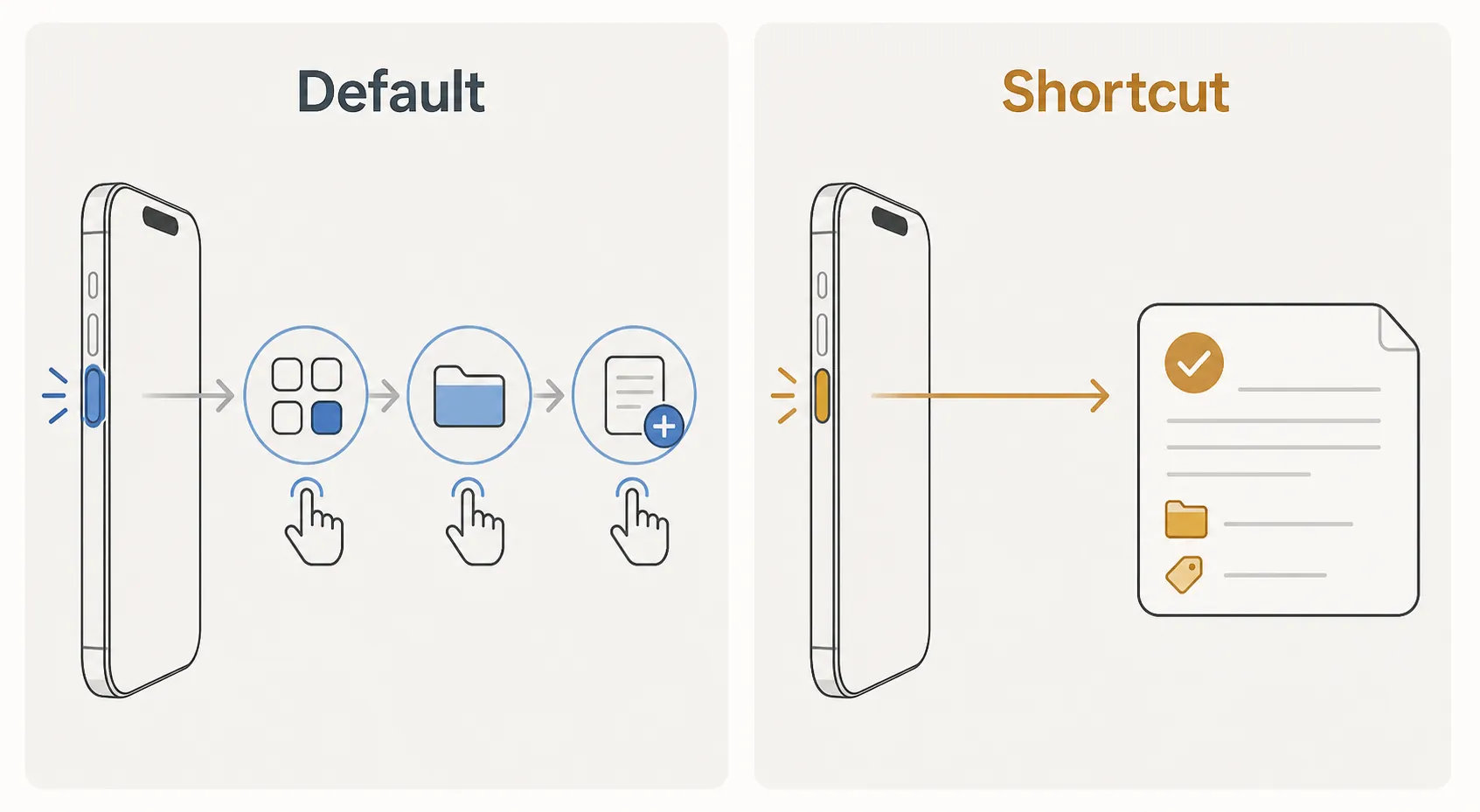
What “under one second” can mean
Under one second should mean the capture action starts in under one second: the text field appears, recording begins, the camera opens into the right scan path, or a dictated phrase is accepted into a prebuilt note action. It does not mean the note is already synced to your Mac, indexed by every app, tagged across every backend, and visible in every workspace by the time your thumb leaves the button.
That distinction matters because the iPhone 18 Pro is still pre-release as of Q3 2026. Digital Trends’ iPhone 18 series roundup reports that the Pro models are expected to keep programmable hardware controls including the Action Button and Camera Control, and to move to Apple’s A20 Pro chip on TSMC’s 2nm process, but those details come from reporting on leaks and analyst notes rather than Apple’s final shipping specifications.[2]
So the sensible target is not a laboratory claim. It is a survivable first second: one hand, locked phone if possible, no folder decision, no tag decision, no app home screen, and no cleanup pile at night.
| Capture mode | Best trigger | Shortcut must decide before capture | Where it usually breaks |
|---|---|---|---|
| Typed quick note | Action Button or Lock Screen widget | Destination folder, title pattern, optional tag | The shortcut opens an app instead of creating the note |
| Voice-to-note | Action Button, Back Tap, or Control Center | Recording length, transcription action, note destination | Transcript lands in a generic inbox with no routing |
| Photo note | Camera Control or Action Button menu | Album, note attachment destination, naming behavior | Photo is captured but the note context is missing |
| Document scan | Camera Control | Scan destination, folder, file or note naming | The first real scan asks where to save |
Build the trigger-to-action path
The clean version of this workflow has six decisions. Only two are glamorous: the physical trigger and the AI-assisted Shortcut builder. The other four are where most mobile capture systems survive or fail.
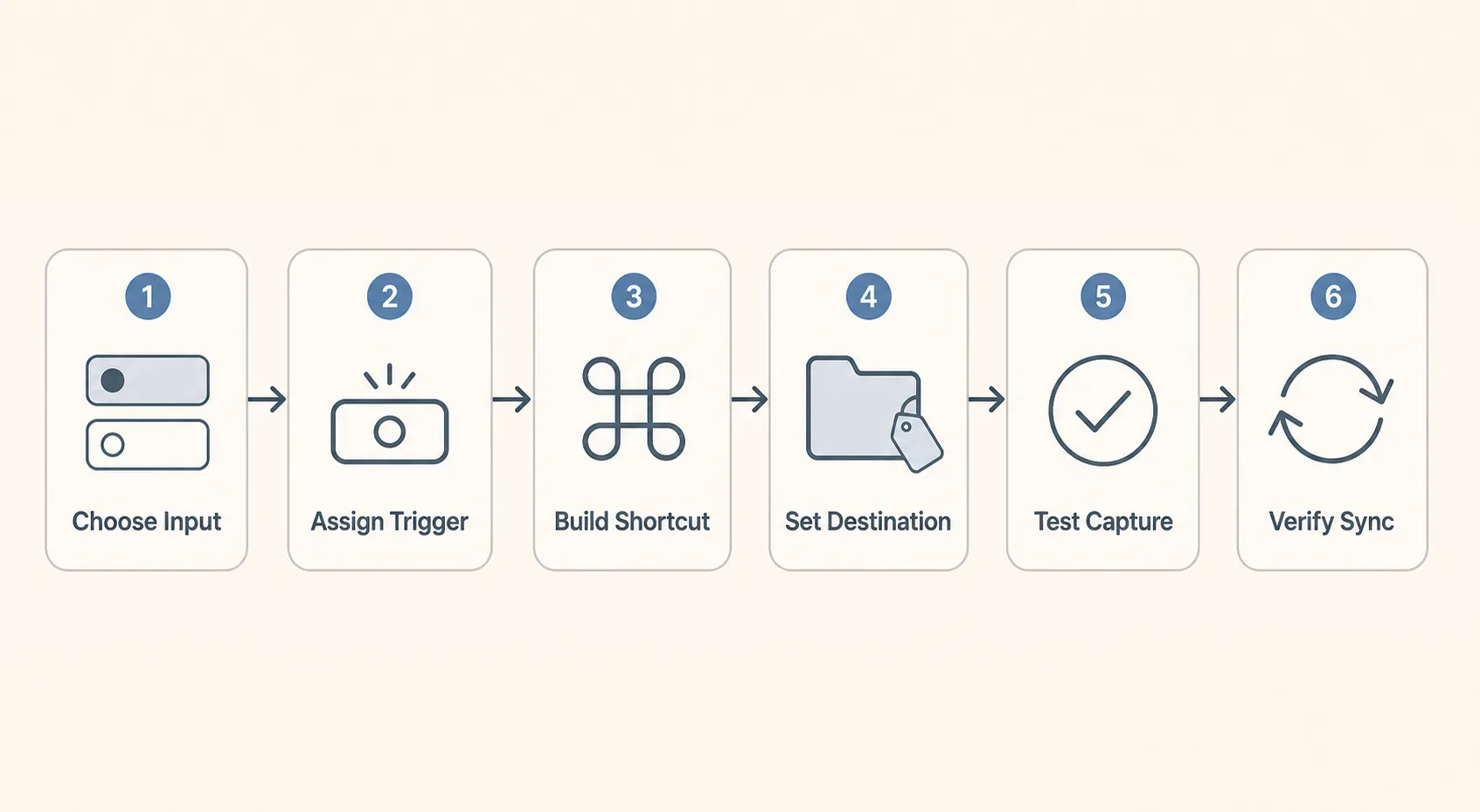
- Choose the input: typed text, voice, photo, or document scan.
- Assign the trigger: Action Button, Camera Control, Back Tap, Control Center, or Lock Screen.
- Generate or build the Shortcut: create the note, collect the input, and pass it to the destination app.
- Pre-set the destination: folder, tag, vault path, database, project, or inbox.
- Test the capture type while moving, one-handed, and from a locked or nearly locked state.
- Check sync after repeated use, not after one perfect demo.
That flow is intentionally plain. If the Shortcut cannot say where the note goes, the Action Button is only a faster way to create an inbox problem.
Use the Action Button for the note you capture most
The Action Button should not be a launcher for your notes app. It should run the one capture Shortcut you use often enough that choosing from a menu would be a tax.
For most people, that is either a typed quick note or a voice-to-note Shortcut. The typed version is simple: prompt for text, create a new note, append a timestamp or title prefix if useful, and save it into a specific folder or tag. The voice version starts recording, transcribes the audio, then creates the note with the transcript as the body. The important part is not whether the Shortcut feels clever. It is whether the final action already knows the destination.
iOS 27 should make this easier to assemble. TechCrunch reported from WWDC 2026 that Apple is adding “Describe a Shortcut,” a feature that lets users generate workflows from natural-language prompts in the new Shortcuts app.[3] A useful prompt is specific about both capture and routing: “Create a shortcut that records my voice, transcribes it, creates a new note called Capture plus today’s date, and saves it in my Research folder.”
That generated Shortcut is a scaffold, not a finished system. Check the action list before trusting it. If it ends with “Open App,” replace that with an action that creates or appends to a note. If it creates a note but leaves the folder blank, set the folder. If it asks every time which tag to use, remove the question and hard-code the tag. A capture Shortcut that asks a filing question during capture has already failed its most important job.
Give Camera Control a narrower job
Camera Control is tempting to overload because it feels like a second programmable button. For note capture, it is best treated as the visual capture path: receipts, whiteboards, book pages, handwritten notes, packaging labels, and screenshots of the physical world. Digital Trends identifies Camera Control as part of the expected iPhone 18 Pro hardware story, but the exact gesture behavior is still provisional until Apple ships the device.[2]
The trap is letting the first real scan become the setup moment. A scan Shortcut should already know whether it is creating a PDF in Apple Notes, attaching an image to a project note, saving to Files, or sending a captured page into an app-specific inbox. If the first use happens in a checkout line and the phone asks where to save the document, the workflow is not ready.
For scans, configure the destination first and test with junk paper. Confirm the file name pattern, confirm whether the note title is created from the date or from prompted text, and confirm whether the scan appears inside the note or as a separate file link. Those are not cosmetic details. They determine whether you can find the scan later without remembering the errand that produced it.
Routing is the workflow
The app destination matters only after the Shortcut has done the filing work. Apple Notes, Obsidian, Notion, Bear, Craft, and similar apps are not interchangeable capture targets because they expose different Shortcut actions, folder models, tag behaviors, and sync paths. Tool Finder’s 2026 iPhone notes app testing is useful here less as a ranking and more as a reminder that the best app for writing is not automatically the best app for hardware-triggered capture.[4]
Apple Notes is usually the easiest destination for system-level capture because it sits close to iOS and supports straightforward note creation. The tradeoff is that iCloud sync can still be its own delay, and Apple Notes folder structure can encourage broad inboxes unless the Shortcut is explicit. If the note belongs in “Research,” make the Shortcut save it there. Do not create it in a general Quick Notes pile and promise yourself you will triage later.
Obsidian is attractive if your later work happens in Markdown files. The weak point is path precision. A Shortcut-created note needs a vault target, a folder path, and a naming rule that does not collide with manually created notes. If your system uses daily notes, decide whether the capture appends to today’s note or creates a separate file in an inbox folder. Those are different workflows, and they create different cleanup obligations.
Notion can be powerful when capture belongs in a database, but that also means the Shortcut has to know the database and the minimum required properties. A “new note” that opens a Notion page without the right database fields is not much better than opening Notion manually. Bear and Craft can be pleasant capture destinations when their actions expose the folder, space, tag, or note creation behavior you need, but the same rule applies: the Shortcut must save into the later system, not merely hand you to the app.
The easiest way to choose is to start from the next place the note must be useful. If you process ideas on a Mac in Obsidian, capture to Obsidian or to a bridge location you actually review. If you search everything in Apple Notes, keep capture there and make the folder structure boring. If your team work lives in Notion, send structured items into the correct database instead of creating private scratch pages that never rejoin the project.
Voice capture is promising, with one honest caveat
Voice-to-note is where the iPhone 18 Pro could feel least like an old phone workflow. If the A20 Pro and iOS 27 transcription path behave as expected, speaking a note should be faster than typing once the thought is longer than a short phrase. The “over roughly 15 words” threshold is a practical estimate, not an iPhone 18 Pro benchmark; the hardware has not been independently tested on shipping devices yet.
The right voice Shortcut is not “record audio and save it somewhere.” It is: start recording, stop predictably, transcribe on device when available, create the note, attach or discard the audio depending on your preference, and route the transcript to the correct destination. If the transcript fails, the fallback should still save the audio file with a useful title rather than silently ending the Shortcut.
For voice, test three conditions before trusting it. First, a five-word capture while walking. Second, a longer capture where you change your mind halfway through. Third, a noisy place where transcription may be imperfect. The workflow does not need perfect prose. It needs enough text, title, and routing for the later version of you to understand why the note exists.
Test the boring failures
A capture setup deserves a stress test before it becomes muscle memory. Run the same Shortcut several times in a row. Create two notes with similar titles. Dictate one note, type one note, scan one document, then check the destination app on the iPhone and on the device where you actually process notes.
The failures that show up after repetition are the ones that matter: duplicate names, missing tags, notes saved to the wrong folder, scans detached from context, or captures that appear on the phone but not yet on the Mac. In a 2026 Mac Power Users forum workflow audit, users reported real-world issues around iCloud versus Obsidian Sync delays, naming collisions between Shortcut-created and manually created notes, and tag sync lag after multiple capture triggers in a row.[5]
The same discussion includes reports of iCloud visibility delays in the range of 15 to 90 seconds between iPhone capture and Mac availability.[5] That does not make the capture workflow bad. It means the speed claim has to stop at the phone. If your next action happens on another device, sync time is part of the workflow even when capture itself feels instant.
- If a note appears instantly on iPhone but later on Mac, label that as sync latency, not capture failure.
- If the note lands in the wrong folder, fix the Shortcut destination, not your review discipline.
- If tags arrive late or inconsistently, test whether folder routing is more reliable for your app.
- If duplicate titles collide, add a timestamp or unique prefix before the note is created.
- If the Shortcut opens the app at the end, remove that step unless you truly need immediate editing.
A practical default setup
Start with one primary capture Shortcut on the Action Button. For most iPhone-first note takers, that should be a menu with only two choices if you cannot commit to one: “Text note” and “Voice note.” Anything more than that turns the Action Button into a tiny app launcher, which is the thing this setup is trying to avoid.
The text branch should ask for input and create a note directly in the chosen destination. The voice branch should record, transcribe, and create a routed note with the transcript. Both branches should share a naming rule, such as a date-time prefix plus the first few words of the capture if the app supports it. Both should use the same folder or tag unless you have a real reason to separate them.
Then give Camera Control the visual job. Build a scan or photo-note Shortcut with the destination already assigned. If you often scan documents, make the scan path direct and boring. If you mostly capture whiteboards or physical objects, create a photo note that stores the image with a prompted caption. A photo without context is usually a future mystery.
Use Control Center, Back Tap, or a Lock Screen widget for secondary workflows. Apple’s supported trigger framework gives you several places to put Shortcuts, but not every capture action deserves the most valuable hardware button.[1] The prime trigger should belong to the note you capture when you have the least patience.
Judge the setup after the note lands
The iPhone 18 Pro’s hardware triggers can make note capture feel instant. That is meaningful. A side button that starts a transcript or creates a routed note changes the first second of behavior in a way app icons never did.
But the workflow is not proven when the note is captured. It is proven when the note lands where your later system can use it. The Action Button, Camera Control, and iOS 27’s AI-generated Shortcuts are the capture layer. Folder routing, tag behavior, naming rules, and sync latency are the part that protects you from cleaning up ten half-routed notes at night.
Build for the first second, then audit the next minute. If the note appears immediately on the iPhone but takes longer to surface on the Mac, that is still part of the workflow. Fast capture is worth having only when the captured note arrives in a place your future self will actually trust.
References
- Use Shortcuts to automate tasks on iPhone, Apple Support.
- iPhone 18 series: Everything we know so far, Digital Trends.
- Apple will let you build workflows using AI in its new Shortcuts app, TechCrunch, June 8, 2026.
- Best Notes Apps for iPhone in 2026: Tested, Tool Finder.
- Audit Our Workflow and Apps for 2026, MPU Talk.


Comments
Join the discussion with an anonymous comment.