
Last verified: August 25, 2026
The annoying part of setting up iOS 27 Lock Screen productivity widgets is not finding the Lock Screen editor. It is opening Add Widgets, searching for the note app you already use, and discovering whether the promised widget actually exists there.
Here is the short version before the step-by-step work: Obsidian and Evernote are the native Lock Screen widget cases; Apple Notes needs a URL-scheme launcher workaround; Notion, GoodNotes, and Notability do not currently document native iPhone Lock Screen widgets for notes.
| Note app | Lock Screen status as of Aug. 25, 2026 | What you can realistically set up |
|---|---|---|
| Obsidian | Native Lock Screen and Control Center widgets documented in Obsidian Mobile 1.11.0. | Create note, open note, daily note, search, open app, plus a separate “Capture to a note” Shortcut. [1] |
| Evernote | Native Lock Screen widgets documented, but the public write-up is from the iOS 16 launch era. | Recent notes, recent tasks, and quick actions for new note, new task, and scan — re-check inside Add Widgets on your iOS 27 build. [2] |
| Apple Notes | No first-party Lock Screen widget is documented in the available material. | Use a Lock Screen launcher widget with the mobilenotes://showNote?identifier=UUID URL scheme; uppercase UUID handling matters. [3] |
| Notion | Official mobile widgets are documented for the Home Screen, not the Lock Screen. | Use Page, Favorites, Recents, or AI widgets on the Home Screen instead. [4] |
| GoodNotes | QuickNote and Favorites widgets are documented for the Home Screen and desktop; Lock Screen support remains a feature request. | Use Home Screen or desktop widgets; do not waste time hunting for a hidden Lock Screen version. [5][6] |
| Notability | Widget documentation describes Home Screen and desktop widgets only. | Use the documented widgets outside the Lock Screen. [7] |
This is beta-era guidance. iOS 27 was in public beta 5 as of August 24, 2026, with general availability expected in September 2026; compatibility reporting lists iPhone 11 and later, while Apple Intelligence-dependent features require newer hardware. None of that makes a missing third-party widget appear, so the app list above matters more than the new visual controls. [8]
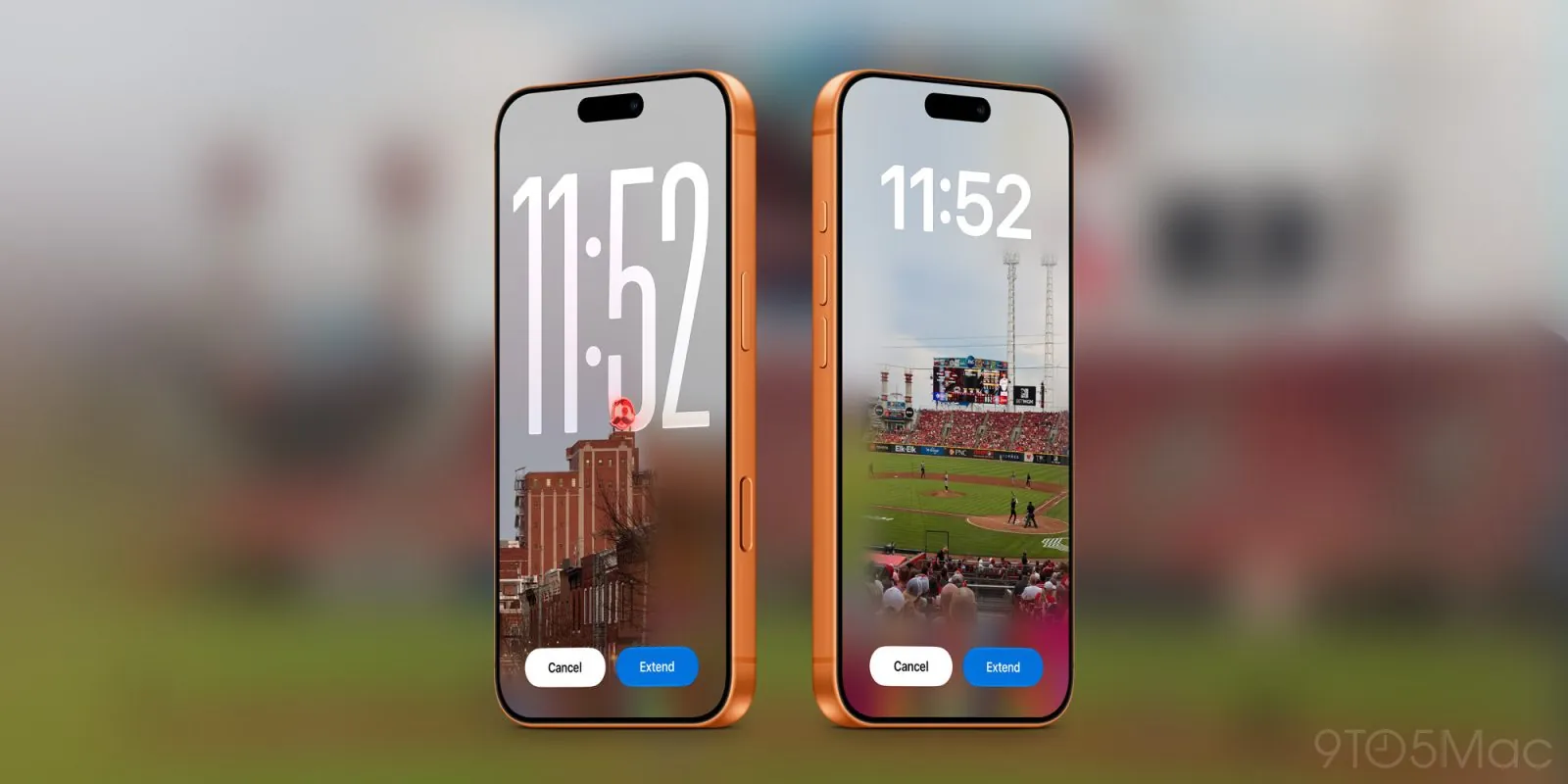
Set the Lock Screen once, then configure the note app
Use the same base flow for every app: touch and hold the Lock Screen, authenticate if needed, choose Customize, select the Lock Screen, then tap the widget area and use Add Widgets. Apple’s widget documentation also covers widget stacks, including a 10-widget stack cap and Smart Rotate within supported stacks. [9]
If you want this setup to appear only in work mode, class mode, or writing mode, link it to a Focus rather than making one crowded all-day Lock Screen. Apple’s Lock Screen guide documents creating custom Lock Screens and associating them with Focus modes, which is usually cleaner than trying to make one widget row serve every context. [10]
- Create or choose the Lock Screen you want to use for capture.
- Tap the widget area and search for your note app by name.
- If the app appears, add only the actions you would actually use while the phone is locked: new note, daily note, search, scan, recent note, or task.
- If the app does not appear, stop there. A Home Screen widget is useful, but it is not a Lock Screen widget.
- Adjust layout only after the app behavior is right. A beautiful widget that opens the wrong place is still friction.
On recent iOS versions, Apple has also allowed the Lock Screen widget frame to be moved lower on supported layouts, and iOS 27 adds more visible layout control on top of that. Treat the exact placement options as something to verify on your current beta build before you write the setup into muscle memory. [11]
Obsidian: the most complete native capture setup
Obsidian is the app here that most closely matches what a note-taking Lock Screen should do: give you several ways to enter or retrieve a note without first wandering through the app. Obsidian Mobile 1.11.0 added Lock Screen and Control Center widgets with five actions: create note, open note, daily note, search, and open app. The same changelog also added a “Capture to a note” Shortcut. [1]
- Update Obsidian on the iPhone you are using for the iOS 27 beta.
- Touch and hold the Lock Screen, tap Customize, choose the Lock Screen, then tap the widget area.
- Search for Obsidian in Add Widgets.
- Add a fast-entry widget first: Create note or Daily note.
- Add a retrieval widget only if it saves a real step: Open note for a dashboard note, Search for a large vault, or Open app if your vault structure changes too often for a fixed target.
- Lock the phone, tap each widget, and confirm that it opens the expected vault and target.
A practical Obsidian Lock Screen usually has one capture action and one retrieval action. For example, Daily note plus Search is a better pair than four different entry points that make you hesitate. If you already use an inbox note, the “Capture to a note” Shortcut is worth testing as a separate route because it can send fragments to one known destination instead of creating loose notes you will later have to clean up. [1]
For an Obsidian-heavy workflow, the Lock Screen is only the front door. If your vault is already doing project or knowledge-management work, pair this setup with a larger capture and review system rather than letting the widget become another inbox you never empty. FlowDesk’s Claude AI and Obsidian workflow guide is a useful next stop if your notes move between quick capture and longer-form processing.
Suggested Obsidian widget choices
| If your main problem is… | Start with this Obsidian action | Why |
|---|---|---|
| Capturing thoughts before they disappear | Create note or Capture to a note | Lowest decision cost at the moment of capture. |
| Keeping a work log or daily journal | Daily note | Opens the same temporal surface every day. |
| Finding older notes from the Lock Screen | Search | Better than pinning one note if your vault is broad. |
| Jumping into one dashboard or inbox | Open note | Useful only when the target note stays stable. |
| You constantly choose different vault areas | Open app | Less elegant, but more honest than a wrong shortcut. |
Evernote: native widgets, with one verification step
Evernote deserves a place in this guide because it has documented native Lock Screen widgets: eight widgets across recent notes, recent tasks, new note, new task, and scan shortcuts. The catch is that the public documentation in the research set comes from Evernote’s iOS 16 Lock Screen rollout in 2022, not a fresh iOS 27 support note. [2]
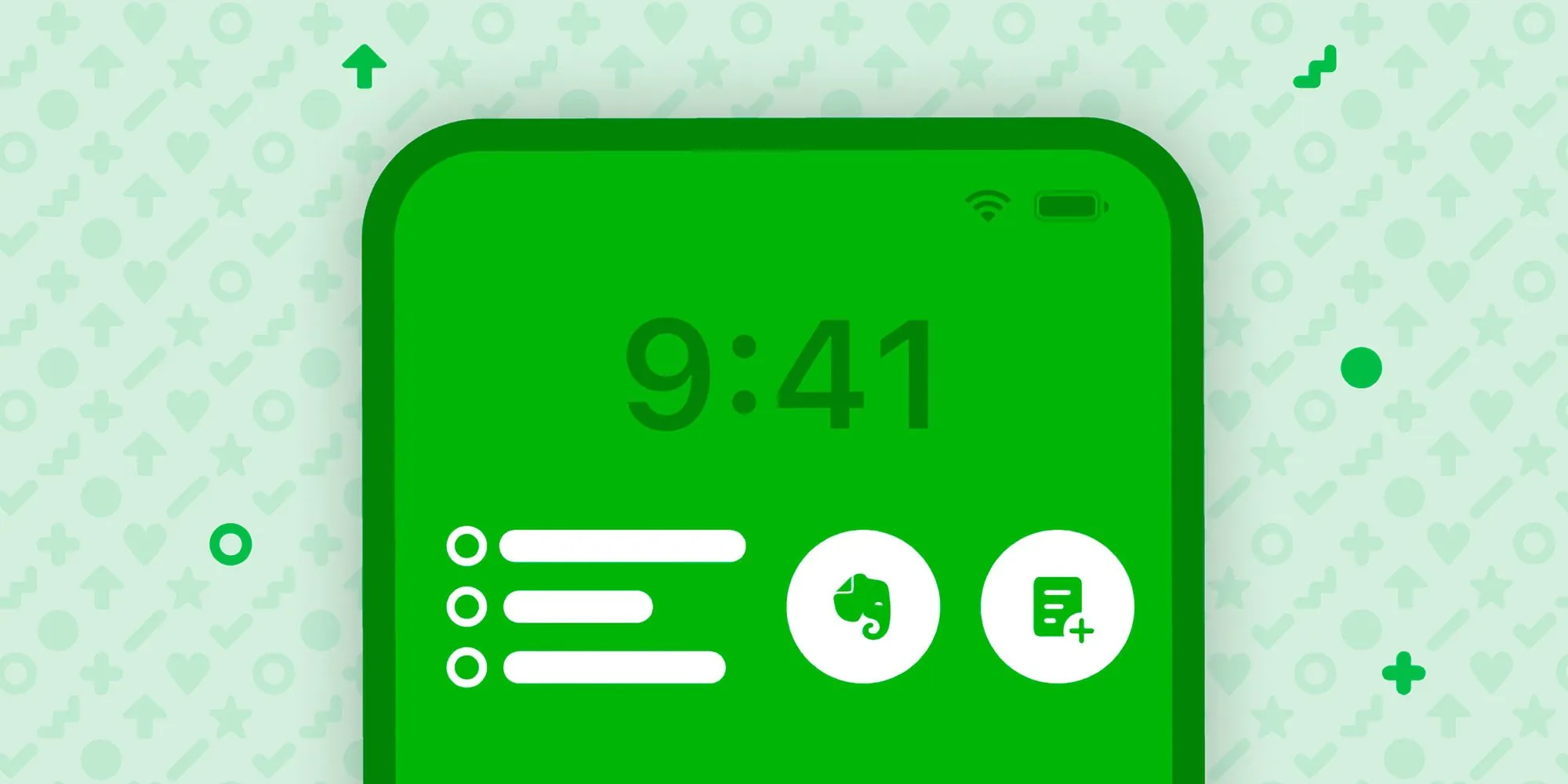
That does not make the widgets unusable. It just changes the standard of proof. On your iOS 27 beta device, search for Evernote inside Add Widgets before planning the layout around it. If the widget set appears, configure from what the editor actually shows, not from a screenshot saved from an older iOS cycle.
- Update Evernote and sign in before editing the Lock Screen.
- Open the Lock Screen editor and search for Evernote in Add Widgets.
- If available, add one creation action first: New note, New task, or Scan.
- Add Recent notes or Recent tasks only if you actually return to those items from the Lock Screen.
- Test from the locked phone and confirm the widget opens the intended Evernote surface without asking you to navigate through the app first.
The scan shortcut is the most distinct Evernote action because it points at a real-world capture case: receipts, handouts, labels, and paper fragments. If you rarely scan from your phone, do not keep it on the Lock Screen just because it looks productive. A New note or New task widget will usually earn its slot faster.
Apple Notes: useful URL launcher, fragile expectations
Apple Notes is the awkward one. The available documentation here does not establish a first-party Apple Notes Lock Screen widget, so do not treat this as native support. The useful workaround is a Lock Screen launcher widget pointed at an Apple Notes URL scheme: mobilenotes://showNote?identifier=UUID. MacStories also documented an uppercase-UUID caveat for this method. [3]
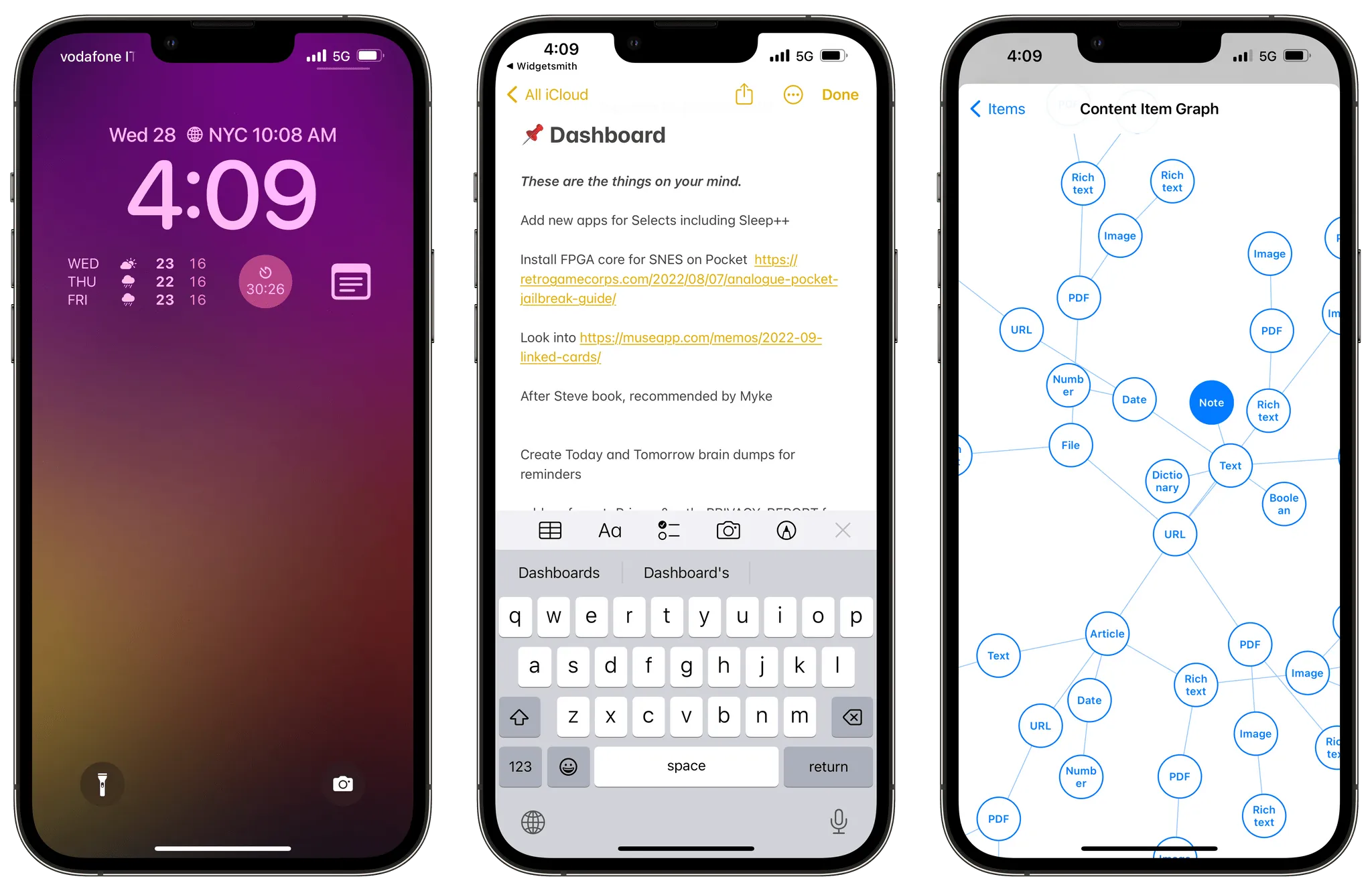
This is still valuable if you live in Apple Notes and have one note you open constantly: a grocery note, a meeting parking lot, a daily scratchpad, a packing list. But the wording matters. You are not adding an Apple Notes Lock Screen widget; you are adding a third-party launcher widget that opens a specific Apple Notes URL.
- Choose one stable Apple Notes note. This workaround is best for a note that will keep existing, not a temporary note you might delete next week.
- Create the mobilenotes://showNote?identifier=UUID link for that note, preserving the identifier format required by the method you are using.
- Add a Lock Screen launcher widget from an app that can open custom URLs.
- Paste the Apple Notes URL into the launcher action.
- Name the widget after the note’s job, not the app: “Groceries,” “Inbox,” “Meeting note,” or “Today.”
- Lock the iPhone and test the widget twice: once immediately, and once after Notes has been closed from the app switcher.
The failure mode is not subtle: if the identifier is wrong, the launcher may do nothing useful or may fail to open the target note. If Apple changes Notes URL behavior, the workaround can break without giving you the courtesy of a tidy “unsupported” label in the Lock Screen editor. Keep a normal Home Screen Notes widget or app icon available if this note is mission-critical.
Notion, GoodNotes, and Notability: stop looking in Add Widgets
These apps can still be useful on iPhone. They just do not solve the Lock Screen part of this setup based on their current documentation.
Notion
Notion’s official mobile widget documentation covers Page, Favorites, Recents, and AI widgets as Home Screen app extensions. It does not document iPhone Lock Screen widgets for Notion. [4]
The practical fallback is to put the Notion widget on the first Home Screen page or use Shortcuts for a narrow action where your own setup supports it. Do not pad a Lock Screen guide with Notion Home Screen steps and pretend they answer the same question. They do not remove the lock-to-capture gap.
GoodNotes
GoodNotes documents QuickNote and Favorites widgets for the Home Screen and desktop surfaces, while Lock Screen widget support appears as an open customer suggestion rather than a shipped feature. [5][6]
For handwritten capture, that means the faster route is still usually a Home Screen widget, Apple Pencil workflow, or opening the app directly. If GoodNotes later ships native Lock Screen widgets, the app should appear by name inside Add Widgets; until then, there is no hidden Lock Screen playbook to perform.
Notability
Notability’s widget documentation describes Home Screen and desktop widgets. It does not document iPhone Lock Screen widgets. [7]
Use the supported widget surfaces if Notability is your main notebook, and re-check Add Widgets after major app updates. For now, the Lock Screen should be built around another capture route or left uncluttered.
Where iOS 27’s new layout controls help
The new iOS 27 Lock Screen controls are worth using when they make the note widget easier to reach or read. They are less interesting as decoration.
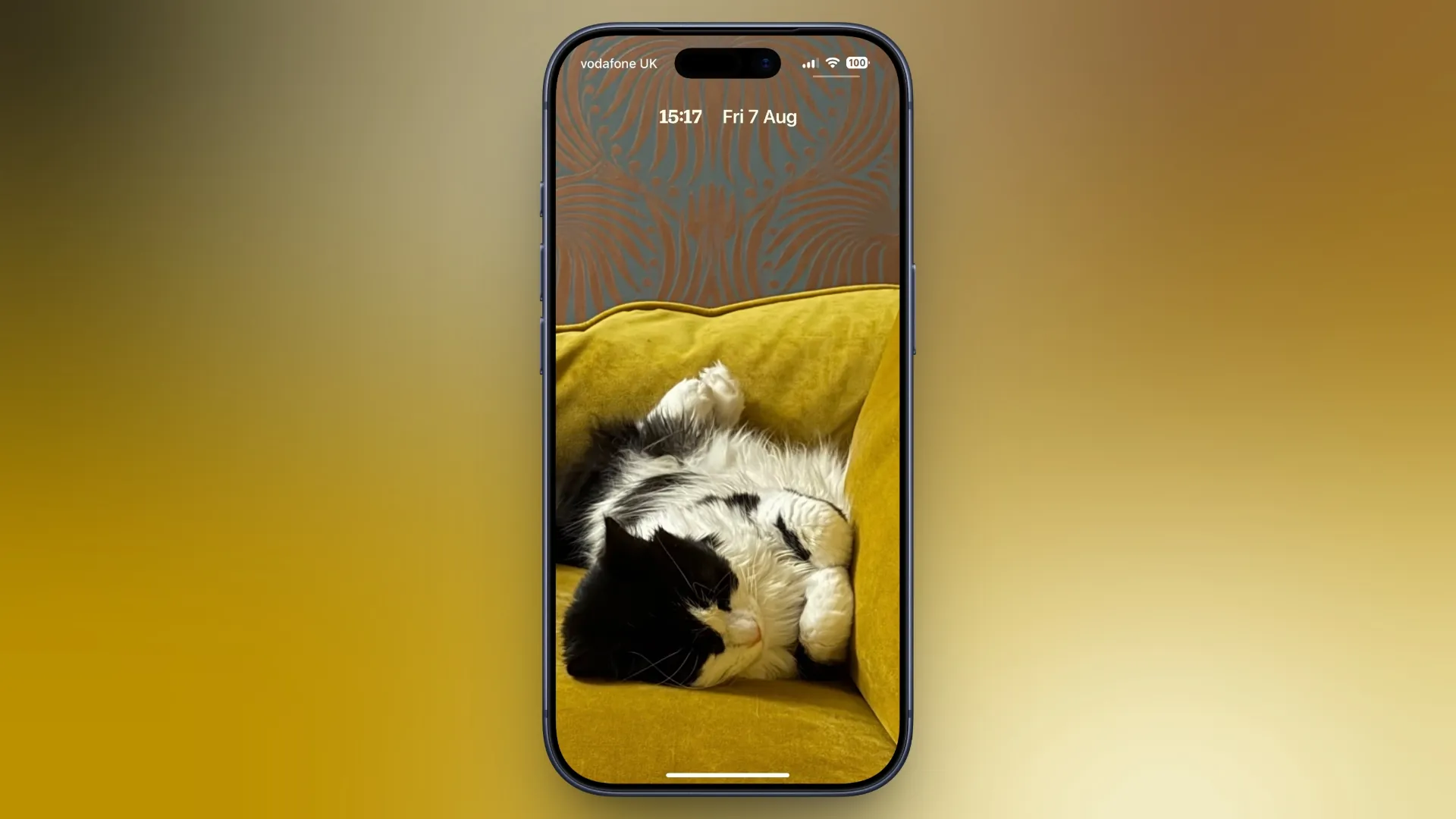
The compact clock is the first control to check. iOS 27 reporting describes a new compact clock option toggled from an icon in the Font & Color panel, which can free visual space for the wallpaper and widget area. If your note widgets feel cramped or compete with a large clock, use compact mode before removing useful widgets. [12]
Liquid Glass is the second control to treat as functional rather than decorative. iOS 27 reporting describes an opacity slider under Settings → Appearance → Liquid Glass; if widget labels or clock text lose contrast against your wallpaper, adjust opacity before blaming the widget. [13]
Now Playing can also get in the way of a capture surface. iOS 27 reporting describes a swipe-left-to-Clear gesture for Now Playing on the Lock Screen that removes the card without stopping playback. That is useful when audio controls are temporarily covering the note action you actually need. [14]
| iOS 27 control | Use it when… | Do not overdo it when… |
|---|---|---|
| Compact clock | The clock is visually crowding your note widgets. | Your current layout is already readable and reachable. |
| Widget positioning | A lower or adjusted widget row is easier to tap one-handed. | The placement option appears only in a beta build and may move before final release. |
| Liquid Glass opacity | Widget labels fade into the wallpaper. | You are only tuning the look and not improving legibility. |
| Smart Rotate stacks | Several widgets are useful at different times and the stack behavior is predictable. | You need one capture action to be visible every single time. |
| Focus-linked Lock Screens | Different note actions matter at work, school, travel, or home. | You are using Focus modes only to hide a cluttered setup. |
Be especially careful with stacks for capture. Smart Rotate can be helpful for glanceable information, but a capture widget that rotates away at the wrong moment has failed its job. If one action matters most — Daily note, New note, Scan, or Groceries — keep it visible rather than burying it in a stack.
A quick verification pass before you stop editing
Before you consider the setup finished, run the boring checks. They catch the problems that glossy widget roundups usually skip.
- Confirm the app appears by name in Add Widgets. If it does not, it does not have a native Lock Screen widget available to you on this build.
- For Obsidian, test each action against the correct vault and target note.
- For Evernote, verify the native widgets on-device because the documented widget set comes from the iOS 16 rollout period.
- For Apple Notes, test the launcher URL after force-closing Notes, and keep a fallback route if the note is important.
- For Notion, GoodNotes, and Notability, use their documented Home Screen or desktop widgets instead of expecting a hidden Lock Screen setup.
- Check legibility with your real wallpaper, not a blank test background.
- Re-check after the iOS 27 general release and after major app updates, especially if you rely on beta-only placement behavior.
iOS 27 gives the Lock Screen enough control to become a useful capture surface, but it is not a universal productivity layer. For notes, the app decides the ceiling: Obsidian gives you the richest native setup, Evernote can be strong if its widgets still appear on your build, Apple Notes can be made workable through a launcher URL, and Notion, GoodNotes, and Notability currently belong on the Home Screen rather than the Lock Screen.
References
- Obsidian 1.11.0 Mobile, Obsidian, Dec. 10, 2025.
- Evernote rolls out Lock Screen widgets for iPhone users, 9to5Mac, Nov. 3, 2022.
- Creating Lock Screen Widgets for Specific Notes via the Apple Notes URL Scheme, MacStories.
- Mobile widgets, Notion.
- Add widgets to your Home Screen, GoodNotes.
- “Apple Widget” Add widget on lock screen, GoodNotes Feedback.
- Widgets, Notability.
- iOS 27, Wikipedia.
- Add, edit, and remove widgets on iPhone, Apple Support.
- Create a custom iPhone Lock Screen, Apple iPhone User Guide.
- How to Move Lock Screen Widgets to the Bottom of Your iPhone Display, MacRumors.
- iOS 27 Lock Screen customization, 9to5Mac.
- iOS 27 adds unique new setting to personalize your iPhone’s Lock Screen, 9to5Mac.
- iOS 27 Lock Screen upgrades, Gear Patrol.
Comments
Join the discussion with an anonymous comment.