
The useful answer to how to stay productive during an internet outage is not “use the downtime to think.” Sometimes thinking is the work. Often it is not. The draft is due, the notes are half organized, the research tabs are gone, and the message you need to send can wait in an outbox only if your mail client knows how to keep one.
Outages are common enough that treating them as rare emergencies is wishful. Cloudflare detected 174 major global internet outages in 2025, more than three per week on average, according to SQ Magazine’s aggregation of Cloudflare Radar data.[1] The business cost numbers are larger than most individual workers need to carry around in their heads, but they explain why this keeps turning from an inconvenience into an operational problem: Uptime Institute’s 2025 figures, as reported by the same source, found that 54% of organizations said their most recent significant outage cost more than $100,000, while ITIC’s 2024 survey found 41% of enterprises reporting hourly downtime costs above $1 million.[1]

For a remote worker, the practical question is smaller and sharper: if the connection drops for the next few hours, what can still move forward without pretending the outage is not happening? Video calls, live dashboards, cloud-only approvals, real-time multiplayer editing, and anything that depends on a server response are not meaningfully replaced offline. But writing, reviewing, organizing notes, planning work, reading saved reference material, and drafting messages can continue if the stack was built before the failure.
The Stack Has To Exist Before The Outage
Offline productivity is mostly unglamorous preparation. The apps need to be installed. The files need to be local. The documents need to be marked for offline access. The reference material needs to be downloaded. The email setting needs to be switched on while the browser can still authenticate.
That is the uncomfortable part. Many people search for this topic after the network is already down, when the best tools are suddenly locked behind installers, login screens, cloud file pickers, and sync queues. If that is where you are right now, use whatever is already local: a desktop editor, cached files, a notes app that opens without signing in, or a plain text file. Then, when the connection returns, build the stack properly.
| Work function | Primary tool | Failure mode it solves | Setup required before outage |
|---|---|---|---|
| Notes and knowledge capture | Obsidian | You can open and edit notes without an account, server, or browser session. | Create a local vault and keep important notes inside it. |
| Documents and drafting | Google Docs offline or Microsoft Office/local editors | You can keep writing when cloud documents or browser tabs stop loading. | Enable offline access or keep local file copies. |
| Tasks and planning | Microsoft To Do, AppFlowy, Super Productivity, or ToDoList | You can review priorities and plan the next block without a cloud dashboard. | Install the app and let task data sync locally. |
| Reference and research | Pocket and Kiwix | You can read saved articles or downloaded knowledge bundles without live web access. | Save articles or download Kiwix content in advance. |
| Delayed communication | Gmail offline | You can write replies now and send them when the connection returns. | Turn on offline mail while connected. |
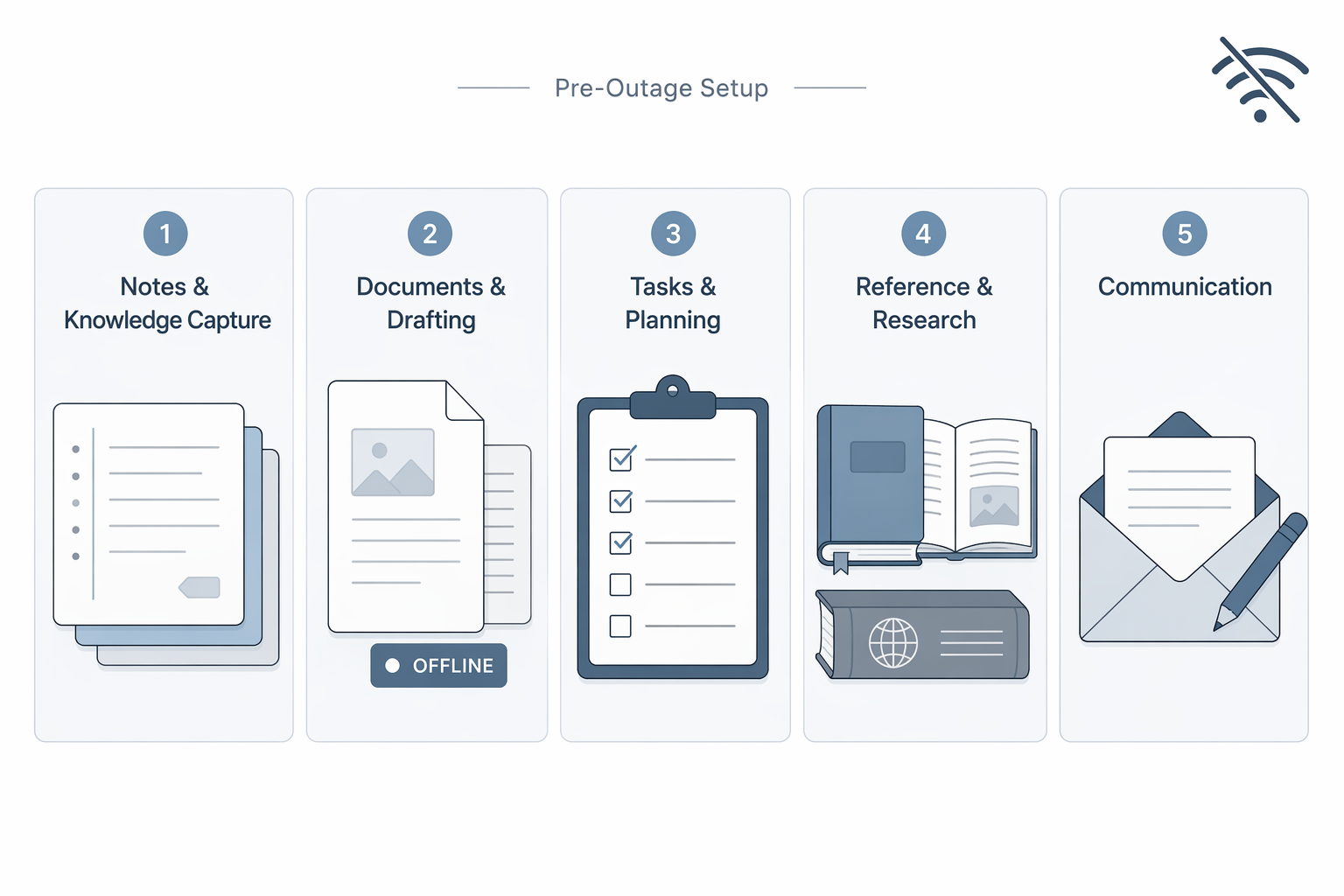
Start With Notes, Because They Fail Quietly
The worst note-taking failure is not dramatic. The app opens. The sidebar appears. Then the note you need is blank, stale, or unavailable because the real copy lives somewhere the laptop can no longer reach. That is why the note layer should be the most boring part of the stack.
Obsidian is the cleanest default here because its notes live as local Markdown files in a vault, and the app does not require an account to be useful offline.[2] If your laptop has the vault, you can open yesterday’s meeting notes, create a new draft, revise a project brief, link related notes, and keep working through the outage. When sync is part of your setup, reconnection becomes a sync event rather than a rescue mission.
That local-file design matters more than the aesthetics of the notes app. Markdown files can be opened by other editors if needed. A folder can be backed up. A note does not have to ask a server whether it exists. For a deeper comparison of this architecture, the site’s guide to local-first note-taking apps in 2026 is the more detailed place to sort Obsidian, Logseq, and Joplin by fit.
Logseq is worth considering if your thinking is block-based and outline-heavy; it also works with local Markdown files. Joplin suits people who want an open-source notebook model with offline access and plugin support.[2][3] Those are real alternatives, not consolation prizes. The decision is mostly about how you think when the network is not there to hide friction: folders and links, outlines and blocks, or notebooks and clipped material.
What To Configure
- Create a local vault or notebook on the device you actually use for work.
- Keep active project notes, meeting notes, outlines, and templates inside that local space.
- If you use sync, confirm the sync status before travel, storms, ISP maintenance, or conference days.
- Test the app with Wi-Fi off. Do not assume “available offline” means the note you need has already arrived.
During an outage, this layer becomes the place to capture new facts, rewrite meeting notes, draft decisions, clean up research, and prepare handoff notes for later. It is not a substitute for a team workspace, but it keeps the thinking from being trapped in a disconnected browser.
Documents Need Either Explicit Offline Mode Or Local Files
Documents are where cloud confidence gets people into trouble. A file can appear in a recent-documents list without being editable offline. A browser tab can look ready until it reloads. A shared document can be visible but not locally cached. The test is simple: can you close the browser, turn off Wi-Fi, reopen the document, edit it, and trust the changes to survive?
Google Docs, Sheets, and Slides can work offline, but only after offline access has been enabled and the relevant files have been made available on the device. Once configured, documents can be edited offline and synced automatically when the connection returns.[3] The important phrase is “once configured.” Google Docs offline is useful; it is not magic.
For active writing projects, mark the current files for offline use instead of assuming the recent file list is enough. Open them once before a risky work session. If a deadline matters, create a local export too: DOCX, ODT, RTF, Markdown, or plain text, depending on what the receiving workflow accepts. Exports are inelegant until the network is gone; then they are the difference between continuing and waiting.
Microsoft Office and other local document editors solve a different problem: they do not need the browser document to be alive in the first place. If the file is stored locally or has fully synced through a desktop cloud client before the outage, Word, Excel, PowerPoint, LibreOffice, or another installed editor can keep working. Apache OpenOffice Portable is a useful edge-case tool when you need an office suite that can run from portable storage rather than depending on a fresh installation.[4]
The reconnect moment deserves attention. Cloud editors may need to reconcile changes. Shared documents may show conflicts if someone else edited the same section while you were offline. Local files may need to be uploaded or attached manually. None of that is a reason to avoid offline work; it is a reason to keep filenames clear and avoid scattering duplicate drafts across five emergency copies.
A Sensible Document Routine
- Before the outage: enable Google Docs offline or keep the working files in a local editor.
- Before a high-risk day: open the active files and confirm they load with Wi-Fi disabled.
- During the outage: write, edit, comment to yourself, and leave placeholders for facts that require live verification.
- After reconnecting: let sync finish, resolve conflicts, and send or share the clean version.
Tasks Should Be Available Without The Project Dashboard
A task system does not have to reproduce the whole company workflow offline. It just has to answer three questions while the connection is down: what was I supposed to do next, what can I do without waiting on someone else, and what should I queue for when service returns?
Microsoft To Do is a reasonable mainstream choice when its data has synced to the device before the outage; XDA’s offline productivity tool roundup includes it among tools that can keep work moving without constant connectivity.[2] AppFlowy fits people who want a Notion-like workspace with offline capability rather than a simple checklist.[2] Super Productivity is more focused: tasks, time tracking, and Pomodoro-style work sessions. ToDoList is plainer and local, using XML files rather than trying to be a team workspace.[2]
The offline task list should be narrower than the online one. It should contain work that can actually advance: draft the proposal, review the cached document, outline the decision memo, clean up notes, reconcile a spreadsheet, prepare questions for the client, write the status update. Tasks like “check dashboard,” “ask Priya,” or “pull latest numbers” can sit in a reconnect queue.
| If the task says | Offline version |
|---|---|
| Update client deck | Revise structure, rewrite speaker notes, and mark live data placeholders. |
| Prepare project status | Draft the narrative from known facts and add a reconnect checklist. |
| Review research | Read saved articles, extract claims, and flag anything that needs verification. |
| Plan next sprint | Draft candidate tasks and questions; wait to assign or commit in the live system. |
Saved Reference Material Beats A Hundred Dead Tabs
Research work is harder to salvage after the connection drops because the web trains people to keep sources open as tabs instead of saving them as material. Browser caching may rescue some pages, but it is inconsistent and easy to break by refreshing at the wrong moment. A reference layer should be deliberate.
Pocket is useful for articles you already know you want to read or cite later. The caveat is important: offline access depends on the tier and setup, so not every saved item is automatically available to every user. If Pocket is part of your outage plan, test the exact device and account you will use before trusting it.
Kiwix is the more dramatic reference tool. It can carry Wikipedia offline, with a full Wikipedia dump around 46 GB, or more practical topic-specific bundles for people who do not need the entire encyclopedia on a laptop.[4] The full dump is impressive in the way a well-stocked basement is impressive: reassuring, slightly absurd, and not the right choice for everyone. Topic bundles are usually the better tradeoff.
The right reference setup depends on your work. A technical editor might cache style guides, product docs, API references, and source articles. An analyst might save methodology notes, prior reports, and spreadsheet documentation. A manager might keep policy documents, planning templates, and recent decision memos. The point is not to recreate the internet. It is to keep enough trusted material nearby that the next two hours are still useful.
What To Save Beforehand
- Current project briefs, specifications, style guides, and policy documents.
- Articles or reports you expect to quote, summarize, or compare.
- Reference manuals, API docs, glossary pages, and troubleshooting notes.
- A small Kiwix bundle that matches your field instead of a huge archive you will never open.
Email Can Become A Drafting Queue
Communication is where expectations need to be strict. Offline tools do not let you participate in a live thread, receive new mail, join a call, or confirm that someone saw your answer. They can let you prepare the work of communication: draft replies, write status updates, assemble handoff notes, and queue messages for later.
Gmail offline mode can make recent mail available in the browser and allow users to compose messages that send when the connection returns, provided offline mail has been enabled in advance.[4] This is useful for the manager who owes five responses but cannot send them yet, or the freelancer who can draft a clean client update while the outage is still happening.
The safest offline email habit is to draft with uncertainty visible. If a reply depends on fresh numbers, a current attachment, or someone else’s approval, mark that plainly in the draft instead of pretending the message is ready. When the connection returns, review the outbox before everything leaves. A queued message written during an outage may still be correct, but it deserves one last look in the restored context.
A Pre-Outage Setup That Takes The Tools Seriously
The setup workflow is short enough to do on a normal afternoon and important enough not to postpone until the weather alert arrives. It is also the part most “offline productivity” advice skips, because listing apps is easier than checking whether they actually open with the network disabled.
- Install the desktop apps you expect to use: notes, document editor, task manager, reference reader, and mail client or supported browser setup.
- Move active notes into a local-first system such as Obsidian, Logseq, or Joplin.
- Mark current Google Docs, Sheets, and Slides files for offline access, or keep local copies in an office format your installed editor can open.
- Let your task app sync fully, then create a short offline-capable list for work that does not require live systems.
- Save reference articles, download needed PDFs, and add any Kiwix bundles that match your work.
- Enable Gmail offline if you rely on Gmail for work, then confirm that recent mail and composing work while disconnected.
- Turn off Wi-Fi for ten minutes and test the stack instead of trusting labels.
That last step is the one that exposes false confidence. If the vault opens, the document edits, the task list loads, the article is readable, and the email draft sits safely in the outbox, the setup is real. If any part asks you to sign in, refresh, install, reconnect, or “try again later,” it is not ready.
What You Can Realistically Get Done
A good offline stack does not preserve the whole workday. It preserves the parts that can be separated from the network without lying about the dependency. During a multi-hour outage, a knowledge worker can usually draft documents, edit existing material, organize notes, review saved sources, prepare task plans, write email responses, and build a reconnect checklist.
The work that should wait is just as important to name. Do not finalize figures that require live data. Do not assume cloud conflicts will resolve cleanly without review. Do not promise that a queued email has been sent. Do not treat a cached page as proof that nothing has changed. Offline work is productive when it respects what it cannot know yet.
The best tools make the outage less theatrical. Obsidian opens the notes. Google Docs offline or a local editor keeps the draft moving. A synced task app shows what can be done next. Pocket and Kiwix keep selected reading available. Gmail offline turns immediate replies into a send-later queue. None of this replaces live collaboration or internet-dependent systems, but it does let useful work continue when the network disappears.
References
- Internet Outage Statistics, SQ Magazine
- Offline productivity tools changed how I work, XDA Developers
- Offline Android productivity apps I use daily, Android Police
- The best offline apps, Popular Science
Comments
Join the discussion with an anonymous comment.