
Why PARA in Notion Requires a Different Approach Than PARA in Folders
Tiago Forte designed PARA for file systems — Dropbox, Google Drive, your Mac's Finder. In those environments, a folder named "Archives" makes perfect sense. You drag a completed project into it, and the folder holds the files. Nothing breaks.
Notion is not a file system. It is a relational database platform. Every page in a Notion database can carry properties — status values, dates, tags, and crucially, relation properties that link it to pages in other databases. When you move a page from one database to another, those relational connections are severed. The tasks linked to that project, the area it belonged to, the resources associated with it — all of those associations disappear.
This is the central problem with the most common PARA-in-Notion setup: four sidebar pages labeled Projects, Areas, Resources, and Archives, with pages dragged between them to simulate folder behavior. It looks like PARA. It functions like a broken address book.
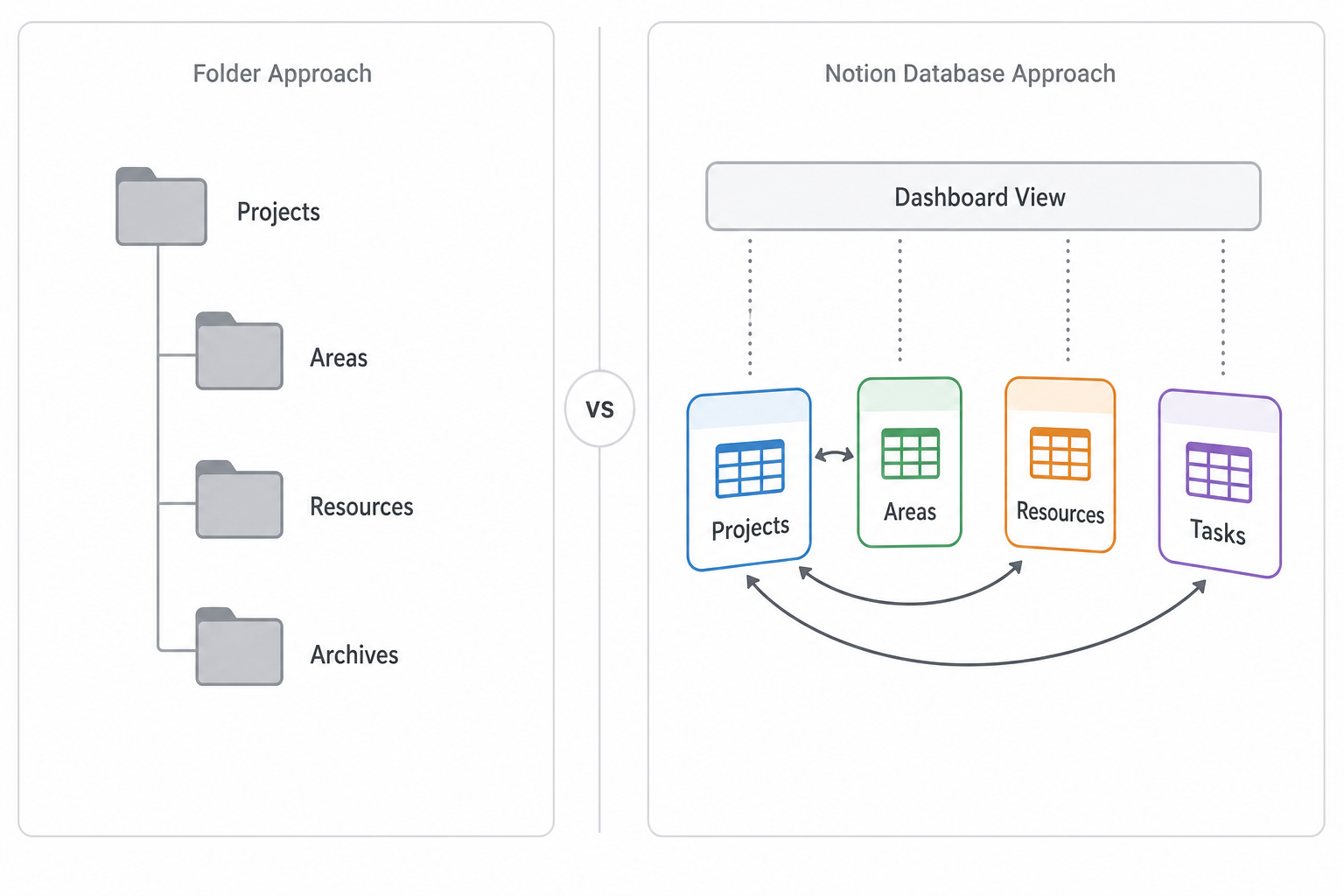
The correct approach treats PARA as a relational system from the start. You build four source databases, connect them with relation properties, surface filtered views on a master dashboard, and archive items by changing a Status value — not by moving pages. This guide walks through every step of that setup.
Quick PARA Refresher: What Each Category Actually Means
If you already know PARA well, skip ahead. If you want a fast reminder before setup, here are Tiago Forte's canonical definitions condensed to what matters for Notion:
| Category | What it contains | Key characteristic |
|---|---|---|
| Projects | Short-term efforts with a specific goal | Has a finish line — can be completed and checked off |
| Areas | Ongoing responsibilities you maintain over time | Never ends — health, finances, client relationships |
| Resources | Topics and reference material you may want later | No action required — just useful to have |
| Archives | Inactive items from the other three categories | Out of active view, but not deleted |
The single most important distinction: Areas never end. Projects do. "Fitness" is an Area. "Run a 5K in June" is a Project. If you cannot imagine completing it and checking it off, it is an Area — not a Project.
"No matter how wide-ranging your responsibilities are, you can always break them down into smaller projects." — Tiago Forte
Before You Open Notion: Brain-Dump Your Areas of Responsibility First
Most PARA setups fail in the first week because people open Notion and immediately start creating Projects. Projects feel productive to list. But without a clear sense of your Areas first, every project becomes a floating object with no home — and the "where does this go?" question returns before you have even finished setup.
Before you create a single database, take 10 minutes with a blank document or a piece of paper and list your ongoing spheres of responsibility. These are the things you are always accountable for, regardless of what specific projects you happen to be running right now.
Use these prompts to surface your Areas:
- What roles do you hold that never fully end? (parent, manager, freelancer, student, partner)
- What aspects of your health or wellbeing do you actively maintain?
- What financial responsibilities recur regardless of specific goals?
- What client relationships, team functions, or professional domains do you own?
- What creative pursuits, learning tracks, or hobbies are ongoing parts of your life?
Write this list down and keep it open as you work through the steps below. Your Areas become the organizing spine of your entire Notion workspace.
Step 1: Create Four Source Databases — Not Four Sidebar Pages
In Notion, create four new databases. Give each one a dedicated page as its source location — a place where the full database lives, separate from any dashboard views you will build later.
- Projects database — one entry per active project, with a defined goal and end state
- Areas database — one entry per ongoing sphere of responsibility from your brain dump
- Resources database — reference material, notes, articles, and topics you want to keep
- Tasks database — individual action items that belong to specific projects
You may notice that Tasks is not a standard PARA category — PARA has no T. Tasks live inside Projects in the original framework. In Notion, a dedicated Tasks database connected to Projects via a relation property gives you far more flexibility: you can view all tasks across all projects in a single board, filter by due date, or see only the tasks belonging to one project. This is not a deviation from PARA — it is an adaptation that uses Notion's relational layer correctly.
Also note: Archives is not a fifth database. It is a Status value. You will configure this in Step 6.
Step 2: Set Up Essential Properties for Each Database
Before connecting the databases, add the core properties to each one. Do not over-engineer this stage — start with the properties below and add more only when you have a concrete reason.
| Database | Essential properties to add |
|---|---|
| Projects | Status (select: Active / On Hold / Completed / Archived), Deadline (date), Priority (select: High / Medium / Low), Area (relation — you will connect this in Step 3) |
| Tasks | Status (select: To Do / In Progress / Done), Due Date (date), Project (relation — connect in Step 3) |
| Resources | Type (select: Article / Book / Video / Note / Tool / Other), Topic/Tag (multi-select) |
| Areas | Description (text — one sentence stating what this Area covers) |
Keep the Areas database intentionally lean. Areas are not project containers with elaborate tracking — they are reference anchors. A name and a one-sentence description is enough for most Areas entries. The Projects and Tasks databases carry the operational weight.
Step 3: Connect Databases with Relation Properties
This step is what separates a functional PARA system in Notion from a collection of disconnected lists. Relation properties create live, two-way links between entries in different databases.
Create three relation connections:
- Projects ↔ Areas: In the Projects database, add a Relation property pointing to the Areas database. Set it to show the related Area on both sides. Each project now belongs to one (or occasionally more) Areas.
- Projects ↔ Tasks: In the Tasks database, add a Relation property pointing to the Projects database. This lets you view all tasks belonging to a project from the project's own page, and view all tasks across projects in a single filtered view.
- Resources ↔ Projects: In the Resources database, add an optional Relation property pointing to Projects. Use this when a resource is directly tied to active work — a research article for a specific project, a reference doc you are actively using. Leave it empty for general reference material.
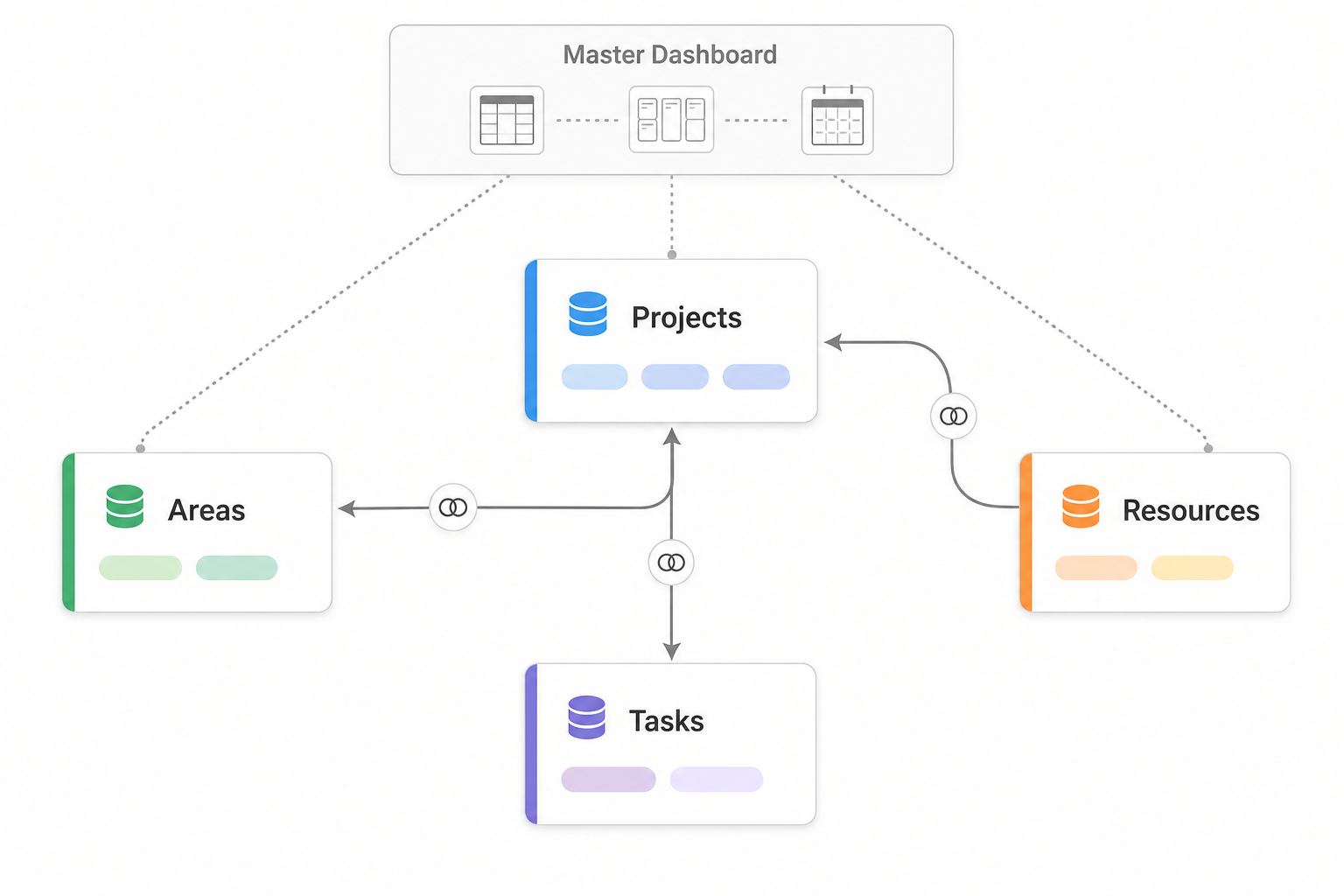
Once these relations exist, opening a single project page shows you its linked Area, all its tasks, and any associated resources — without navigating to three separate databases. This is the relational power that a four-folder sidebar approach permanently forfeits.
Step 4: Build a Master Dashboard Using Linked Database Views
Your four source databases now exist as separate pages in your workspace. The master dashboard is how you navigate them day-to-day without opening each database individually.
Create a new Notion page called "Dashboard" or "Home." On this page, add linked database views — not new databases, but filtered windows into your existing source databases. Notion's linked database views let you display the same source data in multiple locations with different filters, sorts, and layouts applied. You are not duplicating anything — one source of truth, multiple entry points.
Recommended views to add to your dashboard:
- Active Projects by Area: A filtered view of the Projects database showing only entries where Status = Active, grouped by the Area relation. Gives you an immediate read on what is in motion and where.
- Tasks Due This Week: A filtered view of the Tasks database showing only items with a Due Date within the current week and Status ≠ Done. Board view sorted by project works well here.
- Resources by Topic: A gallery or table view of the Resources database filtered to exclude archived items, grouped by Topic/Tag.
- Inbox (for review): A filtered view or direct link to your Inbox — covered in Step 5.
Step 5: Set Up a Quick-Capture Inbox to Eliminate 'Where Does This Go?' Friction
The most common reason people abandon PARA is not that the system is wrong — it is that capture requires a decision. Every time you want to save something, you face the question: does this belong in Projects, Areas, or Resources? That friction, repeated dozens of times per week, is enough to make people stop capturing entirely.
The solution is an Inbox: a single default destination where everything goes when you are not sure where it belongs. The Inbox's only job is to hold unprocessed items. The sorting decision is deferred to your weekly review.
You can implement the Inbox in two ways:
- Simple Inbox page: A regular Notion page where you dump quick notes, links, and ideas as bullet points. Fast to access, zero friction to add to. Process it during your weekly review by converting items into proper database entries.
- Inbox database: A lightweight database with a single Status property (Unprocessed / Processed). Useful if you want to track capture volume or route items to specific databases during review. Slightly more overhead at capture time.
Add the Inbox as the first item on your master dashboard — it should be the first thing you see when you open your workspace. An Inbox you can see is an Inbox you will actually use.
Step 6: Configure Archive as a Status Value — Never Move Pages Between Databases
This step is the most important architectural decision in the entire guide. Read it carefully before proceeding.
In a traditional folder system, archiving means moving a file to an Archives folder. In Notion, attempting to replicate this by moving a page from your Projects database to a separate Archives database destroys every relational connection that page carries. The linked Area disappears. The related Tasks lose their project association. Any Resources connected to that project lose their link. You are left with an orphaned page that has lost its entire context.
The correct approach:
- Confirm that your Projects database has an "Archived" option in its Status property (you added this in Step 2).
- Do the same for your Tasks and Resources databases — add an "Archived" status option to each.
- In every active view on your dashboard and source databases, add a filter: Status ≠ Archived. This hides archived items from your working views without deleting them or severing their connections.
- To archive a completed project: open the project page, change its Status to "Archived." It disappears from your active views. All its tasks, area links, and resource connections remain intact.
- To retrieve an archived item: go to the source database and temporarily remove the Status ≠ Archived filter, or create a dedicated "Archives" view that filters for Status = Archived only.
This approach keeps your relational metadata fully intact. A project archived six months ago still shows which Area it belonged to, which tasks were completed under it, and which resources were associated with it. That historical context is often exactly what you need when starting a similar project later.
Step 7: Build a Weekly Review Routine to Keep PARA from Collapsing
A PARA system without a weekly review is a PARA system that degrades into digital clutter within a month. The databases accumulate stale entries, the Inbox fills up without being processed, and the "where does this go?" friction returns — this time inside the system itself.
The weekly review is not a bonus habit for advanced users. It is the maintenance ritual that makes the system function. Set aside 15 to 30 minutes once a week — same day, same time if possible — and work through this checklist:
- Clear the Inbox: Process every item in your Inbox page or database. For each item, decide: does it become a Project entry, an Area note, a Resource, or a Task? Move it to the correct database with the appropriate properties. Delete anything that no longer matters.
- Review active projects: Scan the Active Projects view on your dashboard. Does each project have a clear next task? Are any deadlines approaching? Update statuses and due dates as needed.
- Archive completed work: Any project where the goal has been achieved gets its Status changed to "Archived." Do this promptly — completed projects sitting in your Active view create noise that obscures what actually needs attention.
- Check your Areas: Scan your Areas database. Are there any Areas that have had no associated project or task activity recently? That neglect is often a signal — either the Area needs a new project, or it is no longer an active responsibility and can itself be archived.
- Triage On Hold projects: Review anything with Status = On Hold. Is it still valid? Should it be reactivated, archived, or deleted?
5 Common PARA-in-Notion Mistakes to Avoid
These are the patterns that cause Notion PARA setups to fail — not because PARA is wrong, but because Notion's database model requires specific adaptations that most guides do not cover.
- Creating too many granular databases. It is tempting to create separate databases for Books, Articles, Videos, Meeting Notes, and Ideas — each as its own PARA component. The more databases you have, the harder it becomes to answer "where does this go?" at capture time. Consolidate into fewer databases and use properties (Type, Topic, Status) to differentiate entries. One Resources database with a Type property beats five separate resource databases every time.
- Treating PARA as four literal sidebar pages. Four Notion pages named Projects, Areas, Resources, and Archives are not PARA — they are labeled folders with no filtering, no sorting, no relational properties, and no multi-view capability. If your current setup looks like this, the first fix is converting each page to a database.
- Moving pages between databases to archive them. This is the most destructive mistake in Notion-specific PARA setups. Moving a page from one database to another severs every relation property attached to it. Archive by changing a Status value and filtering archived items out of active views — never by relocating the page.
- Starting with Projects before defining Areas. Projects without Areas have no organizing context. You end up with a flat list of projects that is impossible to navigate at scale. Complete the Areas brain dump before creating your first project entry. Areas are the spine; Projects are what hang off it.
- Skipping the weekly review. A PARA system that is not reviewed weekly becomes a PARA-shaped junk drawer within a month. The Inbox fills, stale projects accumulate in Active views, and the system stops reflecting reality. The weekly review is not optional maintenance — it is the mechanism that makes the system trustworthy.
FAQ: Projects vs. Areas, Where Tasks Live, and Other Common Questions
How do I tell if something is a Project or an Area?
Ask one question: does it have an end date or a specific deliverable? If yes, it is a Project. If no, it is an Area.
"Maintain my blog" is an Area — it never ends. "Publish three posts in Q3" is a Project under that Area. "Stay healthy" is an Area. "Complete a 30-day running program" is a Project under Health. When in doubt, ask yourself: can I imagine completing this, checking it off, and never thinking about it again? If yes, it is a Project.
Where do Tasks live — as a PARA category or inside Projects?
Tasks are not a PARA category — they are a Notion-specific addition that makes the system more functional. Create a Tasks database that relates to your Projects database. This lets you view all tasks for a specific project from the project page, and view all tasks across all projects in a single filtered board or list.
Do not create tasks as sub-pages inside project pages. That approach loses all filtering, sorting, and cross-project visibility. A dedicated Tasks database with a Project relation gives you far more flexibility without adding meaningful complexity.
Should I run separate PARA systems for personal and work?
For individuals, start with a single PARA system. The original framework is designed to organize all of your commitments in one place — personal and professional. Separate systems double the maintenance overhead and create the exact fragmentation PARA is meant to solve.
If you work in a team Notion workspace where colleagues share databases, a separate personal workspace may be necessary for privacy or access reasons. That is a practical constraint, not a PARA recommendation. For individuals working in their own workspace, one system is the right starting point.
Can Notion AI help with PARA?
Notion AI can assist with summarizing notes or suggesting tags for Resources entries, but it does not replace the manual weekly review routine — the decisions about what to archive, what to prioritize, and what your Areas actually are require your judgment, not an AI's.
Comments
Join the discussion with an anonymous comment.