
Why Obsidian Is the Right Tool for a Second Brain in 2026
Most knowledge workers are drowning in information they can't find when they need it. Browser bookmarks nobody revisits. Scattered notes across five apps. Highlights from books that never connect to anything. The problem isn't a lack of information — it's the absence of a system that makes information retrievable and useful.
A Second Brain is that system: a personal, external knowledge base where you capture, connect, and retrieve ideas over time. And in 2026, Obsidian is the strongest tool for building one — not because it's the easiest app to learn, but because it's built on principles that hold up over years of use.
Obsidian crossed 1.5 million active users in early 2026 with 22% year-over-year growth, according to reporting from NxCode. That growth reflects something real: the app earns long-term loyalty in a way that cloud-based note tools often don't.
- Local-first storage: your notes live as plain Markdown files on your own device, not on a company's server.
- Genuinely free: the core app costs nothing. Optional Sync ($4–$5/month) and Publish ($8/month) are the only paid features.
- Future-proof format: plain text Markdown files work in any editor, can be version-controlled with Git, and are readable by any AI model without export steps.
- 2,700+ community plugins: the ecosystem covers nearly every workflow need, from task management to AI-powered vault search.
- Offline-first: the full app and all your notes work without an internet connection.
Cloud-based alternatives like Notion offer more polished databases and easier collaboration, but they store your data on external servers, require an internet connection for reliable access, and lock your notes into proprietary formats. For a personal knowledge system you plan to use for years, those trade-offs matter.
Core Concepts You Need Before You Build
Before touching a single setting or plugin, five concepts will determine how well your system works. Understanding these takes about ten minutes and saves hours of confusion later.
Vault
A vault is simply a folder on your computer that Obsidian watches. Every file inside that folder — and every subfolder — is part of your vault. When you open Obsidian, you're opening a vault. You can have multiple vaults for different purposes (work, personal, a specific project), but most people do better with one vault that grows over time.
Markdown
Every note in Obsidian is a plain text file with a .md extension. Markdown is a lightweight formatting syntax: # Heading creates a heading, **bold** makes text bold, - item creates a bullet. You don't need to master Markdown to start — Obsidian's toolbar handles the basics, and the syntax becomes natural within a few days.
Wikilinks and Backlinks
Wikilinks are how notes connect to each other. Type [[Note Title]] anywhere in a note and Obsidian creates a clickable link to that note. If the target note doesn't exist yet, Obsidian creates it when you click the link.
Backlinks are the other half: every note automatically shows a list of all other notes that link to it. This bidirectional linking is what separates Obsidian from a simple folder of text files. A note about a meeting links to the project note; the project note automatically shows the meeting note in its backlinks panel. Connections surface without you having to manually maintain them.
Graph View
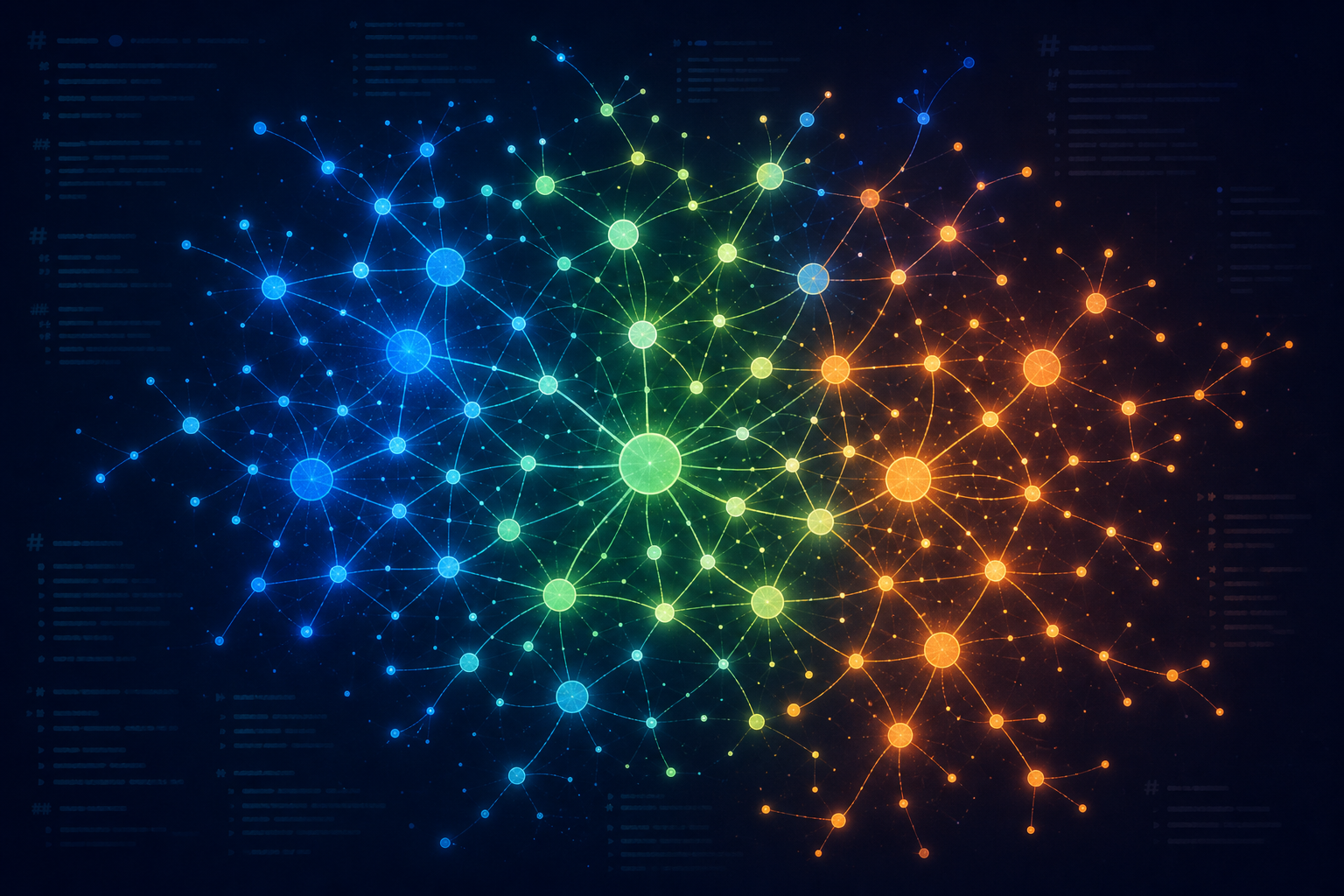
Graph view renders your vault as a visual network where each note is a node and each wikilink is an edge. With fewer than 50 notes, the graph looks sparse and isn't particularly useful. With 100+ linked notes, clusters of related ideas emerge visually — and those clusters often reveal connections you hadn't consciously made. Don't judge graph view in your first week. It's a reward for building the system, not a starting tool.
Bases (the New Core Plugin)
Released in early 2026, Bases is Obsidian's native answer to structured data views. It lets you create table, list, and card views of your notes based on their properties — without writing database queries. Think of it as a lightweight spreadsheet layer on top of your Markdown files. The community reception has been enthusiastic — it received a 4.4/5 community score in the 2026 Obsidian Report Card.
Atomic Notes
The most important discipline in a Second Brain isn't organizational — it's compositional. Each note should contain one idea, not a topic.
One note equals one concept. A note called Productivity is not atomic. It's a topic. A note called Why willpower is finite and should be conserved is atomic. It's an idea.
Atomic notes are linkable in ways that topic notes aren't. You can't usefully link "Productivity" to five other ideas — it's too broad. But "Why willpower is finite and should be conserved" connects naturally to notes on habit formation, decision fatigue, morning routines, and deep work. The specificity is what makes the links meaningful.
Set Up Your Vault in Under 30 Minutes
The goal of this section is a working, linked vault — not a perfect system. Follow these steps in order. Resist the urge to configure anything beyond what's listed here.
- Download and install Obsidian: Go to obsidian.md, download the installer for your operating system (Mac, Windows, or Linux), and run it. The app is free with no account required.
- Create a new vault: On the launch screen, choose "Create new vault." Give it a name (your name, "Notes," or "Brain" all work fine) and pick a location on your local drive — not inside a cloud-synced folder like iCloud Drive or Dropbox unless you've confirmed there's no sync conflict risk. Click "Create."
- Configure three essential settings: Open Settings (gear icon). Under Appearance, choose a theme you can read comfortably — the default is fine. Under Files & Links, set "Default location for new notes" to "Same folder as current file" so notes don't pile up in the vault root. Set "New link format" to "Relative path to file" for cleaner links. Under Editor, enable "Readable line length" to prevent text from stretching across the full window.
- Write your first three notes: Press Ctrl+N (or Cmd+N on Mac) to create a new note. Write one idea per note. Don't worry about length — two sentences is enough. Example ideas: something you learned recently, a problem you're thinking about, a question you want to answer. Name each note as a specific claim or question, not a broad topic.
- Write your first wikilink: In one of your notes, type
[[and start typing the title of another note you just created. Obsidian will autocomplete it. Click the link to navigate to the target note. Open the backlinks panel (the arrow icon in the right sidebar) and confirm the link appears there. You now have a bidirectionally linked vault.
Choose Your Organizational Approach: PARA, MOC, or Flat
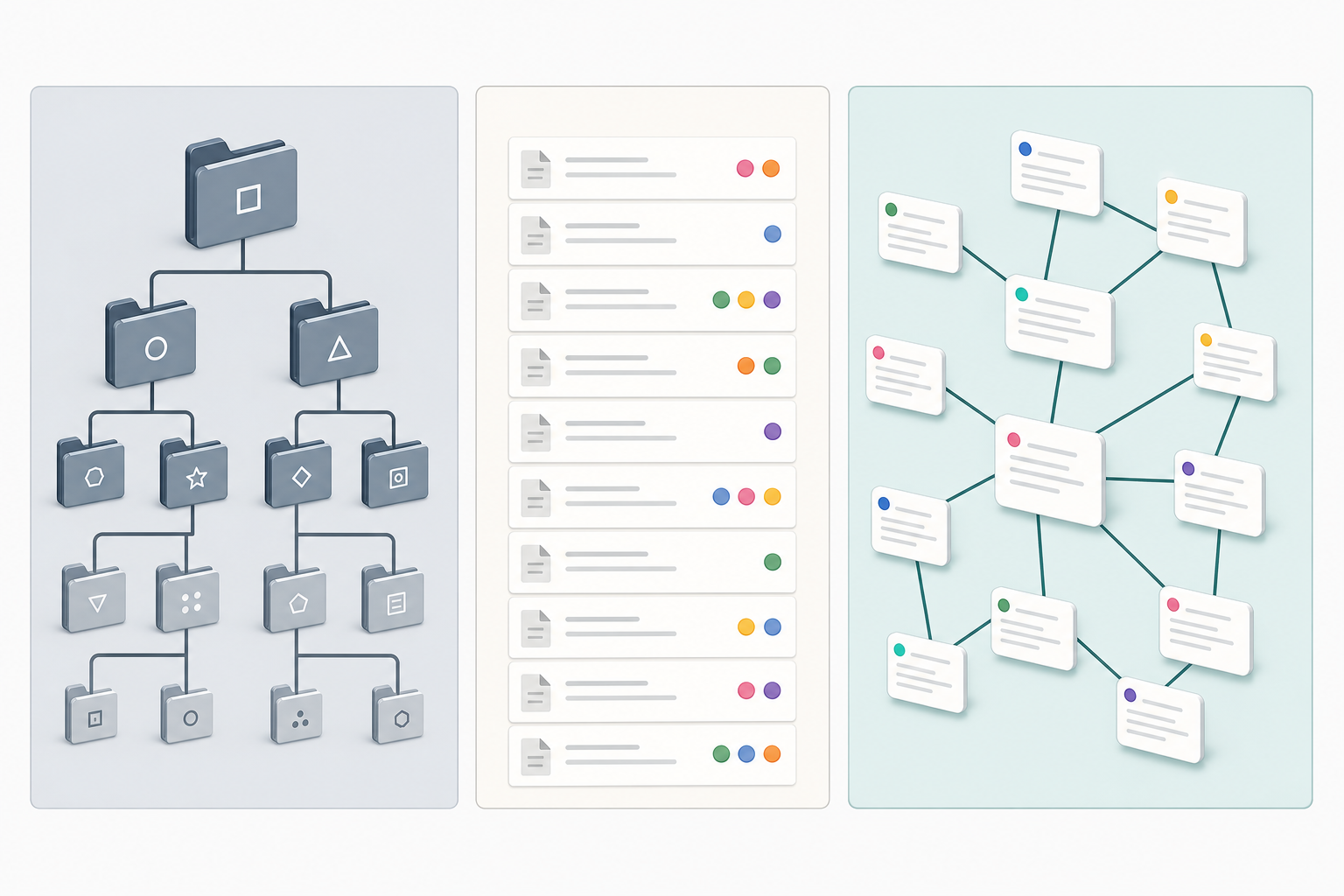
There is no single correct way to organize an Obsidian vault. The three main approaches each reflect a different philosophy about how knowledge should be structured — and each has genuine trade-offs. The right choice depends on how you think and what you're using the vault for.
| Approach | How it works | Best for | Main risk | Verdict |
|---|---|---|---|---|
| PARA | Four top-level folders: Projects, Areas, Resources, Archive. Notes live in exactly one folder. | Project-based workers who think in deliverables; people migrating from folder-heavy apps | Folders become rigid; notes that span multiple areas get mis-filed; maintenance overhead grows over time | Valid but often over-engineered for most users |
| MOC (Maps of Content) | Mostly flat or minimal folders. When 7+ notes cluster around a theme, create a Map of Content note that links to all of them. | Writers, researchers, and idea-driven workers who prefer emergent structure; anyone comfortable with links over folders | Requires comfort with search and backlinks; the first few weeks feel unstructured | Recommended for most knowledge workers and students |
| Flat | Zero folders. Every note lives in the vault root. Navigation is entirely through search, backlinks, and wikilinks. | Power users focused on idea discovery; people with large note volumes who trust search | Can feel chaotic early on; requires discipline in note naming and linking | Excellent long-term, but disorienting for beginners without a clear naming convention |
PARA: Useful, But Often Misapplied
PARA (Projects, Areas, Resources, Archive) was designed for file management, not note-taking. It works well for organizing project deliverables — but notes rarely fit neatly into one category. A note about "why deep work requires long uninterrupted blocks" belongs in Resources, Areas, and potentially multiple Projects simultaneously. Forcing it into one folder is an artificial constraint that makes the note harder to find and connect.
If you already think in projects and deliverables, PARA can provide a useful scaffold. But treat it as a loose grouping rather than a strict taxonomy, and don't let folder placement substitute for linking.
MOC: Structure That Grows With You
Maps of Content are index notes that link to a cluster of related notes and show how they relate to each other. They don't summarize the notes — they map the territory. A MOC on "Writing" might link to notes on editing, sentence rhythm, idea generation, and publishing — not as a summary, but as a navigable hub.
The key advantage of MOCs is that they emerge from actual use rather than being imposed upfront. You write notes freely, and when you notice seven or more notes clustering around a theme, you create a MOC to make that cluster navigable. Structure appears when it's earned — not as a prerequisite.
Flat: Radical Simplicity
Some experienced Obsidian users run large vaults with zero folders, relying entirely on links, search, and tags for navigation. The flat approach removes the cognitive overhead of deciding where a note belongs and forces you to build connections instead. It scales surprisingly well — but it requires a consistent note-naming convention and comfort with Obsidian's search.
The 5 Essential Plugins (and Why You Don't Need More)
Obsidian's plugin ecosystem is one of its greatest strengths and its most common trap. With 2,700+ community plugins available, it's easy to spend hours configuring tools that add complexity without adding value. Each plugin you install is a maintenance commitment: it can break on Obsidian updates, conflict with other plugins, or simply add cognitive overhead every time you open a note.
The five plugins below solve real problems that most Second Brain users encounter. Install them one at a time, only after your base system is working.
| Plugin | What it solves | When to install | Notes |
|---|---|---|---|
| Templater | Creates reusable note templates with dynamic fields (date, title, prompts). Eliminates repetitive formatting for daily notes, meeting notes, and book summaries. | Week 3 — after you've written enough notes to know what templates you actually need | More powerful than Obsidian's built-in Templates core plugin. Start with one template. |
| Bases (core) or Dataview | Bases: native table, list, and card views based on note properties — no query language needed. Dataview: SQL-like queries for advanced filtering and dynamic lists. | Bases: enable from Day 1 as a core plugin. Dataview: only if Bases doesn't cover your needs. | Bases is built-in and easier for beginners. Dataview is more powerful but requires learning its query syntax. |
| Smart Connections | AI-powered semantic search and vault chat. Uses your notes as context for AI responses — you can ask 'what have I written about decision fatigue?' and get answers grounded in your own notes. | Month 2 or later — only after you have 50+ notes worth querying | Free plugin; you pay only for API usage if you use a cloud model. Can use local models at no cost. |
| Calendar or Periodic Notes | Adds a calendar view for navigating daily, weekly, and monthly notes. Periodic Notes extends this with configurable templates for each period. | Week 3 — when you start a daily note habit | Use one or the other, not both. Calendar is simpler; Periodic Notes is more flexible. |
| Tasks | Lightweight task tracking inside your notes. Lets you query tasks across the entire vault — see all incomplete tasks from every note in one view. | Only if you want task management inside Obsidian. Skip if you use a dedicated task app. | Pairs well with Dataview for advanced task dashboards. For most users, a simple checklist in a daily note is sufficient. |
A Daily Capture and Processing Workflow That Fits Real Life
A Second Brain only works if you actually use it. The most sophisticated vault structure fails if capturing a thought requires more than 30 seconds. The workflow below is designed to be sustainable for people with full schedules — not just productivity enthusiasts who have two hours a day to manage notes.
Morning Capture (5–10 minutes)
Open a daily note (use the Calendar plugin or a keyboard shortcut) and write down whatever is on your mind: tasks for the day, an idea from last night, a question you want to think through, a reference you want to save. Don't filter — capture first, organize later. The daily note is a staging area, not a finished product.
Evening Processing (10–15 minutes)
Review what you captured during the day. For each item: if it's a standalone idea worth keeping, move it to its own note with an atomic title. Add wikilinks to connect it to related notes. If it's a task, either complete it or move it to your task system. If it's a reference (article, quote, book passage), give it a note with a brief commentary on why it matters to you — not just a copy of the source.
You don't need to process every item every evening. Notes that sit in the daily note for a few days are fine. Time acts as a natural filter: ideas that still feel worth keeping after 48 hours are more likely to be genuinely useful than ideas you processed immediately under pressure.
Weekly Review (20–30 minutes)
- Sweep orphan notes: open the graph view and look for isolated nodes — notes with no links. Either link them to something or delete them.
- Update MOCs: if you've written several notes on a theme this week, add them to an existing MOC or create a new one if a cluster has formed.
- Review the previous week's daily notes: capture anything still worth keeping as a standalone note.
- Spend five minutes in graph view: look for unexpected clusters or isolated notes that should connect to something.
The Mobile Capture Problem (and How to Work Around It)
Obsidian mobile has a well-documented limitation: the app must load your entire vault before you can create a new note. For vaults with hundreds of notes, this means a 5–15 second wait every time you want to capture a quick thought. The 2026 community survey gave Obsidian mobile a score of 3.1 out of 5 — the weakest area in an otherwise strong product.
The practical solution is a dedicated quick-capture companion app:
- Drafts (iOS): opens instantly to a blank text field. Capture the thought in seconds, then process it into Obsidian later via a manual copy or an automation.
- Funnel (iOS/Android): designed specifically as an Obsidian inbox app. Captures notes instantly and appends them to a designated inbox note in your vault when you sync.
7 Common Beginner Mistakes (and How to Avoid Them)
Most people who abandon their Second Brain do so within the first three weeks. The failure modes are consistent and predictable. Knowing them in advance is the most reliable way to avoid them.
- Building folder structure before writing notes. Spending the first session creating a PARA hierarchy or a complex folder taxonomy produces zero knowledge. Structure should reflect what you've written, not anticipate it. Fix: write 20 notes before creating a single folder.
- Installing too many plugins at once. A vault with 15 plugins installed before a single note is written is a maintenance project, not a knowledge system. Fix: use only core plugins for the first two weeks. Add one community plugin per week, only when you hit a specific limitation.
- Naming notes as topics instead of ideas. A note titled "Leadership" will never be usefully linked to anything. A note titled "Why psychological safety matters more than technical skill in high-performing teams" can link to dozens of related ideas. Fix: every note title should be a claim, question, or observation — not a category.
- Treating every note as equally important. Not every captured thought deserves a permanent note. Some ideas are worth keeping for a week and then discarding. Fix: use your daily note as a staging area. Promote only ideas that still feel relevant after a few days.
- Expecting the graph view to be useful before 100+ notes. A graph of 15 disconnected notes looks like a scatter plot and tells you nothing. Fix: treat graph view as a long-term reward. Check it monthly, not daily. It becomes genuinely useful after three to four months of consistent note-taking.
- Trying to process every note immediately. Forced processing of every captured thought creates anxiety and busy work. Fix: accept that some notes will sit in your daily note or inbox for days or weeks. That's fine. If an idea is still relevant when you return to it, it was worth keeping.
- Copying someone else's vault structure instead of building your own. A vault structure that works for a developer writing technical documentation will not work for a student capturing lecture notes. Fix: use other people's vaults as inspiration, not blueprints. Your structure should reflect how your mind actually works, not how someone else's does.
Your First 30 Days: A Week-by-Week Action Plan
The following plan is designed to build a working Second Brain through use rather than configuration. Each week has a specific, limited goal. Complete each week's goal before moving to the next.
| Week | Goal | Actions | What to avoid |
|---|---|---|---|
| Week 1 | A working, linked vault | Install Obsidian. Create your vault. Write 10 notes — each with an atomic title (a claim or question, not a topic). Add at least one wikilink between two notes. Explore the backlinks panel. | Folders, plugins, settings beyond the three listed in the setup section. |
| Week 2 | Search and graph familiarity | Write 10 more notes. Use Obsidian's search (Ctrl+Shift+F) to find notes by keyword. Open graph view and observe which notes are connected. Create your first MOC if you notice 5+ notes clustering around a theme. | Installing any community plugins. Reorganizing notes you've already written. |
| Week 3 | First template | Install Templater. Create one daily note template with fields for date, top priorities, and a capture area. Start using it every morning. Install Calendar or Periodic Notes if you want a visual calendar for daily notes. | Installing more than two plugins this week. Redesigning your vault structure. |
| Week 4 | Reflection and iteration | Review your orphan notes (no links). Either link them to something or delete them. Look at your MOCs — are they reflecting how you actually think? Assess what's working. Write a note titled 'What I've learned about my own note-taking in month 1.' | Adding more plugins before evaluating what you already have. Starting over with a new structure. |
What Happens After 30 Days
After a month of consistent use, your vault will have somewhere between 40 and 80 notes, several wikilinks per note, and the beginning of a few MOCs. At this point, the system starts to do something that surprises most new users: it generates unexpected connections.
A note you wrote three weeks ago about a meeting suddenly connects to an article you captured yesterday. A cluster of notes you didn't realize were related appears in the graph view. An idea you thought was isolated turns out to link to five other notes you've written.
This compounding effect is what makes a Second Brain genuinely valuable — and it cannot be rushed. It requires a critical mass of linked notes, which takes time to build. The knowledge graph that emerges from 100+ well-linked notes after three months of use is qualitatively different from a folder of 100 files. The connections are the product.
The system you build in month one will look different from the system you use in month six. That's not a sign that you set it up wrong — it's a sign that the system is working. Let it evolve. The only thing that matters in the first 30 days is that you write notes, link them to each other, and show up again tomorrow.
Comments
Join the discussion with an anonymous comment.