
Gemini Gems can make note taking less tedious, but only if you treat them as a preprocessing layer. A Gem can turn messy meeting notes, voice-dump fragments, or copied chat text into a cleaner format. It cannot natively publish that result into Notion, Obsidian, Apple Notes, or any other third-party note app API. For those apps, the dependable handoff is still formatted text that you move yourself.
That limitation matters before you write a single instruction. If the destination is Google Keep, you can use Gemini’s Google Workspace connection and Keep-specific syntax. If the destination is Google Docs, you can lean on Drive files and templates. If the destination is Notion or Obsidian, you should ask for Markdown and stop pretending copy-paste is a failed automation. It is the workflow.
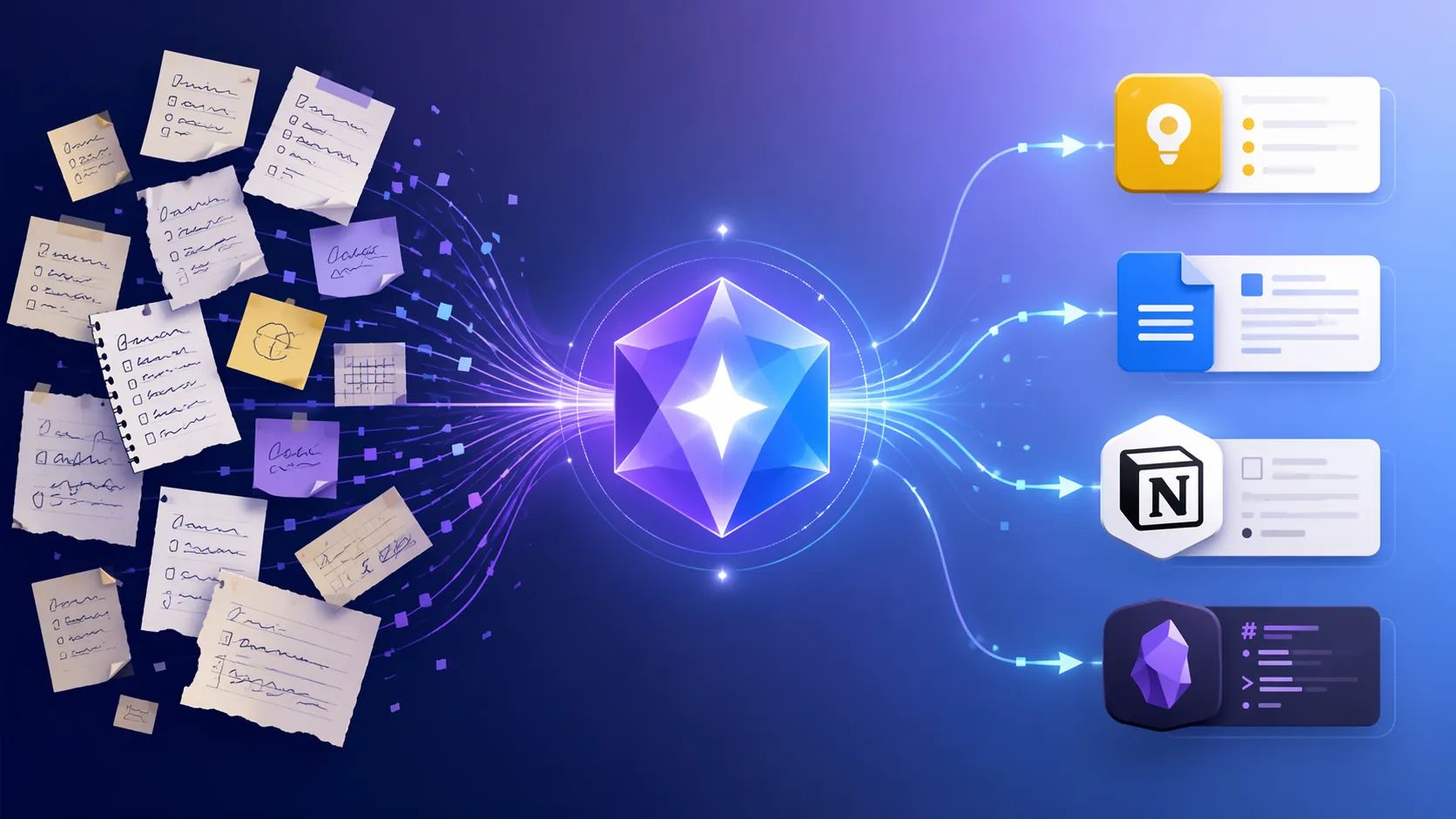
Start With The Destination, Not The Gem
The useful way to use Gemini Gems for note taking is to decide where the finished note belongs before deciding what the Gem should do. A quick task list for Keep, a meeting brief in Docs, and a durable knowledge note in Obsidian do not want the same output. One universal “note-taking Gem” usually becomes a polite text rewriter that still leaves you cleaning headings, bullets, checkboxes, and links by hand.
Google’s official guidance for custom Gems uses a four-part instruction structure: Persona, Task, Context, and Format. That is the right frame for note work because the last part, Format, is where routing actually becomes possible. Google also documents that each Gem can use up to 10 knowledge files, including Drive documents, which is the practical mechanism for giving a Gem a reusable template rather than a vague preference for “clean notes.” [1]
| Destination | Best Gem output | Routing reality |
|---|---|---|
| Google Keep | Short lists, checklist-style items, quick reminders | Use the Google Workspace connection and Keep-directed prompts |
| Google Docs | Structured briefs, meeting notes, reports, drafts | Use attached Drive files or template examples |
| Notion | Markdown with headings, bullets, tables, properties as plain text | Copy and paste into the right page or database |
| Obsidian | Markdown with wiki links, tags, headings, and atomic sections | Copy into the right vault file |
For most mixed note systems, three Gems are cleaner than one: a Keep capture Gem, a Docs drafting Gem, and a Markdown knowledge-base Gem. That is not a Google-endorsed package. It is just the least annoying way to respect the fact that each destination has different formatting rules.
Build The Gem Around Persona, Task, Context, And Format
A note-processing Gem does not need a theatrical personality. It needs enough role definition to make decisions consistently. The Persona tells it what kind of editor it is. The Task tells it what to transform. The Context explains your source material and destination app. The Format tells it exactly what to return.
| Instruction part | What it should do for note taking | Weak version | Better version |
|---|---|---|---|
| Persona | Set the editing stance | You are a helpful assistant | You are a meeting-note editor preparing concise CRM-ready follow-ups |
| Task | Define the transformation | Clean this up | Turn raw notes into decisions, open questions, owner-labeled tasks, and follow-up email bullets |
| Context | Explain the source and destination | These are meeting notes | These notes come from sales calls and will be pasted into a client record after review |
| Format | Control the handoff | Use bullets | Return Markdown with H2 sections for Summary, Decisions, Action Items, Risks, and Follow-Up |
The knowledge-file limit is easy to overlook, but it is the difference between “make this nicer” and “make this match my system.” If you already have a meeting-note template in Google Docs, a project-retro template, or a preferred Markdown note shape, attach it to the Gem and instruct the Gem to follow that structure unless the raw notes clearly do not contain the needed information. Google’s Gems documentation places that attachment limit at 10 knowledge files per Gem. [1]
One useful instruction to add to every note Gem is a missing-information rule: if the source notes do not include an owner, deadline, decision, or source link, label it as missing instead of inventing it. Note systems get worse when AI fills empty fields with plausible nonsense.
Route Quick Capture Into Google Keep
Keep is the closest match for a live Gemini-to-note-app bridge because Gemini can work with Google Keep when the Google Workspace connection is enabled, and walkthroughs have documented both creating Keep lists and searching existing Keep notes through Gemini. [2]
Do the boring prerequisite first: open Gemini settings and enable the Google Workspace connection. If that connection is off, Keep-directed prompts can behave like ordinary text generation rather than a useful handoff. If you are already thinking through what Gemini can see across your Google account, FlowDesk’s privacy audit on what Gemini knows about your notes is the better place to slow down before enabling more access.
A Keep Gem should be narrow. Ask it to produce short, direct items that belong in quick capture: errands, call follow-ups, lightweight reminders, shopping lists, packing lists, or small project checklists. Keep is not where a long meeting transcript should become a six-section strategy memo.
Persona: You are a concise capture assistant for Google Keep.
Task: Convert messy input into a short Keep-ready checklist.
Context: The user uses Google Keep for quick capture and later review, not long-term knowledge storage.
Format: Use @Google Keep when asking Gemini to create the list. Return only a title and checklist items. Keep each item under one line when possible. Do not add explanations.
The exact prompt you use in chat can be as plain as: “@Google Keep create a checklist from this.” The Gem’s job is to make sure the list is already clean before it reaches Keep: no duplicate tasks, no paragraph-length bullets, no hidden action items buried in a summary.
This is also where a physical capture setup can make sense. If Keep is your household or desk-side inbox, a repurposed display can become the place where AI-cleaned quick lists actually get seen. FlowDesk’s guide to using an old Android phone as a smart display for notes fits that Keep-first pattern.
Use Docs When Notes Need To Become Documents
Google Docs is the right destination when the note is no longer just a note. Meeting minutes, client briefs, research summaries, decision records, and first drafts all benefit from structure that is too heavy for Keep and too linear for a raw chat response.
The best Docs workflow starts with a template file in Drive. Create a sample document with the sections you actually use, attach it as a Gem knowledge file, and tell the Gem to match the template’s section order, heading style, and level of detail. Because Gems can attach Drive documents as knowledge files, the template can live where your documents already live instead of being retyped into every prompt. [1]
Persona: You are an operations editor preparing structured Google Docs from raw notes.
Task: Convert raw meeting notes into a document draft that follows the attached template.
Context: The finished text will be reviewed by a human, then pasted into a Google Doc. Preserve uncertainty and mark missing owners or deadlines.
Format: Follow the attached Drive template. Use clear headings, concise paragraphs, and action-item tables when the source includes owners or dates. Do not include chatty commentary before or after the draft.
The human review step is not ceremonial. It is where you decide whether an AI-generated “decision” was actually decided, whether a task has a real owner, and whether a vague phrase from the meeting deserves to become a documented commitment. The Gem can reduce the shaping work. It should not become the authority of record.
If you use Gemini more broadly than Gems, keep the boundary clear. Google’s “Take notes for me” in Meet can auto-save meeting notes to a Drive Doc, but Google describes it as part of a paid Google AI Pro or Ultra flow, not as the same thing as a free custom Gem that you configure for note processing. [3]
For Notion And Obsidian, Ask For Markdown And Move It Yourself
Notion and Obsidian users should be the most skeptical of “integration” language. Community patterns and automation guides support the same practical conclusion: Gems do not natively write to third-party app APIs, so the reliable workflow is Markdown-formatted output that you copy into the right Notion page, Notion database entry, or Obsidian file. [4]
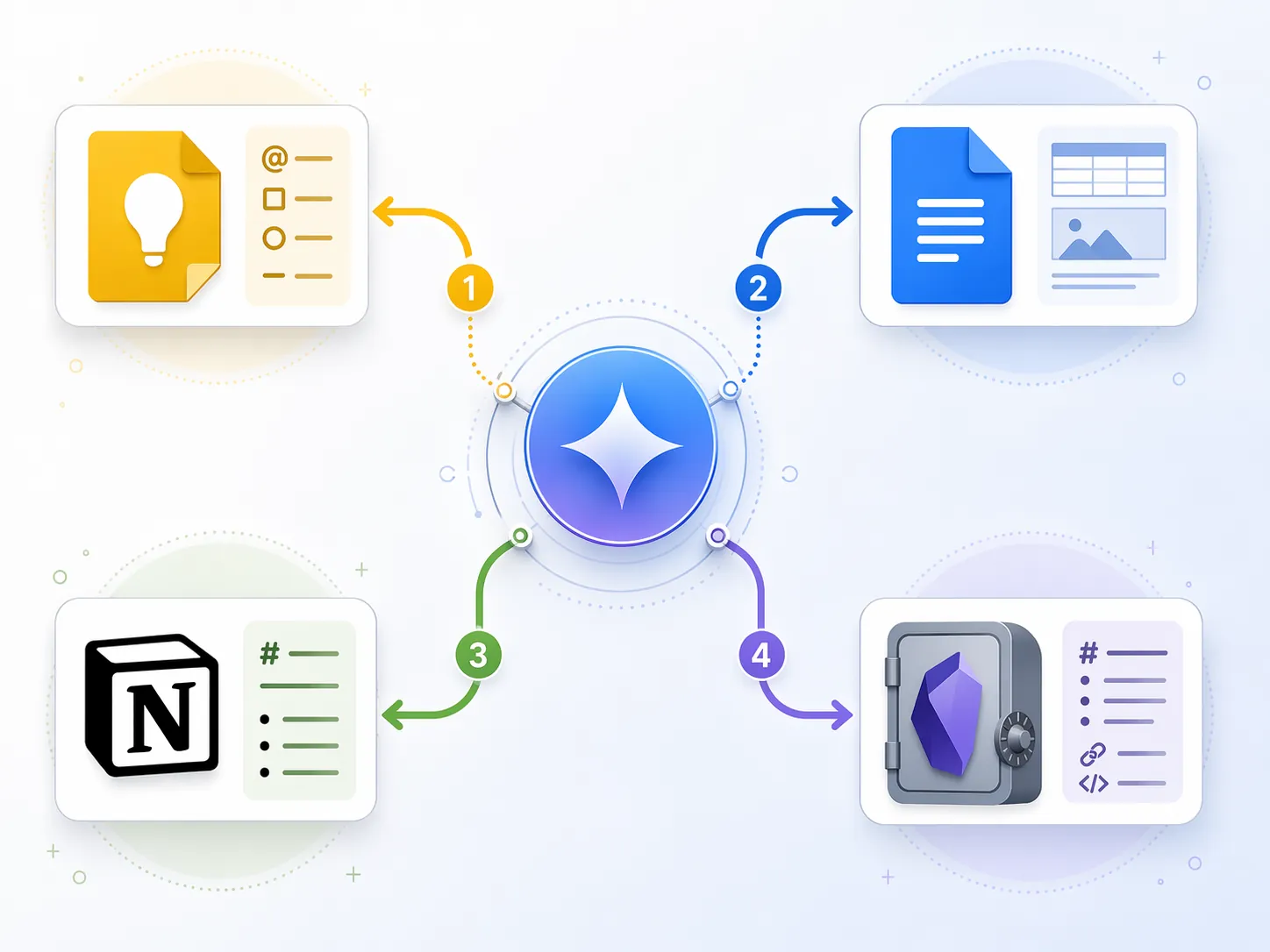
That is not a small detail. If you ask for generic “Notion format,” you may get attractive text that still needs repair. Ask for Markdown with the conventions your workspace expects: H2 headings, short paragraphs, tables only when they will paste cleanly, checkbox syntax for tasks, and plain-text property suggestions if you use databases.
## Summary

## Key Points

## Decisions

## Action Items
- [ ] Task — Owner: Missing — Due: Missing

## Links To Add

## Open Questions
For Obsidian, the instructions can be more vault-specific. If your system uses tags, aliases, source sections, or wiki links, put those rules in the Format section. If your vault separates fleeting notes from permanent notes, tell the Gem which kind of note it is producing. A good Obsidian Gem should not merely produce Markdown; it should produce Markdown that will not embarrass you during the next weekly review.
---
type: meeting-note
status: draft
source: missing
---

# Note title

## Context

## Useful Claims

## Follow-Up

## Possible Links
- [[Related topic]]

#tag-to-review
There is a temptation to automate the last mile with browser extensions, unofficial scripts, or multi-app chains. Some people will make that work. The dependable recommendation is still more modest: get the Gem to produce clean Markdown, paste it into the place where it belongs, and let your existing review habits catch the rest. If you want to think more deeply about AI outputs feeding a career or knowledge system, FlowDesk’s guide to linking AI to your notes for career productivity is the more relevant next layer.
A Meeting-Note Gem Is Where The Time Savings Show Up
The strongest case for Gems is not that they replace a note app. It is that they remove the dull transformation between raw capture and a usable destination format. A ConnectAIBiz case study described a custom Gem used to prepare CRM-ready client meeting notes, reducing the preparation time from 20–30 minutes to under 5 minutes per meeting. [5]
That result is worth taking seriously, but narrowly. It shows what happens when the output shape is clear: client context, action items, follow-up language, and CRM-ready structure. It does not prove that a Gem can file notes across every app without friction, or that every messy capture system will see the same reduction.
A practical meeting-note Gem should therefore be written around the review destination. If the notes go into a CRM, ask for CRM fields. If they become a Doc, follow the Doc template. If they become an Obsidian project note, ask for Markdown sections and internal-link candidates. The same raw transcript can produce three different useful outputs; pretending one format serves all three is where the cleanup work returns.
Do Not Confuse Gems With The Rest Of Gemini
Gemini now sits across enough Google surfaces that it is easy to blur features together. Gems are custom instruction-based assistants. Google Workspace connections let Gemini interact with supported Google apps such as Keep when enabled. Meet’s “Take notes for me” is a separate paid meeting-note pipeline into Docs. Broader Gemini ecosystem features may affect whether you invest more deeply, but they do not change the basic routing limits of Gems. FlowDesk’s look at whether Gemini Spark changes your note-taking app decision belongs in that bigger evaluation.
There is also some regional UI variation around Gemini pages and product surfaces. For instruction-writing, the English Gemini Apps Help page is the safest source to treat as canonical because it directly documents how to create custom Gems and how to structure their instructions. [1]
The Setup That Usually Holds
A stable setup is small: one Gem for Keep capture, one Gem for Docs drafts, and one Gem for Markdown knowledge-base notes. Each Gem gets a different Format section. Each Gem assumes a different destination. Each Gem tells you when information is missing instead of smoothing over gaps.
- Use Keep when the output should be short, disposable, and easy to review quickly.
- Use Docs when the output needs a template, narrative structure, or human review before sharing.
- Use Markdown when the output belongs in Notion, Obsidian, or another structured knowledge base.
- Use attached knowledge files when the Gem must match a recurring template.
- Avoid calling a workflow automated when the final move is still copy-paste.
Gemini Gems are worth using when each one has a target format and a destination app. They are not worth trusting as an automation layer for third-party note apps unless Google or the destination app exposes direct support later.
References
- Tips for creating custom Gems, Google Gemini Apps Help, https://support.google.com/gemini/answer/15235603?hl=en
- I started using Gemini to create notes in Google Keep, Android Police, Dec 2025, https://www.androidpolice.com/
- Take notes for me, Google Workspace Blog, Jun 2026, https://workspace.google.com/blog/
- Zapier guide on Gems, Zapier, https://zapier.com/blog/
- ConnectAIBiz custom Gem CRM-ready note generation case study, Medium, Sep 2025, https://medium.com/
Comments
Join the discussion with an anonymous comment.