
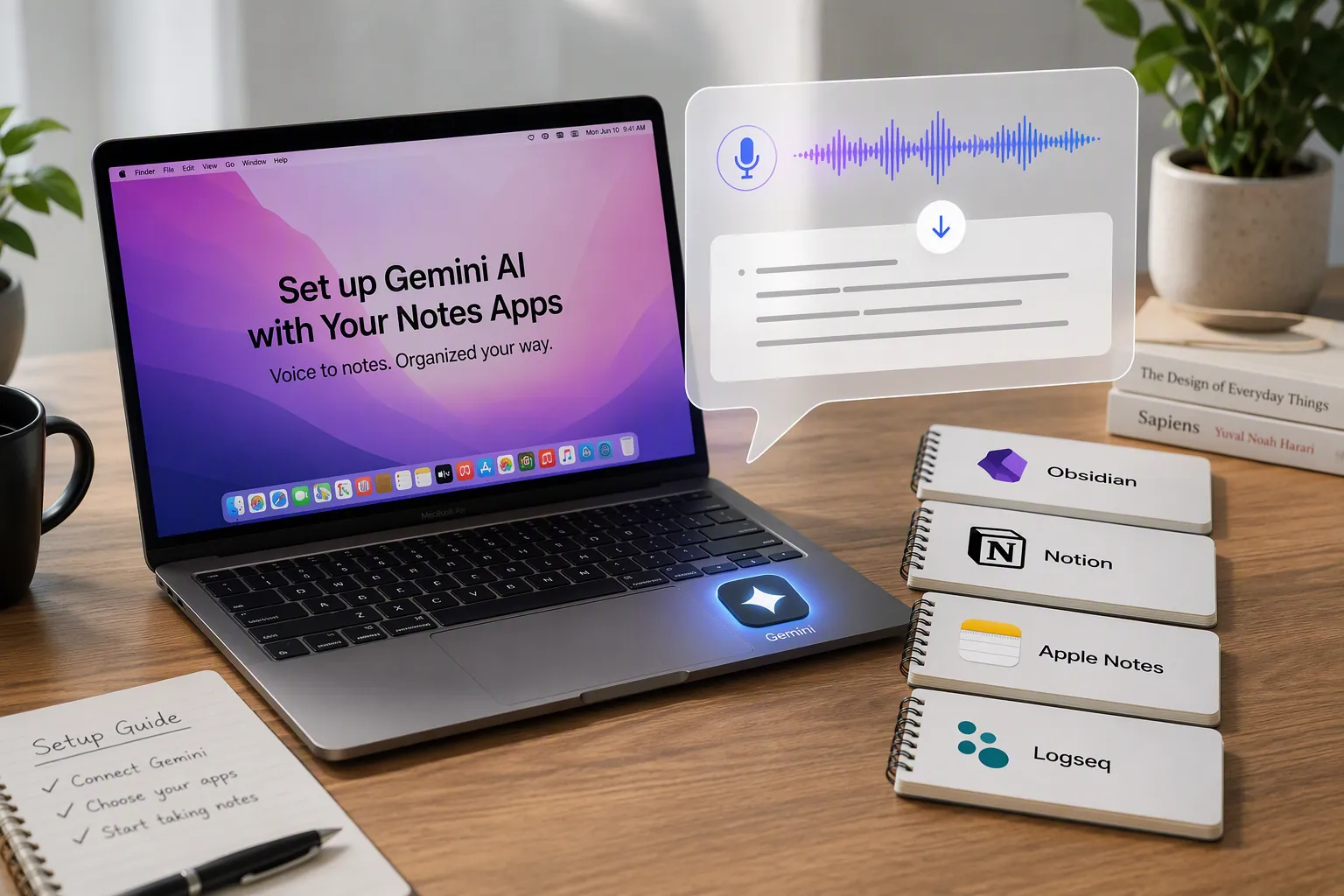
Checked July 30, 2026: Gemini for Mac’s Speak to Window is new enough that the right setup question is not “can AI dictation replace typing?” It is more basic: can your Mac run it, can it put text directly where your cursor is, and can you trust the resulting note after the moment has passed?
The hard gate comes first. Gemini for Mac requires an Apple Silicon Mac, macOS Sequoia 15.0 or later, 8 GB of RAM, 200 MB of available disk space, and a Google account; Intel Macs are not supported. Google’s support page also covers installation and Fn-key customization, which matters because Fn is the main dictation trigger. [1]
The basic mechanism is simple: long-press Fn to dictate into the current cursor position, or double-press Fn for hands-free continuous dictation. Google announced the feature on July 29, 2026, and described it as a way to speak naturally into apps instead of bouncing through a separate Gemini chat window. [2] AppleInsider’s launch coverage usefully confirms the important part for note-takers: the text is meant to land at the cursor in the active app, though Google had not fully clarified whether this behavior works universally in every macOS text field. [3]
| Before you install | What to check |
|---|---|
| Mac hardware | Apple Silicon only: M1, M2, M3, or M4. Intel Macs are excluded. |
| macOS | macOS Sequoia 15.0 or later. |
| Memory and storage | 8 GB RAM and 200 MB disk space. |
| Account | Google account required. |
| Language and connection | English-only at launch and internet required; do not plan on offline dictation yet. |
| Main shortcut | Long-press Fn for Speak to Window; double-press Fn for continuous dictation. |
Those last two limitations are not cosmetic. At launch, the feature is English-only and requires an internet connection, so it is not a drop-in replacement for offline macOS dictation or multilingual capture. MacRumors’ launch report also confirms the system requirement context around the new Mac app. [4]
Install Gemini for Mac and make one boring test first
Download Gemini for Mac from Google’s official Mac page rather than a mirrored installer or a random update prompt. The official download page is gemini.google/mac. [5]
After installation, sign in with your Google account and resist the urge to start in your most complicated workspace. Open a plain text target first: a new Apple Notes note, a TextEdit document, or a blank field in another simple app. Click into the note body so the insertion point is visible, long-press Fn, speak one short sentence, and confirm that the text appears where the cursor was.
That first test tells you three things before your actual notes are involved: the microphone path is working, Gemini is receiving the trigger, and cursor insertion is behaving in at least one normal text field. If it fails there, do not debug Notion databases, Obsidian markdown, or Logseq block behavior yet. Fix the base layer first.
Permissions are part of the workflow, not an afterthought
Voice dictation on macOS lives or dies in Privacy & Security. Gemini needs access to the microphone for ordinary dictation. If you use the screen-aware reasoning layer later, it also needs Accessibility permission so it can read or act on visible content. AppleInsider noted on launch day that Google had not fully disclosed every macOS permission requirement or confirmed universal behavior across all text fields, so treat permission prompts as part of setup rather than a one-time nuisance. [3]
- Open System Settings on macOS.
- Go to Privacy & Security.
- Check Microphone and make sure Gemini is allowed.
- If you enable screen-aware commands, also check Accessibility and approve Gemini only if you are comfortable with that broader access.
- Quit and reopen Gemini after changing permissions if the shortcut or dictation window behaves inconsistently.
If Fn does not trigger Speak to Window, check whether your keyboard settings or third-party utilities have already claimed the key. Google’s support material includes Fn-key customization, so do that before retraining your muscle memory around a shortcut conflict. [1]
The practical test is not whether the floating interface appears once. It is whether the same trigger works after you switch apps, after the Mac wakes from sleep, and after you click into the exact field where you usually capture notes. Launch-week dictation that works in one field and stalls in another is still useful, but it is not a reliable daily workflow yet.
Set “Use reasoning” based on the kind of note you are capturing
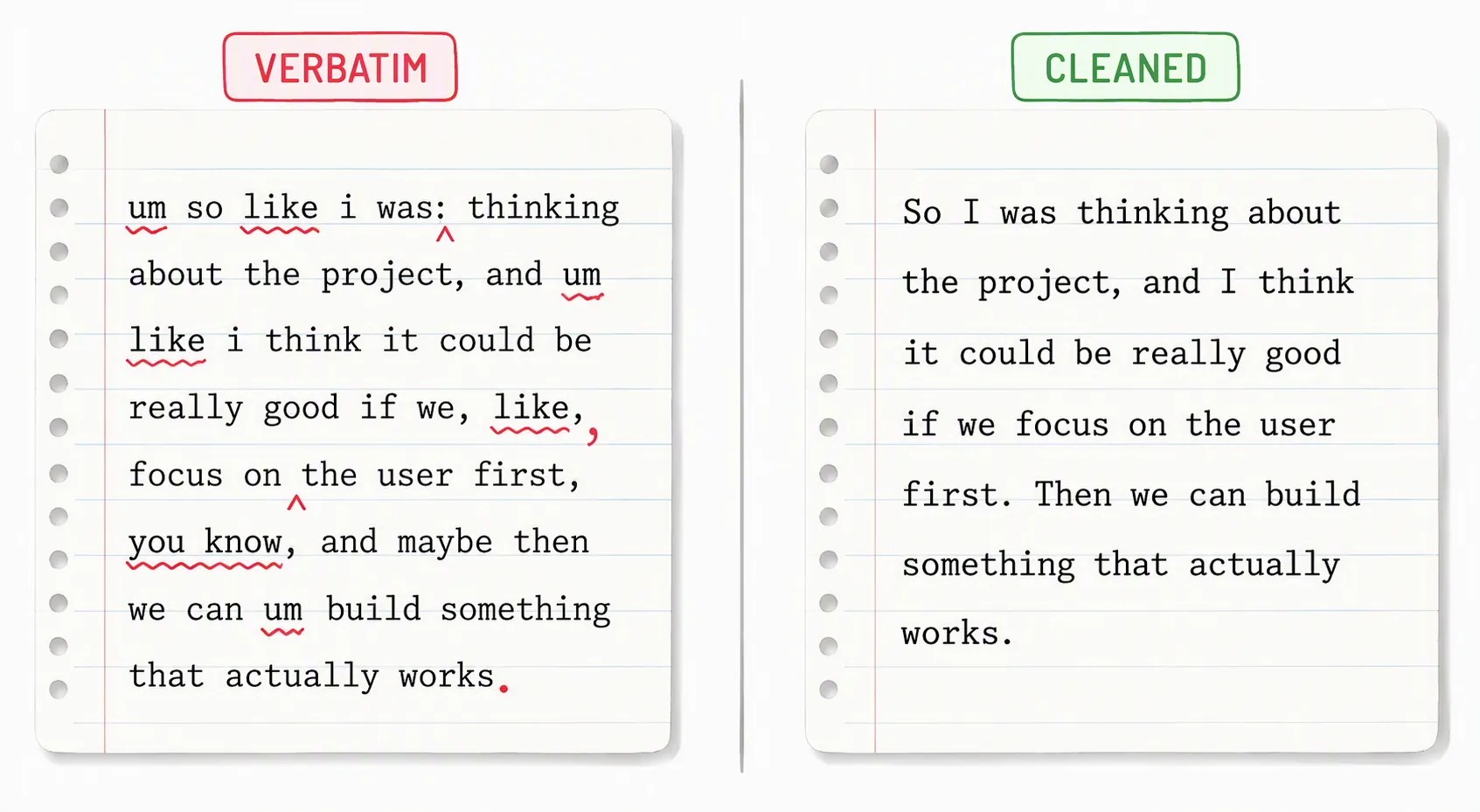
Gemini’s most interesting default behavior is also the one most likely to cause quiet cleanup debt. Google says Gemini can remove filler words such as “um” and “ah” and handle mid-sentence corrections, so if you say something and then revise it aloud, the transcript can be cleaned as it lands. [2] That is excellent for rough meeting notes, daily logs, and thinking aloud. It is risky for quotations, interview notes, technical terms, product names, acronyms, or anything where the wording itself is evidence.
| Capture type | Use reasoning? |
|---|---|
| Brain dump, rough meeting note, personal daily note | Usually on. Let Gemini remove filler and smooth corrections. |
| Interview quote, research transcript, legal or compliance-sensitive wording | Usually off. Preserve the speaker’s exact words. |
| Technical note with product names, acronyms, commands, or code-like text | Test both. If Gemini over-corrects terms, turn reasoning off for that session. |
| Markdown-heavy Obsidian or Logseq capture | Start off or use short tests. Cleanup can help prose but may interfere with literal formatting commands. |
This is the setting to decide before you begin a real note, not after. A polished transcript can feel better in the moment and still be worse if you later need to know whether the speaker said “can,” “can’t,” “Q3,” or “Q4.” For daily notes, I would rather have the cleanup. For research capture, I would rather tolerate the ums.
Add screen-aware reasoning only after plain dictation works
Gemini’s screen-aware layer is different from basic Speak to Window dictation. Google describes opt-in reasoning commands that can work with what is on screen, such as rewriting, summarizing, or transforming visible content by voice. [2] Cult of Mac reports that this screen-aware reasoning layer requires a Google AI Ultra subscription at $19.99 per month, and it also brings the extra macOS Accessibility permission mentioned earlier. [6]
For note-taking, that means there are two workflows. The first is cursor dictation: speak, and text appears where you clicked. That is the core setup in this guide. The second is screen-aware editing: ask Gemini to rewrite or summarize something already visible. Useful, yes. But if cursor dictation is not stable yet, adding a paid, permission-heavy reasoning layer will make troubleshooting harder.
Test in the note app you actually use
Once the plain-text test works, move into your real capture app. This is where “works in any app” becomes less useful than “works in this field, with this formatting, at the speed I take notes.” A freeform page, a database property, a markdown editor, and a block outliner are not the same input surface.
Apple Notes: the baseline test
Apple Notes is the easiest first destination because the note body behaves like a straightforward text field. Click into a blank note, long-press Fn, dictate a paragraph, and watch for three things: whether Gemini inserts at the cursor, whether punctuation arrives acceptably, and whether the app remains responsive during continuous dictation. AppleInsider’s coverage treats Apple Notes as a natural comparison point for system-level dictation behavior, which makes it a good baseline before you test more structured apps. [3]
A good Apple Notes test sentence should include a correction, a list-like phrase, and a term you do not want rewritten. For example, say a short hypothetical note such as: “Project follow-up, I mean project review, next Tuesday. Items are budget, staffing, and risk.” If reasoning is on, confirm that the correction is handled the way you expect. If the wording matters, repeat the same test with reasoning off.
Notion: pages are easier than properties
In Notion, start in a normal page body, not a database selector. Click into a blank paragraph block, long-press Fn, and dictate one paragraph. Then test a database text property, a title property, and any Q&A or AI block you actually use. The Weesper guide says dictation can work across Notion database fields and AI Q&A blocks without plugins, but it also notes that tag and status selector properties are better handled by mouse click. Because Weesper is a dictation-software vendor, treat that as vendor workflow guidance rather than independent compatibility testing. [7]
The difference matters in daily use. A Notion page body accepts flowing text. A select property expects one of a constrained set of values. A relation field may open a picker. A date field may parse language differently from a plain note. Gemini can help you get words into Notion, but it cannot make every Notion control behave like a text editor.
- Use Gemini for freeform page notes, meeting summaries, research observations, and longer text properties.
- Click manually for status, tag, relation, and other picker-style properties.
- For database templates, test the title field separately from the body field; they may not behave identically.
- If Notion focus jumps after insertion, slow down and confirm the cursor before continuing continuous dictation.
Obsidian: speak the markdown you want to keep
Obsidian is friendly to direct text insertion because markdown is plain text, but it is unforgiving if your formatting conventions are vague. If you need a heading, say the markdown marker. If you need a wikilink, dictate the brackets. The Weesper guide gives examples such as saying “double bracket Concept Name double bracket” for an Obsidian wikilink and “hashtag hashtag Heading Name” for a level-two heading, while also noting that markdown dictation has a learning curve. [7]
| Obsidian result | Spoken convention to test |
|---|---|
| ## Project Review | “hashtag hashtag Project Review” |
| [[Concept Name]] | “double bracket Concept Name double bracket” |
| - Follow up with design | “dash Follow up with design” or use your app’s list shortcut before dictating |
| `inline code` | Test carefully; for code-like notes, reasoning off is usually safer |
Do not start by dictating a full literature note or a permanent note with links everywhere. Make a scratch note called something obvious, then test headings, bullets, wikilinks, tags, and any plugin-specific syntax you rely on. If Gemini’s cleanup changes bracketed text or “fixes” a term that should remain literal, turn off reasoning for markdown-heavy capture and use it later for rewriting prose.
A workable Obsidian rhythm is short-burst dictation: place the cursor, dictate one paragraph or one bullet cluster, stop, scan the markdown, then continue. Continuous dictation is tempting, but a single malformed link repeated across a long capture session creates the kind of cleanup debt that makes voice input feel slower than typing.
Logseq: decide block boundaries yourself
Logseq’s issue is not whether words can appear. It is block structure. The Weesper guide says Logseq works with voice dictation but that block-level capture requires pressing Enter after each block. [7] That tracks with how outliners behave in general: the app needs a boundary, and the dictation tool is not always the best judge of where one thought should become a new block.
Use Gemini for the text of each block, then press Enter yourself when the block is done. For nested notes, create the indentation with the keyboard first, then dictate into the target block. If you try to dictate hierarchy, content, and navigation all at once, the failure mode is messy: the words may be right, but the outline becomes wrong.
A first reliable workflow
For daily use, keep the workflow deliberately plain until you have a week of your own edge cases. The launch-week version should look like this:
- Confirm the Mac qualifies: Apple Silicon, macOS Sequoia 15.0 or later, 8 GB RAM, 200 MB disk space, Google account.
- Install Gemini for Mac from Google’s official Mac page.
- Approve microphone access in macOS Privacy & Security.
- Test long-press Fn in a simple text field.
- Fix Fn-key conflicts before testing note apps.
- Choose reasoning on for cleaned-up capture or off for verbatim notes.
- Test the actual note surface: Notion page body, Notion property, Obsidian markdown note, Logseq block, or Apple Notes body.
- Only then add screen-aware reasoning, and only if the AI Ultra subscription and Accessibility permission make sense for your workflow.
The most useful version of Gemini dictation is not the flashiest one. It is the one where a thought becomes text in the right place, with the right amount of cleanup, and without a second pass spent repairing headings, links, selectors, or block boundaries.
Daily reliability check
| Question | Pass condition |
|---|---|
| Does Fn trigger Gemini every time in your capture app? | Long-press starts dictation; double-press continuous mode behaves predictably. |
| Does the text land at the cursor? | No surprise insertion into the wrong field or stale window. |
| Is reasoning set correctly? | Cleaned-up for rough notes; off for quotes, research transcripts, code-like text, or fragile terms. |
| Does your app’s structure survive? | Notion properties, Obsidian markdown, Logseq blocks, and Apple Notes paragraphs behave the way you expect. |
| Can you recover quickly from a bad insertion? | You know whether to stop dictation, undo, move the cursor, or switch reasoning off. |
As of launch week, Gemini for Mac’s Speak to Window is already useful for basic Mac dictation. For dependable note-taking, the setup is still app by app: test the field, choose whether Gemini should clean your speech, and keep screen-aware reasoning separate from the core capture path until the ordinary cursor-drop workflow is boringly reliable.
References
- Gemini app for Mac system requirements and setup, Google Help, https://support.google.com/gemini/answer/17011627?hl=en
- Speak naturally with Gemini app for macOS, Google Blog, Jul 29, 2026, https://blog.google/innovation-and-ai/products/gemini-app/speak-naturally-gemini-app-mac-os/
- AI leaves the chat window behind with Gemini's new Mac voice mode, AppleInsider, Jul 29, 2026, https://appleinsider.com/articles/26/07/29/ai-leaves-the-chat-window-behind-with-geminis-new-mac-voice-mode
- Gemini for Mac Gets AI Dictation Feature, MacRumors, Jul 29, 2026, https://www.macrumors.com/2026/07/29/gemini-for-mac-dictation/
- Gemini for Mac, Google, https://gemini.google/mac/
- Gemini Mac Wispr Flow smarter AI dictation, Cult of Mac, https://www.cultofmac.com/news/gemini-mac-wispr-flow-smarter-ai-dictation
- Voice Dictation for Notion and Obsidian: Productivity Apps Integration, Weesper Neon Flow Blog, https://weesperneonflow.ai/en/blog/2025-10-23-voice-dictation-notion-obsidian-productivity-apps-integration/
Comments
Join the discussion with an anonymous comment.