
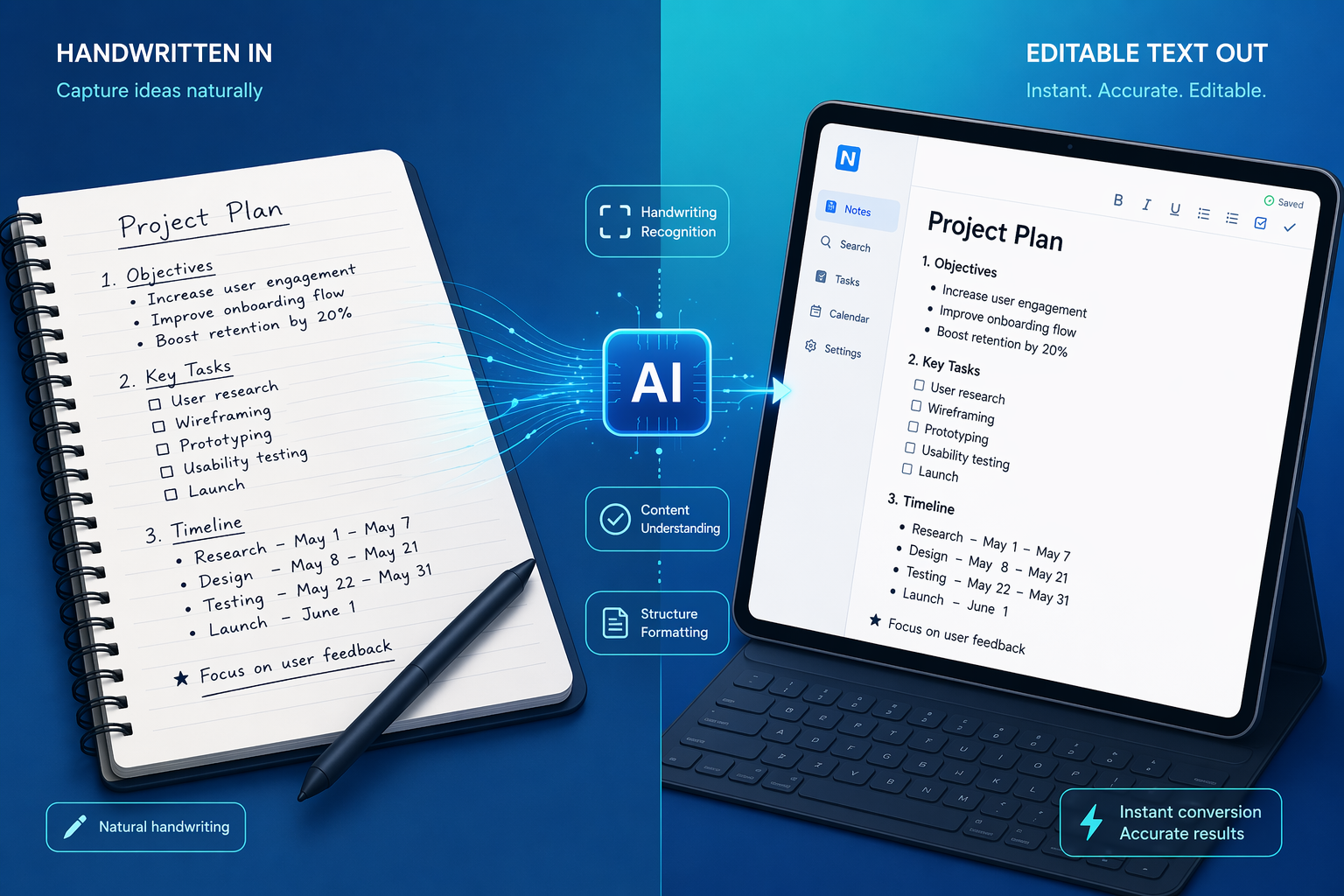
The promise of free handwriting-to-text conversion is seductive: snap a photo of your notebook page and watch it turn into editable text, no wallet required. Google Keep, Apple Notes Scribble, Microsoft OneNote, and Microsoft Lens all offer this at exactly $0. For anyone who has ever typed up lecture notes by hand, that sounds like a solved problem. The reality is more nuanced. Free tools handle neat, printed handwriting impressively well — but the moment your writing gets fast, cursive, or mixed with diagrams, the accuracy drops hard. And when accuracy drops, you pay in time.
This article is not a general survey of every handwriting OCR tool on the market. It is a targeted cost-benefit analysis for three specific reader types: the student on a tight budget, the freelancer who needs reliable output, and the professional processing pages of notes every week. We will walk through what each free tool actually delivers, run the same handwriting samples through free and paid options to measure the real accuracy gap, and then do the math on whether that gap costs you more in correction time than a subscription would.
The Free Tier Landscape: What You Get at $0
Before we talk about spending money, it is worth understanding exactly what the free tools can and cannot do. The four major free options — Google Keep, Apple Notes (with Scribble), Microsoft OneNote, and Microsoft Lens — each approach handwriting differently, and their strengths map to specific use cases.
Google Keep — The Surprising Free Performer
Google Keep's "Grab image text" feature is the most accessible free handwriting OCR tool on the market. It lives inside a free app, requires no subscription, and works on any device with a browser or the mobile app. In a practical test, it accurately transcribed a children's handwriting sample — notoriously difficult because of irregular letter shapes — converting "2 days ago I went on holiday and next to where we were staying there was some stray cats and I fed them everyday" to "days ago I went on holiday and next to where we were staying there was some Stray Cats and I fed them every day." The only errors were a missing word ("2") and a capitalization change. For a free, instant conversion, that is impressive.
However, Google Keep's OCR is designed for occasional use — grabbing a whiteboard, a business card, or a single notebook page. It does not batch process, it does not export to structured formats, and it struggles with cursive or handwriting that overlaps with drawings. For the student who needs to digitize one page of neat lecture notes, it is often good enough. For the professional with a dense journal full of margin notes and diagrams, it will leave you editing more than you keep.
Apple Notes Scribble — The Ecosystem Lock-In
Apple Notes with Scribble (available on iPad with an Apple Pencil) converts handwriting to text in real time as you write. It is excellent for live note-taking during a meeting or lecture because the conversion happens inline — you see text appear as you write. The catch is that it works best with the Apple Pencil and within the Apple ecosystem. Importing a photo of handwritten notes into Apple Notes and running OCR on it is a less polished experience. Scribble is a writing tool, not a document digitization tool. If you take all your notes on an iPad with a Pencil, it is a strong free option. If you work with paper notebooks and want to digitize them, it is not the right tool.
Microsoft OneNote and Lens — The Office Duo
Microsoft OneNote's free tier includes ink-to-text conversion, which works well for handwriting created with a stylus inside the app. The recognition quality varies significantly with handwriting style and language, and it is worth noting that the Mac version of OneNote no longer supports OCR scanning of imported handwriting images. Microsoft Lens, the company's free scanning app, offers moderate accuracy on handwriting and is best used for whiteboards and printed documents. For users already in the Microsoft ecosystem, these tools provide a decent free entry point, but neither is designed for high-volume or high-accuracy handwriting transcription.
Real-World Accuracy Test: Same Sample, Free vs. Paid
To understand where the free tools fall short, we need to look at the accuracy gap in concrete terms. The research community uses Character Error Rate (CER) and Word Error Rate (WER) as standard benchmarks, but those numbers only tell part of the story. What matters is how many errors you have to fix per page.
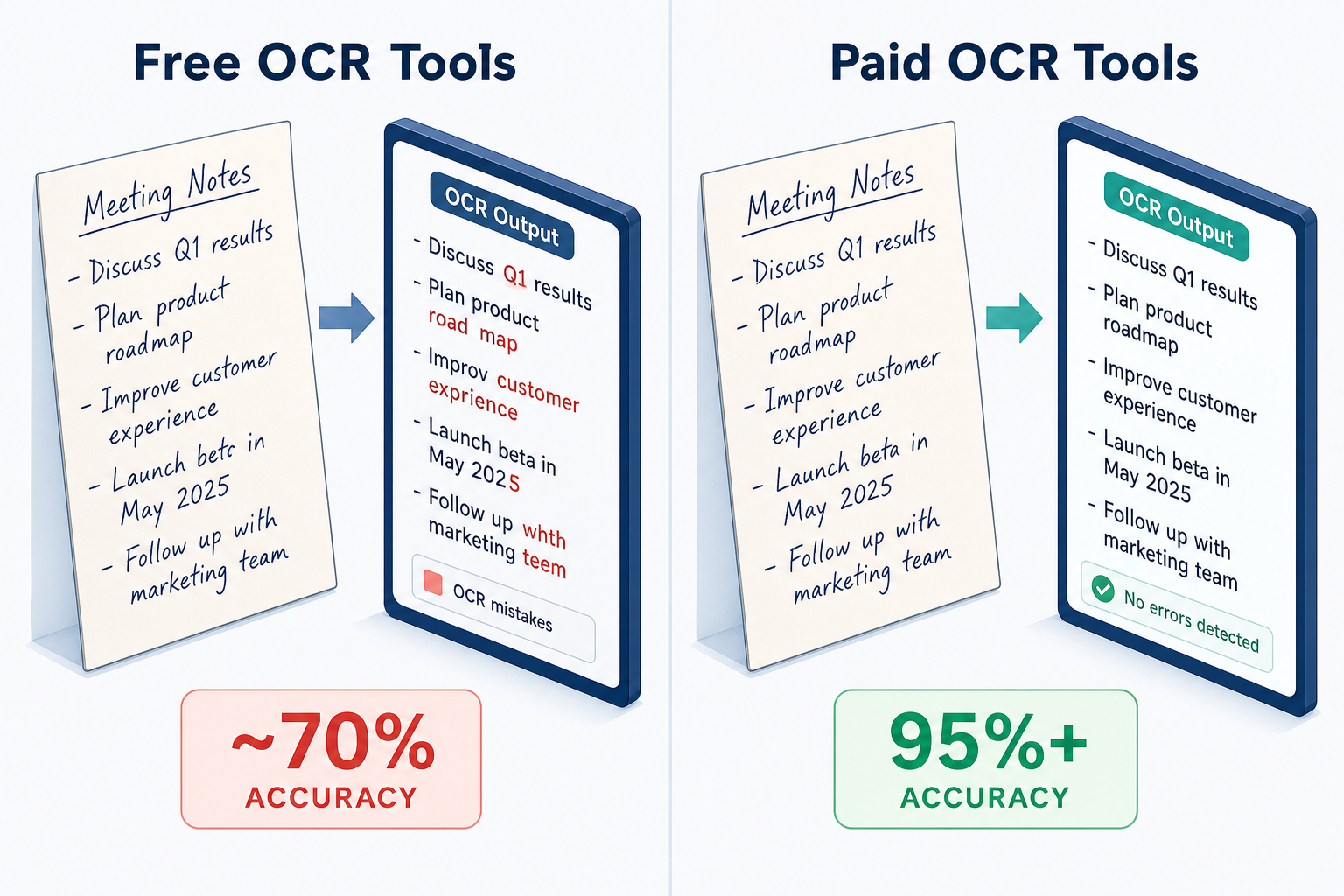
Traditional OCR engines average roughly 64% accuracy on handwriting. That means on a 200-word page, about 72 words will be wrong or missing. AI-powered solutions — both free and paid — have improved on this dramatically, but the gap between free and paid remains significant.
| Handwriting Type | Free Tools (Google Keep, OneNote) | Paid Tools (Nebo, ABBYY, Pen to Print) | Accuracy Gap |
|---|---|---|---|
| Clean print (block letters) | 95–99% | 98–99.8% | Minimal — free is often good enough |
| Neat cursive | 70–85% | 90–95% | 10–20% — noticeable errors per page |
| Average cursive | 60–75% | 85–92% | 15–25% — frequent corrections needed |
| Messy / rushed handwriting | 50–65% | 75–85% | 20–30% — free tools become unreliable |
| Dense mixed content (notes + diagrams) | 40–60% | 80–90% | 30–40% — free tools fail on structure |
The accuracy spectrum is well-documented: clean print achieves 95–99% accuracy, neat cursive drops to 85–95%, average cursive falls to 80–90%, and messy or rushed handwriting can be as low as 70–85%. For the notoriously difficult "doctor's notes" category, accuracy can fall to 50–80%. Paid tools like ABBYY FineReader PDF 16 claim up to 95% accuracy on handwriting under good conditions, while Pen to Print's own site reports 98.2% word accuracy. These numbers are vendor-published and should be cross-referenced, but the pattern is consistent across multiple sources: paid tools close the gap by 10–30 percentage points depending on handwriting quality.
The Hidden Cost of Free: Manual Correction Time Math
This is where the decision stops being about features and starts being about your time. A free tool that produces 70% accuracy on your handwriting means that for every 100 words you scan, 30 are wrong. If you are processing a single page of 200 words once a week, correcting those 60 errors might take five minutes. That is tolerable. But if you are processing 10 pages per week — a typical volume for a student taking notes across multiple classes or a professional documenting meetings — the math changes.
| Volume | Free Tool (70% accuracy) | Paid Tool (95% accuracy) | Time Saved Per Week |
|---|---|---|---|
| 1 page/week (200 words) | ~5 min correction | ~1 min correction | 4 minutes |
| 5 pages/week (1,000 words) | ~25 min correction | ~5 min correction | 20 minutes |
| 10 pages/week (2,000 words) | ~50 min correction | ~10 min correction | 40 minutes |
| 20 pages/week (4,000 words) | ~100 min correction | ~20 min correction | 80 minutes |
At 10 pages per week, you are spending nearly an hour correcting errors that a paid tool would have gotten right. At 20 pages per week, that becomes over an hour and a half. Now compare that to the cost of a paid tool. ABBYY FineReader PDF 16 costs roughly $16 per month or $199 as a one-time license. Nebo is a one-time purchase in the $7.99–9.99 range. Pen to Print operates on a credit system with a free trial. Even at the highest end — $16 per month — you are paying about $0.53 per day. If that subscription saves you 40 minutes of correction time per week, your time is being valued at roughly $2 per hour. That is an extraordinarily good trade.
The break-even point is surprisingly low. If you process more than 3–4 pages per week and your handwriting is anything other than neat block print, a paid tool will likely save you more time than its subscription costs. The key variable is your handwriting style — the messier your writing, the fewer pages you need to process before paying becomes the rational choice.
Where Your Money Goes: Paid Tool Deep-Dives
If the accuracy gap is the "what," the paid tool features are the "how." The money you spend on a tool like Nebo, ABBYY, or Pen to Print buys specific capabilities that free tools simply do not offer. Understanding these helps you decide whether they matter for your workflow.
Custom Models and Continuous Learning
Free tools use a one-size-fits-all OCR model. They are trained on a broad dataset and do not adapt to your handwriting. Paid tools like ABBYY and Pen to Print offer custom model training or continuous learning features. ABBYY's AI-powered system uses an ensemble of multiple frontier LLMs and an agentic OCR correction layer to improve accuracy over time. Transkribus goes further, offering custom model training for batch processing — you train the model on a sample of your handwriting, and it gets better at reading your specific style. For anyone processing a consistent handwriting style (lecture notes, journal entries, meeting minutes), this alone can close the accuracy gap by another 5–10 percentage points.
Structured Export and Document Preservation
Free tools typically output plain text. You lose formatting, page layout, and any non-text elements like diagrams or margin notes. Paid tools offer structured export options: Markdown, PDF with text layers, Word documents, and searchable PDFs. Nebo is particularly strong here — it can convert entire pages of handwriting including complex math equations and diagrams, preserving the structure of the original page. For students who need to submit assignments or professionals who need to archive meeting notes with their original formatting, this is a significant advantage.
Offline Processing and Privacy
Most free tools process handwriting in the cloud. Google Keep, Microsoft Lens, and Apple Notes all send your images to remote servers for OCR. For sensitive notes — client meeting notes, personal journals, research data — this may be a concern. Paid tools like ABBYY and Nebo offer offline processing, keeping your data on your device. For professionals in regulated industries or anyone who values privacy, this alone can justify the cost.
| Feature | Free Tools | Paid Tools (Nebo, ABBYY, Pen to Print) |
|---|---|---|
| Accuracy on cursive | 60–85% | 85–95% |
| Custom model training | No | Yes (ABBYY, Transkribus) |
| Structured export (Markdown, PDF) | No (plain text only) | Yes |
| Math equations and diagrams | No | Yes (Nebo) |
| Offline processing | No (cloud-dependent) | Yes (ABBYY, Nebo) |
| Batch processing | No (single page) | Yes (ABBYY, Transkribus) |
| Cost | $0 | $8–16/month or one-time $8–$199 |
Decision Matrix: Match Your Volume and Handwriting Style to a Price Tier
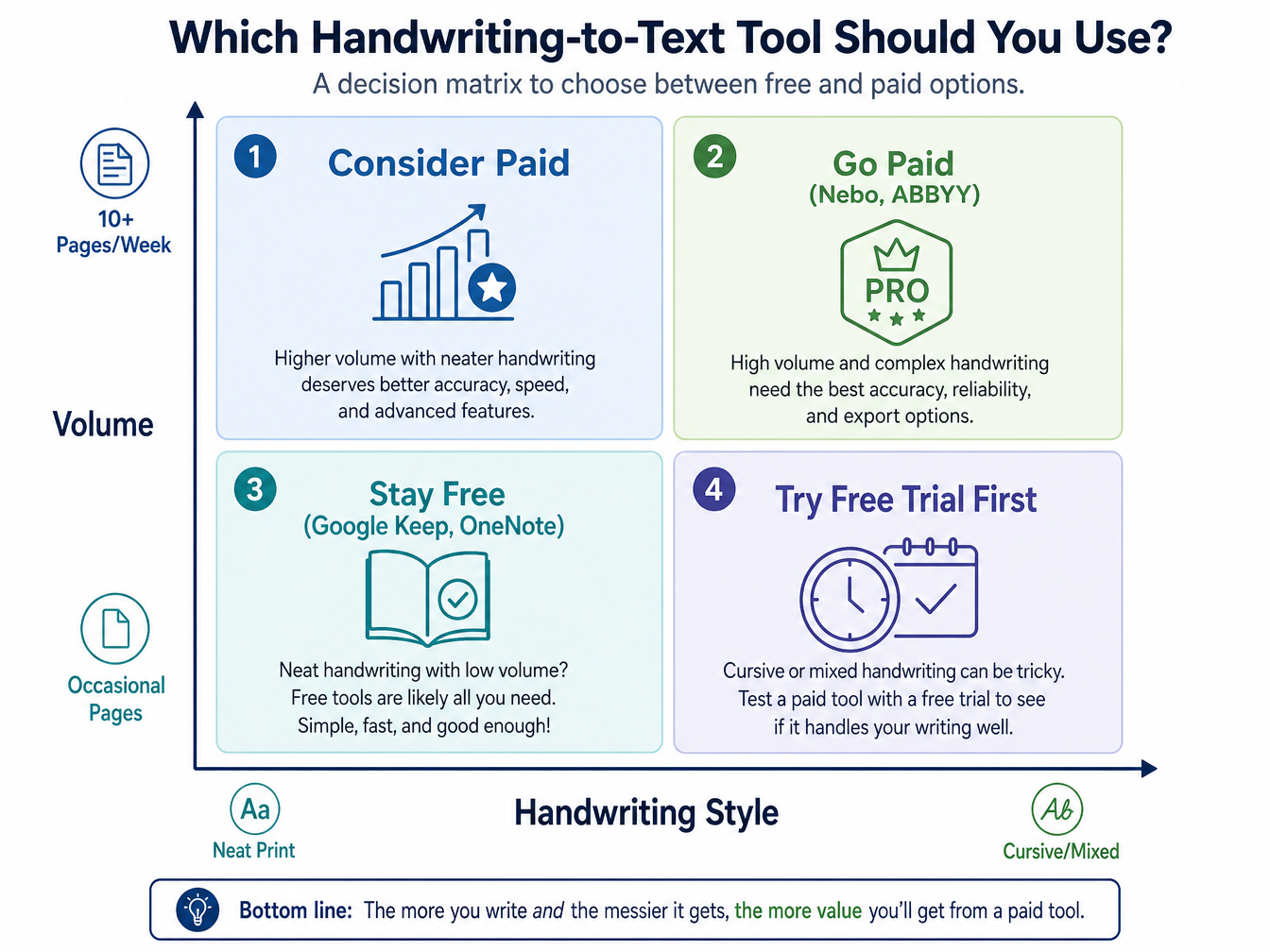
The decision to pay or not pay comes down to two variables: your handwriting style and your weekly volume. The matrix below maps each combination to a clear recommendation.
| Volume \ Handwriting Style | Neat Print | Neat Cursive | Average Cursive | Messy / Mixed |
|---|---|---|---|---|
| Occasional (1–2 pages/week) | Stay Free (Google Keep) | Stay Free (Google Keep) | Try Free Trial (Pen to Print) | Try Free Trial (Pen to Print) |
| Light (3–5 pages/week) | Stay Free (Google Keep) | Consider Paid (Nebo ~$8) | Consider Paid (Nebo ~$8) | Go Paid (ABBYY ~$16/mo) |
| Moderate (6–10 pages/week) | Consider Paid (Nebo ~$8) | Go Paid (ABBYY ~$16/mo) | Go Paid (ABBYY ~$16/mo) | Go Paid (ABBYY ~$16/mo) |
| Heavy (10+ pages/week) | Go Paid (ABBYY ~$16/mo) | Go Paid (ABBYY ~$16/mo) | Go Paid (ABBYY ~$16/mo) | Go Paid (ABBYY ~$16/mo) |
Recommendations for 3 Budget Personas
To make this actionable, here are specific recommendations for three reader types. Each includes a primary recommendation and a fallback option if the budget is tight.
The Student: Low Volume, Neat Print
You take neat lecture notes, maybe 3–5 pages per week, and you want to digitize them for searchability. Your handwriting is likely print-style (most students develop this for readability).
- Primary recommendation: Stay free with Google Keep. Its "Grab image text" feature handles neat print well, and the minor errors on 3–5 pages per week will cost you maybe 10–15 minutes of correction time total. That is a fair trade for $0.
- Fallback: If your notes include diagrams or you need structured export, consider Nebo at ~$8 one-time. It is a small investment that pays for itself over a semester.
- Watch out for: If you switch to cursive during fast lectures, Google Keep's accuracy will drop. In that case, jump to the "Try Free Trial" quadrant and test Pen to Print before committing.
The Freelancer: Medium Volume, Mixed Handwriting
You take client meeting notes, project ideas, and journal entries. Your handwriting varies — neat when you are focused, messy when you are in a flow state. You process 5–10 pages per week and need reliable text for your digital workflow.
- Primary recommendation: Go paid with ABBYY FineReader PDF 16 at ~$16/month or the $199 one-time license. At 5–10 pages per week, the correction time savings alone will cover the subscription cost. The structured export and offline processing are valuable bonuses.
- Budget alternative: Nebo at ~$8 one-time is a strong middle ground. It handles mixed content well and offers structured export, though its accuracy on very messy handwriting is lower than ABBYY's.
- Watch out for: If you are processing client notes with sensitive information, prioritize tools with offline processing. ABBYY and Nebo both offer this; Google Keep and Microsoft Lens do not.
The Professional: High Volume, Messy Notes
You are a researcher, a project manager, or a knowledge worker who fills multiple notebooks per week. Your handwriting is fast and often messy. You need batch processing, high accuracy, and reliable export to integrate with your knowledge management system.
- Primary recommendation: Go paid with ABBYY FineReader PDF 16 ($16/month or $199 one-time) or Transkribus (credit-based with custom model training). At 10+ pages per week, you are spending over an hour per week correcting free-tier errors. That is 4+ hours per month — worth far more than the subscription cost.
- Consider: If your handwriting is consistent, Transkribus's custom model training can push accuracy above 95% by learning your specific style. The initial setup takes time, but for ongoing high-volume work, it is the most accurate option available.
- Watch out for: Do not try to make free tools work at this volume. The correction time will become a significant drain on your productivity. The math is clear: at 10+ pages per week, paying is the cheaper option.
Comments
Join the discussion with an anonymous comment.