
When Microsoft MFA blocks your inbox, Teams call, or SharePoint handoff, do not start by reinstalling Authenticator. Start with the one check that removes the most guesswork: make sure the device showing or approving the MFA prompt has automatic date and time enabled. Time-based codes can fail when the device clock is off by as little as 2 minutes, and turning automatic time sync back on can resolve many wrong-code errors in under 60 seconds.[1][2]

After that, match what you can see on screen to the right lane. The fastest Microsoft MFA sign-in error fix is usually not more retries; it is knowing whether the problem is your phone, your browser session, a stale MFA registration, throttling, or a device compliance block.
| Visible symptom or code | Likely cause | Fastest first action | Expected time | Who can handle it |
|---|---|---|---|---|
| Authenticator notification never appears | Phone notification, network, battery, or app permission issue | Open Authenticator manually, then check notification permissions and connectivity | 2-5 minutes | Usually user |
| MFA keeps asking again after approval | Cached browser token, stale sign-in method, or registration loop | Use a private browser at mysignins.microsoft.com and review sign-in methods | 5-15 minutes | User first; IT if loop continues |
| Code is wrong or invalid | Device clock drift | Turn on automatic date and time on the phone or computer generating the code | Under 1 minute | User |
| AADSTS500121 | MFA prompt was not completed in time | Retry once and complete the prompt before it expires | 1-3 minutes | User; IT can confirm in logs |
| AADSTS50053 | Sign-in throttling after too many attempts | Stop retrying for at least 15 minutes | 15+ minutes | User must pause; IT may need to review |
| AADSTS53000 | Conditional Access requires a compliant device | Check whether the device is enrolled and compliant; contact IT if not | Varies | Usually IT |
| Something went wrong [4s8qz] or app crashes | Transient app, update, or device issue | Update Authenticator and restart the device if it does not clear quickly | 2-10 minutes | User |
First Fix: Sync The Clock Before You Touch Anything Else
If your Microsoft MFA problem involves a six-digit code that keeps being rejected, the clock is the first thing to fix. Authenticator codes are time-sensitive. When the phone, tablet, or computer generating the code is even a little out of sync, the code can look correct to you and still be invalid to Microsoft.
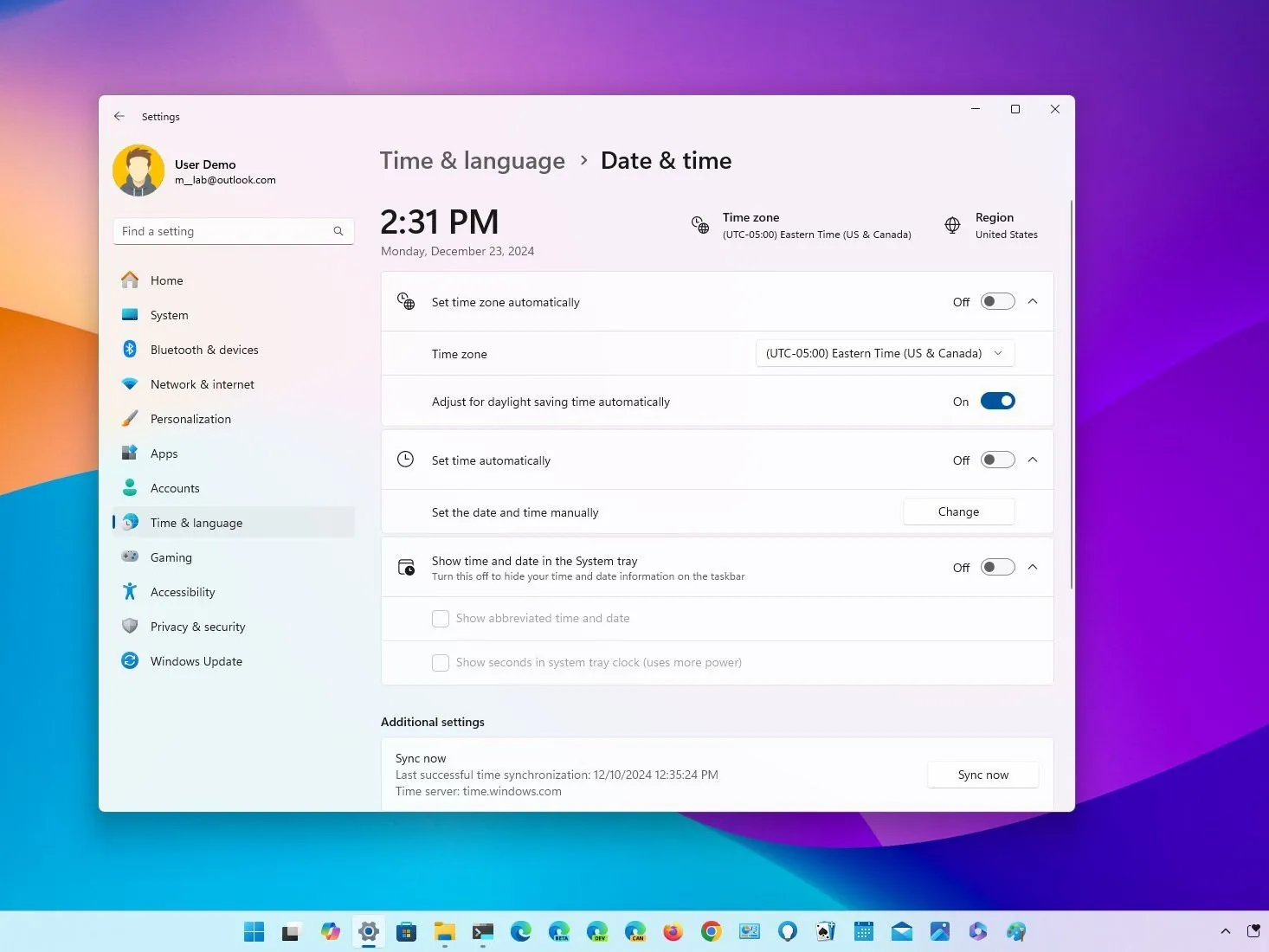
- On iPhone or iPad: open Settings > General > Date & Time, then turn on Set Automatically.
- On Android: open Settings > System > Date & time, then enable automatic date, time, and time zone. Wording varies by device.
- On Windows: open Settings > Time & language > Date & time, then turn on Set time automatically and Sync now if available.
- On macOS: open System Settings > General > Date & Time, then turn on automatic date and time.
Once time sync is on, generate a fresh code or approve a fresh prompt. Do not reuse a code that was already rejected. Microsoft Support also points users to device time correction when Authenticator codes fail, which is why this is the cleanest first move before password changes, app deletion, or repeated sign-in attempts.[2]
If The Authenticator Notification Never Arrives
A silent notification feels like a Microsoft account problem, but it often starts on the phone. Before you ask someone to reset MFA, open the Microsoft Authenticator app manually. Sometimes the approval request is visible inside the app even though the push notification never appeared.
- Open Authenticator and look for a pending approval.
- Check that the phone has Wi-Fi or mobile data.
- Make sure notifications are allowed for Microsoft Authenticator.
- Turn off Focus, Do Not Disturb, Battery Saver, or other modes that may suppress alerts.
- Retry sign-in once after those checks.
If the app is open, the phone is online, notifications are allowed, and no prompt appears after a fresh sign-in attempt, switch to another registered method if you have one. A text message, phone call, passkey, or hardware security key is not a downgrade when the immediate job is getting back into work safely.
Call IT if Authenticator shows no account entry for your work account, the account entry is present but never receives prompts, or Microsoft says more information is required but gives you no way to add it. Those symptoms point toward registration or policy settings, not a notification toggle you can fix alone.
If Microsoft Keeps Asking For MFA Again And Again
An MFA loop is different from a failed approval. You approve the request, type the code, or complete the method, and Microsoft still sends you back to another MFA prompt. That loop can come from stale browser tokens, cached credentials, a broken sign-in method, or an admin-side requirement to register contact methods again.
Use a private or incognito browser window and go directly to mysignins.microsoft.com. If you can get in, open Security info, add an alternate method first, then remove the broken Authenticator entry only after the replacement works. Current MFA-loop guidance also warns that repeated or broad sign-in method changes can trigger a waiting period, so do not delete every method in a hurry.[8]
- Safe self-service move: add a backup method before removing the broken one.
- Risky move: deleting Authenticator when it is your only working method.
- Escalation point: you cannot reach Security info because the loop blocks every attempt.
When the loop blocks self-service, the useful ticket is specific: “I am stuck in an MFA loop after approving the prompt. Private browser did not let me reach mysignins.microsoft.com. Please reset my MFA registration or require me to provide contact methods again.” Admin-side reset paths are documented in Microsoft 365 MFA-loop recovery guidance, including requiring selected users to provide contact methods again.[8][9]
If The Code Is Wrong Or Invalid
Wrong-code errors deserve less drama than they usually get. If the password works but the Authenticator code fails, do not reset the password first. Fix time sync, wait for a new code, and enter that new code once.
This is the clearest under-five-minute recovery path here: automatic time on, fresh code, one retry. AlwaysBeyond’s 2026 Authenticator troubleshooting guide identifies clock drift as a common cause of code failure and notes that automatic date and time sync resolves many of these cases quickly; Microsoft Support gives the same practical direction for Authenticator code problems.[1][2]
If the code still fails after clock sync, check whether you are using the right account entry in Authenticator. Many people have more than one Microsoft entry: a personal Microsoft account, a work account, a guest tenant, or an old employer account. Match the account name and organization before retrying.
Stop after one clean retry if the code is still rejected. More attempts do not improve a clock or registration problem, and they can turn a fixable sign-in issue into a throttling issue.
If You See A Timeout, Gateway Error, Or AADSTS Code
Error codes are decision signals. They are not asking you to guess through every possible Microsoft 365 fix.
AADSTS500121: complete the prompt in time
AADSTS500121 means the MFA challenge was not completed successfully, often because the prompt was not completed within the required time. It is not, by itself, proof that your password is wrong. Retry sign-in once, keep the phone unlocked, and approve the prompt or enter the code immediately.[3]
If this happens repeatedly, IT can confirm the failure in Microsoft Entra sign-in logs. Microsoft’s sign-in log documentation explains how admins can inspect sign-in events and failure details, which is more useful than a ticket that says only “MFA broken.”[4]
AADSTS50053: stop retrying
AADSTS50053 can indicate throttling after too many sign-in attempts. The correct productivity move is irritating but simple: stop. Microsoft guidance on two-step verification and Entra throttling points users away from repeated attempts; the research-supported minimum pause is at least 15 minutes before trying again.[5][6]
During that pause, do not keep refreshing the sign-in page, do not keep sending push prompts, and do not try the same failing password-and-MFA sequence from three devices. Use the time to write the ticket correctly: include the exact AADSTS50053 code, the approximate time it appeared, and whether you had already retried multiple times.
AADSTS53000: this is probably not an Authenticator reinstall problem
AADSTS53000 points to Conditional Access device compliance. In plain terms: Microsoft may accept your identity proof and still block access because the device does not meet your organization’s access policy. Microsoft’s Conditional Access troubleshooting guidance treats this as a device compliance path, not an Authenticator re-registration path.[7]
If you see this code, check whether you are on the expected work-managed device, connected through the required profile, and enrolled in the company’s device management system if your organization requires it. If you are on a personal laptop, a newly replaced phone, or a machine that recently lost management enrollment, IT will likely need to check Microsoft Intune or device compliance status.
If Authenticator Crashes, Freezes, Or Shows Something Went Wrong [4s8qz]
The “Something went wrong [4s8qz]” message is usually treated as a transient Authenticator issue. If it disappears after a few seconds, there may be nothing to fix. If it persists, Microsoft Support recommends ordinary app-level recovery: update Microsoft Authenticator from the App Store or Google Play, then restart the device.[2]
That is different from deleting the app. Updating preserves the path you already have. Deleting Authenticator can remove local app state and may leave you dependent on another sign-in method or an admin reset. If you have no alternate method, do not uninstall until IT confirms that they can re-register you.
- Update Microsoft Authenticator.
- Restart the phone.
- Open Authenticator before starting sign-in again.
- Try one fresh prompt.
- Escalate if the app still crashes or the work account entry is missing.
When To Stop Self-Fixing And Call IT
A good escalation is not surrender. It is what keeps a 10-minute interruption from becoming a half-day lockout. Call or message IT when the next step requires admin access, policy visibility, or MFA re-registration.
| Call IT when | What to include |
|---|---|
| You cannot reach mysignins.microsoft.com because MFA loops endlessly | Say you are stuck in an MFA loop and private browsing did not work |
| You see AADSTS53000 | Include the code and the device you are using |
| You see AADSTS50053 | Include the code and say you have stopped retrying |
| Your Authenticator work account entry is missing | Say whether you recently changed phones, restored a backup, or reinstalled the app |
| Microsoft asks for more information but gives no usable method | Ask for MFA registration reset or contact-method re-registration |
The most useful ticket has the symptom, the exact error code if one appears, the device, the browser or app, the time of the failed attempt, and the last safe step you tried. “AADSTS500121 after I missed the prompt” gets routed faster than “Microsoft login broken.” “AADSTS53000 on my new laptop” is even better, because it points straight toward device compliance instead of Authenticator.
Prevent The Next Lockout
The habits that prevent MFA from eating a workday are small, but they matter most before a meeting or deadline. Keep automatic date and time enabled on every device you use for Microsoft sign-in. Maintain at least one alternate sign-in method if your organization allows it. Update Microsoft Authenticator before travel, device replacement, or a planned OS upgrade, not while a client is waiting for a file.
References
- Microsoft Authenticator App Not Working: How to Fix It, AlwaysBeyond, 2026.
- Troubleshoot problems with Microsoft Authenticator, Microsoft Support.
- How To Troubleshoot Sign-in Error Code 500121 In Microsoft Intune, Anoop C Nair/HTMD Blog.
- How to troubleshoot sign-in errors - Microsoft Entra ID, Microsoft Learn.
- Common problems with two-step verification for a work or school account, Microsoft Support.
- Microsoft Entra FAQ, Microsoft Learn.
- Troubleshooting sign-in problems with Conditional Access, Microsoft Learn.
- How to Fix a User Stuck in Microsoft 365 MFA Loop, m365.fm, April 2026.
- Stuck in a Microsoft 365 MFA Loop?, Spotlight Studios, Dec 2023.
Comments
Join the discussion with an anonymous comment.