
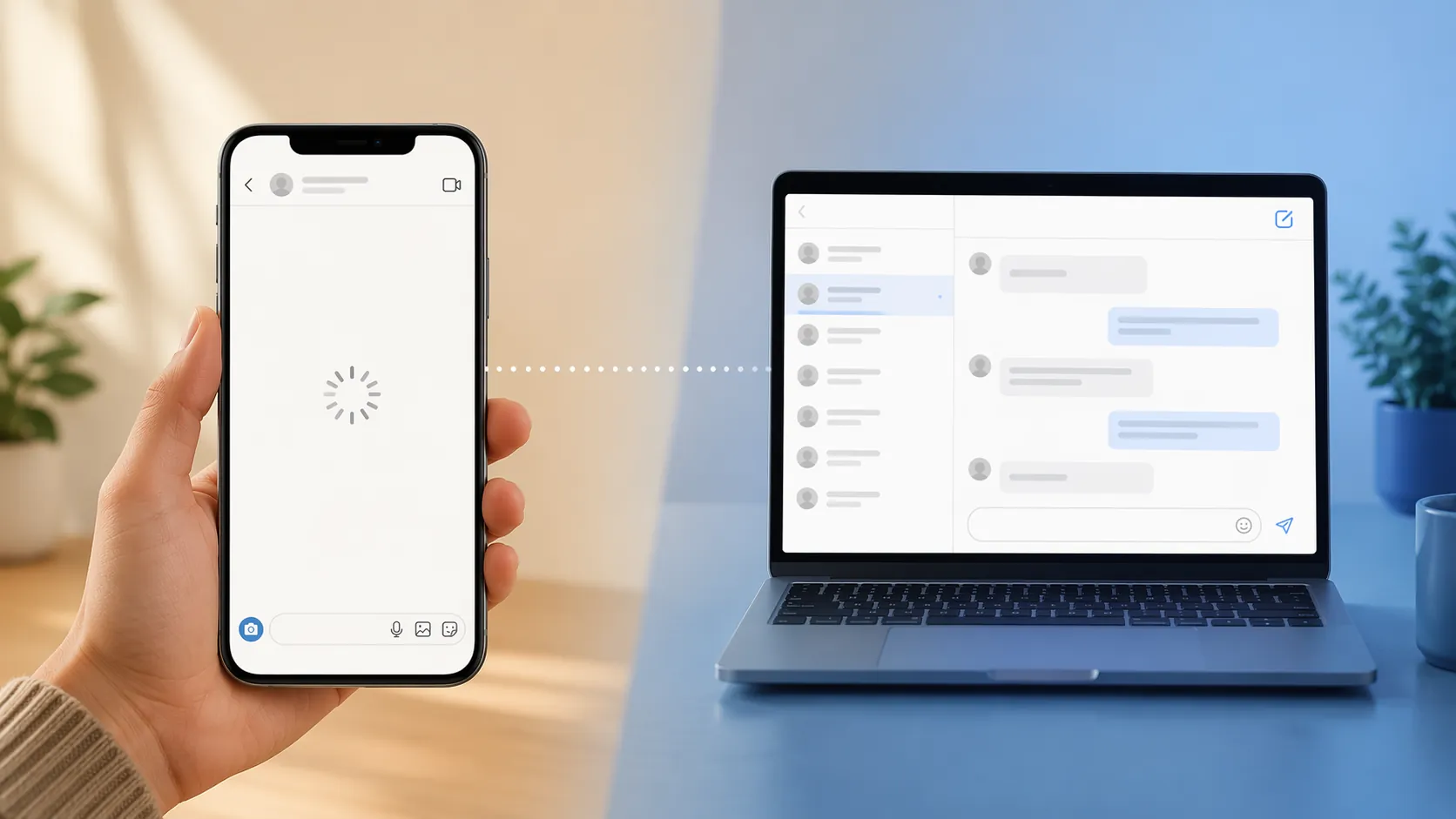
Before you clear cache, reinstall Instagram, reset your network settings, or lock yourself out by logging in too many times, do one quick test: open instagram.com in a browser, sign in, and check whether your DMs load there.
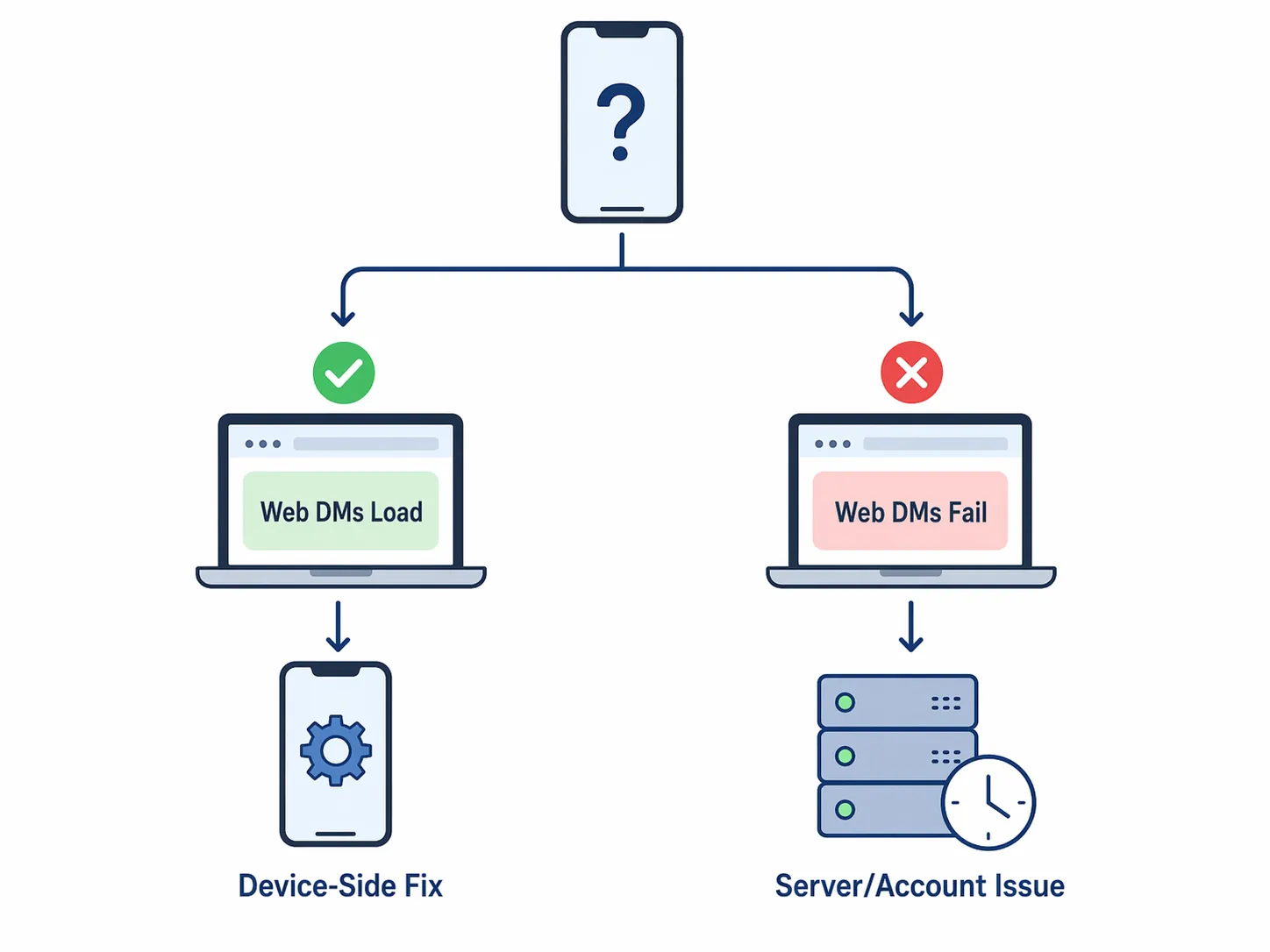
That test usually tells you which bucket you are in. If messages load on Instagram Web, your account and the message thread are probably reachable, so the problem is likely the phone app, device storage, app cache, or connection. If messages do not load on Web either, stop poking at your phone for a minute. The issue is more likely Instagram's servers, your account status, or a temporary DM restriction.
The 60-Second Diagnosis
Use a browser that is not already half-broken with old tabs. On your phone or computer, go to Instagram Web, sign in, open Messages, and try the same conversation that is stuck in the app. You are not trying to fix anything yet. You are trying to avoid the wrong fix.
| What happens on Instagram Web | What it usually means | What to do next |
|---|---|---|
| DMs load normally | Your account and Instagram's message data are reachable. The app, cache, device, or network is the likely problem. | Follow the app/device fix path. |
| DMs do not load on Web either | The problem may be Instagram's servers, an account restriction, or a broader account issue. | Check for an outage, use Web if any part works, and check Account Status. |
| Only one conversation fails | That thread may be unusually large, temporarily stuck, or affected by a participant/account-specific issue. | Try another conversation, then use the path that matches Web behavior. |
| Web asks you to verify your login | Instagram may need confirmation before restoring normal access. | Complete the verification first, then test DMs again. |
Instagram's own troubleshooting page keeps the official advice short: restart your device, check your connection, and reinstall the app if needed.[1] Those steps are not wrong. They are just too blunt for the common case where DMs fail because one part of the app is stuck while the rest of Instagram still works.
If Instagram Web Loads Your DMs
Good. That does not mean the app will magically recover, but it narrows the job. Keep Instagram Web open if you need to reply to someone now, then work through the phone-side fixes in order. Do not start with the most disruptive step.
First, rule out a weak connection
Switch once between Wi-Fi and cellular data, then reopen the same DM thread. If you are on public Wi-Fi, hotel Wi-Fi, school Wi-Fi, or a workplace network, test on cellular if possible. A connection can be strong enough to load the feed and still unreliable enough to make message history hang.
If you use a VPN, ad blocker, private DNS setting, or aggressive security app, pause it briefly and test again. If DMs load immediately after that, you have found a network path problem, not an Instagram inbox problem.
Then force-close Instagram and restart the phone
Close Instagram completely, not just swipe back to the home screen. Reopen it and check Messages. If the spinner returns, restart the phone. This is the boring fix that is still worth doing early because it clears stuck app processes without touching your login, settings, or saved data.
Clear Instagram's cache, or offload the app on iPhone
Cache problems deserve more attention than they usually get. Several troubleshooting guides identify corrupted Instagram cache as a common app-side reason for DMs getting stuck, especially when users see messages like "Failed to load earlier messages." The support is practical rather than laboratory-grade, so treat cache clearing as a high-probability fix, not a guaranteed cure.[2][3][4][5]
On Android, clear Instagram's cache directly:
- Open Settings.
- Go to Apps or Apps & notifications.
- Choose Instagram.
- Open Storage.
- Tap Clear cache.
- Reopen Instagram and test the same DM thread.
Avoid tapping Clear storage or Clear data unless you are prepared to sign in again and rebuild local app data. Cache is the lighter move.
On iPhone, iOS does not give you the same one-tap Instagram cache button. Use Offload App first if available:
- Open Settings.
- Go to General.
- Open iPhone Storage.
- Choose Instagram.
- Tap Offload App.
- Reinstall Instagram from the same screen, then test Messages.
Offloading removes the app while trying to keep its documents and data. If that does not help, delete and reinstall Instagram from the App Store. That is more disruptive, so it belongs after the Web test and lighter app checks, not before them.
Update the app before you reinstall it
Open the App Store or Google Play and check whether Instagram has an update waiting. Messaging bugs can be app-version specific, and updating is less annoying than deleting the app, signing in again, and possibly triggering extra security checks.
If there is no update, or the update does not help, log out and back in once. Do not repeat this over and over. One clean re-authentication is useful; repeated login attempts can create a new problem if Instagram starts asking whether the activity is suspicious.
Use reinstall and network reset as the last app-side steps
If DMs still load on Web but not in the app after cache clearing or offloading, app update, restart, and one logout/login cycle, reinstall Instagram. After reinstalling, test Messages before changing anything else.
Reset network settings only if the problem still looks connection-related across apps or networks. On most phones this erases saved Wi-Fi networks, Bluetooth pairings, VPN settings, or cellular preferences, depending on the device. It is not a harmless first move when one Instagram screen is stuck.
If Instagram Web Does Not Load Your DMs
Now the phone is less likely to be the whole story. You can still try a restart later, but do not spend half an hour reinstalling the app if Instagram Web is failing in the same way. Check whether the problem is bigger than you.
Check for an Instagram outage
Look at a live outage tracker such as Downdetector, then check Instagram or Meta status chatter on another platform if you can. Treat the numbers carefully: Downdetector reports are user-submitted spikes, not a Meta-audited count of everyone affected.
Recent history makes this worth doing early. During a March 10-11, 2026 Instagram disruption, Forbes reported more than 10,000 user reports on Downdetector and said 74% of reports were app-related.[6] The Economic Times also reported thousands of complaints across major U.S. cities during that March incident.[7] In June 2026, the research record includes another large Meta-platform spike on June 12 and a smaller Instagram report spike on June 23, again based on user-submitted outage reporting.
If the outage graph is jumping and other users are reporting DM failures, the fix is mostly waiting. Keep trying every few minutes if you must, but do not clear your phone, change your password, or reset your network settings to solve a server-side failure.
Use Instagram Web as a bridge if any part still works
Sometimes the app is worse than Web, even during a broader incident. If Instagram Web opens but the app's inbox is unusable, answer urgent messages there and leave the app alone for a while. If Web loads the inbox but not one older thread, try a newer conversation before assuming the entire account is blocked.
Check Account Status if the failure follows your account
If DMs fail on the app and Web, but outage reports look normal, check whether Instagram has limited something on your account. In the Instagram app, go to Settings, then Account, then Account Status. The exact menu labels can move around, but Account Status is the place to look for restrictions or policy-related problems.
This matters most for creators, sellers, service businesses, and anyone who has been sending a lot of similar messages. If you are blocked from sending DMs, repeatedly retrying can make the situation worse rather than proving persistence.
When It Might Be a DM Limit or Action Block
Instagram does not publish a simple daily DM quota for every account. The numbers people quote are estimates from user reports and third-party tools, so they should be used as warning ranges, not rules you can safely push to the edge.
| Account type | Unofficial daily DM estimate | How to treat it |
|---|---|---|
| New account | 20-50 DMs per day | Stay well below the range, especially with people who do not follow you. |
| Growing account | 80-120 DMs per day | Avoid bursts and repeated copy-paste messages. |
| Established account | 150-200 DMs per day | Watch for warnings, failed sends, or sudden inbox restrictions. |
| Verified account | Up to 300 DMs per day | Do not assume verification removes spam controls. |
FlowGent, CreatorFlow, and InstantDM all describe DM limits in this general tiered pattern, with lower tolerance for newer accounts and higher estimated ceilings for older or verified accounts.[8][9][3] The exact number that triggers enforcement can vary by account behavior, message similarity, recipient relationship, and recent activity.
The pattern is usually more important than the number. A likely action block looks like this: you can open Instagram, your feed may still work, but DMs fail to send, older messages may not load cleanly, or Instagram shows a warning after a burst of outreach. First-offense blocks are commonly described by third-party sources as lasting about 24-48 hours, and continuing to send during a block may extend the restriction.[8][3][2]
If that sounds like your situation, stop sending DMs. Do not test the limit with ten more messages. Check Account Status, wait out the restriction, and resume slowly with more varied, human-paced messages once the account is normal again.
The Short Fix Path, Based on Your Result
If you only remember one thing, remember the fork: Web works means fix the app side first; Web fails means check outage or account status first.
- If Web DMs load: switch Wi-Fi/cellular, force-close Instagram, restart the phone, clear cache on Android or offload/reinstall on iPhone, update the app, log out and back in once, then reinstall if needed.
- If Web DMs fail too: check outage reports, wait if reports are spiking, check Account Status, and stop sending messages if a restriction is possible.
- If only the app fails but you need to answer now: keep using Instagram Web while you work through the app-side fixes.
- If the problem starts after heavy outreach: pause DMs before retrying, because repeated sends can be read as more suspicious activity.
- If everything else fails and Web still works: reinstall Instagram before resetting network settings.
That order protects the thing most people actually care about: getting back to the conversation without creating a second problem.
References
- Troubleshooting — Instagram Help Center
- Instagram DMs Not Working? Fix Them in 2 Minutes — Spurnow
- Instagram Messages Not Showing? 14 Fixes That Work (2026) — InstantDM
- 8 Ways to Fix Instagram DMs Not Working — Beebom
- Easy Fixes to Instagram DMs Stuck On Loading Screen Issues — FlexClip
- Instagram Down—New Outage Leaves Users Unable To Post Or DM — Forbes, March 2026
- Instagram Down? Thousands across major US cities report issues — Economic Times, March 2026
- Instagram DM Limits (2026): Daily Message Caps, Character Limits & What Happens When You Hit Them — FlowGent
- How Many DMs Can You Send on Instagram? Limits Table (2026) — CreatorFlow
Comments
Join the discussion with an anonymous comment.