
The first warning is usually small: the lights blink, the router takes too long to come back, and the weather alert you dismissed ten minutes ago suddenly feels less theoretical. Then cellular data slows because everyone nearby is checking the same radar loop, your laptop has battery but your files are cloud-only, and the one document you need is sitting behind a login flow that expects a calm internet connection.
That is the real productivity problem in flash floods and tornadoes. Not heroic focus. Not squeezing one more meeting out of a bad afternoon. The issue is whether your work system still exists when power, Wi-Fi, office access, and routine authentication stop behaving like utilities.
An afternoon spent building a digital emergency kit is one of the most practical productivity moves a remote worker, freelancer, student, or manager can make before storm season. Severe weather is not a niche workplace concern: SHRM cites NOAA data showing 20 billion-dollar weather events in the United States in 2021, notes that flooding is the country’s most common and costly natural disaster, and points to remote-work data showing that 1 in 4 Americans work remotely on a given day.[1]
| Kit Area | What It Prevents | What To Set Up Before Weather Arrives |
|---|---|---|
| Alerts and situational awareness | Missing a warning or evacuation-relevant update | FEMA, Red Cross Emergency, MyRadar, WeatherBug, with notifications allowed |
| Offline-first work | Losing drafts, notes, tasks, and project context when internet drops | Obsidian, Joplin, Logseq, Microsoft To Do, with local storage tested |
| Files, passwords, and backups | Discovering that “synced” did not mean usable offline | Google Drive or Dropbox offline folders, Bitwarden offline vault, 3-2-1 backup coverage |
| Communication fallbacks | Being unable to tell a team whether to pause, relocate, or wait | Zello, Bridgefy, backup contact rules, satellite/SOS option if appropriate |
| Power continuity | Losing the router, modem, phone, or laptop before the work is safely paused | UPS for network gear, charged power banks, spare cables, power-saving settings |
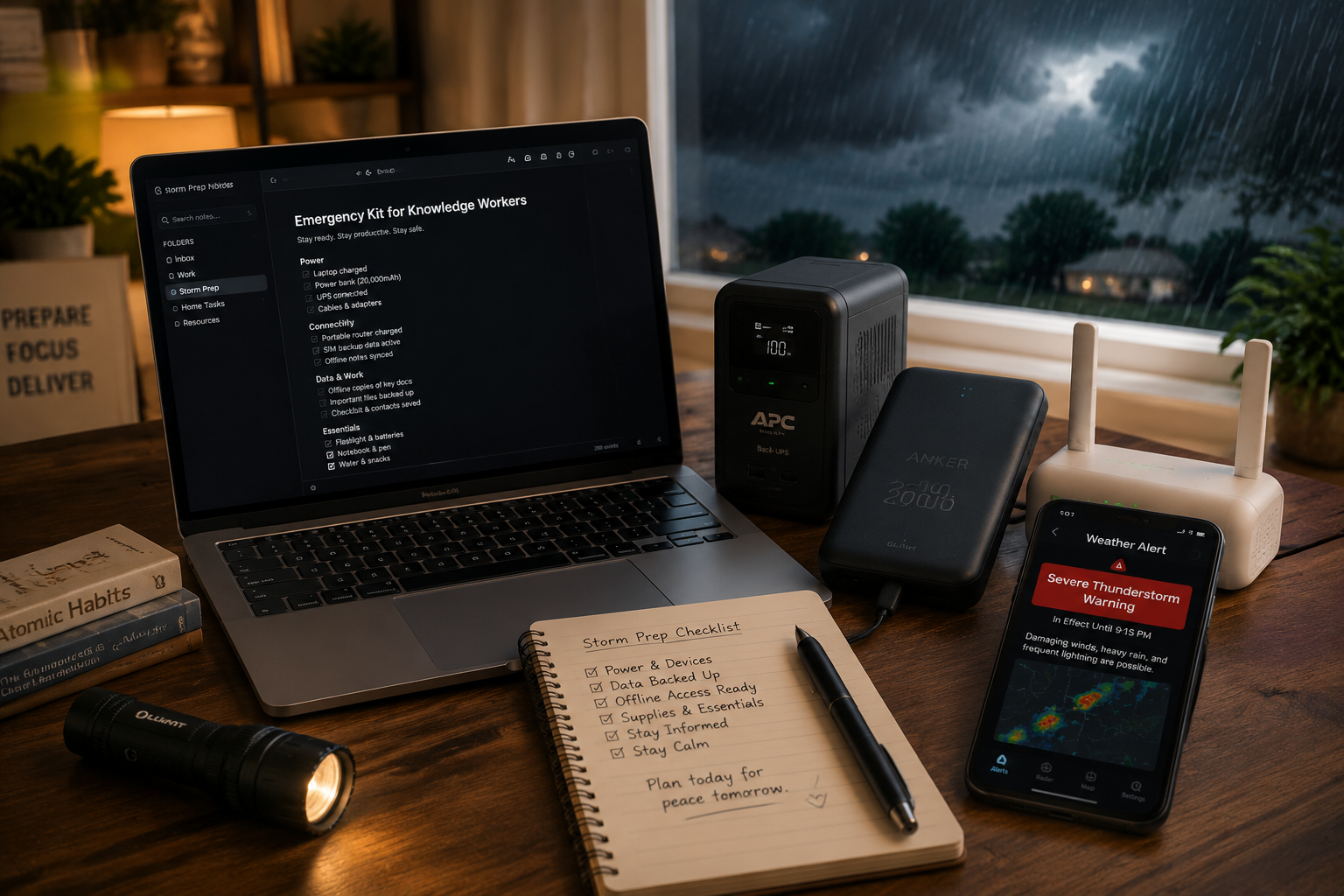
Start With Alerts, But Do Not Stop There
Weather apps are the front door of the kit. They tell you when to stop pretending this is a normal workday. They do not, by themselves, protect your files, keep your team informed, or make a locked cloud account available offline.
Install more than one alert source because each app has a slightly different job. The FEMA app can deliver severe weather alerts and help identify shelter locations; Team Rubicon also lists FEMA among its recommended emergency preparedness apps.[2] The Red Cross Emergency app is another practical choice for alerts and low-connectivity emergency information.[3] MyRadar is useful when you need a live radar view, and WeatherBug adds lightning alerts and street-level conditions.[2]
The setup step matters more than the download. Allow critical weather alerts to break through Do Not Disturb. Add the places where you actually work, not only your home address: apartment, office, coworking space, parent’s house, campus, and the backup location you might drive to if roads are still safe. If you manage people, add the locations where they are concentrated, without turning yourself into an amateur dispatcher.
- Keep at least one national source, such as FEMA or Red Cross Emergency, for official alerts and shelter-related information.
- Keep one radar-focused app, such as MyRadar, for fast situational checks when timing matters.
- Keep one hyperlocal condition app, such as WeatherBug, if lightning and street-level conditions affect whether you can move.
- Test notifications on both Wi-Fi and cellular before storm season, not while the warning is already active.
Make Your Work Local Before You Need It
Offline-first productivity is where most “just use the cloud” advice falls apart. A cloud document you can see on Monday may be useless on Tuesday if the app has not cached it, the folder was never marked for offline access, or the login token expires while your password vault is unreachable.
For knowledge work, the emergency version of productivity starts with a local place to think and draft. Obsidian stores notes as local Markdown files and can be used fully offline; sync is useful, but the important storm-season feature is that the notes remain readable and writable on the device in front of you.[4] Joplin is also built for offline use, with synchronization happening when a connection is available, and it supports end-to-end encryption for synced notes.[5] Logseq gives a local-first outliner for tasks, research, meeting notes, and project thinking without depending on a live browser tab.[6]
Pick one of those as your outage workspace. Do not install three note apps and call that preparedness. The useful version is boring: one local vault or notebook, one folder structure you understand, and the current work copied there before warnings start stacking up.
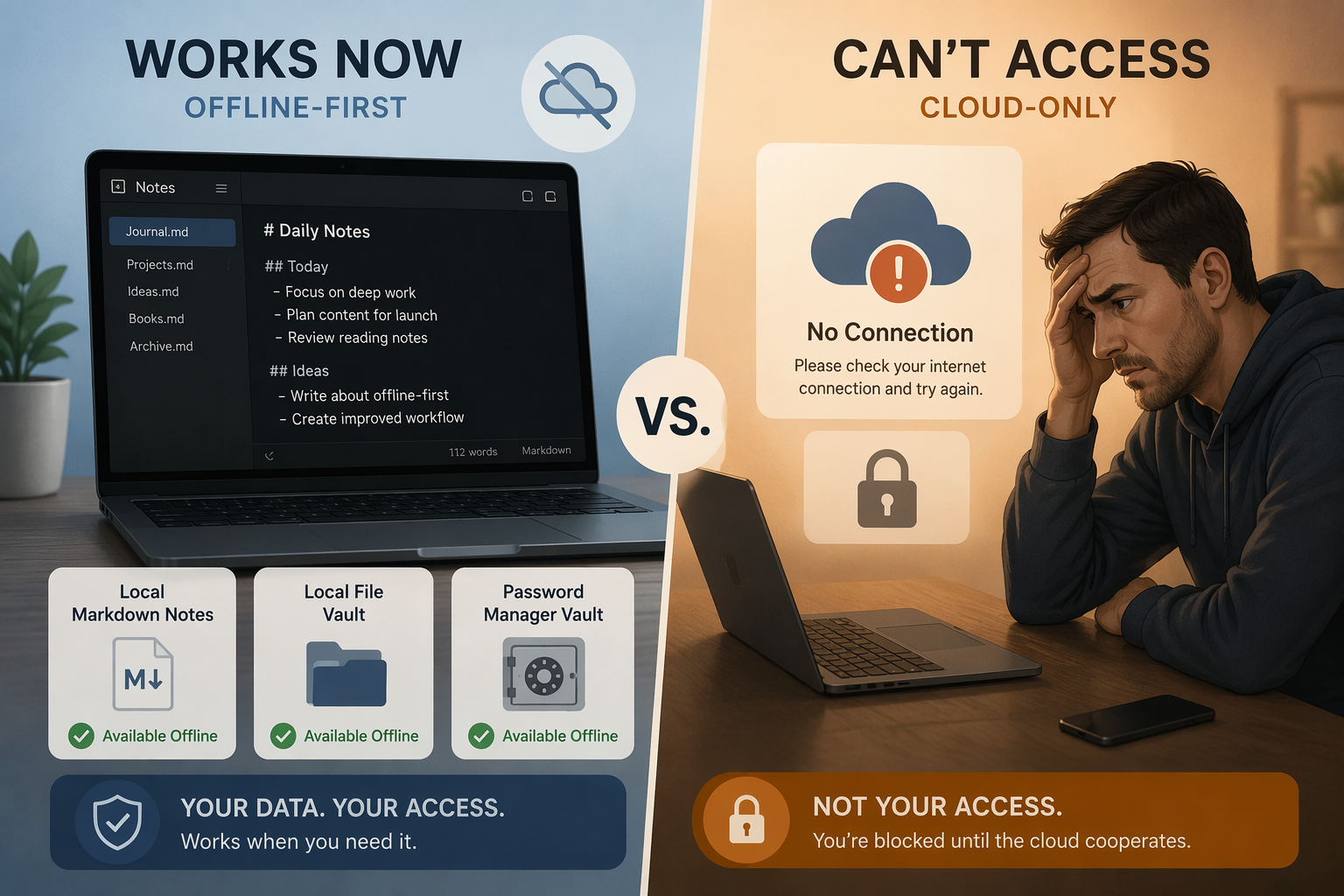
A practical local workspace can be very small. It needs a current project list, active drafts, meeting notes, client or class materials, and the next actions that let you resume without reconstructing your entire brain from memory. Microsoft To Do can help here because tasks are cached locally and sync back when the connection returns.[7] That makes it useful for checklists and handoff items, provided you have opened the app recently on the device you expect to use.
What To Preload Into an Offline Workspace
- Active drafts: proposals, reports, outlines, class papers, scripts, status updates, and anything due in the next few days.
- Project context: briefs, requirements, meeting notes, account notes, and decisions that would be annoying to retrieve from chat history.
- Task lists: today’s priorities, paused items, delegated items, and the first task to resume when service returns.
- Contact notes: manager, client, professor, team lead, emergency workplace contact, and the agreed channel if normal chat fails.
- Read-only references: PDFs, contracts, syllabi, route instructions, policy docs, or screenshots of critical systems.
If you use Notion, Coda, Google Docs, or another cloud-heavy workspace, do not assume the mobile app has the files you care about. Export or duplicate critical working material into your local vault. A storm workflow should not depend on remembering which app had which page cached.
Treat Cloud Storage as a Backup System, Not a Prayer
Google Drive and Dropbox can be excellent parts of a digital emergency kit. They are also easy to misunderstand. A file appearing in a cloud folder does not guarantee the full file is on your laptop or phone. In many setups, what you see is a placeholder that still needs the internet.
Before severe weather arrives, mark specific folders for offline availability on every device you might use. That usually means your current-work folder, not your whole digital life. If you use a desktop sync client, confirm that the files are actually downloaded. If you use mobile, open the app and check the offline section while airplane mode is on.
The backup standard worth using is the 3-2-1 rule: keep three copies of important data, on two different media types, with one copy off-site. KM Institute presents this as a baseline for safeguarding critical knowledge assets before, during, and after a crisis.[8] For a knowledge worker, that might mean the working copy on a laptop, a local external drive or encrypted USB copy, and an off-site cloud backup.
| Asset | Local Copy | Second Media | Off-Site Copy |
|---|---|---|---|
| Current drafts | Laptop offline folder or local notes vault | Encrypted external drive or USB copy | Google Drive, Dropbox, or backup provider |
| Client or project files | Pre-synced project folder | External drive snapshot | Cloud storage with recovery access |
| Knowledge base | Obsidian, Joplin, or Logseq local vault | Local archive export | Synced encrypted backup |
| Essential account access | Bitwarden cached vault on trusted device | Printed or securely stored recovery codes | Account recovery options kept current |
Passwords deserve their own check because authentication is where otherwise prepared people get stuck. Bitwarden supports offline access to a cached vault after you have logged in on that device, which can be the difference between reaching a client portal and staring at a two-factor prompt you cannot complete.[9] Log in on your laptop and phone before storm season, verify the vault opens without a network connection, and store recovery codes in a secure offline place.
For teams, backup workspace planning is part of file access. Ylopo’s remote-worker preparedness guide says remote workers with a pre-identified backup workspace recover work continuity 2–3 days faster.[10] That does not mean everyone should drive during dangerous weather. It means the decision should already exist: who pauses, who relocates only when safe, who has the files, and who tells clients what is happening.
Set Communication Rules Before Chat Goes Quiet
Communication during a disruption has two jobs: keep people safe from bad work expectations, and preserve enough operational clarity that work can pause or resume cleanly. It is not the time to debate channels.
Write a simple fallback order and share it with the people who depend on you. For example: Slack or Teams first, SMS second, phone call third, Zello if data works but normal calls are unreliable, and a designated check-in person if you cannot be reached. Zello functions like a walkie-talkie over Wi-Fi or cellular data, which can be useful when voice snippets are easier than long text threads.[2][3]
Bridgefy covers a narrower but important failure mode: no internet and no cellular infrastructure nearby. It uses Bluetooth mesh messaging, with phones relaying messages to one another up to about 100 meters per hop.[2][3] That is not a replacement for emergency services or a magic regional network. It is a short-range fallback that may help people in the same building, campus, event site, or neighborhood communicate when normal networks are unavailable.
Satellite options, such as a satellite phone or Garmin inReach-style SOS device, belong in the kit only for workers whose risk profile justifies them: rural field work, travel through weak-coverage areas, storm-response roles, or a household that already has medical or mobility constraints. Team Rubicon includes satellite communication among worst-case emergency tools for situations with no functioning infrastructure.[2]
A Workable Fallback Message
Keep one plain message saved in your notes app so you are not composing under pressure: “Severe weather is affecting power/internet at my location. I am safe / relocating / pausing work. I have local access to current files through [time]. If I am unreachable, use [backup contact/channel]. I will update when service returns.”
The point is not polish. The point is to remove ambiguity for the manager wondering whether to wait, the client wondering whether a deadline moved, and the teammate deciding whether to pick up a task.
Keep the Network and Devices Alive Long Enough To Shut Down Well
“Charge your devices” is true and too vague to be useful. The better question is which devices need enough power to let you receive alerts, communicate, access local work, and avoid corrupting files during repeated outages.
A small UPS for the modem and router is one of the least glamorous and most useful pieces of the kit. Atera and Ylopo both recommend power redundancy for remote-work continuity, and the research brief notes that a UPS for router and modem can cost under $100 while preserving connectivity through brief storm-related power dips.[10][11] That may be all you need to send the status message, let a cloud sync finish, or download the one folder you forgot.
Power banks need more care than the product page suggests. A 20,000 mAh-class power bank can be a sensible target for keeping a phone and some laptop work going during a longer outage, but runtime depends heavily on laptop size, battery health, charging voltage, cable quality, and whether you are trying to run video calls or write in a local editor.[11] If laptop charging matters, confirm the bank supports USB-C Power Delivery at the wattage your laptop requires.
- Put the modem and router on a UPS, not only the desktop monitor or printer.
- Keep one USB-C cable permanently with the power bank so the battery is not useless in the wrong bag.
- Enable low-power mode on phones before they hit panic-level battery.
- Download files while the UPS is buying you minutes, then stop syncing and work locally.
- Use video calls sparingly; voice, text, and saved status updates preserve battery and bandwidth.
Recover Cleanly When Service Returns
The messy part often comes after the weather has passed. Apps reconnect, drafts sync in the wrong order, chat fills with overlapping updates, and people start asking whether the file in the cloud is the latest version.
When service returns, do not immediately open every app and hope sync handles the story. First, identify what changed while offline: drafts edited, tasks completed, files renamed, messages sent, and decisions made. Then let one system sync at a time. If you worked in Markdown or another local-first format, keep the local copy until you confirm the cloud copy contains the same text.
For teams, the recovery message should be as plain as the outage message: what is current, what is stale, what was missed, and what needs a human decision. Ready.gov’s business continuity guidance emphasizes planning for how organizations continue essential functions during disruption, and ISO 22301 provides the broader business-continuity management framework behind that kind of redundancy and recovery thinking.[12][13]
Verification is part of the kit, not an optional flourish. KM Institute recommends quarterly verification drills for knowledge-asset safeguards.[8] For an individual worker, that can be as simple as turning on airplane mode and checking whether the current draft, task list, password vault, and emergency contacts are still available.
Build-Your-Kit Checklist
- Alerts: Install FEMA, Red Cross Emergency, MyRadar, or WeatherBug; allow critical notifications; add home, work, school, and backup locations.
- Offline workspace: Choose Obsidian, Joplin, Logseq, or another local-first tool; create one storm-ready vault or notebook for current work.
- Tasks: Open Microsoft To Do or your task app on each device; confirm today’s list appears in airplane mode.
- Files: Mark current Google Drive or Dropbox folders for offline access; test by disconnecting from the internet and opening the actual files.
- Passwords: Log in to Bitwarden on trusted devices; verify the cached vault opens offline; store recovery codes securely outside the cloud.
- Backups: Cover critical work with the 3-2-1 rule: three copies, two media types, one off-site.
- Communications: Save a fallback contact order; install Zello if voice-over-data helps your team; consider Bridgefy for short-range no-network messaging.
- Power: Put modem and router on a UPS; keep a charged 20,000 mAh-class power bank if it fits your devices; pack the right cables.
- Recovery: Keep an offline change log during the outage; sync deliberately when service returns; tell collaborators which files and decisions are current.
- Drill: Periodically test the kit in airplane mode before storm season does it for you.
Spend the afternoon now. Decide where work lives, which files are local, how people can reach you, and how long your devices can stay useful. When the router dies and the sky gets serious, that preparation is what keeps a disruption from becoming a full work-system failure.
References
- Keeping Remote Workers Safe in Natural Disasters, SHRM
- Top Emergency Preparedness Apps, Gadgets, and Tools for Any Disaster, Team Rubicon
- 7 Apps to Help You Stay Safe in an Emergency, The Hartford
- Obsidian Help, Obsidian
- Joplin Help, Joplin
- Logseq Documentation, Logseq
- Use Microsoft To Do without an internet connection, Microsoft Support
- How To Safeguard Critical Knowledge Assets Before, During, and After a Crisis, KM Institute
- Bitwarden Help Center, Bitwarden
- Remote Workers: Here's A Guide to Making A Disaster Preparedness Plan, Ylopo
- Remote Work Emergency Preparedness: Key Strategies and Tips, Atera
- Business Continuity Planning, Ready.gov
- ISO 22301, International Organization for Standardization
Comments
Join the discussion with an anonymous comment.