
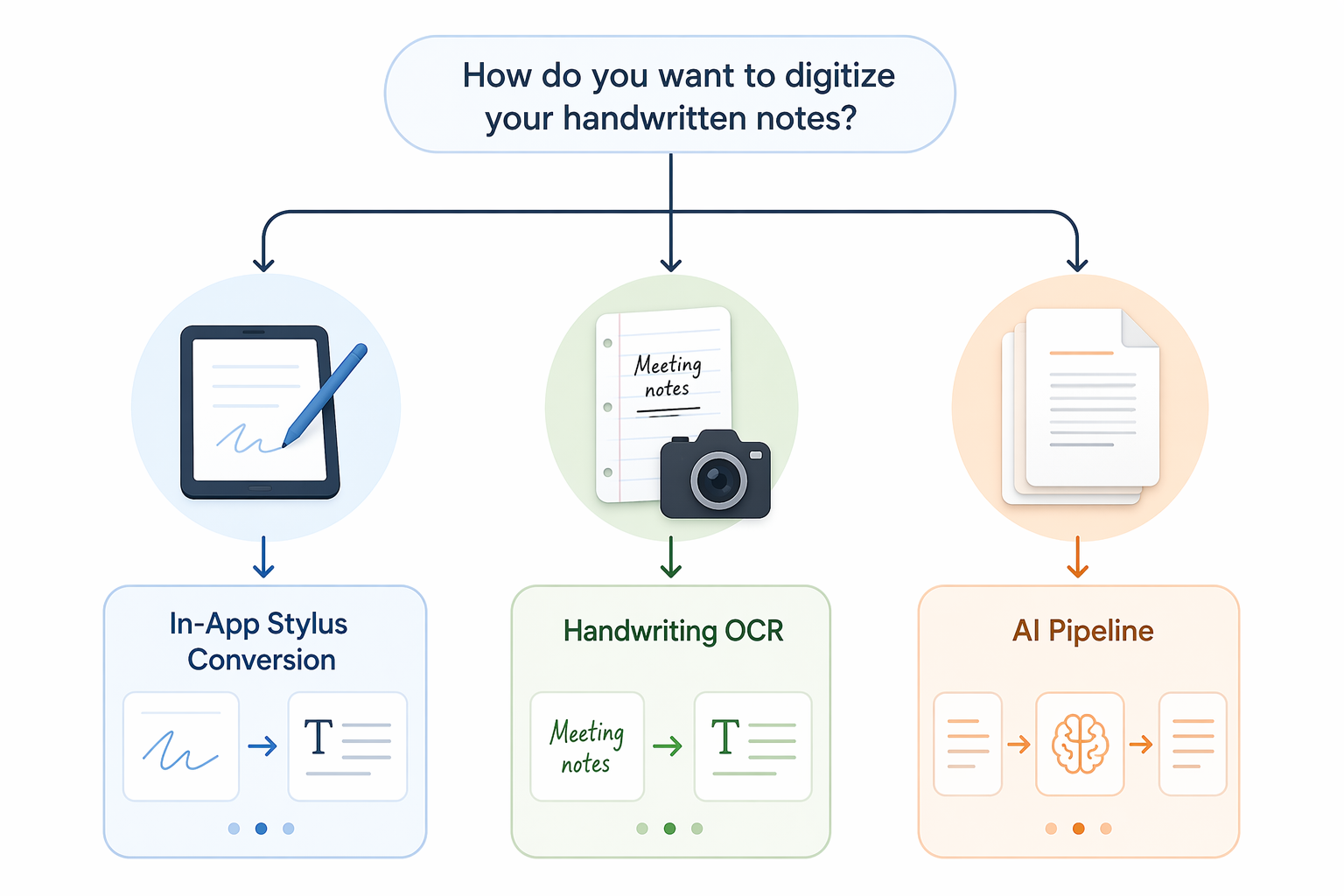
Before you choose an app, answer one question: are the notes already digital ink on a tablet, or are they on paper? That split matters more than the brand name on the tool. A clean Apple Pencil note inside a note-taking app is already structured data waiting to be converted. A notebook page photographed under warm kitchen lighting is an image problem first, a handwriting-recognition problem second.
If you want to convert handwritten notes to text with the least cleanup, start with the method that matches where the handwriting lives:
| Where your notes are | Start here | Best fit | Likely cleanup |
|---|---|---|---|
| Tablet handwriting in Apple Notes, OneNote, GoodNotes, or a similar stylus app | In-app stylus conversion | Students, meeting notes, daily working notes, searchable study archives | Low for neat printed handwriting; moderate for cursive |
| Paper notebook pages, worksheets, meeting pads, field notes | Document scan plus dedicated handwriting OCR | One-off paper capture or small batches where formatting matters | Moderate; depends heavily on scan quality and handwriting |
| Recurring stacks of paper notes | Automated AI pipeline | Consultants, researchers, creators, or anyone digitizing notes every week | Low to moderate after setup, but requires verification |
The accuracy numbers explain why this order matters. Apple Notes with Scribble, OneNote Ink-to-Text, and GoodNotes 6 can exceed 95% accuracy on neat printed handwriting, while cursive commonly drops to about 80–90% in the same category of tablet-writing workflows.[1] For paper notes, general-purpose OCR such as Apple Live Text may land around 50–75% on cursive handwriting, while dedicated handwriting OCR services can reach 95%+ under better conditions.[1] Generic free OCR tools averaging roughly 60–70% on handwriting are fine for a quick capture, but they are not a good foundation for an exam archive, client record, or long-term knowledge system.[2]
Method 1: Convert tablet handwriting inside the app that created it
Tablet notes have a built-in advantage: the app often knows the stroke order, spacing, and page context. That is why in-app conversion should be the first stop for iPad, Surface, and stylus-first workflows. Exporting the page as an image and sending it to a separate OCR tool usually throws away useful information.
Use this method when your notes were written with a stylus in an app such as Apple Notes, OneNote, or GoodNotes, especially if your handwriting is mostly printed rather than cursive. If you are still choosing the capture app itself, a platform-first guide to the best note-taking app with stylus is more useful than comparing OCR tools after the fact.
Apple Notes and Scribble setup
- On iPad, open Settings and confirm that Apple Pencil features are enabled. Scribble must be available for handwriting-to-text behavior in text fields.
- Open Apple Notes and create a note using the Apple Pencil. For the cleanest conversion, use printed handwriting, clear line spacing, and headings that are not squeezed into the margin.
- To enter text directly, write with Scribble in a text field where Apple supports handwriting input. The handwriting is converted as you write.
- For existing handwritten notes, test search first. Apple Notes can make handwriting searchable even when the visible note remains ink. If you need editable text, select the handwriting where supported, copy it as text, and paste it into the typed section of the note or another document.
- Review headings, dates, names, and equations manually. These are the pieces most likely to matter later and most painful to misfile.
For iPad-heavy workflows, the important decision is whether you need editable text immediately or simply searchable handwriting. A student preparing for finals may be satisfied if last month’s lecture notes surface in search. A consultant preparing a client recap usually needs editable bullets that can move into email, a CRM, or a project tracker. If your setup question is broader than conversion, see the guide to the best note-taking apps for iPad.
OneNote Ink-to-Text setup
- Write the note in OneNote with your stylus. Keep related ideas in the same page region instead of scattering small fragments across the canvas.
- Use the lasso selection tool to select the handwriting you want to convert.
- Choose Ink to Text from the drawing or conversion tools available in your version of OneNote.
- Check the converted text before moving it. OneNote’s flexible canvas is helpful for thinking, but converted text can lose the visual relationship between side notes, diagrams, and bullets.
- Move the final typed text into the same page, a summary section at the top, or a task system if the note contains action items.
OneNote is often strongest when conversion is selective. Do not convert every ink stroke just because the button exists. Convert the lecture summary, client decisions, or task list; leave diagrams and spatial notes as ink unless they need to be reused as text.
GoodNotes 6 setup
- Write in a GoodNotes notebook using a consistent pen thickness and page template. Ruled or grid paper helps keep lines separated.
- Use the lasso tool to select a paragraph, heading, or page area.
- Choose the conversion option to turn the selected handwriting into typed text.
- Paste the converted text back into the notebook, export it to another app, or copy it into your study notes or project document.
- Keep the original ink nearby until you have checked proper nouns, abbreviations, and any shorthand that only makes sense in your context.
GoodNotes-style conversion works well for people who want to keep the handwritten page as the source of truth while extracting selected text. That is different from turning every notebook into a typed document. The lower-maintenance workflow is often a hybrid one: searchable ink for the archive, converted text only for summaries, assignments, and reusable notes.
Method 2: Scan paper notes before you ask OCR to read them
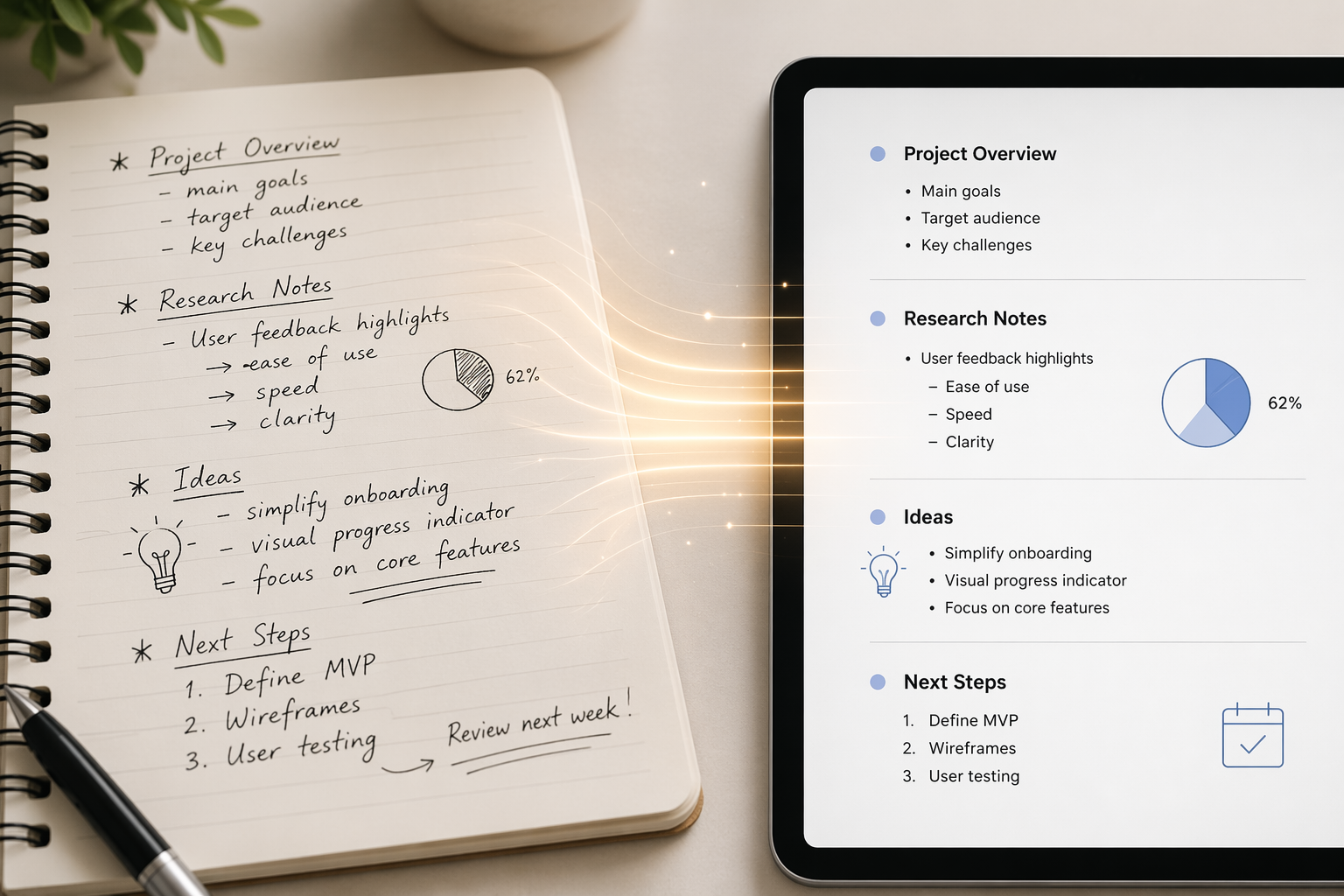
Paper notes fail twice: first when the page is captured poorly, then when the software misreads the handwriting. Many people blame the OCR tool when the real problem is the photo: curved page, shadow from a hand, gray background, low contrast, or a notebook crease running through the middle of the line.
A proper scan is not busywork. Using a document scanner app such as Apple Notes scanner or Adobe Scan, with good lighting and 300+ DPI capture, can improve recognition by about 5–10 percentage points across OCR benchmark summaries.[3][4] That lift is the difference between “I can clean this in five minutes” and “I may as well retype it.”
Paper-note scan setup
- Flatten the page. If the notebook will not stay open, use a book weight, clip, or second object outside the writing area. Avoid pressing so hard that the page bends.
- Use bright, even light. Daylight near a window or a diffuse desk lamp is better than a single overhead light that casts a phone shadow.
- Open a document scanner app, not the regular camera app. Apple Notes scanner and Adobe Scan can detect page edges, correct perspective, and improve contrast.
- Capture at 300+ DPI when the app gives you control. If it does not expose DPI, choose the highest-quality scan or PDF export setting.
- Crop to the page edge. Leave enough margin that no handwriting is cut off, but remove the table, keyboard, or desk background.
- Check contrast before OCR. Blue ink on cream paper may need enhancement; pencil notes may need a darker scan setting.
- Name the file before conversion. A useful pattern is YYYY-MM-DD_topic_page-range, so the scan remains findable even if OCR output needs repair.
For small batches, this setup is usually enough: scan cleanly, send the file to a handwriting-aware OCR tool, then paste the result where it belongs. For deeper testing of no-cost options, the companion guide to free methods that actually work is the better place to compare free accuracy tradeoffs.
Choose handwriting OCR, not ordinary OCR, for cursive or messy notes
Ordinary OCR was built around printed text. It can do surprisingly well on blocky handwriting, headings, and forms, but cursive paper notes are a different job. The available 2026 comparisons put Apple Live Text and similar general-purpose OCR around 50–75% for cursive handwriting, while dedicated handwriting OCR services can reach 95%+ in favorable conditions.[1] Vendor-published comparisons should be treated as directional because several sources in this space are commercial OCR providers, and some results may reflect best-case documents or human-in-the-loop workflows.
A practical test is better than trusting a landing page. Before committing to a tool, run three real pages through it: one neat page, one average page, and one page with the kind of rushed handwriting you produce at the end of a meeting. Count the corrections that matter: names, dates, headings, bullets, and action verbs. A tool that preserves structure may save more time than one that produces a slightly cleaner wall of text.
| Paper note condition | Tool choice | Reason |
|---|---|---|
| Neat printed handwriting, one or two pages | Scanner app plus built-in or free OCR may be acceptable | Cleanup stays manageable when the handwriting is already close to print |
| Cursive notes, meeting notes, class notes, or mixed layouts | Dedicated handwriting OCR | General-purpose OCR tends to lose too much text or structure |
| Many pages every week | AI pipeline | The setup cost starts to pay off when scanning and transcription become recurring work |
If you are still deciding whether to pay for a handwriting tool, compare the cost of the subscription with the cost of your cleanup time. The budget-focused guide to free vs paid handwriting-to-text tools can help when the decision is less about setup and more about upgrade timing.
Method 3: Build an automated AI pipeline for recurring paper conversion
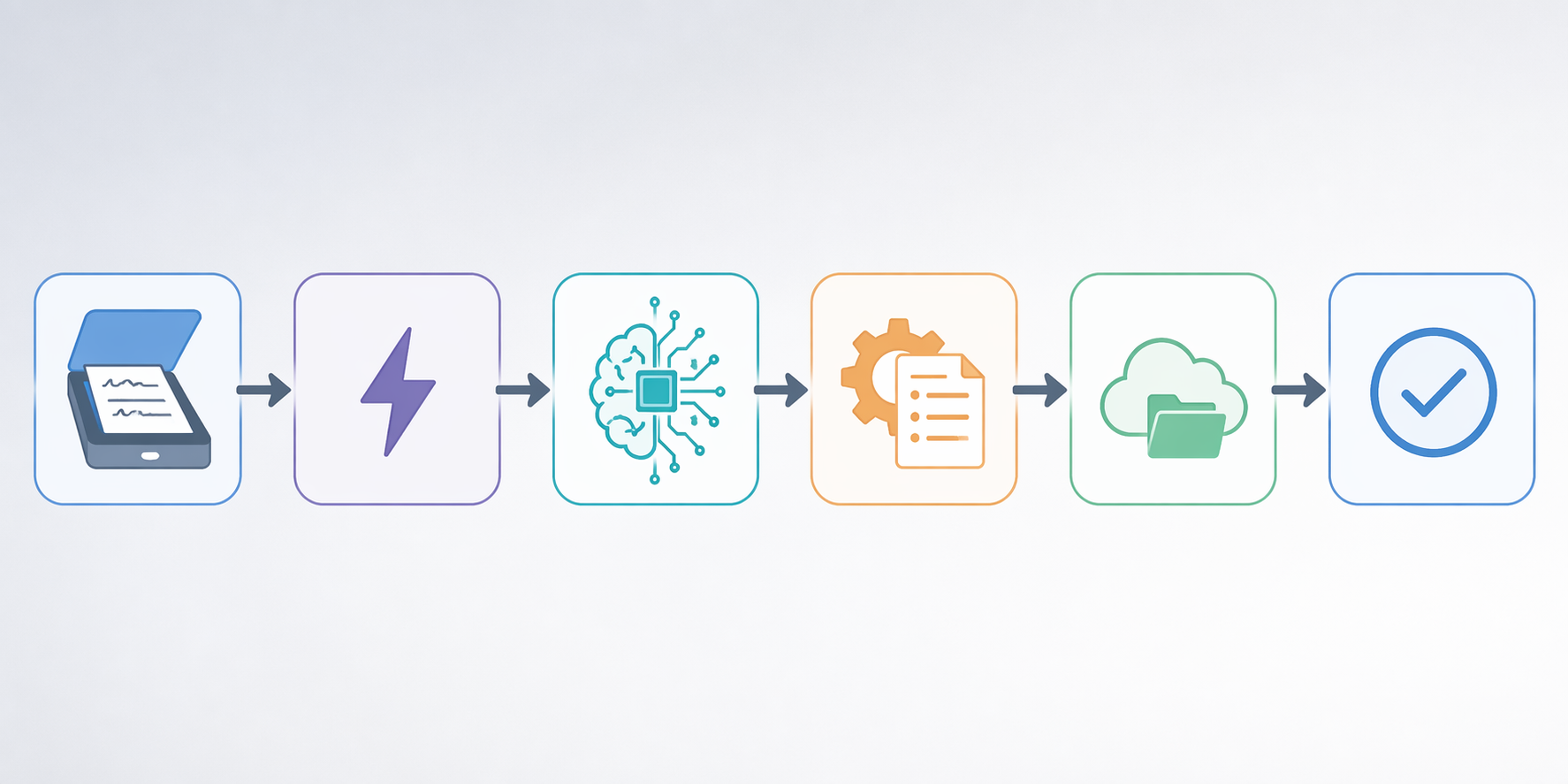
An AI pipeline is the escalation path, not the starting point. It makes sense when you regularly scan handwritten pages and want the transcription to land in a useful place without repeating the same upload, prompt, copy, paste, and formatting routine.
The strongest case for this method is volume. Thomas Frank’s 2026 workflow reports a practical cost range of about $0.005–$0.02 per page using Pipedream’s free tier of 300 runs per month plus the OpenAI API, which requires a $5 minimum credit.[5] In the same reporting, GPT-5 is cited at about 1.22% Character Error Rate on the IAM handwriting benchmark, while GPT-5-mini reaches about 1.52% CER at roughly one-fifth the cost, estimated around $2 per 1,000 pages.[5] Those benchmark figures are useful for direction, not promises: the IAM benchmark is not the same thing as a spiral notebook page with a coffee stain and a shadow down the gutter.
The pipeline, in working order
- Capture the scan. Use the same paper-note scanning rules: flat page, even light, clean crop, high-quality PDF or image. Automation will not rescue a bad capture reliably.
- Save the scan to a trigger location. This can be a cloud folder, an email attachment, or another input that your automation tool can watch.
- Create the automation trigger. In a service such as Pipedream, configure the workflow to start when a new scan appears in the chosen folder or inbox.
- Send the image or PDF page to the AI model. Use the API key for the model you choose, and start with a small test batch before routing every note through it.
- Give OCR-style instructions. Tell the model to transcribe the handwriting faithfully, preserve uncertain text with a marker, avoid summarizing unless asked, and format the result in Markdown.
- Choose the destination. Send the output to a Markdown file, Notion database, Google Doc, Obsidian vault, project-management task, or email draft—wherever the text will actually be used.
- Verify the result. Review the original scan beside the transcription, especially for names, numbers, deadlines, citations, and any sentence that would create work for someone else.
Prompting is not decoration here. Frank’s tested prompts estimate that instructing the model to behave like an OCR bot and return Markdown can reduce post-processing time by about 40–60%.[5] The point is to prevent the model from doing the helpful-but-wrong thing: summarizing, smoothing over uncertainty, or turning a rough bullet list into prose when you needed the original note.
You are an OCR transcription engine for handwritten notes.

Transcribe the handwriting in this image as accurately as possible.
- Do not summarize.
- Preserve the original order of headings, bullets, and paragraphs.
- Use Markdown formatting for headings, lists, checkboxes, and indentation when visible.
- If a word is unclear, write [unclear] rather than guessing.
- Preserve dates, names, numbers, and action items exactly as written.
- Do not add commentary before or after the transcription.
For recurring work, the destination is as important as the transcription. If every converted note lands in a downloads folder, you have only moved the mess. A useful pipeline sends lecture notes into the course folder, meeting notes into the client workspace, research notes into the reading database, and tasks into the task manager with enough context to act on them. Readers building this into a larger system may want the broader guide on how to build an AI productivity stack.
A quick build pattern
| Pipeline stage | Setup choice | Check before scaling |
|---|---|---|
| Scan capture | Apple Notes scanner, Adobe Scan, or another document scanner | Are pages flat, bright, cropped, and readable? |
| Trigger | New file in cloud folder or new email attachment | Does the workflow fire only for files you intend to process? |
| AI transcription | GPT-5 or GPT-5-mini through API access | Are you comfortable with paid API usage and current pricing? |
| Formatting | OCR-style Markdown prompt | Do headings, bullets, and checkboxes survive? |
| Destination | Markdown, Notion, Google Docs, Obsidian, task manager, or database | Will you know where to find the note later? |
| Verification | Manual review against the scan | Are names, dates, numbers, and commitments correct? |
This is not the right method for three pages you only need once. It asks for comfort with automation, API keys, billing limits, and error handling. It also depends on pricing that may change, so check current vendor pricing before treating any per-page estimate as fixed. The evidence available here also concerns English-language, Latin-script handwriting; performance on CJK, Arabic, Devanagari, and other scripts can differ substantially.
What to verify after conversion
The cleanup step is where a conversion workflow proves itself. Do not review every character with the same intensity. Review the parts that carry consequences.
- Names and proper nouns: people, companies, medications, authors, courses, and project names.
- Numbers: prices, dates, deadlines, room numbers, quantities, page references, and measurements.
- Action items: who owns the task, what verb starts the task, and whether the deadline survived.
- Headings and hierarchy: a correct paragraph in the wrong section is still a retrieval problem later.
- Ambiguous abbreviations: your own shorthand may be obvious today and useless in six weeks.
For study notes, the best destination may be a searchable notebook or spaced-repetition source. For work notes, it may be a project page with a short summary at the top and the full transcription below. For personal notebooks, it may be enough to keep the scan and attach a plain-text index. The conversion should remove a future search problem, not create a second archive you now have to maintain.
Pick the method by source, volume, and cleanup tolerance
If your handwriting starts on a tablet, use the app’s own conversion or search features first. You are already in the highest-leverage environment for neat printed handwriting, and exporting to a separate OCR workflow usually adds friction before it adds value.
If your notes are on paper, spend your effort on the scan before you spend it on software shopping. A clean 300+ DPI document scan gives any recognition tool a better chance, and cursive notes deserve dedicated handwriting OCR rather than ordinary text OCR.
If conversion is becoming a weekly routine, build the AI pipeline once and test it on real pages before trusting it with a whole archive. The low per-page cost is attractive, but the real gain is fewer repeated handoffs: scan, trigger, transcribe, format, file, verify.
For a lighter scenario-based overview, use the companion workflow guide to convert handwritten notes to text. If you want a tool-by-tool buying comparison instead of setup steps, use the 2026 guide to the best tools to convert handwritten notes to text.
References
- Apps That Convert Handwriting to Text (2026 Guide) — HandwritingOCR
- Best Free OCR for Handwriting: 2026 Comparison — HandwritingOCR
- Handwriting Recognition Benchmark: LLMs vs OCRs — AIMultiple
- Best Handwriting OCR 2026: GPT, Claude, Gemini and TrOCR Compared — CodesOTA
- The Best (and Cheapest) Way to Digitize Your Paper Notes with ChatGPT — Thomas Frank
Comments
Join the discussion with an anonymous comment.