
The best Samsung Galaxy Z Fold 8 productivity tips start with the least glamorous part of the day: leaving a meeting with too many loose ends. There is the audio recording, the half-written notes, the names attached to decisions, the follow-up email that should already be drafted, and the article someone mentioned that still needs checking. The Z Fold 8 becomes interesting when Galaxy AI 3.0 removes one of those handoffs before it turns into another tab, another app, or another subscription.
The six features worth using are not equally important. Transcript Assist and Note Assist carry the real workload because they cover the capture-to-cleanup loop. Live Translate and Interpreter Mode matter when language becomes the blocker. Circle to Search and Browsing Assist are faster research tools, useful when the task is to identify, verify, or summarize without breaking the thread.
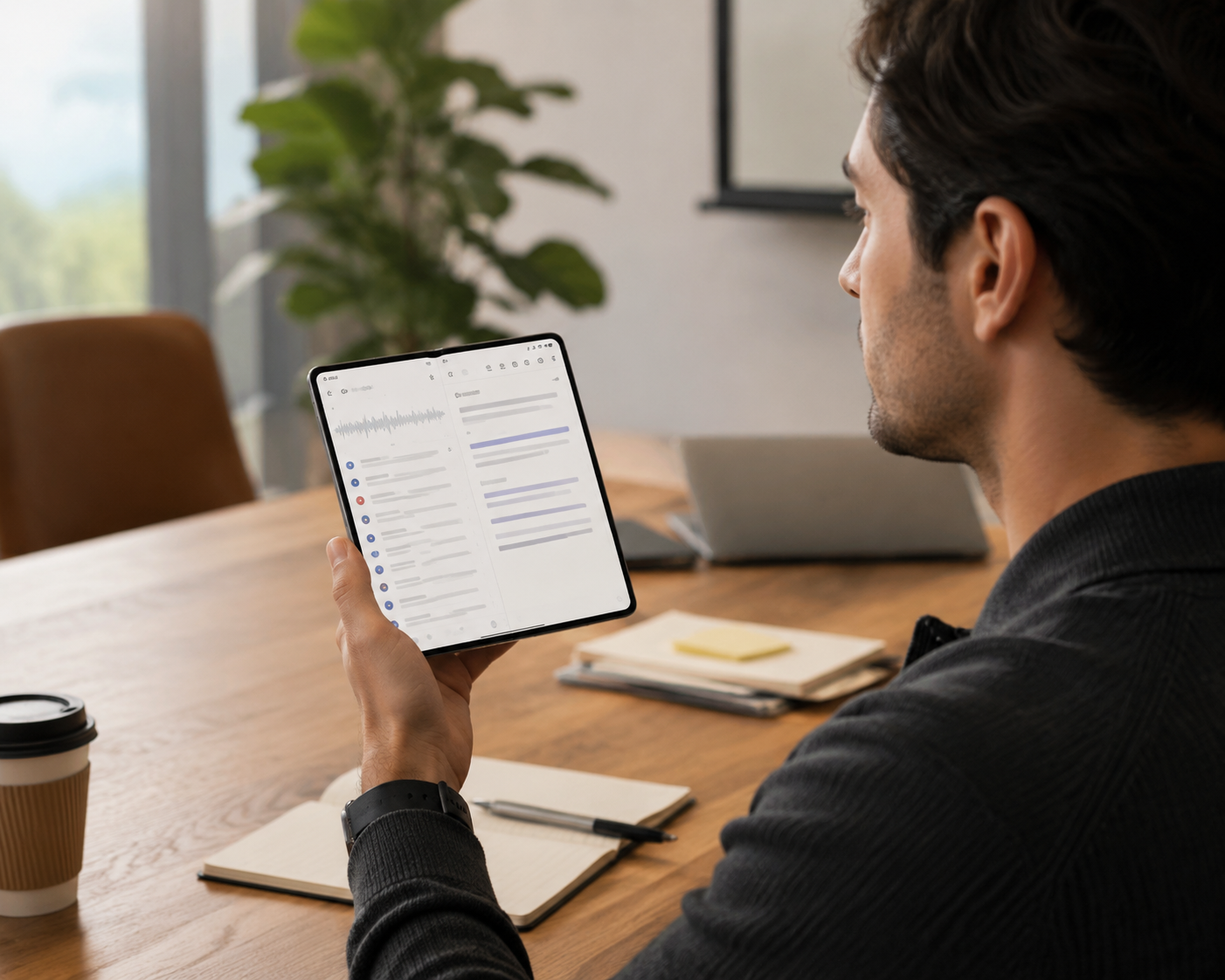
Start With the Meeting, Not the Feature Menu
In a normal meeting workflow, the failure point is rarely that nobody recorded anything. The failure is that everything lands in the wrong shape. A transcript may sit in a meeting tool. Quick notes may sit in Samsung Notes. Action items may live in chat. The useful version of the meeting record appears later, after someone has replayed, copied, pasted, corrected, and reorganized it.
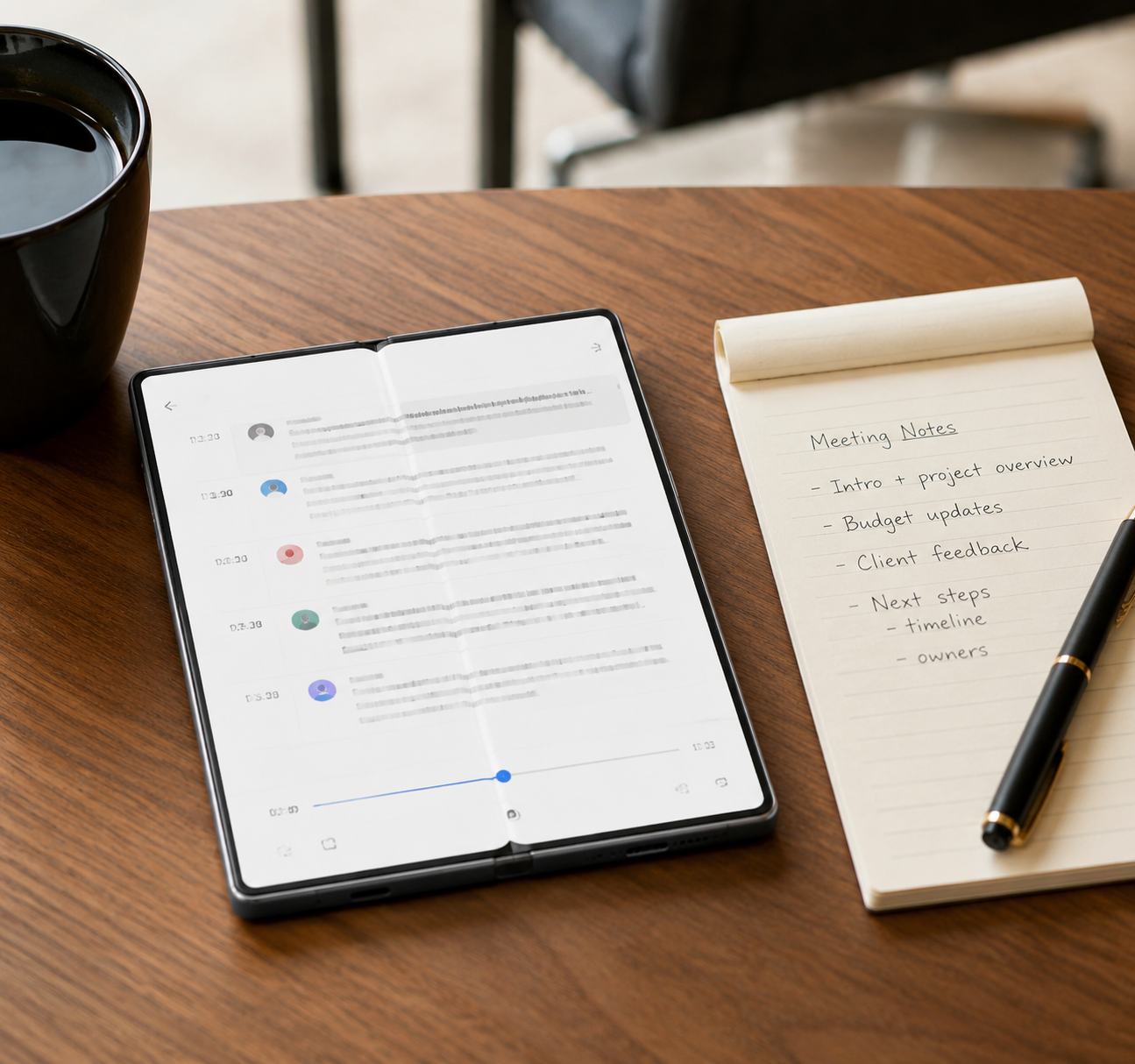
Transcript Assist is the first Galaxy AI 3.0 feature to turn on because it attacks that mess at the source. Samsung describes it as an on-device transcription workflow with speaker labels, available after a voice call without requiring a meeting bot to join the conversation.[1] Supreme Phone Parts’ May 2026 Galaxy AI guide also describes Transcript Assist as a Z Fold 8 productivity feature for on-device meeting capture and speaker identification.[2]
That matters more than it sounds. Standalone AI meeting note-takers can be powerful, but they usually add ceremony: invite the bot, grant access, manage another workspace, then decide which transcript is the source of truth. Built-in transcription changes the behavior. If the call is already happening on the phone, the capture stays there. The meeting does not acquire another participant just so the notes can exist.
A Practical Transcript Assist Workflow
- Take the call or meeting on the Z Fold 8 when the phone is already the natural capture device.
- Use the Samsung Keyboard mic workflow during the voice interaction where Transcript Assist is available.
- After the call, review the transcript with speaker labels before writing follow-up notes.
- Copy only the decisions, questions, and owner-specific commitments into the working note.
- Use the large inner display to keep the transcript and the draft follow-up visible enough to avoid constant backtracking.
The time saving is not a magical “hours back” claim. It is narrower and more believable: one fewer tool to configure, no bot-admission delay, no export step before cleanup, and less uncertainty about who said what. For the person responsible for minutes or follow-ups, that is the difference between cleaning the meeting while it is still fresh and postponing the decision record until later.
There are limits. Galaxy AI availability and language support vary by region, and on-device language handling applies to supported default language pairs; some pairs may require cloud support.[1][3] That does not weaken Transcript Assist for supported workflows, but it does mean teams should test their actual languages and regions before treating the phone as the only capture process.
Turn Rough Meeting Notes Into Something People Can Use
Transcription solves only half the meeting problem. A transcript is evidence; it is not yet a working record. The next step is Note Assist, which is most useful when the meeting note is messy because it was written during the conversation rather than polished afterward.
Samsung describes Note Assist as a Galaxy AI feature inside Samsung Notes that can summarize, format, and organize notes, including turning rough input into cleaner bullets and structured layouts.[1][3] On the Z Fold 8, that native placement matters. The note does not need to leave the app to become useful.
A good pattern is to keep the live note intentionally imperfect. Capture names, decisions, objections, dates, and unresolved questions. After the meeting, tap the Galaxy AI icon in Samsung Notes and use Summarize or auto-formatting to turn the raw material into a record someone else can scan. If the meeting type repeats, use templates so the structure is already waiting next time.
| Messy Input | Note Assist Cleanup | Useful Output |
|---|---|---|
| Fragments from a project check-in | Summarize into bullets | Decision list and open questions |
| Chronological notes from a client call | Auto-format by topic | Sections for scope, risks, owners, and next steps |
| Repeated weekly meeting notes | Apply a reusable structure | Consistent record that is easier to compare week to week |
The Fold format helps because cleanup is a review task, not just a typing task. On a narrow phone, you tend to inspect a few lines at a time. On the 7.7-inch inner display, more of the note remains visible while you compare the generated structure against what actually happened.[1] That makes it easier to catch the small but expensive errors: the wrong owner, a softened blocker, or a follow-up that looks complete but is still missing a dependency.
This is also where the built-in approach beats a scattered workflow. A third-party transcript can still be better for large team archives, admin controls, or cross-platform meeting intelligence. But if the job is to leave a call and produce a usable note quickly, Transcript Assist plus Note Assist removes the most common handoff: capture in one place, cleanup in another, final notes somewhere else.
Use Translation Where the Conversation Already Is
Language work splits into two different situations. Phone calls need audio translation without switching apps. In-person conversations need a shared surface that both people can read. Galaxy AI 3.0 handles those with Live Translate and Interpreter Mode, and the distinction is important.
Live Translate for Calls
Live Translate is the call workflow. Samsung’s Galaxy AI materials describe real-time voice translation for phone calls across more than 20 languages, with supported on-device processing for default language pairs.[3] The practical use is straightforward: make or receive the call, enable Live Translate, and let the translated audio play during the conversation rather than routing the call through a separate translation app.
For cross-language coordination, the saved step is not just opening fewer apps. It is preserving turn-taking. A call already has enough delay when two people are negotiating meaning. Moving the translation layer into the call interface reduces the chance that someone is waiting while the other person copies a phrase, repeats it into another tool, then returns to the conversation.
Interpreter Mode for the Table
Interpreter Mode is different because the hardware changes the interaction. Samsung’s foldable AI materials describe a split-screen interpreter experience where each participant can see their own side of the translation on the display.[1] On the Z Fold 8’s 7.7-inch inner screen, that arrangement is not a demo flourish. It gives the phone enough surface area to sit between two people instead of being passed back and forth like a cramped cue card.
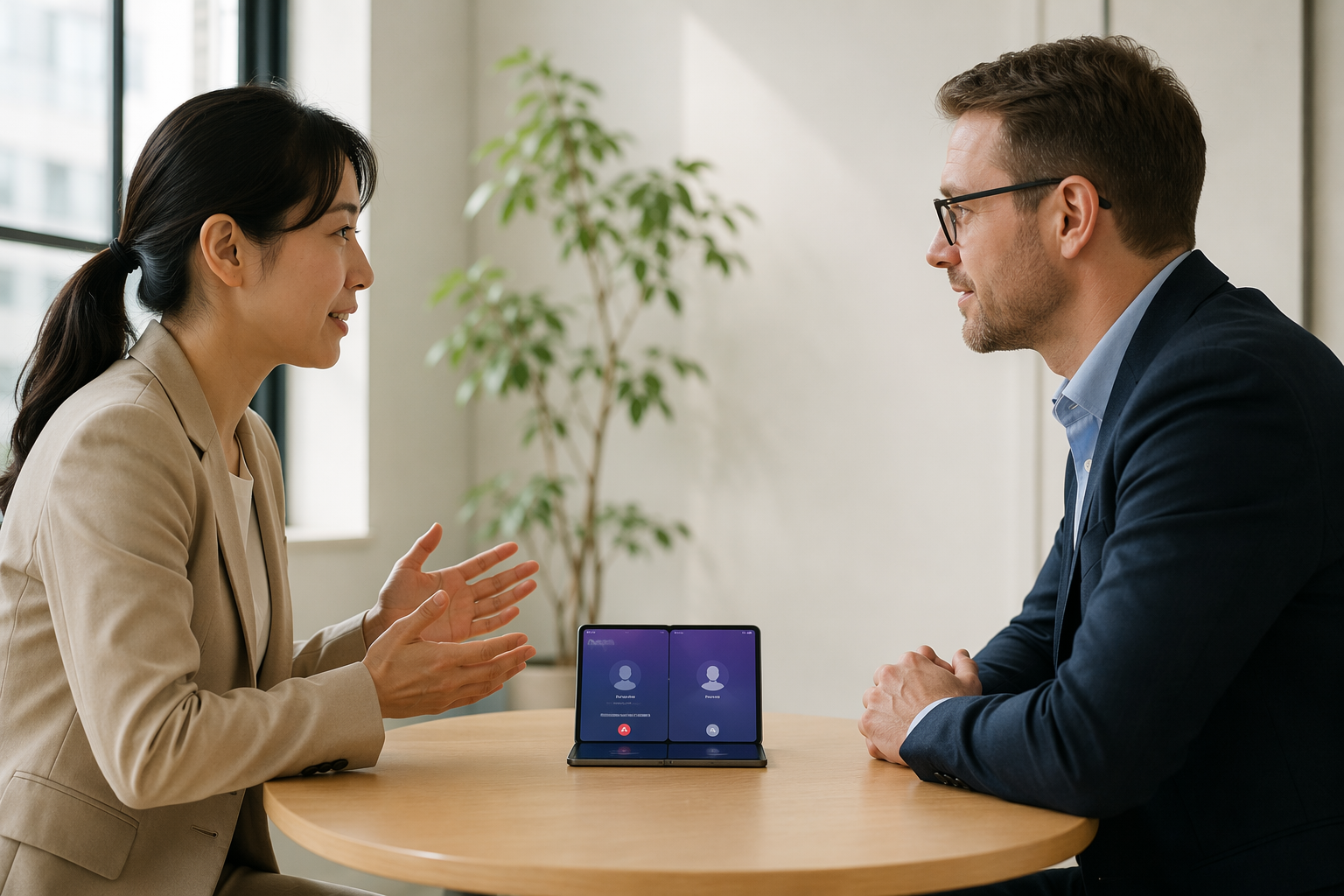
The best use is not a long, high-stakes negotiation where a professional interpreter should be present. It is the operational middle ground: clarifying a requirement, checking a delivery issue, helping a visiting colleague, or confirming a short sequence of next steps. In those moments, the large screen reduces the physical awkwardness of translation. Each person can look at the same device without crowding the same tiny pane.
The same caveat applies here as with transcription and call translation: language support is not universal, and some language pairs may need cloud processing instead of staying fully on-device.[1][3] If your work depends on a specific language pair, test that pair before relying on it in the field.
Research Without Breaking the Thread
After meetings and language work, the next productivity drain is research triage. Someone mentions a product, policy, competitor, chart, or phrase. You do not need a deep report yet. You need to identify the thing, decide whether it matters, and keep moving.
Circle to Search for Fast Identification
Circle to Search works across apps by letting the user long-press the home button and circle, highlight, or tap something on screen to search it without leaving the current context.[1][2] On the Z Fold 8, the larger inner display makes that less cramped. You can keep the original image, video, document, or chat visible while checking the result instead of mentally reconstructing what you were looking at.
Use it when the question is narrow: identify a product in a slide, check an unfamiliar term in a PDF, look up a company name from a screenshot, or investigate a visual reference in a video. It is not a replacement for careful source evaluation. It is a way to avoid turning a 20-second identification task into a five-tab detour.
Browsing Assist for First-Pass Reading
Browsing Assist is the web-reading companion. Samsung describes it as a Galaxy AI tool in Samsung Internet that can summarize long pages into a short set of key points.[1] The right use case is first-pass triage: open the article, tap the Galaxy AI icon, read the summary, then decide whether the full page deserves attention.
That is especially useful after a meeting, when the goal is not to become an expert on every source someone mentioned. If a dense article only needs to answer “is this relevant to our decision?”, a short summary can prevent unnecessary scrolling. If the article is central to the decision, read it fully. Summaries are a filter, not a substitute for the source.
Where the Z Fold 8 Actually Earns Its Keep
The strongest Z Fold 8 productivity setup is simple: use Transcript Assist to capture the meeting, Note Assist to clean the record, Live Translate or Interpreter Mode when language blocks the exchange, and Circle to Search or Browsing Assist when the follow-up research needs to move quickly. The features are most valuable when they stay inside the workflow that already exists.
As of mid-2026, the core Galaxy AI workflows described here remain available at no additional cost, but Samsung’s earlier public language around Galaxy AI pricing has not made indefinite free access something users should assume without checking current terms.[2][3] That matters for buyers comparing the Z Fold 8 with a cheaper phone plus paid AI services.
The other boundary is workload. Galaxy AI 3.0 can reduce switching, preserve context, and make the 7.7-inch screen feel like a working surface rather than a novelty. It does not replace a desktop for heavy writing, spreadsheet modeling, production research, or deep analysis. The practical buying conclusion is narrower and stronger: for knowledge workers who live in meetings, notes, translation, and rapid web triage, the Z Fold 8 is a real productivity machine when its native AI replaces light third-party tools and the small frictions that usually pile up after the call ends.
References
- When Foldables Meet AI, Samsung Mobile Press, August 2025.
- Galaxy AI 3.0 Guide, Supreme Phone Parts, May 2026.
- Galaxy AI, Samsung.