
The clean answer is: iOS 27 Call Context helps around note-taking, but it is not itself a note-taking feature. Its official job is to surface relevant context during business calls, using Apple Intelligence to bring up information from places like Mail and Messages while the call is happening.[1][2] That can be useful if a company calls about an order, appointment, reservation, or support thread. It does not mean the Phone app is now writing meeting notes, analyzing the call audio, or filing action items into Obsidian, Notion, GoodNotes, or Apple Notes.
For note-takers, the important question is not whether the call screen looks smarter. It is where the useful information lands afterward. On that narrower question, iOS 27 creates three separate paths into notes: Messages suggestion buttons, call recordings and transcripts stored in Apple Notes, and Siri AI note creation. They are adjacent routes, not one automatic call-to-note pipeline.
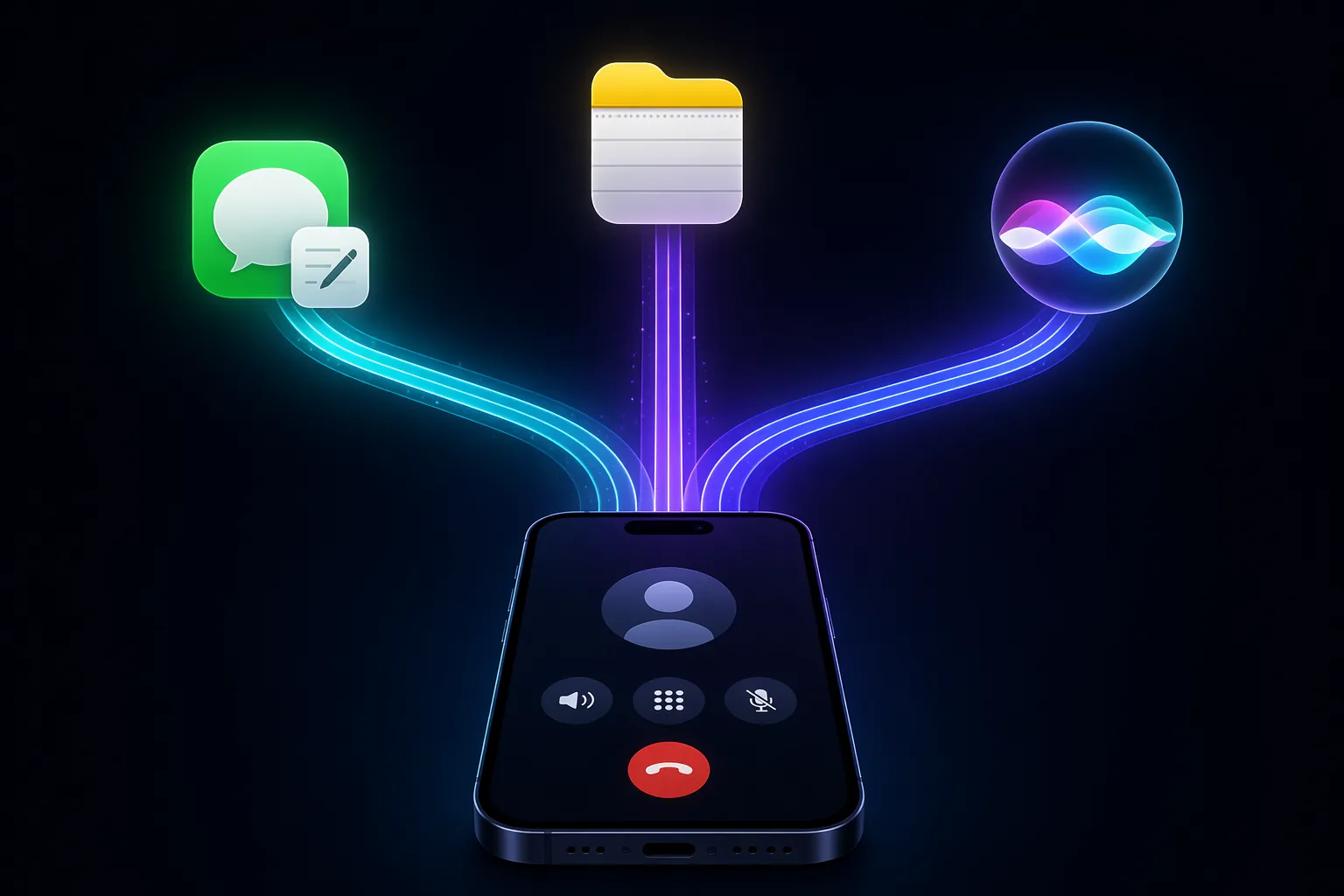
What Call Context Actually Does
Apple introduced Call Context at WWDC26 as part of its Apple Intelligence updates. The feature is meant to give you timely reference material during a business call, rather than leaving you to search Mail while someone is already talking.[1] Apple’s broader Apple Intelligence materials also frame these experiences around on-device intelligence and personal context, with availability limited to iPhone 15 Pro or later among iPhones.[2]
That hardware line matters. If you have an iPhone 15, iPhone 14, iPhone 13, iPhone 12, iPhone 11, or an older model, this is not a small footnote in a feature comparison. It may decide whether the feature exists for you at all. A note setup that depends on Call Context is therefore an Apple Intelligence setup first, and only then a note-taking setup.
The easiest mistake is to describe Call Context as if it takes notes from calls. The materials do not support that. Call Context can surface related information during a call. It can make a call easier to understand in the moment. But the note object—the thing you can search, edit, share, export, or connect to a project—has to come from somewhere else.
| Path | What Triggers It | Where It Lands | What Remains Manual |
|---|---|---|---|
| Messages suggestion buttons | A relevant Messages conversation that produces a contextual suggestion | Apple Notes, when the user taps Add to Notes | The user still chooses whether to save it and where to use it afterward |
| Call recording and transcript | A recorded phone call, where call recording and transcription are available | Apple Notes, in the Call Recordings folder | Reviewing, editing, moving, tagging, or exporting the transcript |
| Siri AI note creation | A spoken or typed Siri request using available context | A new or existing note, depending on the request | Checking accuracy and connecting the note to the rest of the system |
Path One: Messages Can Offer an Add to Notes Button
The most visually obvious bridge from iOS 27 Call Context into note-taking is not inside the call screen. It is in Messages. Apple’s Apple Intelligence page shows an iOS Messages conversation with one-tap suggestions, including “Add to Notes” and “Add to Reminders.”[2]
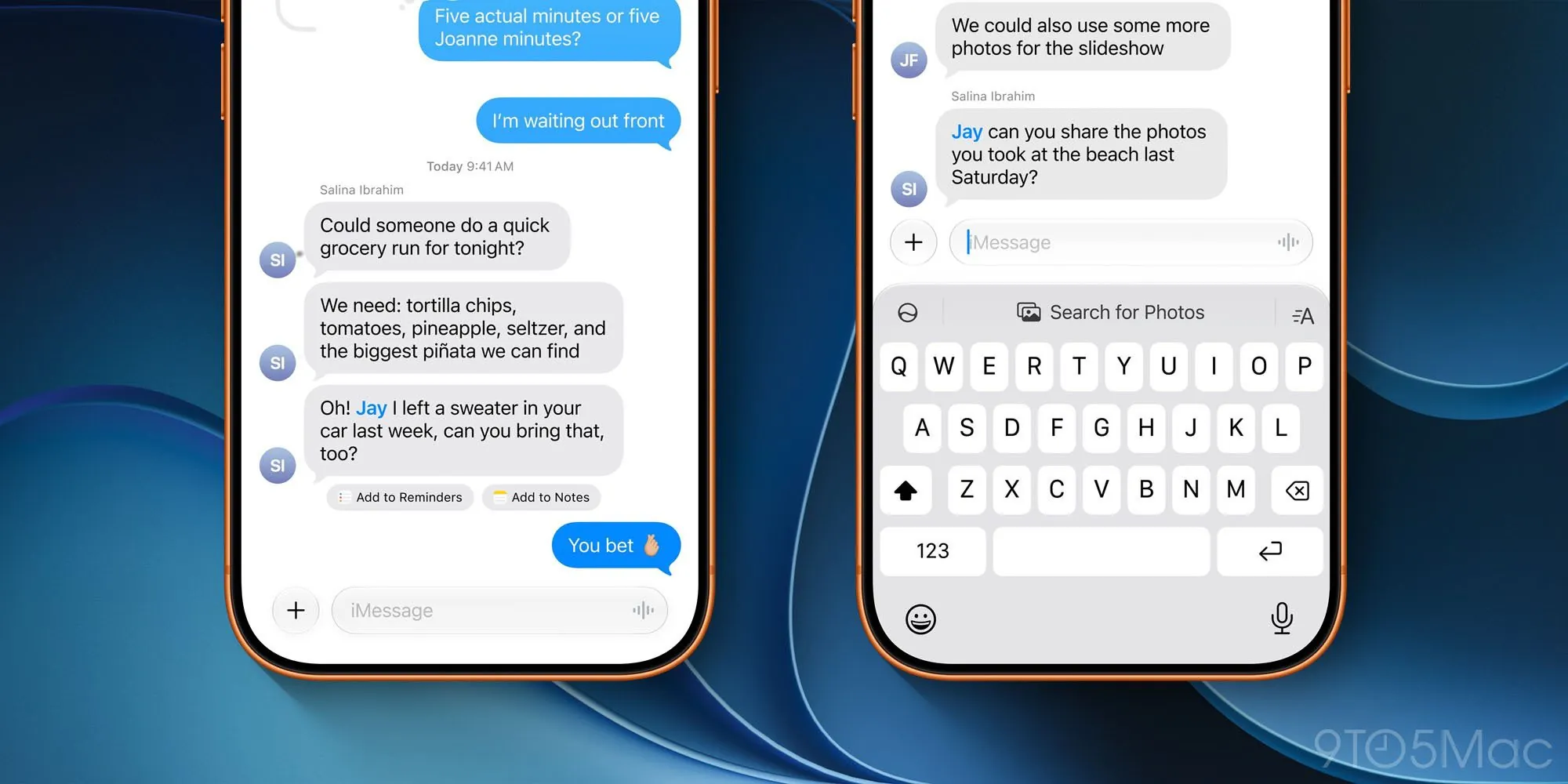
For a note-taking workflow, that distinction is useful and limiting at the same time. The suggestion is based on conversation text, not on call audio. If a business sends details in Messages before or after a call, the system may give you a shortcut to capture that information into Notes. If the useful information was only spoken during the call, this button is not the mechanism that captures it.
The trigger behavior is still under-documented. Apple has shown the button, but the public materials do not fully explain which message patterns produce it, how configurable it is, or how consistently it appears across real conversations. That makes it a promising capture surface, not a dependable filing rule.
The practical use is simple: if Messages has the durable detail—an address, appointment, confirmation, quote, or follow-up instruction—the “Add to Notes” button can reduce the copy-paste step. It still creates another Apple Notes object that someone has to review. If your real system is Notion, Obsidian, Logseq, or a shared team workspace, the button does not magically route the item there.
Path Two: Recorded Calls Become Apple Notes Transcripts
The most concrete call-to-note path is call recording. Apple’s support documentation says recorded calls and their transcriptions are saved in the Notes app, specifically in the Call Recordings folder.[3] This is the closest thing Apple currently offers to an end-to-end destination for call information.
This path is not new only because of Call Context. Call recording and transcription arrived earlier, with Apple’s support materials covering the record-and-transcribe flow in iOS.[3] What matters for iOS 27 note-takers is how this older Notes destination now sits beside the newer Apple Intelligence call features. If Call Context helps you understand why someone is calling, and call recording captures what was said, Apple Notes becomes the place where the after-call artifact lives.
That artifact has real value. A transcript in Notes is searchable, editable, and visible alongside the rest of an Apple Notes library. It gives the call a durable object after the call ends. For an Apple Notes user who mostly wants a record of client calls, appointment changes, support conversations, or vendor instructions, this is the cleanest path.
It is also the most ecosystem-bound path. The transcript lands in Apple Notes, not in a folder of Markdown files and not in a Notion database. If you want it elsewhere, the work moves to the next step: export, copy, share, summarize, or manually refile. That is not a failure of the feature, but it is the difference between capture and workflow completion.
Availability also deserves a plain reading. Apple notes that call recording and transcription availability varies by region and language.[3] So even before choosing a notes app, users have to check whether the recording and transcript layer is available where they live and in the language they use.
Path Three: Siri Can Create or Update Notes
The third route is Siri. In hands-on testing with the iOS 27 beta, 9to5Mac reported that Siri could create new notes and add information to existing notes, including an example where Siri reformatted text and saved it to a note.[4] That matters because it moves note creation closer to the moment when the information is still fresh.
This should not be stretched into a claim that Siri listens to every call and files structured notes automatically. The supported claim is narrower: with Apple Intelligence enabled on eligible hardware, Siri can handle note-related requests more capably than before. You can ask it to create a note, add information to an existing note, or reshape supplied text into something more usable, based on the behavior 9to5Mac tested.[4]
In practice, Siri is best understood as the bridge you deliberately invoke. After a call, you might ask it to save the next step to a note. After reviewing a transcript, you might ask it to add a cleaned-up action list to an existing client note. The user still supplies the intent. Siri is not the filing policy.
What This Means for Different Note Systems
Apple Notes users get the least friction. Messages suggestions can save items into Notes. Recorded call transcripts already land in Notes. Siri can create and update notes. If your projects, folders, and review habits are already there, iOS 27 reduces the distance between a call and a usable note.
Obsidian, Logseq, and other local Markdown users get capture assistance, not native routing. A transcript in Apple Notes can still be useful raw material, especially if you review it shortly after the call. But it is not automatically a Markdown file in your vault. The workflow still needs a transfer step, and that transfer step is where many notes quietly stop moving.
Notion users are in a similar position, with an added team-context wrinkle. If the real source of truth is a shared database, CRM-like project page, or team wiki, Apple Notes becomes an intermediate inbox. That can be fine if someone processes it. It becomes a problem if everyone assumes the phone captured the note and nobody moves it into the workspace where the team actually looks.
GoodNotes users should be even more selective. A lecture, coaching session, or handwriting-heavy workflow is not automatically improved by Call Context. The feature is aimed at contextual business calls, while GoodNotes value usually lives in pen input, PDFs, slides, and study review. A call transcript can still be reference material, but it is not the center of that system.
Third-Party Integration Is Still the Missing Piece
Apple has not presented Call Context as a third-party note app routing layer. Frame Sixty’s developer analysis describes deeper Call Context metadata support for third-party apps as a medium-term addition rather than something shipping in the iOS 27 beta.[5] That is a developer-facing interpretation, not Apple’s own promise, but it matches the current shape of the feature: Apple surfaces context; Apple Notes receives the most complete note artifacts.
That leaves a practical boundary. If your app already supports Share Sheet actions, Shortcuts, import, or manual paste, you may be able to build a workable bridge. But the bridge is yours. Call Context does not currently decide that a customer call belongs in a Notion database, an Obsidian daily note, a Logseq page, or a GoodNotes notebook.
The Sensible Way to Use It
If you have an eligible iPhone and already live in Apple Notes, iOS 27 can make call-related capture meaningfully less tedious. Let Call Context help during the call. Use recording and transcription when you need a durable record and when it is available in your region and language. Use Siri when you want to turn fresh context into a note without opening the app.
If you use another note system, treat Apple Notes as a capture inbox rather than the final home. Decide in advance which call notes deserve to be moved, and where they go. Otherwise, the new convenience creates exactly the kind of hidden pile that note systems are supposed to prevent.
For note-takers, the careful answer is this: Call Context is not a note app and not a universal automation layer for call notes. But on iPhone 15 Pro or later, inside Apple’s ecosystem, iOS 27 creates three real ways for call information to become notes with less copy-paste than before.
References
- Apple Intelligence brings powerful AI capabilities into everyday experiences, Apple Newsroom, June 8, 2026
- Apple Intelligence, Apple
- Record and transcribe a call on iPhone, Apple Support
- iOS 27 adds new Phone app feature that’s an instant favorite, 9to5Mac, July 24, 2026
- Develop app iOS, Frame Sixty