
Verified August 26, 2026: yes, ChatGPT’s Google Drive plugin can support note editing in specific conditions. No, it is not a note organization system. The important change is the August 13, 2026 Google Drive in Library update: on eligible paid web plans, users can browse Drive files and folders from ChatGPT, add them to a chat without re-uploading, keep Google Docs, Sheets, and Slides open beside the conversation, work across a selected folder, and save supported edits back to source files when authorized.[1] PCMag, a Ziff Davis publication whose parent has an active lawsuit against OpenAI, separately confirmed the same side-by-side edit-and-save workflow in its August 2026 coverage; the official release notes remain the primary source for the capability claim.[2]
That distinction matters if your “notes” are not a tidy notebook but a Drive swamp: meeting notes in Docs, article drafts in folders, exported PDFs, a spreadsheet of interview details, and a few half-finished research files with names like “final-final-notes.” ChatGPT can now sit closer to those files than it could before. It can help read them, draft against them, and, in the Library workflow, save certain edits back into the original Google files. It still does not maintain a durable note archive, watch folders, impose a taxonomy, resolve duplicates, or behave like a notes database.
The August 2026 Library workflow is the real edit-back story
Before this update, “ChatGPT plus Google Drive” mostly meant selecting or syncing files so ChatGPT could use them as context. That was useful for summarizing a document or asking questions across a set of files, but it left a familiar gap: after ChatGPT drafted an edit, you still had to copy the result back into the original Doc, Sheet, or Slide deck yourself.
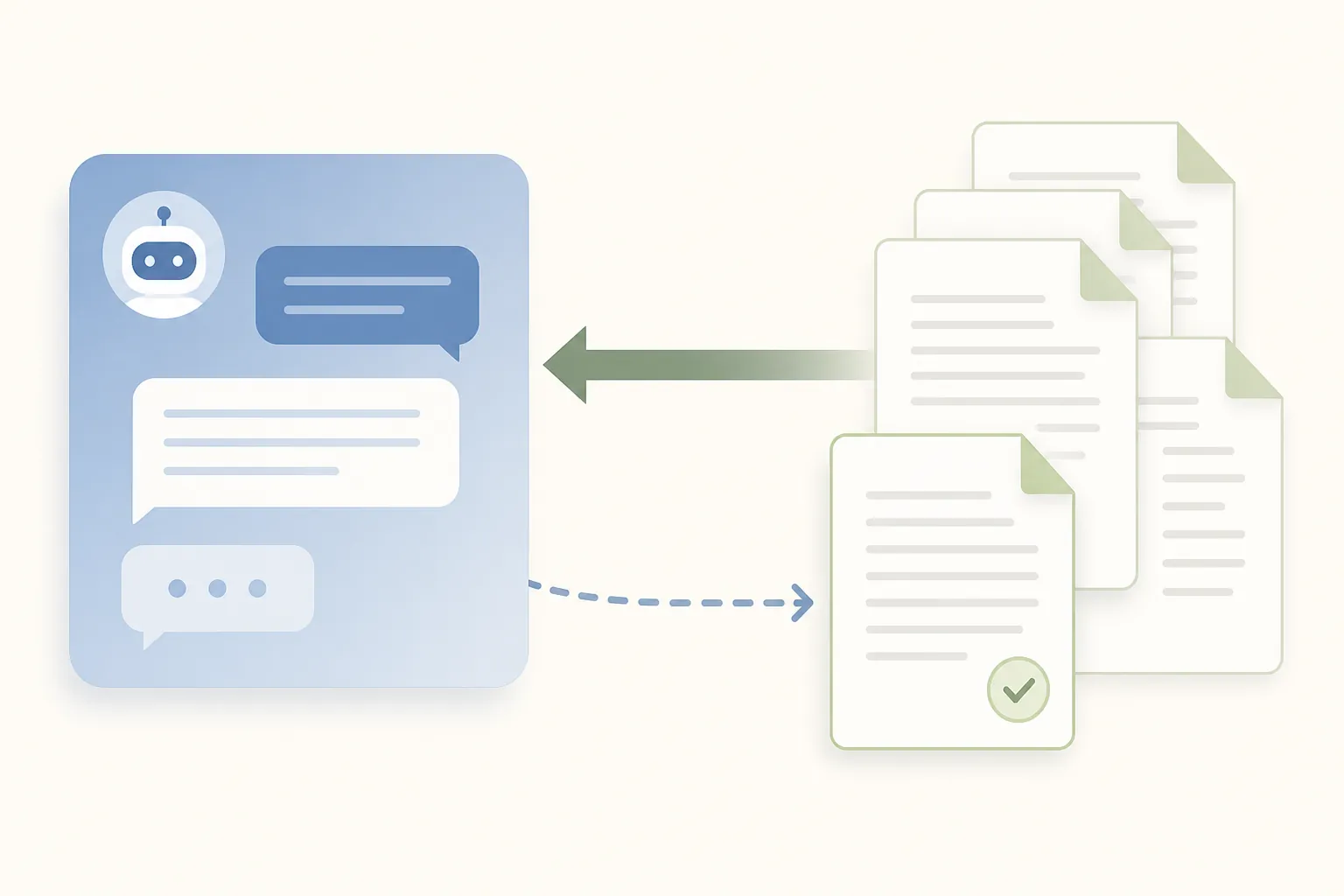
Library changes that in a narrow but meaningful way. On the web, eligible paid users can open Google Drive from ChatGPT’s Library, browse files and folders, attach them to chats through the composer or @mentions, and keep supported Google files visible beside the conversation. If you are working with a Google Doc, Sheet, or Slide and the action is supported and authorized, ChatGPT can update the source file directly rather than leaving you with a pasted suggestion.[1]
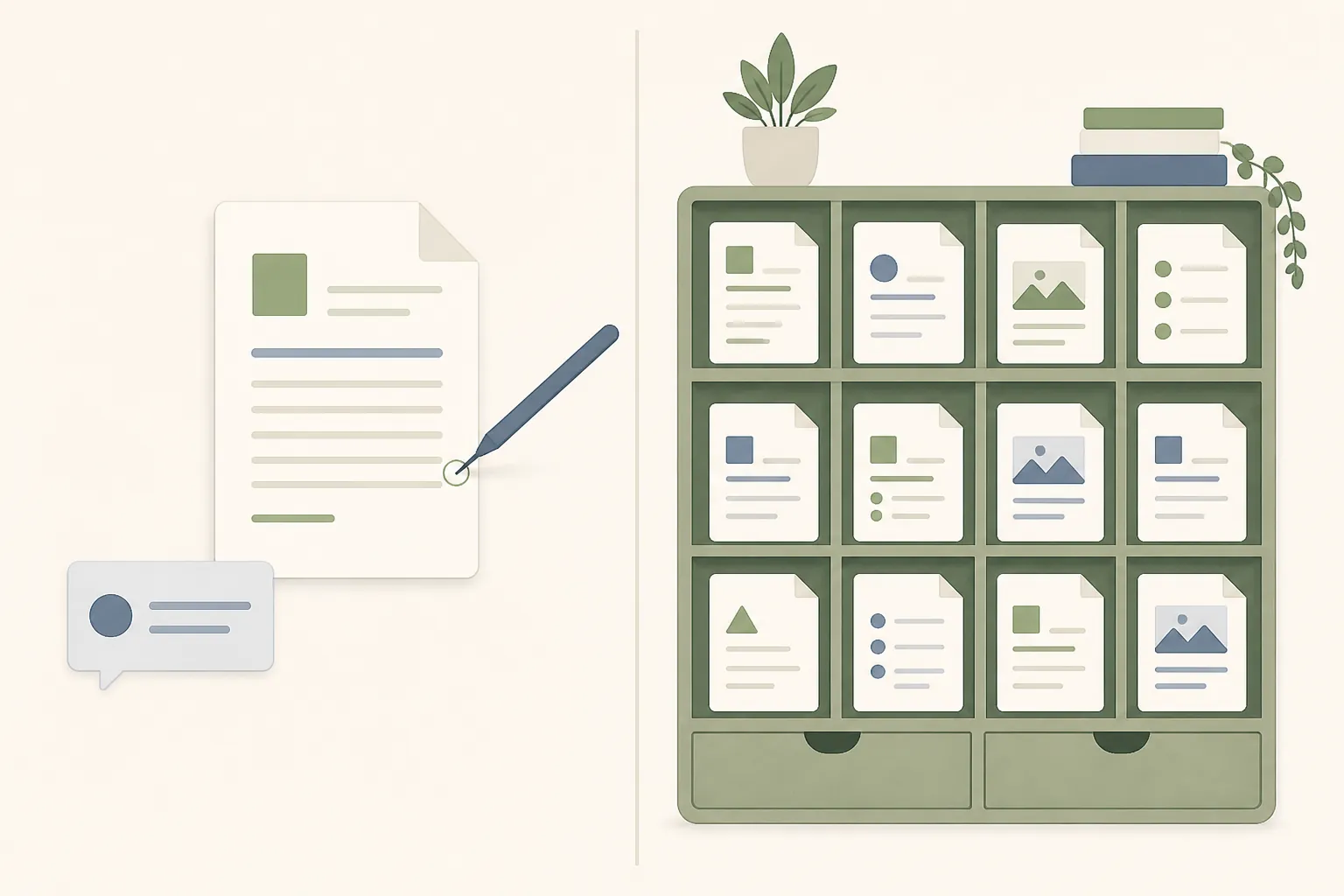
For note editing, that is the part to care about. A Doc of meeting notes can stay open while you ask ChatGPT to tighten the summary, turn decisions into action items, or rewrite a messy section into a cleaner handoff. A Sheet that tracks research sources can be discussed in the same workspace where the file is visible. A Slides file can be reviewed beside the chat instead of treated as a detached upload. The improvement is not that ChatGPT suddenly “understands your whole Drive.” The improvement is that one of the most annoying seams — moving from AI suggestion back to the file of record — is smaller.
The folder part is also easy to overread. Working across a selected folder means ChatGPT can use that chosen folder’s contents as context in the Library workflow. It does not mean ChatGPT is continuously monitoring that folder, automatically filing new notes, or enforcing a knowledge-management structure while you are away. If you add a folder full of notes and ask for a synthesis, that is a prompted reading task. If you expect an always-on librarian, you are asking for something this feature is not documented to be.
Most contradictions disappear once you name the surface
The confusing part is that “Google Drive plugin” now points to several related but different surfaces inside ChatGPT. OpenAI’s own naming has moved over time, with Connectors, Apps, Plugins, Library, Projects, and sync documentation all showing up in search results. The history only matters because an older article may be correct for the surface it tested and still wrong for the Library workflow available in August 2026.
| Surface | What it is useful for | Write-back status for notes | Practical blocker |
|---|---|---|---|
| Standard Google Drive plugin connection | Connecting Drive so ChatGPT can find and use selected Drive content in chat | Read-first; write capabilities depend on the current app surface and authorized actions | Easy to confuse with Library edit-back |
| Google Drive in Library | Browsing Drive files and folders, adding them to chats, keeping Docs/Sheets/Slides beside the conversation | Supported Docs, Sheets, and Slides edits can be saved back to the source file when authorized | Web-only at rollout; Shared Drives were not included in the initial Library experience; mobile editing was listed as to follow |
| Apps with sync | Indexing Google Drive content so ChatGPT can retrieve it as context over time | Primarily a synced retrieval layer; not the same thing as Library side-by-side editing | Eligibility and admin setup vary by plan and workspace controls |
| Projects file picker | Adding Drive files into a ChatGPT Project as context | Reported as read-only in MindStudio’s testing | Useful for context, not source-file editing |
The August 13 Library rollout applies on the web for Plus, Pro, Enterprise, Edu, Healthcare, and Business users, with mobile support described as coming later. Shared Drives were not part of the initial Library experience.[1] The standard plugin connection is available across Plus, Pro, Business, Enterprise, Edu, and Healthcare, while the apps-with-sync documentation is a different lane: OpenAI describes Enterprise and Edu paths with admin and EKM controls, and the Google Drive sync setup documentation also describes Pro self-service setup.[3][4]
That is why blanket advice like “the plugin can edit Drive files” or “the connector is read-only” is too blunt. MindStudio’s testing of the Projects file-picker connection found read-only behavior, while OpenAI’s later Drive app and Library materials document write actions and source-file updates in supported circumstances.[1][5] Both statements can be true if they are describing different surfaces.
A compressed timeline helps explain the stale search results. OpenAI added Drive file access in data analysis on May 16, 2024, expanded connector-style access in 2025, introduced an app directory on December 18, 2025, unified Docs, Sheets, and Slides under the Google Drive app on March 25, 2026, added write actions and expanded authorization requirements on June 15, 2026, moved toward a Plugin Directory and ChatGPT Work language on July 9, 2026, and then shipped Google Drive in Library on August 13, 2026.[1] If a guide was written before that last date, it probably does not reflect the edit-back workflow readers are asking about now.
What it can read is broader than what it can safely edit
For note work, readable file support is the generous-looking side of the feature. Independent writeups and testing describe support for Google Docs, Sheets, Slides, PDFs, .docx, .txt, CSV, XLSX, and PPT-style files.[5][6][7] That covers a lot of real note clutter: meeting Docs, exported white papers, spreadsheet trackers, slide decks from workshops, and text files that were never cleaned up into a formal system.
The weak spots are where a Drive archive usually gets ugly. Image-heavy files and OCR-dependent documents can behave inconsistently; audio and video are not readable as note text in the materials reviewed; complex spreadsheets may lose formula logic when treated as context; and long, dense documents can be partially read or truncated by context-window limits.[5][6][7] In practice, the failure mode is not always a dramatic error message. It may be a summary that quietly ignores a scanned appendix, misses a buried section, or treats a spreadsheet as rows of data without the business logic encoded in its formulas.
Markdown deserves a separate note because it is the kind of small format detail that matters to hybrid note-takers. An April 2025 OpenAI Developer Community response said .md support was expected within days, but that is not enough to state current .md behavior as a verified August 2026 fact without retesting the live product.[8] If your actual notes live in Markdown files inside Drive, verify the current behavior on your own account before treating the plugin as a dependable Markdown layer.
Editing also narrows the field. The clearest documented source-file edit-back is for Google Docs, Sheets, and Slides in the Library workflow.[1] A PDF may be useful reading context. A .docx may be useful input. A folder of exports may be useful for synthesis. None of that automatically means every format can be modified in place and saved back as the authoritative source file.
Sync is helpful, but it is not the same as folder monitoring
OpenAI’s Google Drive sync setup documentation describes an initial indexing step followed by continuous refresh. It also says partial sync may surface roughly the most recent 30 days of content while indexing continues, and that full indexing can take hours to a few days for large accounts.[4] That is exactly the sort of limit a user notices only after asking a confident question about an older note and getting a thin answer.
For a working Drive, that delay is not a footnote. If you connect a large account and immediately ask ChatGPT to summarize “all planning notes from last year,” the result may depend on what has been indexed, what has been selected, what your permissions allow, and which surface you are using. A synced retrieval layer can make Drive feel searchable from chat, but it is still bounded by indexing state and retrieval behavior.
Disconnect behavior is also part of the trust profile. OpenAI’s data controls FAQ says disconnecting the Google app removes the indexed copy within 30 days.[9] That is useful to know if you are testing the integration with sensitive folders, but it also underlines that ChatGPT is building an index for retrieval. It is not simply peeking into Drive at the exact moment of each prompt.
Permissions are broad enough to deserve admin attention
For individual users, the permission screen can feel like a hurdle between “I want this summary” and “please just connect already.” For a team admin, it is the whole story. OpenAI’s data controls FAQ lists read-oriented Google Drive scopes such as drive.readonly, drive.metadata.readonly, and drive.activity.readonly, along with broader Drive scopes for create, update, share, move, upload, copy, and delete actions, plus Docs, Sheets, and Slides scopes.[9] Those scopes explain why the newer workflow can save changes, but they also explain why a workspace should review the integration before encouraging casual use.
OpenAI states that it does not train generalized models directly on synced Google data, with exceptions around feedback, manually pasted or uploaded content, and content that appears in a ChatGPT response. The same FAQ says Memory may use synced content and can be turned off.[9] That is not the same as saying “nothing from Drive can ever influence anything in ChatGPT.” It is a more specific data-control statement, and users should read it at that level of specificity.
Security researchers have pushed on a different concern: what broad cloud-drive authorization can expose if a chat assistant is tricked, misused, or connected too casually. Nudge Security frames integrations with Google Drive and Microsoft OneDrive as risky because of the breadth of access that can be granted, including shared-drive exposure in their security reading.[10] OpenAI’s official position is narrower: users can discover content they already have permission to access, and workspace admins can approve or block scopes.[9] Those are not identical claims, and it is better to keep them separated than to smooth them into a false certainty.
Prompt-injection risk belongs in the same bucket of concerns. A Drive-connected assistant is not just reading pristine notes that you wrote yourself; it may also encounter shared documents, pasted meeting transcripts, vendor PDFs, or files created by other people. AgentFlayer zero-click prompt-injection research presented at Black Hat 2025 is one documented example in this risk category; OpenAI has described mitigations, but the practical response is still boring and necessary: connect the least risky account you can, avoid broad shared folders unless you need them, review admin controls, and do not treat AI-generated edits to source files as exempt from human review.[11]
Can it organize notes?
Only in the prompt-driven sense. ChatGPT can help impose order on selected material: summarize a folder, extract decisions from meeting notes, propose tags, draft a cleaner version of a Doc, turn rough notes into an outline, or help identify duplicates if the relevant files are available as context. With Library edit-back, it can go one step further for supported Google files and save certain edits to the source file.
That is still different from organization as a system property. A notes system has durable structure: notebooks or folders with rules, stable links, metadata, review habits, search behavior you understand, and some expectation that new material lands in the right place. The Google Drive plugin does not create that layer for you. It does not automatically monitor a Drive folder, trigger cleanup when a new file appears, or maintain an independent notes database with its own structure.
The practical boundary is the file of record. If that file is a Google Doc, Sheet, or Slide, the Library workflow can now reduce copy-paste friction. If the file of record is a folder hierarchy, a Markdown vault, a Notion workspace, or an Evernote archive, the Drive plugin may still help with selected files, but it is not replacing that system.
Readers comparing this with other AI note approaches may want the adjacent context in NotebookLM vs ChatGPT for note-taking, the broader Google note-taking apps profile, or our comparison of the best AI note-taking apps. Those are better places to weigh capture tools and dedicated note systems. This profile is narrower: what the official ChatGPT-Google Drive connection can do as of this date.
The dated verdict
Use ChatGPT’s Google Drive plugin for note editing if your working notes are already in Google Docs, Sheets, or Slides, you are on an eligible paid plan, you are using the web Library workflow, and you want a chat assistant that can read selected files, draft changes, and save supported edits back to the source file when authorized.
Do not use it as your note organization system if you need automatic folder monitoring, trigger-based cleanup, mobile edit-back today, Shared Drives inside Library, dependable handling of every note format, or a database-like archive with its own durable structure. The August 2026 update makes the integration genuinely more useful. It does not turn Drive plus ChatGPT into a notes app.
References
- ChatGPT Release Notes, OpenAI.
- ChatGPT’s Google Drive Plugin Now Lets You Edit, Save Files Directly From, PCMag, August 2026.
- ChatGPT apps with sync, OpenAI.
- Google Drive sync setup, OpenAI.
- Connect Google Drive to ChatGPT Projects for Dynamic Context, MindStudio.
- ChatGPT Google Drive Integration, usecarly.
- ChatGPT Connector, eesel.
- Internal Knowledge Google Drive integration support of textfiles markdown with .md extension, OpenAI Developer Community, April 24, 2025.
- Google App for ChatGPT – Data Controls FAQ, OpenAI.
- The hidden dangers of ChatGPT’s integrations with Google Drive and Microsoft OneDrive, Nudge Security.
- AgentFlayer zero-click prompt-injection research, Black Hat 2025.